Fax letters
Pre-op clearance, records requests and other letters to the patient's other doctors: opened addressed from the Care team, filled in with your usual choices, signed and faxed in one click, and followed until delivered.
Fax letters
Pre-op clearance, records requests and other letters to the patient's other doctors: opened addressed from the Care team, filled in with your usual choices, signed and faxed in one click, and followed until delivered.
Letters to outside providers, signed and faxed in one step
Sending the patient’s primary care provider (PCP) a pre-surgical clearance request before an operation, requesting records from another practice, or sending a consultation report back to the doctor who referred the patient: each used to mean writing a letter, printing it, signing it and feeding it to a fax machine. Fax letters do it in one window. Pick a letter, and it opens already addressed to the right doctor from the patient’s Care team, with their fax number filled in. Answer the few questions that are specific to this patient, check the preview, and press Sign & fax. Hero signs the letter with your saved signature, files it with the visit and faxes it, then shows the fax going from Sending to Delivered.
Hero comes with six letters:
- Pre-surgical clearance, to the patient’s primary care provider: an evaluation before surgery. You name the procedure (the only required answer), the date, surgeon, facility and anesthesia, and tick what you need back: the clearance and risk assessment, a recent history and physical, medication list, blood thinner, diabetes and GLP-1 instructions, ECG, labs, chest X-ray, a cardiology evaluation. A one-page response form is attached for the doctor to tick, sign and fax back.
- Cardiac clearance, to the patient’s cardiologist (the PCP if there is none on the Care team): a preoperative cardiac risk assessment, the latest office note, ECG, echo and stress test, a plan for anticoagulant and antiplatelet therapy, and pacemaker or ICD instructions. It has the same response form.
- Medical records request, to the PCP or the referring provider: notes, lists, results, imaging, consultation, hospital, operative, immunization, pathology and cardiac records for a date range (the last 12 months to all dates, or specific dates), with the reason and, if you want, a line citing HIPAA’s treatment exception.
- Lab & test results, to the primary care provider: either Send recent results or Please order these tests, for a list you tick (CBC, metabolic panel, lipids, A1c, TSH and more) or type.
- Care coordination update, to the primary care provider: what you saw the patient for, your assessment, medication changes, the plan, and anything you would like the PCP to do.
- Consultation report, to the provider who referred the patient: a thank-you for the referral with your findings, recommendations and who follows the patient from here.
Where to start one
- From the visit: Encounter Completion →
Communications→Fax a letter. The letter is filed with that visit. Communications keeps working after the note is signed, so you can send a clearance request days later. - From the chart: Patient Information →
Faxes(11.13). Click a letter and it opens filed with the patient’s latest visit. - From a doctor: press
Faxon an outside doctor’s card, in the visit’s Communications or on the chart’s Care team, and pick a letter under Write a letter to …. The letter opens addressed to that doctor.
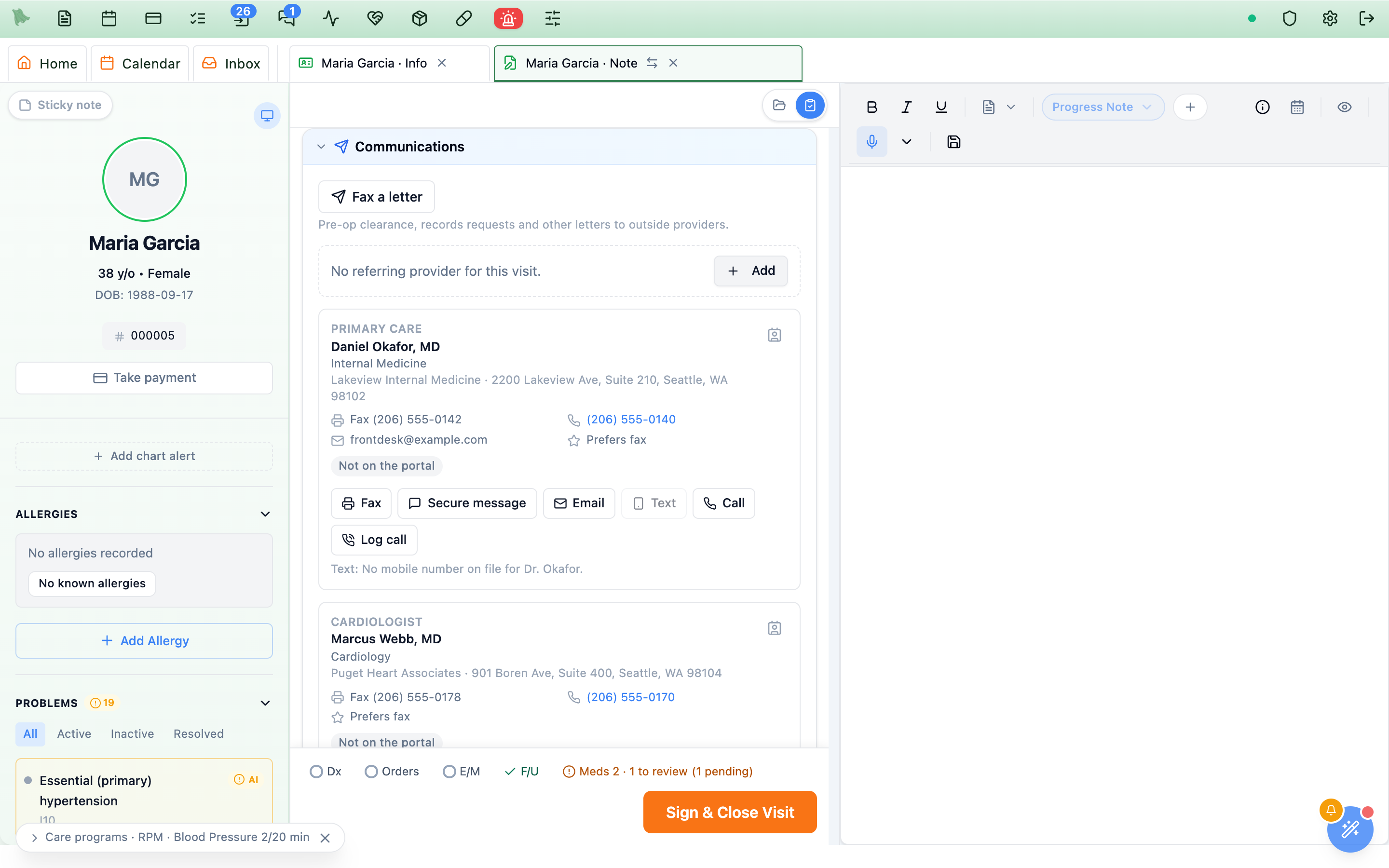
Fax a letter sits at the top, and the letters faxed from this visit are listed under it.Forms & Letters holds what the patient receives: work and school notes, FMLA and disability forms, letters for their portal. A fax letter goes to another doctor, so it lives with the visit’s other outside-provider communication. If you choose to share one with the patient, it also appears in Forms & Letters (11.12).Only a provider can sign and fax a letter, and only when the practice has a fax service (Hero Fax or SRFax). Staff can see every fax letter and its delivery status, and the Faxes section tells them “A provider signs and faxes these letters.”
Pick a letter; it arrives addressed
Fax a letter opens on What are you sending?: one card per letter, each saying who it will go to, for example To Daniel Okafor, MD. The letters you send most often move to the front with a Recent badge.
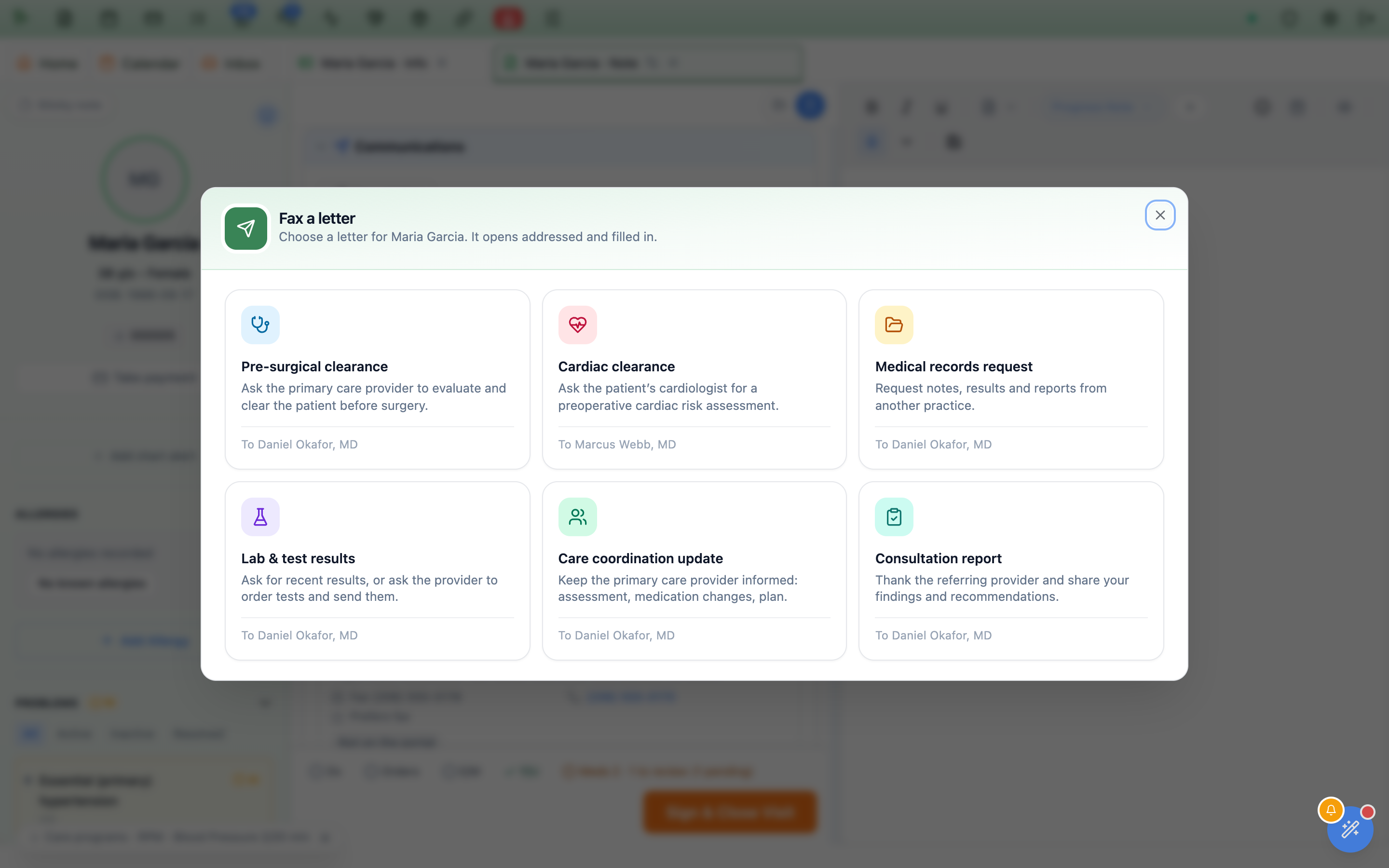
Hero chooses the recipient from the patient’s Care team (13.18): the primary PCP for a clearance, update or results request; the cardiologist for a cardiac clearance; the visit’s referring provider for a consultation report. If that role is empty it falls back to the PCP, then the referring provider, then whoever is on the Care team. To send it to someone else, press Change next to the recipient and pick another Care team member, or Find another provider… to search your practice’s provider list or the national provider registry. A doctor found this way is added to your list. For a one-off, choose Type a fax number and enter the name and number.
No fax number on file?
The recipient shows No fax number on file. Add it here. Type the number in Fax number. A checkbox, ticked for you, offers to Save this number to … in your provider list, so the next letter to that doctor is addressed without typing. If you correct a number that was already on file, the same box reads Update …’s fax number in your provider list.
Answer a few questions; watch the letter write itself
The letter opens in two panes: the questions on the left and the letter on the right, as it will print on your letterhead. Every answer appears in the preview as you type. On a phone, Details and Preview tabs switch between them.
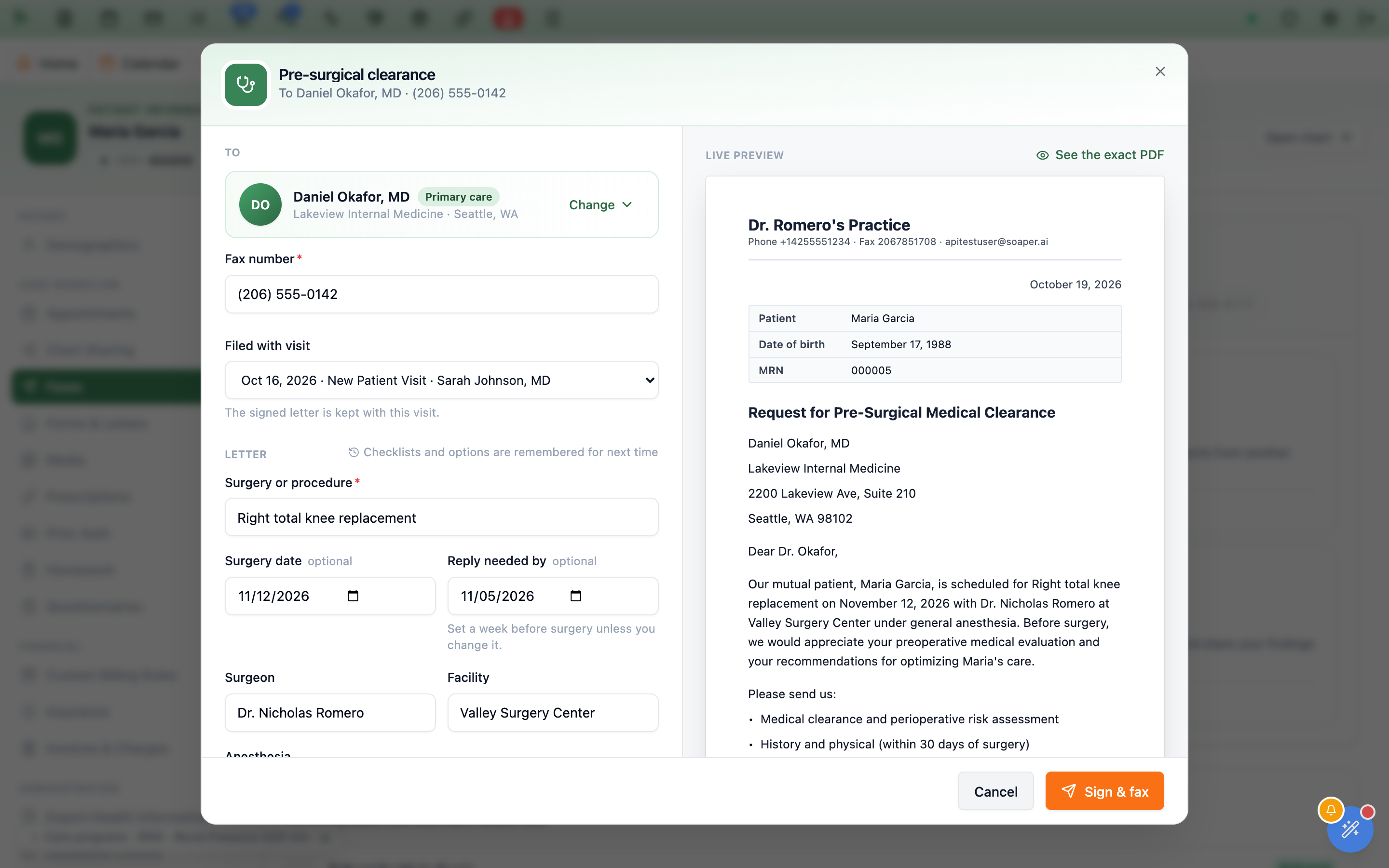
- Only what Hero can’t know is asked. The patient’s name and date of birth, today’s date, your practice and your name are filled in. A pre-surgical clearance needs just the procedure; everything else is optional.
- Dates help. For a clearance,
Reply needed byis set a week before the surgery date unless you change it, and dates print in long form, such as November 3, 2026. - Your usual choices come back. Checklists, choices such as anesthesia, and your surgeon and facility are remembered for next time (the composer says Checklists and options are remembered for next time). The patient’s details are never remembered.
- The response form. With
Include a response formon, clearance letters carry a separate last page for the doctor to tick (for example “Medically optimized; may proceed with the planned procedure”, “May proceed with the recommendations below” or “Not optimized at this time”), write recommendations on, sign and fax back to your reply number. The preview shows it as a second sheet. - The exact PDF. The paper preview is a close likeness. To see the real thing, the PDF that will be faxed, press
See the exact PDF;Back to live previewreturns.
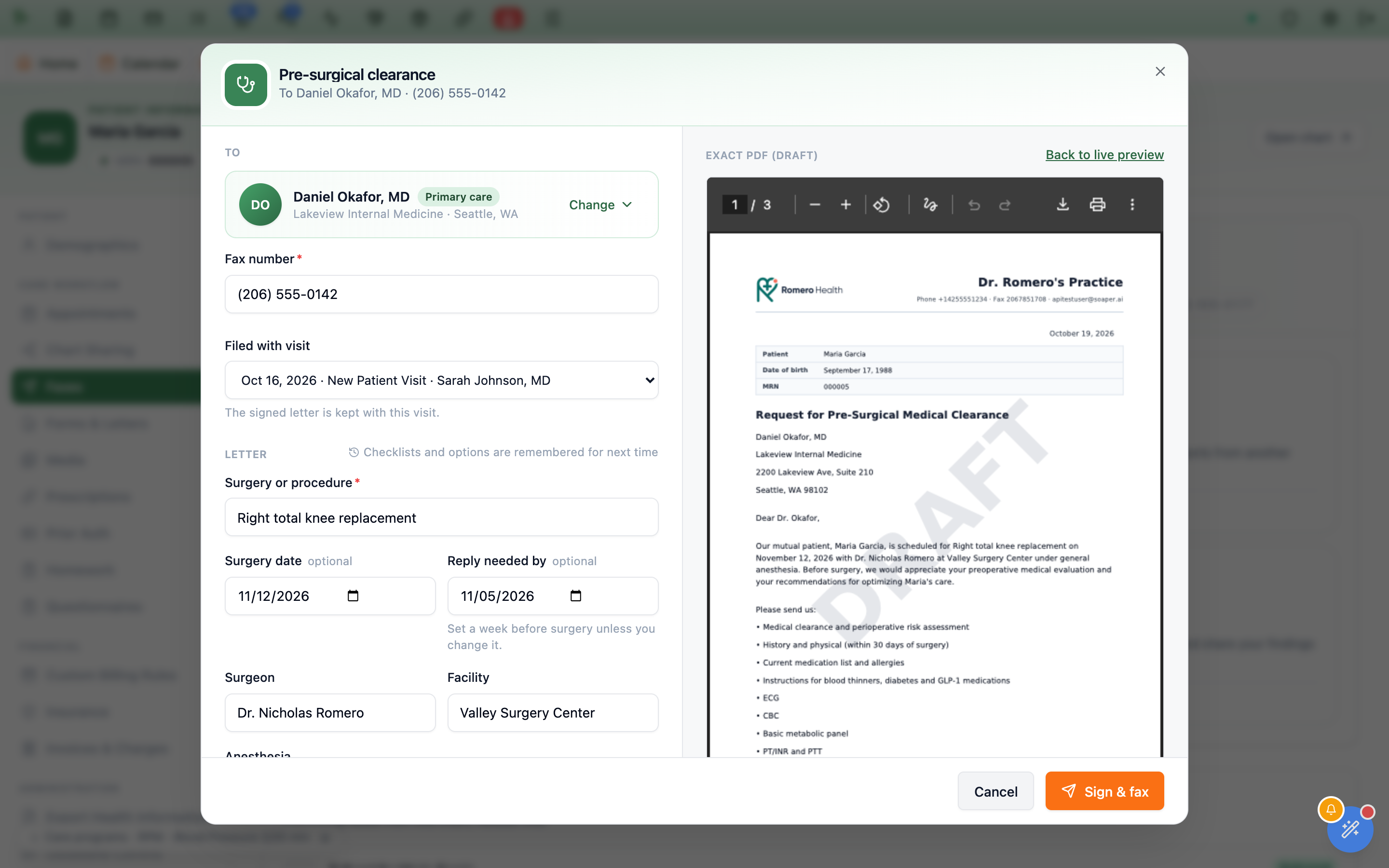
See the exact PDF: the document that will be faxed, marked DRAFT until you sign it. The response form is the last page.When the letter is opened from Patient Information or a doctor’s card, a Filed with visit list chooses which visit keeps the signed letter. It starts on the latest visit that has taken place, skipping portal-message and refill threads.
One click: signed, filed, faxed
Under Sending, check three things. All three are remembered for your next letter:
Cover page: a cover sheet Attn: the recipient, with the subject and your reply number. On by default.Share with the patient: off by default. While it’s off, the signed letter is Filed in the chart for your team only. Turn it on and The signed letter also appears in their portal, and in the visit’s Forms & Letters.Replies come back to: the fax number printed in the letter and on the response form. It starts with the fax number on your letterhead (or your Hero Fax line), and a number you type is remembered for this practice. The line beneath says which line the fax Sends from. If the practice has both Hero Fax and SRFax, you can choose the service.
Press Sign & fax. The button reads Signing…, then Faxing…, then the window shows the fax’s progress: Your fax is on its way, then Delivered. You can close it at any point; the fax keeps going and its status shows wherever the letter is listed.
- A saved signature is required. Without one, Hero says You need a saved signature before signing letters. Add one under Settings → Profile, then press Sign & fax again. Nothing is signed or sent.
- Signed is final. As with any letter, a signed fax letter can be viewed, printed and faxed again, but not edited. Once signing starts, the recipient and the visit are locked so the fax always matches the signed letter.
- A fax that fails doesn’t lose the letter. If the line is busy or the number is wrong, Hero says The letter is signed and filed, but the fax didn’t go out, with the reason. Fix the number if needed and press
Try again: it sends the same signed letter again, never a second signed copy and never a duplicate fax.
Where the letter and its fax show up
On the visit
Under Communications, each fax letter is listed with its delivery line (“Faxed to Daniel Okafor, MD · (555) 555-0142”, “Faxing to …” or “Fax to … failed”), a View button for the signed PDF and a Fax button to send it again, prefilled with the last number. The fax also appears in Sent and received (13.29).
On the chart
Patient Information → Faxes (under Care workflow) shows the patient’s Care team with each doctor’s fax number (or no fax), the six letters, and Sent faxes: Everything faxed from this chart, newest first, with live status (Queued, Sending, Delivered, Failed).
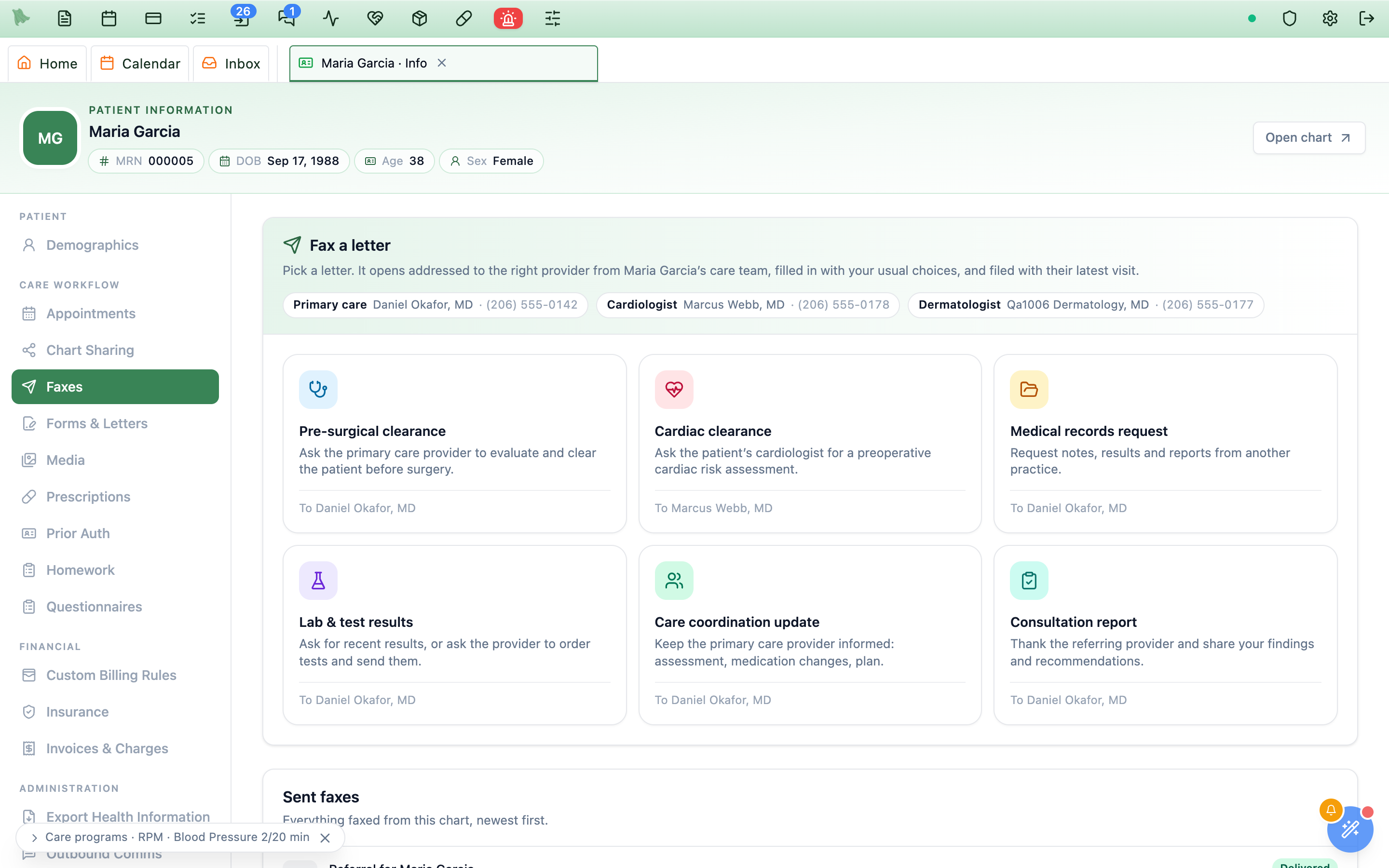
The Faxes item appears when the practice has a fax service, for providers and for staff who can view patients. Staff see the letters and the fax history; only providers can start a letter.
Inbox → Faxes like any other fax (11.1); file it to the patient’s chart there before the pre-op visit.When Sign & fax is greyed out
The line above the button says what is missing:
| Message | What to do |
|---|---|
| Add the surgery or procedure. (or another required answer) | Fill in the field named. |
| Choose who receives it. | Pick a recipient, find a provider, or choose Type a fax number. |
| Enter a 10-digit fax number. | Type the recipient’s US fax number, area code first. |
| Choose a visit. / This patient has no visits to file the letter with. | A signed letter is always kept with a visit. Pick one, or create the visit first. |
| Fax isn’t set up for this practice. | An administrator connects Hero Fax or SRFax (11.6). |
| A provider signs fax letters. | Ask a provider to sign and send it. |
- I don’t see
Fax a letter. It shows for providers when the practice has a fax service. In Encounter Completion it is inCommunications, not in Forms & Letters. - The letter opened addressed to the wrong doctor. Check the patient’s Care team: the PCP marked primary is used first. Change the recipient in the letter; Hero remembers the doctor only through the Care team, never through the letter.
- Closing with unsent answers asks Discard unsaved changes? first. Nothing is signed or kept until you press
Sign & fax.
Need help? Email support@heroemr.com.