Scheduling setup
Configure a physician's calendar foundations: where they work, when, what they offer, and recurring patterns. Everything here is scoped to one physician — pick the right physician first.
Scheduling setup
Configure a physician's calendar foundations: where they work, when, what they offer, and recurring patterns. Everything here is scoped to one physician — pick the right physician first.
Get to the Schedule Manager
Every scheduling setting lives in one place: the Schedule Manager. Open Admin > Scheduling. It opens on your own provider profile when you are a provider; administrators, office managers and staff who manage schedule templates pick the provider with the Physician picker at the top. The picker disappears on the organization-wide sections, because those settings are not tied to one calendar.
The sidebar has four groups. You see only the sections your account can use:
| Group | Sections | Who sees them |
|---|---|---|
| Schedule (one provider) | Locations, Weekly Schedule, Templates, Time Off, Visit Config | Providers (their own) and administrators. Staff with permission to manage schedule templates see Locations, Weekly Schedule, Templates and Time Off for any provider, and Visit Config needs permission to manage providers. |
| Organization (whole practice) | Practice visit types, Org Timezone, Minors, Website Holds, Online Booking Alerts, Visit Readiness Alerts, Online Booking Checks (when turned on), Follow-up Buttons, Resources (when turned on) | Practice administrators, the owner and office managers who manage practice settings. Practice visit types is also open to staff who manage providers. |
| Reminders | Patient Notifications, Paperwork Reminders, Event Notifications | Practice administrators and office managers. |
| Automation | Waitlist, Visit Policies, Treatment Series | Practice administrators and office managers; Treatment Series also for staff who manage schedule templates. |
Staff with none of these permissions see “You don’t have access to the Schedule Manager. Provider schedules, templates, time off and visit settings are managed by providers, practice administrators and office managers.”
Add and associate practice locations
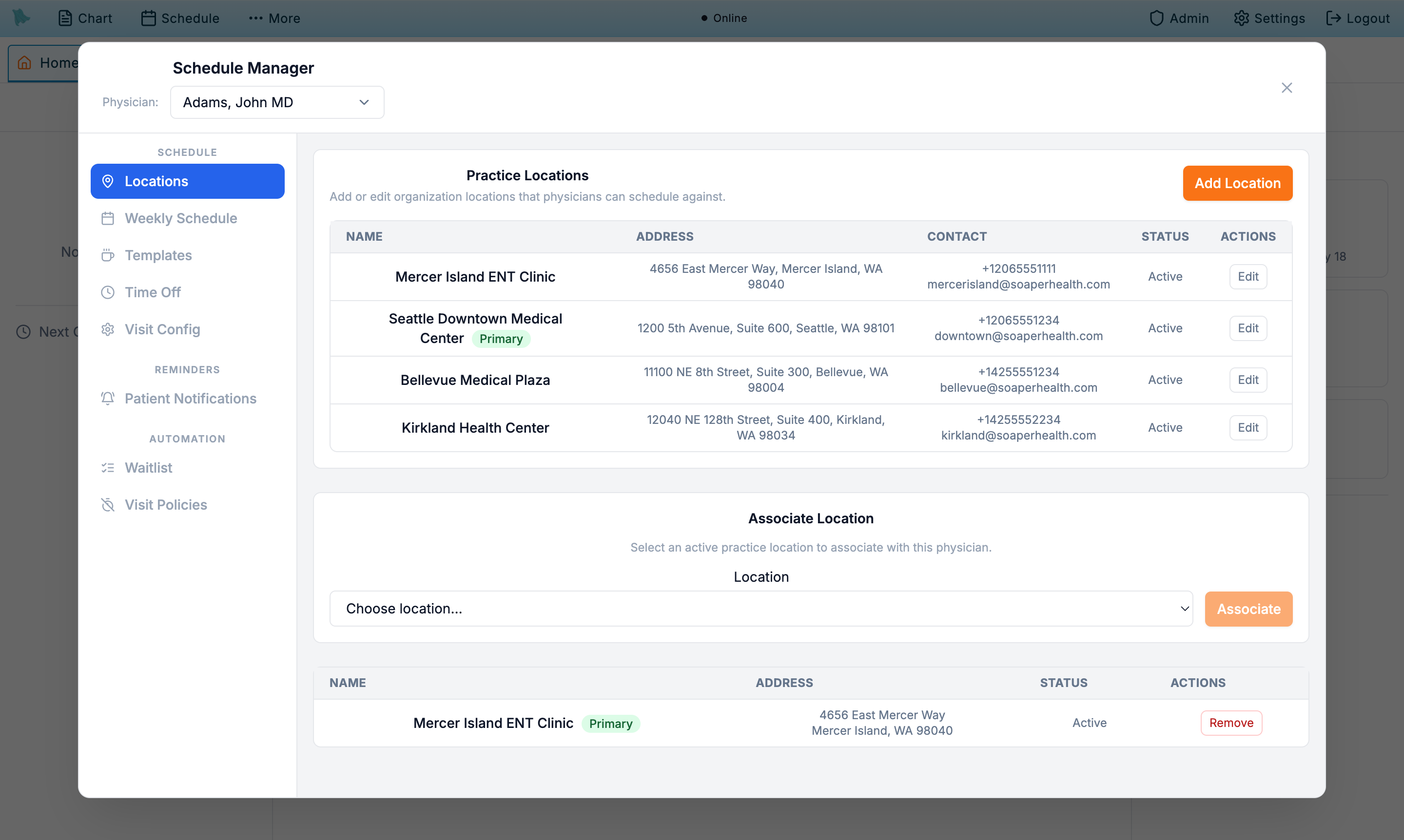
A physician can only be scheduled at locations that are part of the organization and explicitly associated with their calendar. The first physician on a new organization typically also creates the practice's primary location.
-
Open the
Locationstab. The top half shows the organization's practice locations; the bottom half shows the locations associated with the selected physician. -
Add organization locations (admins).
Click
Add Locationand fill the form.Location Name,Phone,Address Line 1,City,State, andZIP Codeare required;Address Line 2,Fax,Office Email,Facility NPI, andStatusare optional. Tick Set as primary practice location for the organization's main site, then clickAdd Practice Location. -
Associate a location with the physician.
In the Associate Location section, pick an active location from the dropdown and click
Associate. -
Set the physician's primary location.
On the physician's associated-locations table, click
Set Primaryon the row they normally work from. This is a separate setting from the organization's Set as primary practice location checkbox — that one marks the practice's main site, this one marks the default for this physician. -
Remove a location if it no longer applies.
Use
Removeon the associated locations table. Existing appointments are not deleted, but new appointments cannot be booked at that location.
Set the weekly schedule
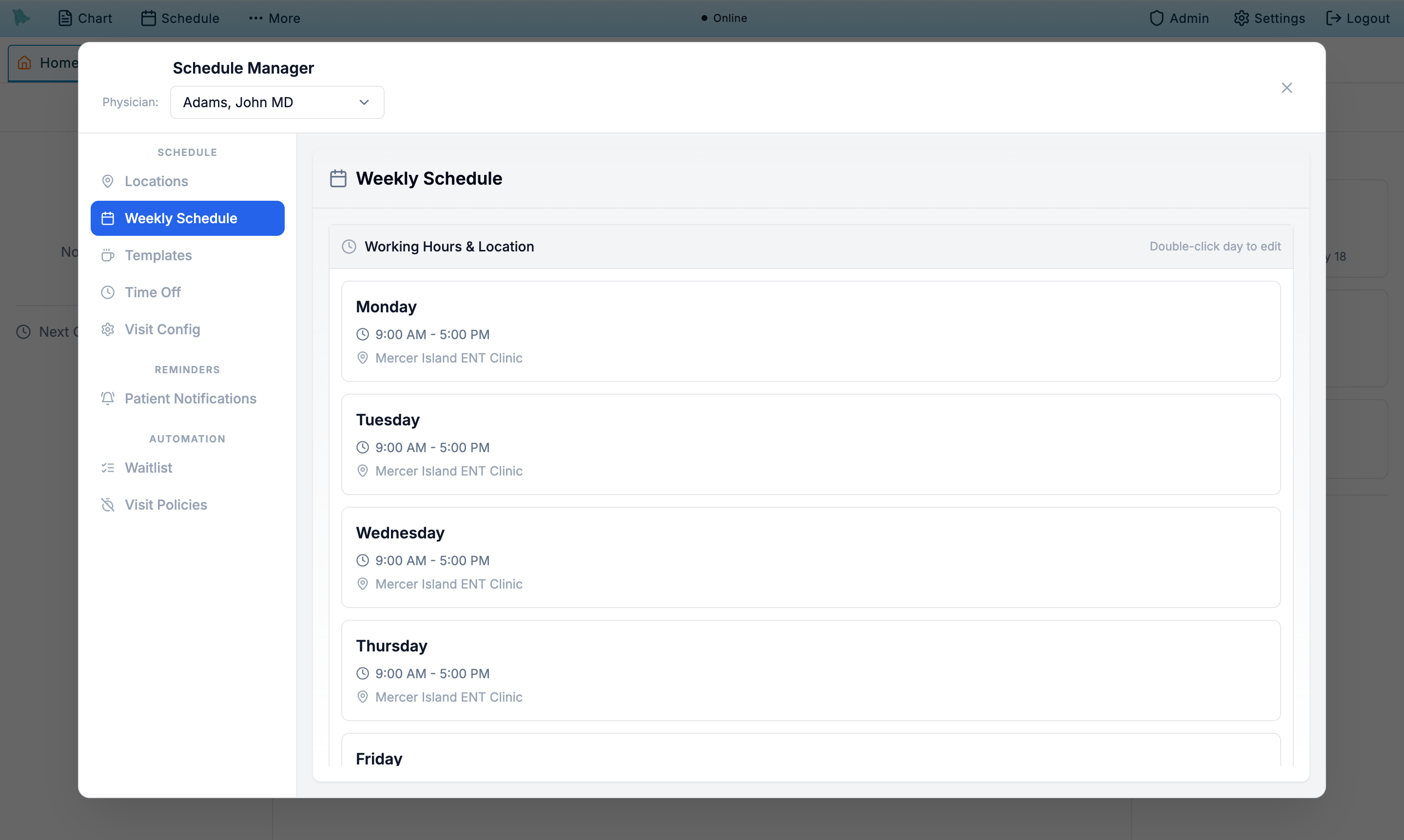
The weekly schedule defines, for each day, whether the physician is working, what hours they are available, and which location those hours are at. Patients can only book within these windows (minus any breaks or time off).
-
Open the
Weekly Scheduletab. You will see seven rows — one per day of the week — showing the current hours and location, or "Non-working day". -
Edit a day's hours.
Double-click the day row or use the
Edit schedulebutton. Set the start and end time, pick the location, and save. -
Mark non-working days.
Double-click the day row (or use the pencil) to put it in edit mode, then click
Non-workingnext toSave. The row then reads (Non-working day) and Not scheduled, and the day is removed from bookable availability. There is no way to save a day with empty hours —Savealways requires a valid time range and a location, soNon-workingis the only way to clear a day. - Repeat for every day the physician works. Different locations on different days are supported — for example, Mon/Wed/Fri at clinic A and Tue/Thu at clinic B.
Build the visit catalog
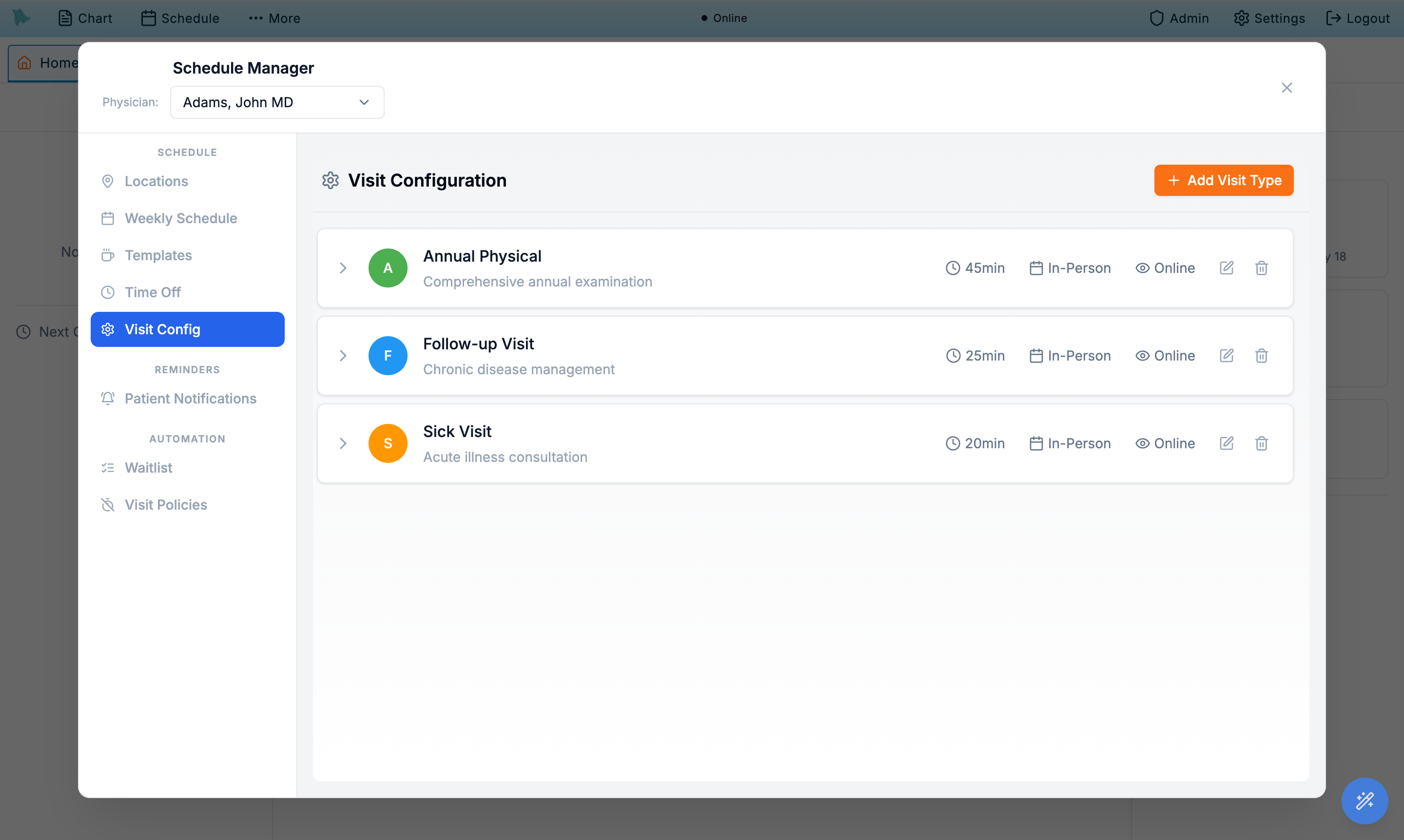
Visit types are the building blocks of the calendar. Each one defines how long an appointment lasts, what color it is, where it happens (your office, telehealth, the patient's home, or an outside facility such as a hospital or surgery center), whether it is bookable online, and which scheduling guardrails (notice, max-per-day, buffer) apply.
-
Open the
Visit Configtab. A new physician has no visit types — the tab shows No visit types configured. Create at least one active visit type before anything can be booked. Typical starters are an Annual Physical at 45 minutes, a Follow-up Visit at 25 minutes, and a Sick Visit at 20 minutes, but nothing is created for you. -
Click
Add Visit TypeorEdit visit typeon an existing card. The editor opens inline. -
Fill in the basics.
Give the visit a name and a duration in minutes (5–480). The description is optional but shown on the booking page. When you are creating a new visit type you must also pick an
Encounter Type *— the select is only rendered while adding, andSavestays disabled until you choose one. Editing an existing visit type never shows that select: the encounter type is fixed at creation, and the expanded card displays it read-only instead, as an Encounter Type block listing its code, name, and whether it is billable. Picking a telehealth-flavored encounter type (code TV, PC, or EV, or a name containing tele, virtual, phone, or e-visit) pre-selects Telehealth as the setting; picking the Surgery encounter type (code SURG) pre-selects Outside facility with a booking-time length. Available for Online Booking is pre-set from that encounter type's scheduling flag, and Requires Pre-visit Tasks starts on; AI Pre-visit Chat starts off. Change any of them before saving. - Decide whether the length is fixed or set at booking. Tick Set the length when booking for visits that differ case to case, such as surgeries. Staff then pick the length each time they book (quick picks from 30 minutes to 8 hours, or any number of minutes), and the duration on the visit type is only the starting value. Leave it unticked and every booking takes the visit type's duration.
- Say where the visit happens. Where does this visit happen? offers four settings: In office (one of your practice locations, during office hours), Telehealth (a virtual visit; a meeting is created through your configured video provider), Home / travel (you go to the patient; adds route-based travel buffers), and Outside facility (a hospital, surgery center, hospital outpatient clinic, or nursing facility). Only one applies at a time.
-
For an outside facility, name the facility and the place of service.
Search Facility across your practice's facility list and the NPI registry, or enter one manually (name and street address; the NPI is recommended). The same list serves the rounding module, so a hospital entered once is available everywhere. Then choose Bills as (place of service):
22for a hospital outpatient clinic or campus,24for an ambulatory surgery center,21for an inpatient stay, or19,23,31,32,49,71for the other facility settings. Both are required;Createstays disabled until they are set. -
Set the scheduling guardrails.
Buffer time, max per day, minimum notice (in hours), and
Booking limit (days ahead). New visit types start with a 90-day limit. TickNo limitto remove that maximum for staff and patient booking. Other availability and booking rules still apply. -
Choose when the visit type is offered online.
Online booking windows defaults to
All working hours. Switch toSpecific windowsto restrict this visit type to named day/time bands — up to 56 windows a week, each at least 5 minutes long. Windows are intersected with the day's working hours, so patients are only offered times inside both. The visit-type card then summarizes the setting as All working hours, N windows/week, or Staff Only. -
Choose the suggested date and staff start times.
Suggest a date this far outtakes a number ofdays,weeks, ormonths. Choosing this visit type in the scheduler jumps to the first opening on or after that interval from today; leave it empty for soonest openings. It does not move an existing visit or replace a date staff already chose. UnderStart times on the scheduling page, chooseEvery 15 minutes, any open time(the default), a visit-length interval, orEvery … minutes. The custom interval usesMinutes between start times. TickOnly inside this visit type's online booking windowsto restrict staff suggestions to the online windows too. These choices shape suggestions; staff can still type a custom time and confirm any required override. They do not change the patient booking grid. -
Pick the options that apply.
Requires Pre-visit Tasks (with the nested AI Pre-visit Chat), Available for Online Booking, Patients can self-schedule (patient portal), Default Visit Type, and Active. Online booking and portal self-scheduling are two independent switches; the card badge reads Public, Portal, Public + Portal, or Staff Only depending on which are on. An outside-facility visit type is always Staff Only: both patient switches are off and locked, because a patient can never book an operating-room block.
Who can book this onlinelimits online booking toAnyone,Only patients who have been seen beforeorOnly patients on a patient list(see Who can book online). - Match the organization's follow-up visit type names. The office / virtual / phone follow-up mapping is an organization setting, not a per-physician one, and it matches by visit type name. The shipped names are Follow-up Visit, Telehealth Follow-up, and Phone Follow-up. Give the physician an active visit type matching the names your organization uses; if nothing matches, Hero EMR falls back to the physician's first active telehealth visit type for virtual and phone follow-ups and their first active in-person type otherwise.
- Choose a calendar color and save. The color shows on day, week, and month views so staff can spot visit categories at a glance. An outside-facility card shows its facility and place of service (for example Providence Saint John's Health Center · POS 22) in place of In-Person, and a booking-time length reads 240 min · set at booking.
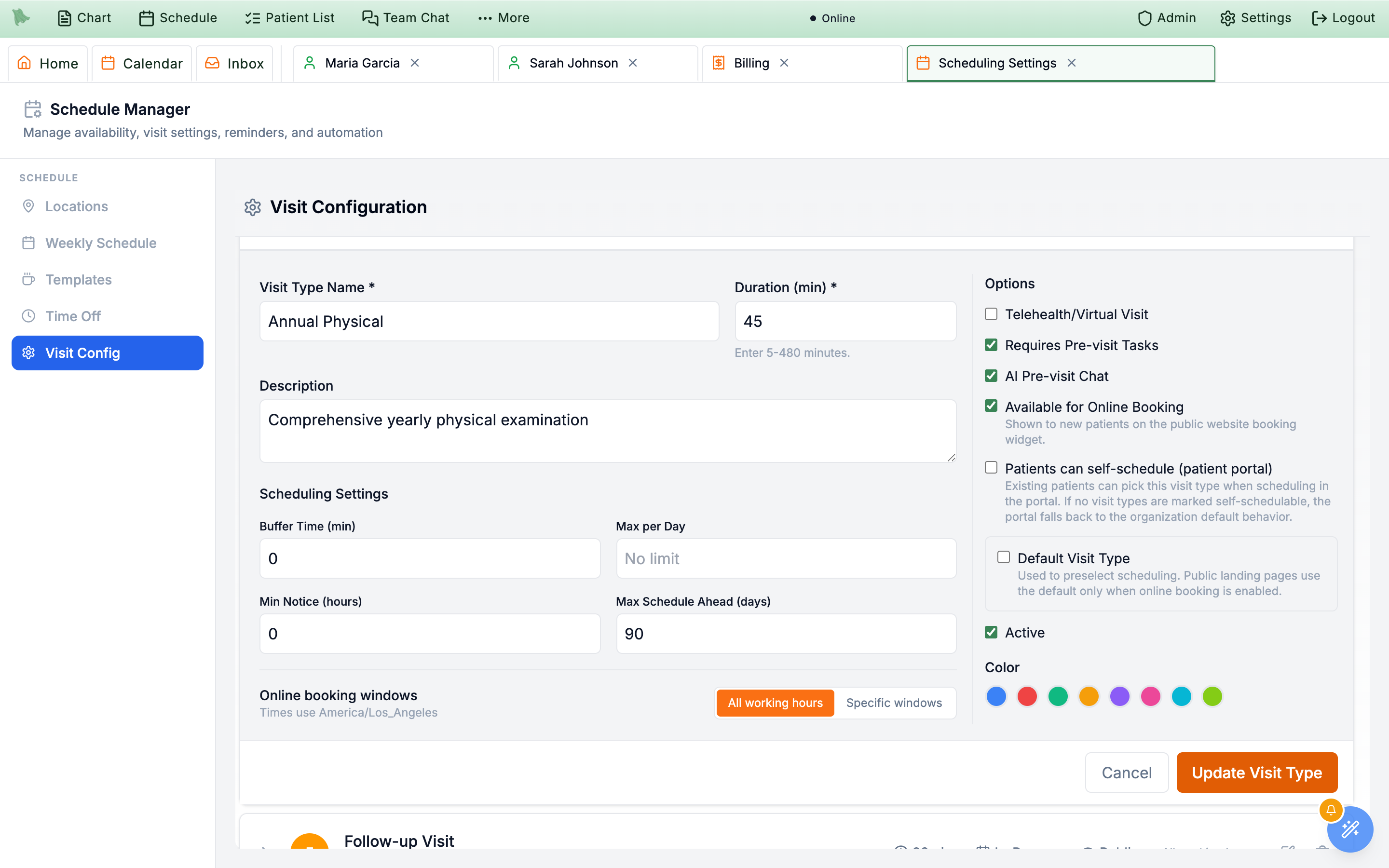
Encounter Type select is absent here — it only appears while adding a new visit type.What an outside-facility visit type does
Choosing Outside facility is what makes a surgery or a hospital-clinic session bill and schedule correctly with nothing extra to do per visit:
- Billing follows the visit type. Every encounter booked with it carries the visit type's place of service on the claim (CLM05-1 / CMS-1500 box 24B), and the facility's name, NPI, and street address go on the claim as the service facility (loop 2310C / box 32). The rate a service prices at follows the place of service, so a facility code prices at the facility rate automatically. The clinician can still change the place of service for one visit in Charge Capture, and that explicit choice always wins.
- Booking ignores office hours. An operating-room block at 06:30, or a hospital clinic on a day with no office session, books without a scheduling override. The office-hours, weekly-schedule, and break checks are skipped for this visit type; Hero EMR still warns when it overlaps another appointment or the physician's time off, because a physician cannot be in two places at once.
- The facility can change per booking. The booking dialog pre-selects the visit type's facility and lets staff switch to any other facility on the practice's list for that one case — a surgeon operating at two hospitals keeps one Surgery type. The facility name shows where the location normally appears on the calendar and in the appointment table.
- Patients never see it. Outside-facility visit types are staff-booked only; they are hidden from the website booking widget and the patient portal regardless of the online switches.
Create one outside-facility visit type per setting you work in — for example Surgery (POS 22 at the hospital, length set at booking), ASC Case (POS 24 at the surgery center), and Hospital Clinic (POS 22, 15 minutes) — and the right codes and facility follow every booking automatically.
Buffer time
Minutes of protected padding before and after the visit (0–60). Another appointment landing inside that window is blocked unless staff take the scheduling override. Useful for room turnover or charting.
Max per day
Hard cap on how many of this visit type can be booked in a single day. Leave blank for no limit.
Min notice
Smallest gap between booking time and visit start. Use it to prevent last-minute online bookings.
Booking limit (days ahead)
How far in advance this visit type can be booked. Defaults to 90 days; No limit removes the maximum. With a limit set, patients cannot book past it; staff can, with a confirmed scheduling override (see Booking limits).
Where does this visit happen?
In office, Telehealth (when Zoom is connected, telehealth visits provision a meeting automatically), Home / travel (route-based travel buffers), or Outside facility (hospital, surgery center, clinic, nursing facility — carries the place of service and facility for the claim).
Set the length when booking
Lets staff pick the appointment length each time they book instead of using a fixed duration. The visit type's duration becomes the pre-filled value. Meant for surgeries and other visits that differ case to case.
Facility
Outside-facility types only. The hospital, surgery center, or clinic named on the claim (CMS-1500 box 32). Pick from your practice's list or the NPI registry, or enter it manually; the address is required for insurance claims, the NPI is recommended.
Bills as (place of service)
Outside-facility types only. The CMS place-of-service code every claim for this visit type is filed with: 22 hospital outpatient, 21 inpatient, 24 ambulatory surgery center, 19 off-campus outpatient, 23 emergency room, 31/32 nursing facility, 49 independent clinic, 71 public health clinic.
Requires Pre-visit Tasks
Assigns the patient's pre-visit work — questionnaires and forms — for this visit type, and drives the Previsit Status column and the pre-visit chips on the calendar. It does not block booking or confirmation.
Available for Online Booking
Shows the visit type to new patients on the public website booking widget. Turn off to keep it off the public site. Always off for an outside-facility visit type.
Patients can self-schedule (patient portal)
Lets existing patients pick this visit type when booking in the portal. If no visit types are marked self-schedulable, the portal falls back to organization default behavior. Always off for an outside-facility visit type.
Online booking windows
All working hours by default, or Specific windows to restrict online times to named day/time bands (up to 56 a week, 5 minutes minimum each).
Default visit type
Pre-selected in scheduling dialogs. Public landing pages use the default only when online booking is enabled; follow-up booking uses the organization's follow-up visit type names instead.
Add weekly templates for breaks and admin time
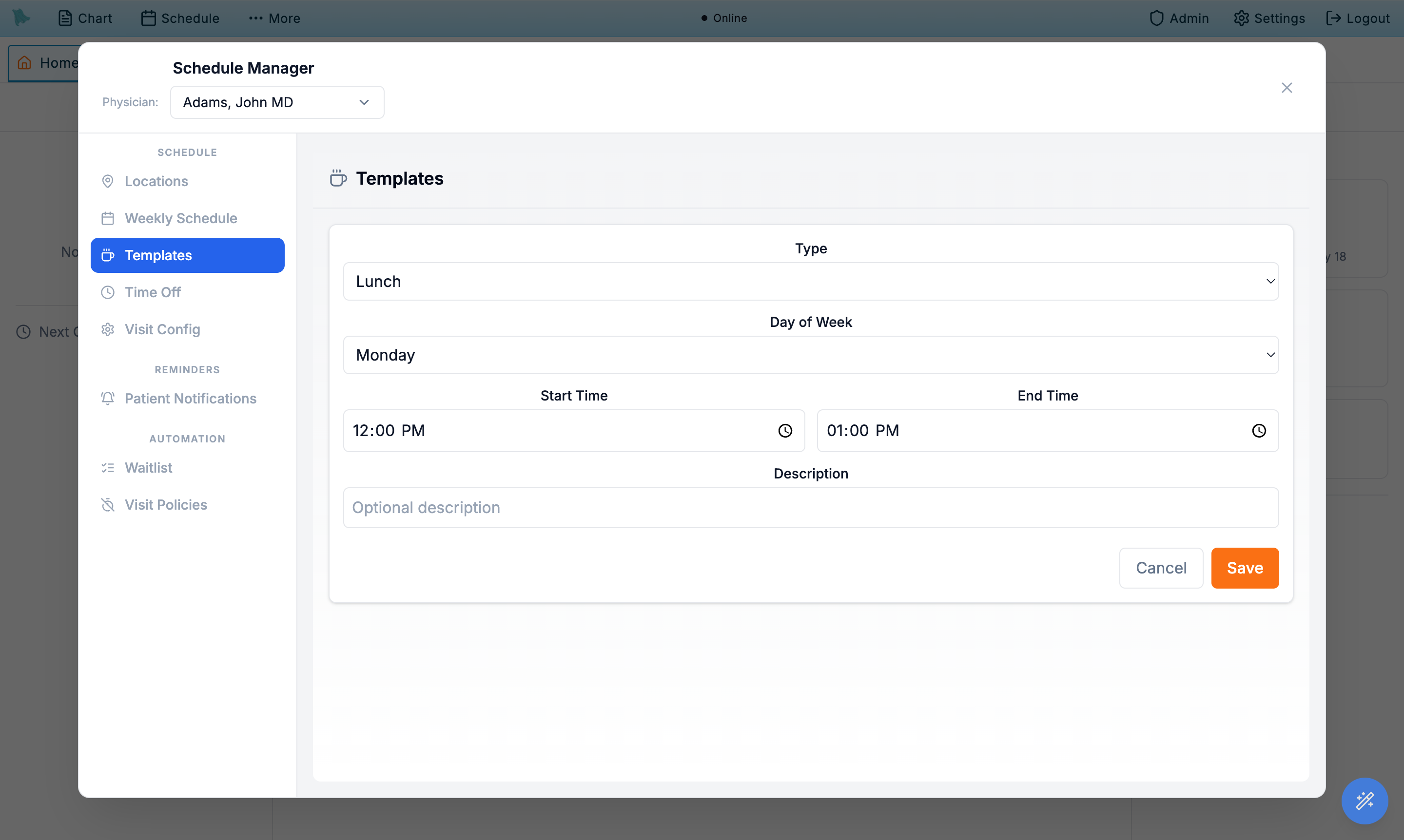
Templates are recurring blocks that repeat every week — lunch, recurring meetings, admin time, urgent slots, and same-day reserves. Once saved, they are removed from bookable availability and shown on the calendar with their own color.
- Open the
Templatestab and clickAdd Template. - Pick the template type. Lunch, Meeting, Administrative, Urgent, Same Day, or Other.
- Choose the day of the week and the start and end time. Add an optional description (it shows on the block).
- Save. The block appears every week on the calendar from now forward and is removed from bookable availability.
Open this slot to release that single occurrence without touching the weekly template. The same menu has Edit blocked time…, Unblock this time…, and Schedule over this time… (which books straight over the block behind the override confirmation). To add a one-off bookable window on a day that is otherwise off, right-click the day and use Open Schedule….
Change the schedule for specific dates
When a few dates should not follow the weekly pattern — a longer clinic day, a day the office is closed, a day without the usual lunch or consultation blocks — change just those dates with Change schedule… on the calendar. The weekly schedule and templates are not touched, and every date you do not select keeps its current schedule. One editor covers one physician and up to 31 dates: you preview the effect on each date, then save them all at once.
Open Schedule…. Staff need the Manage schedule templates permission (for templates, breaks, and time off — see Staff & assistants); physicians and admins have it by role. Without it the Change schedule… entry points are not shown, and the server refuses the change anyway. Staff who can only view the calendar still see the Changed badge and its details, but not Undo or Restore regular schedule.
Where to find it
| Where you are | How to open the editor |
|---|---|
| Day view | Click the calendar icon for Change schedule… in the toolbar at the top right, beside the view buttons. It is icon-only at every window width; hover or focus it for its label. |
| A day off | Right-click the day-off area in Day view, or an empty physician column in Team view, and choose Change schedule… — it sits under Open Schedule… in the same menu. |
| Team view | Click the calendar icon in a physician's column header to change that physician's schedule for the date on screen. |
The editor opens on the date you came from, for the physician whose calendar or column you used. These entry points are hidden while shuffle mode is on.
Make the change
Under Change the editor offers three choices:
| Choice | What it does on the selected dates |
|---|---|
Set hours | Set hours replaces the working hours on those dates with the windows you enter, and lets you decide which breaks still apply. |
Close day | Close day leaves no bookable hours on those dates, so nothing can be booked there without the scheduling override described below. Existing appointments stay booked. |
Restore regular schedule | Restore regular schedule removes earlier date changes, so those dates follow the weekly schedule again. |
-
Choose the dates.
The editor starts with the date you clicked.
Add dateadds another row (the day after your latest date — change it to any date you need), and the×beside a date removes it. Pick up to 31 dates, from today up to a year ahead; past dates cannot be changed. The header shows the physician, your practice's time zone, and how many dates are selected. -
Pick
Set hours,Close day, orRestore regular schedule. The remaining steps about hours, breaks, and holidays apply toSet hoursonly. -
Enter the hours.
The Hours list starts with the clicked date's current hours. Each window has a start time, an end time, and a location chosen from the physician's locations;
Add windowadds another for a split day or a second location. These windows replace the date's usual hours and any one-offOpen Schedule…windows at every location, so a location with no window is closed that day. Windows at the same location cannot overlap. -
Decide about breaks.
Keep usual breaks(the default) keeps the template blocks that normally fall on each date, and the editor lists them (Usual breaks on …).Use only the blocks shown herereplaces them with an editable list, prefilled from the clicked date's usual blocks: each block has a start, an end, a kind (Lunch, Meeting, Admin, Urgent hold, Same-day hold, or Block), and an optional label, andAdd blockadds one. Remove every block to ignore the usual lunch and consultation reservations on those dates — the editor confirms No routine blocks: the usual lunch and consultation reservations will not apply on these dates. The same list applies to every selected date. -
Tick
Work on holidayif it appears. It only shows when a selected date is an organization holiday the physician does not work. Tick it to open the hours anyway; otherwise the holiday keeps that day closed. - Add a reason (optional). A short note, up to 500 characters, such as Covering the Wednesday clinic. Everyone who opens the date's Changed badge sees it.
-
Click
Preview changes. Nothing is saved yet. The preview lists every date with what changes and what needs your attention (see the table below). Edit anything afterwards and the preview is marked out of date (The draft changed after this preview. Preview again before saving.); clickRefresh preview. Saving is only possible from a current preview. -
Acknowledge and save.
If the preview lists appointments outside the new hours, tick These N appointments stay booked outside the new hours (This appointment … when there is one). Then click
Save N dates(for exampleSave 2 dates). Every date changes together or none does, and a Schedule changed confirmation appears.
| In the preview | What it means |
|---|---|
| Wed, Sep 23 · 9:00 AM–5:30 PM · Lunch 12:00–1:00 PM → 9:00 AM–6:00 PM · no routine blocks | Each date line shows the date's current schedule and, after the arrow, the new one, in your practice's time. |
| No longer applies: … | These routine blocks (lunch, meetings, consultation holds) stop applying on that date. |
Release this occurrence | Time off still overlaps the new hours on that date (Time off … still blocks this date.). Tick it to free that date only: a repeating time-off entry skips that one date, and a one-off entry on that date is removed. The preview refreshes. |
| … the physician is not working. The day stays closed unless 'Work on holiday' is selected. | A selected date is an organization holiday the physician does not work. Tick Work on holiday to open it. |
| N appointments outside the new hours | Appointments already booked on that date that fall outside the new hours, with the patient, time, and status. They stay booked; you acknowledge them before saving. |
| … fall inside a routine block on this date | Booked appointments that land in a block you kept or added. They stay booked and the time stays occupied. |
Save N dates stays disabled until you tick the acknowledgment. Move them yourself if needed — shuffle mode reschedules a whole day in one reviewed batch.
Worked example: two long Wednesdays without breaks
A physician wants two upcoming Wednesdays to run from 9:00 AM to 6:00 PM straight through, without the usual lunch and consultation blocks. Every other Wednesday stays as it is.
- Open Day view on the first Wednesday and click
Change schedule…. - Click
Add dateand set the new row to the second Wednesday. The header now ends in 2 dates. - Leave
Set hoursselected and set the window to 09:00–18:00 at the physician's usual location. - Under Breaks, choose
Use only the blocks shown hereand remove every block with its×until the editor shows No routine blocks. - Optionally type a reason, such as Extended Wednesday clinic.
- Click
Preview changes. Each Wednesday shows its usual hours and blocks → 9:00 AM–6:00 PM · no routine blocks, with the dropped blocks under No longer applies. The summary reads along the lines of Set hours 09:00–18:00 on 2 dates. Usual routine blocks (lunch, consultations) will not apply on these dates. - Tick the acknowledgment if any appointments are listed, then click
Save 2 dates. Both Wednesdays now carry the Changed badge; the Wednesdays you did not select are unchanged.
The Changed badge, Undo, and Restore
After a save, a Changed badge appears in the Day view header and in the Week view day header of every changed date. Click it to open Changed for this date:
- Hours — the date's resulting hours, or Closed, with its blocks.
- Reason — the note entered with the change, if any.
- Changed by — who made the change, and when.
With the permission above, the panel also offers two actions. Press Esc or click elsewhere to close it.
| Action | What it does |
|---|---|
Undo | Undo reverses the whole save this date belongs to — every date that was changed together, from today on. It previews first: each date and what it goes back to, plus any appointments that would fall outside the restored hours. Tick These N appointments stay booked outside the restored hours if shown, then click Confirm undo (or Keep change). Undo also puts back any time off released with that change. Once a later change has edited one of those dates, Undo is refused with A later change edited these dates. Undo is no longer possible; make a new change instead. |
Restore regular schedule | Restore regular schedule opens the editor for this one date with Restore regular schedule selected and previews it straight away. Save it to return the date to the weekly schedule; other dates from the same save keep their change. |
Every booking path follows the change
| Where | What happens on a changed date |
|---|---|
| Calendar | Day, Week, and Month views follow the changed hours. A closed date reads Closed for this date in Day view, with the reason underneath. |
| Booking from the calendar | Open slots are offered only inside the new hours. A booking outside them is refused with The physician's schedule was changed for <date>: hours are 9:00 AM–6:00 PM. Please select a time within those hours to book. (or …: the day is closed. Please select another date.). Staff can still book over it deliberately with the scheduling override, such as Schedule anyway (override) on a closed date, just as on any other day off. |
| Patient portal and website booking | Patients booking in the patient portal or on your website's booking widget are offered only times inside the new hours, and none on a closed date. |
| AI phone agent | The phone agent's next-available search uses the changed hours. |
| Waitlist | Waitlist offers are matched against the changed hours. |
Open Schedule… and Open this slot | On a date that already has a change, these older one-off tools are refused with <date> has a schedule change. Use Change schedule on the calendar to edit it. Edit that date in Change schedule… instead. |
What it does not do
- Recurring changes that start on a date.
Change schedule…edits specific dates only; it cannot set up a weekly change that begins on a future date, such as no Wednesday clinic from next month on. Weekly patterns are still edited on the Weekly Schedule tab. For a known set of future dates, select them here instead — up to 31 at a time. - Describing the change in words. There is no natural-language input; pick the dates and hours in the editor.
- Moving, cancelling, or messaging. Existing appointments stay booked and patients are not notified.
- Removing time off on its own. Time off that overlaps the new hours keeps blocking them unless you tick
Release this occurrencein the preview. - Changing the weekly schedule, templates, or holidays. Those stay exactly as they are; only the selected dates differ.
- Changing past dates. Only today and later dates can be changed.
Block vacations, holidays, and one-off days
Time off blocks a physician's calendar for vacations, CME days, or a single morning out of office — one-off or repeating. Time off overrides working hours and templates for the dates it covers.
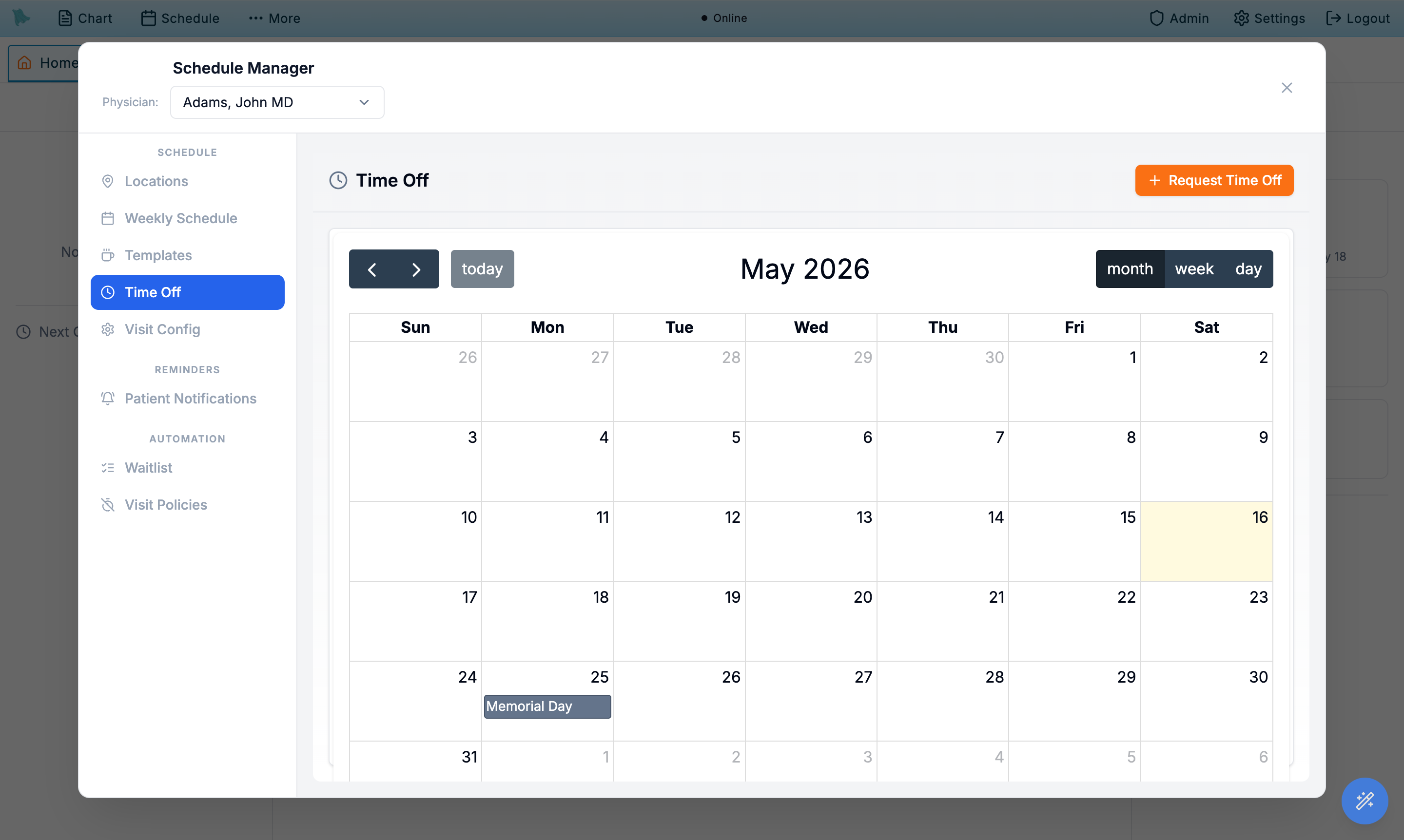
- Open the
Time Offtab. The calendar view shows the current month with existing time off and the organization's holidays marked. - Click
Request Time Off. Enter anEvent Name, pick theDate, then either tick All Day or set aStart TimeandEnd Time, and clickSave. - Block more than one day with
Repeat. The dialog holds a single date, so a week of vacation is entered asRepeat→Dailywith anEnd Date.Weekly,Monthly by date,Monthly by weekday, andYearlyare available too, for standing half-days and annual closures. - Handle holidays. Organization holidays appear on this calendar as all-day grey events and block the day automatically. Click one and confirm Work on this holiday? to give this physician a working override — the event turns green and reads (Working). Click it again and confirm Revert to day off for this holiday? to put the day back.
- Switch between month, week, and day views. Use the buttons in the toolbar to drill in on a specific date or browse upcoming entries in the panel below the calendar. Clicking a time-off event asks whether to delete it.
Request Time Off, but saving takes effect immediately — the block is live and stops bookings as soon as you click Save. Nothing is pending, and nobody has to approve it.
Set up visit types once for the whole practice
Admin > Scheduling > Practice visit types (under Organization): “Set up visit types once for the whole practice. Every provider gets them and can adjust the scheduling details for themselves in Visit Config, turn one off, or add their own.” Practice administrators can open it; changing it needs permission to manage providers (“You can view this list. Changing it needs permission to manage providers.”).
Build the list
-
Start from what your providers already use.
Add from your providers’ visit typeslists every visit type name your providers have, withProviders who have it,Added for the othersand theDifferencesbetween their setups. TickAdd to the practice listfor each one you want, andGive to every providerto create it for providers who don’t have it. A provider’s existing visit type of the same name starts following the list instead of being duplicated. The result lists what was Added to the practice list, which providers’ visit types now follow it, and which were created. -
Or add one from scratch with
Add visit type. The editor has the same fields as Visit Config (see Build the visit catalog), and, when your practice has departments,Offered by(see Departments on the schedule). It confirms “… was added. Every provider now has it.” A new practice visit type starts staff-only: patients can book it online only once you turn online booking on for it. -
Keep providers in step.
Sync providers“Gives every current provider any practice visit types they’re missing; doesn’t change ones they have.” A provider who is made active again gets the practice visit types too.
The table shows each visit type’s Length, Where, Online booking (Website, Portal, Staff only, or (seen before only)), Providers (click it to see who offers it and what each changed) and an On switch. Turning one off asks “Turn off … for every provider? Patients and staff can’t book it until you turn it back on. Appointments already booked stay as they are.” Deleting it takes it off every provider’s list; booked appointments keep their visit type.
What providers see in Visit Config
- A practice visit type is marked
Practice(From your practice’s visit type list). Settings a provider changed for themselves are markedCustomized(You changed this from your practice’s setting), andReset to practice settingsputs them back. Settings the practice controls read Set by your practice. - A provider can’t delete a practice visit type; they switch off
Offer this visit typeinstead. One the practice turned off readsTurned off by your practiceand can’t be turned on there. - A provider can’t add their own visit type with the same name as a practice one: “Your practice already has a visit type called …. Use that one (turn it on if it’s off), or choose a different name.”
Choose the follow-up buttons in the visit
Admin > Scheduling > Follow-up Buttons (under Organization) sets “The quick choices in a visit’s Follow-up section (‘2 weeks’, ‘1 month’, …), which one is chosen to start with, and whether there are ‘No follow-up’ and ‘As needed (PRN)’ buttons.” Choosing a time sends the patient a reminder to book; No follow-up and As needed (PRN) send none.
Defer to individual providers?Yes (until you change it): each provider sets their own buttons withEdit buttonsin a visit’s Follow-up section; providers who never change theirs see 2 weeks (chosen to start with), 1 month, 3 months and 6 months. No: the practice sets the buttons here for everyone and providers don’t seeEdit buttons; providers’ own buttons are paused and come back if you switch back.- The buttons. Up to 8, each a
Numberand unit, onePre-selected, in the order you set; tickOffer No follow-up and As needed (PRN) buttonsfor visits that need no return appointment. - A visit already booked. In the visit, the Follow-up section warns when the patient already has a visit with that provider within a month of the follow-up’s due date: “Heads up: this patient already has a visit on …, within a month of this follow-up (due around …). A recall will still be sent ….”
Need help? Email support@heroemr.com.