Treatment series
Book a course of recurring care in one step, see every session numbered 3/36 on the calendar, fix conflicts before they happen, and let Series Watch put drifting courses on one worklist.
Treatment series
Book a course of recurring care in one step, see every session numbered 3/36 on the calendar, fix conflicts before they happen, and let Series Watch put drifting courses on one worklist.
Book and track a whole course of recurring visits
A treatment series books a course of recurring care in one step — a 36-session TMS course, SPRAVATO induction and maintenance, ketamine infusions, weekly psychotherapy, physical therapy twice a week, allergy shots — and keeps it on track. A series can also be ongoing: weekly follow-ups, or SPRAVATO / ketamine maintenance that continues after induction, run until you stop them, a few sessions booked at a time. Each session is an ordinary appointment on the calendar, numbered as part of its course (3/36, or #14 for an ongoing series), and Series Watch checks every course hourly for missed sessions, gaps, and sessions nobody booked yet. Nothing is created automatically: your practice adds templates if it wants them, and staff book a series from the scheduler.
Who can do what
- Book and manage series (book, make-ups, pause, cancel, complete, snooze alerts): providers, practice administrators, and staff who can book appointments — Front Desk, Medical Assistant, Nurse, Intake Coordinator, and Office Manager profiles.
- See series and the worklist: anyone who can view the schedule.
- Templates and Series Watch settings: organization administrators (practice admins, office managers, owners) or staff with Manage schedule templates, breaks, and time off approvals.
How sessions are counted
- Numbers are worked out from the visits themselves, so moving or cancelling a visit renumbers the rest.
- An ongoing series has no total: its sessions read
#14on the calendar and “Session 14 · ongoing” on the chart. - A no-show or cancelled session shows
missedand does not count; a make-up takes its place (3/36 · make-up). - The badge appears in the calendar’s Day, Team, and Week views and on the chart’s upcoming appointments (not in Month view).
- Limits: 10 active or paused series per patient, 60 sessions booked per request, 300 planned sessions and 10 phases per series.
Set up series templates and Series Watch
Templates save the shape of a course so staff pick it instead of building it each time. Open Admin > Scheduling, then Treatment Series under Automation in the Schedule Manager’s left navigation. The page has two panels, Series templates and Series Watch.
-
Add a template.
Add from presetoffers ten ready-made courses (below); picking one creates it straight away, active, and opens it for editing.Add templatestarts from a blank 12-session weekly course. -
Fill in the editor.
Name(required);Visit type— leave blank to use whatever visit type is picked in the scheduler, or name one (for example TMS Session); an optionalDescription. -
Describe the phases.
Each phase has a
Phasename, a number ofSessions, theDaysof the week (no weekday means weekly on the first session’s weekday),Every N weeks, and — after the first —Gap before (wks).Add phaseadds another; the header shows the total. Times come from the scheduler, not the template. To make the course ongoing, tickContinue until stoppedon the last phase: itsSessionsbox becomesBook N at a time(1–52, usually 4) and the header reads, for example, “12 first, then ongoing”. An ongoing phase must be the last one, soAdd phaseis unavailable while it is ticked. -
Set the course rules.
Max gap (days)flags the course when sessions drift further apart;Length override (min)replaces the visit type’s length;ReminderspicksStandard,Day before only, orFirst session of each week(see 1.32). UnderSeries Watch for this template, clearUse practice defaultsto switch individual flags off for this course. -
Save.
Keep
Active (offered in “Book as a series”)ticked and clickSave template. If some providers do not offer the named visit type, the list shows a warning under the template; the template still saves.
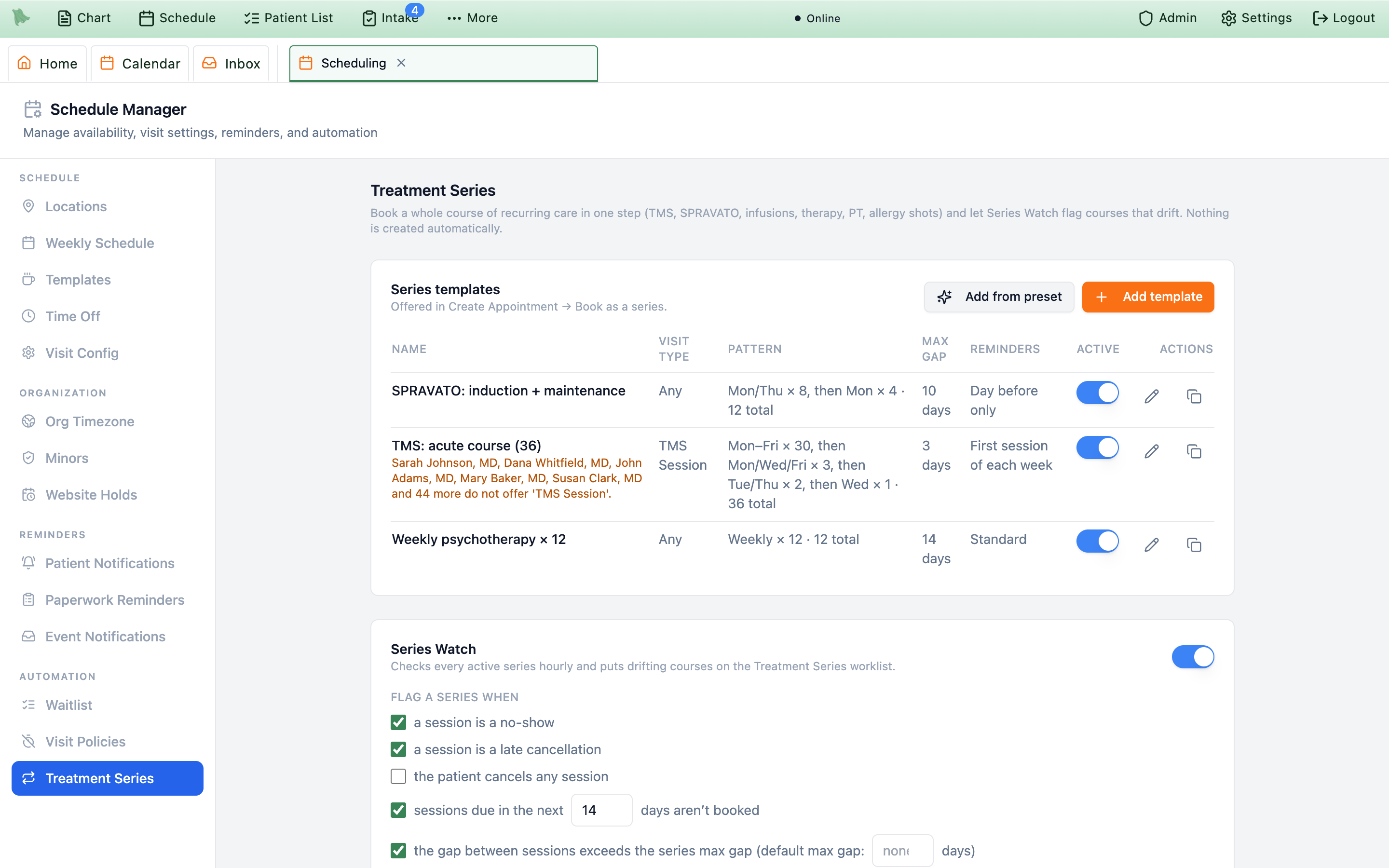
Admin > Scheduling > Treatment Series: templates on top, Series Watch below. The amber line lists providers who do not offer the template’s visit type.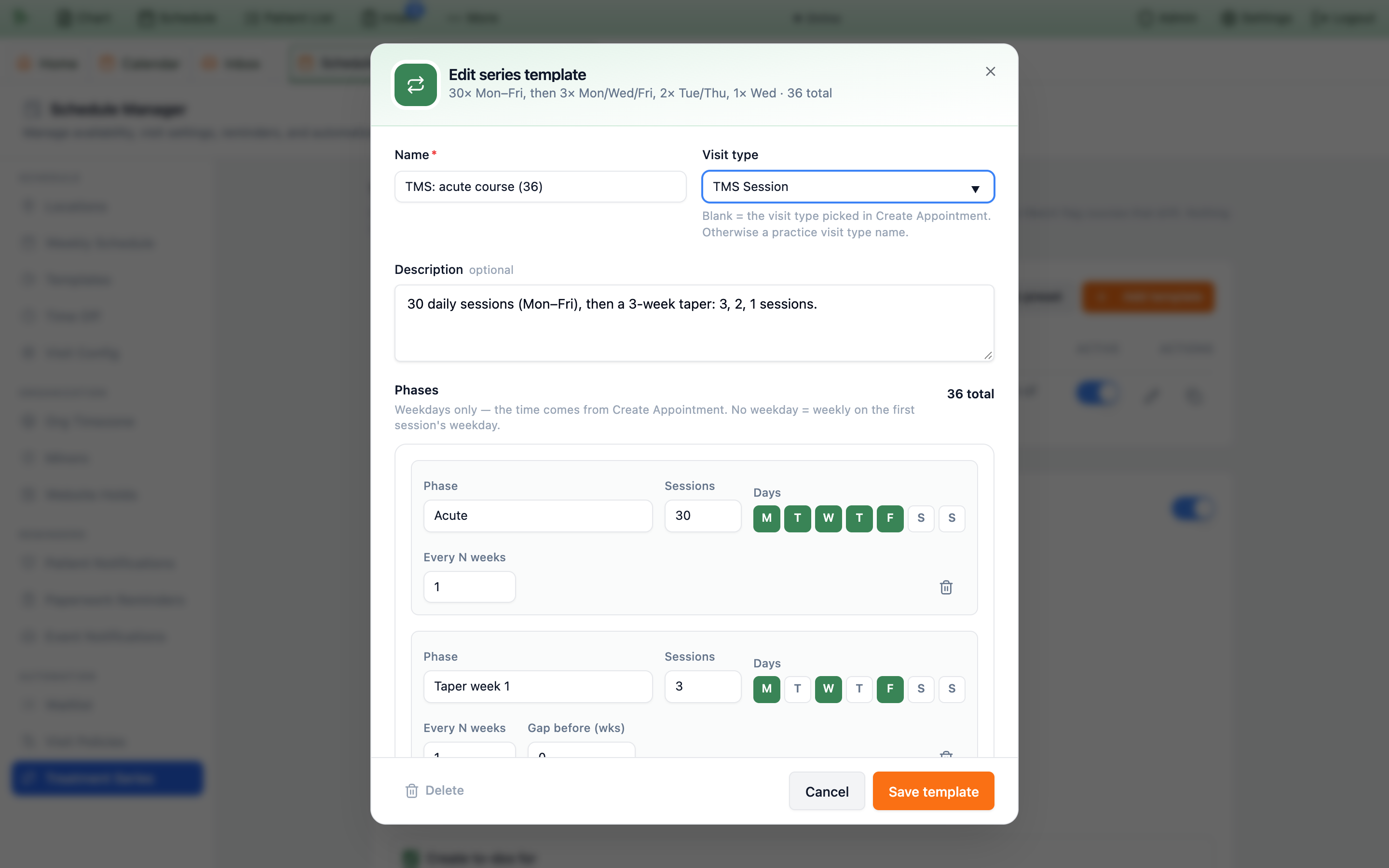
| Preset | Pattern | Max gap | Reminders |
|---|---|---|---|
TMS: acute course (36) | 30 daily sessions (Mon–Fri), then a 3-week taper: 3, 2, 1 sessions | 3 days | First session of each week |
SPRAVATO: induction + maintenance | Twice weekly for 4 weeks, then weekly for 4 weeks | 10 days | Day before only |
Ketamine infusions × 6 | Six infusions, Mondays and Thursdays | 7 days | Day before only |
Weekly psychotherapy × 12 | Twelve weekly sessions on the first booking’s weekday | 14 days | Standard |
Physical therapy 2×/week × 6 weeks | Twelve sessions, Mondays and Thursdays | 7 days | Standard |
Allergy shots: build-up | Twenty-six weekly injections | 14 days | Day before only |
Allergy shots: maintenance | Twelve injections every 4 weeks | 35 days | Standard |
Weekly follow-up (ongoing) | Weekly on the first booking’s weekday until stopped, 4 booked at a time | 14 days | Standard |
SPRAVATO: induction + ongoing maintenance | Twice weekly (Mon/Thu) for 4 weeks, then weekly maintenance until stopped, 4 booked at a time | 10 days | Day before only |
Ketamine infusions: ongoing maintenance | Every 2 weeks on the first booking’s weekday until stopped, 3 booked at a time | 21 days | Day before only |
Ongoing schedules (weekly follow-ups and maintenance)
An ongoing series books its first sessions (any fixed phases plus one batch of Book N at a time) and then stays Active until someone uses Mark complete, Pause…, or Cancel remaining… — it never completes itself by count. The one exception is a series you gave an Ends by date: once no more sessions fit on or before that date, Series Watch stops asking for more and the series completes the way a fixed one does. Before the booked sessions run out, Series Watch raises “Book the next 4 sessions (booked through Nov 2)” (when the last booked session is within the sessions due in the next [14] days look-ahead), and one click books the next batch on the same days and time, keeping an every-2-weeks rhythm and your practice’s clock time across daylight-saving changes.
Visit type to your follow-up visit type (for example Follow Up). Then, in the scheduler, pick the patient, provider, that visit type, and the first day and time, click Book as a series… — the template is already chosen — and click Book 4 sessions.
Series Watch settings
The Series Watch panel (“Checks every active series hourly and puts drifting courses on the Treatment Series worklist.”) is on by default. Under Flag a series when:
| Flag a series when… | Default |
|---|---|
a session is a no-show | On |
a session is a late cancellation | On |
the patient cancels any session | Off |
sessions due in the next [14] days aren’t booked | On, 14 days |
the gap between sessions exceeds the series max gap (with a practice-wide default max gap) | On, no default gap |
there is no next session booked | On |
a past session is still unresolved after [12] hours | On, 12 hours |
Below that: Auto-complete a series when all planned sessions are attended (on; an ongoing series is never completed by count, only after its Ends by date if it has one); Create to-dos for — Series coordinator (default), Series provider, Coordinator and provider, Everyone who can manage scheduling (max 10), or Specific people; and the to-do Priority (Medium). “To-dos surface at 8:00 AM practice time when a problem is found outside business hours, and complete themselves when the problem is fixed.” Click Save Series Watch.
Book a series from the scheduler
-
Start a normal booking.
Open the scheduler the usual way and pick the provider, the visit type, the first session’s day and start time, and the location when there is a choice. Then click
Book as a series…under theBookbutton. It needs a visit type and a start time first (hover it to see Pick a visit type first or Pick a start time first) and is not offered while rescheduling. From a chart,Start a serieson the Treatment series card opens the same dialog with aWho and whatsection for the provider and visit type. -
Shape the plan.
The Book as a series dialog carries over the patient, provider, visit type, location, first day, start time, and length from the scheduler. Choose a
Template(applied automatically when exactly one matches the visit type) orCustom; edit the staff-onlyLabel; confirmLocation,Starts,Time(practice time), and an optionalEnds by. The phase rows,Reminders,Max gap (days), andLength (min)follow the template and can be changed for this patient — includingContinue until stoppedon the last phase, which makes this patient’s series ongoing.AdvancedholdsSessions already completed before this series(for a course already underway) and theCoordinatorwho receives follow-up to-dos (default: you). - Check every date. The preview table checks each session against the schedule and reads, for example, “34 ready · 2 need attention · 0 blocked · 36 planned (Nov 9 – Jan 6)”. Each row shows the date, time, a status, and details such as “Appointment overlaps 1 existing appointment(s).” For an ongoing series the preview shows only the first batch, under the line “Ongoing — Hero will remind you to book the next 4 before these run out.”
-
Resolve conflicts.
Per row:
Move to <suggested time>,Book anyway(an override, with an optional reason), orSkip (adds one at the end);Undoreverses a choice.Fix all conflictsmoves every conflicting row to its suggestion, or skips it when there is none. -
Book.
Leave
Notify patient (one message with the whole schedule)ticked and clickBook 36 sessions. The result reads, for example, “Booked 36 sessions” over “TMS: acute course (36) · Mon, Nov 9 – Wed, Jan 6 · patient notified (SMS, email)”, withView series(opens the chart’s series card) andDone.
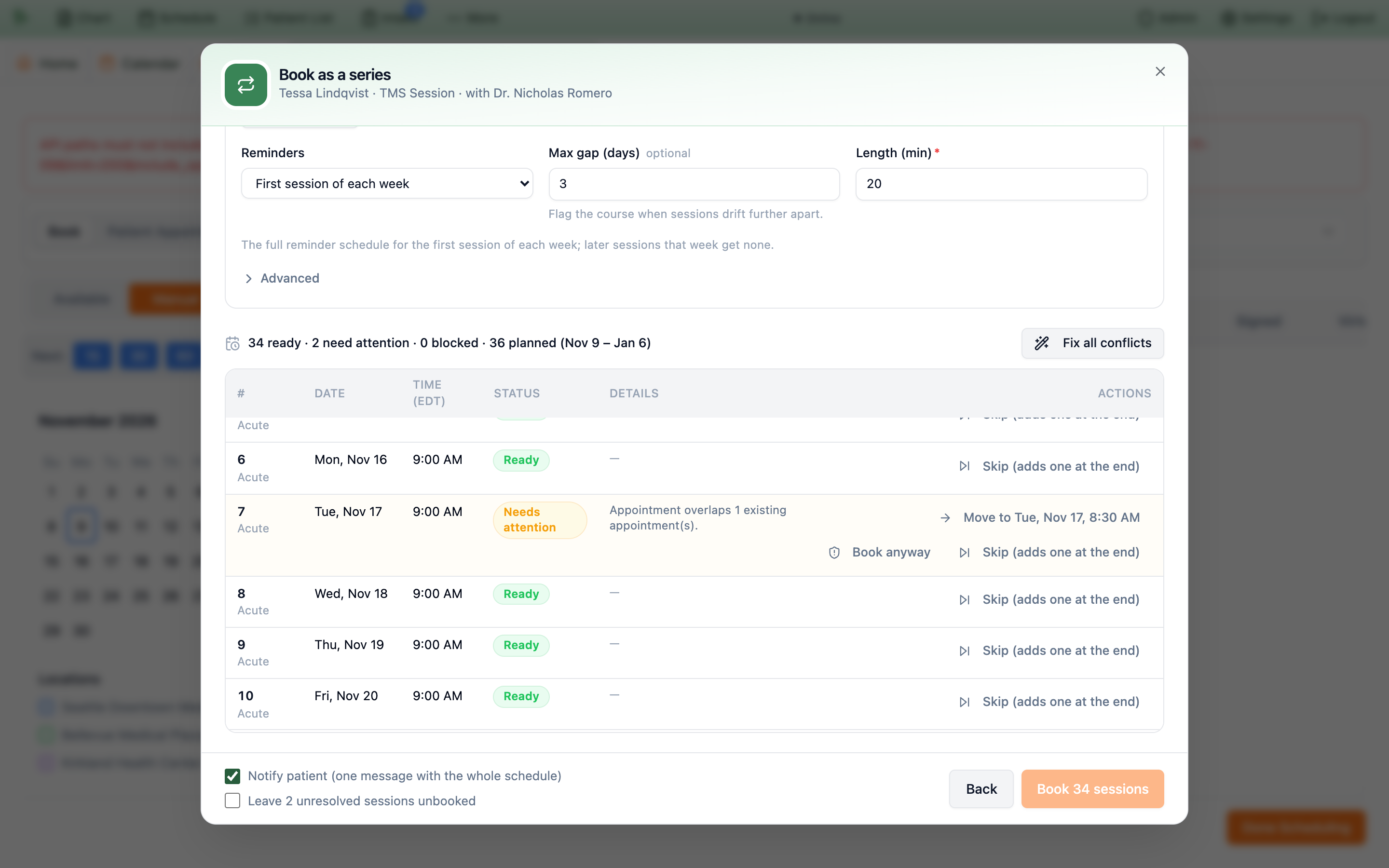
Move to offers the nearest free time.| Status | Meaning |
|---|---|
Ready | Books as planned. |
Needs attention | A conflict (overlap, time off, outside hours, past time, a daily limit) you must move, skip, or book anyway. |
Moved / Skipped / Book anyway | Your choice for that row. |
Already booked | An existing appointment joins the series (Include N upcoming … appointments already booked, on by default). |
Stays planned | Beyond the visit type’s online booking window: planned now, booked later from the series card; Series Watch reminds you. |
Find new times.
Manage a course from the chart’s Treatment series card
Open the patient’s Info tab and choose Appointments. The Treatment series card sits above Upcoming appointments and shows each course: its label and status (Active, Paused, Completed, Cancelled, or Auto-completed, plus Ongoing for a series that runs until stopped), the visit type and provider, the pattern (for example “Thu weekly at 3:00 PM until stopped · 4 booked at a time”), a progress bar (green done, red missed, blue booked, grey to book), a line such as “0 of 36 done · 36 booked” (or “13 done · 4 booked · ongoing”), the next session, and any open Series Watch flags. View sessions lists every session with its number, date, status (attended, booked, unresolved, missed, cancelled), and Detach.
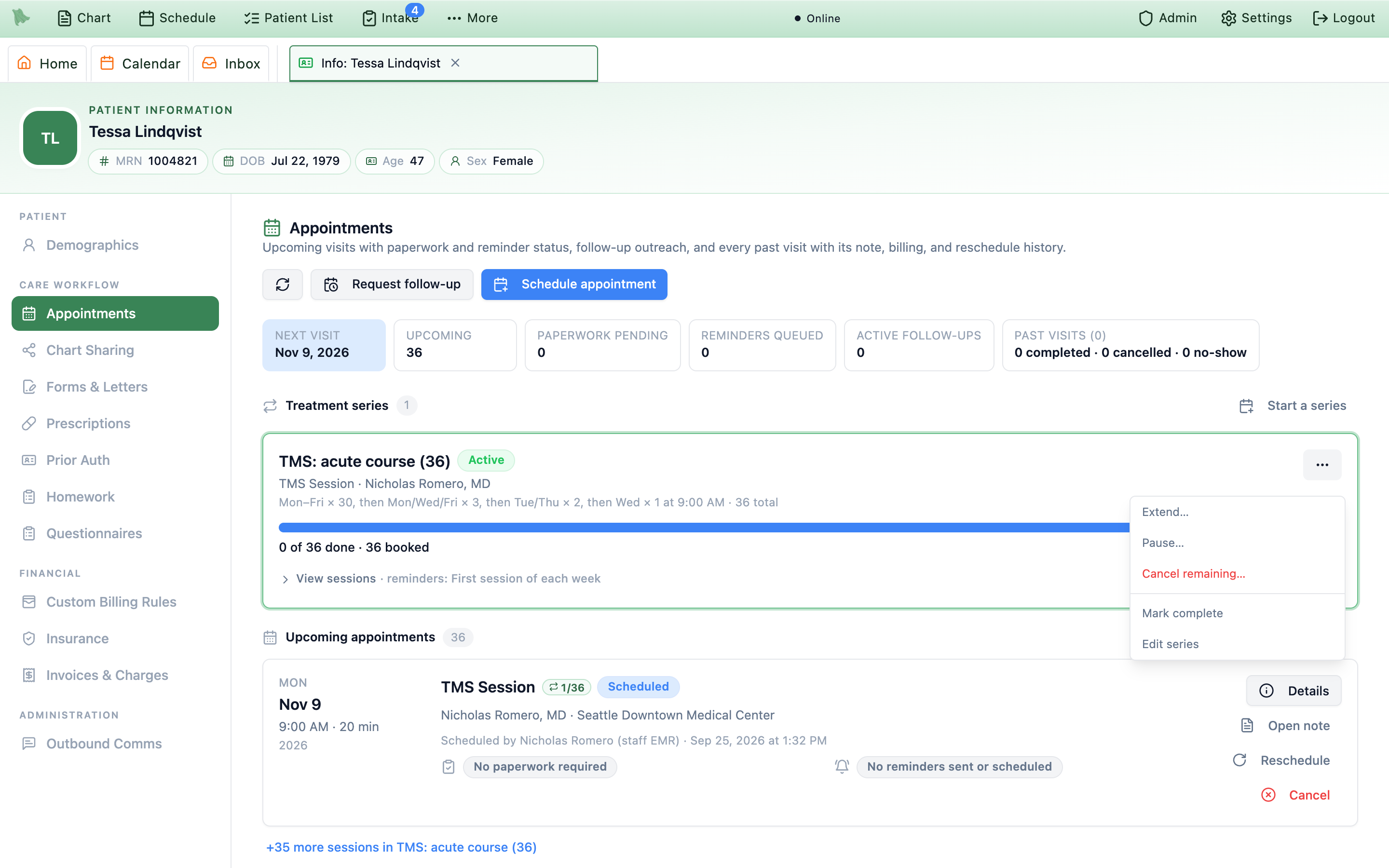
1/36 badge on the next session. The other 35 sessions fold into one line under Upcoming appointments.| Action | What it does |
|---|---|
Book make-up | Suggests the series time on the next free day after the missed session (within the max gap); pick another time if needed, then Book. A make-up is a normal booking with a normal confirmation. |
Book N remaining | Books planned sessions that are not on the calendar yet, with the same preview (“Book remaining sessions”). |
Extend… | Adds sessions to the plan (“Raises the plan from 36 to 38 sessions.”) and books them. |
Book next N… | Ongoing series only (in place of Extend…): books the next batch on the same days and time after the last booked session. The series stays open until you complete it. |
Pause… / Resume | Pause with an optional staff-only reason and Resume on date (Series Watch reminds the coordinator that day), optionally cancelling booked sessions from a date, without fees. Resume reopens the course and offers to book what is left. |
Cancel remaining… | Cancels booked sessions from a date with Requested by, Reason, and an optional note. “No cancellation fees are applied. The series ends; attended sessions stay on the record.” |
Mark complete | Ends the course and stops Series Watch; optionally cancels future sessions (no fees; the patient is notified). This is how an ongoing series ends. |
Edit series | Label, Planned sessions (not shown for an ongoing series), Ends by, Reminders, Max gap (days), and Coordinator. Changing the reminder mode updates every future session’s reminders. |
Detach | Takes one booked session out of the series; it stays booked as a regular visit with standard reminders. |
The card’s main button follows what the course needs most: Resume for a paused course, then Book make-up, Resolve session (opens a past visit whose status was never set), Book N remaining, Book next N (an ongoing series running low), and Mark complete. Everything else is in the … menu. Resuming an ongoing series with nothing booked offers its next batch.
Catch drifting courses on the Treatment Series page
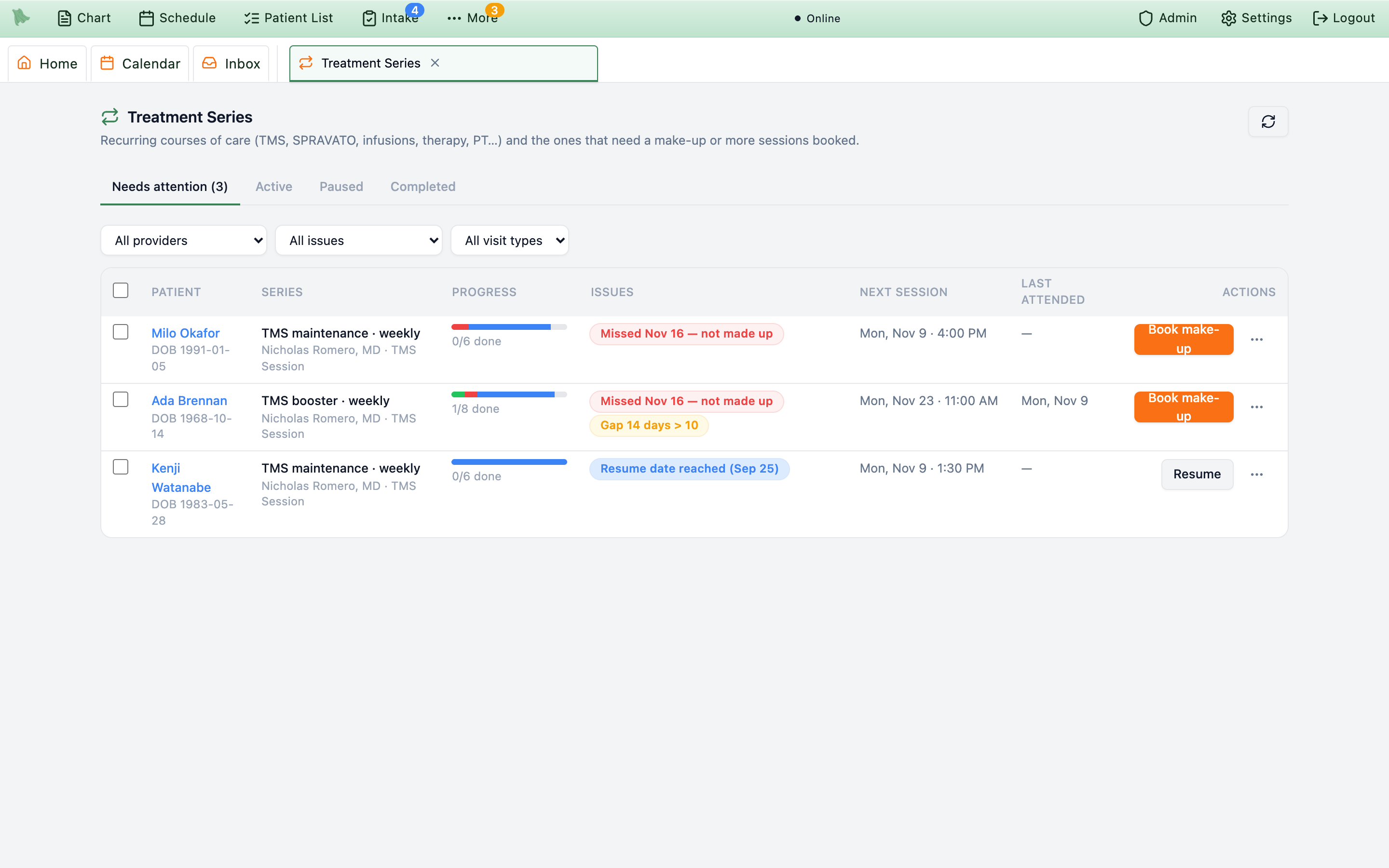
Once your practice has a series or a template, open the toolbar’s Treatment Series button. Its badge counts courses needing attention. If you hid the button, restore it through Customize in the top bar. The page has four tabs: Needs attention, Active, Paused, and Completed (which also lists cancelled courses), with All providers, All issues, and All visit types filters.
-
Read the row.
Patient(links to the chart),Series,Progress(“12/36 done”, or “13 done · ongoing”),Issues,Next session, andLast attended. -
Fix it in one click.
The row’s button matches the problem:
Book make-up,Resolve,Resume,Book remaining,Book next 4(an ongoing series), orMark complete. They open the same dialogs as the chart card. -
Or set it aside.
The
…menu offersSnoozefor 1, 3, or 7 days (hides the flag; its to-do stays open),Dismiss(completes the flag’s to-dos; the flag closes once the problem clears),Open chart, andPause series…. Tick rows to snooze or dismiss several at once. Staff who can only view the schedule see the rows andOpen chart.
| Flag | Raised when | To-do title |
|---|---|---|
Missed Nov 16 — not made up | A session was a no-show or late cancellation (or any patient cancellation, if you turned that on), no make-up counts yet, and the course has sessions left. | Book make-up: TMS Session missed Nov 16 |
4 sessions due in 14 days not booked | Planned sessions fall inside the look-ahead window but are not on the calendar. | Book 4 more TMS Sessions |
Book the next 4 sessions (booked through Nov 2) | An ongoing series’ last booked session is inside the look-ahead window (14 days by default). | Book the next 4 Follow Up sessions |
No next session booked | Sessions remain but nothing is booked. | No next TMS Session booked |
Gap 14 days > 10 | The time from the last attended session to the next booked one (or today) is longer than the max gap. | TMS Session: 14-day gap between sessions |
Nov 8 unresolved | A past session is still scheduled or confirmed hours after it ended (12 by default). | Resolve TMS Session visit on Nov 8 |
Resume date reached (Sep 25) | A paused course reached its Resume on date. | Resume TMS Session series |
All 36 sessions done — ready to complete | Every planned session is attended and auto-complete is off (never for an ongoing series). | TMS Session series ready to complete |
Create to-dos for (by default the series coordinator — whoever booked it, unless changed), linked to the patient. When the problem is fixed — a make-up booked, a session resolved — the flag closes and its to-dos complete themselves.
No next session booked until someone books the next batch or marks it complete. If it has an Ends by date, it can auto-complete once no further sessions fit and its past sessions are resolved, when automatic completion is enabled.
What patients receive for a series
Daily or twice-weekly sessions would bury patients in reminders, so each series has a reminder mode. It adjusts your practice’s appointment reminders (see Patient notifications) and only applies when those reminders are on.
| Reminder mode | Effect |
|---|---|
Standard | Every session gets the practice’s normal reminder schedule. |
Day before only | Only the reminders sent within a day of each session (no 7- or 2-day reminders). |
First session of each week | The full reminder schedule for the first session of each week; later sessions that week get none. If that first session is cancelled or missed, the next one that week takes over the reminders. |
-
One message per booking, not one per visit.
Booking a series,
Book N remaining,Extend, andBook next Nsend no per-visit confirmations. Instead the patient gets one message (by text and email, following their preferences) with the schedule — for example “Hi Tessa, 36 TMS Session sessions booked with Nicholas Romero, MD (Mon–Fri at 9:00 AM). First: Mon, Nov 9, 2026 at 9:00 AM EST. Last: Jan 6, 2027.” followed by your practice name. The email (“Your appointments are booked”) lists the sessions. UntickNotify patientto send nothing. - Forms for the first session only. Questionnaires and paperwork your Visit Rules attach are still assigned to every session, but only the first booked session’s assignments notify the patient.
-
Cancellations and pauses.
Cancel remaining, andPauseorMark completewith cancellations, send one message listing what was cancelled, charge no cancellation fees, and send no per-visit cancel notices. - A single make-up is a normal booking with its usual confirmation.
C to the series message confirms the first booked session.
Need help? Email support@heroemr.com.