Billing Queue
One page for every billing problem that needs a person. Each item says what happens next, keeps what we're waiting on in view until the result is in, and lets you ask a teammate for help without giving them billing access.
Billing Queue
One page for every billing problem that needs a person. Each item says what happens next, keeps what we're waiting on in view until the result is in, and lets you ask a teammate for help without giving them billing access.
The Billing Queue: billing problems that need a person
The Billing Queue is where your practice works the billing problems that need a person: insurance checks that failed, claims with no payment yet, denials and rejections, prior authorizations, and anything your team sends in. Billing Hero, the AI billing assistant, files most items; your Send automatically rules file others, and anyone who works billing can add one. Each item stays open until its work is really finished, including results that come back later, such as an insurance search, a call to the payer or a teammate’s answer (What we’re waiting on).
It used to be Billing → Operations → Human Review (and before that Hero Billing). Old links and bookmarks to either open the Billing Queue on the same item.
Where it is
- Staff with billing access: the
Billing Queuetab in the top menu, right afterBilling, with its list-and-checkmark icon. - Practice owners and administrators who are physicians: the
Billing Queuebutton in the toolbar. Hide or move it with Customize toolbar. - From anywhere: press Alt + 8.
- In Billing:
Operations → Billing Queueopens the same page.
The number on the tab and the button is how many items need you now (the Needs attention view). It refreshes about every 45 seconds while the page is open in front of you.
Who can open it
- Practice administrators and the practice owner.
- Staff with the billing-dashboard, claims-management or prior-authorization permission.
- Working items (approving changes, asking for help, resolving) takes claims-management permission; prior-authorization permission is enough for authorization items. Others can read items but see no buttons.
- Staff who only manage billing settings can open the page to reach the settings behind the gear.
- Other physicians can’t open the queue, but they can answer a billing request sent to them.
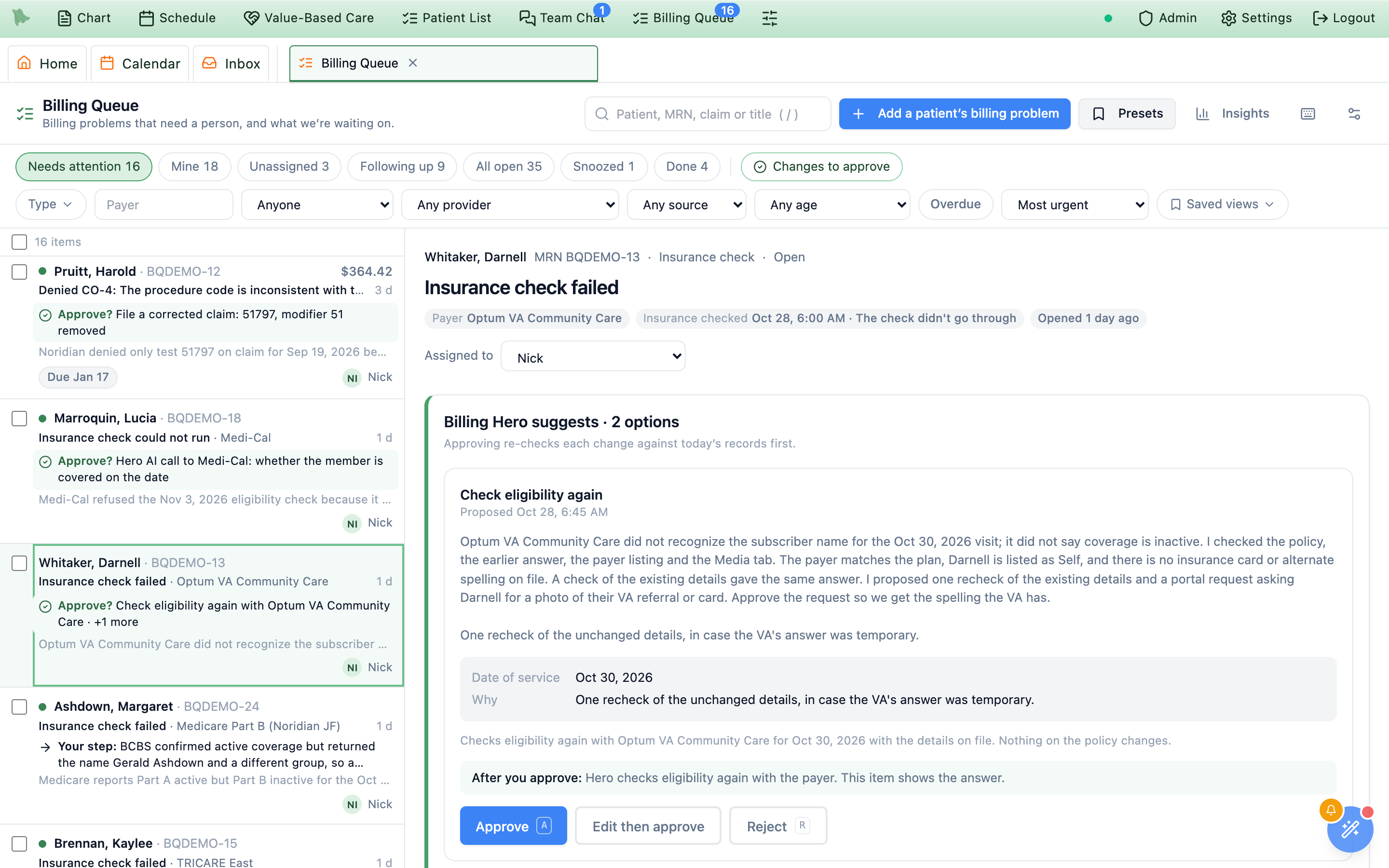
Needs attention: the list on the left, the open item on the right. Each row says what is wrong and the next step (here three changes to approve and a person’s step); the item opens on Billing Hero’s suggestion with Approve and Reject.The page
The header reads Billing Queue · Billing problems that need a person, and what we’re waiting on. On the right sit the search box, Add a patient’s billing problem (Send a problem to the queue), Presets (Presets), Insights (for people who can view the billing dashboard), the keyboard icon (Keyboard shortcuts) and the gear, Billing Queue settings (Settings). Under the header are the view tabs with their counts and the filters; below them, the list on the left and the open item on the right. On a narrow screen the item fills the screen and Back to the list returns you to the list where you left it.
The page opens on Needs attention when it has items for you, otherwise on All open. Someone whose role can’t read billing items sees “Your role can’t open the Billing Queue.”
Billing inbox alerts
The person who holds an item also gets an alert in the Inbox’s Billing view, grouped under Billing Queue (subject Billing Queue: {item title}). A physician who owns or administers the practice has the Billing view too, so the main physician sees these alerts. Alerts are raised when an item is assigned to someone, needs someone, comes back from the Hero billing team, or when the team needs an answer from your practice contact; one also appears when a Billing Hero change on the team’s item needs your practice to decide it. The alert turns new again when something on the item needs its holder: a result is ready, something it waited on didn’t work or is late, someone answered a request for help, or someone replied in Team Chat. Open in Billing Queue opens the item, and Assign teammate on the alert reassigns the item itself (Save assignment). These alerts have no Done: they clear on their own when the item closes or moves, or when you answer the team’s question.
Find the items you need
Views
| View | What it lists |
|---|---|
Needs attention | Open items assigned to or shared with you that you can act on now: nothing to wait for and not snoozed, or something new to look at (a result came in, someone answered, something didn’t work, something is late). An appeal, timely-filing or authorization deadline that is due today or past brings an item here even while it is snoozed or waiting. This is the number on the tab. |
Mine | Everything open that is assigned to or shared with you, including items that are following up or snoozed. |
Unassigned | Open items nobody has taken (items shared with your practice’s reviewers show under their Mine instead). |
Following up | Open items waiting on something: an insurance search, a call to the payer, a patient’s reply, a provider’s answer, a claim acknowledgment, a teammate’s answer. |
All open | Every open item. |
Snoozed | Items set aside until a later day (Snooze). |
Done | Resolved, withdrawn and returned items, most recently updated first. |
Search, filter and sort
- Search (press /): a patient’s name or MRN, a claim number, or words from the item’s title.
- Filters: type (
Any type, or tick Denial, Rejection, Claim follow-up, Insurance check, Prior authorization, Underpayment, Coding review, Patient balance, Other),Payer,Assigned to(Anyone,Unassignedor a person),Provider,Source(Billing Hero,Sent by staff,Automatic), age (Older than 7, 14, 30 or 60 days), and theOverduechip.Changes to approve, beside the view tabs, shows only the items with a change waiting for a decision. - Sort:
Most urgent(the default),Oldest first,Newest first,Due soonest,Recently updated,Largest amount. Most urgent puts first an appeal, timely-filing or authorization deadline in the next three days (or already past), then items whose result is late, then items with something new to look at, then the oldest. Clear filters (n)puts every filter back.
The page address keeps the view, filters, sort and open item, so reloading, going back or sharing the link shows the same list. When you come back to the Billing Queue later, it reopens where you were (without your search text). The list shows 50 items a page (Previous / Next) and refreshes about every 45 seconds while you are looking at it. Items whose chart, claim, visit or authorization was deleted drop out of the list and its counts.
Saved views
- Set up the list. Pick the view, filters and sort you want to come back to, for example All open, type Denial, older than 30 days.
- Save it. Open
Saved views→Save these filters as a view…, type a name (for example Denials over 30 days) and chooseSave view. - Use it. Pick it from
Saved views; the one on screen is marked (showing). The trash icon deletes it.
Saved views are yours alone: nobody else sees them. You can keep up to 20, each with its own name.
What each row tells you
Each row answers three questions at a glance: whose problem it is, what is wrong, and what happens next.
- The patient and MRN, and on the right the amount at stake (the claim’s unpaid balance, shown when it is known and your account can see money). A dot before the name means something changed since you last opened the item; a red or amber bar on the left marks an urgent or high-priority item.
- The problem: the item’s title, the payer and the date of service (an insurance check names the payer of the policy Billing Hero looked at), and how long the item has been open (Today, 4 d).
- The next step, in colour and led by a word that says whose move it is (table below). For a change to approve it names the change, for example “Approve? Replace the Ambetter policy (member ID ending 4417)”; for a person’s step it gives Billing Hero’s own words, for example “Your step: Check Anthem’s provider portal for the claim it matched…”.
- What Billing Hero found: the first sentence of its latest note, in grey, for example “Medicare reports Part A active but Part B inactive for the Nov 2 visit.”
- Chips for what is late or dated, and who has the item: a name, Shared (point at it for the names), Unassigned, or the Hero billing team and its biller.
| Next step starts with | What it means |
|---|---|
Approve? | Billing Hero proposed a change that waits for a person. The line names it, the price of a paid lookup, and +1 more when there is a second option. Open the item to approve or reject it. |
Your step: | Billing Hero handed the problem to a person; the line is what its note asks you to do. |
Hero’s step: | The fix is Hero’s (for example a claim format or an eligibility setup Hero must correct). Nothing is needed from you. |
Result ready:, Answer received:, New reply: | Something came back for you: the line says what (“The insurance search found 1 coverage: Medicaid. Check it, then resolve the item.”, “Jane Doe answered Done: Patient will bring the card Thursday.”). A result stays the step after you have read it, until you act on it. A Team Chat reply doesn’t finish a request. |
Didn’t work:, Overdue: | Something the item waited on failed or is late: try it again, or stop waiting on it. |
Hero is on it:, Waiting on the payer:, Waiting on the patient:, Waiting on a teammate: | Who the item waits on, and what. These items are under Following up, not Needs attention; that includes Hero’s own setup waits, such as a claims enrollment with a payer. |
Unassigned: | Nobody has the item yet. |
Snoozed:, Done: | Set aside until a day, or closed. |
| Chip | What it means |
|---|---|
Overdue | A result or an answer is late, or the item’s due date has passed. |
Due Oct 30 | The item’s due date (amber within three days). |
Snoozed until Oct 28 | Set aside until that day. |
3 claims | Several claims denied by the same payer for the same reason, worked as one item. |
To see only the items with a change to approve, choose Changes to approve beside the view tabs (it works in every view; choose it again to turn it off).
Open an item and work it
Click a row (or press Enter) to open the item on the right; the list stays where it is. The same view opens from the Billing inbox, the Claims Pipeline, Prior Auths and Billing Hero. Opening an item marks it read for you and, if it is yours, clears the chip that brought it to your attention. While an item waits on something quick (an insurance search, an insurance check, Billing Hero’s re-check) it refreshes every few seconds, so the result appears without reloading.
The top
- The patient (click the name to open the chart), the MRN, the type and the status (Open, In progress, Waiting on payer, Resolved, Withdrawn…), then the title.
- A row of facts at a glance: the payer, the date of service, the balance, the claim number (click it to open the claim), the patient’s next visit, the last insurance check and its result, how long the item has been open, the due date (red once it has passed) and the priority when it is high or urgent.
Assigned toshows who owns the item; pick someone else to hand it over, orTake itto make it yours. If someone took it a moment before you, you are told instead of taking it from them.
The next step
Right under the top, a card says what the item needs now, and its buttons do it:
| The card says | What you see |
|---|---|
Billing Hero suggests | Each change waiting for approval: what it would change, why, and After you approve: …, with large Approve and Reject buttons (and Edit then approve where a change can be edited). A second option appears under Or. With the keyboard, a approves and r rejects (Approve or reject changes). |
Your next step | What Billing Hero’s note asks a person to do, in its words, with Forward first (to ask the front desk, a provider or a teammate) and Resolve when it’s done. |
Hero’s step | The fix is Hero’s; nothing is needed from you. |
Check what happened | The result or the answer that came back (for example the coverage an insurance search found), with Resolve first. |
Waiting on Hero, Waiting on the payer, Waiting on the patient, Waiting on a teammate | Who the item waits on and since or until when. When something lands while you have the item open, the card changes and says so. |
Nobody has this yet | Take it. |
Done | How the item ended, for example Resolved · Corrected the member details or Withdrawn · Duplicate item, with the note. |
The item’s other buttons sit at the foot of the card, the ones you may use on this item: Forward (Ask someone to help), Snooze, Resolve, Withdraw, Reopen on a closed item, and Take back on an item with the Hero billing team. More holds Priority, Status, Next action date (Save date; never before your practice’s today), Open claim, Patient billing or Prior authorization, and Add something we’re waiting on.
The sections
| Section | What it shows |
|---|---|
What Billing Hero found | Billing Hero’s latest note in full (Show more for long text): what happened, what it checked and what a person should do. An item your practice sent shows the instructions it was sent with. |
What we’ve tried | Everything already done about the problem, newest first, so nobody repeats it: eligibility checks (automatic, staff and Billing Hero’s tests of proposed details, with the result and the member ID’s last 4), the claim being sent, accepted, rejected, denied or paid, AI payer calls and what the payer said, insurance searches, requests to the patient, earlier items for the same patient (Open shows one here), each time Billing Hero looked, decided changes with their reasons, results that came back and answers to requests. Six show at first; Show all lists the rest. |
What we’re waiting on | Shown while the item waits on something: every result it waits on, its status and when it should land (What we’re waiting on). |
Asked for help | Shown once a request was sent: every request from the item, to whom, how, and its answer (Ask someone to help). |
Context | The claim (number with Open claim, date of service, payer, billed, balance, status and what the denial means), the insurance on file with its last check, the patient’s next appointment (your practice’s date and time, and the provider), and Other open items for this patient (Open shows one here). |
Activity | Everything that happened on the item, oldest first, in plain words: who approved or rejected what and why, what started and what came back, every request and answer, snoozes and closes. Type in Reply and choose Send reply to add a note (Everyone who works this item sees it.); what you type is kept if the item refreshes. A reply on an item that is Waiting on you answers the Hero billing team’s question. |
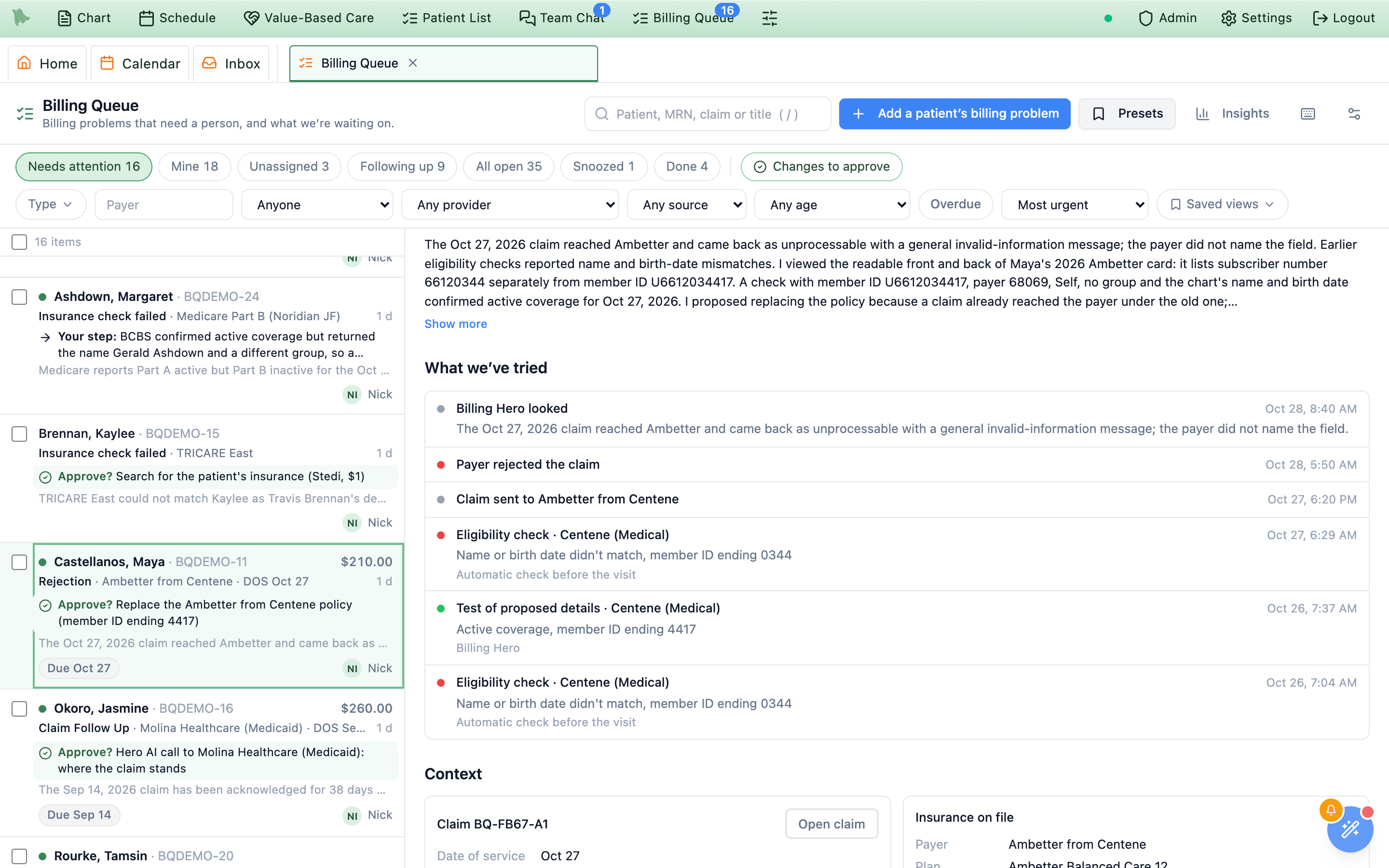
Make the actual fix in the normal billing screens, with your own permissions: Open claim and Patient billing (or Prior authorization) take you there.
Approve or reject Billing Hero’s changes, with a reason
The item’s Billing Hero suggests card lists the changes Billing Hero proposes for the item, right under the top. They appear while Billing Hero is set to A person approves each change (recommended to start), for actions set to Propose, and whenever a person is already working the item. Each card shows exactly what would change and one line that starts After you approve: and says what happens next and what the item does meanwhile. Approving re-checks the change against today’s records first.
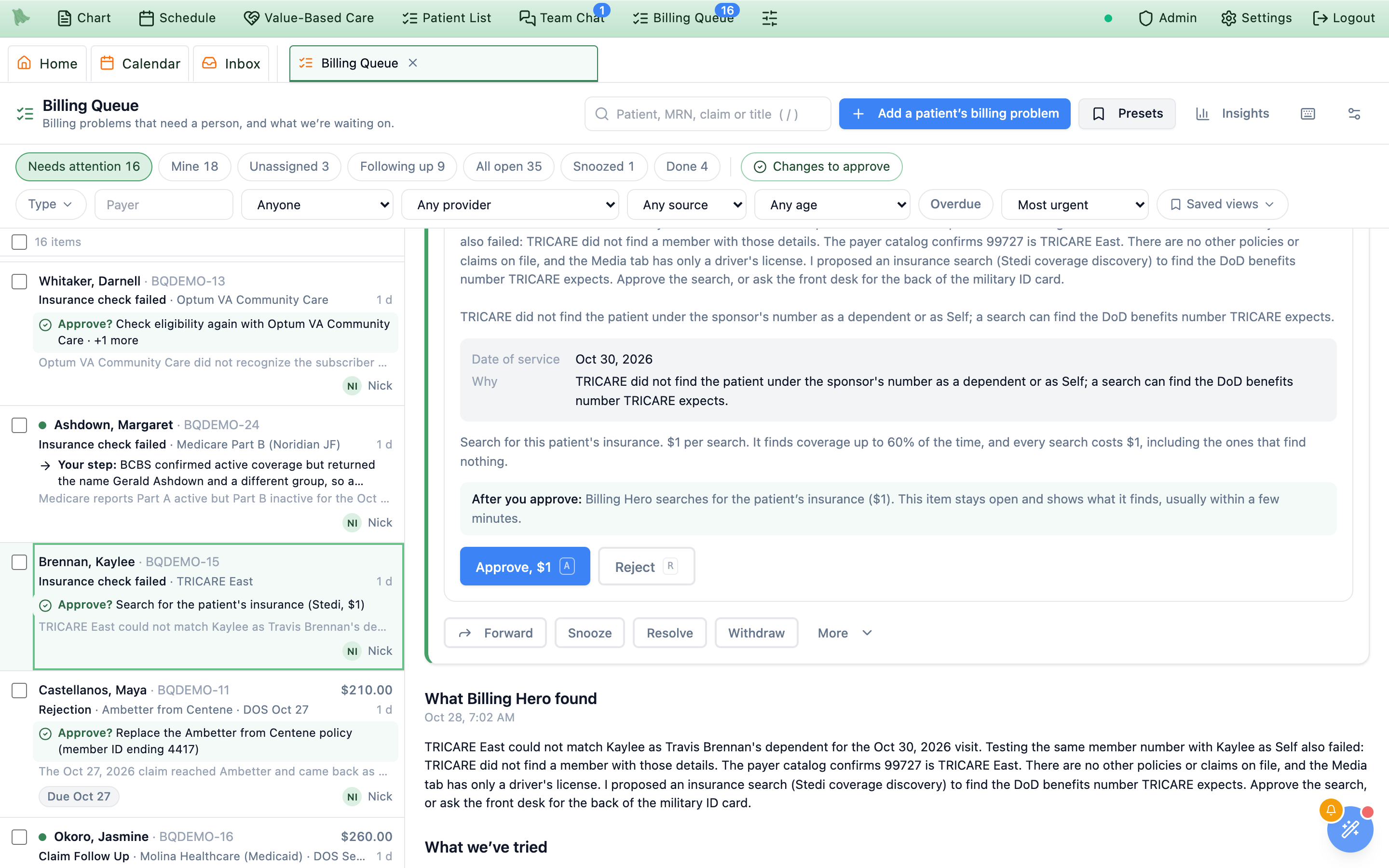
Approve(a paid search shows its price on the button),Edit then approve(for changes that can be edited), orReject. A group of claims denied for the same reason also offersApprove all.- Deciding a change takes claims-management permission; filing a claim to another insurance company also needs the reroute permission.
- The same changes appear in
Billing → Operations → Billing Hero→Waiting for approval; the first decision wins. Only the Billing Queue asks for a reason when you reject: rejecting fromWaiting for approvalasksWhy?in your own words.
After you approve
| Change | After you approve |
|---|---|
| Search for the patient’s insurance | Billing Hero searches for the patient’s insurance (with its price). This item stays open and shows what it finds, usually within a few minutes. |
| Check for the patient’s other insurance | Billing Hero checks whether the patient has other insurance. This item stays open and shows the result, usually within a few minutes. |
| Look up the patient’s Medicare number | Billing Hero looks up the patient’s Medicare number. This item shows the result. |
| Call the payer (Hero AI call) | Hero’s AI phone agent calls the payer with this question. This item stays open and shows the payer’s answer after the call. |
| Contact the patient | The patient is asked for this (a secure portal message, or a text or an email). This item stays open until they reply. |
| Message the provider | The provider gets a to-do with the question. This item stays open until they answer. |
| Check eligibility again | Hero checks eligibility again with the payer. This item shows the answer. |
| Send a claim again, rebuild a held claim, file a corrected claim | The claim goes out. This item stays open until the payer confirms they received the claim. |
| Release its own holds | The hold comes off and the claim goes out with your next claim batch. |
| Close a denial the payer was expected to make | The denial is closed as expected: nothing is billed to the patient and no new claim is filed. |
| Anything else | The change is made right away and shows under Activity. |
Reject with a reason
Reject opens Reject this change (Nothing is changed.) and asks Why are you rejecting it? Pick one reason and, if you like, add a note. The reason is saved with the decision, shown in the item’s Activity and on the change (Rejected · Needs more evidence first — your note), counted in Insights, and given to Billing Hero: the next time it looks at this patient or claim it reads the last 90 days’ decisions and reasons, and doesn’t propose a rejected change again unless something changed.
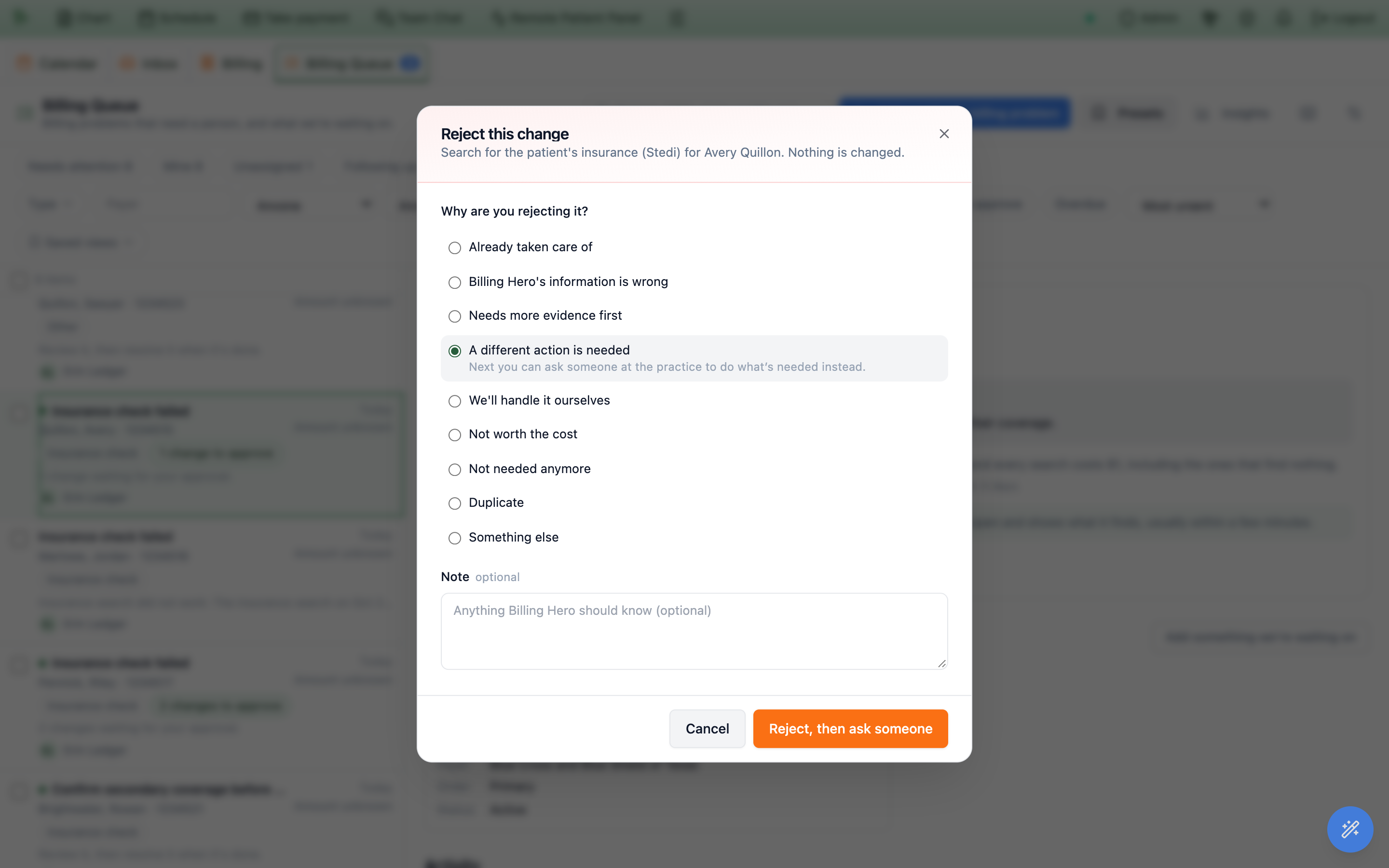
A different action is needed turns the button into Reject, then ask someone.| Reason | Use it when |
|---|---|
Already taken care of | Someone already did this, in Hero or elsewhere. |
Billing Hero's information is wrong (note required) | The change rests on a wrong fact. Say what is wrong, so Billing Hero gets it right next time. |
Needs more evidence first | It may be right, but you want proof before it happens. |
A different action is needed | Something else should happen instead. With permission to ask for help, the button becomes Reject, then ask someone: the change is rejected and Ask someone to help opens right away. |
We'll handle it ourselves | Your team will do the work by hand. |
Patient declined or shouldn't be contacted | Only for Contact the patient: the patient said no, or shouldn’t get this message. |
Not worth the cost | Only for changes that cost money (insurance searches and Hero AI calls). |
Not needed anymore | The problem went away. |
Duplicate | Another change or item already covers it. |
Something else (note required) | None of the above. Say what. |
Decided changes stay listed: Made, or Rejected · {reason} with the note. Changes decided before reasons existed show their note as it was written, or No reason given. When an item closes with changes still waiting, they are rejected as Closed with the item, with the reason the person gave for closing it (Resolve, withdraw & reopen).
Follow-through: an item isn’t done until its result is in
Why is an approved insurance search still in the Billing Queue? Because approving it only starts the search. The item stays open, under Following up, until the search finishes and its result (and Billing Hero’s check of that result) is on the item. Then it closes on its own if the problem is gone, or comes back to you marked Result ready.
Many changes finish later than the moment you approve them: an insurance search runs for a few minutes, a call to the payer waits for office hours, a patient answers in a day or two. The Billing Queue keeps the item open until each of those results is back, and shows the result on the same item. The item moves to Following up and lists each wait under What we’re waiting on, so you never have to guess what happened to something you approved.
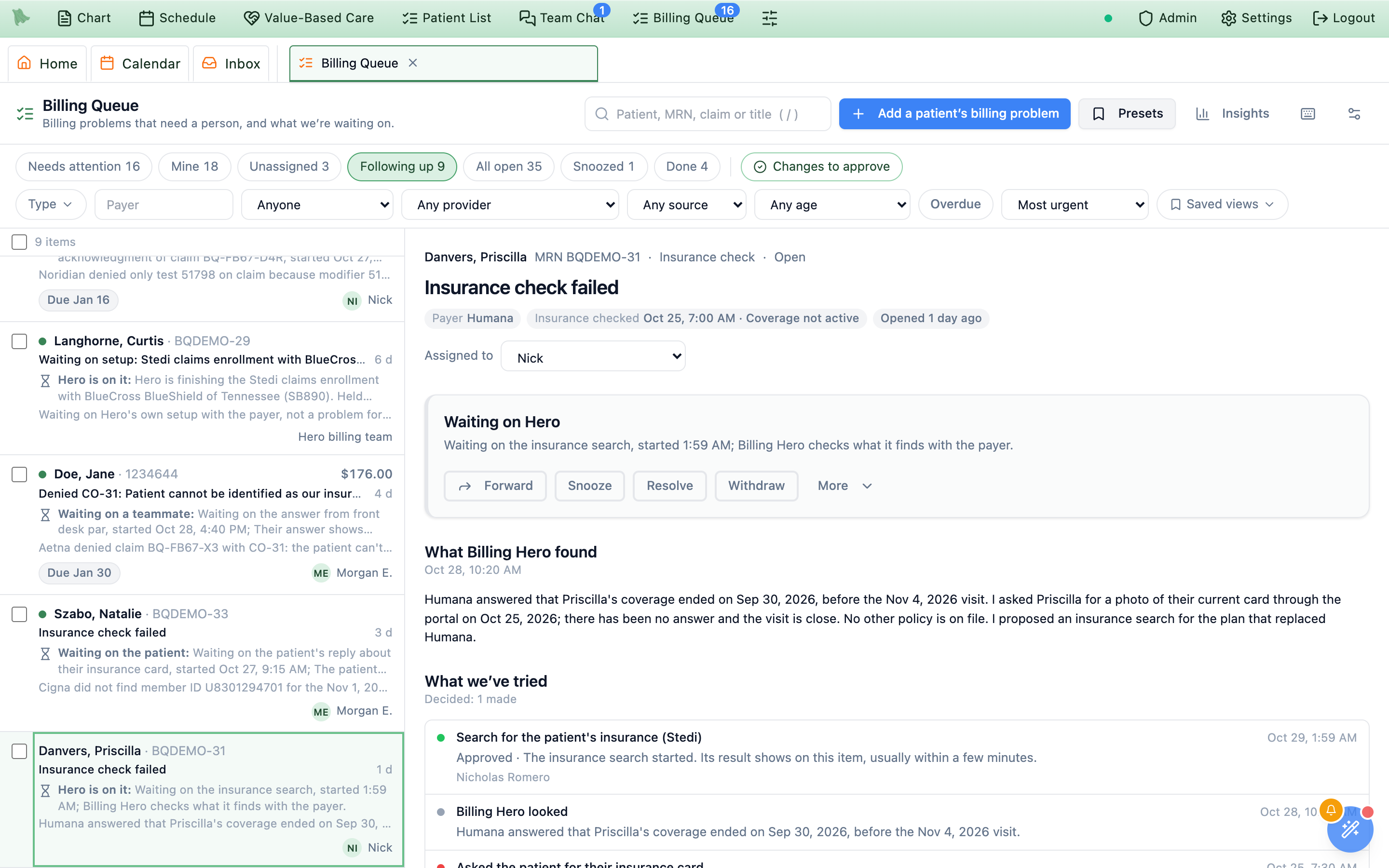
Following up, its next step says who it waits on, and the approval shows under What we’ve tried.| After this happens | The item waits on | Expected |
|---|---|---|
| You approve an insurance search, a Medicare number lookup or a check for other insurance | Insurance search, Medicare number lookup or Check for other insurance | About 15 minutes |
| You approve a Hero AI call to the payer | AI call to {payer} | An hour after the call’s first try (calls go out weekdays 8:30 AM to 3:30 PM, practice time) |
| You approve a portal message to the patient | Patient’s reply about {their insurance card, photo ID, home address…} | Up to 5 days (the request closes on its own then) |
| You approve a question to the provider | The provider’s answer … | 3 days |
| You approve sending a claim again, rebuilding a held claim, or a corrected claim | Payer’s acknowledgment of claim {number} | 3 days (checked every 5 minutes; payment is not waited for) |
| A result makes Billing Hero look at the problem again | Billing Hero is checking the results | 1 hour |
You ask someone to help and tick Wait for their answer | Answer from {person or team} | The end of the due date, or 2 days |
| You add one yourself | What you typed, for example Payer callback about the appeal | The day you pick |
Checking eligibility again needs no wait: Billing Hero has the payer’s answer before the change is finished, and it shows on the item at once. A text or an email to the patient has no reply to wait on.
Each line
Each line shows what we are waiting on, a status chip (Waiting, Overdue, Done, Couldn’t finish, Stopped), Started {time} · by {name} · expected by {time} in your practice’s time, and once it lands, the result in one sentence, for example “The insurance search on Oct 27 found 3 coverages: …” or “Hero called the payer: …”. Waiting and overdue lines come first, then what didn’t work, then what is finished, newest first.
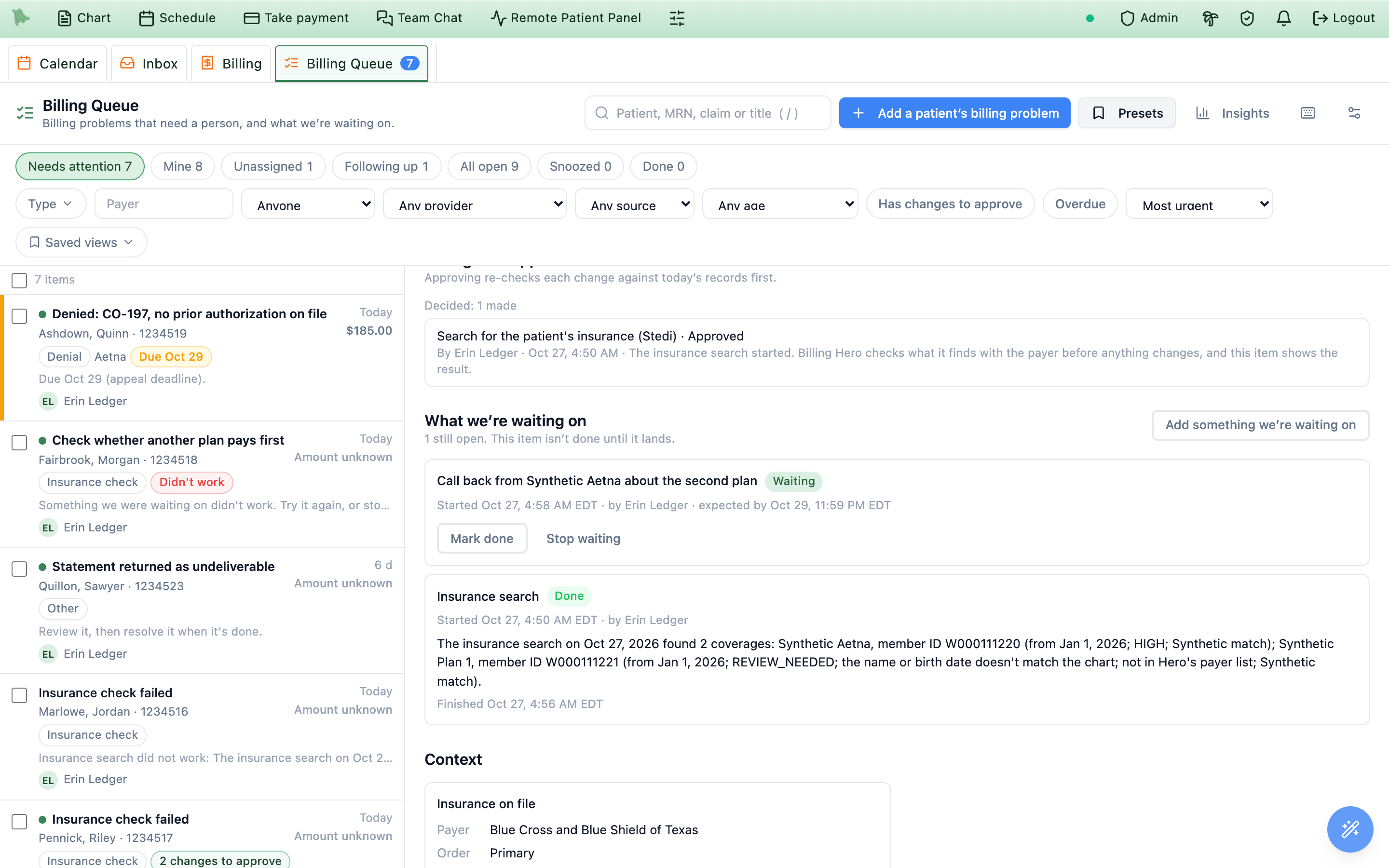
When everything is back
- The problem is gone: an item Billing Hero filed closes on its own and says what came back, “Closed automatically: {what went away}. What came back: {the results}.”
- Otherwise it comes back to you marked
Result ready, with the note “Everything this item was waiting on is back. What came back: … Decide what’s next.” It returns toNeeds attentionand your Billing inbox alert is new again. A patient’s reply or upload always comes back to a person: Hero doesn’t close an item on a reply alone. - Something didn’t work (a search error, a call that couldn’t be completed, a rejected claim): the line reads
Couldn’t finishand the item is marked Something we were waiting on didn’t work. It stays open until you try again or stop waiting. - Something is late: a wait past its expected time reads
Overdue, the item gets anOverduechip and a note, and it returns toNeeds attention. Nothing expires quietly.
What you can do
Try againruns a failed check again where Hero can, for example a check for other insurance. One that costs money readsTry again, $1and asks you to confirm the price first.Stop waitingstops waiting on something that failed or is stuck. Pick why:We checked another way,No longer needed,We'll try again laterorSomething else(say why). A request for help is stopped withCancel requestinstead.Add something we’re waiting onrecords something outside Hero: What are we waiting on? and anExpected byday (your practice’s calendar day; past it, the item shows as overdue). The item stays underFollowing upuntil you chooseMark doneorStop waitingon it.
Resolve and Withdraw list what the item is still waiting on and close it only after you tick Stop waiting and close: the waits stop and any open requests for help are cancelled (Resolve, withdraw & reopen). A result that arrives later is still recorded on the item.Ask the front desk, a provider or a teammate for help (Forward)
Forward (f) opens Ask someone to help. It sends part of the work to a person or a team at your practice, for example asking the front desk to call a patient for a new insurance card, while you stay the owner of the item. They don’t need access to the Billing Queue: they get your instructions, the patient, and a link to answer on a billing request page.
For example, to ask the front desk to call a patient about their insurance card: open the item, choose Forward, pick the preset Ask front desk to call the patient for a new insurance card (or write the request yourself), choose To → Front Desk, check the message and the due date, and choose Send. Everyone on the front desk gets a to-do with the patient’s name, MRN and phone; the first to answer handles it, and the item shows their answer under Asked for help.
Assigned to gives the whole item to someone else; they then own it. Forward keeps the item yours and asks for one thing. Use Forward for people who don’t work the Billing Queue.- Pick a preset, or
Start from scratch. Presets that fit the item are markedSuggested for this itemand listed first (the first six show;Show all {n} presetsfor the rest). Picking one fills in everything below with this item’s details; change anything before you send.Manage presetsopens the presets. - Choose
Send as.To-do,Team Chat messageorInbox message(what each one looks like to them). - Choose
To. Search for a person (with their role) or a team, such as Front Desk (with how many people get it). Only people who can receive that kind of message are offered (for a to-do, people who use to-dos; for Team Chat, people with chat access), and you can’t send one to yourself. - Write the
Message. Say what you need.Insert:adds a detail that is filled in from the item when it is sent (the details);Fill in this item’s detailsshows the finished text now. - Add
What answer do you need?and aDue date(both optional; the due date is your practice’s calendar day, and also the to-do’s due date). - Keep
Wait for their answerticked (it starts on) to keep the item underFollowing upuntil they answer, then bring it back to you. - Optionally tick
Save as a preset, name it and chooseJust meorWhole practice. - Choose
Send. The request appears on the item underAsked for help.
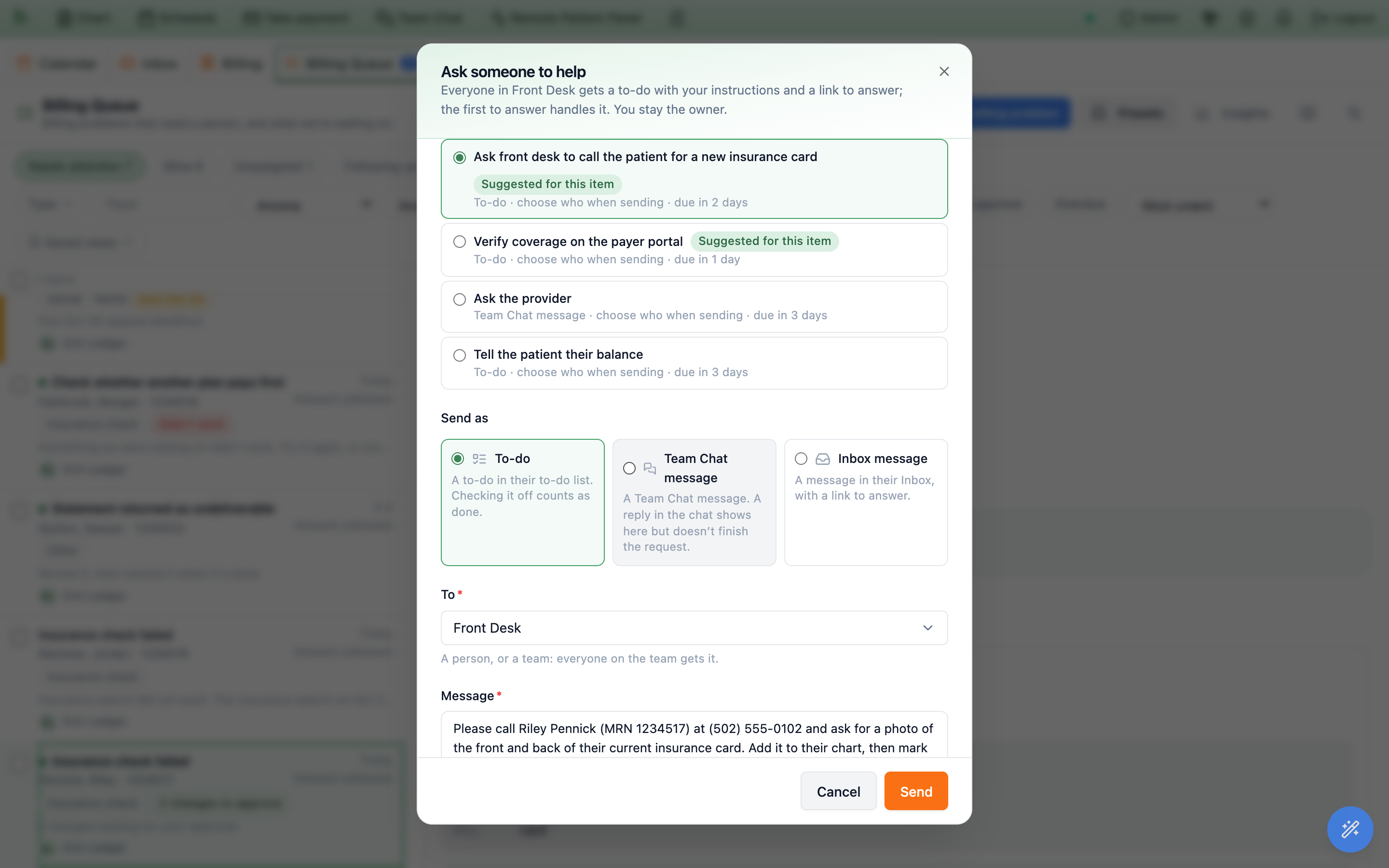
What the person you ask gets, and how their answer comes back
A request for help reaches the person or team you picked as a to-do, a Team Chat message or an Inbox message, with your instructions and a link to a billing request page where they answer Done, Couldn’t do it or Need more information. Their answer comes back to the item you sent it from.
What the other person gets
| Send as | What they see | What finishes the request |
|---|---|---|
To-do | A to-do titled Billing: {first sentence of your message}, linked to the patient, due 5:00 PM on the due date, with your instructions, the answer you need, Please answer by {date}, and Answer here: {link}. The row has a receipt icon, Open billing request. | Their answer on the request page, or checking the to-do off (counts as Done). |
Team Chat message | A message from you with the same text and Open billing request under it: in your direct chat with a person, or in a new group named {team}: billing request for a team. | Their answer on the request page. A reply in the chat shows on the item as New reply but doesn’t finish the request: you decide what’s next. |
Inbox message | An item in their Inbox’s Notifications: {you} asked for help: {patient}, with Open. It is never emailed or texted. | Their answer on the request page. Marking the notification done does not answer it. |
A request to a team goes to every member who can receive it. The first to Take it or answer handles it; the others’ to-dos close with Handled by {name}.
Details you can insert
| Insert | Typed as | Filled in with |
|---|---|---|
| Patient name | {patient_name} | First and last name |
| Patient first name | {patient_first_name} | Preferred name, else first name |
| MRN | {mrn} | The patient’s MRN |
| Patient phone | {patient_phone} | The phone on file |
| Payer | {payer} | The claim’s payer, else the item’s or the patient’s policy |
| Claim number | {claim_number} | The item’s claim |
| Date of service | {service_date} | For example October 12, 2026 |
| Next appointment | {next_appointment} | For example Thursday, March 14, 2030 at 8:30 AM, in your practice’s time |
| Item title | {item_title} | The item’s title |
| What Billing Hero found | {what_happened} | The first sentence of Billing Hero’s latest summary |
| My name | {my_name} | Your name |
A detail the item doesn’t have stays as typed, so read the message before you send it. The message is saved exactly as sent: editing a preset later never changes a request already sent.
Follow the request on the item
Asked for help lists every request, newest first: how it went (To-do to Front Desk), Sent {time} by {name} · waiting for the answer, the message, Answer needed: …, Replied in Team Chat 2:14 PM, and where it stands:
- Waiting for Front Desk · due Oct 28 (with · overdue once late), Taken by Maria;
- Done — “{their note}” · Maria, Couldn’t do it — {why}, Needs more information — {their question};
- Couldn’t send — {why}, Cancelled.
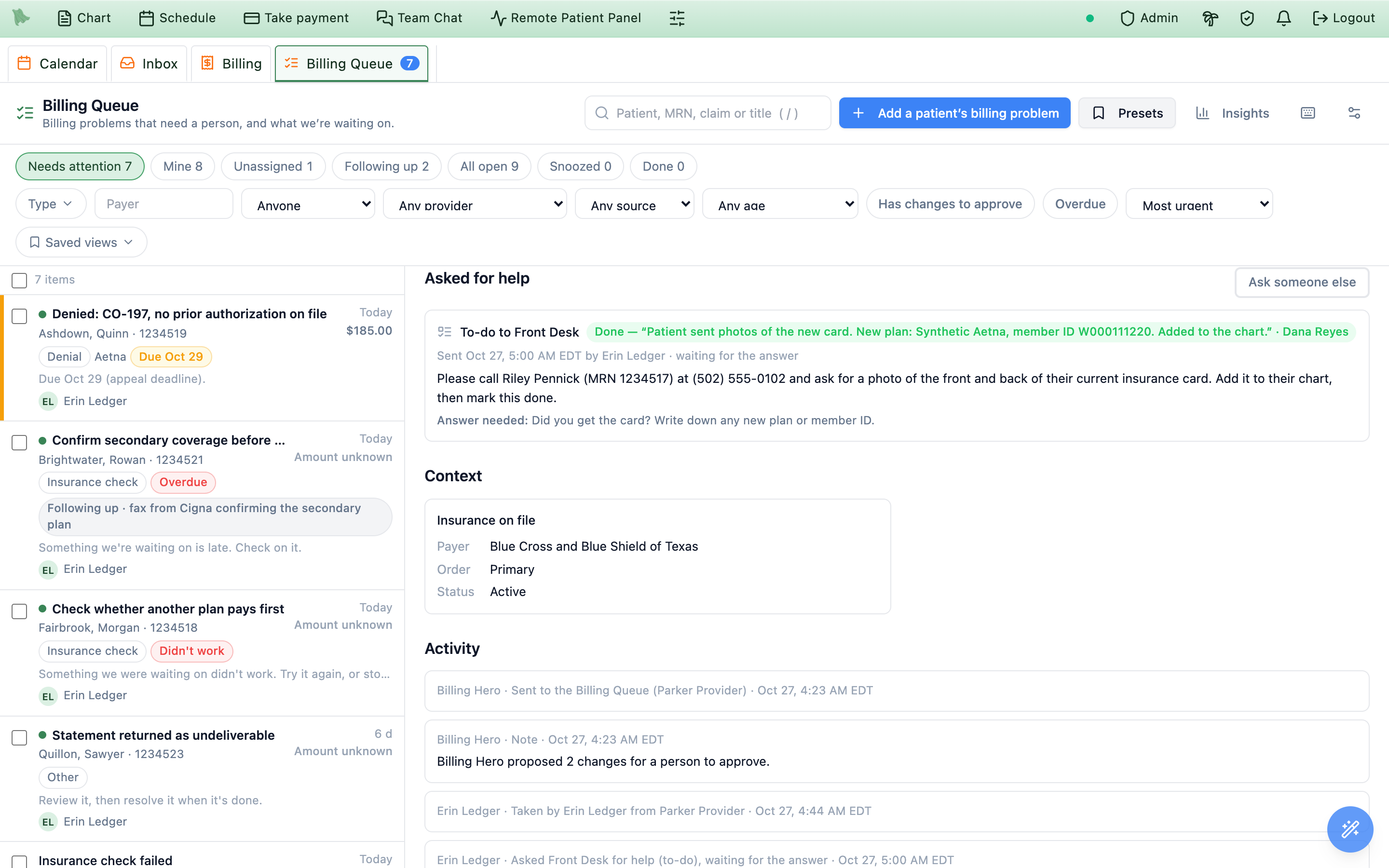
An answer brings the item back to you (Answer received). Couldn’t do it on a request you wait for counts as something that didn’t work; Need more information shows their question on the item for you to answer.
Mark done: they answered another way, for example in person (What did they tell you? is optional). Their copies close with Handled by {you}.Cancel request: it is no longer needed. Their to-dos close with No longer needed: {you} withdrew this request., the Inbox item goes away, and a Team Chat request gets This billing request is no longer needed.Send again: the request couldn’t be delivered to someone (for example their to-do list was full). Only what is missing is sent again; nobody gets a second copy.Ask someone elsestarts another request.
Resolving or withdrawing the item cancels its open requests the same way (No longer needed: the billing item was resolved.).
Presets: save the requests you send often
A preset is a ready-made request for help: how it is sent, to whom (or choose who when sending), the message with its details, the answer you need, when it is due and whether to wait for it. Picking one in Ask someone to help fills the request in; a person always reviews and sends it. Presets never send anything on their own.
- Open
Presetsfrom the Billing Queue header, orManage presetsinAsk someone to help. Presets are listed underWhole practiceandJust me; each says how it is sent, to whom, when it is due and whether it waits, what it is suggested for, and who added it. - Choose
New preset(orEdit):Name,Who can use it(Just meorWhole practice),Send as,To(leave it asChoose when sendingto pick the person each time),Message(with the same details as a request;Preview with a sampleshows it with a made-up patient),What answer do you need?,Due in (days)(0 to 60, counted from the day it’s sent),Wait for their answer, andSuggest it for these items(item types and Billing Hero changes). - Choose
Add preset(orSave).
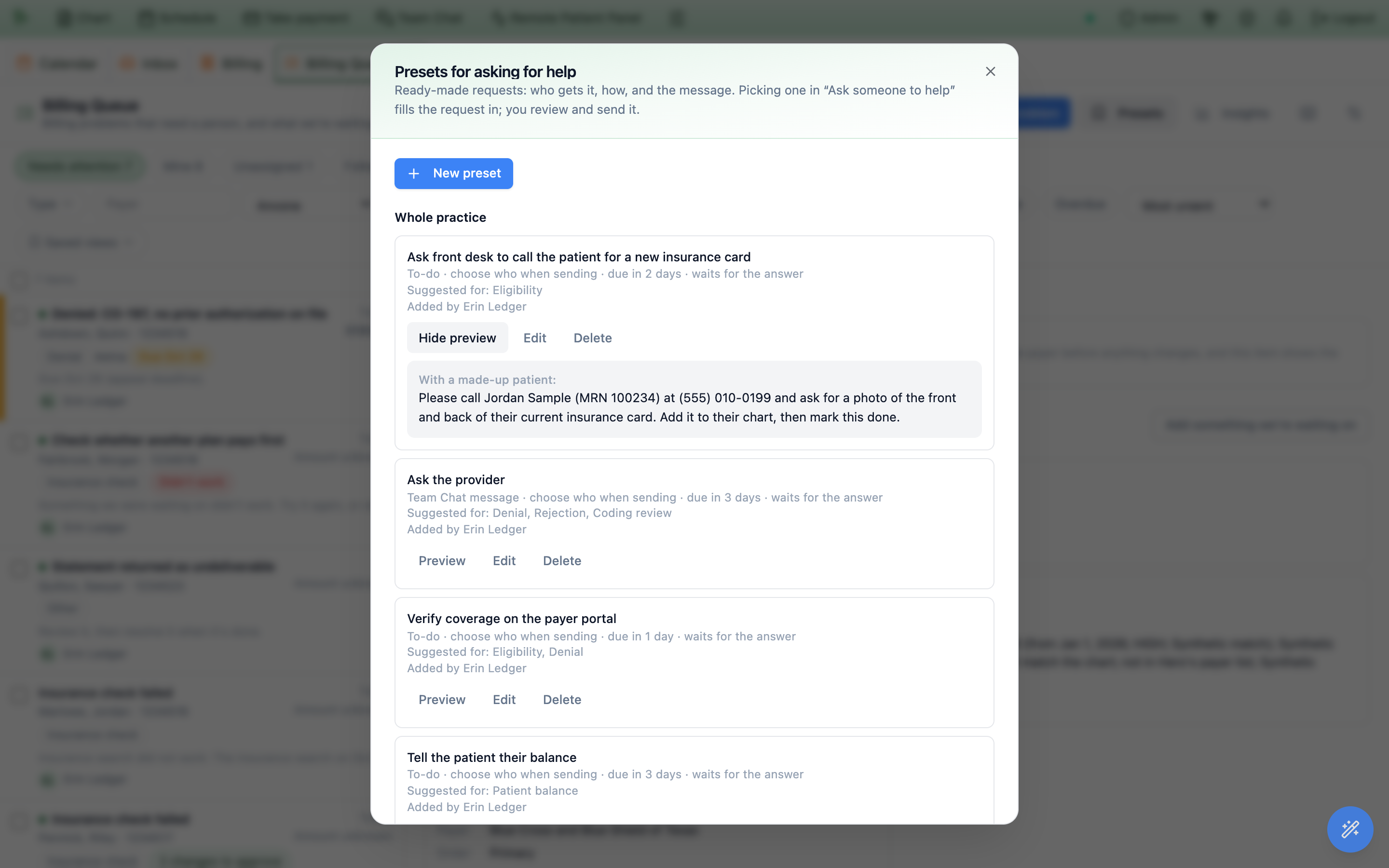
Add the starter presets, with one previewed on a made-up patient.You can also tick Save as a preset while sending a request: the message is saved as you typed it, with its details still to fill in, and it is suggested for that kind of item.
Suggestions
A preset is Suggested for this item when the item’s type is one it is for, or when the item has a pending Billing Hero change it is for (for example a preset for Search for the patient’s insurance on an item with that change waiting). Suggested presets are listed first. A preset with no types or changes is offered for every item, without the mark.
The starter presets
While your practice has no shared presets, the manager offers Add the starter presets (Start with these four; you can edit or delete them after.). They are never added automatically, and each asks you to choose who gets it when sending:
| Starter | Sent as | Due | Suggested for |
|---|---|---|---|
| Ask front desk to call the patient for a new insurance card | To-do | 2 days | Insurance check items; insurance searches and patient contact |
| Ask the provider | Team Chat message | 3 days | Denials, rejections, coding reviews |
| Verify coverage on the payer portal | To-do | 1 day | Insurance check items and denials |
| Tell the patient their balance | To-do | 3 days | Patient balance items |
Who can do what
- Use presets: anyone who can ask for help on the item. Everyone sees the practice’s presets; personal presets are seen only by the person who made them.
- Add presets and change your own: claims-management permission (and practice administrators). Others read Someone who manages claims can add presets.
- Change or delete someone else’s shared preset: also the billing-settings permission. Only its creator can make a shared preset personal.
Names are unique within the practice’s presets and within each person’s own. Deleting a preset frees its name and leaves requests already sent untouched. If the person a preset sends to leaves the practice, it asks you to choose who when sending.
Answer a billing request (front desk, medical assistants, providers)
Sometimes the billing team needs your help with a patient’s bill: calling a patient for a new insurance card, checking something at the front desk, or answering a question about a visit. They send you a billing request. You don’t need billing access to answer one.
Where requests show up
- Your to-do list. The to-do starts with Billing:. Click the receipt icon on the row, or open the to-do and click
Open billing request. - Team Chat. The message ends with Answer here:. Click
Open billing requestunder the message. - The Inbox’s
Notifications. Open the notification ({name} asked for help: {patient}) and clickOpen.
My billing requests at the top of every request page lists everything still waiting for you or your team, newest first, with when each one is due (overdue ones are marked).
Read the request
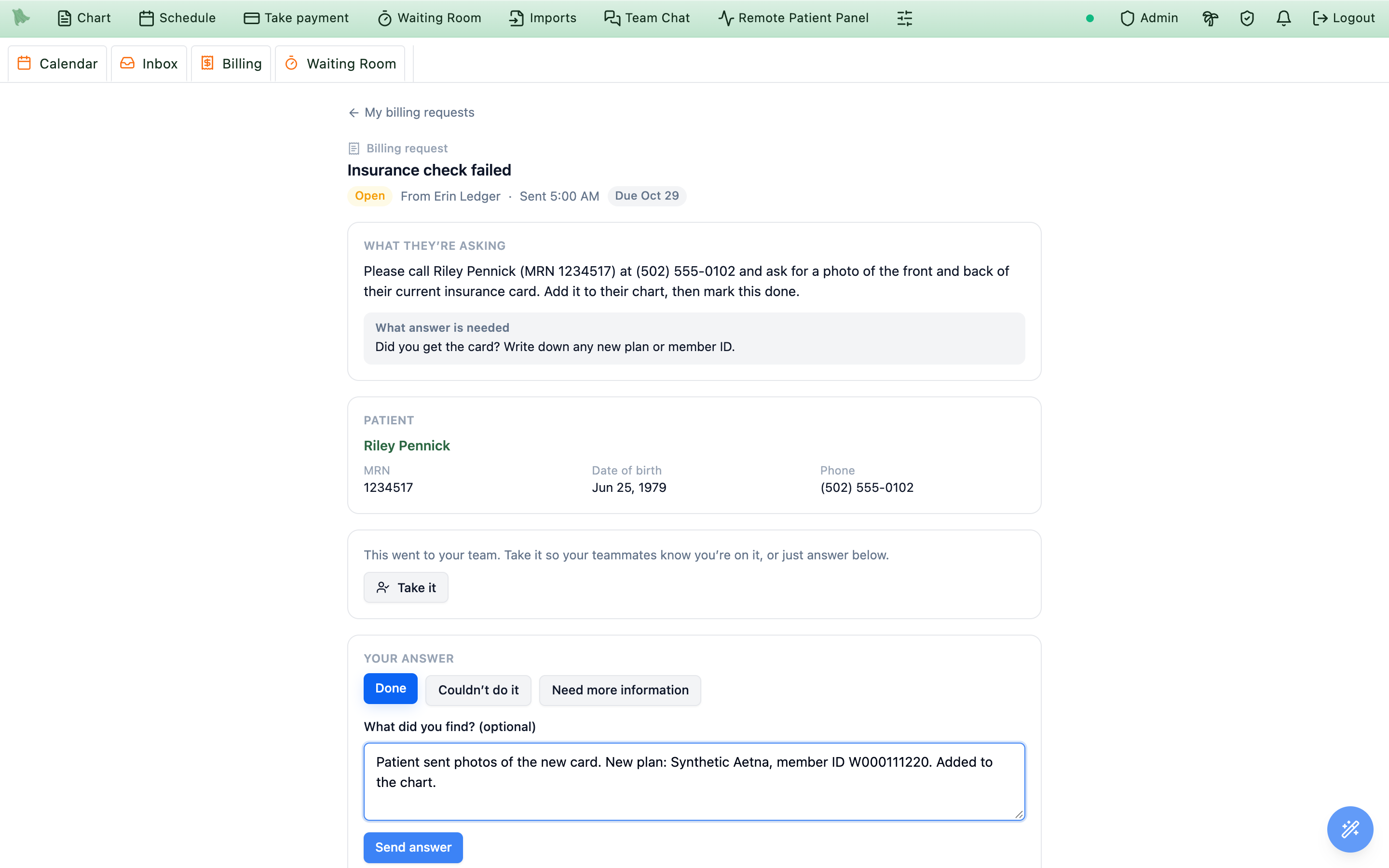
The Billing request page shows the item’s title, its status, From {name}, Sent {when} and when it’s due (Due today, Due tomorrow, Overdue · was due Oct 24); What they’re asking and What answer is needed; and the patient: name, MRN, date of birth and phone. If you can open charts, click the patient’s name to open the chart. If your practice uses Hero phones, click the number to call.
- Take a team request. If it went to your team, the page says This went to your team. Take it so your teammates know you’re on it, or just answer below. Click
Take it. If a teammate took it first, the page tells you who, and there’s nothing more for you to do. - Choose your answer. Under
Your answer:Done(you did it; What did you find? (optional), for example Patient sent a photo of the new card),Couldn’t do it(Why couldn’t you do it? is required, for example Called twice and left a voicemail) orNeed more information(What do you need to know? is required). - Click
Send answer. You see Thanks. Your answer went to {name}. (or Your question went to {name}.).Back to my requestsshows what else is waiting.
- This request is no longer needed. The billing team closed it or cancelled the request; its to-do closes on its own.
- This request isn’t yours or no longer exists. It went to someone else, or you left the team it went to. There’s nothing for you to do.
- People who work the Billing Queue see
Open in Billing Queue, which opens the whole item. Opening a request page is recorded in the practice’s access log, like opening a chart.
Close an item, and say why
| Action | What it does |
|---|---|
Resolve (e) | Say how it ended. The item moves to Done. Pick How it ended and add an optional note. The choices fit the item: an eligibility item offers Corrected the member details, Changed the payer, Replaced or removed the policy, Payer confirmed coverage, nothing changed and Patient is self-pay now; a claim item offers claim outcomes such as Corrected claim submitted, Appeal filed, Released the hold and Finished the payer enrollment; a prior authorization item offers Authorization approved, Authorization denied and Authorization not required. Every item also offers Not actionable, Duplicate and Other. |
Withdraw (w) | Nobody needs to work this item anymore. It moves to Done. Pick why (table below). |
Reopen | The item opens again in the Billing Queue. Earlier waits and their results stay on it as history. |
Take back | The item comes back to your practice, and the Hero billing team can no longer open it. |
Why an item is withdrawn
| Reason | Use it when |
|---|---|
Not needed anymore | The problem went away. |
Handled outside Hero | Someone fixed it in another system, on the phone or on paper. |
Duplicate item | Another item covers the same problem. |
Not billable | There is nothing to bill or collect. |
Patient no longer active | The patient left the practice. |
Billing Hero got it wrong (note required) | The item should never have been filed. Say what happened, so Billing Hero learns from it. |
Something else (note required) | None of the above. |
The reason shows on the closed item (Withdrawn · Duplicate item), in its Activity and in Insights. Items withdrawn before reasons existed read No reason given.
Closing an item that isn’t finished
- Still waiting on something: the dialog lists it under This item is still waiting on:, including requests for help. Tick
Stop waiting and close. Open requests for help are cancelled and their to-dos closed.; the button then readsStop waiting and resolve(orStop waiting and withdraw). If something new started after you opened the item, the dialog lists it and asks again. Closing stops the waits (they show as Stopped underWhat we’re waiting on), and a result that arrives later is still recorded on the item. - Billing Hero changes still waiting: the dialog says Closing rejects these 2 changes with your reason: …. They are rejected as Closed with the item, with your reason or how it ended, and your note.
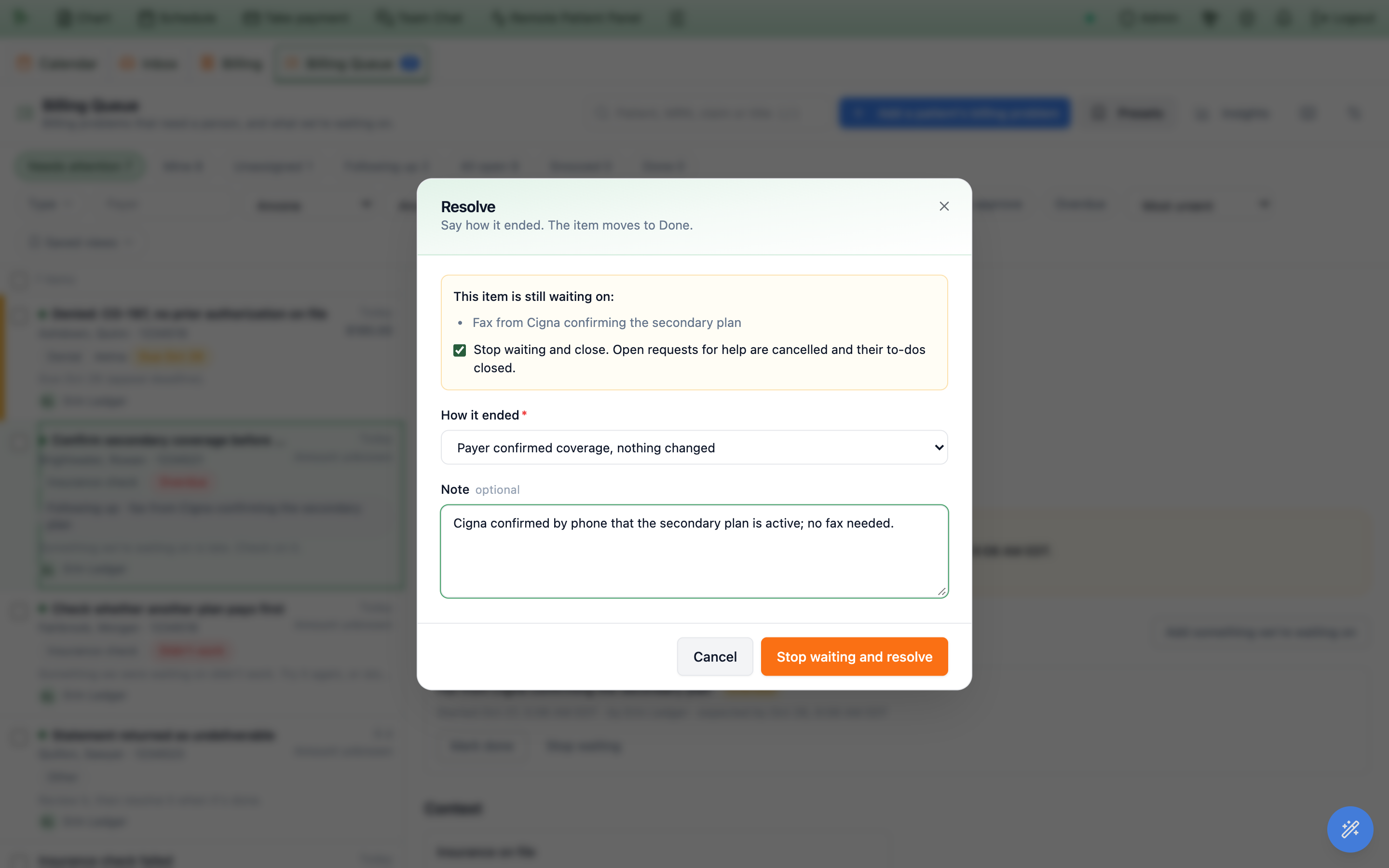
Stop waiting and close, and the button says what will happen.A resolved item shows Resolved · {how it ended} and, when the records show what changed, a one-line summary Hero works out from the eligibility checks and claim history at the time, for example Fixed: member ID changed; coverage now active or Claim resubmitted. The summary names what changed, never the values. Reopening an item clears its summary and its withdraw reason. Hero uses these outcomes to see which problems Billing Hero could fix on its own next time.
Set items aside, and work many at once
Snooze
Snooze (s) asks When should this come back?: Tomorrow, In 3 days, Next week, In 2 weeks, or Come back on a day (your practice’s calendar day, after today). The item leaves Needs attention until then and shows Snoozed until …; a result, an answer, or an appeal, timely-filing or authorization deadline that is due brings it back sooner. Stop snoozing (back now) ends it. Snoozing sets the item’s Next action date, so it shows the same way everywhere.
Work several items at once
- Select the items. Tick the box beside each row, press x on a row, or Shift + x for every row from the last one you selected. The box above the list selects the whole page. A bar shows {n} selected.
- Pick an action for up to 100 items:
Assign:Give them toa person, orNobody (back to Unassigned).Forward: Ask someone to help with these items from aPreset. The same request goes out for every item, filled in with each item’s patient and claim. If the preset doesn’t name who gets it, pickSend to. Saving a new preset is done from one item, not in bulk.Snooze:Bring them back ona day.Priority: Low, Normal, High or Urgent.Withdraw: pick why (a note is needed for Billing Hero got it wrong and Something else). TickStop waiting on anything still outstandingto also close items that still wait on a result or an answer; without it they stay open and are listed as not changed.
- Check the list and confirm. Every dialog lists the items first.
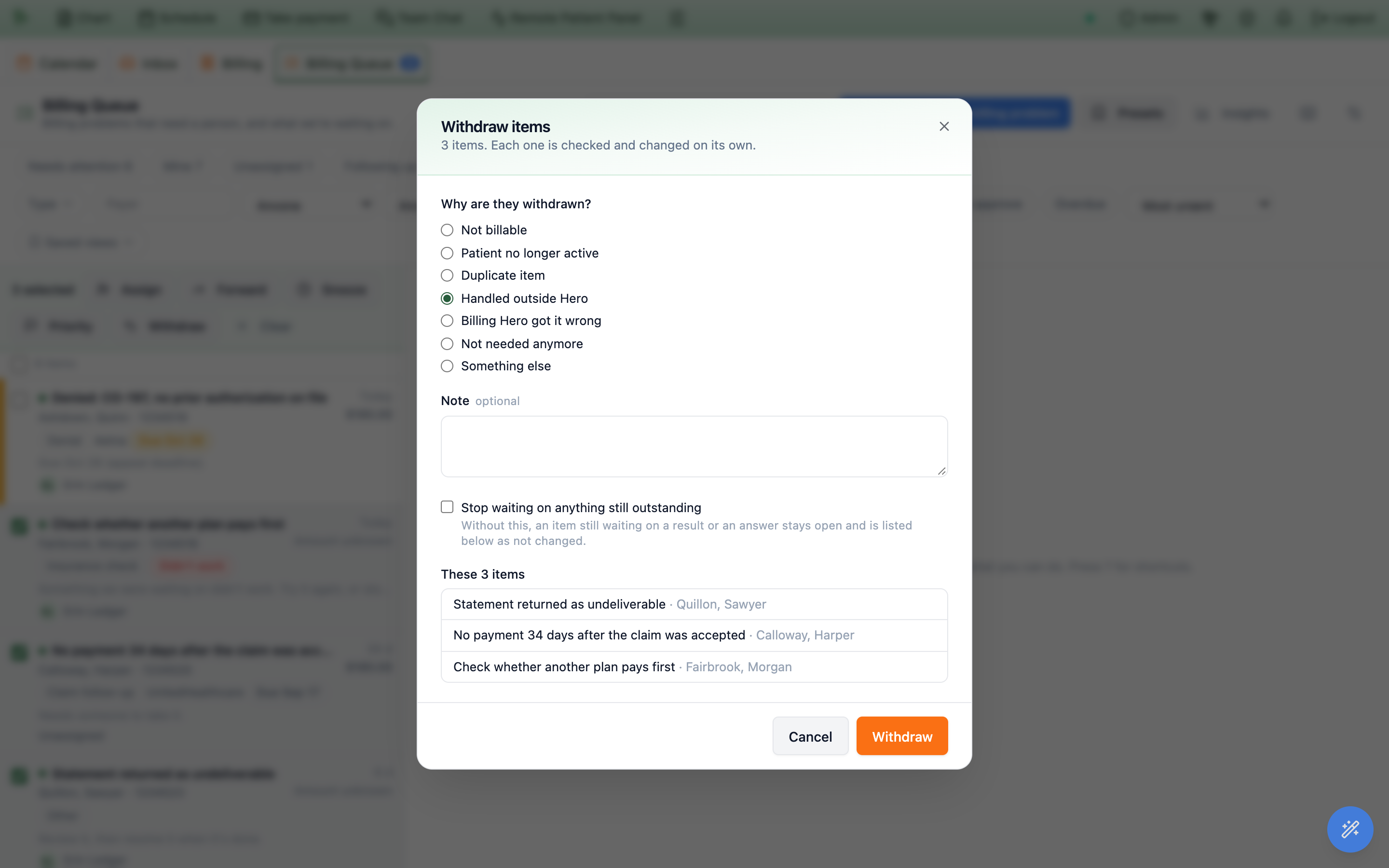
Each item is checked and changed on its own, with your permissions for that item. Afterwards you see {n} items changed. {m} couldn’t be changed., with each failure’s reason. Items that couldn’t be changed stay selected so you can try something else. Assign, Snooze and Priority work on your practice’s items, not on items the Hero billing team holds. Changes are approved one item at a time (a group of claims has its own Approve all).
Work the queue from the keyboard
Press ? on the page (or the keyboard icon) to open Billing Queue shortcuts. They work when you are not typing in a box. Alt + 8 opens the Billing Queue from anywhere in Hero.
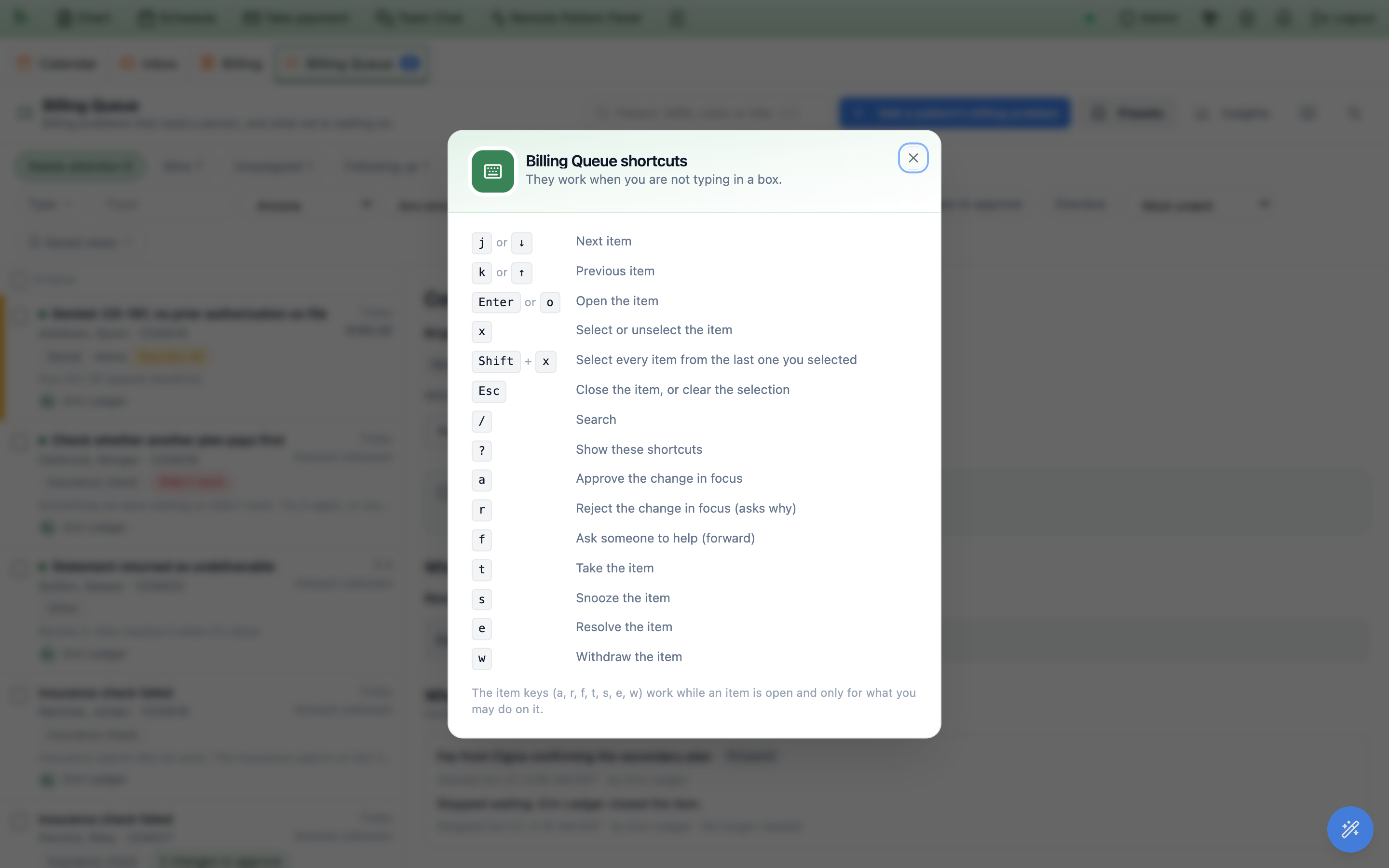
| Key | What it does |
|---|---|
| j or ↓ | Next item |
| k or ↑ | Previous item |
| Enter or o | Open the item |
| x | Select or unselect the item |
| Shift + x | Select every item from the last one you selected |
| Esc | Close the item, or clear the selection |
| / | Search |
| ? | Show the shortcuts |
| a | Approve the change in focus |
| r | Reject the change in focus (asks why) |
| f | Ask someone to help (forward) |
| t | Take the item |
| s | Snooze the item |
| e | Resolve the item |
| w | Withdraw the item |
The item keys (a, r, f, t, s, e, w) work while an item is open and only for what you may do on it. a and r act on the change card you last clicked or tabbed into, otherwise on the first change still waiting. Approving with a is the same as the Approve button; a paid search still shows its price.
See how the queue is doing
Insights in the header opens a summary above the list for people who can view the billing dashboard, practice administrators and the practice owner. Pick Last 7, 30 or 90 days (your practice’s calendar days).
- Tiles:
Opened,Done,Typical time to done(the median),Overdue nowandUnanswered requests. - Lists, each with its number:
Open by person(including the Hero billing team and items that need someone),By type,Why changes were rejected,Why items were withdrawn,What we waited on(each kind and how it ended, with the typical wait when you point at it) andWho we waited on(payers, patients, teammates, us).
Rejections and withdrawals decided before reasons existed are counted as No reason given. Use the reasons to see where Billing Hero is wrong most often and what your team spends time waiting for.
Send a billing problem to the Billing Queue
- Start from the problem. Use
Send to Billing Queueon aClaims Pipeline→Action Centerrow, on aPrior Authsrow, or on a Billing inbox alert that names a patient. In the Billing Queue,Add a patient’s billing problemstarts with a patient search. To send several claims at once, select Action Center rows and chooseSend to Billing Queuein the selection bar: each claim becomes its own item. - Check where it goes.
Goes tostarts on your practice’s default, marked (default). You can pick another person who can work the item. Only Hero can send an item to the Hero billing team. - Add the details and send. Choose the
Issue type(for a patient send), and add an optionalTitle,Instructions,PriorityandDue date. Then chooseSend to Billing Queue.
Nothing is sent twice. A claim or authorization that already has an open item shows an In Billing Queue · {who has it} chip instead of the button; select the chip to open the item. If a send collides with an open item, the dialog says Already in the Billing Queue and offers Open item. A bulk send skips claims that are already there and counts them. A patient send lists the patient’s open items first (The Billing Queue already has an open item for this patient:): reply on one of those unless this is a separate issue.
What Billing Hero sends
When Billing Hero can’t fix a problem, it sends the problem, with what it found, to the Billing Queue. The item goes to your reviewers, or to the Hero billing team if Hero has set your practice up that way; Billing Hero never picks. If the claim or patient already has an open item, Billing Hero adds its findings to that item instead of opening a second one, and a result that comes back for an item lands on that same item. When it fixes a problem with changes it may make on its own and the problem already has an open item, it adds a note listing them, with a member ID or group number shown only by its last four characters (for example “Billing Hero made these changes on its own: Correct the insurance (member ID changed from one ending 0001 to one ending 1234); Send the claim again.”), so nobody redoes or undoes them. Handing a problem to the Billing Queue never waits for approval. Items Billing Hero filed close by themselves once their problem is gone and nothing is left to wait on, unless a person is working them (see Billing Hero).
Choose who reviews, what is sent automatically, and how the Hero billing team helps
The gear in the Billing Queue header opens Billing Queue settings: Billing problems that need a person come here: ones you send, ones the rules below send, and ones Billing Hero can’t fix. Changing them takes the billing-settings permission, which administrators and practice owners have; everyone else reads A practice administrator can change these settings. Closing the window with unsaved changes asks first.
Who reviews
The window says where new items go, usually Billing Queue items go to the reviewer below. Under Reviewer, the list starts on the automatic choice, shown with the name it picked, for example Main physician (automatic) — currently Dr. Dean Smith. The automatic choice is the physician who owns the practice; otherwise the only physician; otherwise the physician who was added first. Only people who can work billing items count: administrators and owners of the practice, and staff with claims-management permission and access to the Billing inbox. A physician counts only if they administer or own the practice. If no physician qualifies, items go to the practice owner, then the earliest administrator; if nobody qualifies, new items wait under Unassigned.
- One person: pick their name. New items go to this person. Anyone who can work billing items can take or reassign them.
- Several people: choose
Add someone…for each (up to 25); the field then readsReviewers. New items show for everyone you pick. The first person to take an item owns it. Until then the item shows under each reviewer’sMineandNeeds attention, labeled Shared. - If someone you picked is deactivated or loses billing access, the card shows a warning, and new items go to the others or back to the automatic choice.
Send items automatically
Send denials automatically (Denied claims that can be appealed.), Send rejections automatically (Rejected claims, to find what needs correcting.) and Send prior authorizations automatically (Authorizations that need requesting, follow-up, a denial review, or renewal.) stay off until you turn them on. A rule that is on says where its items go, for example Goes to Dr. Dean Smith. With prior authorizations on, set Renewal window (days) and Pending follow-up (days). Switches and lists save as soon as you change them; Save settings is for typed fields.
When Billing Hero can’t confirm a patient’s insurance, it can ask the patient first, then send the problem here if they don’t answer in time or their next appointment is close. Billing Hero’s settings set the timing and the searches (Billing Hero).
When the Hero billing team works your items
Hero decides when its billing team works a practice’s items: Hero can move a particular item to the team, or send your practice’s Billing Hero hand-offs to the team instead of your reviewers. Ask Hero support if you would like this; there is no switch for it in the settings. Then Who reviews reads Hero sends your practice’s Billing Queue items to the Hero billing team. The person below answers their questions., and the list is labeled Practice contact: that person (or those people) answers the team’s questions and gets the items it hands back. Hero’s billers see the patient details of the items they hold, under your practice’s agreement with Hero, and work them in their own workspace, Human Review — Hero billing team. Each item shows the biller working it.
While the team has access to your practice, the settings show a Hero billing team block: Hero’s billers work the items Hero sends them., Your team with the billers’ names, how items are handed out (Items sent to the Hero billing team go to {biller}. or Items sent to the Hero billing team are shared by the team.), and what the team may do, as Hero has set it for your practice: correct and resubmit claims (including coding and line corrections), post insurance payments, write off balances (up to a largest write-off, if one is set), send patient statements (emailed, or copies for the practice to print and deliver; Hero does not mail the paper), update a patient’s billing address, guarantor and insurance, and see your billing dashboard. These apply only to items the team holds. Standing instructions is guidance the team follows for every item from your practice; use Save settings after typing it.
- The same permissions decide which Billing Hero changes the team may approve: correcting insurance, filling in an address or checking eligibility again needs Update a patient’s billing address, guarantor and insurance; sending a claim again, rebuilding a held claim or releasing Billing Hero’s own holds needs Correct and resubmit claims (an insurance correction that also corrects unsent claims needs both); contacting the patient or the provider is always your practice’s decision. When the team can’t approve a change, your practice contact gets a Billing inbox alert to decide it, and anyone at the practice who manages claims can approve or reject it on the item.
- While the team holds an item, your practice can reply, take it back, or withdraw it; the team does the rest. The team also closes an item only after it stops waiting on what is still outstanding. When the team hands an item back, it returns to your reviewer as an open item with the team’s note.
- Your practice can always bring an item back with
Take back. If Hero ends the team’s access to your practice, the team’s open items move to your reviewer, and new items go there too.
Need help? Email support@heroemr.com.