Referrals & external care
Care beyond your walls: order referrals and imaging, send the letters, track what's outstanding, and capture the consult reports that come back.
Referrals & external care
Care beyond your walls: order referrals and imaging, send the letters, track what's outstanding, and capture the consult reports that come back.
Refer a patient to a specialist (order a referral)
To refer a patient, order a referral in the visit, or from the chart with New orders when there is no visit (see Prescribe without a visit). A referral is an order type, placed from the same Orders search you use for prescriptions and labs (see Order medications, labs, imaging & more). You pick the receiving provider from your practice’s own list or the national registry, describe why you’re sending the patient, and Hero EMR generates and faxes the referral letter when you sign the order.
-
Find
New Referral. In the encounter’s Orders section, type ref into the order search (F7 or Ctrl+O jumps straight to it), or open the Search Orders window and switch to theReferraltab. Pick the resultNew Referral— “Refer patient to specialist”. -
Choose who you’re referring to.
The window is titled
New referraluntil you pick someone. UnderRefer to,Your practice’s listcomes first: the outside providers saved underAdmin → Referring providers, searched by name, practice or NPI, with the fax number you saved. The NPI is optional: a clinic or center with none on file can still be chosen, and showsNo NPI.National registrysearches the national NPPES registry: fill in at least one ofFirst Name,Last Name,Specialty,City, orState, then clickSearch Providers(Enter works too); each result shows the credential, specialty, city and NPI, plus a fax number when NPPES has one. Click a result to select it — a summary shows their contact details, andChange Providerreopens the search. -
Describe the referral.
Enter the
Reason for Referral(required — for example “Evaluation of chest pain and abnormal EKG”), set theUrgency(Routine,Urgent, orSTAT), and addClinical Noteswith the history and exam findings the specialist should see. -
Check the fax number.
Referrals are always
Sent by fax: The referral is faxed to the number below. If the provider you chose has no fax number on file, anEnter Fax Number Manuallyfield appears (No fax number on file for this provider.) — get the number from the specialist’s office and type it in. If fax isn’t part of your practice’s plan, the window says Hero can’t send the referral for you. -
Click
Add referral. Hero checks first: a provider name, a provider specialty, a reason and a fax number are all required, along with the required questions of an order form, and any problem is shown next to the button in plain words. Specialty normally arrives prefilled, but some registry rows and saved contacts have none — type it in yourself. Once it passes, the referral lands on the encounter’s order list with aRefbadge, the provider’s name and specialty, and aReason:line.
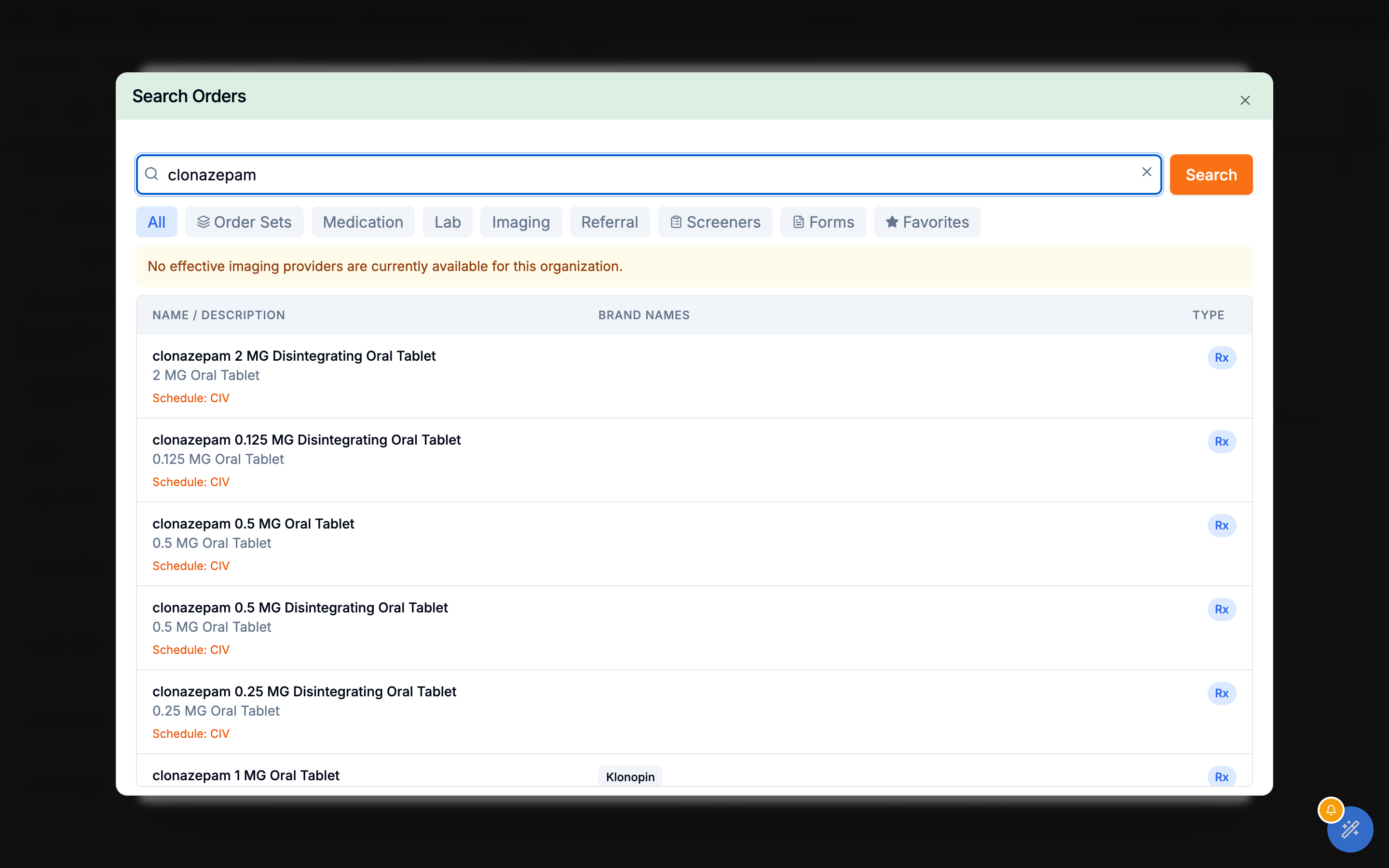
All, Order Sets, Medication, Lab, Imaging, Referral, Screeners, Forms, and Favorites — or just type ref to surface New Referral.New referral in Inbox → Referrals (it asks which patient first), New referral or Refer on an outside provider in the chart’s Care team, and New referral on an accepted inbound referral to send the patient on. The same window then asks for the Ordering physician (preselected from the visit, the patient, or their latest visit) — the referral goes out in that physician’s name, with the sender recorded — and at least one diagnosis; Send referral creates and faxes it. If the fax fails, the window stays open with the reason, and sending again resends the same referral rather than making a second one. Changing the patient starts the referral over.
Remove referral (trash), Save as favorite (star — it reappears under the Favorites tab of Search Orders; see Favorites), and Sign & Send. To change any detail, remove the referral and add it again.
Send a referral the center won’t reject: referral order forms (sleep study order)
Some places reject a referral over small things: which study you want, their preferred diagnosis codes, a screening score. A referral order form adds exactly those questions to the referral. Hero fills them in where you write the referral, won’t send it until the required ones are answered, and prints the answers on the faxed or printed referral in an Order details section, right after the patient’s information and insurance.
A referral with an order form always includes the patient’s insurance: plan, member ID, group and subscriber, and the card images too when Insurance card images is ticked.
The Sleep study form every practice starts with
| Question | What you answer |
|---|---|
| Study requested (required) | Home sleep apnea test, In-lab polysomnography, Split-night study, Titration study, Sleep clinic consult pre-test, or Sleep clinic consult post-test. |
| Diagnoses (required) | The sleep center’s usual codes: G47.33 obstructive sleep apnea, G47.30 sleep apnea, unspecified, G47.00 insomnia, G47.10 hypersomnia, G47.411 and G47.419 narcolepsy with and without cataplexy, G25.81 restless legs syndrome, R06.83 snoring, G47.9 sleep disorder, unspecified, and R40.0 somnolence. The ones you tick are added to the referral’s diagnoses. |
| Scores and measurements | Epworth Sleepiness Scale score, STOP-BANG score, BMI (filled in from the patient’s last weight and height when they are on file), and neck circumference. |
| Other | “Already uses CPAP or BiPAP”, and notes for the sleep center. |
You can change any of it, or add forms for other places (13.1b).
Refer with a form
- Start the referral. In the visit’s
Orders, search referral and chooseNew Referral, or useNew referralfrom the chart orInbox → Referrals. - Under
Refer to, choose the place. For example the sleep center, or add it by hand with its specialty and fax. - Check the
Order form. If the place or its specialty matches a form (for the Sleep study form: Sleep medicine, Sleep center, Sleep study), the form opens by itself and says Chosen for Sleep medicine. Otherwise pick it from theOrder formlist. - Answer the questions. One click on the study, then tick the diagnoses. Required questions have a red star, and
Sent to the specialiston the right sums up what will go out. - Click
Add referral(orSend referral). If something required is missing, Hero names the question and outlines it. - Send as usual. The referral’s PDF and fax show Order details: Sleep study with your answers, after the Insurance section.
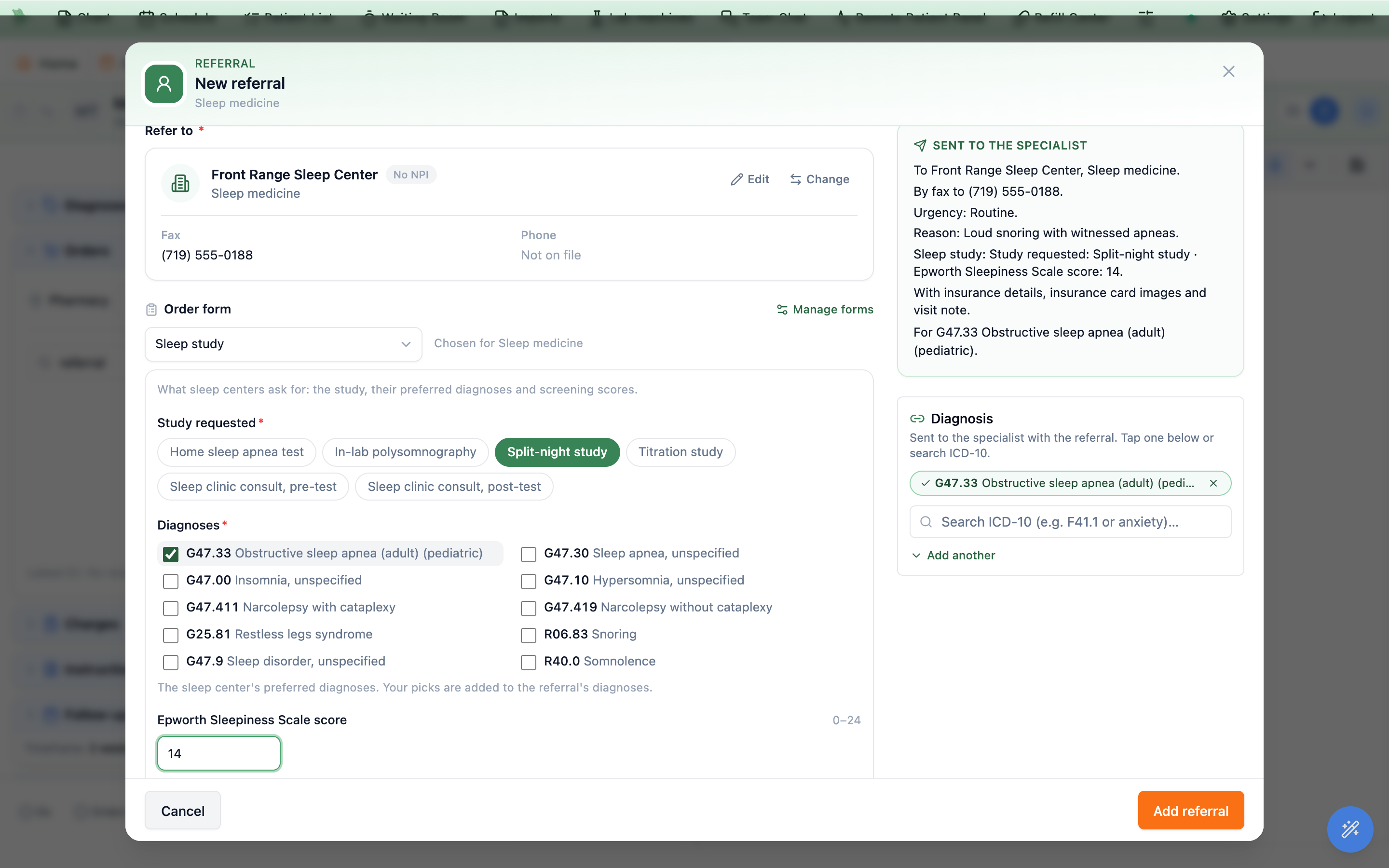
Sent to the specialist shows what goes out.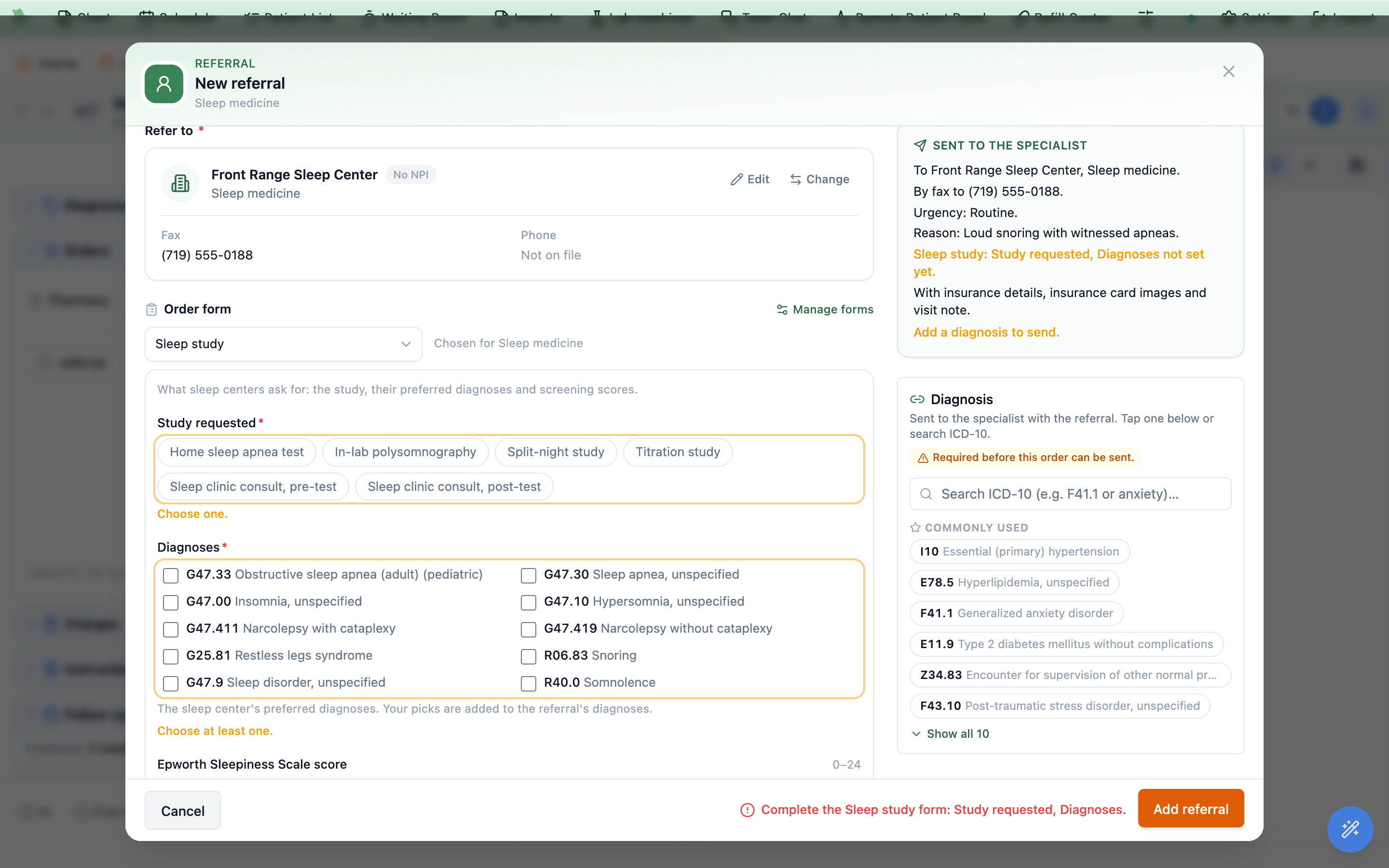
- No form this time. To send a referral without the form, choose
No order formin the list; Hero won’t pick one again for that referral. - Insurance always goes with it.
Insurance detailsis ticked and locked while a form is chosen. - Sent referrals keep their answers. Changing a form later never changes referrals you already sent: each keeps the questions and answers it printed.
Make or change a referral order form: Admin → Referral forms
Open Admin → Referral forms. It is also linked from Admin → Orders & referrals, and from Manage forms inside the referral window, which opens in a new browser tab so your referral stays as it is. Providers, administrators and staff who send referrals can make and change forms.
- Pick a form on the left, or click
New form. - Name it, and say where it is used. Under
Use it by itself for, type the specialty or the place’s name and press Enter after each, so the form opens by itself for those referrals. - Edit the
Questions. Click a question to change its label and kind (Pick one,Pick any,Diagnosis list,Checkbox,Short answer,Paragraph,Number,Date), whether it is required, a hint, and its choices. For a diagnosis list, search ICD-10 by code or name to add the place’s preferred codes. For a number, set a unit, the lowest and highest values, and whether it is filled from the chart (BMI, last weight, last height). - Arrange them. Use the arrows to reorder questions, the trash can to remove one, and
Add a questionfor more. - Try it out on the right.
In the referral windowshows the form exactly as it will look when you refer. - Click
Save form(orAdd form).Duplicatecopies a form;Deleteremoves it after asking, and referrals already sent keep what they printed.
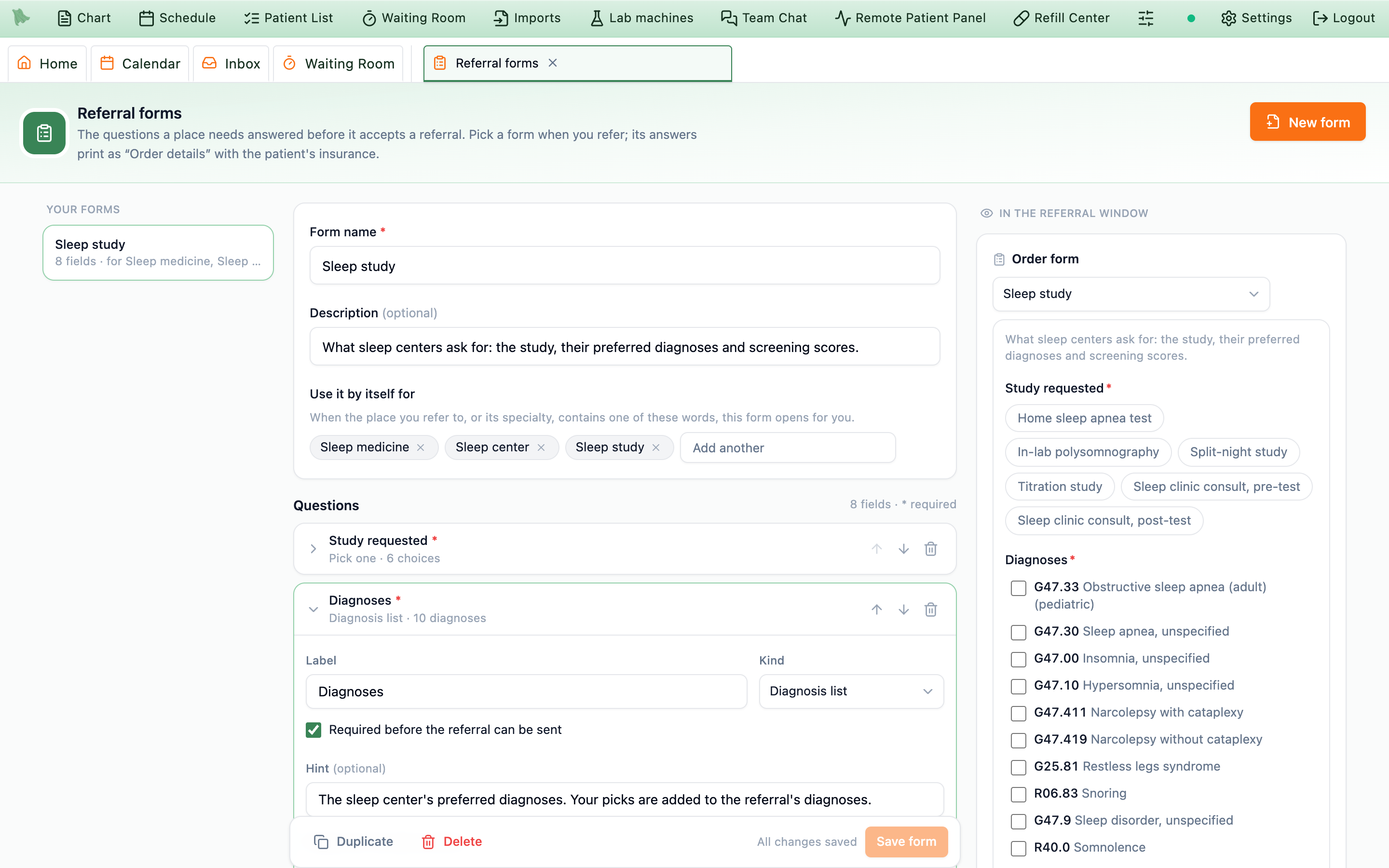
Admin → Referral forms: the questions on the left, a live preview of the referral window on the right.Sign & send the referral letter
There is no separate letter to compose. When you send a referral, Hero EMR generates the PATIENT REFERRAL FORM — a PDF carrying your referring-physician block and saved signature, the patient’s information, the receiving provider, the reason, clinical notes and urgency, and the visit’s diagnosis codes — and faxes it from your practice’s fax line. That PDF is the referral letter.
-
Link a diagnosis first.
The referral row’s
Sign & Sendbutton stays disabled until the encounter has at least one diagnosis and that diagnosis is tied to the referral in the Associations grid. The tooltip tells you what’s missing —Cannot send: Add a diagnosis to the encounter, orAssociate a diagnosis with this referral. -
Click
Sign & Send. Hero assembles the letter (STATandUrgentreferrals carry a warning banner on the form) and faxes it from your practice’s fax line (Hero Fax or SRFax) with a cover page reading Referral for <patient name>. While a send is in flight, other users see a lock badge (“<name> sending…”); if a lock looks stuck, Hero offers to override and send anyway. -
Confirm the green
Sentbadge. A successful send turns the row’s badge toSentwith aReferral ID:reference — check that you actually see it before moving on (see the failure note below if you don’t). A sent referral is immutable; reprint or re-download the letter any time from the Referrals inbox with itsPDFbutton.
Failed to send referral toast means the letter was not confirmed sent — depending on where the send failed, the referral either stays unsent or appears in the Referrals inbox with a failed badge. Retry from the same row; if the error appeared late in the send, confirm with the receiving office (or your fax provider’s outbox) before retrying so the letter isn’t delivered twice.
referral.manage permission (the Referral Coordinator, Front Desk and Nurse roles have it by default) can place and send referrals. Staff choose the ordering physician; the referral is that physician’s, and its history records who sent it. The PDF embeds the ordering physician’s saved signature from their physician profile — add one before the first referral. A referral a staff member sends prints Referring Physician (sent on their behalf by <name>) on the signature line instead. During a downtime window the button is disabled with Referrals are unavailable during downtime.
Order an imaging study
Imaging goes through the same Orders search, but the catalog behind it is your practice’s own: studies come from the radiology providers configured under External providers, with contrast variants of the same study consolidated into a single result.
-
Find the study.
Search by name (for example mri) or use the
Imagingtab of the Search Orders window. If the search instead reports “Imaging provider visibility is misconfigured. Ask an admin to select at least one send-ready provider or switch mode to all.”, an admin needs to adjust the imaging-provider visibility setting first. -
Describe the study.
The dialog opens titled with the composed study name (for example MRI Brain With Contrast). Enter the required
Clinical Indication(“Reason for imaging study…”), then setContrast(Without Contrast,With Contrast, orWith and Without Contrast— only the variants the chosen provider actually offers),Laterality(Left/Right/Bilateral, required only for sided studies), theProvider, theUrgency, and anySpecial Instructions. -
Confirm the patient weight.
Patient Weight (lbs)auto-fills from the latest chart vitals. It’s mandatory for RadNet-routed orders — the helper text readsRequired for RadNet submission if no recent weight is available in vitals.— and must be a whole number between 1 and 999. -
Answer the
Contrast Safety Questionnaire. Choosing any contrast option reveals safety checkboxes, includingPatient has known allergy to IV contrast(which warns “Warning: Consider alternative imaging or consult with radiology.”) and a diabetes question. Then clickSave Changesto add the order. -
Sign & send — and cancel if plans change.
The order appears with an
Imgbadge and sends like a referral: link a diagnosis (“Associate a diagnosis with this imaging order”), thenSign & Send. If contrast or laterality is still missing, Imaging order needs an update reopens the dialog. On success the row showsSentandOrder ID:, and gains aCancelbutton that opens theCancel Imaging Orderdialog (“Are you sure you want to cancel this imaging order?”) with reasonsDuplicate Order,Ordered by Mistake, andTesting Not Needed. Cancellations of RadNet orders are forwarded to the imaging center.

Create Orders window.Send N Orders, Hero shows “Creating encounter and sending orders…” and files a lightweight encounter for you automatically.
Contrast choices are limited to what the selected provider’s catalog offers, so switching Provider can change which options exist — recheck after a switch. During a downtime window imaging is blocked: Imaging is unavailable during downtime.
How RadNet Connect orders flow
If your practice has RadNet Connect configured (an admin sets it up under External providers), imaging orders routed to a RadNet provider transmit electronically in the background the moment you Sign & Send — no fax to dial, no phone call to make.
- Hero matches the patient. The patient’s demographics and primary insurance are mapped to RadNet’s format, and Hero finds — or creates — the matching patient on RadNet’s side. Orders missing required demographics fail with a specific reason, so keep the chart complete.
- The order is submitted. The exam from your procedure catalog is sent with the order details, and RadNet’s confirmation reference is stored on the order for later lookup.
-
Failures come back to you.
If transmission ultimately fails, the ordering provider receives an entry in the Results inbox titled
RadNet order failed:followed by the study — including the failure reason, modality, body part, and reason for study. Failures are never silent.
| Order status | What it means |
|---|---|
| pending | Created in Hero, not yet transmitted. |
| submitted | Accepted by RadNet; the confirmation reference is on file. |
| scheduled | The imaging center has booked the patient. |
| imaged | The study has been performed. |
| completed | The study is finalized. |
| failed / canceled | Transmission failed, or the order was canceled — cancellations placed in Hero are forwarded to RadNet. Statuses only ever move forward. |
Track sent referrals in the Inbox
Every referral you send is tracked in the Referrals view of the Inbox — the Referrals item (send icon) in the left sidebar, with an unread-count badge. It lists every non-draft referral for the practice, newest first, each entry titled Referral to <provider name>.
-
Open a referral.
The header shows
Referralwith a status badge, the subject, aPatient:line, aReferred to:line with the provider’s name and specialty, the ordering physician, Sent by <name> when a staff member sent it, andFax:with the number on file. -
Read the detail.
The body shows a
Reasonsection with the referral reason, any diagnoses, the fax failure reason when a send didn’t go through, aLast status changetime, and aHistoryof who did what (and for which physician). -
Reprint the letter.
The
PDFbutton (it readsPreparing…while generating) regenerates the PATIENT REFERRAL FORM and opens it in a new tab — this is how you re-download or reprint a referral letter after the fact. -
Follow up.
People who can send referrals get
Resend(for a failed or unsent referral),Update status(Received by the specialist, Appointment scheduled, Completed (patient was seen), once the referral has gone out) andCancel referral(a reason is required). Everyone else sees one line saying who can. A sent referral is never deleted: cancel it instead. - Triage like any inbox item. Mark referrals read or unread and flag the ones you’re chasing — flags and read state are shared across the organization.
| Status badge | Meaning & what to do |
|---|---|
| Sent | The letter was generated and queued to your fax line. Confirm receipt with the receiving office, then record it with Update status. |
| Failed | The send didn’t complete; the reason is in the detail. Use Resend, or retry from the referral row in the encounter (see Referral letters). |
| Received by the specialist / Appointment scheduled / Completed | Follow-up you recorded with Update status. |
| Cancelled | Cancelled with a reason, shown in the detail. |
| Not sent yet | Created but never sent — drafts do not appear in this view at all. |
Sent until someone records the next step. Confirm receipt and the patient’s specialist appointment with the receiving office, then use Update status.
referral.view (view referral records), referral.manage (create, edit, send, and track referrals for an ordering physician), and referral.coordinate (coordinate incoming referrals, PDFs, and routing). Referral staff can also attach a patient’s signed visit notes when they fax or message an outside provider, without access to drafts or the rest of the chart.
Receive consult reports & review the Letters tab
What comes back from outside care lands in three places: incoming documents arrive in the Faxes inbox, returned imaging surfaces on the chart’s Imaging tab, and the chart’s Letters tab keeps the history of every letter generated for the patient.
-
Import incoming faxes.
Consult notes and imaging reports from outside providers usually arrive on your fax line. In
Faxes, useLink patient & import(the button readsLinking & importing…while it works) to attach the document to the right chart — full mechanics in Import faxes into the chart. Imported documents are auto-classified — consultation notes file as clinical notes, referral paperwork asReferral— and land on the chart’s Media tab. -
Review returned imaging.
Reports attached to an imaging order surface on the chart’s
Imagingtab with status chipsPending,No findings available,Normal study, andAbnormal. Opening a study shows the Technique, Findings, and Impression parsed from the report, theAccession Number:, and anAdd to Notebutton to pull results into your documentation — report review in depth lives in Imaging results. -
Check the
Letterstab. It lists every generated letter and form with columnsDate Requested,Physician,Type of Letter,Approval Status, and aViewaction, sortable by Date, Physician, Type, or Status. Status chips runPending Review,Approved,Rejected,Completed,Processing, andFailed; letter types includeReferral,FMLA Letter,Work/School Note,Insurance Letter, andMedical Summary. -
Spot records the patient imported.
Records a patient pulls in from Epic-based health systems through the portal’s record-import flow appear in the chart with an
Imported from Epicbadge on imaging studies and medications — handy when reconciling outside care.

View action.Pending until a report is attached to the order.
Forms/Letters view (approval requires your saved signature) or released in Patient Information → Forms & Letters, where staff can also start them (Forms & Letters), while the day-to-day referral letter is the auto-generated PATIENT REFERRAL FORM from Referral letters.
Need help? Email support@heroemr.com.