Medications given in clinic
Record every injection and observed dose once, on the visit: the product and NDC, lot and expiration, dose, site, waste, who gave it and when. Protocols fill in the form, Hero writes the note line and the charges, and repeating doses land on a due list.
Medications given in clinic
Record every injection and observed dose once, on the visit: the product and NDC, lot and expiration, dose, site, waste, who gave it and when. Protocols fill in the form, Hero writes the note line and the charges, and repeating doses land on a due list.
Medications given in clinic: turn it on
In-office medications is for practices that give medicines in the office: long-acting injectable antipsychotics, Vivitrol and Sublocade, Cabenuva and Apretude, testosterone and estradiol, B12, an observed Spravato dose or a first buprenorphine dose. Each dose is recorded once, on the visit: the product and its NDC, the lot and expiration, the dose and volume, where it was given, what was thrown away, who gave it and when. Hero adds the drug and injection charges to the visit for you (see How Hero builds the charges) and writes the line for the note. Drug inventory is a second, optional switch that tracks the stock those doses come from (see Drug inventory).
-
Open the feature switch.
A practice administrator, or someone allowed to manage additional features, opens
Admin>Additional Featuresand finds In-office medications (type “medications” inSearch features). It ships off. -
Turn it on and read Where it shows up.
It lists the visit’s
Medications given in clinicsection and its charges, the chart’sMedications giventab, theMedications duelist and home widget,Admin>In-office medications, and the.medsgivendot phrase. - Add Drug inventory now or later. Drug inventory needs In-office medications: switching it on switches In-office medications on with it, and switching In-office medications off switches Drug inventory off too.
-
Click
Save Changes. Nothing changes for the practice until you save. - Set up your protocols before the first dose. A protocol fills in the dose form and decides how the dose bills; see Protocols and favorites.
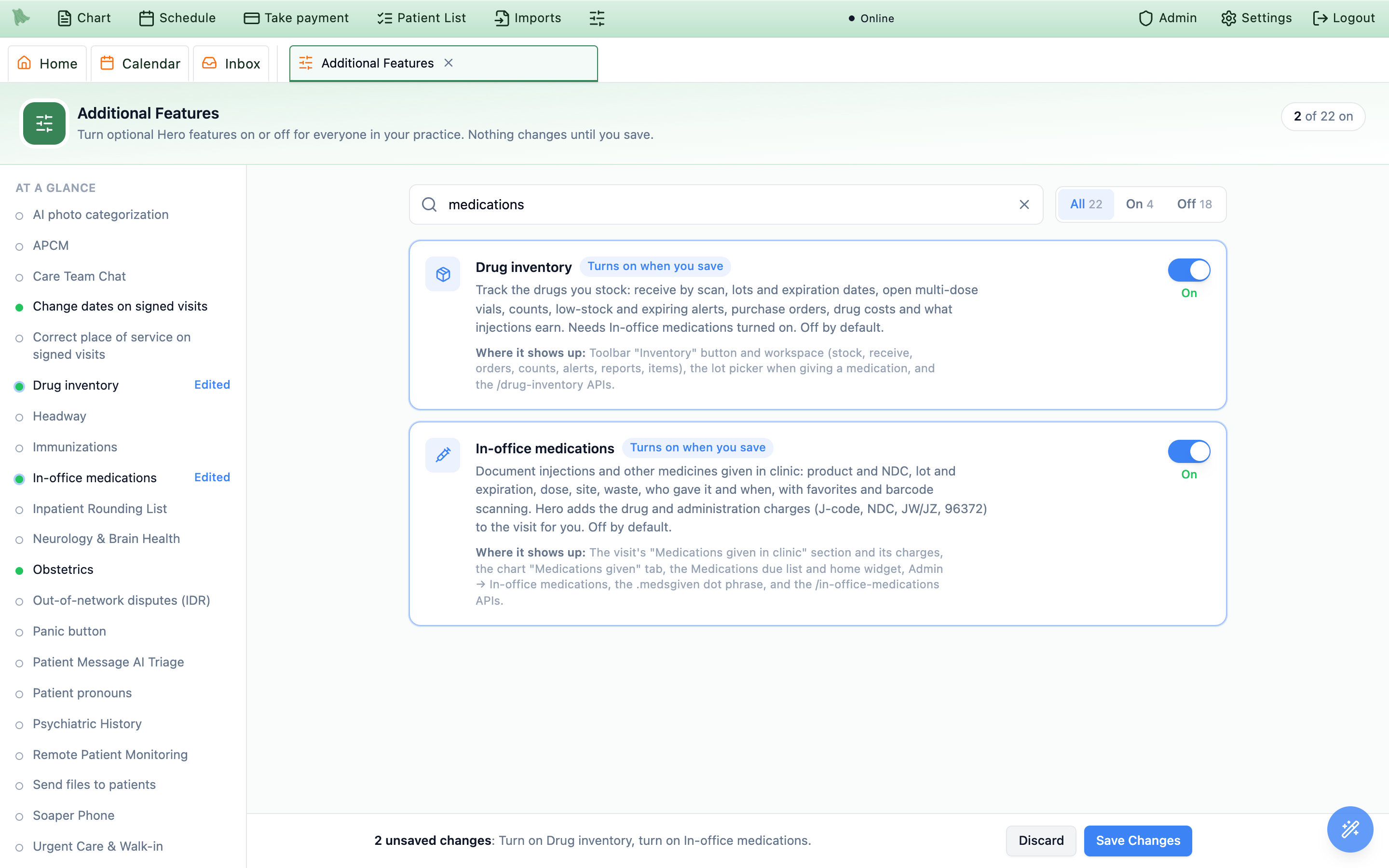
Admin > Additional Features, both off by default. Turning on Drug inventory turns In-office medications on with it; nothing changes until Save Changes.Who can do what
Two permissions control the clinical side. Give them through role profiles, or in Admin > Staff / Assistants > the staff member > Access > Customize granular permissions. Practice administrators have both.
| Permission | What it allows | Who has it by default |
|---|---|---|
| Record medications given in clinic | Give and document doses (lot, NDC, dose, site, waste, observation), record a dose not given, and remove your own record within 24 hours. | Physicians, and the Medical Assistant and Nurse role profiles |
| Amend or void any medication given in clinic, manage medication protocols, and change in-office medication settings | Amend a record on a signed visit, remove anyone’s record, and open Admin > In-office medications. | Physicians and the Nurse role profile |
Anyone who can read visits sees the section and the chart tab read-only. Drug stock and drug costs have their own permissions, described under Drug inventory.
Set up protocols and favorites
A protocol is your practice’s recipe for one product: the medicine and its package NDC, the usual dose, route and site, the package type, how it bills, how often it repeats, and any observation or REMS checks. Choosing a protocol fills in the Give medication form, so staff only check and adjust. Open Admin > In-office medications; it has three tabs, Protocols, Library and Settings.
Start from the library
-
Open
Library. It lists ready-made protocols: the long-acting antipsychotics (Invega Sustenna, Trinza and Hafyera, Abilify Maintena and Asimtufii, Aristada, Uzedy, Perseris, Risperdal Consta, haloperidol and fluphenazine decanoate), Vivitrol, Sublocade and Brixadi, Cabenuva and Apretude, testosterone cypionate, estradiol valerate, Depo-Provera, vitamin B12, ketorolac, ceftriaxone, and Spravato. Each line shows the usual dose, route, drug code, repeat interval and any observation time, and products with a starting schedule show it after Starting doses:. -
Click
Addon the product you stock. TheAdd …dialog asks you to “Choose the package you stock, then check how it is reported on claims.” Keep or change theProtocol name. UnderPackage NDC, search the FDA directory or type the 11-digit NDC; you can also add it later. Once you pick a product,Package you stocklists its package sizes, each like 1.5 mL prefilled syringe · NDC 50458-0564-01. A box of several adds its count (· carton of 25), and a sample package ends in · sample. Choose the one you buy and Hero fills in its NDC; a product with only one package has it chosen already. -
Check the NDC reporting.
NDC unitandNDC quantity for one full packagecome suggested by the library (the package you chose replaces the quantity when it states it in that unit); check them against your package (for example ML 1.5 for a 1.5 mL syringe, or UN 1 for a kit). Tick the confirmation line, which reads back your answer (“One full package is reported as ML 1.5.”), then clickAdd protocol.
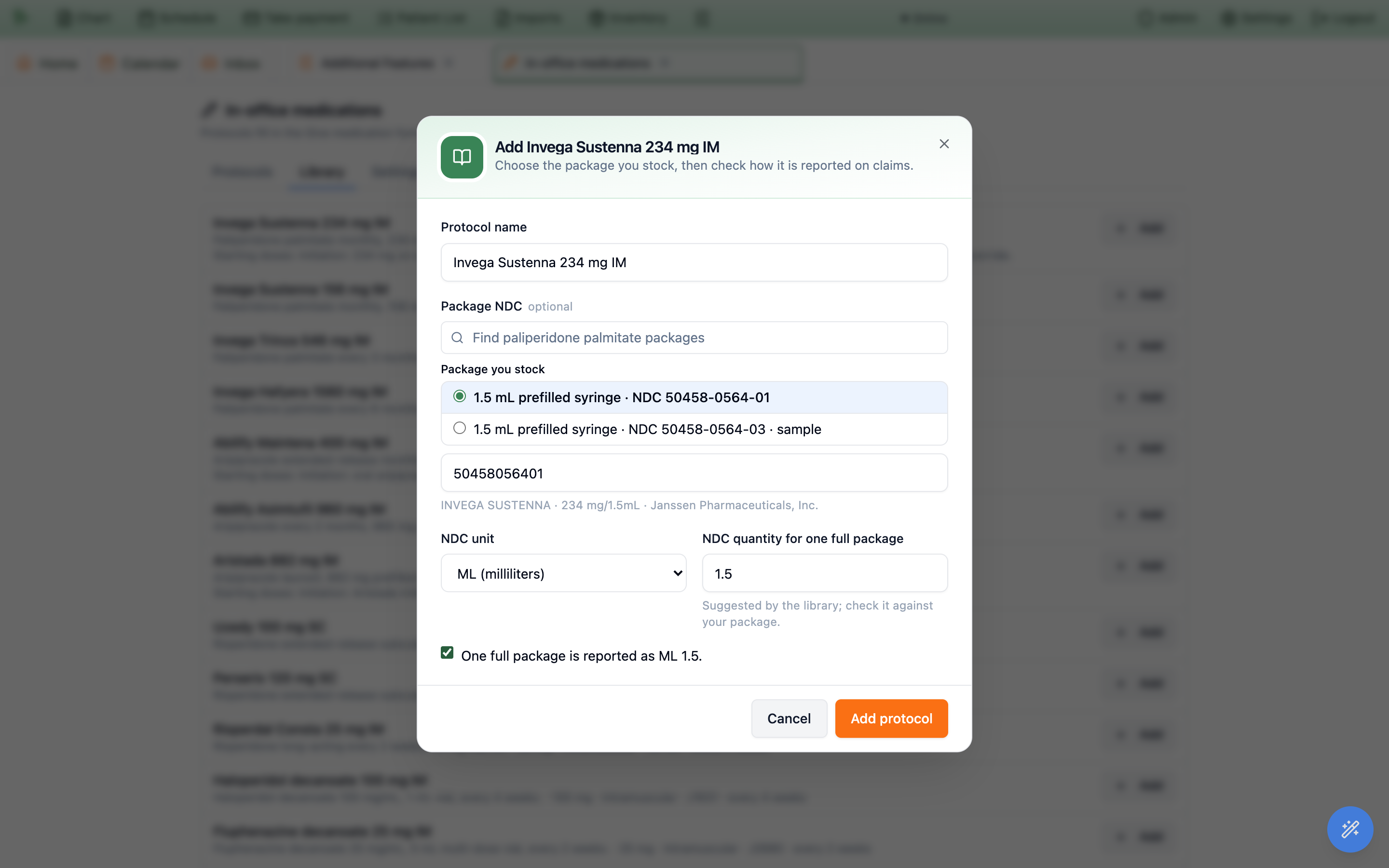
A library protocol arrives with its drug code’s billing unit already confirmed. Its doses are starting points for you to edit to the patient’s prescription, not orders. Starting schedules (Sustenna day 1 and day 8, Cabenuva’s first two months) are never set automatically: you set the next dose date by hand when you give the dose (see Chart tab, schedules and the due list).
Build or edit a protocol
New protocol starts one from scratch; clicking a protocol opens it for editing. The dialog has six parts:
| Part | What goes there |
|---|---|
Medicine | Protocol name (what staff tap, e.g. “Invega Sustenna 234 mg IM”), Medicine, and Package NDC. Finding the product in the FDA directory brings its controlled-substance schedule, and Package you stock lists its package sizes: the one you choose “Fills the NDC and the package details below”, that is the package type, the drug in one package, the strength, and the NDC unit and quantity, wherever the package states them. |
Usual dose | Dose, Unit, Route, Strength (e.g. 234 mg in 1.5 mL, so Hero can work out the volume of a dose), Usual site, and Suggest the other side next time. |
Package | Type: Single-dose (syringe or vial), Single-use package (kit), Multi-dose vial, Tablets or other oral units or Other; and Drug in one package. A product given as more than one injection (Cabenuva) uses Add an injection for each, with its name, amount, mL and site. |
Billing | Drug code (HCPCS), NDC unit, NDC quantity for one full package, Injection code (empty uses the practice’s code for the route), Injections billed (empty bills one per injection given), Usually bill, and Extra codes billed with this protocol, each with Includes the drug and Only after the patient is released. |
Repeat and observation | Repeat every (days, weeks or months), Due from (days before), Overdue after (days after), Watch the patient for (minutes), Checks at (minutes), and a REMS program with the confirmations staff tick each time (Ask staff to confirm each time). |
Stock and notes | Supplies per dose ($) (syringes, needles and swabs, used in the margin report; shown only to people who can see drug costs), Stock item (with Drug inventory on), Notes for starting doses, and In use. |
Confirm the billing unit
A drug code you type yourself has to be confirmed once before the protocol can bill the drug, because a wrong unit multiplies every claim. After you save, Confirm billing unit opens by itself (the same button also sits on the protocol’s row). It shows the code’s description. Under One billing unit of this code is, enter the amount and unit, or tick Billed once per injection, whatever the dose; then set the NDC unit and NDC quantity for one full package. A line underneath works an example, such as “Example: the protocol’s dose of 234 mg bills 234 units of J2426, reported as NDC ML 1.5 for a full package.” When Hero read the unit from the code’s description rather than its own list, it says so: check it against the HCPCS descriptor before you click Confirm.
Ready to bill or Needs setup
Each row on Protocols carries Ready to bill or Needs setup, with what is missing, for example “Confirm the J2426 billing unit and the NDC quantity for one container.” or “Enter how much drug one container holds, so discarded drug can be billed.” Take out of use removes a protocol from the dose form without deleting it; tick Show protocols no longer in use to find it again.
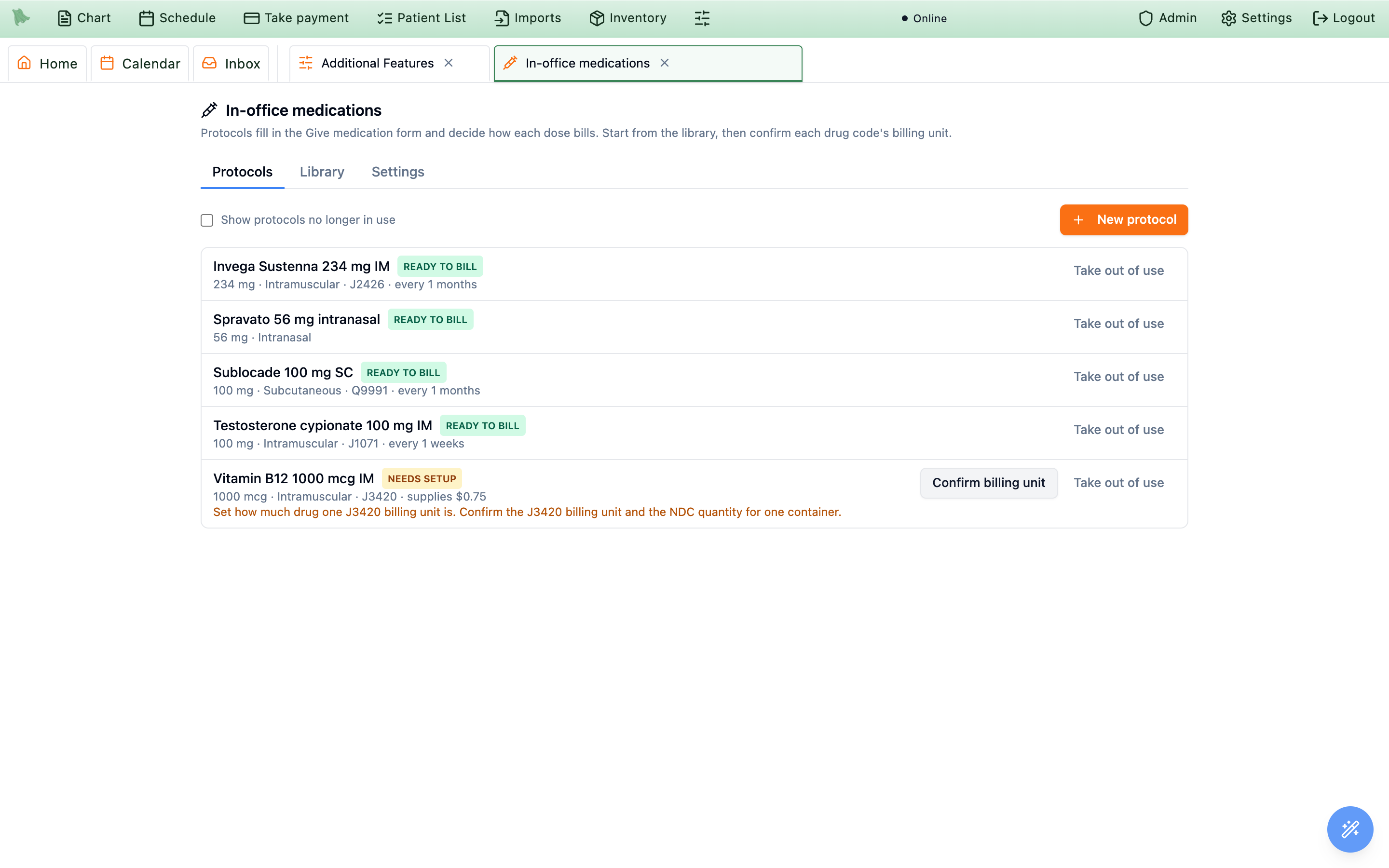
Confirm billing unit fixes the B12 row.Favorites
In the visit, protocols appear as one-tap chips: your favorites first, in the order you starred them, then the practice’s other protocols, up to eight. The star on a chip adds it to your favorites or takes it off. Favorites belong to you; everyone else keeps their own.
In-office medication settings
Admin > In-office medications > Settings holds the practice-wide rules. Change what you need, then click Save settings (or Discard changes).
| Setting | Default | What it does |
|---|---|---|
Require the lot and expiration for injections | On | An injection can’t be saved without the lot number and expiration date of what was given. |
Controlled drug waste needs a witness | On | When part of a controlled drug is thrown away, the record names a second person who saw it. |
Visit type for “Start injection visit” | Office visit | The visit type used when someone gives a medication from the chart and there is no visit today. |
Don’t let a visit be signed until its charges match the medications given | On | Recommended. Stops a visit from being signed with the medication charges changed or missing (see Keeping charges in step). |
When less than one billing unit is thrown away | JZ (no billable waste) | Follows CMS’s JW and JZ guidance. Choose None only if your payers ask for no modifier. |
Injection codes by route | 96372 for IM and SC | The code billed for giving the medicine, once per injection, for Into a muscle (IM), Under the skin (SC) and Into the skin (ID). IV push is not set here: name its code on each protocol, because initial and additional pushes bill differently. |
Use a multi-dose vial for this many days after first puncture | 28 | The CDC default. A protocol or stock item can follow the maker’s label instead. |
Warn when a lot expires within (days) | 60 | Used by expiring-soon alerts and the lot picker. |
With Drug inventory on, a fourth group, Drug inventory, adds Allow a dose to be saved when no stock is on record, Supplier lead time (days), Make to-dos for inventory alerts and Send a daily email of inventory alerts; see Giving a dose from stock and Alerts.
Give a dose from the visit
Open the visit and save the note so Encounter Completion appears. With the feature on, Medications given in clinic sits between Orders and Charges; collapsed, its summary reads like 2 given · charges match. People with the Record permission can add doses; everyone else sees the list.
-
Tap a protocol chip.
Give medicationopens with that protocol’s product, dose, route, site, package and billing filled in. -
Or search.
Search medicines by name or NDClists your protocols (Protocol), drugs in stock (In stock, with Drug inventory on) and the FDA drug directory (FDA directory). A product picked from the directory shows its package sizes underPackage(“Sets the NDC for this dose.”), each like 1.5 mL prefilled syringe · NDC 50458-0564-01 (with · carton of 25 for a box of several and · sample for a sample). Choose the one in your hand: Hero fills in its NDC and whatever the package states (the package type, the drug in one package, the strength). A product with a single package has it chosen already. You still enter the dose, and its billing follows the route unless a protocol says otherwise. -
Or scan the box or vial.
Click
Scan the box or vial, or type the NDCand scan with a USB barcode scanner (the kind that types like a keyboard). The barcode on most cartons carries the NDC, lot and expiration; if the product has a protocol, the form opens with it. When the barcode doesn’t clearly separate the lot from the expiration, Hero shows what it read and asks:That’s right, orUse the NDC only, I’ll type the lot. Typing or pasting an NDC works too. An NDC the FDA directory doesn’t list can still be recognized from RxNorm, the national drug vocabulary (where products are listed, it is tagged RxNorm). Phone-camera scanning isn’t available. -
Fill in the dose and click
Save. The form is described field by field in Fill in the dose. Anything Hero wants you to know after saving appears as Saved, with a note, for example “Invega Sustenna was already documented as given on 2026-10-01.”
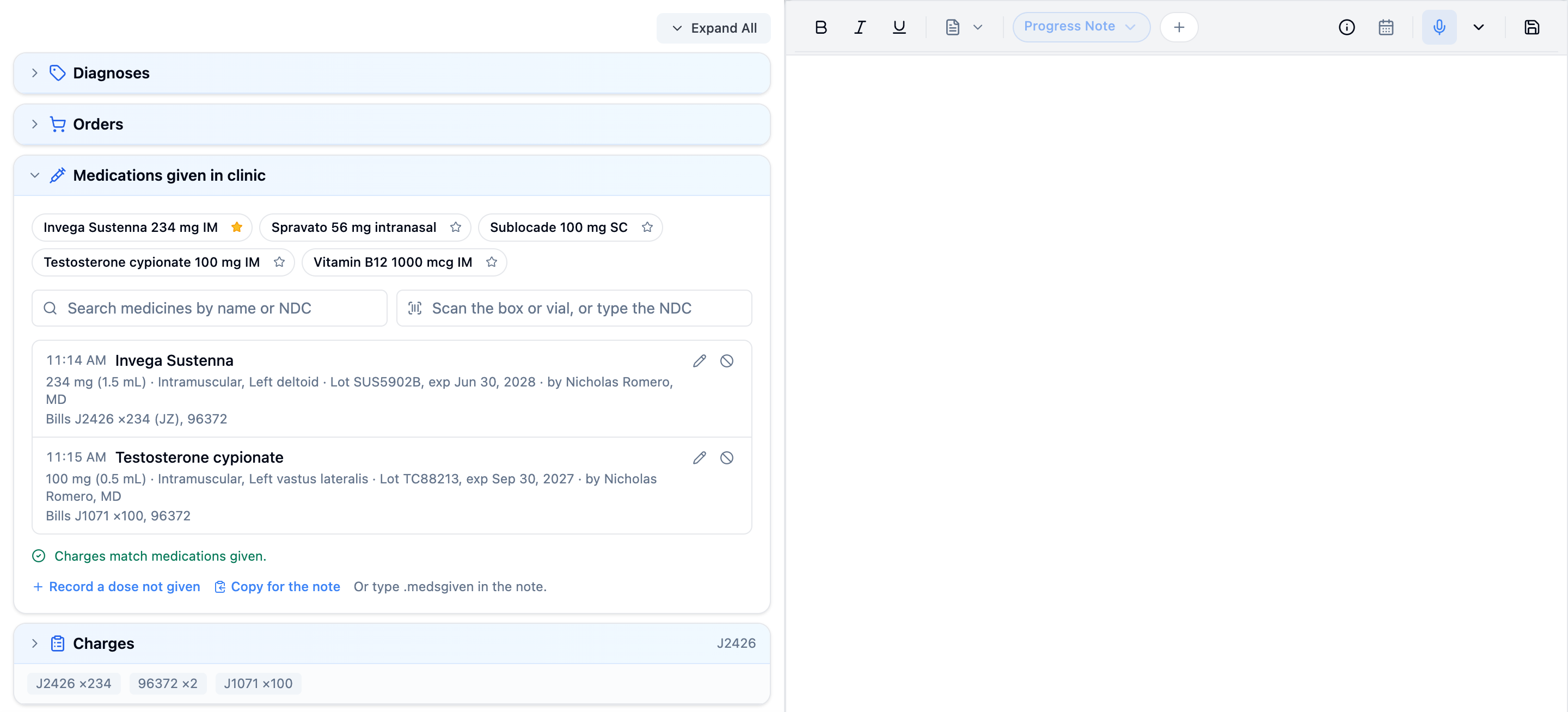
Each saved dose becomes one row in the list: the time, product, dose, route and sites, lot and expiration, anything discarded, who gave it, and what it bills (Bills J2426 ×234 (JZ), 96372). Badges mark Late entry, Observing, Amended after signing and Entered in error. The pencil edits a row, and on a signed visit the amend icon changes it with a reason (see Correct, amend or remove a record).
A dose that wasn’t given
Record a dose not given, under the list, opens the form on Not given (the same switch sits at the top of every new form, beside Given). Choose the Reason, which is Patient declined, Held for a clinical reason, Not safe to give (contraindicated), Out of stock, Patient did not come or Other, add Details (required for Other), and click Record not given. It bills nothing.
Fill in the dose
Give medication asks its questions top to bottom. A protocol fills most of them; check each one against what you actually gave.
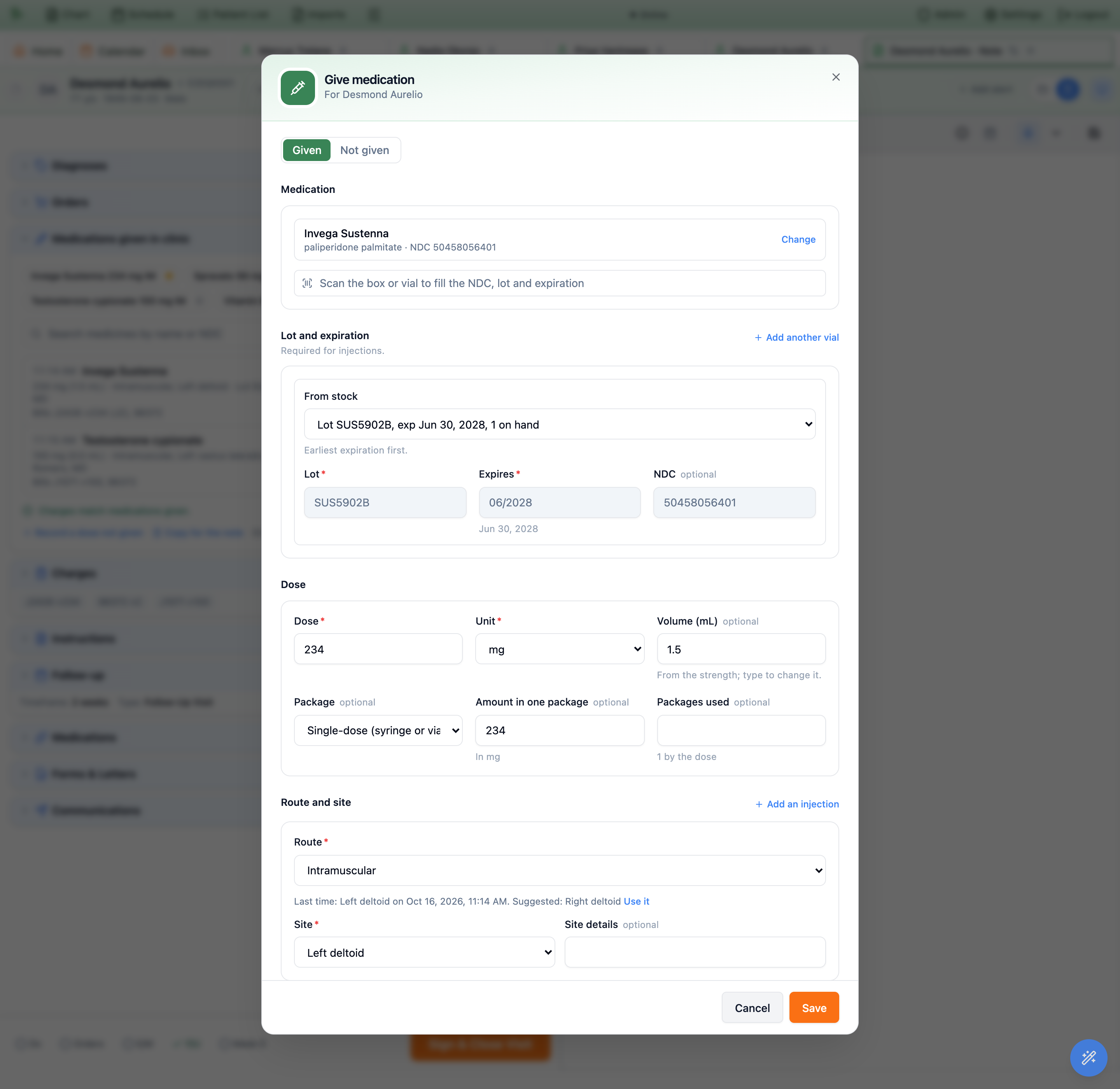
Use it switches to it.| Part | What to check |
|---|---|
Medication | The product, with its generic name, NDC (or No NDC yet) and controlled schedule. Change starts over with another product, and clears the previous drug’s dose, route, package and billing so nothing carries over by mistake. |
Lot and expiration | Lot, Expires and NDC. MM/YYYY means good through the last day of that month. With Drug inventory off, also say Where the drug came from: Practice stock, Brought by the patient or Sample. With it on, choose the lot under From stock instead (see Giving a dose from stock), or, for a dose first recorded on the wrong chart, Use stock already recorded from voided entry (see 24.10). A dose drawn from more than one vial uses Add another vial; a dose that isn’t injected uses Add another lot and numbers them Lot 1, Lot 2. Each one then asks how much came from it (Packages from this lot, or Tablets from this lot for tablets), and they must add up to the total used. |
Dose | Dose and Unit; Volume (mL), worked out from the protocol’s strength (type to change it); Package, Amount in one package, and Packages used (Tablets used, Capsules used or Patches used for those), which defaults to what the dose needs. |
Route and site | Route and Site (with Site details). For an injection, Hero shows where the last one went and suggests the same muscle on the other side: Last time: Left deltoid on … Suggested: Right deltoid, then Use it. A two-injection product such as Cabenuva shows Injections, each with its own site; Add an injection adds one. |
When and who | Given at (practice time, now by default; more than an hour ago is saved as a late entry, and a future time is refused), Given by: you first (marked (me)), then the practice’s medication staff by name with their credentials, meaning everyone allowed to record doses, the active physicians and the admins. So when a nurse or medical assistant gave the injection, choose them, whoever is documenting. Then Supervising provider (the visit’s provider) and Given for, one of the visit’s diagnoses, which links the charge to it. |
Discarded | Amount discarded, already filled in for a single-dose package from its size; change it if different. Why is optional. A controlled drug with any waste needs a Witness, chosen from the same staff list (anyone but the person who gave it). The witness doesn’t sign in: choosing them records that they watched. |
What it bills | The lines Hero will add to the visit’s charges, a plain explanation, the Billing choice and Injections billed. See How Hero builds the charges. |
How the patient did | Response: Tolerated well, Had a reaction (then What happened is required) or Other; and Consent given and Patient education given, ticked by default. |
Observation | Watch the patient after the dose for so many minutes; see Observation and release. |
REMS | Only for protocols with a REMS program: every confirmation must be ticked before the dose saves. |
Next dose | Whether this dose belongs to a repeating schedule; see Chart tab, schedules and the due list. |
Notes | Anything else. |
When Hero stops the save
- Allergy. If the patient has an allergy on file that may match the medicine, the form asks you to review it. Tick
I reviewed the allergy warning and it is safe to give.and save again. - Expired product. When the expiration is before the day it was given,
This product is expired. Why was it given?must be answered. This documents a mistake that already happened; it is not a way to give expired drug. - Wrong day. A billed dose must sit on a visit dated the same day: “This dose was given on 2026-10-14 but the visit is on 2026-10-15. Document it on a visit for 2026-10-14.” Open that day’s visit from the chart’s
Encountersand record it there. (The chart tab’sStart an injection visitalways starts a visit for today.) - Signed visit. “This visit is already signed. Open an addendum to add or change billed medications, or record the dose as no charge with a reason.” See Addenda and corrections.
What it bills is what lands in Charges.Oral, sublingual and nasal doses
The same form records any medicine given in the office, not only injections. Choose the route (Oral, Sublingual, Buccal, Intranasal, Inhaled, Topical, Transdermal, Ophthalmic, Otic, Rectal, Vaginal or Other) and the form changes with it:
- No body site for oral, sublingual, buccal and nasal doses; topical and transdermal doses still ask where.
- Lot and expiration are optional, because the practice setting applies to injections only. Recording them still helps if a lot is ever recalled.
- No injection code. Without a protocol, the billing choice reads
Documentation only (nothing billed). A protocol can bill its own codes instead (Bill the protocol’s own codes only). - Units such as
tablet,capsule,spray,device,patchanddropare in theUnitlist, andTablets or other oral unitsis a package type. - Lots, not vials. A dose from more than one bottle uses
Add another lotand numbers them Lot 1, Lot 2. Tablets are counted as tablets:Tablets used, andTablets from this lotfor each lot (capsules and patches likewise).
For an observed first dose of buprenorphine, search the product, pick Sublingual, and tick Watch the patient after the dose with your practice’s observation time. For Spravato, add it from the library: it sets the intranasal route, the 28 mg devices, the REMS confirmations and the 2-hour observation with checks at 0, 40 and 120 minutes.
Observation and release
Some doses need the patient watched afterwards. A protocol with Watch the patient for (minutes) ticks Watch the patient after the dose for you; for anything else, tick it and enter the minutes. After Save, the row shows Observing and Observing until 11:40 AM.
-
Open the dose with the pencil.
Its
Observationpart now reads Watching until … and lists every check recorded so far. -
Record each check.
Enter what you measured,
BP top,BP bottom,Pulse,Breaths/minandO2 %, plus optional notes. Sedation is chosen from a list, Sedation: how the patient answers (MOAA/S, 5 is fully awake), from 5 · Awake: answers to their name in a normal voice down to 0 · Does not answer, even to a firm squeeze. ClickRecord 40-minute check(the next check the protocol asks for) orRecord a check. A check is stamped with the time you record it, and its line reads like 11:30 AM (0 min): BP 128/82, pulse 76, breaths 14/min, O2 98%, sedation 5 (awake). -
Release the patient.
Release patientends observation and records the time; the row then reads Released 11:42 AM. Hero never releases a patient by itself: the until time is a guide for you.
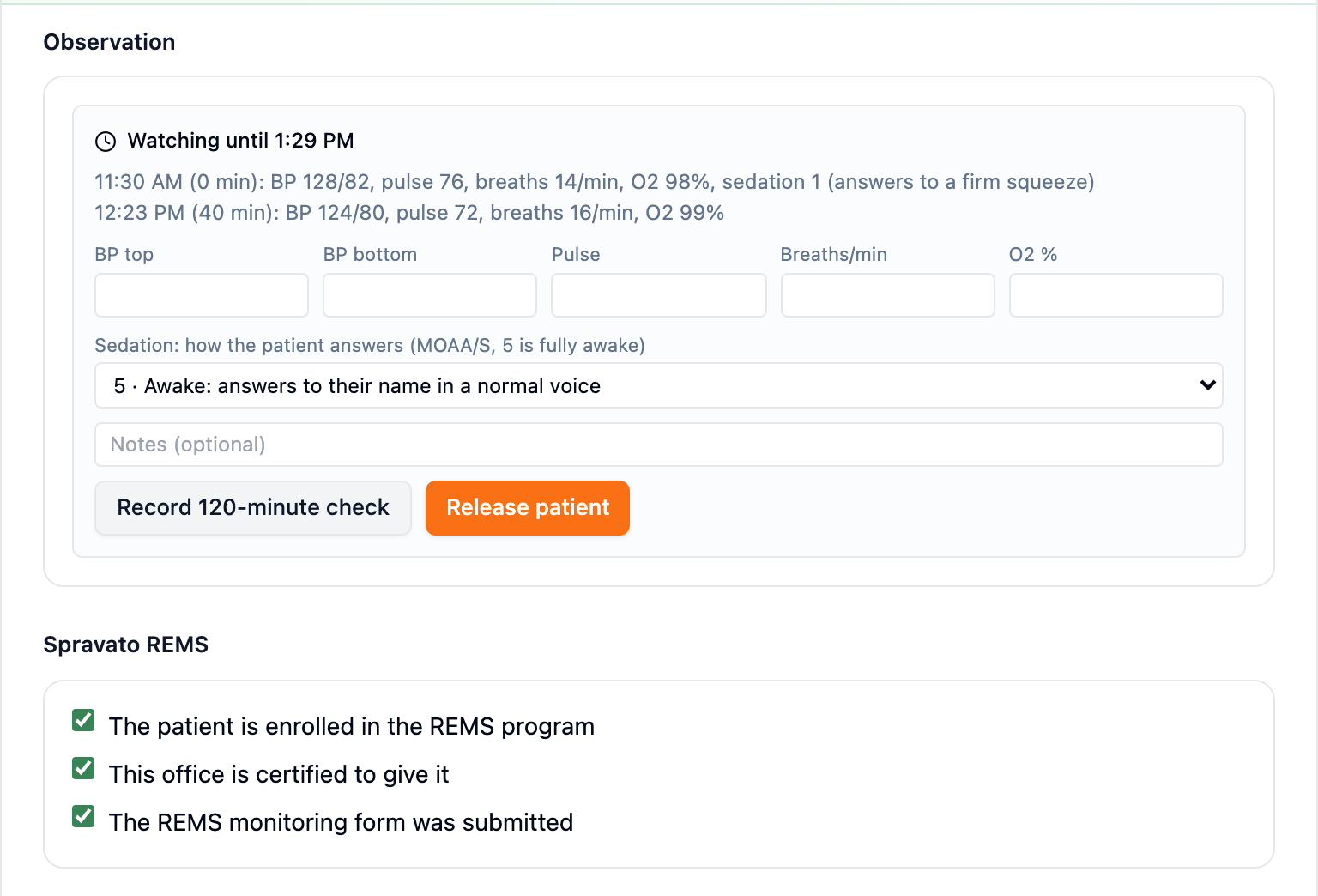
Release patient ends observation.A protocol code marked Only after the patient is released, such as Spravato’s G2082, joins the visit’s charges at release. Until then the billing preview says so (“G2082 is added once the patient is released from observation.”). On a signed visit, a release that adds a billed code needs an addendum first.
Put the doses in the note
The structured record is the source of truth; the note gets a plain-text copy. There are two ways to add it.
- Type
.medsgivenin the note (.injectionsand.givenwork too). It inserts one line per dose on this visit: product and dose, route and sites, NDC, lot and expiration, who gave it and under whom, what was discarded and who witnessed it, the response, observation and release, and a late-entry marker. A dose not given reads as not given, with the reason. Times are in your practice’s time zone. - Or click
Copy for the noteunder the list. It copies the same text; Hero confirms with Copied for the note: Paste it into the note, or type .medsgiven in the note to insert the same text.
Chart tab, schedules and the due list
The Medications given tab
With the feature on, the chart gains a Medications given tab: every dose given in clinic for this patient, newest first. Show All, Given, Not given or Removed, narrow by From and To, or type in Filter by medicine. An Overdue chip next to the title means one of the patient’s repeating doses is late. Click a row to see the dose in full with its History: every Recorded, Edited, Amended after signing and Removed (entered in error) entry with who, when and why, the (signed version) marked, and what changed since the visit was signed.
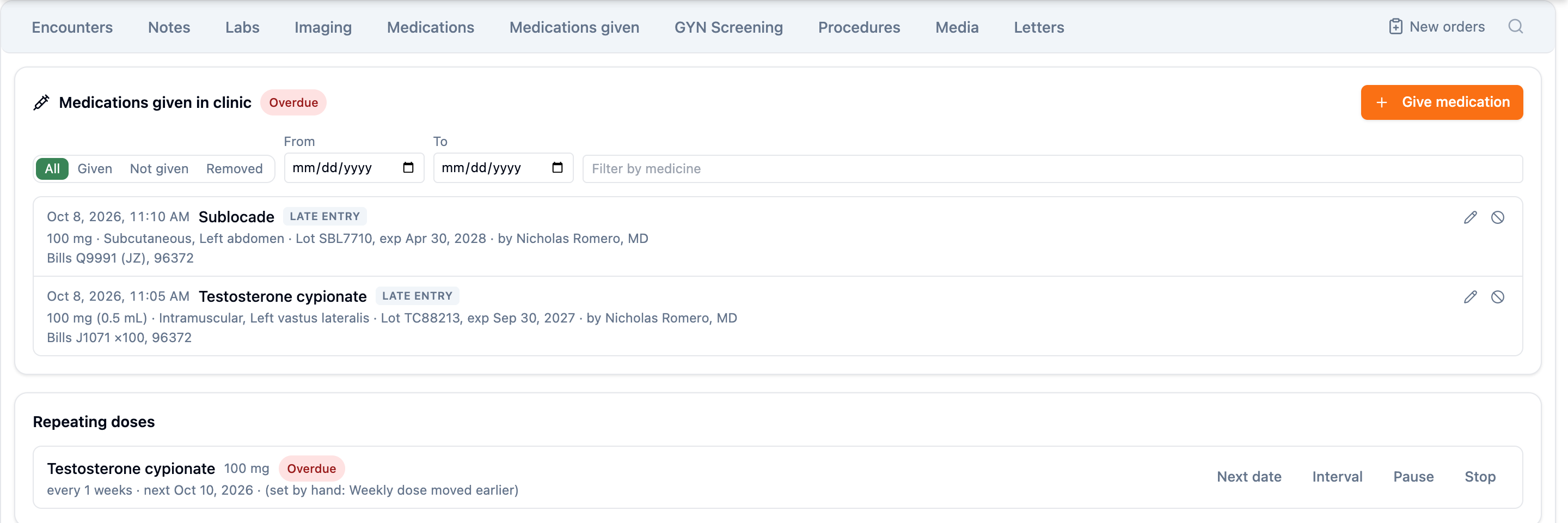
Give medication asks which visit to record it on.-
Click
Give medication. A dose is recorded and billed on a visit, so Hero asksWhich visit?: one of today’s open visits (Today’s visit at 10:30 AM), orStart an injection visit. -
For a new visit, choose the
Provider. “The visit is billed under this provider.” Hero creates a draft visit of the type set in Settings, with the reason Injection visit. ClickStart visit and continue(orContinuefor an existing visit). - Fill in and save the dose as usual. Its charges are brought in line the next time the visit is opened: “Open the visit to check its charges: they are updated there to match what was given.”
Repeating doses
The Next dose part of the form links a dose to a schedule. A protocol with Repeat every starts one by default (Start a schedule: every 1 months), or continues the patient’s existing schedule for the same drug; choose Not on a repeating schedule to skip it. The list only offers this drug’s schedules: a dose can’t join another drug’s (“That repeating schedule is for … Choose this medication’s schedule or start a new one.”). Leave Next dose date empty to count from this dose (“due about …”), or set a date for a starting dose, for example the second Sustenna dose a week later, with Why this date.
The chart tab’s Repeating doses card lists each schedule with Not due yet, Due soon, Due now, Overdue or Paused, how often it repeats, and the next date (marked set by hand with the reason when it was). Next date, Interval, Pause or Resume, and Stop change it; pausing and stopping need a reason. A next date has to fall after the last dose: “The next dose has to be after the last one (Oct 8, 2026). Choose a later date.” The next date always counts from the latest dose actually given, so recording an older dose late can’t move it backwards, and a date set by hand holds until a dose is given after it. Months are calendar months on your practice’s calendar: January 31 plus one month is the last day of February. The protocol’s Due from and Overdue after days decide when Due soon and Overdue begin.
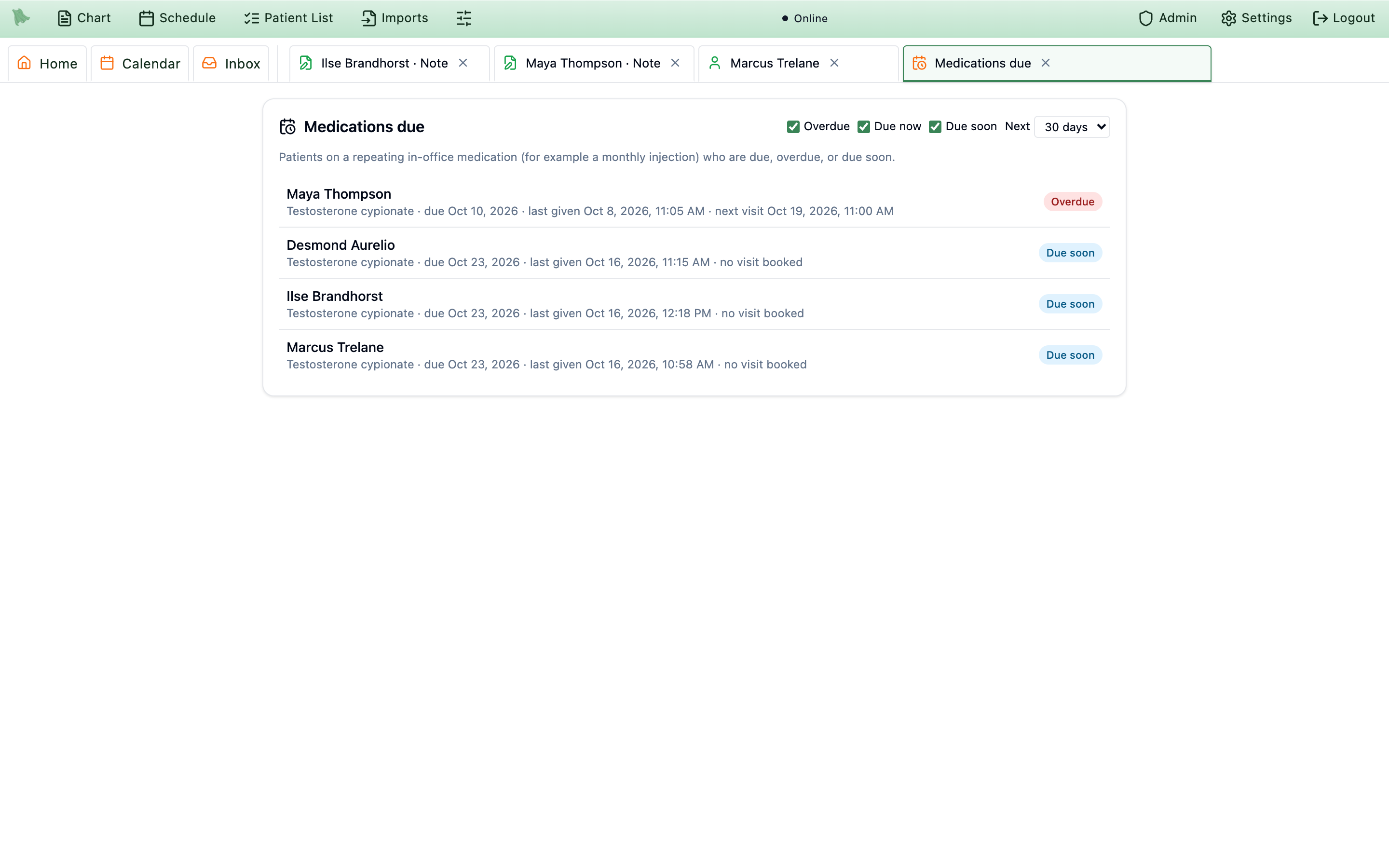
Medications due
To see everyone who is due, add the Medications due widget to your home page: Customize home > Hidden widgets > Medications due > Add, then Apply. It shows the five most urgent patients; See all opens the full Medications due page, which filters by Overdue, Due now and Due soon and looks ahead the next 14, 30, 60 or 90 days. Each row shows the patient, the drug, the due date, when it was last given, and the next visit or no visit booked, so the front desk can see who still needs an appointment. Click a row to open the chart. To book a whole course of visits in one step, see Treatment series.
Correct, amend or remove a record
Nothing is ever deleted: every change is kept in the dose’s history, and removed doses stay in the chart under Removed.
| Situation | What to do |
|---|---|
| The visit isn’t signed yet | The pencil (Edit …) changes anything; click Save changes. The visit’s charges follow. |
| The visit is signed | The amend icon (Amend …, Amend permission) asks Why are you changing a signed record?. “The signed version is kept; the chart shows this change as an amendment.” Click Save amendment. A change that affects billing needs an addendum: “This change affects billing on a signed visit. Open an addendum to change it.” |
| Wrong patient, wrong visit, entered twice, or never given | Remove it (below). A dose can’t be moved to another patient or visit: remove it as wrong patient or visit, then record it again where it belongs. |
Remove a record
-
Click the remove icon on the row.
Remove …opens: “The record stays in the history, marked entered in error.” -
Say what was wrong.
It was never given,Wrong patient or wrong visitorEntered twice, and theDetails. -
With Drug inventory on, say what happened to the drug.
The answers follow the first question. For
Wrong patient or wrong visitorEntered twicethere is one:It was used (the record was wrong), “Stock stays as used. Record the dose again on the right chart.” (How to do that without taking stock twice is below.) ForIt was never given, chooseIt was opened or thrown away(“The stock it took stays taken.”) orIt is back on the shelf, unopened(“Puts the stock back.”). Putting stock back needs the permission to manage drug stock, and a controlled drug needs aWitness. -
Click
Remove record. The row showsEntered in errorand its charges come off the visit.
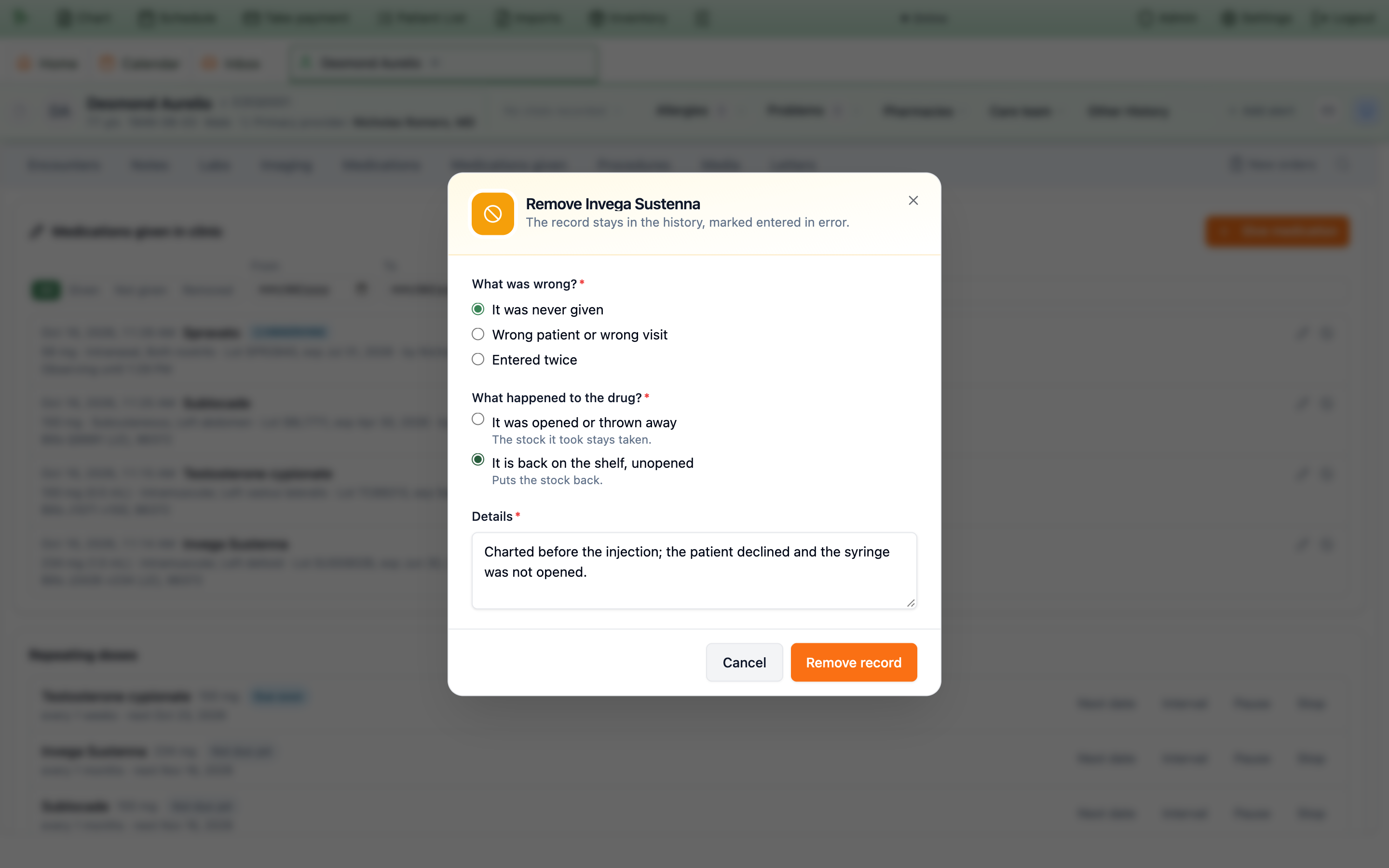
You can remove your own record within 24 hours with the Record permission; anything older, or someone else’s, needs the Amend permission. A dose billed on a signed visit needs an addendum first, so the charges are corrected with it.
Record it again on the right chart
With Drug inventory on, the drug already came off the shelf with the first record, so the second record re-uses that stock instead of taking it again.
-
Open
Give medicationon the correct patient’s visit and choose the same product. -
Under
Lot and expiration, openUse stock already recorded from voided entry. “For a dose first documented on the wrong chart: use the stock it already took.” Each entry reads like Invega Sustenna 234 mg · lot ABC123 · given Oct 16, 2026, 9:12 AM · documented by …; it never names the other patient. -
Choose the entry.
Its lot, expiration and NDC fill in, and
From stocksteps aside: “The stock that entry took is used for this dose; nothing more comes off the shelf.”No, take it from stockgoes back to the usual lot picker. For a dose from several lots, choose an entry on each lot it applies to. - Finish and save the dose as usual.
The list shows records removed in the last 30 days as Wrong patient or wrong visit whose drug was kept as used (It was used (the record was wrong)), narrowed to this product’s NDC once the dose has one. The field appears only when there is such a record, and each one can lend its stock to one dose only. It needs the Record permission, like giving a dose.
When a whole visit is marked entered in error, its doses are marked entered in error too, their stock stays used, and the person who documented them gets a to-do, Re-document on the correct chart (stock already used); record them with Use stock already recorded from voided entry as above. Restoring the visit doesn’t restore the doses.
Need help? Email support@heroemr.com.