Todo lists & queued messages
A todo list that lives one keystroke away, anywhere in the EMR: capture tasks mid-visit, link them to patients, tag and delegate them, snooze what can wait — and schedule messages to send later, with every queued send visible and cancelable until the moment it goes out.
Todo lists & queued messages
A todo list that lives one keystroke away, anywhere in the EMR: capture tasks mid-visit, link them to patients, tag and delegate them, snooze what can wait — and schedule messages to send later, with every queued send visible and cancelable until the moment it goes out.
One list for everything you can’t do right now
The Todo list is a panel that slides in from the right edge of Hero EMR (its default — you can also float or pin it, see Open & close), on top of whatever you’re doing — the calendar, a chart, a half-written note. It’s built for the reality of clinic work: things come up mid-visit that can’t be handled mid-visit. Press one key, capture the task, and get back to the patient.
The panel has two tabs:
- Tasks — your todos: quick capture, patient links, priorities, shared color tags, checklists, due dates, snooze, and delegation to anyone on your team (see Create todos).
- Queued — messages you’ve scheduled to send later from the Inbox, a patient thread, or Care Team Chat, with full control until the moment they send (see Send a message later).
Todos are private to the people involved: only the person who created a todo and the person it’s assigned to can see it. Tags, on the other hand, are shared practice-wide, so a Billing tag means the same thing on everyone’s list (see Organize your list).
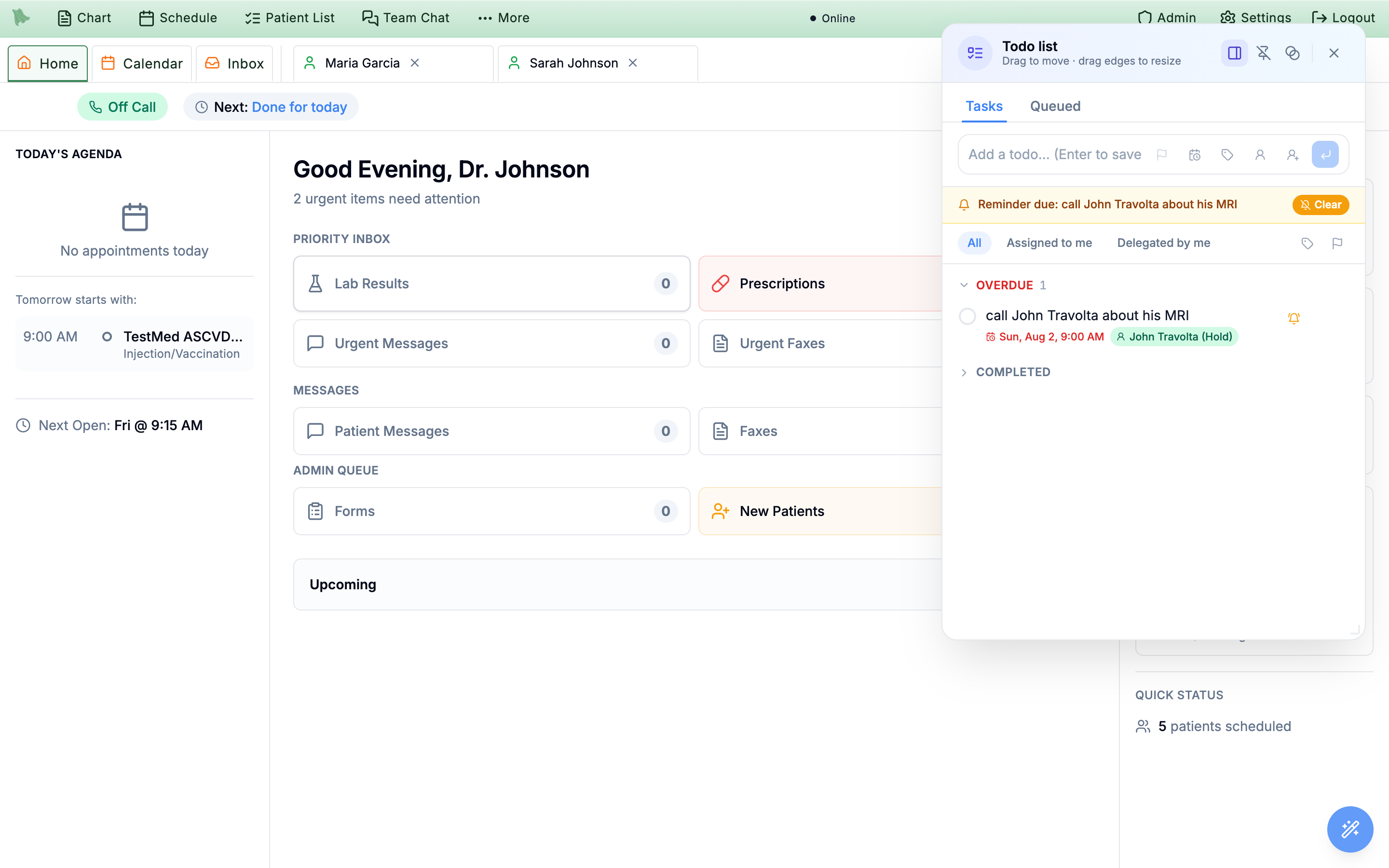
Tasks tab: quick-add at the top, filters below it, and todos grouped by when they need you. Only groups that have something in them render — here that is Overdue plus the always-present Completed — so a short list looks nothing like the full Snoozed / Overdue / Today / Upcoming / Anytime / Completed ladder.The backtick ` key and the magic wand
There are two ways in, and both work from anywhere in the EMR:
- Press ` (backtick). The unshifted key just above Tab toggles the panel open and closed — on its own, with no Shift, Ctrl, or Cmd. (Shift+`, the tilde, deliberately does not open it.) The shortcut stays out of your way while you type: pressing it inside a note or any text field just types the character. Press Esc to close the panel.
- Hover the magic wand. Rest your cursor on the wand button in the bottom-right corner and its menu of assistant actions appears. Click the Todo list row — the checklist icon — to open the panel.
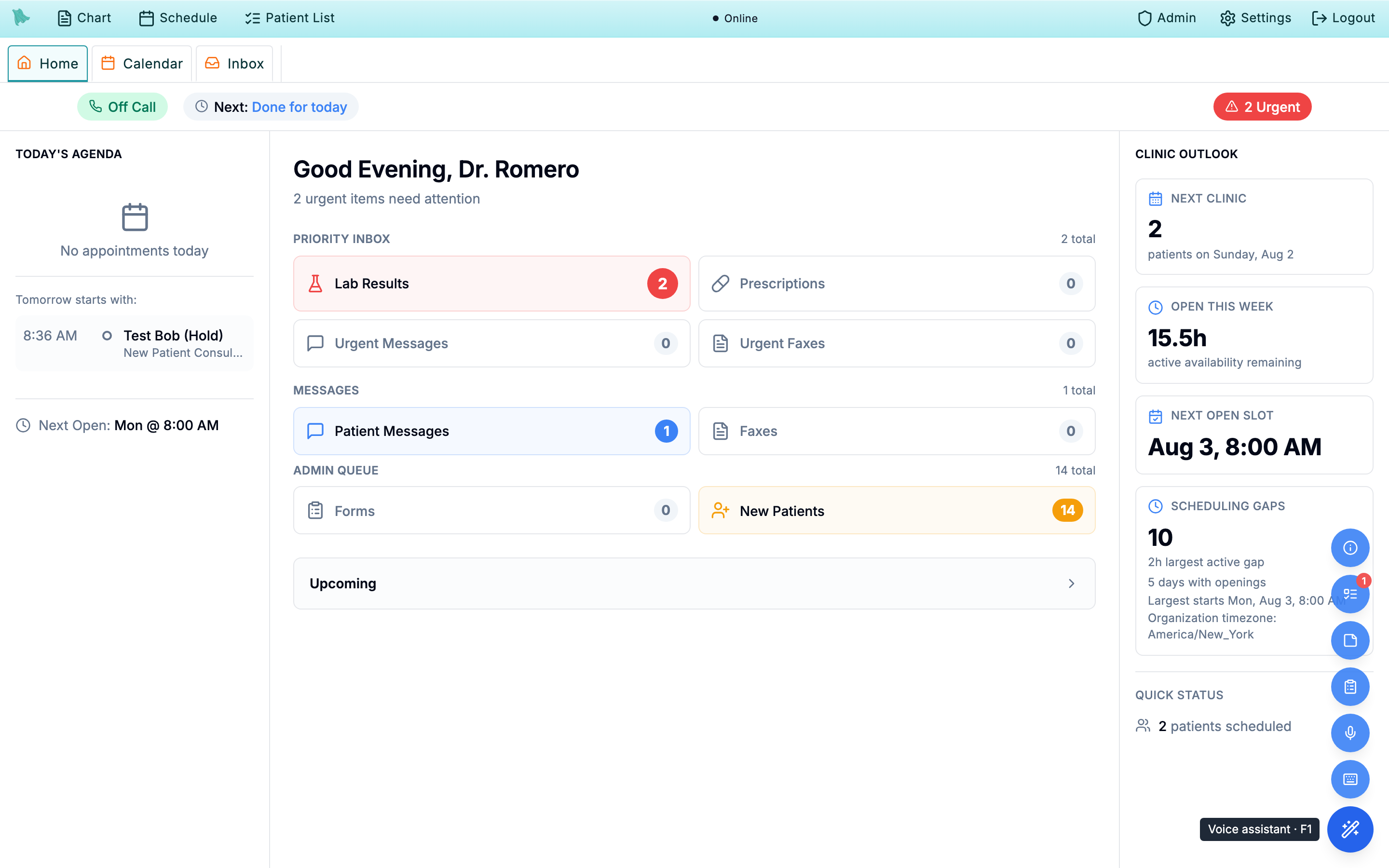
Todo list row wears a red badge with the number of todos that need you today.The badge
The red badge on the wand’s Todo list row is a count of open todos that need you today — everything overdue, plus everything due at any point today on your practice’s clock, plus anything that has woken from a snooze. A todo due at 5 PM badges all day, not only once the hour passes. Snoozed todos never count, which is the point of snoozing. No badge means nothing is waiting on you; it is not a count of your whole list. For the alert that fires at the exact due minute, see Reminders.
Dock it, float it, pin it
The controls in the panel header change how the window behaves, and Hero remembers your choice:
- Docked — the default right-edge slide-over, over a dim backdrop that closes the panel when you click away.
- Floating — a free window: drag the title bar to move it, drag any edge or corner to resize it. There is no backdrop, so the chart underneath stays live. The line under
Todo listin the header swaps to Drag to move · drag edges to resize while you are in this mode. - Pinned — drops the backdrop and ignores Esc, so the panel stays put over the chart while you work. Only the X (or the toggle key) closes it.
- Opacity — dials the window back while it sits idle; hovering, focusing, moving, or resizing it makes it fully opaque again.
A reset control in the same group puts the window back to the docked default.
Hotkeys (Ctrl+Shift+?). The wand menu prints whichever key is actually bound, and so does the panel header while the window is docked or pinned — float the window and that line gives way to the drag hint instead, so read the key off the wand menu when you are looking for it.
Quick-add, with a patient attached in one tap
The quick-add row at the top of the Tasks tab is the fastest path: type the task and press Enter. That’s a complete todo. The small icons inside the row let you attach more before you save — a priority flag, a due date, tags, a patient, or an assignee — and anything you set shows as a small chip under the row until you press Enter.
Linking a patient
A todo like “call about the cholesterol results” is only useful if it knows which patient. Click the person icon in the quick-add row and you get two paths:
- Pick from recent patients. The popover lists patients whose charts you’ve opened recently — for the common case where the patient you need is the one you just saw. One click attaches them.
-
Search everyone.
Search patients…opens the full patient search — the same one used everywhere in Hero EMR, searching by name, MRN, or date of birth. The panel steps aside while you search and returns on its own with the patient attached; your half-typed todo is preserved through the round trip.
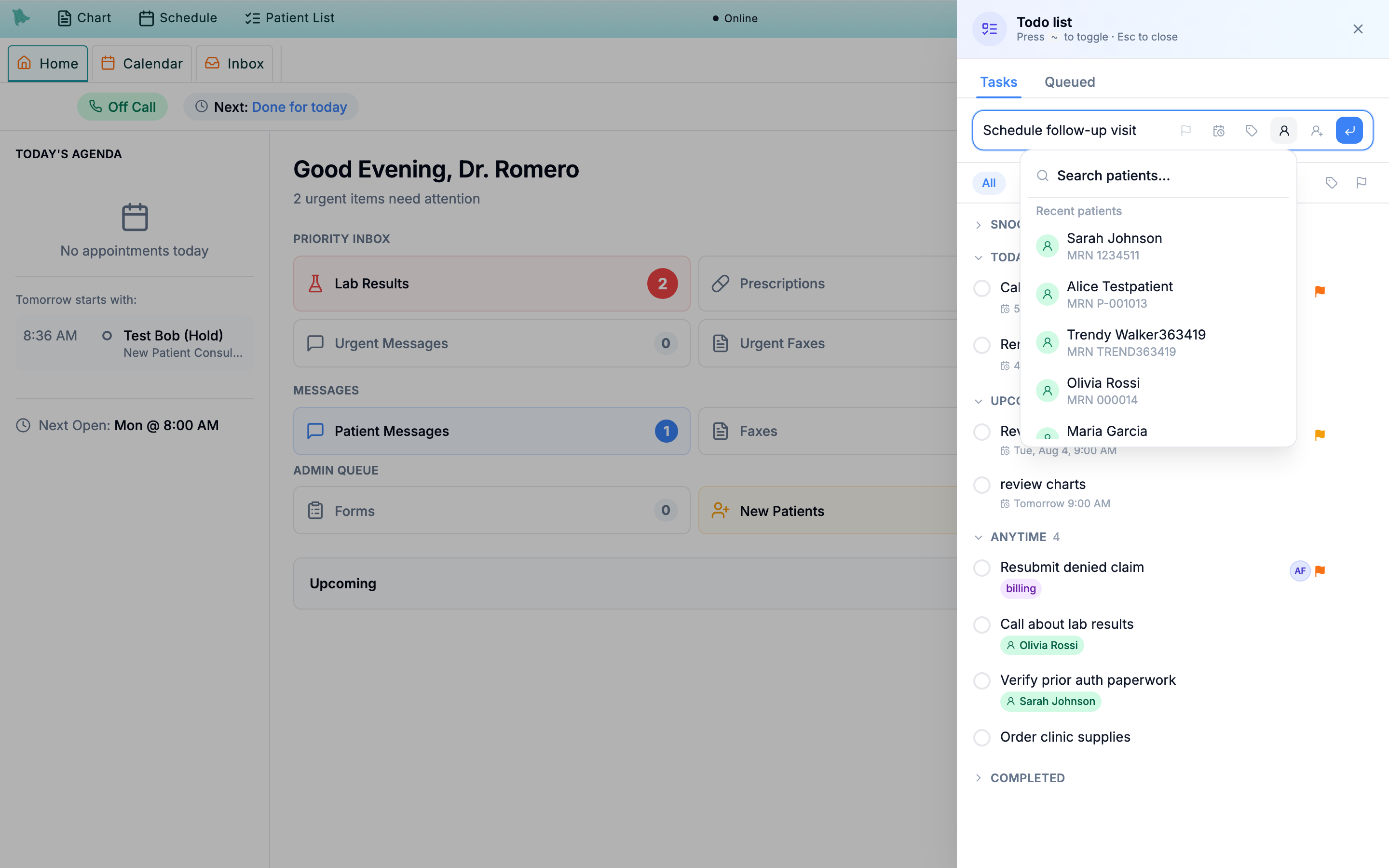
Search patients… for the full directory.On a saved todo, the patient shows as a green chip. Clicking the chip opens the chart — so “call about lab results” and the labs themselves are one click apart. You can also attach or change the patient later from the todo’s expanded editor.
Priorities, tags, due dates, checklists & snooze
Open any todo by clicking its title and the row expands into a full editor — title, notes, a checklist, and chips for the due date, priority, tags, patient, and assignee.
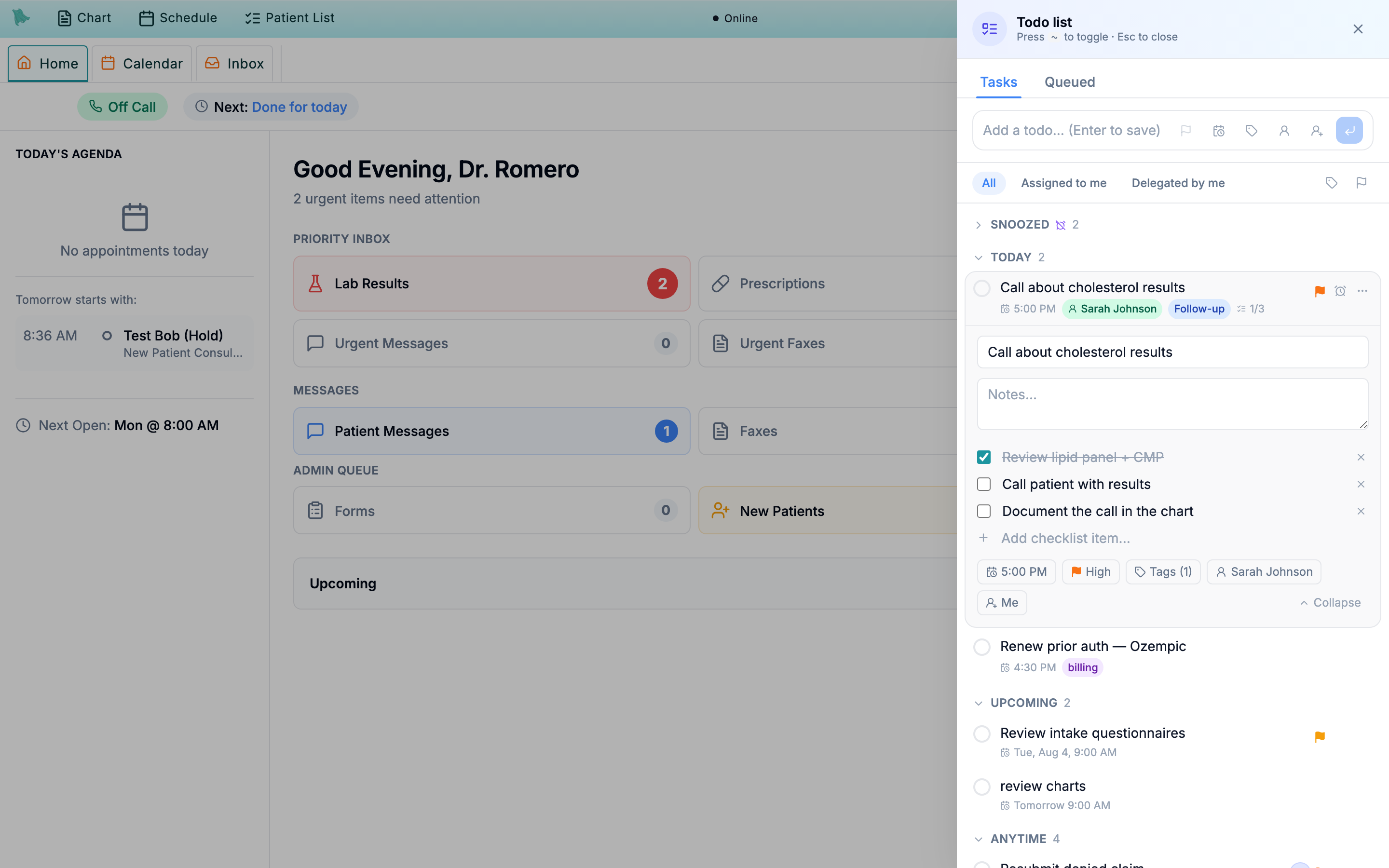
The pieces
Priority flags
Five levels — none, low, medium, high, urgent — each with a color-coded flag on the row. Within a group, higher-priority todos sort toward the top — unless you have reordered that group by hand, in which case your manual order wins.
Color tags
Label todos by theme — Billing, Follow-up, Refills — with an eight-color palette. Tags are shared across the practice, so a delegated todo keeps its tags and everyone filters by the same vocabulary. Anyone with todo access can create, rename, or recolor a tag; a tag can only be deleted once no todo uses it.
Due dates
Pick a date and time in your practice’s timezone. The due time drives the grouping below and the wand badge — and overdue times turn red.
Checklists
Break a todo into sub-steps and tick them off one by one. The collapsed row shows progress — 1/3 — so you can see where a task stands at a glance.
How the groups work
The Tasks tab sorts itself so the top of the list is always “what needs me now.” All dates are read in your practice’s timezone — the same clock as your schedule — not the timezone of whatever computer you happen to be on:
| Group | What lands there |
|---|---|
| Overdue | Due before today. These float to the very top. |
| Today | Due today — plus any snoozed todo whose wake-up time has arrived. A woken todo stays in Today until you complete it or snooze it again; it never silently slips back into the pile. |
| Upcoming | Due on a future day. |
| Anytime | No due date — the “whenever there’s a quiet moment” shelf. |
| Snoozed | Hidden until their wake-up time, whatever their due date. Collapsed by default. |
| Completed | The last 30 days of finished todos, collapsed at the bottom. |
Snooze & complete
The clock button on any row snoozes it — presets for Later today (+3h), This evening 6:00 PM, Tomorrow 8:00 AM, and Next week Mon 8:00 AM, or any custom time. Snoozing is how you tell a todo “not now, but don’t let me forget” — it disappears into Snoozed and resurfaces in Today at the moment you chose.
Ticking the circle completes a todo, and a brief Undo toast appears in case you caught the wrong row — one click puts it back exactly as it was.
Reminders
A todo assigned to you rings at the minute it comes due. An amber bell jumps beside the magic wand, and an amber strip appears at the top of the Tasks tab reading Reminder due: … (or N reminders due when several are up), with a Clear / Clear all button. Each ringing row also carries its own bell, so you can clear one and leave the rest.
Clearing a reminder is not completing the todo — it silences the alert and leaves the task on your list. Unlike the wand’s count badge, which covers the whole day, the bell is exact-instant: it fires at the time you picked and stays up until someone dismisses it. Snoozing a todo stops it ringing until the snooze expires.
Limits worth knowing
A few caps you would otherwise meet as an error: 10 tags per todo, 50 checklist items, a 500-character title (notes run to 10,000), 1,000 open todos per person, and 200 tags for the whole practice.
Reorder or delete
The overflow menu (…) on any row holds Edit details, Move up / Move down for hand-ordering a group, and Delete for a todo that should never have existed — distinct from completing one, which keeps it in Completed for 30 days.
Hand a todo to someone on your team
Any todo can be assigned to another person in your practice — a physician finishing a visit can hand “fax the records to cardiology” to the front desk without leaving the panel, and the task arrives on that person’s list with its patient link, tags, notes, and checklist intact.
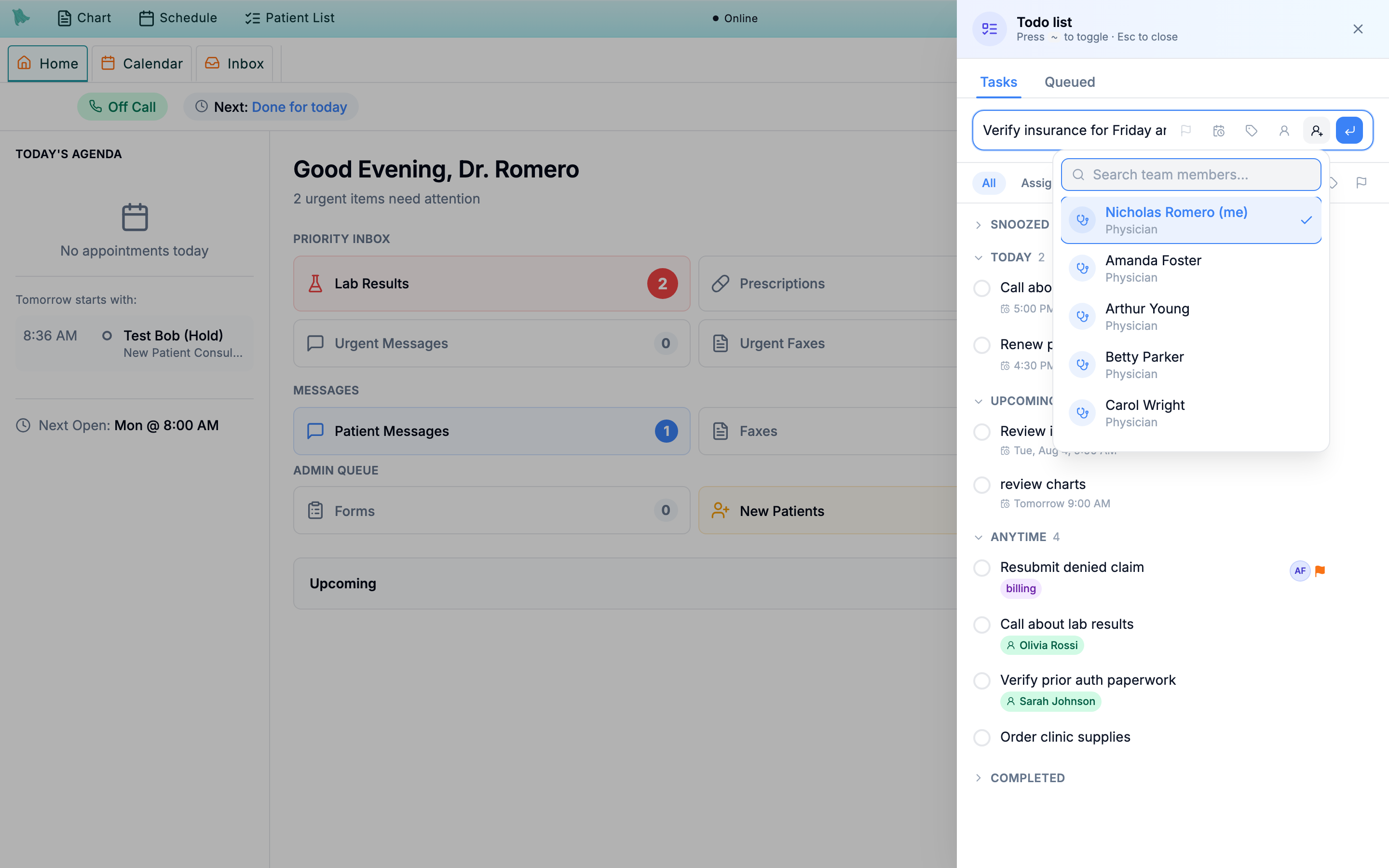
- Pick an assignee. Use the assign icon in the quick-add row (to delegate as you create) or the assignee chip in a todo’s expanded editor (to re-assign later). A searchable picker lists your practice’s physicians, admins, and todo-enabled staff.
- Both of you can see it. A delegated todo stays visible to you and the assignee — and no one else. The row wears a small avatar; hover it to see Delegated to / Delegated by.
-
Track what you’ve handed off.
The filter row switches between
All,Assigned to me, andDelegated by me— the last one is your “waiting on others” view, showing when each handed-off task gets done. Two icons at the right end of the same row narrow it further: the tag icon filters to one tag (All tagsclears it) and the flag icon filters to one priority (Any priorityclears it). A ringing reminder still shows through an active filter.
“Send later” in every composer
Some messages shouldn’t send the moment you finish typing them — results you review at 10 PM are better delivered at 8 AM. A Send later button now sits next to Send in three places:
- the Inbox’s New Message window (see Compose & settings),
- the reply box on a patient thread (see Patient threads), and
- the Care Team Chat composer, for messages to colleagues.
- Write the message as usual. Recipient, subject, body — nothing about composing changes.
-
Click
Send laterand pick a time. The popover offers presets — This evening 6:00 PM, Tomorrow 8:00 AM, Monday 8:00 AM — or a custom date and time, anywhere from a couple of minutes to 90 days out. Every time is your practice’s timezone, exactly as labeled at the top of the popover. -
Done — it’s queued.
The composer closes and the message appears on the
Queuedtab of the todo panel, where you can still reschedule, send it now, or cancel it right up until it sends (see The Queued tab).
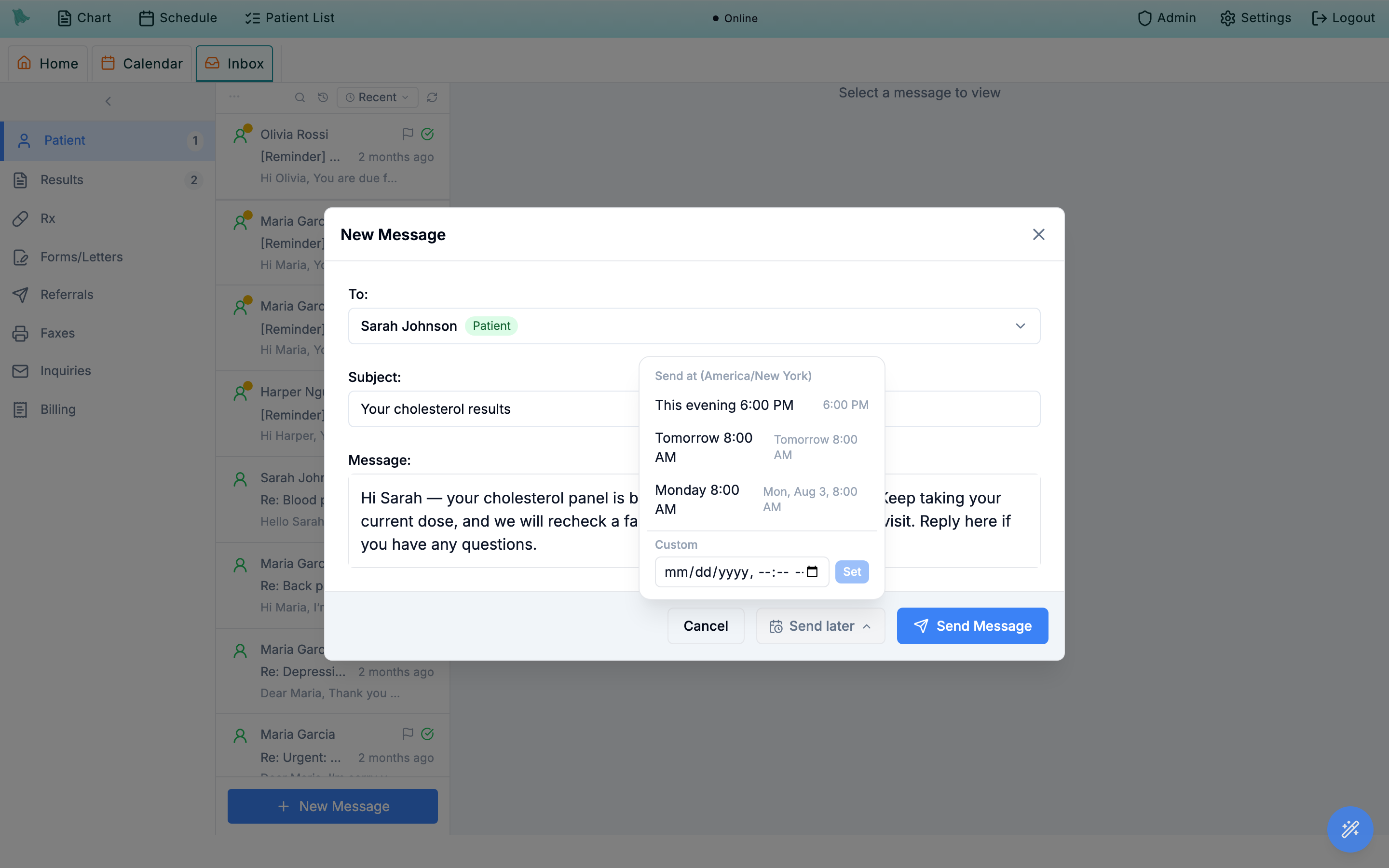
Send later in the Inbox composer. The popover states the practice timezone and offers presets or a custom time.Send later is disabled and tells you why — send those messages immediately instead. And a scheduled message sends as you, with the same permission checks applied again at send time; if something about your access or the practice’s messaging settings changes in between, the message fails safely instead of sending (see The Queued tab).
Watch, reschedule, or cancel anything you’ve scheduled
The Queued tab lists your scheduled messages, soonest first — each with the recipient, a preview of the subject and body, the send time in your practice’s timezone, and a status pill. It shows only messages you scheduled; teammates each have their own queue.
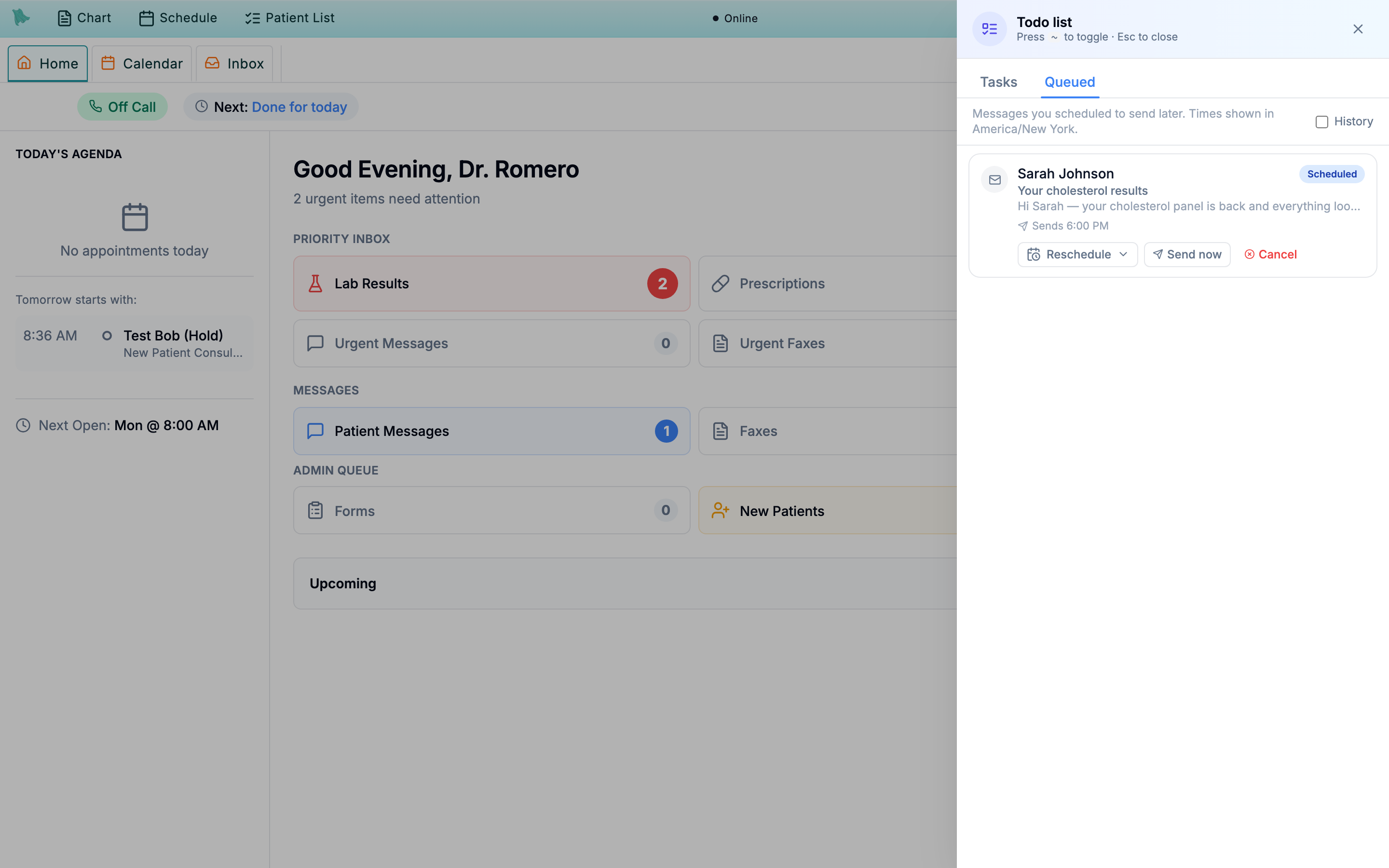
Reschedule, Send now, or Cancel — until the moment it sends.While a message is scheduled
- Reschedule — the same preset/custom time popover as
Send later. - Send now — releases it immediately (delivery follows within about a minute).
- Cancel — withdraws it; nothing is sent.
Once a message sends, its pill flips to Sent and it moves out of the default view — tick History to see your sent and cancelled items. Delivered messages land in the normal thread exactly as if you’d pressed Send at that moment.
If a scheduled send fails
Failed row shows a plain-language reason. When the failure was a rule or permission check — say, patient messaging was switched off for the practice at send time — your message is kept and a Retry button appears once the underlying issue is fixed, sending the same message without retyping it. If the failure happened mid-send (a rare interruption), there is deliberately no Retry: check the patient’s thread first to see whether the message actually arrived, then re-compose if it didn’t — that check is what prevents an accidental double-send.
“Remind me to call Martha tomorrow at 9”
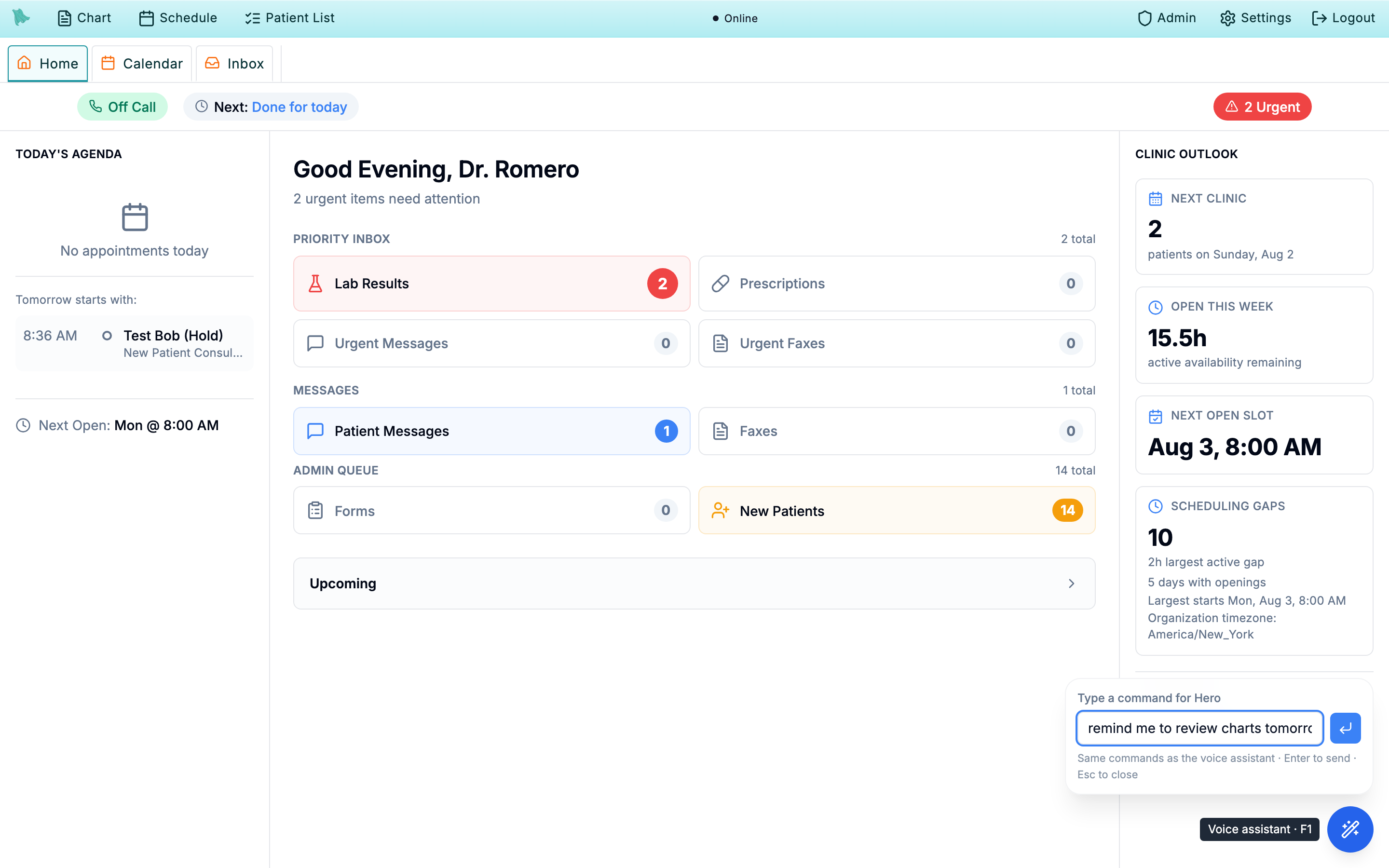
Todo capture is wired into Command Hero, so you can create a reminder without touching the panel at all — speak it to the voice assistant (F1) or type it into the command box (F2).
-
Say or type the reminder.
Press F2 (or click
Type a commandin the wand flyout), then phrase it naturally: “remind me to review charts tomorrow at 9am”, “add a todo to call Martha about her labs Friday morning.” - Hero builds the todo. The reminder text becomes the title and the time you said becomes the due date, resolved in your practice’s timezone — “tomorrow at 9” means 9 AM on your practice’s clock. If you name a patient — or you’re working in a patient’s chart when you say it — the todo is linked to that patient.
- The panel opens to confirm. The todo list slides in with the new item in place, so you can see it landed correctly — and add a tag or delegate it while it’s in front of you.
Need help? Email support@heroemr.com.