Referring providers & care team
Who sent the patient, who their primary care provider is, and how to reach them: your practice's list of outside doctors, the chart's Care team, the referring provider on each visit, and where that information flows into letters and claims.
Referring providers & care team
Who sent the patient, who their primary care provider is, and how to reach them: your practice's list of outside doctors, the chart's Care team, the referring provider on each visit, and where that information flows into letters and claims.
Know who sent the patient, and who else looks after them
Most patients arrive with other doctors attached: the doctor who referred them, a primary care provider (PCP), and often a specialist or two. Hero keeps those outside doctors in one place so everyone in your practice can see who they are, how to reach them, and what has already been sent to them.
It is built from three pieces that share the same information:
Your practice’s list
Admin → Referring providersis your practice’s list of outside doctors, with their fax, phone, email, preferred way to be reached, and office notes (13.16).- Each doctor is on the list once. The same record is used on every chart, every visit, every fax, and the referral portal.
Once a doctor is on the care team you can fax them, send a secure message through your referral portal, call them, and see everything sent and received — that is covered on the next page, Contacting outside providers. This page covers the list, the chart, visits, letters, and claims.
Admin → External Providers, which is where integrations such as fax and payments are set up.Your practice’s list of outside doctors
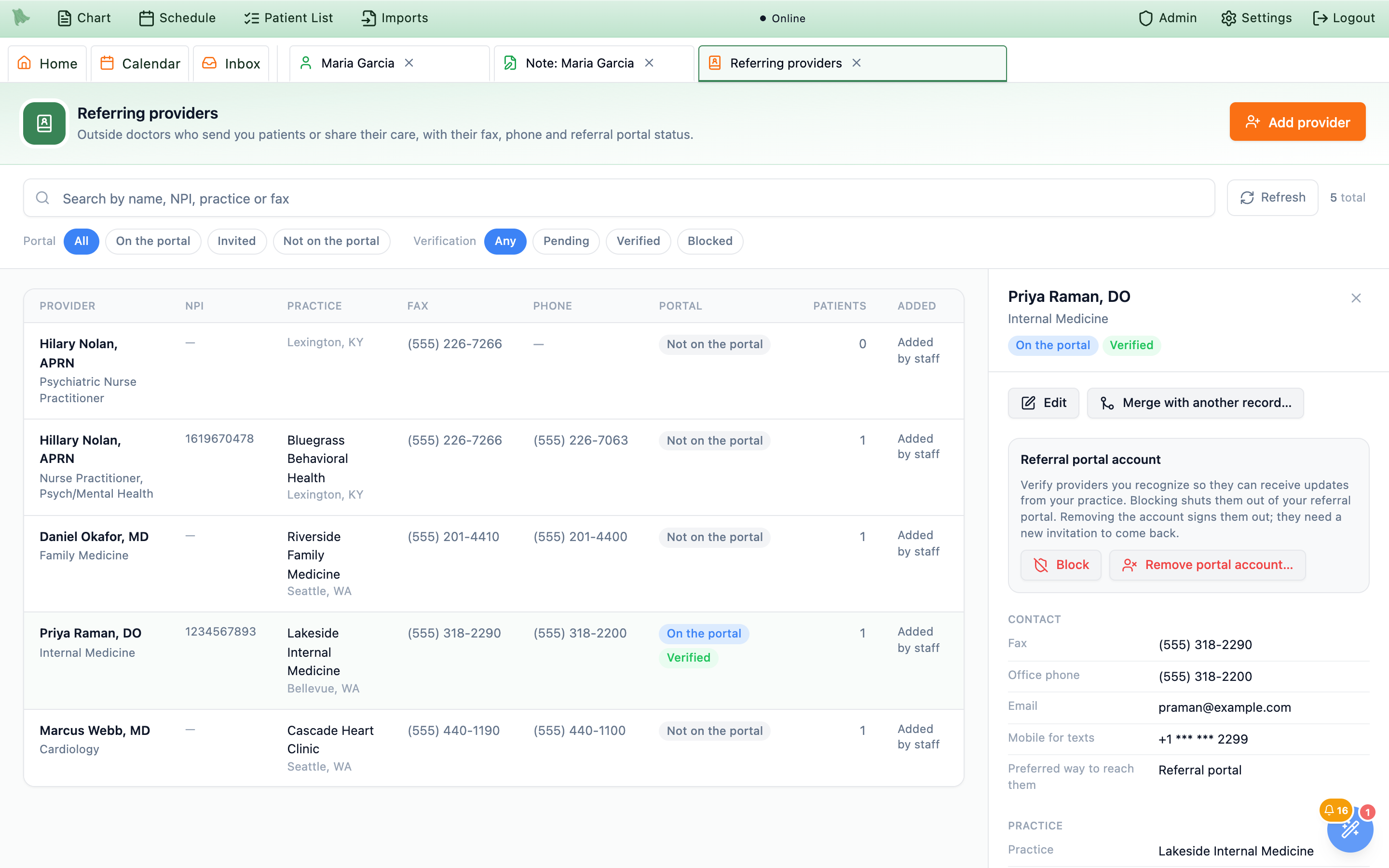
Open it from the toolbar: Admin → Referring providers. The page lists every outside doctor your practice works with: people staff added, doctors who sent a referral, doctors named in imported records or on a patient’s insurance card, and doctors who joined your referral portal.
Finding a provider
- Search by name, practice, NPI, or fax number. Every word you type has to match.
- Portal filters:
All,On the portal,Invited,Not on the portal. - Verification filters:
Any,Pending,Verified,Blocked. Verification matters for doctors who have a referral portal account (13.17).
The table shows each provider’s NPI, Practice, Fax, Phone, and Portal status: On the portal, Invited, Invitation expired (the 7-day link ran out; you can send it again), or Not on the portal. A blocked provider also shows Blocked, whether or not they have a portal account. Patients counts how many of your patients have this doctor on their care team right now. Added says how the doctor got onto the list: Added by staff, Signed up on the portal, From a referral, From an imported record, From a patient’s intake, From insurance, or From a referral you sent.
Adding a provider
-
Press
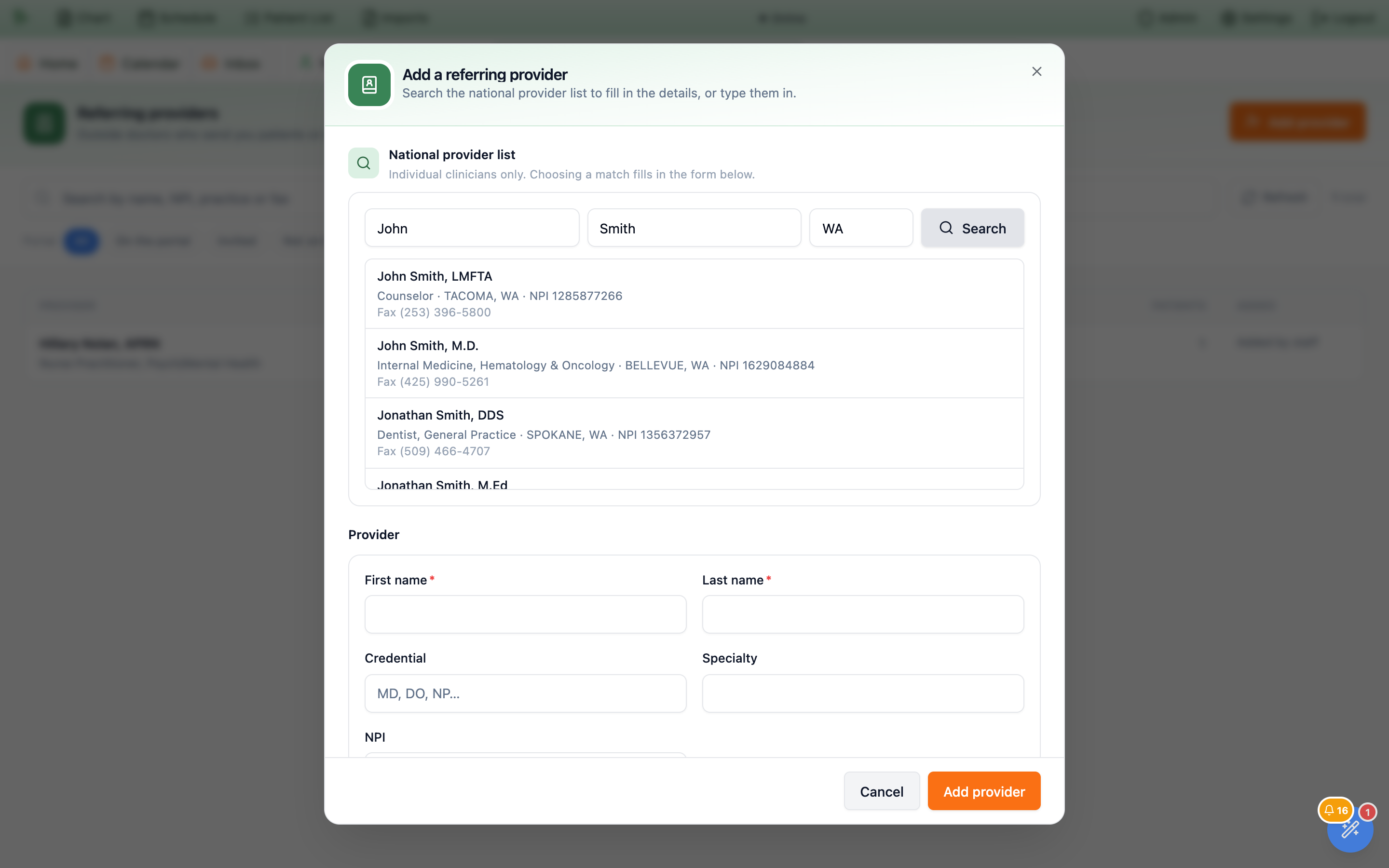
Add provider. TheAdd a referring providerwindow opens. -
Search the national provider list, or type the details in.
Under
National provider list, enter at least a last name (first name and state help narrow it down) and pressSearch. This searches the national provider list (NPPES). Choosing a match fills in the name, credential, specialty, NPI, address, office phone, and fax. Only individual clinicians can be added, not practices or hospitals. If the doctor isn’t on the national list, skip the search and type the details yourself. -
Check the details and add what the national list doesn’t have.
Only first and last name are required. Add the practice name, email, and
Mobile for texts(used only for portal sign-in links and notices, never patient details) if you have them, and setPreferred way to reach them:Fax,Referral portal,Email,Text message,Phone call, orNo preference. -
Press
Add provider. If a doctor with the same NPI is already on your list, nothing new is created: Hero opens the existing record and says “This provider was already in your list — we opened their record.”
Editing contact details and office notes
Select a provider and press Edit to change their details. The window has three parts: Provider (name, credential, specialty, NPI), Practice (practice name and address), and How to reach them (office phone, fax, email, mobile for texts, preferred way to reach them, and office notes). Search again refreshes the NPI and practice details from the national list.
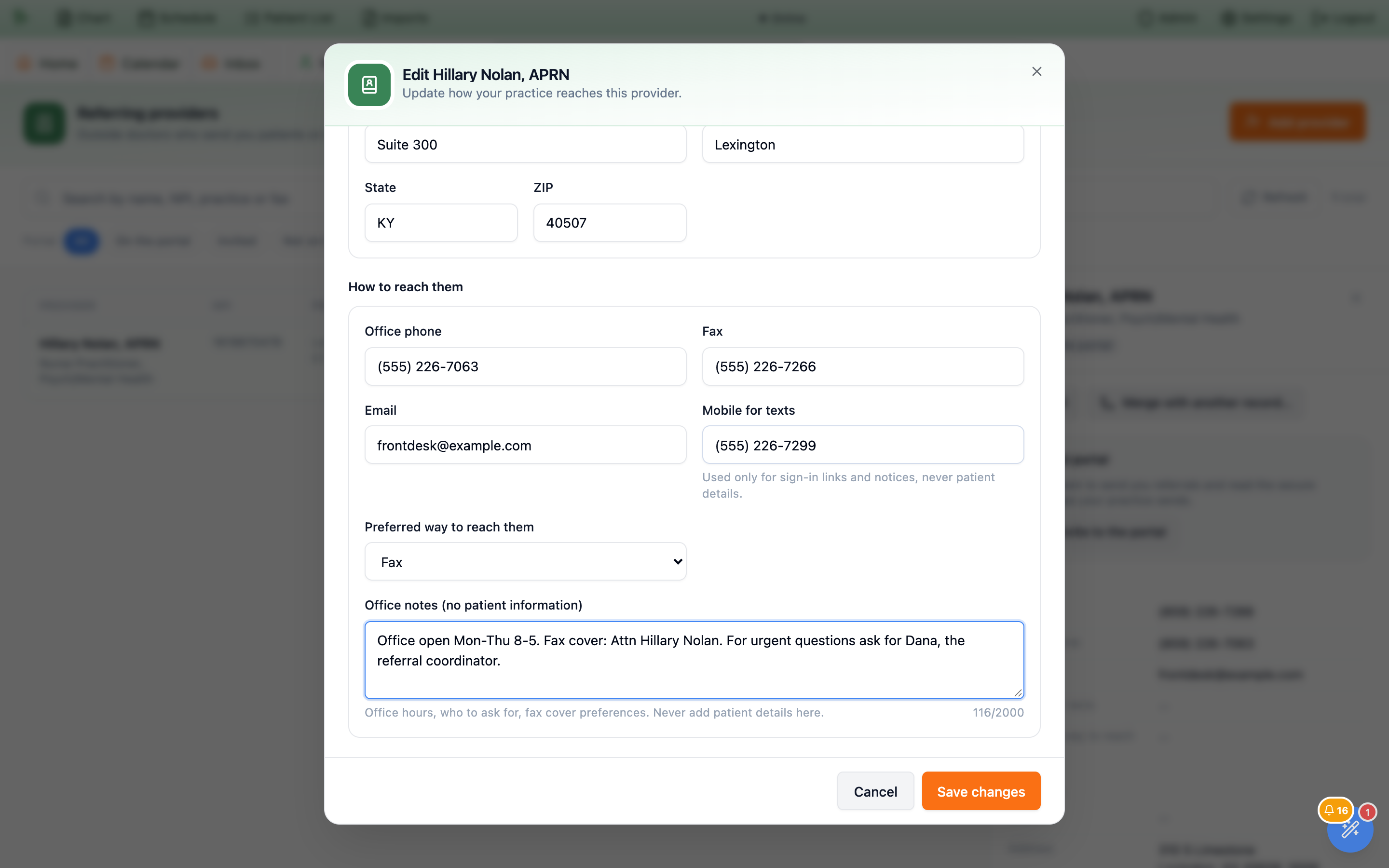
- Portal members manage their own email and mobile. Once a doctor has joined your referral portal, their email, mobile number, and NPI are read-only here (“Managed by the provider on the referral portal”). Fax, phone, address, and office notes stay yours to edit.
- Changing an invited doctor’s email or mobile cancels their invitation. If you invited someone and then correct their email or mobile, the earlier invitation link stops working. Send a new invitation.
- Records can’t be deleted. A duplicate is cleaned up by merging it (13.17).
The detail panel also shows With your practice (patients, referrals received, and when and how the doctor was added, in your practice’s time zone) and, for doctors not on the portal yet, an Invite to the portal button, or Send the invitation again if they were invited before, including when the invitation has expired (see 13.32).
Merge duplicates, verify or block portal accounts
Merging a duplicate
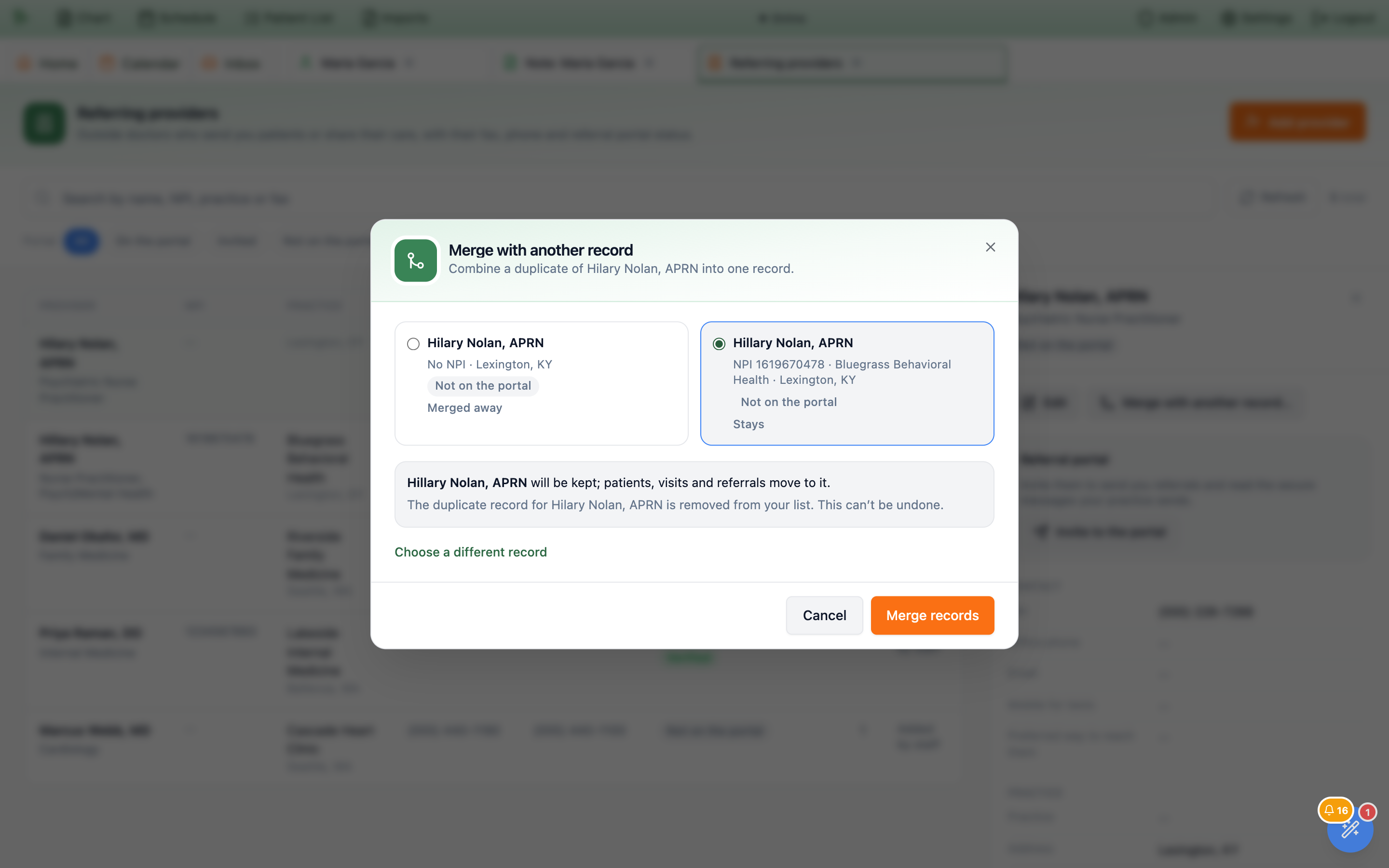
Duplicates happen, for example when one person types a doctor in by hand and the same doctor later arrives with an NPI on a referral. To combine them, select one of the records and press Merge with another record….
- Find the other record. Type at least two letters of a name, NPI, practice, or fax number and pick the duplicate.
- Choose which record stays. The two records appear side by side, marked
StaysandMerged away. Pick the one with the better details, usually the one with the NPI. A record that has a referral portal account always stays, because the doctor signs in with it. - Press
Merge records. Patients, visits, referrals, secure messages, and the communications history all move to the record that stays. Any detail that record is missing, such as an email or office notes, is filled in from the other one. The page confirms “Records merged. … is the record that stays.”
Verifying and blocking portal accounts
When a doctor has a referral portal account, the detail panel shows a Referral portal account box. Verification used to live in the Referral Portal settings window; it is now here.
Verifymarks the account as a doctor you recognize. Only verified (confirmed) accounts can read the secure messages your practice sends, and, if your practice requires it, receive automatic referral updates. Doctors who join through an invitation from your practice are verified automatically. Doctors who sign up on their own wait asPendinguntil someone verifies them.Blockshuts the doctor out of your referral portal: they can’t sign in, submit referrals, or receive updates or messages, and nothing is sent to them automatically. To lift the block for a doctor who still has a portal account, pressVerify.Remove portal account…signs the doctor out everywhere and forgets their remembered devices. The window says so before you confirm: the email and mobile number they signed in with are removed from their record, and their messages and history are kept. Add an email or mobile again withEditbefore sending a new invitation. Removing the account doesn’t lift a block.
Unblocking a provider without a portal account
A blocked provider who has no portal account (for example because you removed it) keeps the Blocked badge on the list, and their detail panel shows a Blocked box: “Your practice blocked this provider, so nothing is sent to them automatically and they can’t join your referral portal.” Press Unblock to allow both again. The provider goes back to Pending; if they later join the portal on their own, verify them as usual.
Verifying, blocking, unblocking, and removing a portal account need office manager or administrator access.
The Care team on the patient’s chart
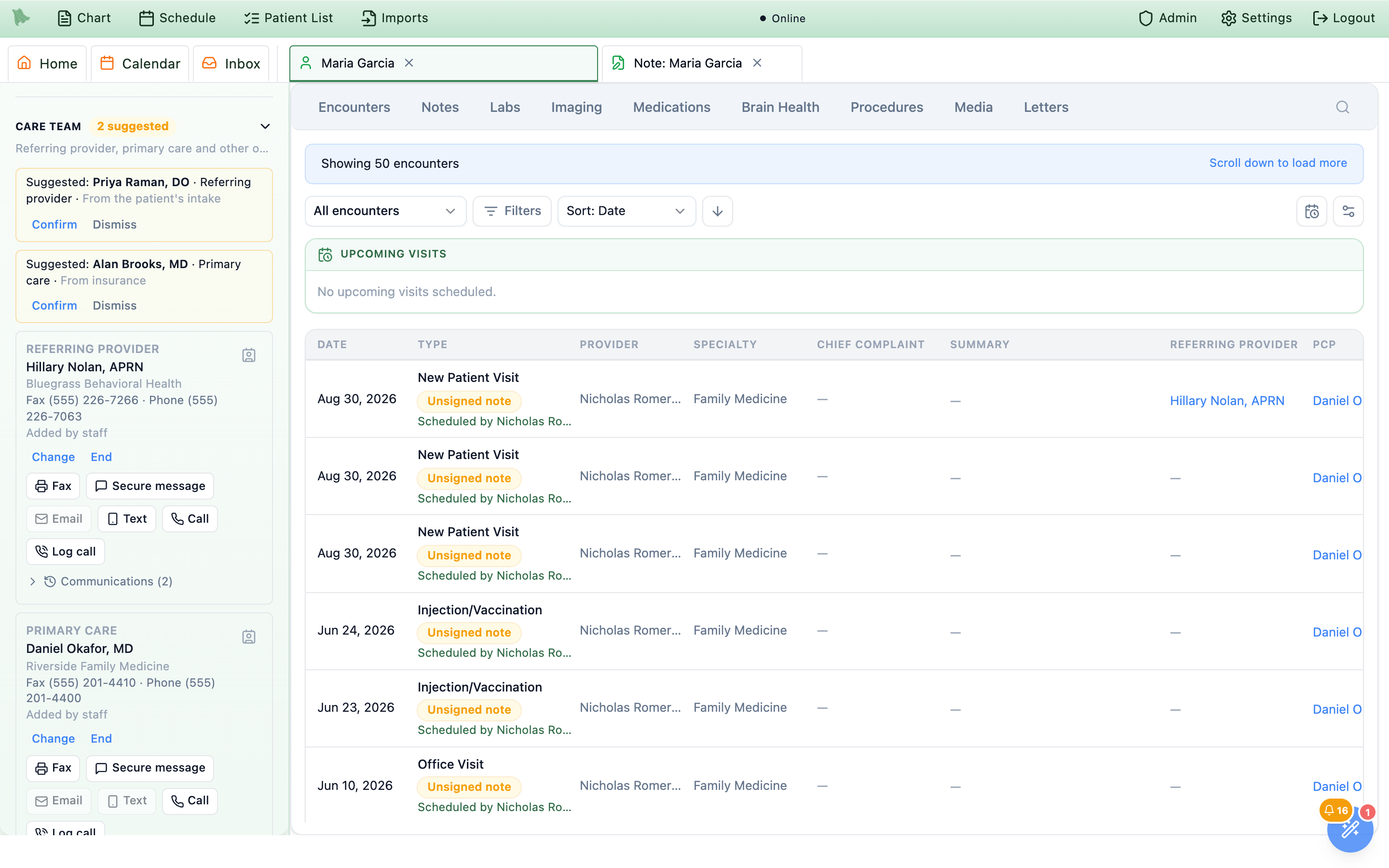
Every chart shows the patient’s outside doctors under Care team (“Referring provider, primary care and other outside doctors”). Where you find it depends on the chart layout you use:
- Vertical layout: a
Care teamcard in the patient information panel, below Preferred Pharmacies and above Referral Communications. Click the heading to collapse or expand it. - Horizontal layout: a
Care teambutton in the chart header, afterPharmacies. Click it to open the same information in a panel; click anywhere outside to close it.
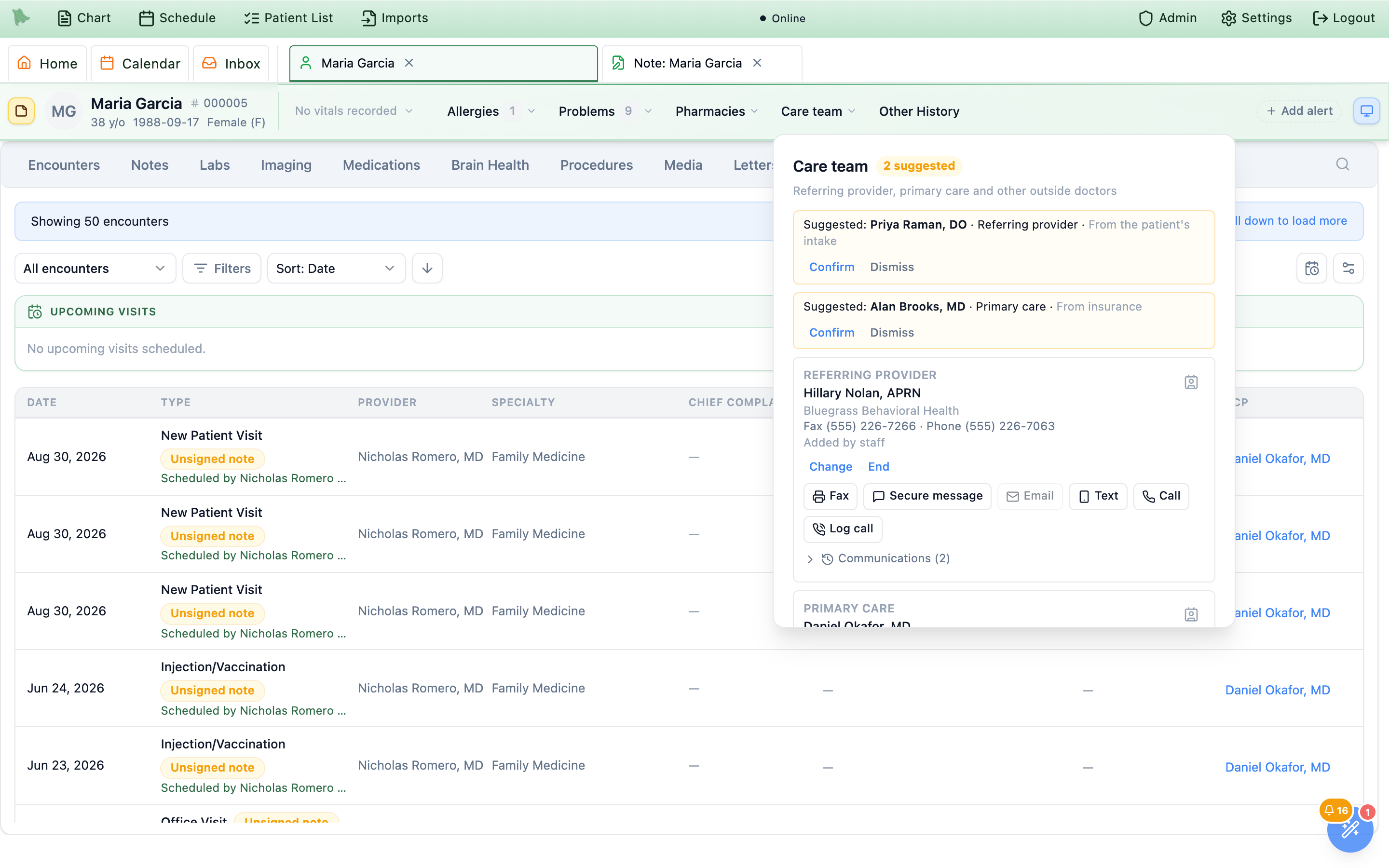
Care team button in the horizontal chart header.What each row shows
Each doctor’s row shows their role (Referring provider, Primary care, or a label such as Cardiologist), name, practice, fax and phone, and where the information came from (Added by staff, From an inbound referral, From the patient’s intake, From an imported note, From insurance). The small card icon on the right opens Contact details: practice, address, phone (click to call), fax, email, preferred way to reach them, NPI, and an Open in directory link to their record on the Referring providers page.
Under each doctor are the contact buttons (Fax, Secure message, Email, Text, Call, Log call) and a Communications link with the last few things sent to or received from them. These work the same way as in a visit; see Contacting outside providers.
Adding, changing and ending
-
Add someone.
Press
Addnext to an empty slot (Not set), orAdd providerat the bottom. When adding from the bottom, first choose theRole:Referring provider,Primary care provider, orOther. ForOther, say what kind of provider, for example Cardiologist. -
Find the doctor.
Use one of three tabs:
Your practice’s list(search by name, NPI, practice or fax),National provider list(search the national list by name, specialty, city and state), orType it in(first and last name required). A doctor found on the national list or typed in is added to your practice’s list at the same time. -
Press
Add. A patient has one primary referring provider and one primary PCP. If the slot is already filled, the new doctor joins asNot primary; useMake primaryon their row to swap.
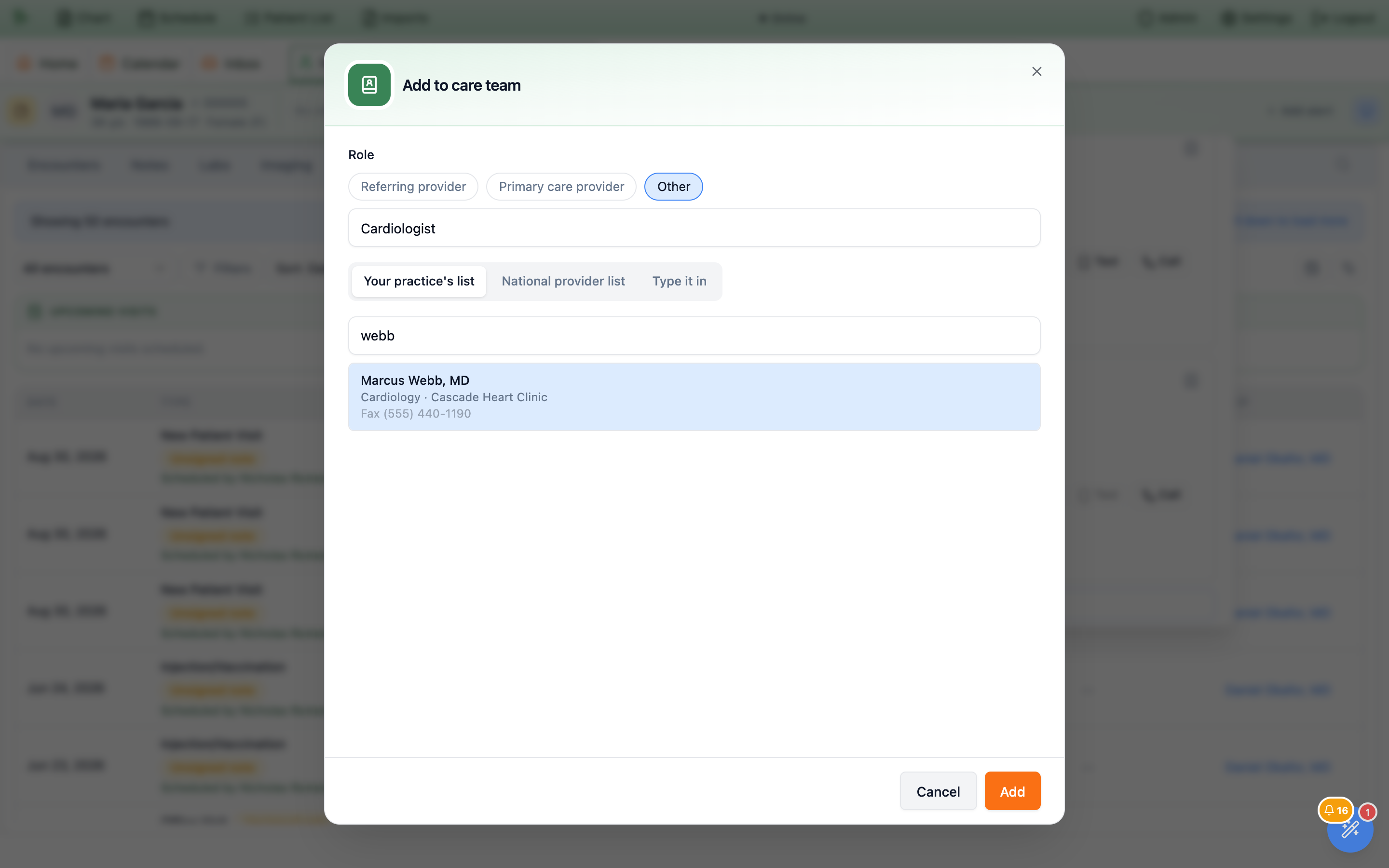
Other member of the care team.Change(on the primary referring provider or PCP) replaces the doctor. The new one becomes primary and the old one moves to past providers.Make primarypromotes aNot primarydoctor. The previous primary stays on the team asNot primary.Endtakes a doctor off the team after you confirm (“End … as referring provider?” →End). Nobody is promoted automatically, so the slot showsNot setuntil you add someone.Show pastlists ended and dismissed doctors with their dates. Nothing on the care team is ever deleted.
Where suggestions come from, and what fills in by itself
Hero picks up referring providers and PCPs from the places they already appear, so staff don’t have to retype them. The golden rule: anything a staff member added or confirmed is never changed automatically. When new information disagrees with what staff set, Hero files a suggestion instead.
| Source | What happens |
|---|---|
| Accepting an inbound referral (portal or fax) | The referring doctor becomes the patient’s referring provider if none is set, or if the current one was also filled in automatically and never confirmed. If staff set or confirmed someone else, the referral becomes a suggestion. For fax referrals, the sender is matched to your list by NPI, or by name plus the same fax or phone; otherwise they are added to your list. |
| Imported notes and records | Lines labeled Referring physician:, Referred by:, Requesting physician:, Requested by:, PCP: or Primary care physician: become suggestions. |
| Insurance | The PCP printed on the insurance card, or named by the plan when eligibility is checked, becomes a suggestion. |
| The patient portal | The patient’s answers to the optional Your doctors step (below) become suggestions. |
Suggestions sit at the top of the Care team in amber: “Suggested: name · role · source”. Hover over one to see why it was suggested, for example “Listed as the primary care provider on the patient’s insurance card.”
Confirmadds the doctor to the care team. If the suggestion is just a name (for example from an insurance card), Hero opens theConfirm suggested providerwindow on the national provider list with the name already searched, so you can pick the right person.Dismissmoves the suggestion to past providers. A doctor you dismissed or ended is not suggested again from the same imported records or insurance.
The patient portal’s “Your doctors” step
During portal setup, after Preferred pharmacy, patients see an optional Your doctors step: “Who referred you to us?” and “Who is your primary care provider?” They can search the national provider list or type a name, practice, and phone, or press Skip for now. Answers never change the chart directly; they arrive as suggestions labeled From the patient’s intake. A doctor the patient picked from the national list can be confirmed in one click.
Referring provider on each visit
Every visit keeps its own referring provider, because the doctor who referred this visit is what goes on letters, faxes and claims for it. It is filled in once, when the visit’s encounter is created:
- The referral that was booked into this visit, if there is one.
- Otherwise, an accepted referral for this patient that hasn’t been scheduled yet (from the last 180 days).
- Otherwise, the patient’s primary referring provider from the chart’s Care team.
Seeing it on the Encounters and Notes tabs
On the chart’s Encounters tab, press View settings (the sliders button) and turn on the Referring provider and PCP columns on the Columns tab. Both are off until you turn them on. Referring provider is that visit’s own referring provider; PCP is the patient’s current primary care provider, so it is the same on every row. Click a name to see their contact details. The Notes tab has an optional Referring provider column too.
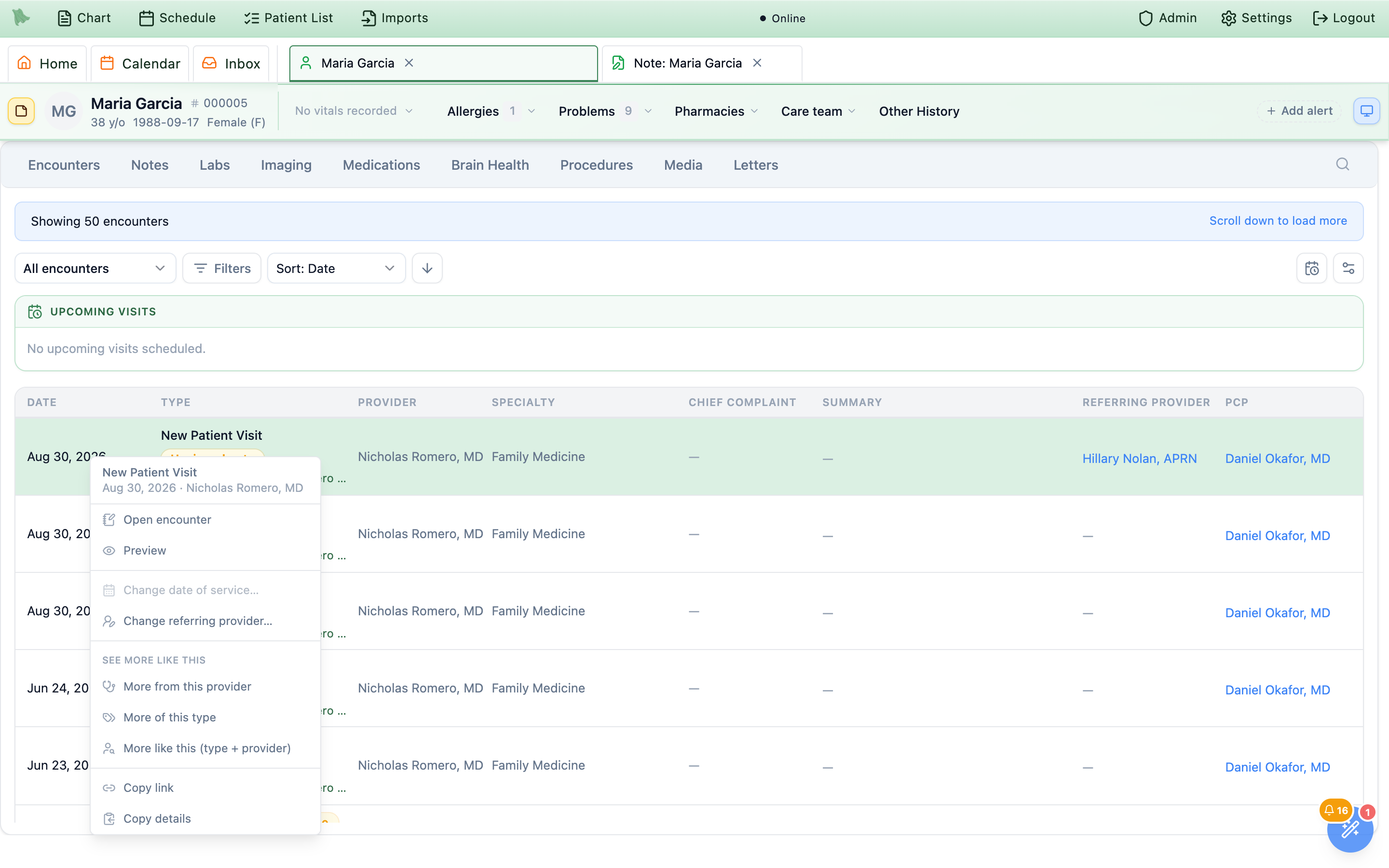
Referring provider and PCP columns, and the right-click menu with Change referring provider….Changing it
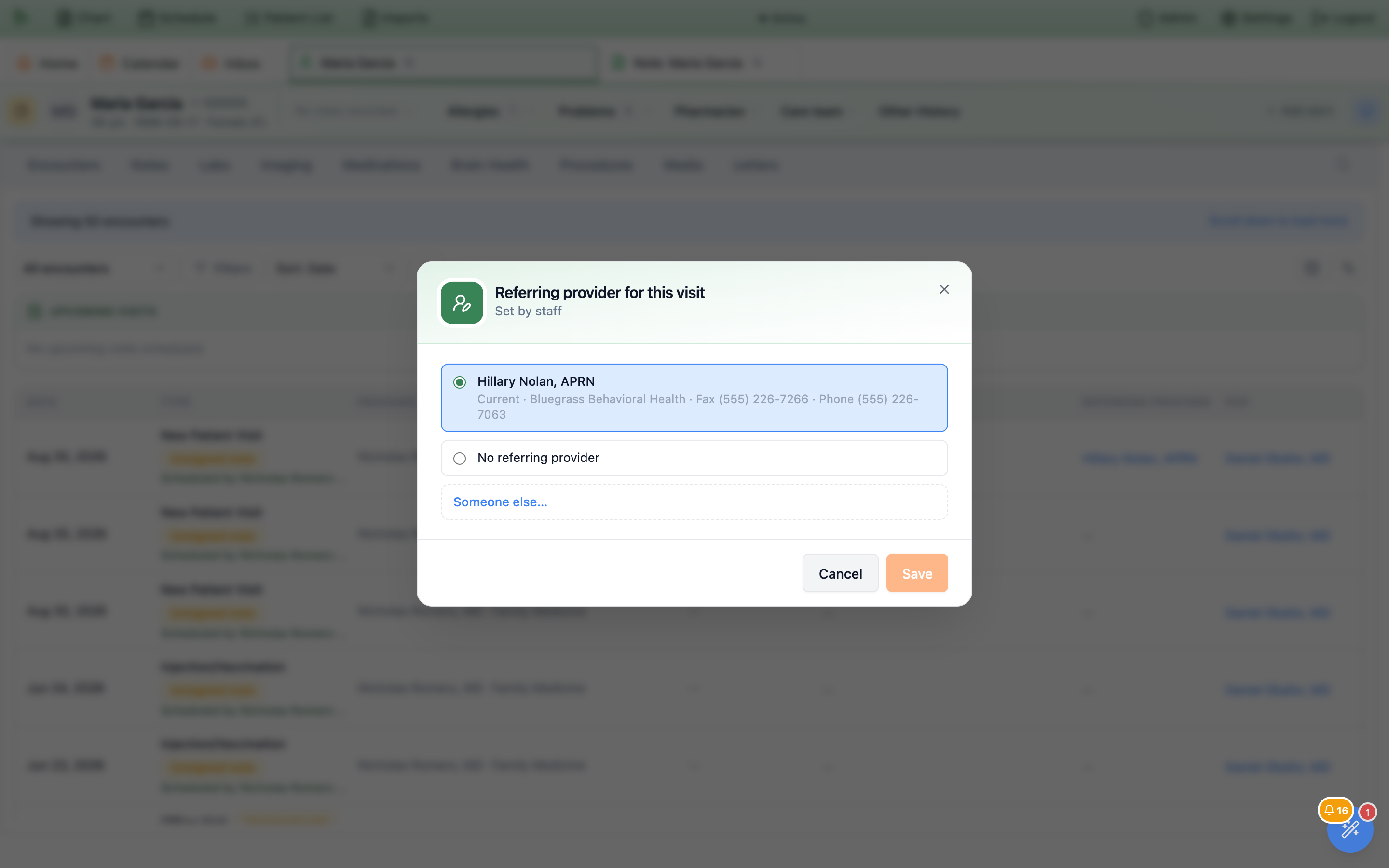
Right-click the visit on the Encounters tab and choose Change referring provider…, or press Change in the visit’s Communications section (13.24). The Referring provider for this visit window shows where the current one came from (for example Set by staff or From an inbound referral) and offers the current provider, the patient’s other referring providers, No referring provider, and Someone else… to pick anyone from your list, the national list, or by typing them in.
On the schedule
When you preview an appointment on the calendar or a future visit on the chart, the contact bar shows Referred by name with a button to copy the referring provider’s fax number.
Addressing letters to the referring provider or PCP
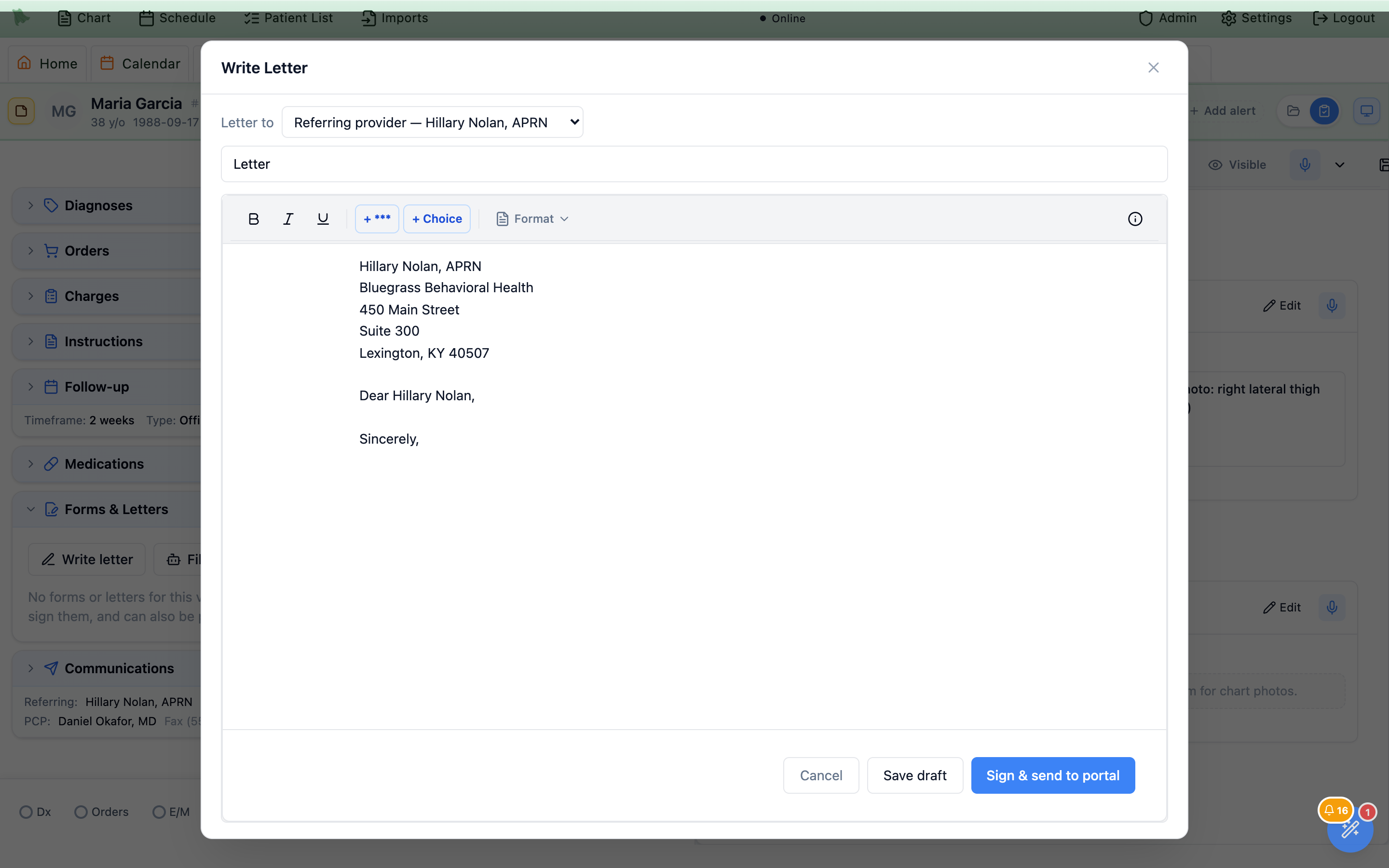
Letters written from a visit (Forms & Letters → Write letter) can be addressed to an outside doctor in one step. The Letter to picker at the top offers:
Referring provider — name(the visit’s referring provider),Primary care provider — name(the patient’s primary PCP),To whom it may concern.
A new letter starts addressed to the referring provider, or the PCP if there is no referring provider. Choosing a doctor replaces the “To whom it may concern,” line with an address block (name, practice, address) and a greeting: “Dear Dr. Last name,” for doctors, otherwise “Dear First Last,”. If your template has no “To whom it may concern,” line, Hero says so and you add the address yourself.
Placeholders for letter templates
Letter templates (Settings → Letters & Forms) can use six new placeholders, filled in when the letter is created:
| Placeholder | Filled with |
|---|---|
[referring provider name] | The visit’s referring provider, with credential (for example “Hillary Nolan, APRN”) |
[referring provider practice] | Their practice name |
[referring provider fax] | Their fax number |
[pcp name] | The patient’s primary care provider, with credential |
[pcp practice] | The PCP’s practice name |
[pcp fax] | The PCP’s fax number |
Sign & send to portal still sends the letter to the patient portal as before; to fax a signed letter to the doctor, use Fax in the visit’s Communications section (13.25).Sending the referring provider on insurance claims
Some payers need the referring provider on specialist claims. Hero can add it for you: open Billing, choose Claim Submission under Configuration, and turn on Send the referring provider on claims. The switch saves right away and is off until you turn it on.

- With the setting on, each claim carries the visit’s referring provider (name and NPI), which is what prints in box 17 of the CMS-1500 form.
- The doctor needs an NPI and a last name on your list. If either is missing, the claim’s readiness check shows a warning (for example “Referring provider has no NPI”) and the claim goes out without a referring provider until you add it.
- Changing the setting needs billing settings access.
Who can do what
Administrators can do everything below, and clinicians can do everything except the rows marked for office managers, administrators or billing. For other staff it depends on the role profiles they were given; permissions can be adjusted in Admin → Staff / Assistants (open the staff member, then the Access step).
| Task | Who can do it by default |
|---|---|
| See the chart’s Care team and the visit’s referring provider | Anyone who can open the patient’s chart |
| Add or edit providers on the list; change a patient’s care team | Front desk, nurses, medical assistants, intake and referral coordinators, office managers, clinicians |
| Change a visit’s referring provider | Staff who can edit visit drafts or patient details (for example front desk), referral coordinators, clinicians |
| Contact outside providers (fax, secure message, email or text notice, call log) and change a visit’s automatic sending | Front desk, nurses, referral coordinators, office managers, clinicians |
| Invite a doctor to the referral portal (including an email or text to a doctor who isn’t on the portal yet) | Referral coordinators, office managers, administrators |
| Merge duplicates; verify, block, unblock or remove a portal account | Office managers and administrators |
| Turn on automatic sending of signed notes for the whole practice | Administrators (Admin → Referral Portal) |
| Send the referring provider on claims | Staff with billing settings access |
The Referring providers item in the Admin menu appears for administrators, office managers and referral coordinators. Other staff who can edit contacts reach a doctor’s record with Open in directory in their contact details. Faxing also needs your practice’s fax plan and your own fax account, exactly as elsewhere in Hero.
Need help? Email support@heroemr.com.