Building paperwork templates
Author a paperwork template end to end — who gets it and turning it on, how it's signed, its content and response fields, saving and versions, and how it looks to the patient.
Building paperwork templates
Author a paperwork template end to end — who gets it and turning it on, how it's signed, its content and response fields, saving and versions, and how it looks to the patient.
Name the template and pick the document type
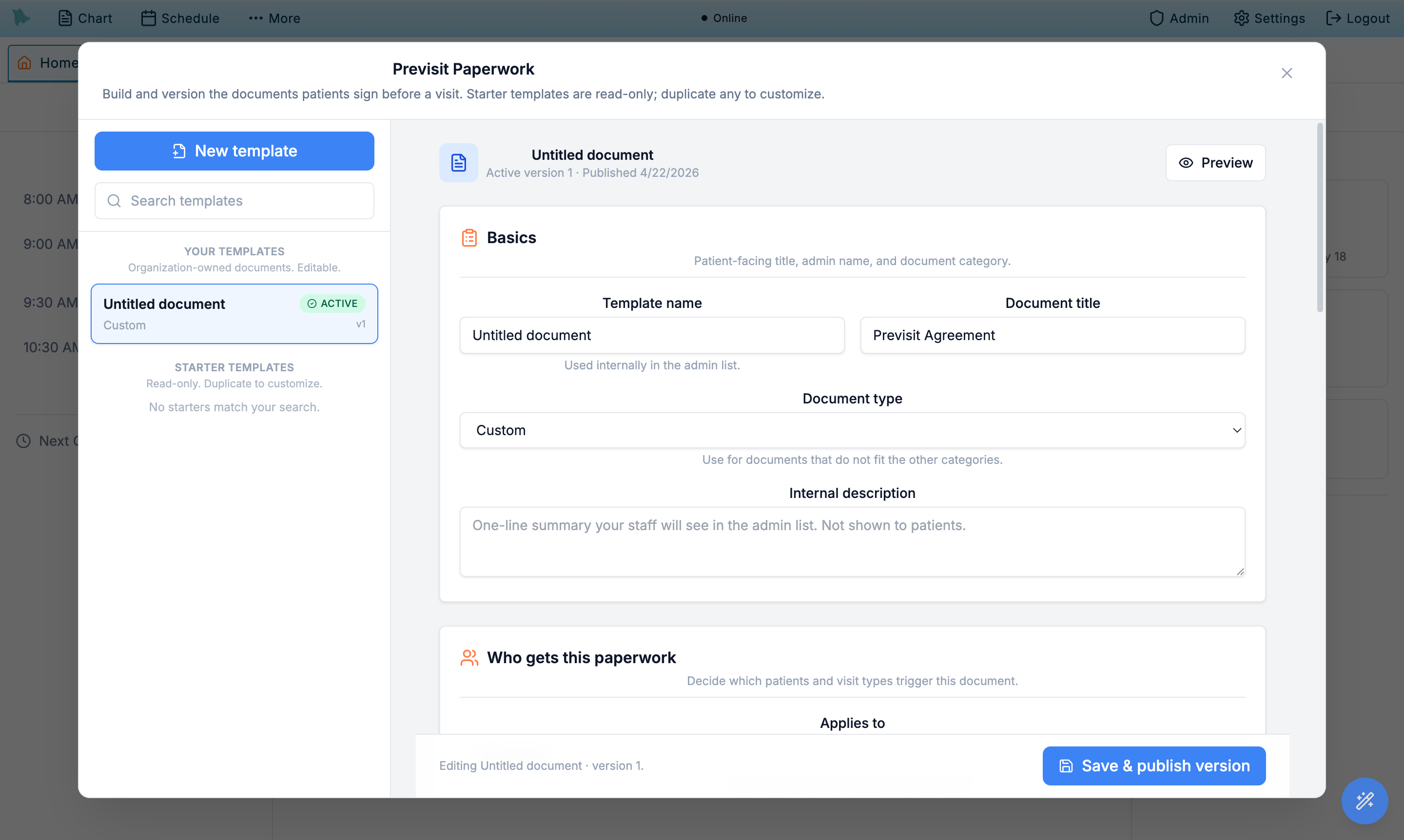
The editor's header shows the template name, its document type, and the current version with the date it was saved (for example "Custom · version 2, saved Jul 11, 2026"). Directly under it sits the status panel that says whether the form is Live or Off (§2.6). The Basics card comes next. The editor cards are stacked and always open, so there is nothing to expand. Basics sets the template's name (internal only), the document title patients see at the top of the form, and the standardized type, which drives reporting and which compliance bucket the document falls into.
- Enter a Template name. Internal label for admins (for example, "2026 HIPAA NPP — Mercer Island ENT"). Patients never see this: their lists, checklists and the signed PDF use the Document title. On a new template the name copies the title as you type it, until you type a name of your own.
- Enter a Document title. Patient-facing heading rendered at the top of the signing page and on the saved PDF (for example, "Notice of Privacy Practices"). The title is part of the form's wording, so changing it saves a new version (§2.10).
- Pick the Document type. Choose the closest match from the dropdown — HIPAA NPP, Consent to Treat, Financial Policy + AOB, Financial Policy, Payment Responsibility, Communication Preferences, Telehealth Consent, No-Show / Cancellation Policy, Clinical Photography Consent, Release of Information, Controlled Substance Agreement, or Custom.
- Add an Internal description (optional). Notes for your team — when to use the template, which jurisdictions it covers, the legal owner. Never shown to patients.
Decide who gets this paperwork
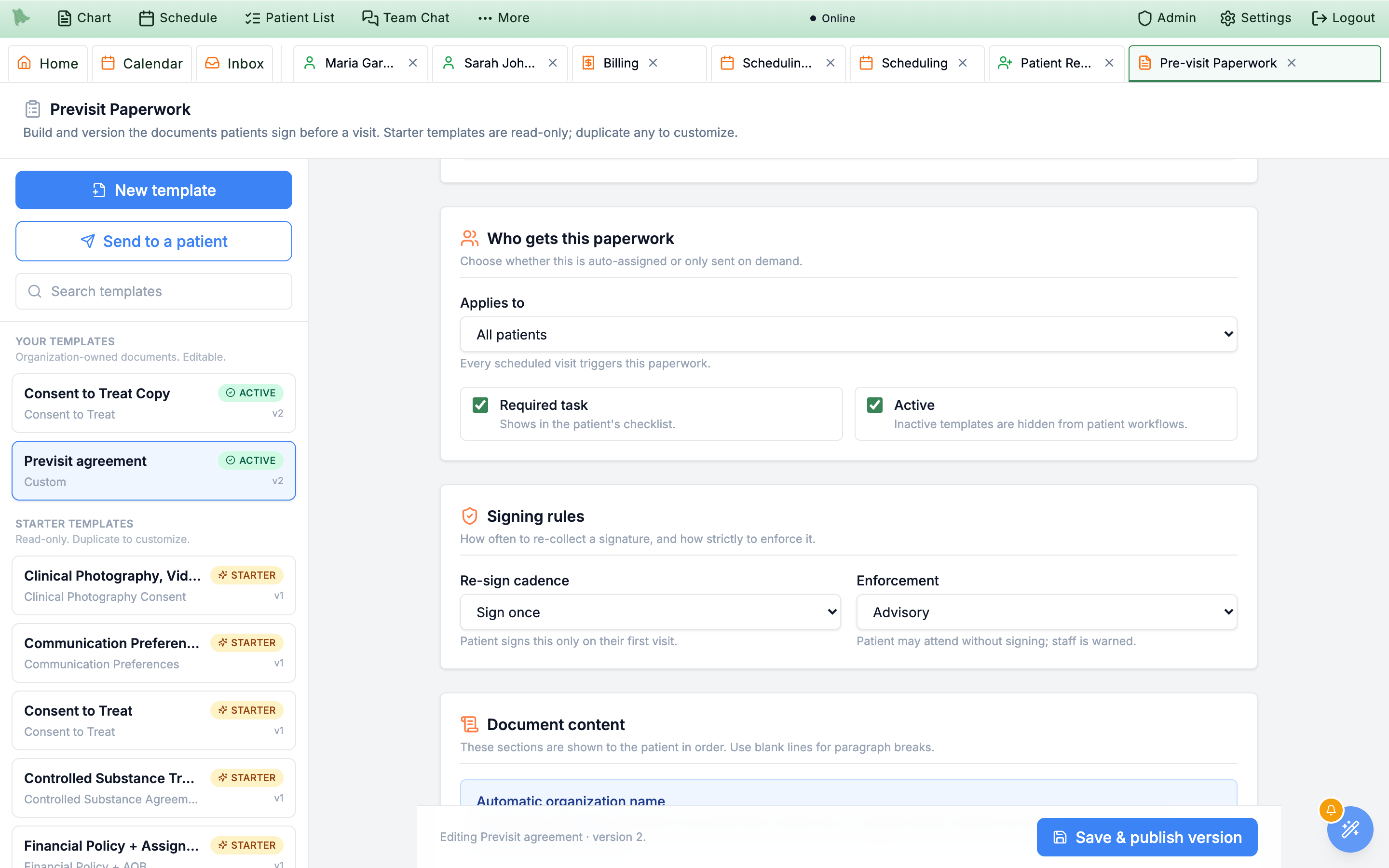
The Who gets this paperwork card controls scoping. Its subtitle reads "Who gets it automatically while it's Live. Staff can always send it to anyone by hand." It determines which visits trigger the document: every booking, only new patients, only specific visit types, only patients living in specific states, or nothing automatic at all. A separate checkbox on the same card sends the document at registration instead of waiting for an appointment. None of these settings sends anything until the form is Live; you turn it on from the status panel at the top of the editor (Turn a form on or off, below).
- Scroll to the Who gets this paperwork card.
- Pick an Applies to mode. Five choices:
- All patients — every scheduled visit triggers the paperwork.
- New patients only — applied when the patient has no prior visits at the practice.
- Specific visit types — applied when the visit type matches. Picking this reveals a checklist of every visit type configured across your physicians.
- Specific patient states — applied when the patient's address is in a matching state. Enter codes as comma-separated, e.g.
CA, NY. Useful for state-specific telehealth or controlled substance agreements. - Manual send only — never auto-added to a visit; staff push it on demand with Send to a patient (§2.4). This is the right setting for a document like a controlled substance agreement that you want on hand but not stapled to every booking.
- Tick Assign and send reminder at patient registration if the form should not wait for an appointment. Its hint says it plainly: "Goes to the patient the moment they register for the portal, with a reminder — no appointment needed. If they book later, this copy becomes the visit's checklist item." This is the setting for an intake packet you want signed before the first visit is even scheduled.
- Toggle Required task if the document must be acknowledged. Required tasks appear on the patient's outstanding-paperwork list. Optional tasks are presented but not blocking.
- Save, then turn the form on at the top of the editor. Click Save changes in the footer (§2.10). Changing who gets a form is a settings change: it never saves a new version or asks anyone to sign again. This card no longer has an Active checkbox. A form starts going out automatically only when you click Turn on in the status panel under its title, described next.
Admin > Patient Registration. Adding a second account later (a parent or caregiver) does not send the form again, and neither does re-verifying an existing one. Patients who already had portal access when you ticked the box are not back-filled — push the form to them with Send to a patient (§2.4).Turn a form on or off
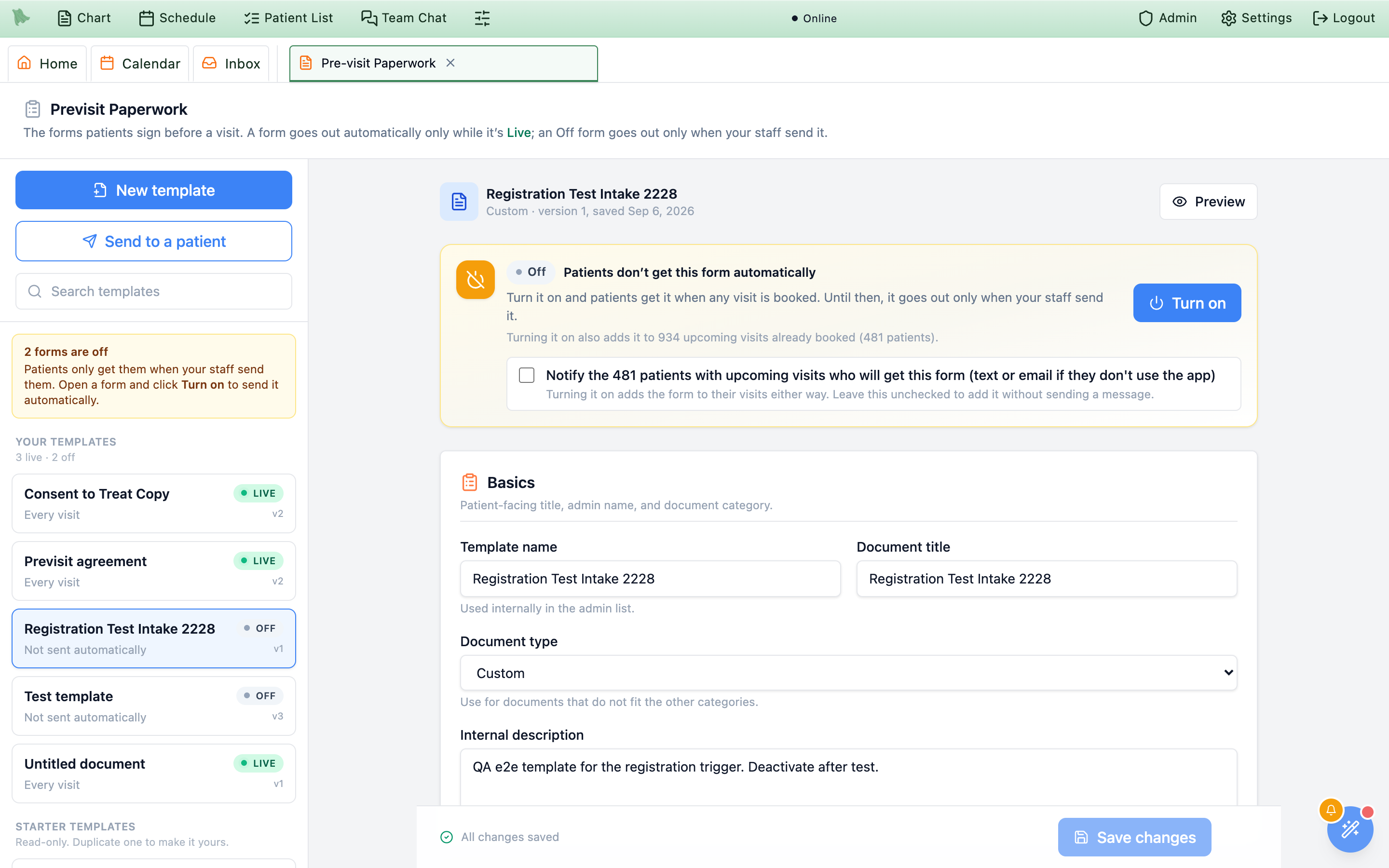
Every one of your forms is either Live or Off. A Live form is added to patients' visits automatically, following the settings on this card. An Off form goes out only when your staff send it. A status panel directly under the form's title says which one it is, in plain words, and holds the one button that changes it.
- Read the status panel. An Off form shows an amber panel headed "Patients don't get this form automatically", followed by what turning it on would do, for example "Turn it on and patients get it when any visit is booked. Until then, it goes out only when your staff send it." A Live form shows a green panel headed "Patients get this form automatically", followed by who gets it, for example "Patients get it when any visit is booked." The sentence follows the settings on this card. A new-patients form reads "when a new patient books their first visit", and ticking the registration checkbox adds "as soon as they sign up for the patient portal".
- Click Turn on. The form goes Live at once, and a banner confirms it is live. Turning a form on does more than catch future bookings. Hero EMR also adds it to matching upcoming visits that are already on the calendar. Before you click, the panel tells you how many, for example "Turning it on also adds it to 934 upcoming visits already booked (481 patients)." If none qualify, it reads "No visit already on the calendar needs it, so it starts with the next booking."
- Decide whether to tell those patients. When turning the form on would reach booked visits, the panel adds a checkbox: "Notify the 481 patients with upcoming visits who will get this form (text or email if they don't use the app)". It starts unchecked. Turning the form on adds it to their visits either way, so tick the box only if you also want a message to go out. Patients without the app are reached by text or email when available, and notifications are combined for the assignment batch rather than sent once per form.
- Click Turn off to stop sending it automatically. No one new gets the form automatically. Patients who already have it can still finish it, signed copies stay in their records, and staff can still send it by hand.
Set the re-sign cadence and enforcement
The Signing rules card controls how often a patient re-signs the document and whether an unsigned document blocks the visit. Re-sign cadence ties to your legal/compliance requirements, and enforcement controls whether the front desk can override.
- Pick a Re-sign cadence.
- Sign once — patient signs only on their first visit.
- Annually — re-sign when more than 365 days have passed since the last signature.
- On document change — the hint reads "Re-sign whenever you change the wording." Only a wording change counts: the document title, the sections, or the response fields (§2.10). Saving settings, such as who gets the form or these signing rules, never asks anyone to sign again.
- Every visit — always required, even if they signed last week.
- Pick an Enforcement level. Advisory means the patient can still attend even if it's unsigned — staff sees a warning. Required blocks the patient: they cannot self check in from the portal or mobile app and cannot join a telehealth visit until it's signed, and they see a "Complete previsit tasks before continuing" message instead. Front-desk staff can still check the visit in from the EMR, so an unsigned required document never strands someone standing at the desk.
Write the document content
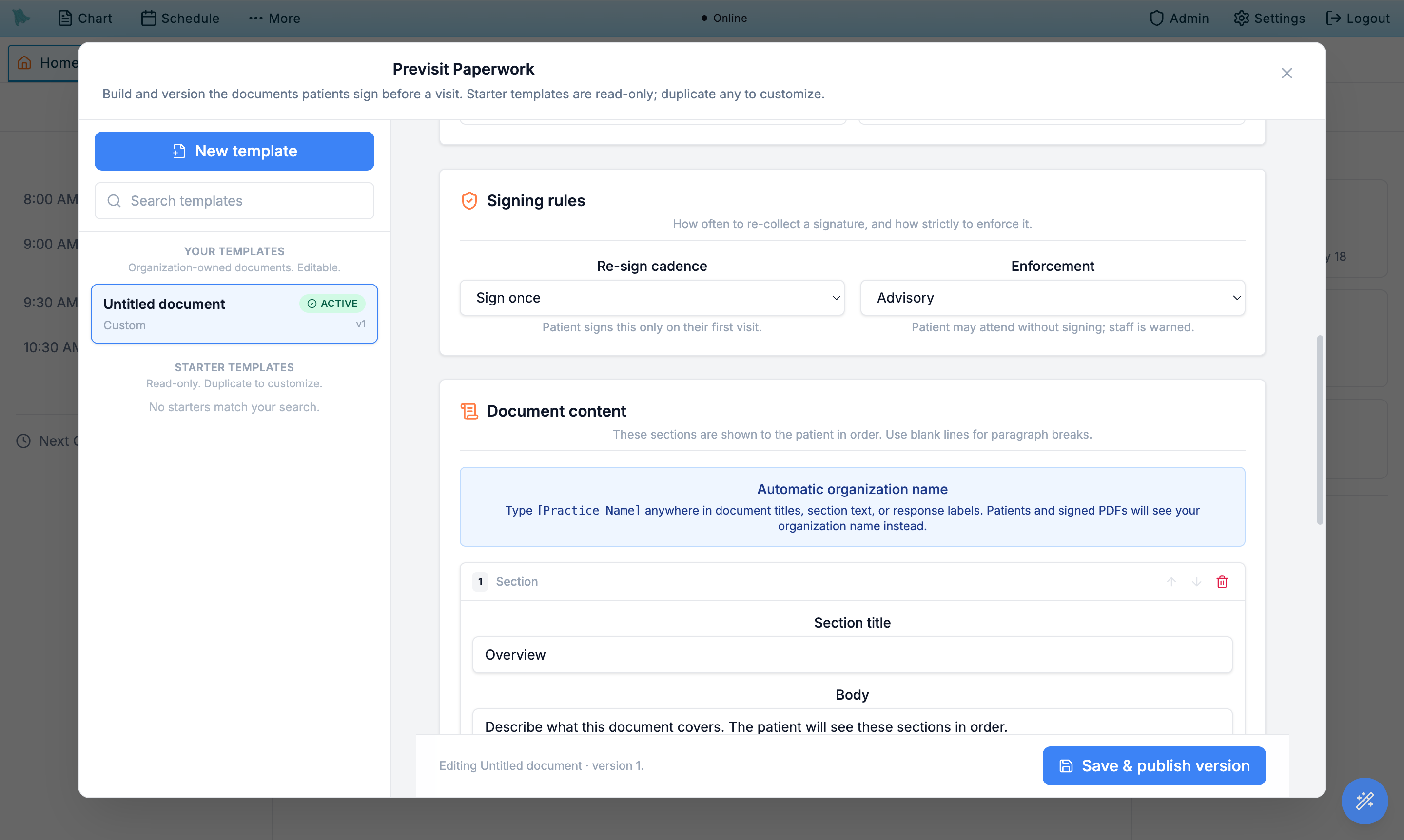
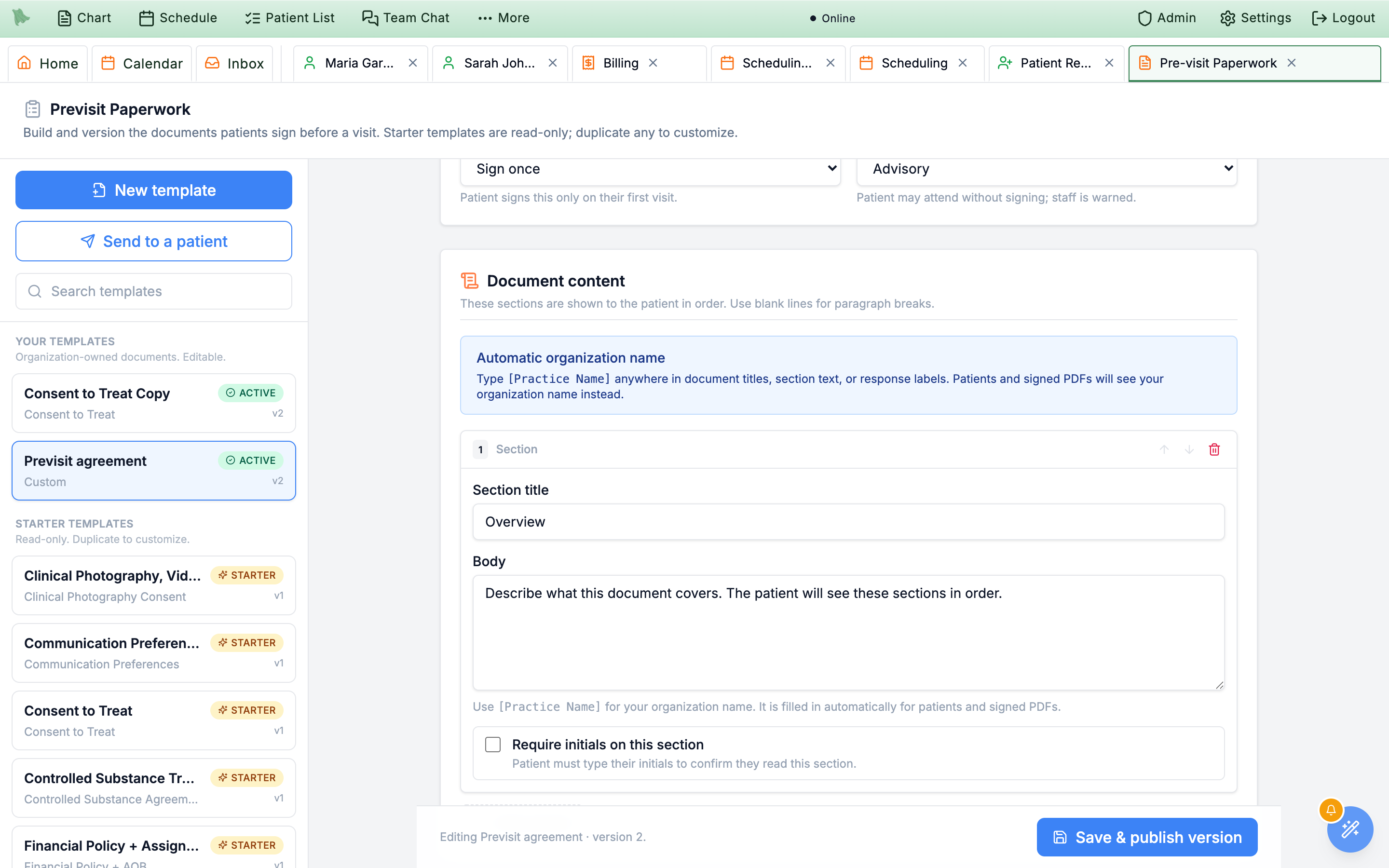
The Document content card holds the readable body of the document. Content is broken into numbered sections so patients can be required to initial individual provisions (HIPAA right to disclosures, telehealth limitations, payment policy, etc.). Everything on this card is wording: saving a change here saves a new version of the form (§2.10).
- Scroll to the Document content card. A new template starts with one section already titled Overview, carrying the placeholder body "Describe what this document covers. The patient will see these sections in order." — replace that text rather than leaving it. Starter templates come pre-populated with standard language.
- Click Add section for each provision you need. Each section is a discrete block — title plus body.
- Fill in the Section title and Body. Use blank lines in the body to create paragraphs. The patient sees each section numbered and titled.
- Toggle Require initials on this section when a section needs separate acknowledgement. Required-initials sections show an initials button next to them on the patient side. The final signature alone is not enough.
- For an opt-in provision, also toggle Allow the patient to decline (optional / opt-in). This second toggle appears only once Require initials is on. The patient then sees both Initial and Decline: declining does not block submission, and the refusal is recorded affirmatively as
DECLINEDin the signed record rather than left blank. This is how you author per-provision opt-ins — marketing photo use, directory listing, research contact — inside an otherwise mandatory document. - Reorder sections. Use the up/down arrows on each section card to move it. Section numbers update automatically.
- Use the
[Practice Name]placeholder. Anywhere you'd write the practice's legal name, type[Practice Name]instead. At signing time the placeholder is replaced with your organization's name on screen and in the saved PDF.
Add patient response fields
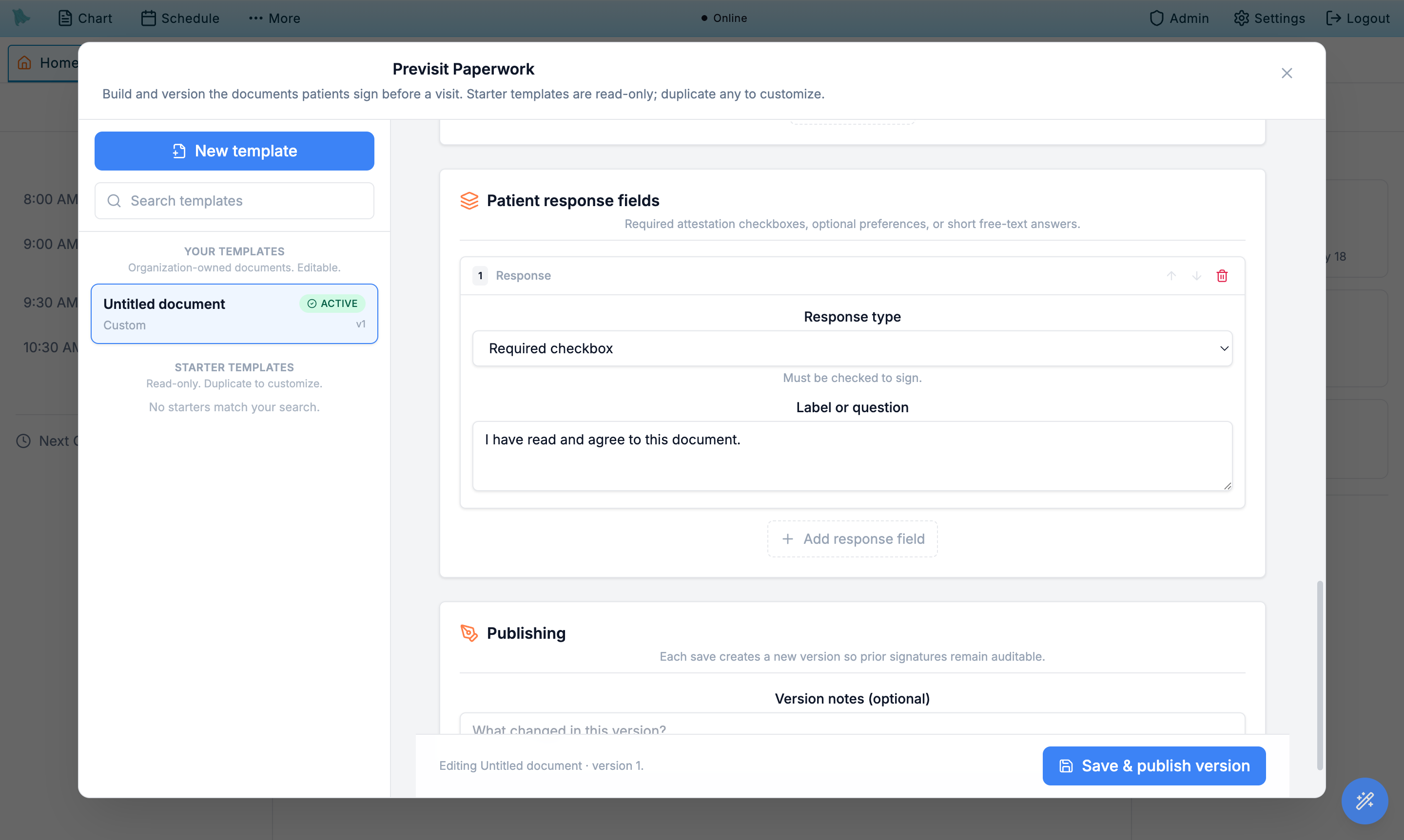
The Patient response fields card is where you collect structured input — acknowledgement checkboxes, free-text answers, dates. Each response field is a single, ordered input that appears below the document body. Response fields are part of the wording, so saving a change to them saves a new version of the form.
- Scroll to the Patient response fields card. A new template already contains one required attestation checkbox labelled "I have read and agree to this document." — edit or delete it as needed. Add more fields with Add response field.
- Pick a Response type.
- Required checkbox — patient must check the box to continue.
- Optional checkbox — presented pre-checked; the patient may uncheck it. This is an opt-out control, not an opt-in one.
- Checkboxes (check all that apply) — a list of answers; the patient checks any number. Nothing is checked to start.
- Multiple choice (pick one) — a list of answers; the patient picks exactly one. Nothing is picked to start.
- Short text — single-line input.
- Long text — multi-line input for narrative answers.
- Date — date picker, useful for declaration dates or witness dates.
- Auto-filled date — "Filled in when the patient signs, e.g. one year after the date signed. Read-only for the patient."
- Write the Label or question. This is the prompt patients see next to the field. Be explicit ("I have received the HIPAA Notice of Privacy Practices.").
- For a choice question, write the Answers. A new choice question starts with Answer 1 and Answer 2; type over them, add more with Add answer, and reorder or remove them with the arrows and bin. Add "Other (specify)" adds an answer that asks the patient to type a few words when they choose it (you can also tick Ask the patient to specify when chosen ("Other") on any one answer). Only one answer per question can ask to specify.
- For an auto-filled date, set the offset. Date filled in when the patient signs reads Date signed + an amount in days, months or years (12 months to start). Hero fills it in from the signing date on your practice’s calendar; the patient sees it but cannot change it. On a release of information, it is the date the release stays active until (Releases of information).
- Toggle the requirement. Text, date and choice questions have Require a response (for choices, Require an answer or Require at least one answer). Required fields block submission until filled in.
- Optionally pre-fill it from the chart. Text and date questions have Pre-fill from chart: Patient full name, Patient first name, Patient last name, Date of birth, Phone (primary, else secondary), Mailing address (one line), Email, or Guardian name and relationship (default Don't pre-fill). The patient sees the answer already filled in and can still change it; what they submit is saved on the form, not written back to the chart.
- Choose where it shows. Show under places the question under one of your numbered sections, or After all sections (Responses).
- Reorder or delete fields as needed. Use the arrows or trash icon on each field card.
Save your changes and keep versions
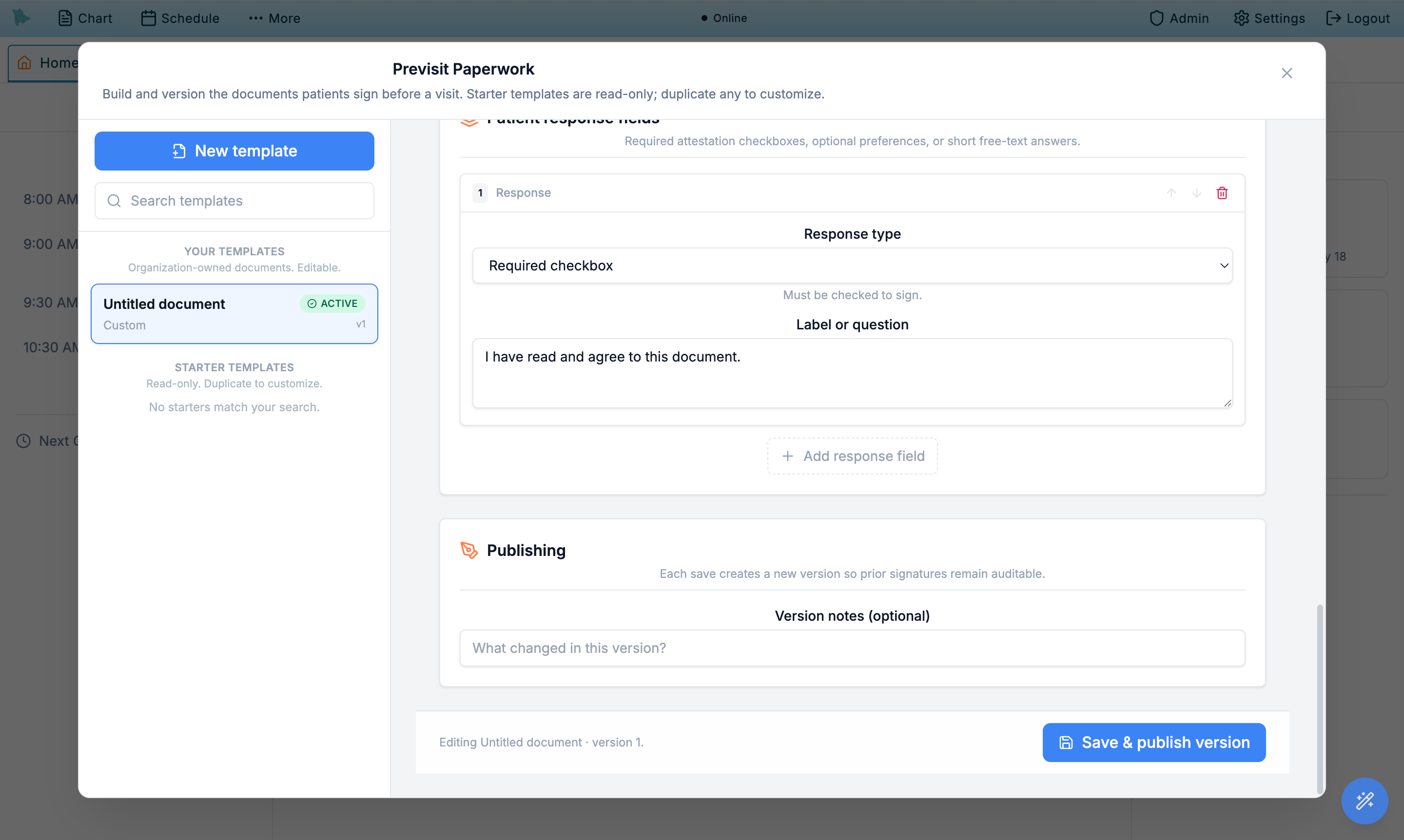
The footer at the bottom of the editor stays in view while you scroll. Its Save changes button is greyed out until you change something, and the line beside it reads Unsaved changes (with an amber dot) or All changes saved. A new version is saved only when the wording changes: the document title, the sections, or the response fields. Saving settings only (who gets the form, the signing rules, Required task, the template name, type, or description) updates the template without a new version and never asks patients to sign again. Prior versions stay attached to the signatures captured on them, so historical audit trails are preserved.
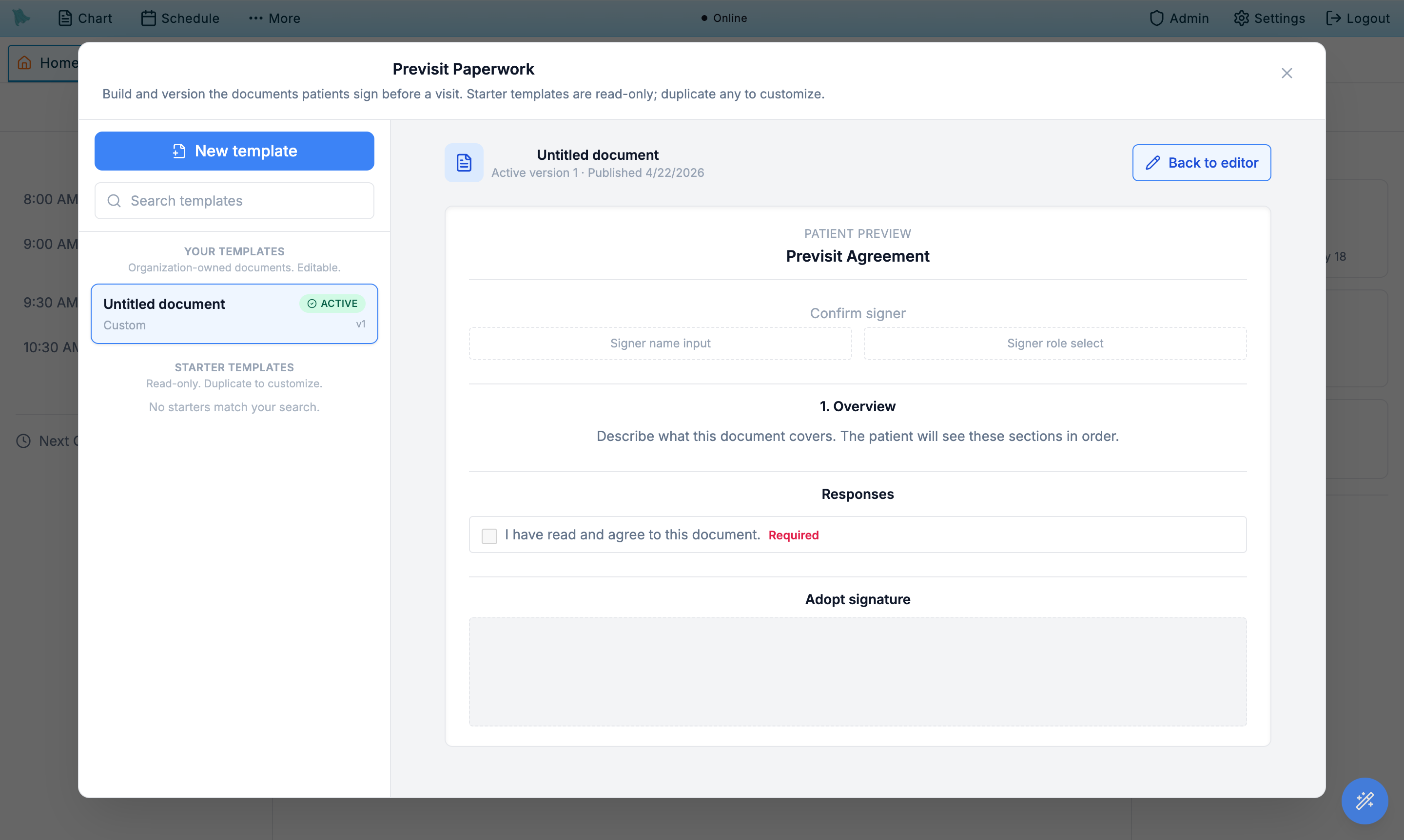
- Open the Preview toggle in the header. The preview pane renders exactly what the patient will see — title, sections, response fields, and the signature block.
- Walk through each required-initials section and response. Spot anything that reads awkwardly on a phone, missing punctuation, or unclear labels.
- Switch back with Back to editor and fix issues.
- Add Version notes in the Versions card (optional). The card shows the current wording, for example "Current wording: version 2, saved Jul 11, 2026." Note what changed and why ("Updated HIPAA section 4 for 2026 OCR guidance"); the version note appears in the audit log next to the resulting signatures. As its hint says, a note is "Kept with the next wording change". A note on its own does not enable Save changes, and a settings-only save does not record it.
- Click Save changes in the footer. When the wording changed, the footer adds "· saving creates a new version of the wording" before you click. A banner then confirms the save: "Saved." for settings, or "Saved. Patients see the new wording from now on." for wording. If Re-sign cadence is On document change, the banner adds that anyone who signed the old wording will be asked to sign again. They are asked the next time a visit is booked or rescheduled; saving new wording does not add a re-sign task to an appointment already on the calendar. Only turning a form on adds it to visits already booked (§2.6).
What the patient experiences
Once both features are configured, patients see a single pre-visit checklist after they book — questionnaires and paperwork rolled together — accessible from the portal, the booking confirmation email, and the SMS reminder. Anything assigned at registration reaches them earlier than that, as standing tasks on the portal home.
Booking and the checklist
- Patient books an appointment. Hero EMR evaluates every questionnaire rule and every paperwork template against the new visit and pulls the matching items into a checklist. Rescheduling re-runs the same evaluation.
- The portal surfaces the checklist. The appointment shows its pre-visit tasks as a list with a completed-of-total progress bar; finished items drop out of the outstanding group. Anything sent without an appointment — a form pushed with Send to a patient (§2.4), and everything assigned at registration — waits on the portal home instead: forms under Forms to sign, questionnaires under Questionnaires to complete beside it.
- Reminders nudge incomplete items. When pre-visit work is still outstanding, Hero EMR sends reminders 14 days, 7 days, and 1 day before the visit, routed to the best available channel. For minors and parent-managed teens the reminder goes to the guardian, not the patient.
Completion and signing
- Questionnaires fill in like a survey. Question types render natively (Likert scales, multi-select, text). Answers are saved to the encounter and made available to the physician in the chart.
- Paperwork shows the document, initials, responses, and signature. Required initials and response fields must be completed before signing; when something is missing the patient is told which, for example "Please complete before signing: Purpose of Release, Direction." Opt-in sections can be initialed or declined; the decline is recorded, not left blank. Choice questions show as checkboxes or round buttons ("Check all that apply." under a check-all question), an auto-filled date shows read-only, and answers pre-filled from the chart can be changed.
- The signer block must be completed too. Submission is refused without a signer name, and a signer other than the patient (parent, legal guardian, power of attorney, other) must also state the relationship. The patient acknowledges the electronic-records consent before the signature is accepted; the signature itself is typed, drawn, or an uploaded wet-ink scan.
- Saved PDFs go to the chart. Each completed document is rendered to PDF and stored on the patient. Re-signs append; they do not overwrite. The signed copy is dated on your practice’s calendar and clock (a patient signing at 9:41 PM is not dated the next day), prints the chosen answers by name (a check-all list as a list), the auto-filled date in words, and for someone signing on the patient’s behalf their name and relationship; the audit record comes last, after the signature.
Common questionnaires & paperwork issues
Questionnaire isn't appearing
- Confirm pre-visit intake is turned on for that visit type. Booking rules never run without it — the rule list shows a Won't send — pre-visit intake is off badge, and the visit type reads (pre-visit intake off) in the dropdown. Turning it on only affects visits booked from that point forward.
- Confirm a rule exists for that physician and visit type combination — rules are per-physician, not org-wide.
- Check for a patient-level rule on that patient. Patient rules always supersede the practice-wide rule for the same questionnaire and can suppress it outright. Look under patient header → Questionnaires tab.
- Check the optional filters. A rule with a Visit Mode of telehealth-only will never fire for in-person visits, and Days Until Visit is a maximum — a rule set to 7 skips a visit booked a month out.
- Confirm the questionnaire itself is active. Deactivated questionnaires drop out of rules silently.
- Confirm the visit type still exists on the physician's visit catalog. Renaming or removing a visit type can orphan its rule.
Nothing arrived when the patient registered
- For a questionnaire, confirm the rule's When is At patient registration. A booking rule does not fire on a registration, and a registration rule does not fire on a booking (§2.3).
- For a form, confirm Assign and send reminder at patient registration is ticked on the template. The Applies to mode on its own never sends at registration (§2.6). The form must also be Live; an Off form is never sent at registration.
- Confirm the patient actually registered after you turned it on. Registration fires once, when the portal account is first attached to the chart; existing portal patients are never back-filled.
- A Sign once form the patient has already signed is not re-sent, and a questionnaire that is already sitting in their queue is not duplicated — so a second registration event correctly produces nothing.
- No reminder goes out when nothing matched. If the patient's only registration rule filtered them out on age, sex, language, or ICD-10, there is nothing to announce.
- Check the patient's contact preferences. The reminder rides whichever channel they allow; a patient with no reachable channel is assigned the work but not messaged.
Paperwork isn't appearing
- Confirm the form is Live. Its pill in the sidebar reads Live, not Off, and the amber callout at the top of the list counts any Off forms. A duplicated starter arrives Off and assigns nothing until you click Turn on in the status panel (Turn a form on or off).
- If the Document type is Telehealth Consent, confirm the visit type is flagged as telehealth. That check runs ahead of Applies to, so the document skips in-person visits even when scoped to all patients.
- If Applies to is Manual send only, nothing is auto-assigned to a visit by design — push it with Send to a patient, or tick the registration checkbox so it goes out at sign-up.
- If scoped to Specific visit types, confirm the booked visit type is in the checklist.
- If scoped to Specific patient states, confirm the patient's address has a matching state code — this applies at registration too.
- If scoped to New patients only, confirm the patient truly has no prior visits — a no-show counts as a prior visit.
- Saving new wording does not touch appointments already on the calendar; only turning the form on adds it to visits already booked.
- If someone clicked Turn off, new visits stop getting the form, but patients who already have it can still finish it.
Patient says they already signed
- Check the document's Re-sign cadence. If set to On document change, saving new wording (the title, sections, or response fields) asks everyone who signed the old wording to sign again. Settings-only saves never do.
- Annually triggers when the last signature is more than 365 days old.
- Every visit is intentional — used for telehealth consent and controlled substance agreements where each encounter needs its own signature.
Saved a version by mistake
- Open the template again, fix the wording, and click Save changes. The corrected wording is saved as a new version and becomes current.
- If you only changed a setting, nothing was versioned. Settings-only saves update the template without creating a version.
- Patients who already signed the bad version stay attached to it — the audit log keeps both rows.
- For HIPAA NPP and similar regulated documents, document the correction in Version notes so the audit trail explains why two versions exist.
Releases of information: build the form, see what is on file, send one
A release of information (ROI) is a form the patient signs so you may share records with, or request them from, another provider. Build it as a paperwork template, and the chart then shows every release the patient signed, who it is with, and whether it is still active.
Build the release form
- Create a template with Document type Release of Information (§2.5), or duplicate the ROI authorization starter.
- Ask who the release is with. Add a Short text or Long text question (for example "Name of the provider or facility") and tick Show this answer in the chart's release summary ("Use it for who the release is with (the other provider or facility)."). This box appears only on release forms.
- Ask what it covers. Use Checkboxes (check all that apply) for the kinds of records and Multiple choice (pick one) for questions such as the direction of the release (§2.9).
- Set when it ends. Add an Auto-filled date, for example Date signed + 12 months. The chart treats the release as active until that date.
- Save and turn it on, or leave it Off and send it when needed.
Releases on file in the chart
The chart’s Media tab, where the signed copies are filed, shows a Releases of information card with a count such as 2 active · 1 expired. Each row shows:
- who the release is with (the answer marked for the summary, else the first typed answer, else the form’s name);
- its status:
Active until 10/14/2027,Expires soon · 11/02/2026(within 30 days), a greyedExpired 01/31/2026, orNo expiry datewhen the form has no auto-filled date. Dates are judged on your practice’s calendar; - the patient’s choice answers, as Question: answer;
- Signed {date} by {name}, with the signer’s role when someone signed for the patient;
View, which opens the signed copy.
Three rows show at first; Show all N lists the rest. A line such as “1 release sent, waiting for the patient to sign.” counts releases still out for signature, and a patient with none reads No release of information on file. The card refreshes when the patient’s documents change. It is not shown at all for a practice without a release form and a patient with no release. Anyone who can see the Media tab (document viewing or triage access) sees the card; voided signatures are left out.
Send a release
Send ROI on the card opens Send a release of information, the Send a form window limited to your practice’s release form (picked for you when there is only one). Choose Send form; the patient signs it in the portal, under Forms to sign. Physicians, administrators and staff with patient-management permission see the button, and only when the practice has a release form.
Need help? Email support@heroemr.com.