Online booking checks
Write down once what an online booking needs before it is confirmed, try it on a sample booking, then let Hero record or apply the checks on new patients' online bookings.
Online booking checks
Write down once what an online booking needs before it is confirmed, try it on a sample booking, then let Hero record or apply the checks on new patients' online bookings.
Decide what an online booking needs before it is confirmed
When a patient books online, some visits should wait until something is sorted out: the insurance is active, your practice is the patient’s primary care provider (PCP) on plans that assign one, or a referral is on file for a specialist visit. Online booking checks is where your practice writes those rules down once: which checks each visit type needs, what you know about plans, how long a booking waits for each to-do, and who asks for a missing referral. Then you choose whether Hero only records what the checks would do on new patients’ online bookings, or applies them.
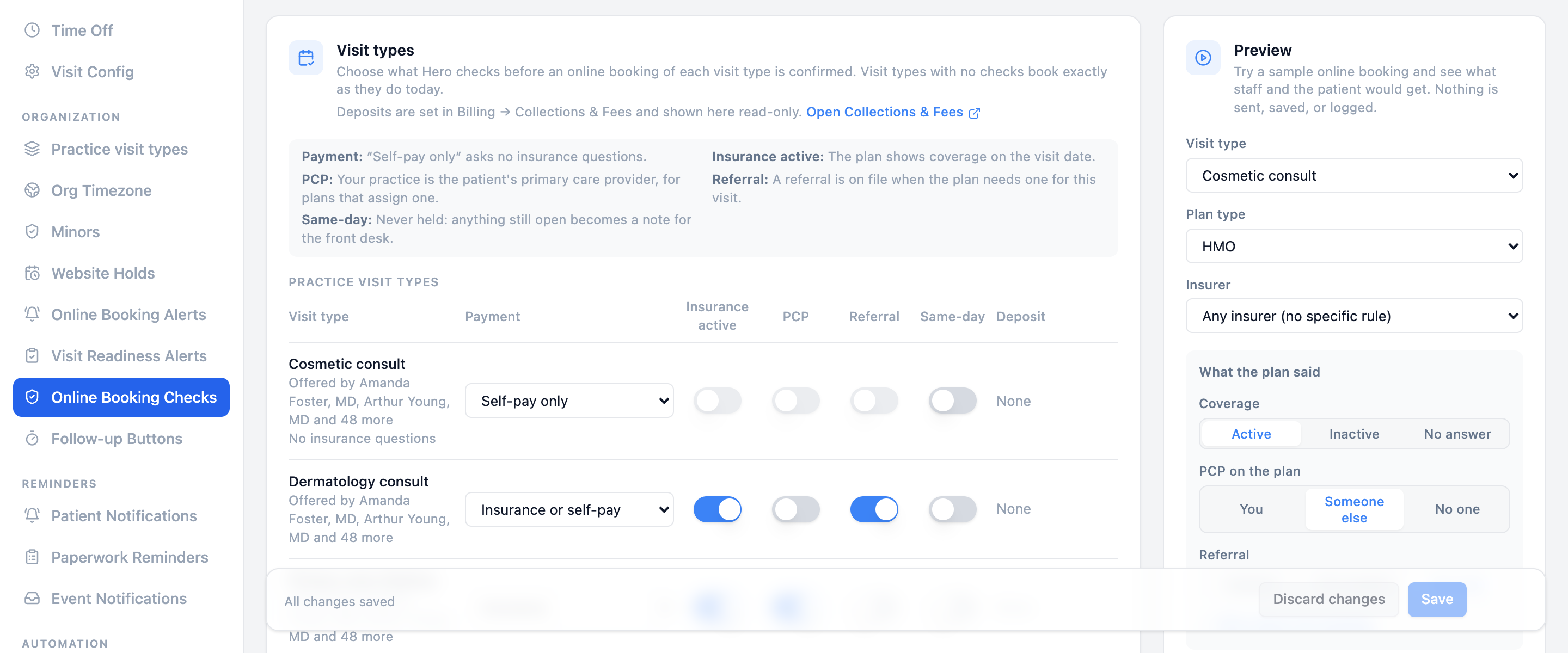
Use on online bookings switch sits above them.What you set
- Visit types — which checks run for each one, and whether it is paid by insurance, self-pay only, or either.
- Plans — whether a plan type (HMO, PPO, Medicare…) or a specific insurer assigns a PCP and needs referrals, for when the plan itself doesn’t say.
- Holds — how long a booking waits for a PCP switch, a referral, or a front-desk insurance check.
- Referral requests — who asks for a missing referral.
- Your practice’s names — how Hero tells that the PCP a plan lists is you.
What a booking can come out as
- Confirmed — nothing left to do.
- Waiting — on a PCP switch or a referral, with a due time.
- Front desk check — the plan didn’t answer, or something is unclear; your staff check the insurance by a due time.
Visit types with no checks book exactly as they do today.
Use on online bookings starts at Off, so online bookings work as they do today. Start with Record only: Hero checks each new patient’s online booking and lists what it would have done, without changing any booking. When the results look right, choose Apply to bookings (see Use on online bookings). Existing patients’ bookings aren’t checked yet (see What it does not do yet).Turn it on and open it
-
Turn the feature on.
Open
Admin → Additional Features, findOnline booking insurance checks, switch it on, and pressSave Changes. It is off for every practice until you turn it on. -
Open the settings.
Open
Admin → Scheduling. In the Schedule Manager, underOrganization, chooseOnline Booking Checks(next to Website Holds, Online Booking Alerts and Visit Readiness Alerts). -
Choose how Hero uses them.
Set up your visit types and plans and try them in Preview. Then set
Use on online bookings, at the top of the page, toRecord onlyorApply to bookingsand pressSave(see Use on online bookings).
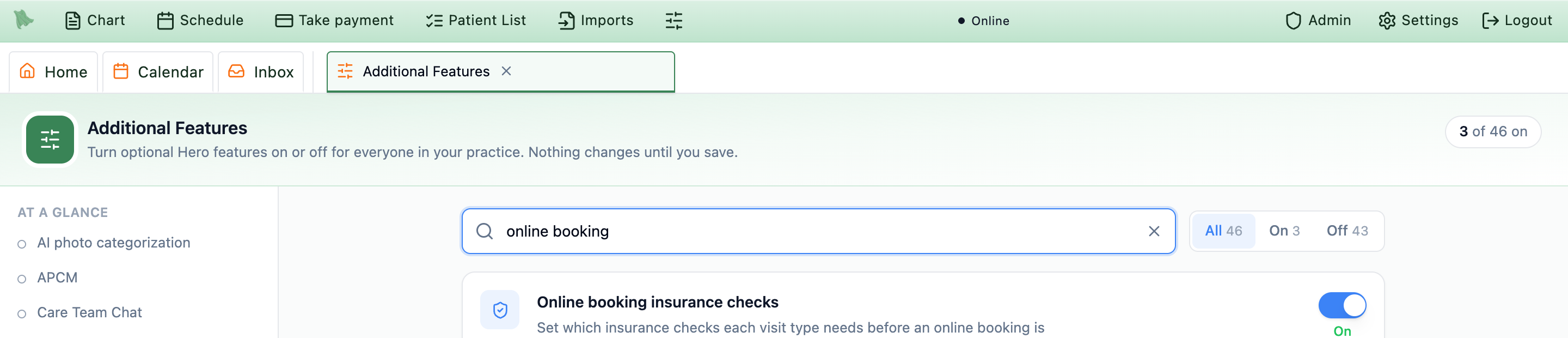
Admin → Additional Features. The card goes on to say you can preview what patients and staff would see, then choose whether Hero only records the checks or applies them to new-patient online bookings. Turning it off later hides the tab and stops the checks on bookings; your saved settings are kept.Who can use it
- Practice administrators and owners, and office managers who may manage practice settings.
- Front-desk staff without that permission don’t see the tab.
Recent online bookingsalso needs calendar access, because it lists patients and visits.- Deposit amounts show only for people who may see billing amounts; everyone else sees
Set in Billing.
Unsaved changes are kept
- Leave for another section or screen and come back: “You have unsaved changes from earlier.” with
SaveandDiscard. - Reloading or closing the browser asks first while changes are unsaved.
- If someone else saved meanwhile, Hero says so and never overwrites their changes:
Reviewshows what is saved next to your changes, andDiscard my changesstarts again from the saved settings.
Choose the checks for each visit type
Every visit type your practice offers online is listed: practice visit types first, then visit types only one clinician offers. For each one choose:
| Column | What it means |
|---|---|
Payment | Insurance (the default), Self-pay only (no insurance questions at all, for example cosmetic visits), or Insurance or self-pay (the patient may choose self-pay, and then the insurance checks are skipped for that booking). |
Insurance active | The plan shows coverage on the visit date. |
PCP | Your practice is the patient’s primary care provider, for plans that assign one. |
Referral | A referral is on file when the plan needs one for this visit. |
Same-day | Never held: anything still open becomes a note for the front desk instead. |
Deposit | Read only. Deposits are set in Billing → Collections & Fees (the Open Collections & Fees link takes you there if you may change billing settings). It reads Varies by clinician when clinicians charge different deposits. |
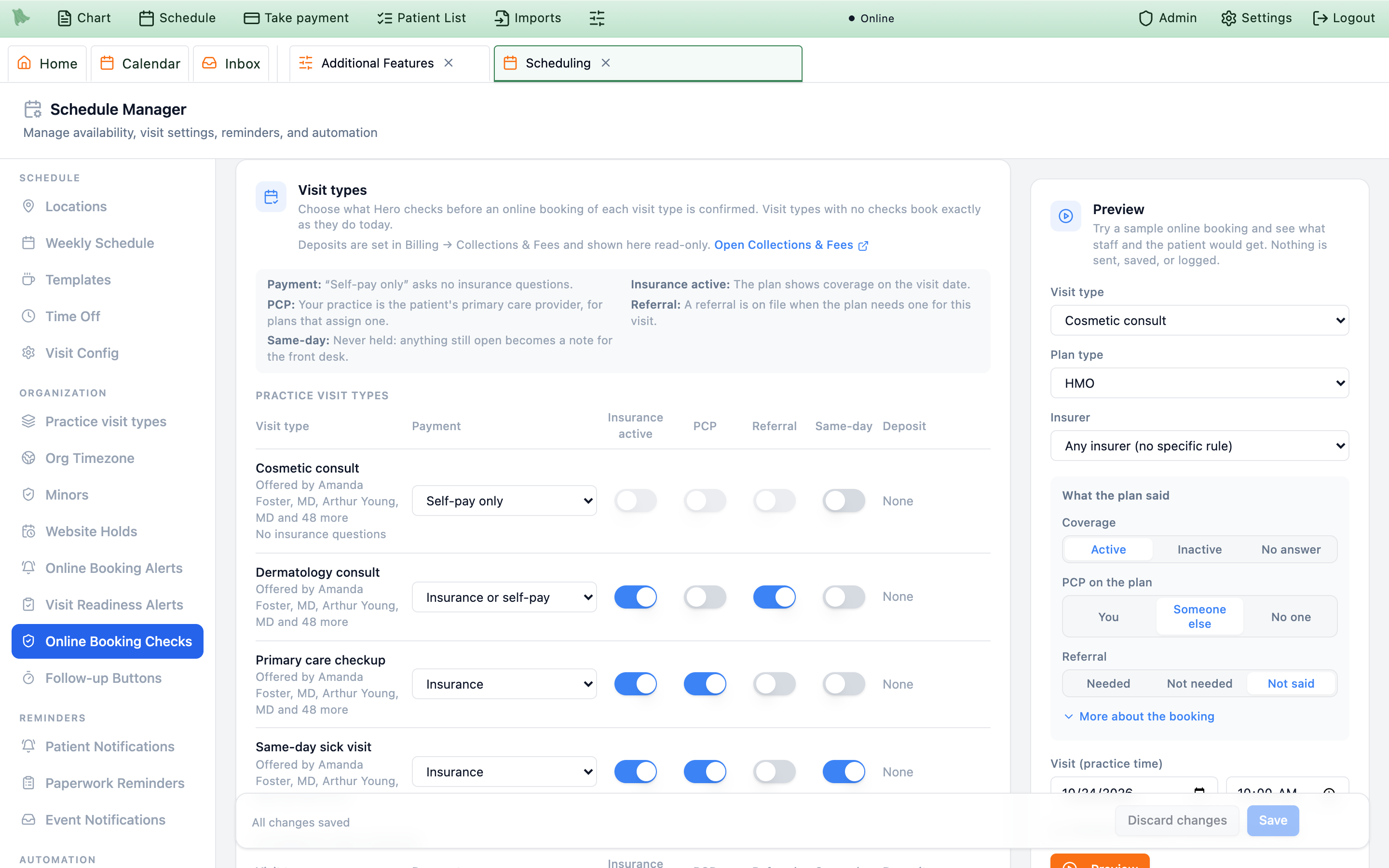
- A clinician’s own setting. If a clinician’s visit type had its own checks before your practice added it to its visit types, the row says “Dr. … has their own setting for this visit type”.
Use the practice settingremoves their own setting when you save. - Not offered online right now. Visit types you set up that are turned off, no longer bookable online, or deleted keep their checks and are listed in a collapsed
Not offered online right nowgroup, so nothing is lost if they come back. A deleted one readsNo longer offered;Removeclears its checks. - No visit types offered online yet? Turn on online booking for a visit type under Practice visit types or Visit Config first.
Say what you know about plans
Hero uses these answers only when the plan’s own answer doesn’t say. For each plan type, answer two questions:
Assigns a PCP:Not sure,Yes, orNo.Needs a referral:Not sure,No,Yes, for visit types that check referrals, orYes, only for some visit types— thenChoose visit types. Visit types you don’t choose need no referral with that plan type.
Every plan type starts as Not sure. Fill in typical answers fills in common answers for the questions still marked Not sure (HMO and POS: assigns a PCP and needs referrals for visit types that check them; EPO, PPO, high-deductible plans and Original Medicare: no and no; Medicare Advantage, Medicaid and other plans are left Not sure). Check them against your contracts: nothing is saved until you press Save.
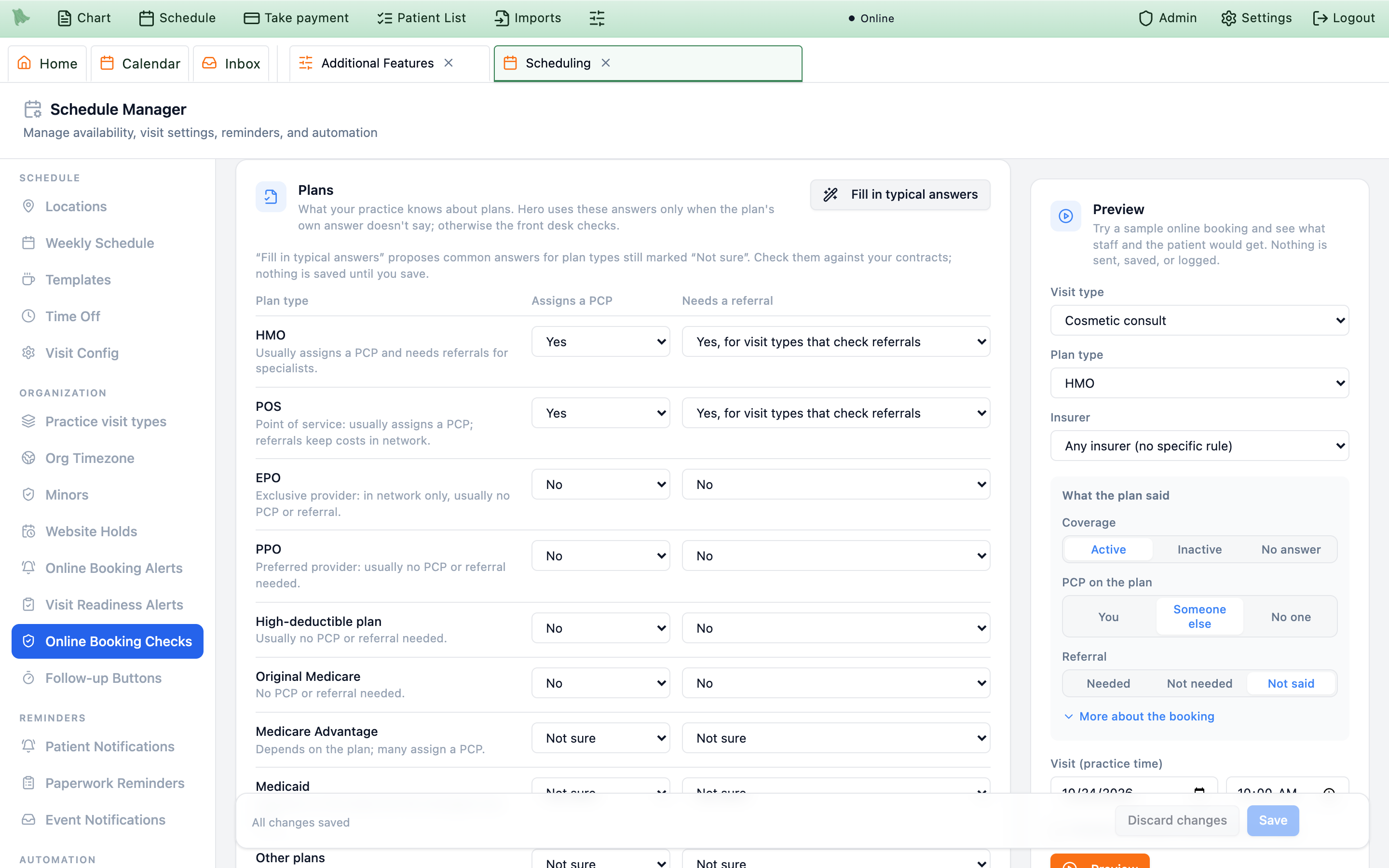
Fill in typical answers. Rules for specific insurers are listed below the table.Rules for specific plans
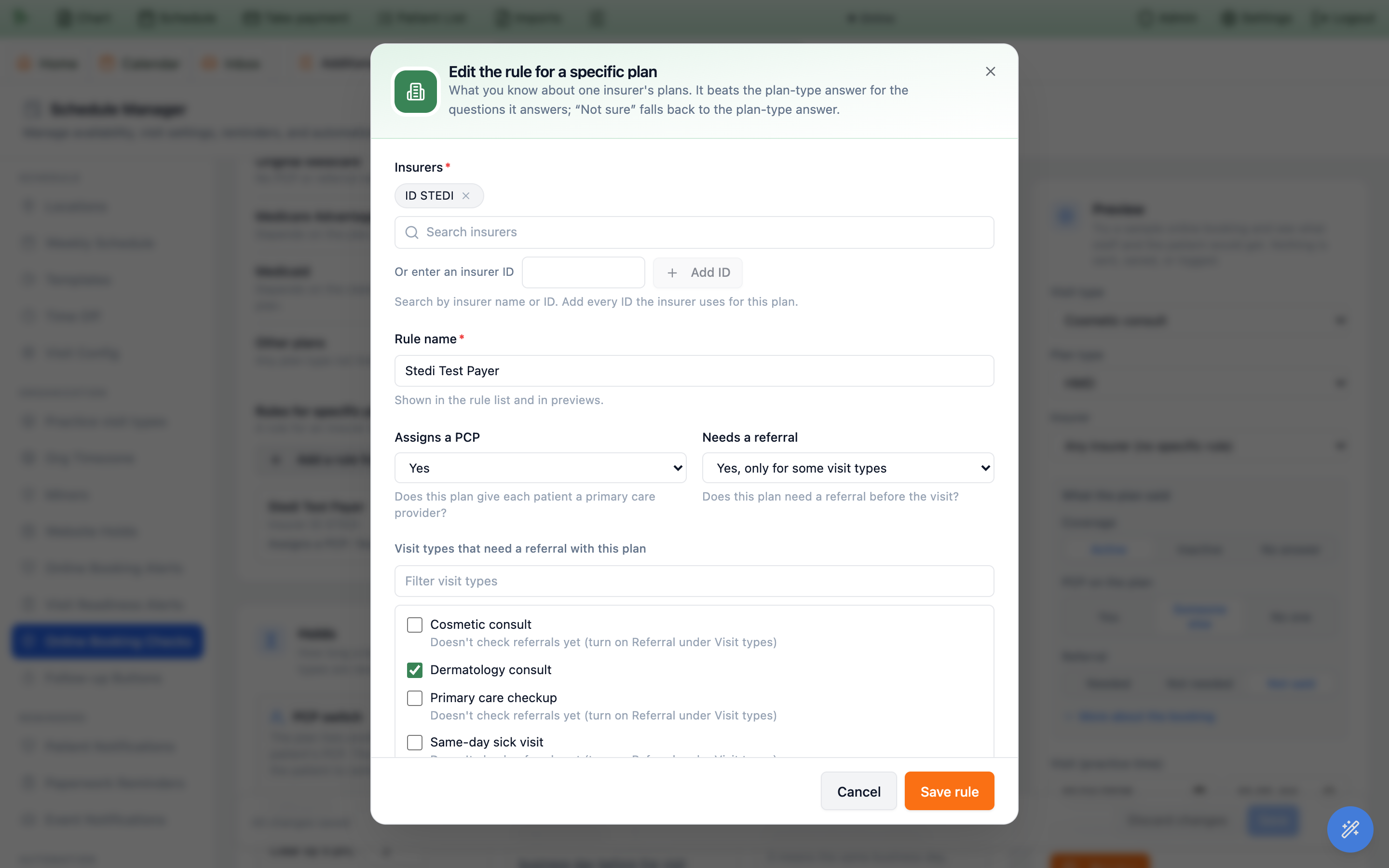
Add a rule for a specific plan opens a window: search for the insurer by name or ID (or type an insurer ID), name the rule, and answer the same two questions. A rule for an insurer beats the plan-type answer for the questions it answers; Not sure falls back to the plan-type answer.
How long a booking waits
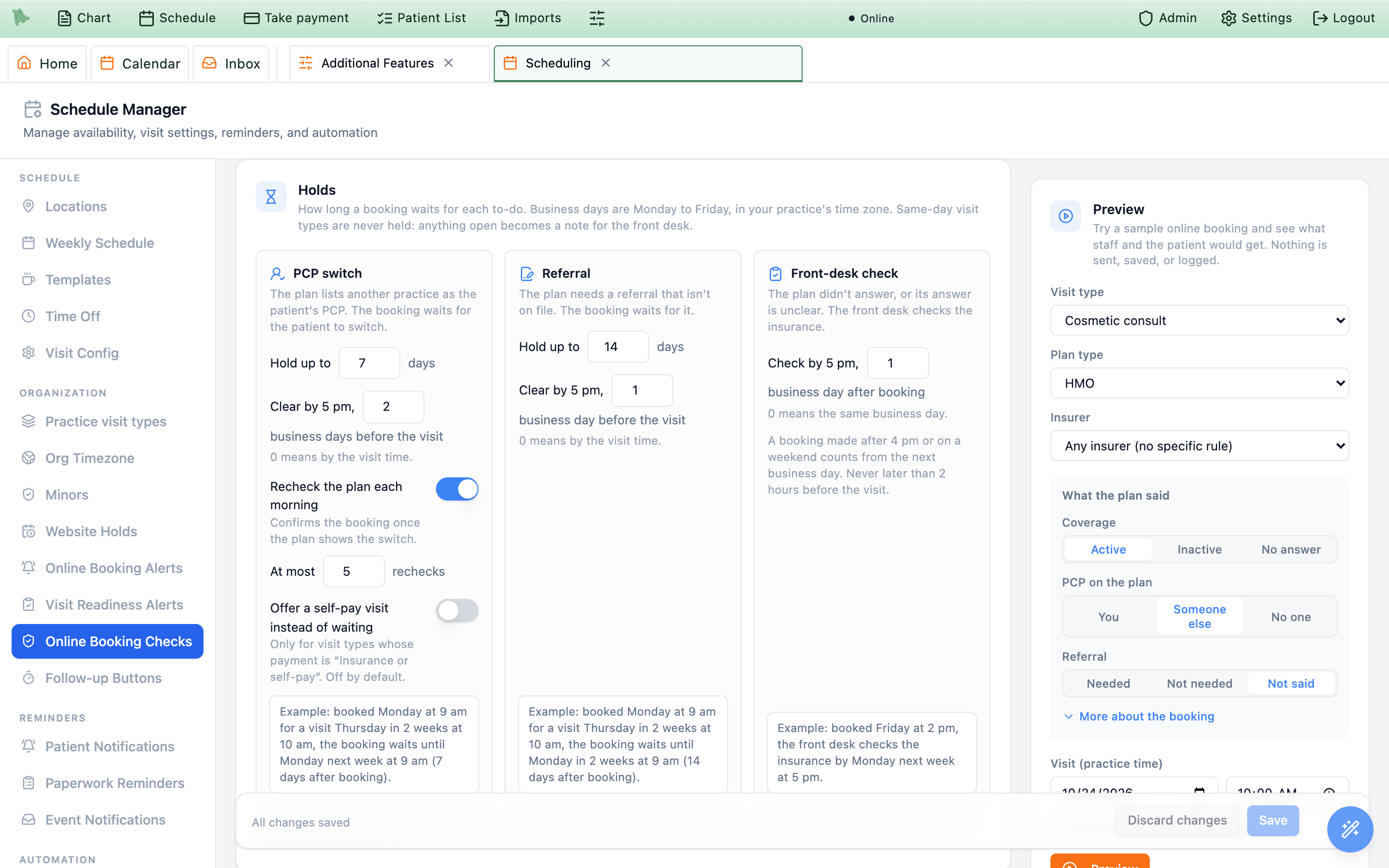
Each to-do has its own card with a live example sentence that updates as you type. Business days are Monday to Friday, without your practice’s closure days, in your practice’s time zone. The table shows each setting’s starting value.
| To-do | Settings | Due time |
|---|---|---|
| PCP switch — the plan lists another practice as PCP | Hold up to 7 days; Clear by 5 pm, 2 business days before the visit; Recheck the plan each morning (on), at most 5 rechecks; Offer a self-pay visit instead of waiting (off) | Whichever comes first: the hold days after booking, or 5 pm on the business day that many business days before the visit (0 means by the visit time). |
| Referral — the plan needs a referral that isn’t on file | Hold up to 14 days; Clear by 5 pm, 1 business day before the visit | The same rule as the PCP switch. |
| Front-desk check — the plan didn’t answer, or its answer is unclear | Check by 5 pm, 1 business day after booking (0 means the same business day) | 5 pm on that business day. A booking made after 4 pm or on a weekend counts from the next business day. Never later than 2 hours before the visit. |
- Short notice. When a due time would be less than an hour away, it moves to two hours before the visit — never less than an hour from now, and never after the visit.
- Same-day visit types are never held. Anything still open becomes a note for the front desk on the visit, with no due time.
- When a hold runs out the booking stays held and your staff decide. Nothing is cancelled for you; the calendar then reads Was due ….
- Offer a self-pay visit instead of waiting works only on visit types whose payment is
Insurance or self-pay; Hero won’t save it on otherwise. - Not used yet. The card marks what Hero doesn’t do yet: “Not used yet: the daily PCP recheck and releasing holds at the due time. Your team confirms or cancels held visits.” and, under the self-pay switch, “Not used yet: patients are not offered a self-pay visit.” The due times are used: a held booking shows its due time on the calendar and in its to-do.
Who asks for a missing referral
When the PCP works at your practice
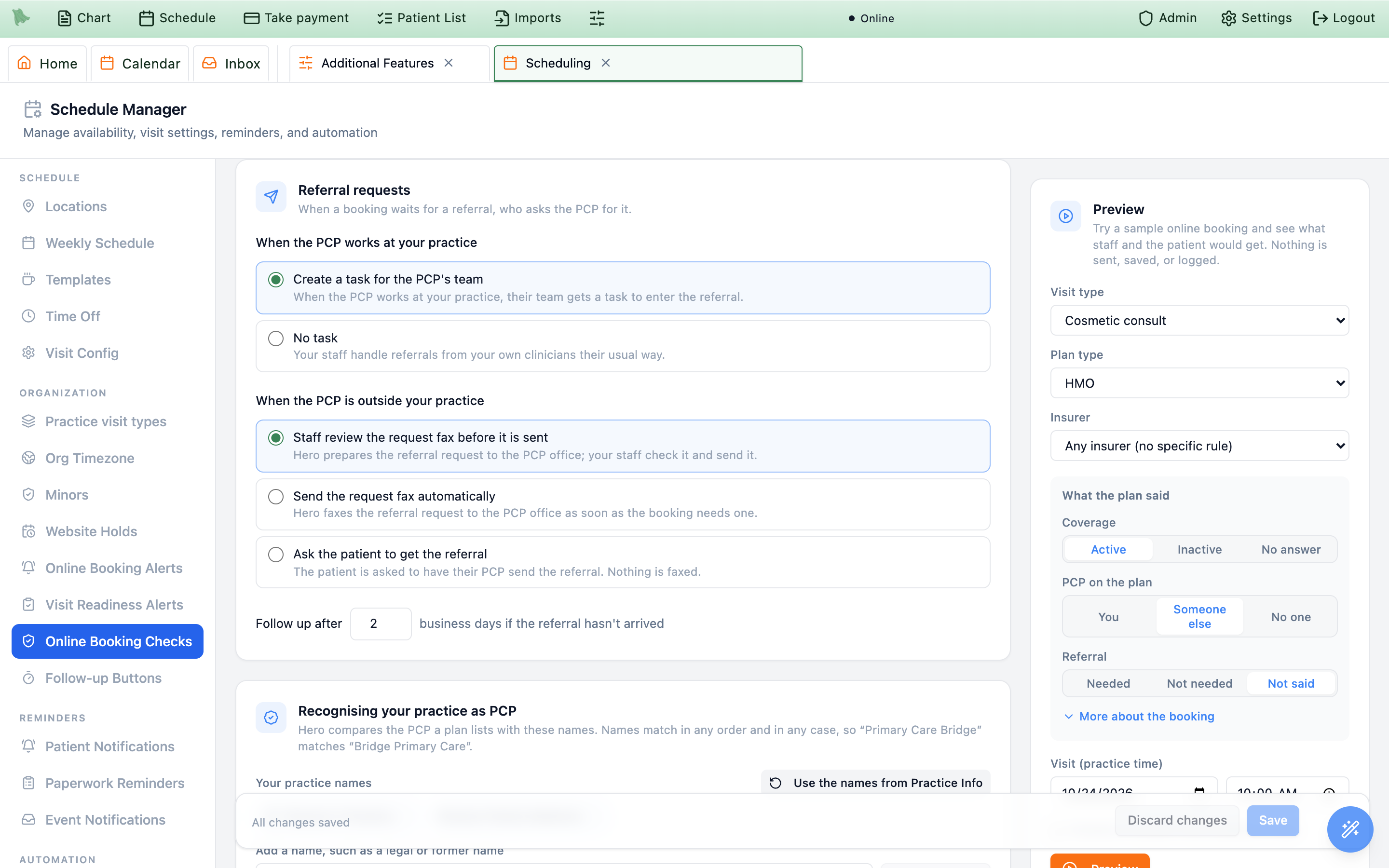
Create a task for the PCP’s team(the default) — their team gets a task to enter the referral.No task— your staff handle referrals from your own clinicians their usual way.
When the PCP is outside your practice
Staff review the request fax before it is sent(the default).Send the request fax automatically.Ask the patient to get the referral— nothing is faxed.
Follow up after sets how many business days to wait before following up if the referral hasn’t arrived (2 by default).
Hero doesn’t send referral requests yet. The card says “Not used yet: automatic referral requests. Your team asks for referrals the usual way.” A booking that needs a referral waits on the calendar for your team (see Held bookings).
How Hero knows the PCP on the plan is you
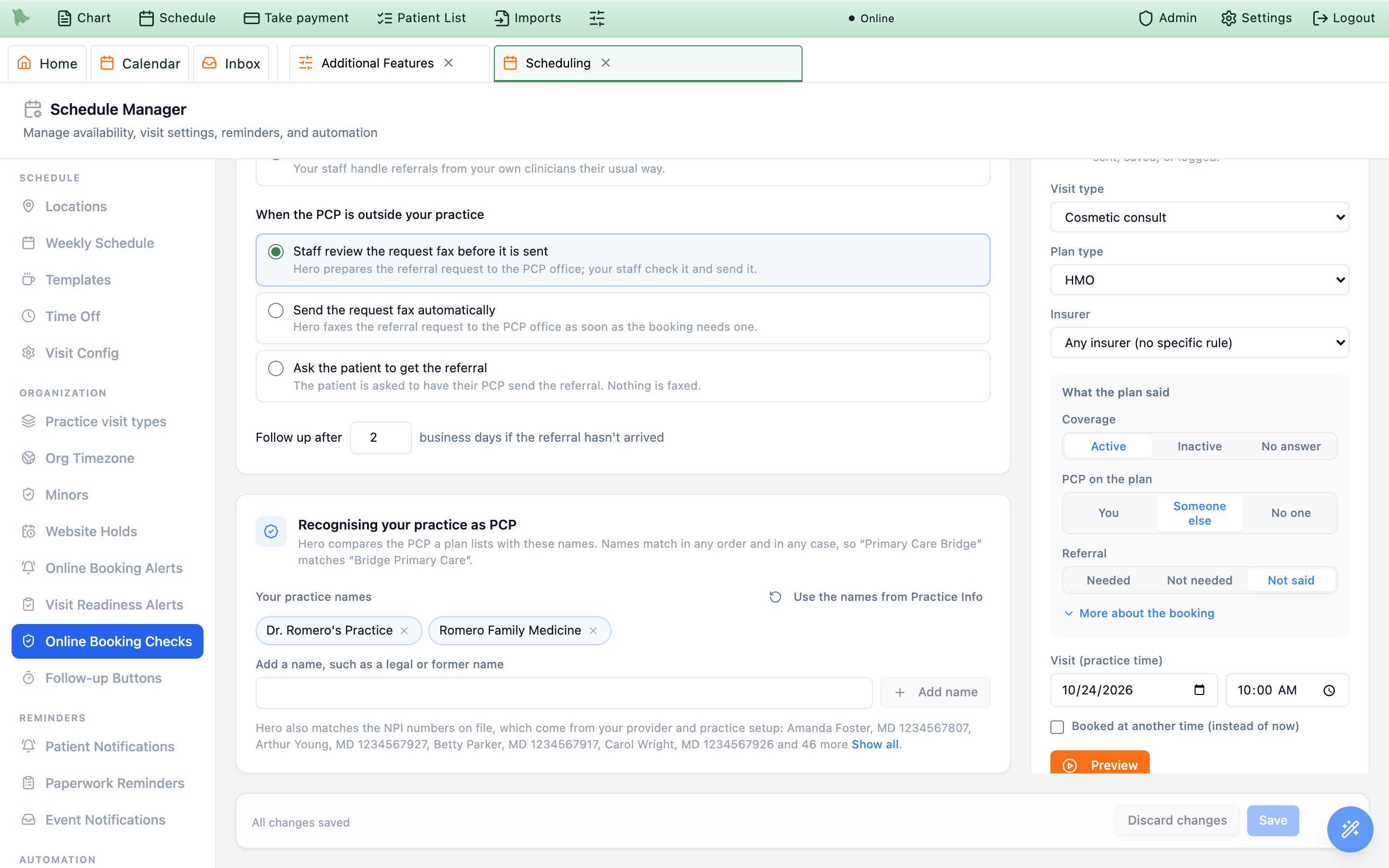
A plan lists the patient’s PCP by name. Hero compares it with your practice’s names, in any order and any case, so Primary Care Bridge matches Bridge Primary Care. Until you change the list, Hero uses the names from Practice Info, Departments and your legal entities. Add any name a plan might list, such as a legal or former name; Use the names from Practice Info goes back to the starting list.
Hero also matches the NPI numbers (national provider IDs) on file for your clinicians and your practice. They come from your provider and practice setup and are shown read-only. A PCP printed on a patient’s insurance card has no such number, so Hero matches it by name only: one of your practice’s names, or the first and last name of one of your clinicians.
Try a sample booking
Preview runs your settings on a sample online booking and shows the result exactly as staff would see it, with the message the patient would get. Nothing is sent, saved, or logged. A real booking’s check opens in the same result card, from Recent online bookings and from the calendar’s Why?.
-
Choose the settings to use.
While you have unsaved changes, choose
Your unsaved changes(the default) orSaved settings, so you can try a change before you save it. -
Describe the booking.
Pick the
Visit type(and, for a visit type where a clinician has their own setting, theClinician), thePlan type, and anInsurerrule if you want one applied. -
Say what the plan said.
Coverage:Active,Inactive, orNo answer.PCP on the plan:You,Someone else, orNo one.Referral:Needed,Not needed, orNot said.More about the bookingadds whether the plan says it assigns a PCP, whether the patient chose self-pay, and whether a referral is already on file. -
Set the visit time and press
Preview. Times are your practice’s time. The booking time is now unless you tickBooked at another time (instead of now).
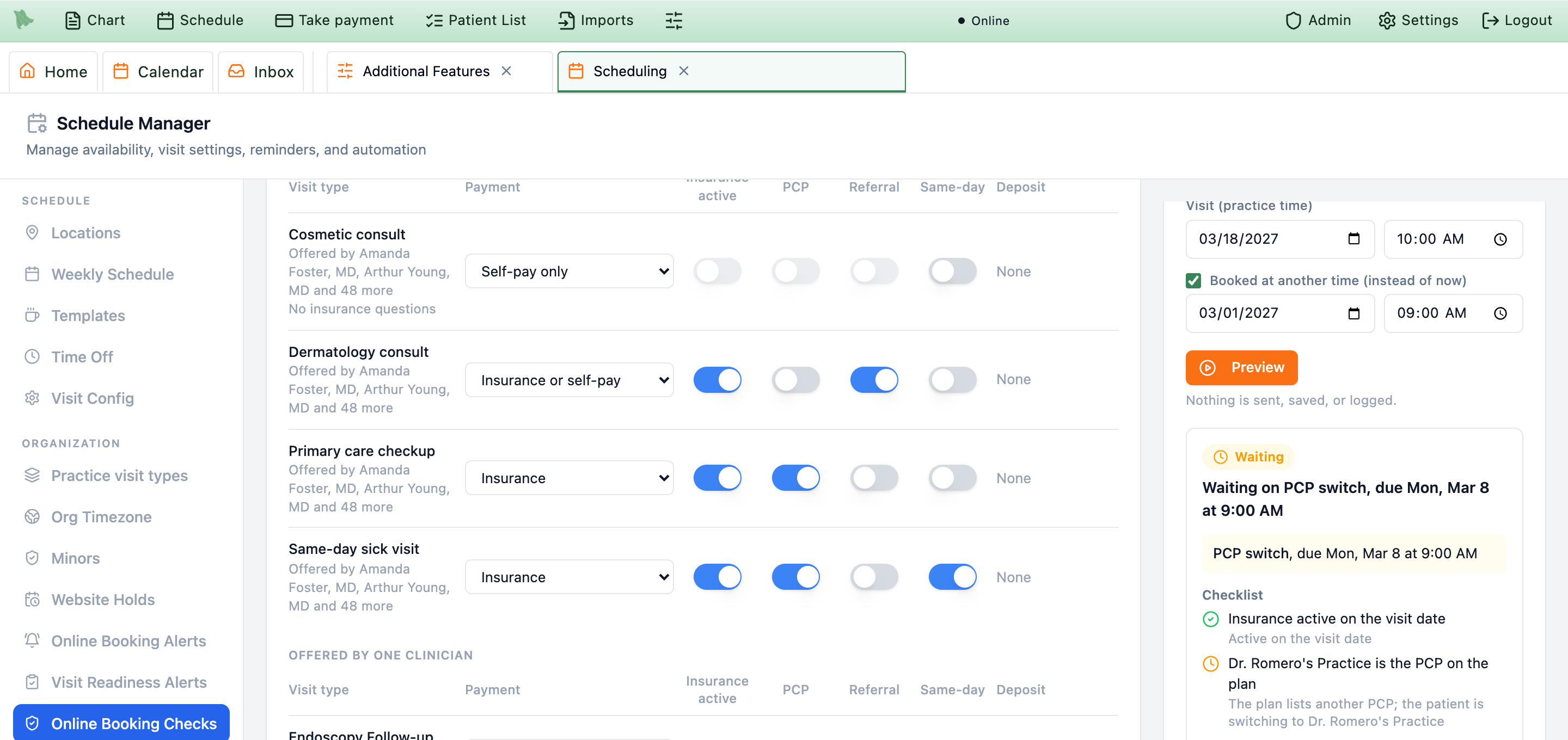
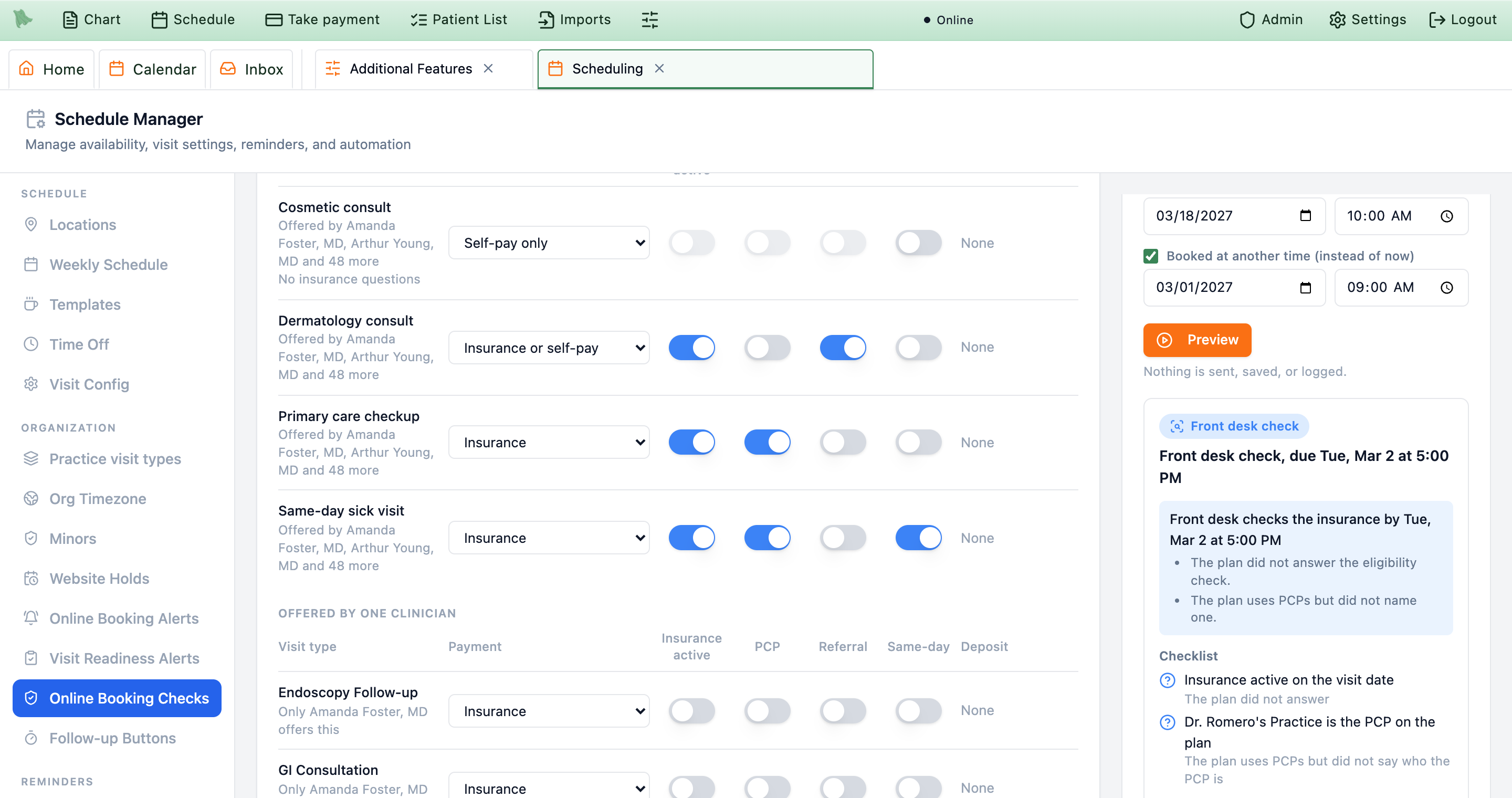
Under the checklist, What the patient sees shows the patient’s message: the same words a real held booking gets (see What patients see). Where the answers came from shows each answer and its source: the plan’s answer, your rule for that insurer, or your plan-type answer. Preview works only from what you say the plan answered; a real booking can also use the patient’s insurance card (see Insurance check and card).
Choose what Hero does with real online bookings
At the top of the page, Use on online bookings has three choices. The line next to it says what the chosen one does.
| Choice | What happens |
|---|---|
Off (the default) | “Online bookings are confirmed as they are today.” Nothing is checked or recorded. |
Record only | “Hero runs the checks on each new-patient online booking and lists what it would have done. Bookings aren’t changed.” The patient and your team see exactly what they see today; the results are listed in Recent online bookings. |
Apply to bookings | “Bookings that need something wait on the calendar for your team, and the patient is told what’s next.” A booking that passes is confirmed as usual. See Held bookings and What patients see. |

Use on online bookings sits at the top of the page, above the visit types and Preview.- Pick a choice. It is part of your unsaved changes, like every other setting on the page. Until you save, a note says what is saved now, for example “Saved setting: Off. The change starts when you save.”
-
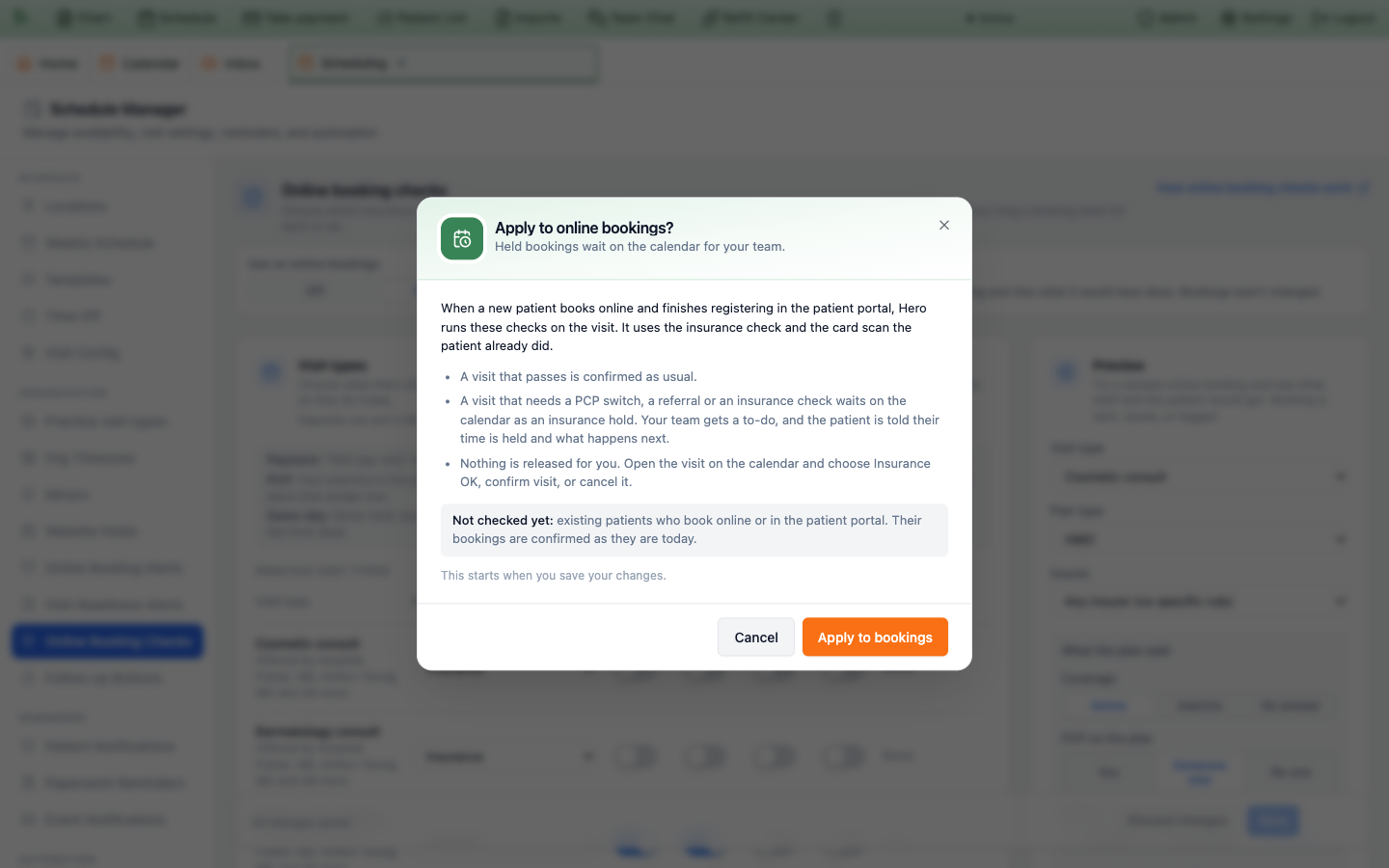
Confirm
Apply to bookings. Choosing it opensApply to online bookings?: what happens to a visit that passes and to one that needs something, that nothing is released for you, and that existing patients aren’t checked yet. PressApply to bookings, orCancelto keep your earlier choice. -
Press
Save. The choice applies to patients who finish registering from then on. Visits already booked aren’t changed.
Which bookings are checked
- New patients who book online. A new patient who reserves a time on your website, or with the AI phone agent, waits as
Pending registrationuntil they finish registering in the patient portal (see Website holds). Hero checks the booking when they finish. - Visit types that need a card on file. When the visit type asks for a payment card, Hero checks the booking once the patient saves the card. Until then, Recent online bookings shows
Waiting for payment card. - Only visit types with checks. Visit types with no checks book exactly as they do today.
- Only while the feature is on. With
Online booking insurance checksoff inAdmin → Additional Features, nothing is checked, whatever this switch says. - A held time that ran out. If the patient finishes registering after their held time ran out, the visit is booked again as usual, and Hero only records the check.
Confirm appointment. Their bookings are confirmed as they are today.What Hero uses: the patient’s own insurance check and card scan
Hero doesn’t run a new insurance check or read the card again for the booking, so the checks cost nothing extra. They use what the patient already did on the insurance step of portal registration:
The insurance check
- The patient checks their coverage with their insurer while registering.
- Hero keeps that answer for the booking for up to 3 days.
- It is used only when it matches the insurance the patient saved: the same insurer, member ID and person.
The card scan
- The patient scans their insurance card on the same step, on the computer or with their phone.
- Hero uses only two things the scan read from the card: the PCP printed on it, and words that say the plan type (such as HMO).
- It is used only when the card’s member ID matches the saved insurance and the card doesn’t name a different insurer.
What the insurer’s answer decides
- Coverage on the visit date. The patient’s check asks about the day they register. For a visit on that day, Hero uses the answer as it is. For a later visit, active coverage counts only when the answer shows it started on or before the visit date and hasn’t ended by then. Otherwise the front desk checks, with the reason “The plan’s answer was for … and doesn’t show coverage on the visit date.” An answer of inactive coverage on registration day never marks a later visit inactive: the front desk checks that one too.
- Who the PCP is. The PCP the insurer lists for the patient’s own coverage on the visit date. If the answer lists more than one PCP, the front desk checks (“The plan lists more than one PCP”), whatever the card says.
- The plan type. From the insurer’s answer; else the plan type saved with the patient’s insurance; else words on the card (HMO, PPO, EPO, POS, high deductible, Medicare Advantage, Medicaid or Medi-Cal). Words that disagree count as unknown.
- No answer. If the patient skipped the check, it failed, or it was for different insurance than they saved, the booking has no insurer’s answer and the front desk checks the insurance.
What the card can and can’t do
The card can
- Confirm you are the PCP when the insurer’s answer names no PCP. The checklist reads “The insurance card lists … (the plan’s answer didn’t name a PCP)” and that check passes.
- Show the plan assigns PCPs, by printing one.
- Give the plan type when nothing else does.
The card can’t
- Ask a patient to switch PCP. A card that names someone else never puts the visit on a PCP-switch hold: the front desk checks, with “Confirm the PCP with the plan.” On a same-day visit type it becomes a note for the front desk.
- Overrule the insurer. A PCP the insurer’s answer names always wins.
- Be used when it doesn’t match the saved insurance, belongs to another registration, wasn’t finished, or the patient changed their insurance after registering.
Billing keeps the final say on failed insurance checks. If Billing → Configuration → Eligibility has Don't allow booking on (see When an insurance check fails), a booking it stops is cancelled as it is today, held or not, in either mode. Recent online bookings shows it as Not booked: insurance check failed.
Record only: see what the checks would do
With Record only, nothing changes for the patient or your team. The visit is booked, the patient sees Appointment Confirmed and gets their reminders as usual, and no to-do is created. Hero only writes down what the checks would have done, so you can compare it with what your front desk would have decided before you choose Apply to bookings.
Recent online bookings
The Recent online bookings card, at the bottom of the page, lists every checked booking in either mode: “What the checks did on new-patient online bookings, newest first, and each visit now. Times are in your practice’s time zone.”
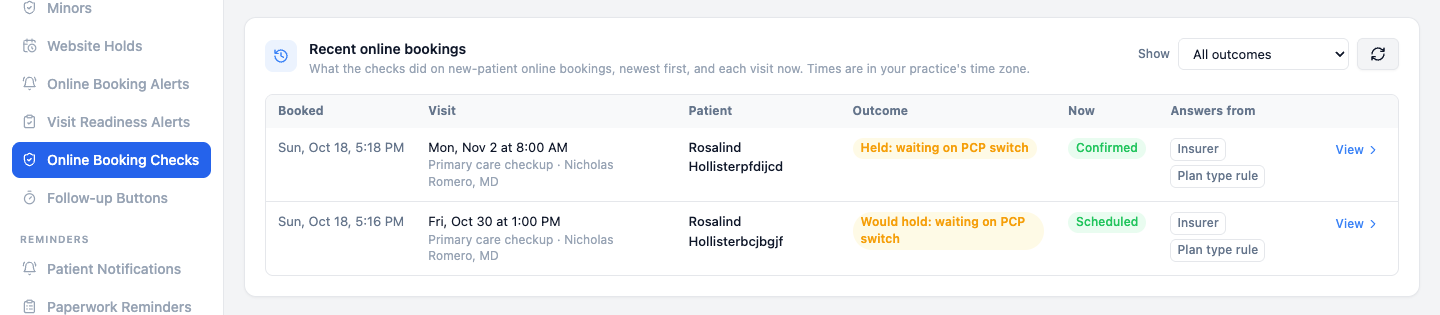
| Column | What it shows |
|---|---|
Booked | When Hero checked the booking. |
Visit | The visit time, visit type and clinician. |
Outcome | What the checks decided (below). |
Now | The visit on the calendar right now, for example Scheduled, Confirmed, Cancelled, or the hold it waits on. |
Answers from | Insurer (the patient’s insurance check), Card (their insurance card), Your plan rule (your rule for that insurer) and Plan type rule (your plan-type answer). |
The outcome of a Record only booking says what the checks would have done (Would …); an applied one says what happened.
| Outcome | What it means |
|---|---|
Would confirm or Confirmed | Nothing left to do. |
Would hold: waiting on PCP switch or Held: waiting on PCP switch (or referral) | The plan lists another PCP, or a referral the plan needs isn’t on file. |
Would need a front desk check or Front desk check | Something is unknown or unclear, so the front desk checks the insurance. |
Waiting for payment card | The visit type needs a payment card on file. Hero checks the booking when the patient saves it. |
Check didn’t run | Something went wrong, so the visit was booked as usual. Check the insurance yourself. |
Not booked: insurance check failed | Your Billing setting Don't allow booking stopped the booking. |
Showfilters by outcome (Holds,Front desk checks,Confirmed,Waiting for payment card,Check didn’t run), the round arrow refreshes the list, andLoad moreshows older bookings. On a phone the rows become cards.- With
Offsaved and nothing recorded yet, the card reads “Turn on Record only to see what the checks would do.”
One booking’s check
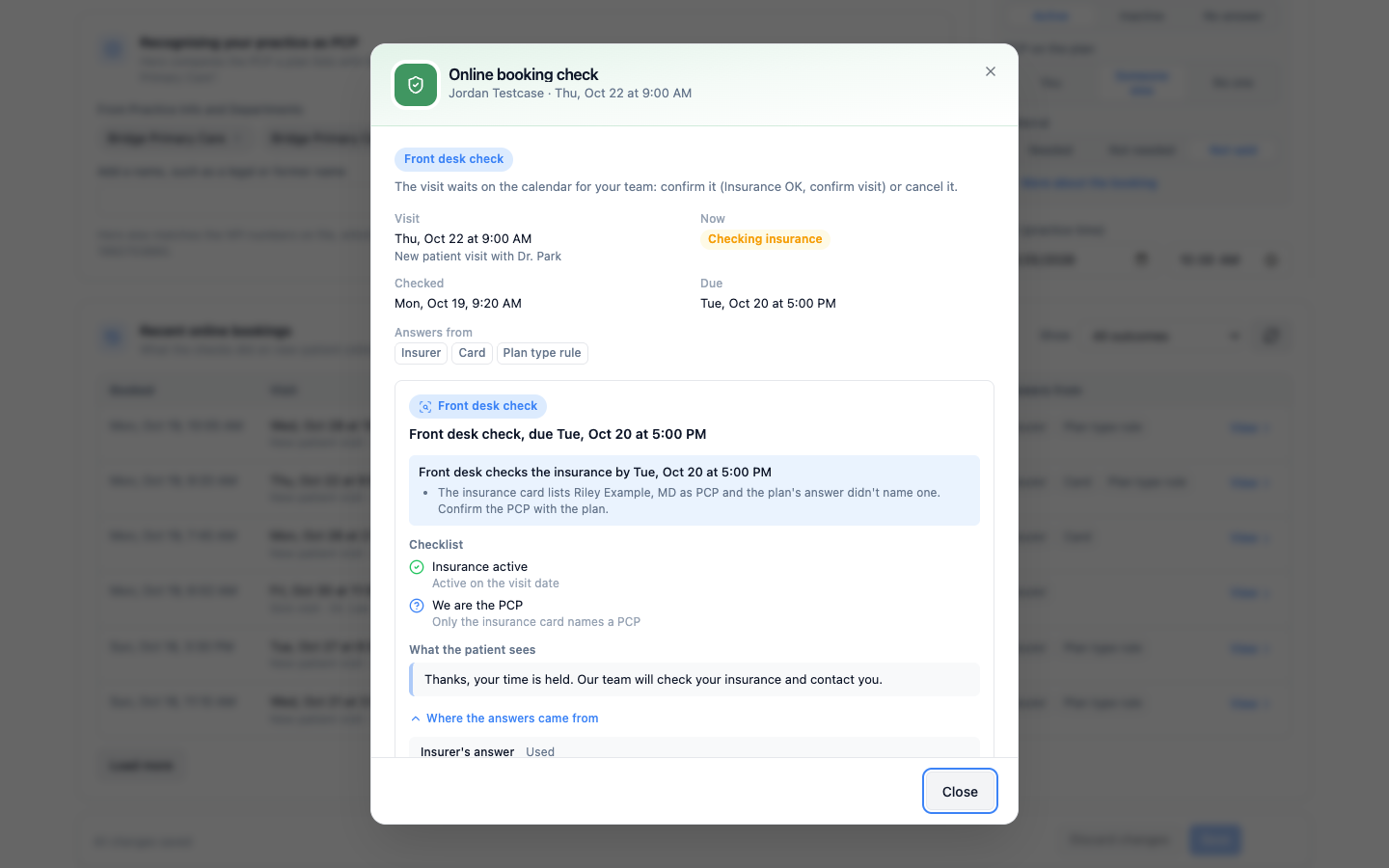
View, or a click on the row, opens Online booking check: the outcome and what it did to the booking (for example “Record only: the booking wasn’t changed.”), the visit and its status now, when Hero checked it, the due time while a hold stands, and the same result card as Preview, with the checklist and what the patient sees (or would have seen).
Where the answers came from is already open in this window. It starts with what Hero had to go on:
| Line | What it can say |
|---|---|
Insurer's answer | Used; Not used: it was for different insurance than the patient saved; or None, when the patient’s insurance check didn’t get an answer Hero could use (skipped or failed). |
Insurance card | Used; Not used with the reason (the member ID doesn’t match the saved insurance, it names a different insurer, it belongs to another registration, the scan wasn’t finished, or the patient changed their insurance after registering); or No card scan. |
Plan type from | The insurer's answer, The saved insurance or The insurance card. |
Your plan rules used | The insurer rules that matched the booking. |
Below it, each answer is listed with its source, for example PCP on the plan: … (The plan’s answer) or Plan assigns a PCP: Yes (The insurance card).
Apply to bookings: what your team sees and does
With Apply to bookings, a booking that passes every check is confirmed as usual. One that needs something becomes the patient’s visit, on their chart, but waits on the calendar as an insurance hold until your team confirms or cancels it. Until then the patient gets no booking confirmation or reminders, and Hero sends no online booking alert, intake paperwork or video link.
On the calendar
- The day list shows the hold in its status column in a word or two,
PCP switch,ReferralorInsurance check, with the due time under it (for example Due Sun 5:17 PM). After the due time it reads Was due …; nothing is released or cancelled for you. - The visit preview shows a banner with the full reason (
Waiting on PCP switch,Waiting on referralorChecking insurance), the due time, and what the front desk needs to know.

Why? opens the booking’s Online booking check, the same window as in Recent online bookings. It shows while the feature is on. For a visit Hero didn’t check it says No booking check for this visit.
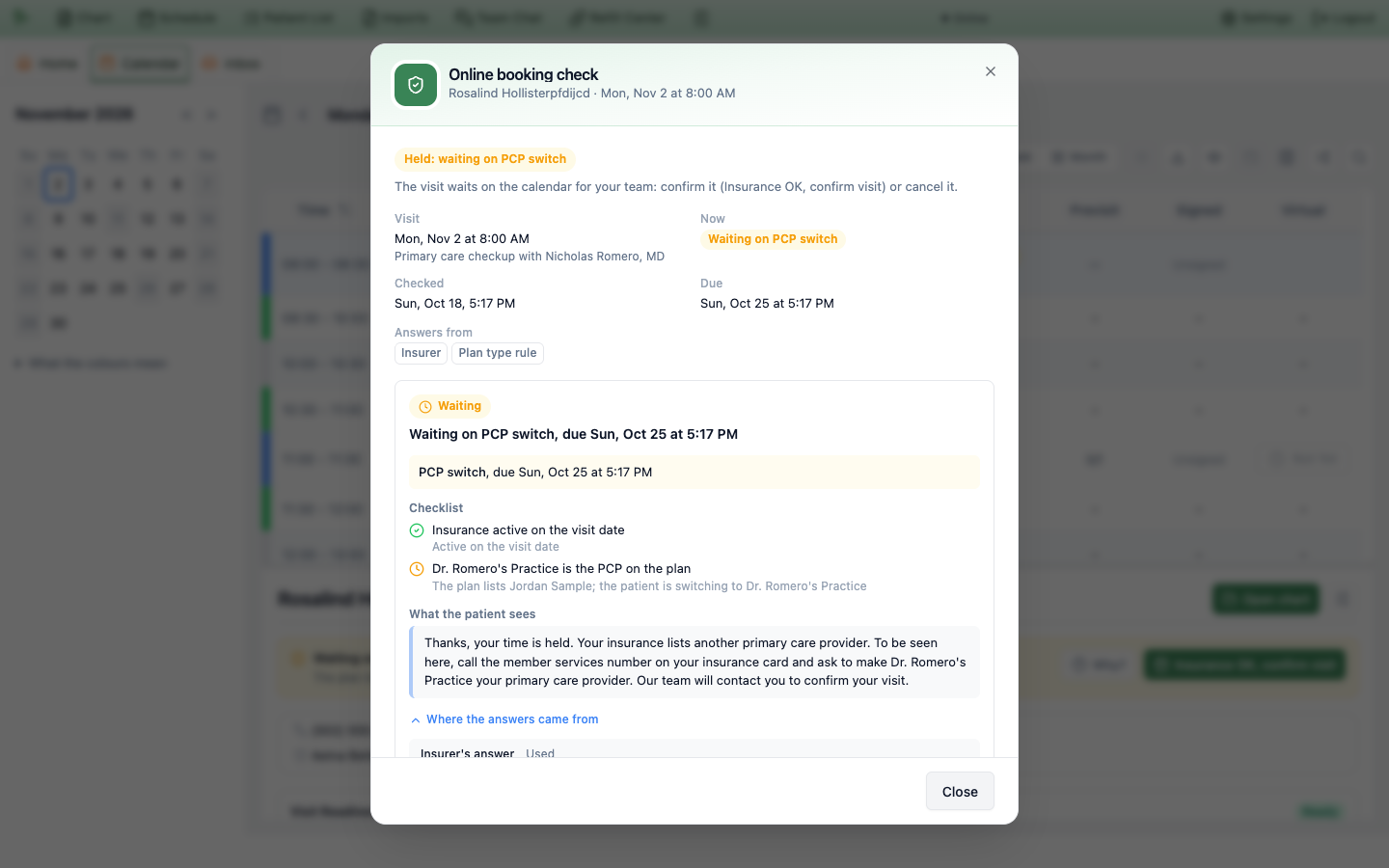
Why?: the outcome, the checklist, the patient’s message and where each answer came from.The to-do
Each held booking gives your team a high-priority to-do, for example Online booking on hold: Waiting on PCP switch — … with the patient’s name. It lists the appointment, the reasons, the due time and “When it’s sorted, open the visit on the calendar and choose Insurance OK, confirm visit, or cancel it.” It goes to the people chosen as Manual review recipients in Admin → New Patient Funnel, or else to the clinician whose calendar has the visit. Confirming or cancelling the visit completes it (see Todo lists).
Confirm or cancel
- Sort it out. For a PCP switch, check with the plan or the patient that your practice is now the PCP. For a referral, get it on file. For an insurance check, check the coverage.
-
Confirm the visit.
Press
Insurance OK, confirm visitin the banner, or right-click the visit and choose it there. It needs permission to manage the schedule. - Hero books it in full. The patient now gets their booking confirmation and reminders, their intake paperwork goes out, your online booking alert is sent if you use one, and a video visit gets its link. This happens once: confirming again sends nothing more.
To turn the booking away, cancel the visit the usual way. Its to-do is completed, and Hero sends what a cancellation sends today.
- Same-day visit types are never held. The visit is booked as usual, and if something is open the front desk gets a note instead: Online booking note for the front desk — ….
- If the check can’t run, the visit is booked as usual, and Recent online bookings shows
Check didn’t run. - Nothing happens at the due time. The visit stays held until your team decides.
What the patient sees when a booking is held
Patients read plain words (primary care provider, never “PCP”) and no due times. The message promises only what your team does by hand. With Record only, patients see nothing new.
At the end of registration
Instead of Appointment Confirmed, the last screen shows We're holding your time, the visit time, the message for the hold, and “You’ll find this visit under Appointments.” It doesn’t promise reminders.
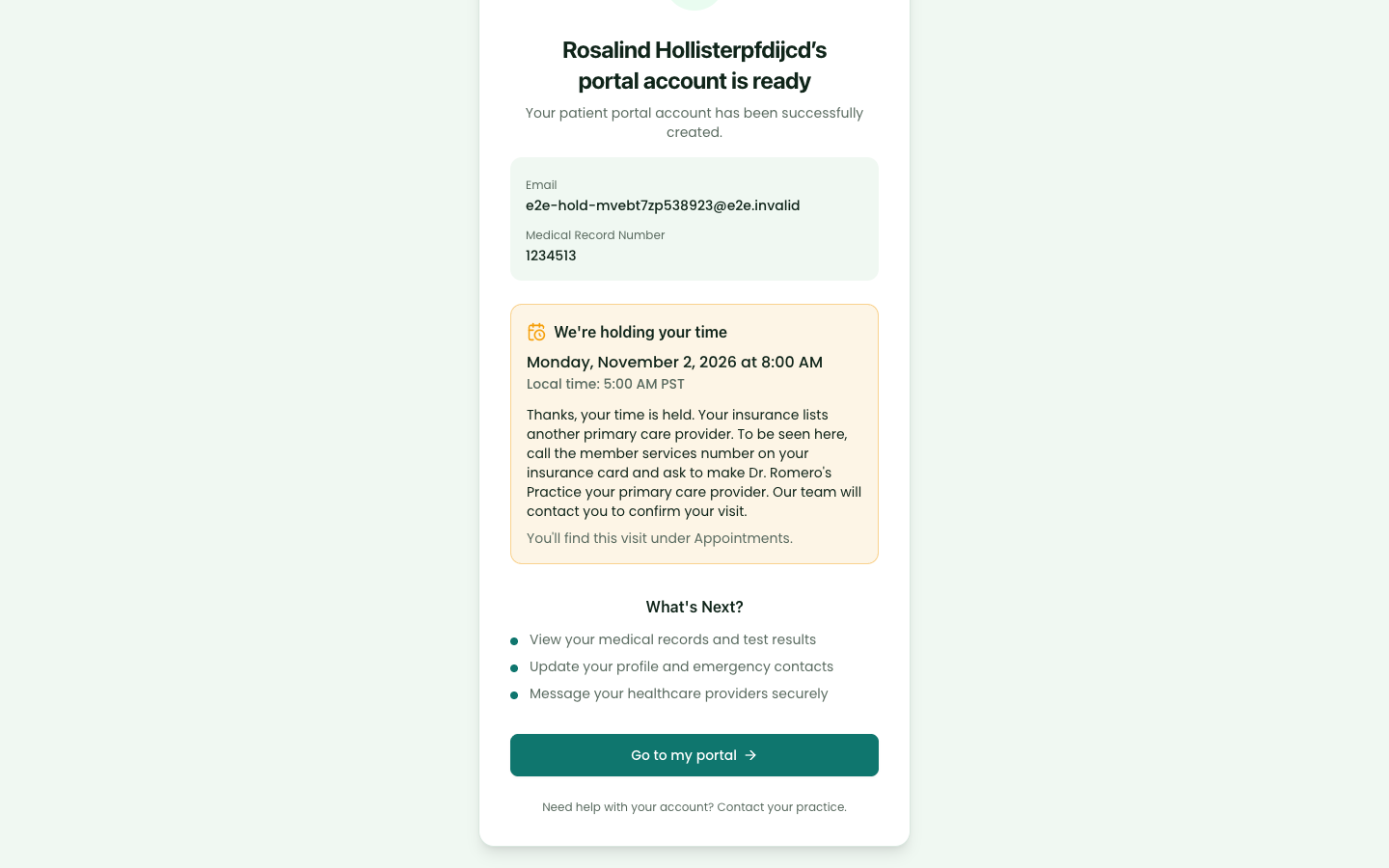
| Hold | The patient’s message |
|---|---|
| PCP switch | “Thanks, your time is held. Your insurance lists another primary care provider. To be seen here, call the member services number on your insurance card and ask to make … your primary care provider. Our team will contact you to confirm your visit.” (with your practice’s name). When a referral is needed too, it adds “Your plan also needs a referral for this visit.” |
| Referral | “Thanks, your time is held. Your plan needs a referral for this visit. Our team will contact you about it.” |
| Front desk check | “Thanks, your time is held. Our team will check your insurance and contact you.” |
Hero doesn’t email or text the patient about the hold, so contact them as the message says.
Visit types that need a card on file
The patient first saves their payment card (Add a card). Hero then checks the booking, and a held booking shows the same We're holding your time box instead of Appointment confirmed.
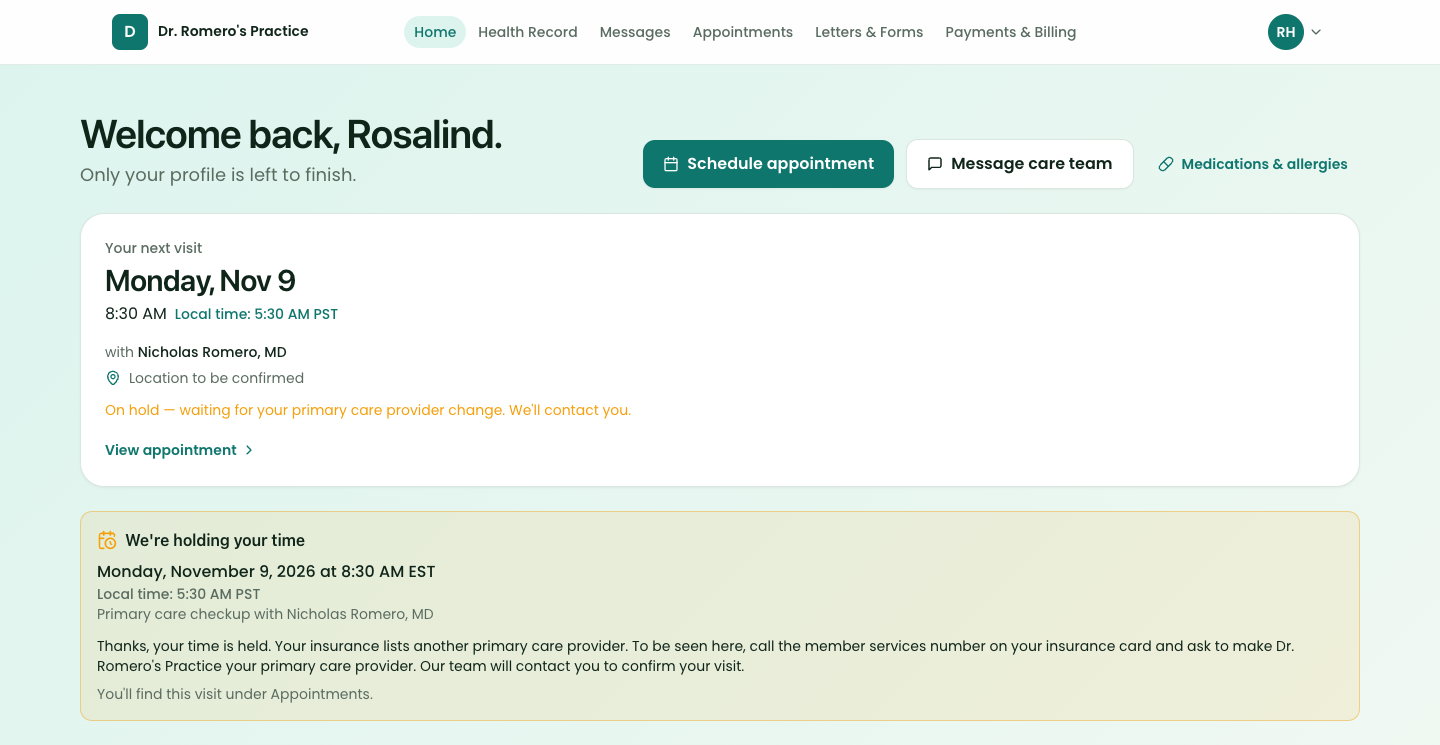
Appointments and the home page
The visit reads On hold — waiting for your primary care provider change. We’ll contact you., On hold — waiting for a referral. We’ll contact you. or On hold — the office is checking your insurance. We’ll contact you. If your portal lets patients cancel visits, they can cancel it, but they can’t move it to another time until your team confirms it.
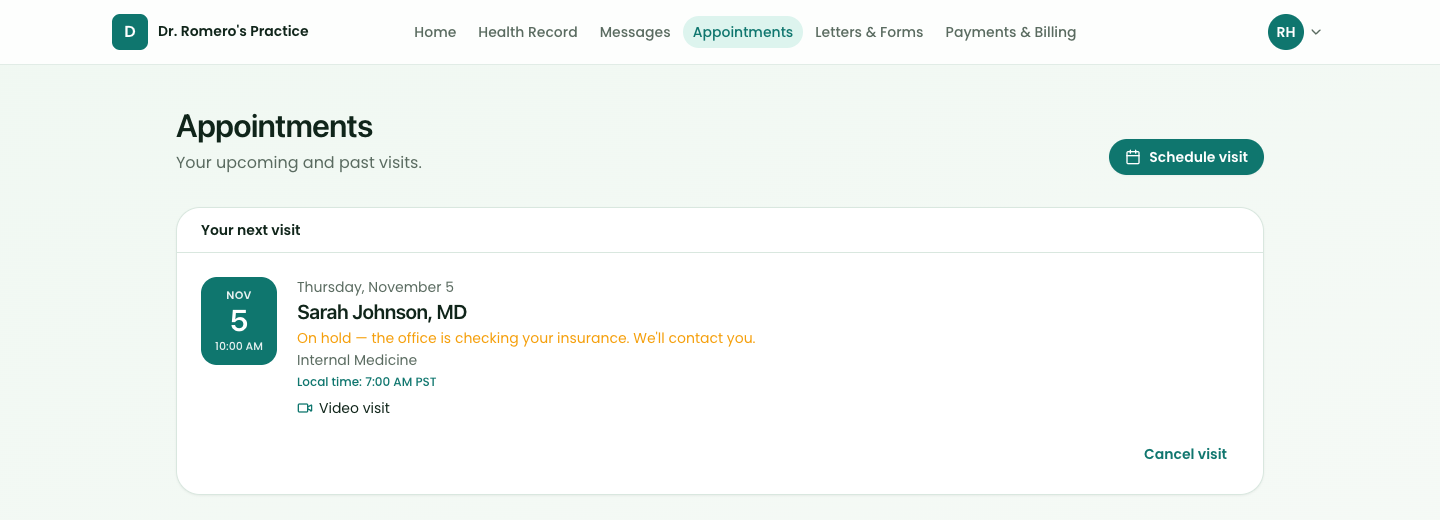
- Video visits can’t be joined while held. There’s no Join button; a patient who tries to join anyway reads “This visit isn’t confirmed yet. The office will contact you.” The video link is set up when your team confirms the visit.
- Once your team confirms it, it is an ordinary upcoming visit, and the patient gets their confirmation and reminders.
What it does not do yet
Hero applies the checks only to new patients’ online bookings, and your team settles each hold by hand. Not done yet:
- Existing patients. Bookings by patients who already have a portal account, in the portal or on your website, aren’t checked or recorded.
- The daily PCP recheck. Hero doesn’t recheck the plan each morning. Confirm the visit yourself once the switch shows.
- Referral requests. No task or fax is created for a missing referral.
- The due time. Nothing happens at the due time: the hold isn’t released and no other time is offered.
- Messages about the hold. The patient sees the hold in the portal but gets no email or text about it.
- The self-pay offer. Patients aren’t offered a self-pay visit instead of waiting.
- Website holds your staff confirm with
Confirm appointmentaren’t checked. - Deposits and booking charges are still set and collected only through
Billing → Collections & Fees; this page shows them read-only.
| You see | What to do |
|---|---|
No Online Booking Checks tab | The feature is off for your practice, or your account can’t manage practice settings. Turn it on in Admin → Additional Features, or ask a practice administrator. |
Set in Billing in the Deposit column | A deposit is set for that visit type, and your account can’t see billing amounts. |
| “An insurer can be in only one rule.” | Another rule already includes that insurer ID. Edit that rule instead, or remove the ID from it first. |
| “Someone else saved these settings while you were editing, so your changes were not saved.” | Press Review to see what is saved now next to your changes, then Discard my changes and make them again on the saved settings. |
| “None of the selected visit types are offered any more…” | Every visit type chosen for that referral answer was turned off or deleted, so the answer counts as Not sure. Choose visit types that are offered now. |
| “Seeing online bookings needs calendar access. Ask a practice administrator.” | Your account can manage practice settings but can’t see the calendar, so Recent online bookings stays hidden. A practice administrator can give you calendar access. |
Waiting for payment card in Recent online bookings | The visit type needs a payment card on file and the patient hasn’t saved one yet. Hero checks the booking when they do; if they don’t, the held time runs out as for any website hold. |
Check didn’t run | Something went wrong while checking, so the visit was booked as usual. Check the patient’s insurance the way you did before. |
Not booked: insurance check failed | Your Billing setting Don't allow booking stopped the booking because the insurance check failed (see When an insurance check fails). |
No booking check for this visit after Why? | Hero didn’t check this visit: for example an existing patient’s booking, a visit your staff booked, or one booked before you chose Record only or Apply to bookings. |
| Was due … on a held visit | The due time has passed. The visit stays held until someone confirms it with Insurance OK, confirm visit or cancels it. |
| A held patient asks why they got no reminder | Reminders and the booking confirmation start only when your team confirms the visit. |
Need help? Email support@heroemr.com.