Booking & rescheduling
One screen books a visit, moves one, or hands the choice to the patient: pick who and what on the left, when in the middle, and review and book on the right.
Booking & rescheduling
One screen books a visit, moves one, or hands the choice to the patient: pick who and what on the left, when in the middle, and review and book on the right.
Book, move, or hand off a visit from one screen
Booking and rescheduling now happen on a single screen. There is no separate Create Appointment window any more: you pick the patient’s provider and visit type on the left, the day and time in the middle, and check the details and press Book on the right. The same screen moves an existing visit, and it can send the patient a link to pick a time themselves.
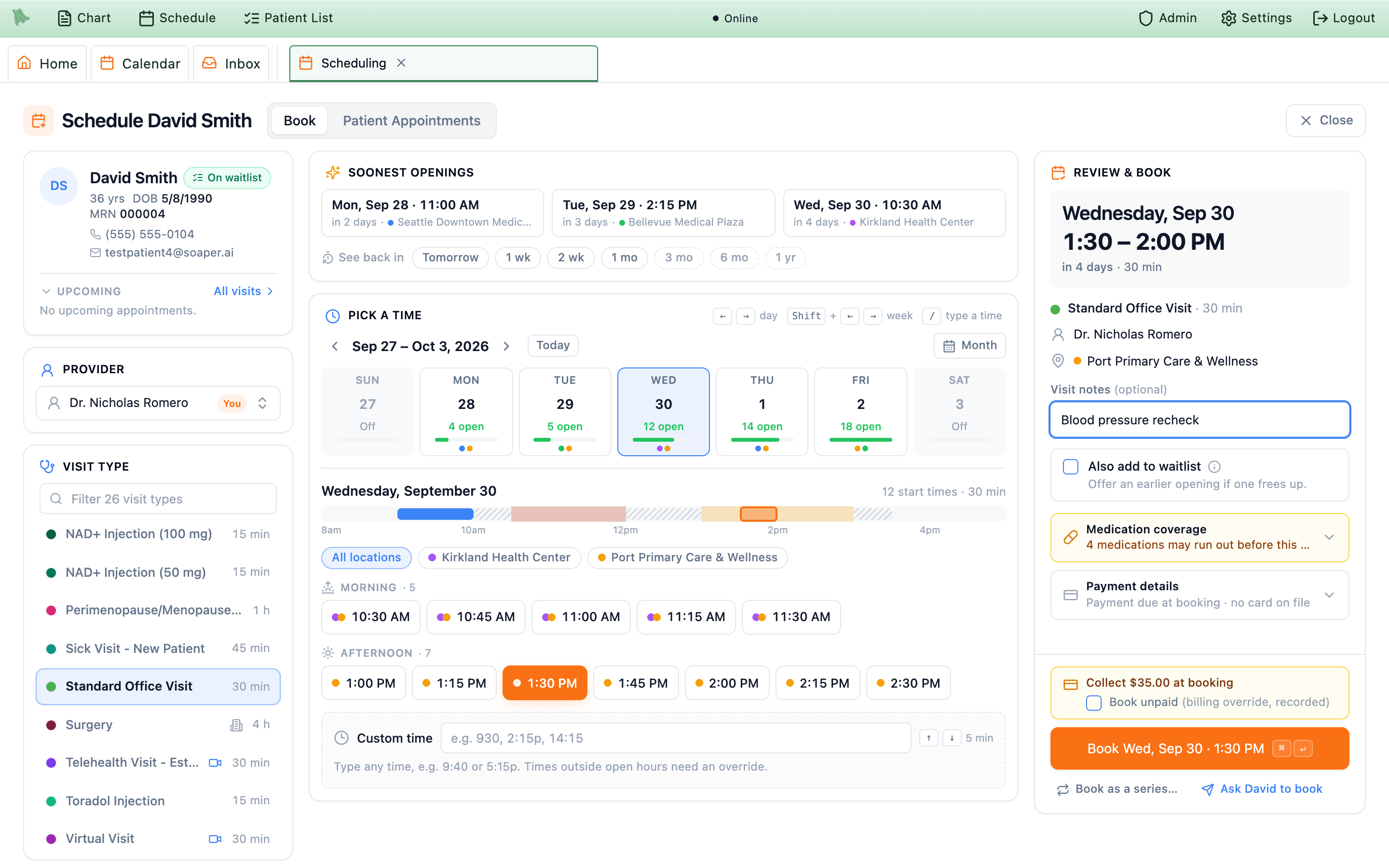
Book Wed, Sep 30 · 1:30 PM.What is new
- One screen, fewer clicks — soonest openings, follow-up chips (
1 wk,3 mo…), a week strip with open counts, and one-click start times. - Type any time —
930,2:15p,14:15— with a live warning if it runs into another visit or a break. - Payment checks before you press Book, not after.
- Rescheduling shows From → To and a
Move to …button. - Ask the patient to book — text or email a link to pick a time, sent now or on the day the date opens.
Where to open it
- Top toolbar:
Schedule, then search for the patient. The scheduler opens in its ownSchedulingtab. - Calendar: double-click an open time, or right-click it and choose
More options…, then pick the patient. Right-click a visit and chooseReschedule Appointmentto move it. - Patient Information → Appointments:
Schedule appointmentor a visit’sReschedule. - Encounter follow-up:
Schedule Nowopens on the follow-up’s due date, or the first day with openings after it (see Schedule the follow-up). - Inbox and the Schedule button above a lab or imaging result.
The title reads Schedule <patient> when booking and Reschedule <patient> when moving a visit. Two tabs sit beside it: Book (it reads Reschedule while you are moving a visit) and Patient Appointments, which lists the patient’s visits and waitlist entries with edit, reschedule, and cancel buttons. On a phone or narrow window the three areas stack into one scrolling column and the Book button rides along in a bar at the bottom.
Patient, provider, and visit type
-
Check the patient card.
It shows the patient’s age, date of birth, MRN, phone, and email, and an
On waitlistbadge if they are waiting for an opening.Upcominglists their next visits, each with a reschedule button and a cancel button;+N more upcomingshows the rest, andAll visitsopens thePatient Appointmentstab. -
Choose the provider.
The provider box opens a searchable list. If you are a provider, your own name is pinned at the top with a
Youtag, and the provider the patient has seen most is pinned next with aUsual providertag. Opened for a patient without a provider already chosen (from theSchedulebutton, the chart, or a patient card), the scheduler starts on that usual provider; while the patient’s visits load, the box reads Loading providers…. Opened from a calendar slot, it keeps that slot’s provider. When you switch providers, a note reads “Now booking with Dr. … Pick a time on their schedule.” and the openings reload for that provider. -
Click a visit type.
Visit types are one click each, with their color and length. The type this patient last booked with this provider is marked
Last bookedand floats to the top, followed by other types they have booked before (Booked before) and your practice defaults. A camera icon marks a virtual (telehealth) type and a building icon an outside-facility type. Once the list is longer than seven, aFilter visit typesbox appears; the arrow keys also move through the list.
Until you choose a visit type, the openings are sized for a default length (the middle column says “Showing 20-minute openings — choose a visit type to fit its length.”). Choosing a type re-sizes every opening to that type’s length.
Find the right day and start time
The visit type can suggest a date and control the spacing of start-time choices. A date suggestion applies when you choose the type, before you have picked your own date or time; a scheduler opened for a particular date or an existing reschedule keeps that context. Staff allowed to edit visit types configure these under Admin → Scheduling → Visit Config; see Visit types.
-
Take a soonest opening.
Soonest openingsshows the earliest start time on each of the next three days with openings (looking up to six weeks ahead), each with how far away it is (in 2 days) and its location. A small person icon means the patient already has a visit that day. One click picks it. -
Or jump to a follow-up interval.
See back inchips —Tomorrow,1 wk,2 wk,1 mo,3 mo,6 mo,1 yr— jump to the first day with openings on or after that date. A line under the chips says where it landed, for example “Dec 26 → first opening Mon, Dec 28”. A chip whose date is past the visit type’s booking limit has a dashed outline; it still lands on the first real opening, and the line adds, for example, “past the 60-day limit (needs an override)” (see Booking limits). Soonest openings always stay inside the limit. -
Or browse the week.
The week strip shows seven days with how many start times each has (
12 open), a bar for how full it is, and a colored dot for each location open that day. Other days readOff,Full, orPast. Days past the visit type’s booking limit still show their real openings, in amber with a dashed outline. Use the arrows for the previous or next week,Todayto come back, andMonthfor a month calendar. -
Pick a start time.
Start times are grouped
Morning,Afternoon, andEvening, each with the color of the location it is at. When a day has more than one location, pills above the times (All locations, then each location) narrow the list. The thin timeline above the times shows the day at a glance — open time, booked visits, breaks, and blocked time — and clicking it picks that time. -
Or type any time.
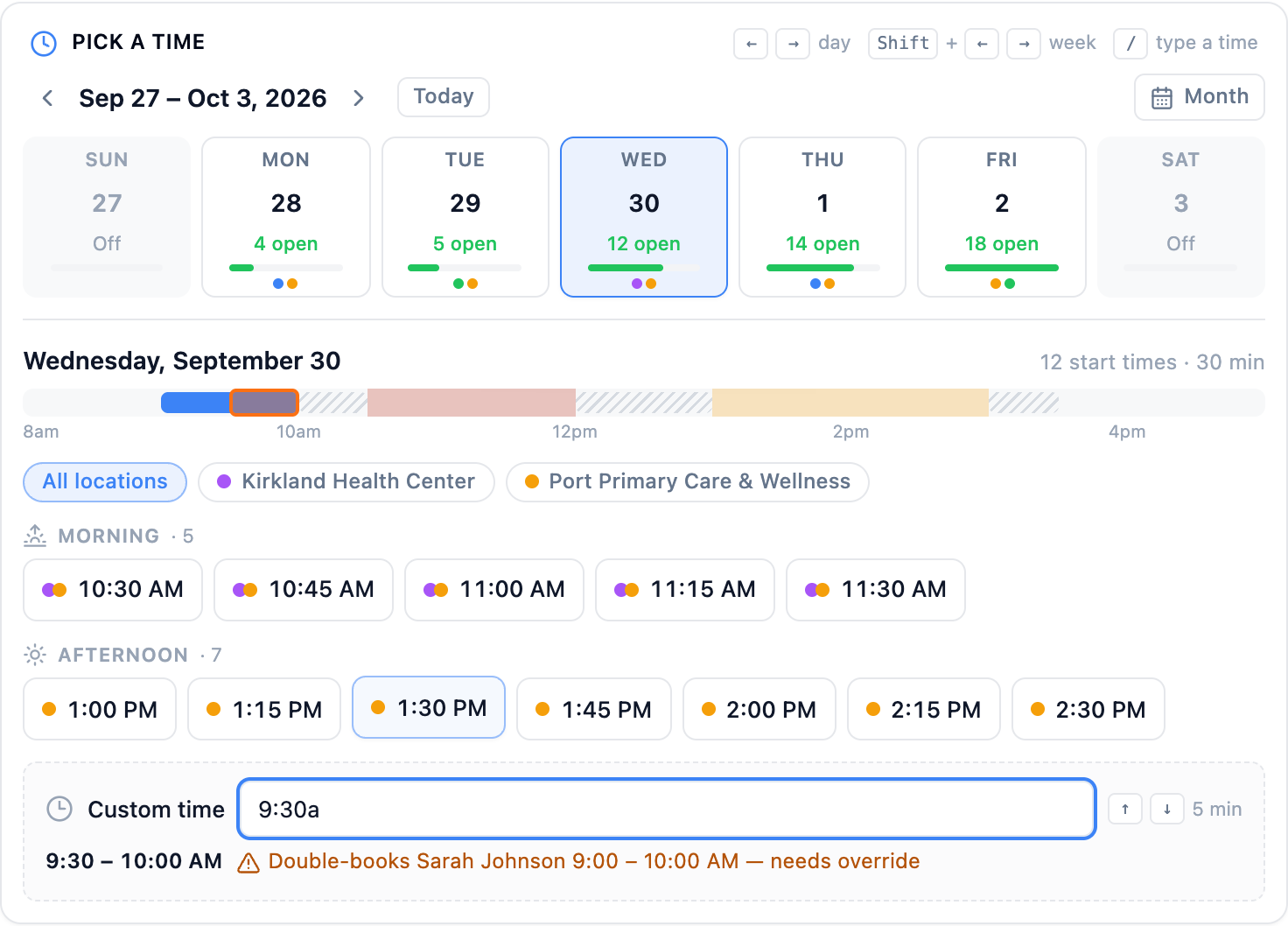
Custom timetakes930,9:30a,2p, or14:15; the up and down arrow keys nudge it by five minutes. Right under the box, Hero says whether it fits — “Open at the clinic” — or what it runs into, such as “Double-books the patient 9:00 – 10:00 AM — needs override” or “Outside open hours — needs override”. Use it for times between the listed slots and for deliberate overrides.
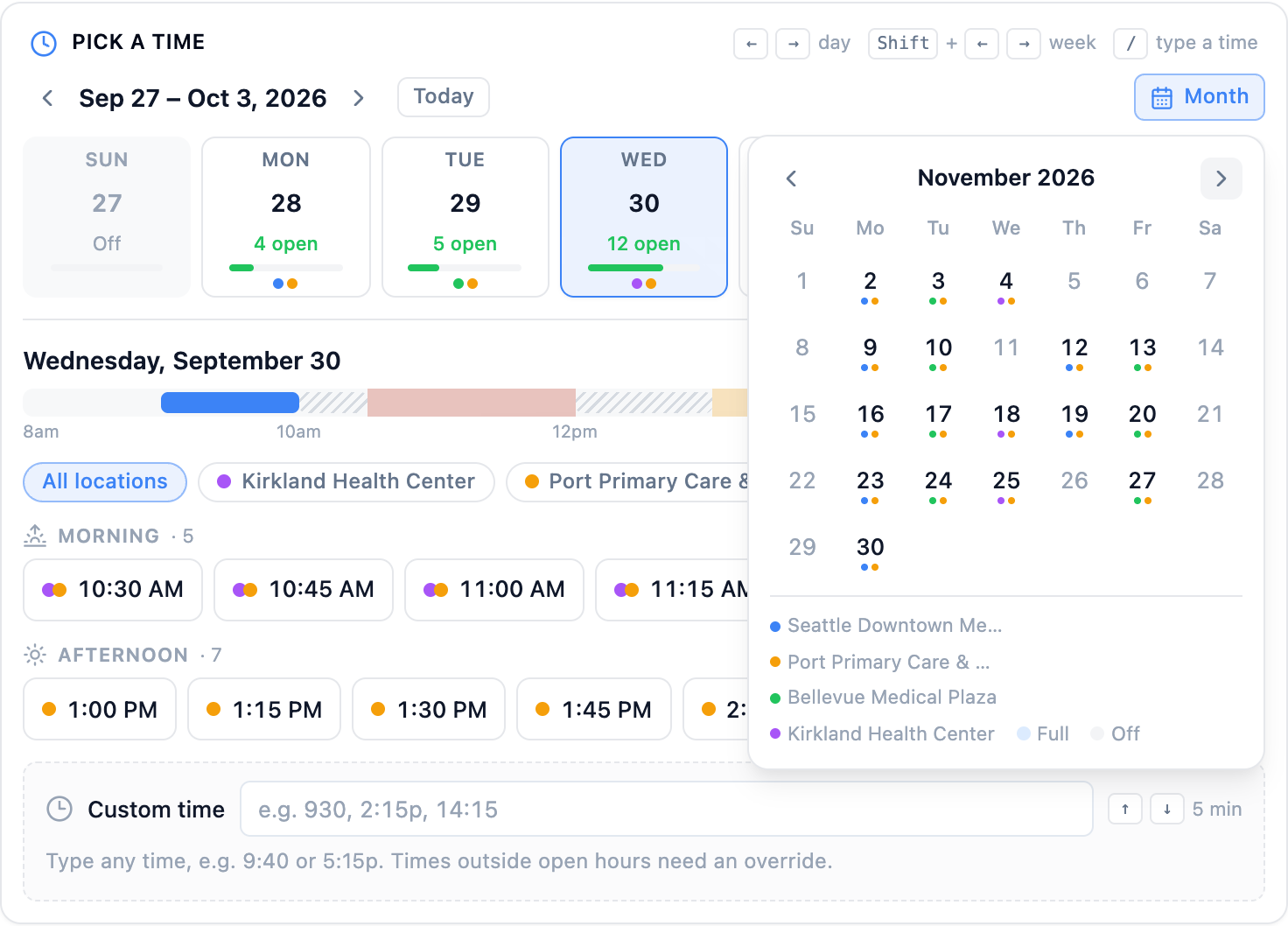
Month shows every open day with a dot for each location; click a day to jump to it.If the day you are looking at has no openings, the scheduler says why (No hours on Saturday, Fully booked for this visit length, This day is in the past) and offers a way forward: Next opening: <day · time>, Type a time, or Ask <patient> to book.
| Key | What it does |
|---|---|
| ← / → | Previous or next day |
| Shift + ← / → | Previous or next week |
| T | Back to today |
| / | Jump to the Custom time box |
| ⌘ + Enter (Mac) or Ctrl + Enter (Windows) | Book — or send, when the Ask panel is open |
Check the details and book
The right-hand column, Review & Book, shows the day and time in large type with how far away it is, then the details of the visit.
-
Confirm the details.
The visit type and length, the provider, and the location. The location reads “Set by the time you pick” until you choose a time; if that time is open at more than one location, a dropdown lets you choose. A visit type with a flexible length adds a
Length (min)box with quick choices. A telehealth type notes “Telehealth — a Zoom meeting is created automatically.” An outside-facility type asks for the facility instead of a location and can be booked at any time — type the start time. -
Add a visit note if you like.
Visit notes (optional)is the reason for the visit, for example “3-month blood pressure follow-up”. -
Offer an earlier time.
When your practice uses the waitlist,
Also add to waitlistbooks this time and also offers the patient an earlier opening if one frees up. -
Read the advisories.
Medication coverageappears when some of the patient’s medications may run out before the visit date.Payment detailsshows the price, whether a card is on file, and the portal payment link. Click either to expand it. -
Press Book.
The button tells you what is still missing —
Choose a provider,Choose a visit type,Pick a time— and once everything is set it readsBook <day · time>. ⌘/Ctrl + Enter does the same.
When the booking is saved, the scheduler closes; opened from the toolbar or the calendar, the calendar then shows the booked day. Opened from the inbox, it stays open with a Booked <day · time> confirmation and a Book another button.
When Hero asks you to confirm
- A time that needs an override — it double-books, overlaps a break or blocked time, sits outside working hours, or is past the visit type’s booking limit.
Confirm Scheduling Overridelists theOverride warningsand has an optionalReason;Confirm Overridebooks it,Go Backreturns you to the scheduler with nothing saved. - A time in the past — the review column warns first (“This time is in the past — you’ll be asked to confirm.”), then
Schedule Past Appointment?asks you toConfirm and Save.
Other ways to book from here
Book as a series…books a whole course of recurring visits, starting from the visit type and time you picked (see Book as a series). It needs a visit type and a start time first.Ask <patient> to booksends the patient a link to choose the time themselves (see Ask the patient to book).
Payment and balance checks before you book
If your practice collects payment when a visit is booked, or stops new bookings when a balance is too high (set up under Billing), the scheduler tells you before you press Book. A yellow box appears just above the button.
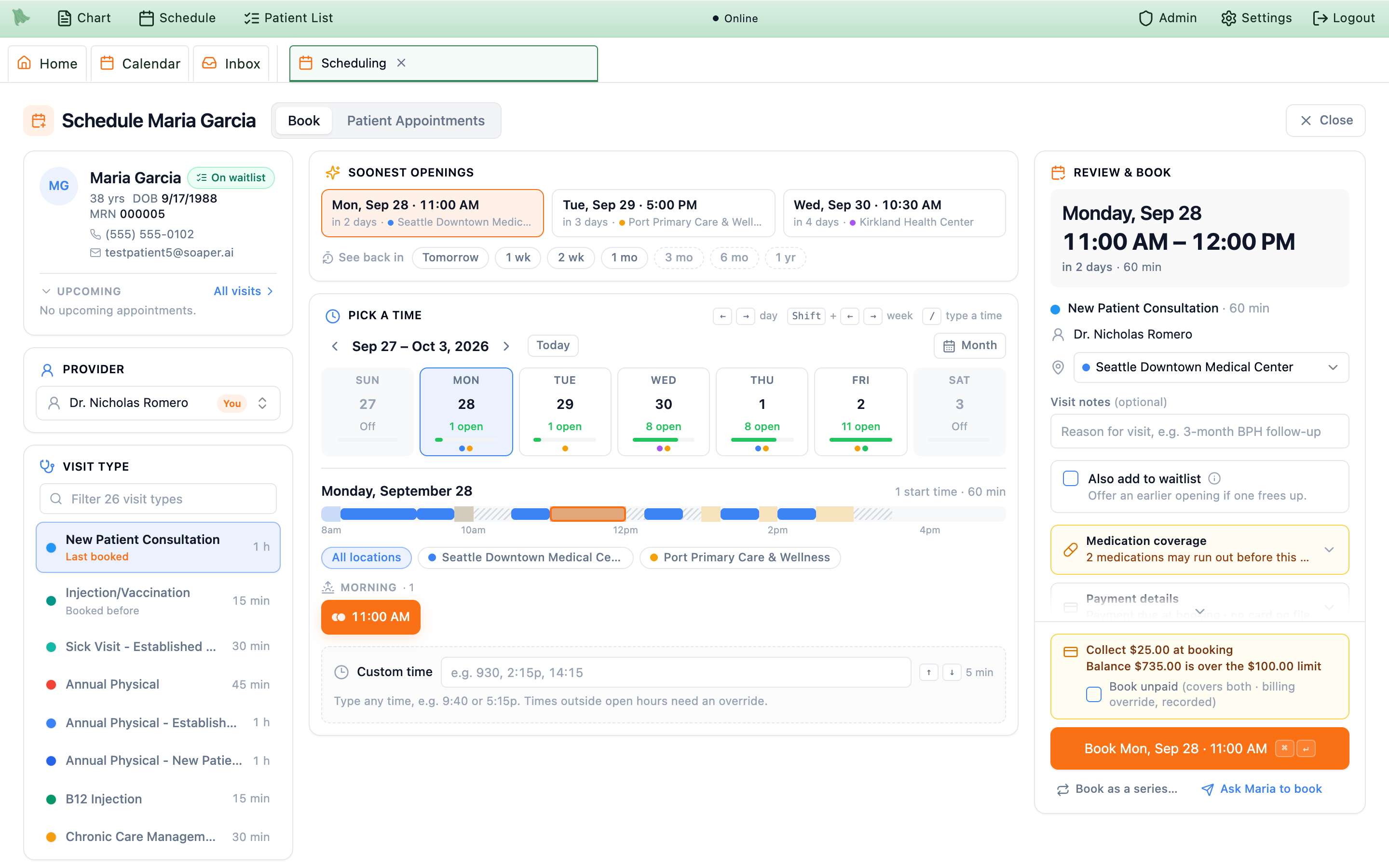
Book unpaid tick that covers them.What the box can say
Collect $25.00 at booking— this visit type asks for payment when it is booked.Balance $735.00 is over the $100.00 limit— the patient’s balance is above your practice’s booking limit.Book unpaid (billing override, recorded)— one tick that books anyway and records the override. When both notices show it reads(covers both · billing override, recorded).
How long the tick lasts
- It belongs to that patient, provider, visit type, and price.
- Changing the time, day, or location keeps it.
- Switching the visit type or provider, or a change in the amount due, clears it so you can decide again.
- After the booking it resets.
- Who sees it: staff who can see billing amounts, for new bookings. Moving an existing visit does not ask for payment again.
- Who can tick Book unpaid: staff who can also manage billing (billing charges or billing settings). Others see why they cannot book, and the button says so:
Ask a billing admin to bookwhen payment is due at booking, orCollect payment to bookwhen the balance is over the limit. - When an override cannot help: the box reads “An override can’t clear this — resolve it in billing first.” and the button
Resolve billing first. - If a booking attempt finds a new limit the box did not show, it asks “Also override the balance limit?”; press
Bookagain with the tick on to accept.
A booking made with the tick confirms “Appointment created unpaid — your billing override was recorded.”
Book without membership (override recorded), and until it is ticked the book button reads Membership required to book (disabled) — ticking it turns the button back into Book. Staff who can’t override see “Enroll the patient in a membership, or ask a billing admin to override.” and the Membership required to book button, and when staff membership exceptions are turned off in Subscriptions the box reads “Staff membership exceptions are off — enroll the patient first.” A booking made with the tick confirms “Appointment booked without a membership — your override was recorded.” Services set to Cash only in the Service Menu book without a membership (see Memberships).
How far ahead a visit can be booked
Every visit type has a Booking limit (days ahead) setting in Visit types (90 days for a new visit type unless you change it). Selecting No limit removes the maximum; the other booking rules still apply. When a limit is set, patients booking in the portal or on your website can never book past it. Staff can, with a confirmed scheduling override that is recorded like any other override.
How the scheduler shows it:
- Week and month: days past the limit show their real openings, in amber with a dashed outline. The month legend reads “Past the limit (override) — books through <date>”.
- Start times: on a day wholly past the limit the time chips are tinted amber, and a notice above them reads, for example, “Past the 60-day booking limit (through Wed, Nov 25). You can book Mon, Dec 28 — you’ll confirm an override when you book.” On the limit’s last day, where some start times are inside the limit and some past it, only the ones past it carry the word
override. - Review column: “Past the 60-day booking limit (through Wed, Nov 25) — you’ll be asked to confirm an override”.
- Suggestions:
Soonest openingsstay inside the limit. ASee back inchip past the limit (dashed outline) still lands on the first real opening.
-
Pick the time and press
Book(orMove towhen rescheduling) as usual. -
Confirm the override.
Confirm Scheduling Overrideopens with “Past this visit type’s 60-day booking limit (last bookable date Nov 25).” underOverride warnings, along with any other conflict. Add an optionalReasonand pressConfirm Overrideto book it, orGo Back.
The same notice offers other ways forward as links: Ask <patient> to book on or after <date> (a text or email; see When it goes out), Add <patient> to the waitlist (for that visit type from that date, at any location), and Book the latest date within the limit.
Who can override
Anyone who can confirm scheduling overrides: practice administrators, providers, and staff allowed to book appointments. For an account that cannot confirm overrides, a day past the limit shows no start times and says why (“… can’t be booked yet — going past the limit needs a scheduling override, which your account can’t confirm.”), with the same three ways forward.
Other places the limit shows up
- Patient bookings in the portal, the website booking widget, and booking links: always held to the limit.
- Treatment series: sessions past the limit stay planned and are booked later from the series card.
- Reschedules and Shuffle mode moves past the limit go through the same override confirmation.
Move a visit to a new time
Start a reschedule from the reschedule button on a visit in the patient card’s Upcoming list, from the Patient Appointments tab, by right-clicking a visit on the calendar and choosing Reschedule Appointment, or from Reschedule on the patient’s Appointments tab. The screen switches to Reschedule <patient> and the visit being moved is marked Rescheduling now in the Upcoming list.
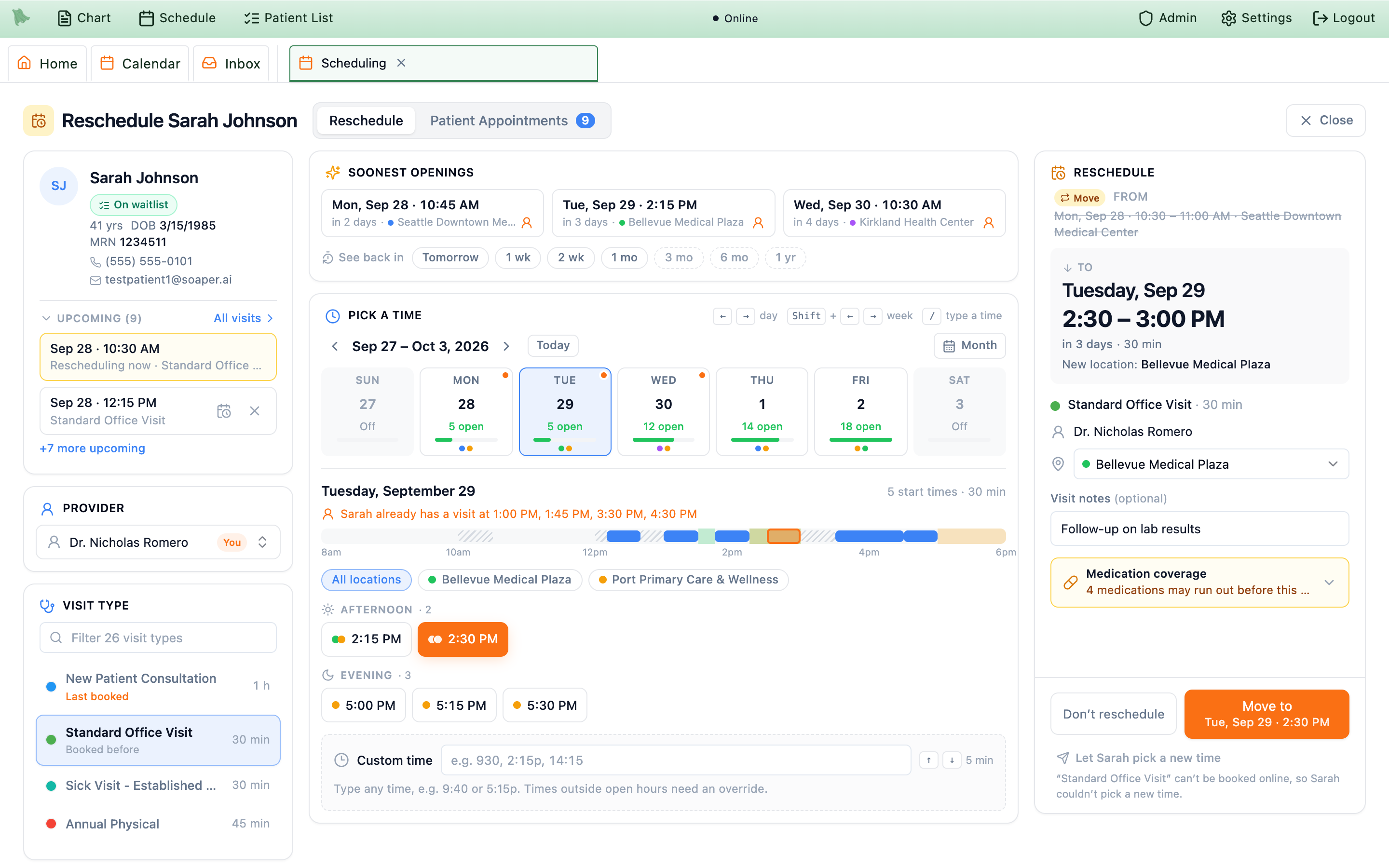
From; the new one is the big To. The location change is called out.-
Pick the new time the same way you would book one. The visit keeps its visit type and length. Its own current time counts as open, so you can move it a little earlier or later; that time’s chip has a dashed outline and the word
current. -
Check From → To.
A
Movebadge and the old time, struck through, sit above the new time. A change of location (New location: …) or of visit type or length (New visit type: … (was …)) is spelled out. Picking the visit’s current time again says “That’s the current time — pick a different one to move it.” -
Press
Move to <day · time>.Don’t rescheduleleaves the visit where it was and takes you back to booking (or closes the scheduler, if you opened it only to move this visit).
Let the patient pick a new time
When you cannot choose a time for the patient, Let <patient> pick a new time (under the Move to button) hands it to them. The panel says exactly what will happen: it cancels the visit now and sends a link to book a new one of the same visit type with the same provider, good for 30 days. The old time opens for other patients straight away.
- Choose how to send the link —
Text,Email, andPortal— and read the message preview, then pressCancel visit & send link.Back — I’ll pick the new timereturns to the scheduler. - The option is greyed out, with the reason underneath, when the patient could not re-book online: online self-scheduling is off for the practice, the provider is not offered online, the visit type cannot be booked online, the patient has no portal access (or their portal account cannot schedule), or automated messages are off for them. It is also greyed out if you changed the visit type or length for this move — the patient would re-book the visit as it was.
- This is the same reschedule request that Shuffle mode sends for a whole day.
Edit a visit without moving it
To change a booked visit’s type, length, location, facility, or notes, open the Patient Appointments tab and click the pencil (Edit appointment) on the visit. The Edit appointment window shows the date and time at the top — read-only here — with a Change time button beside it.
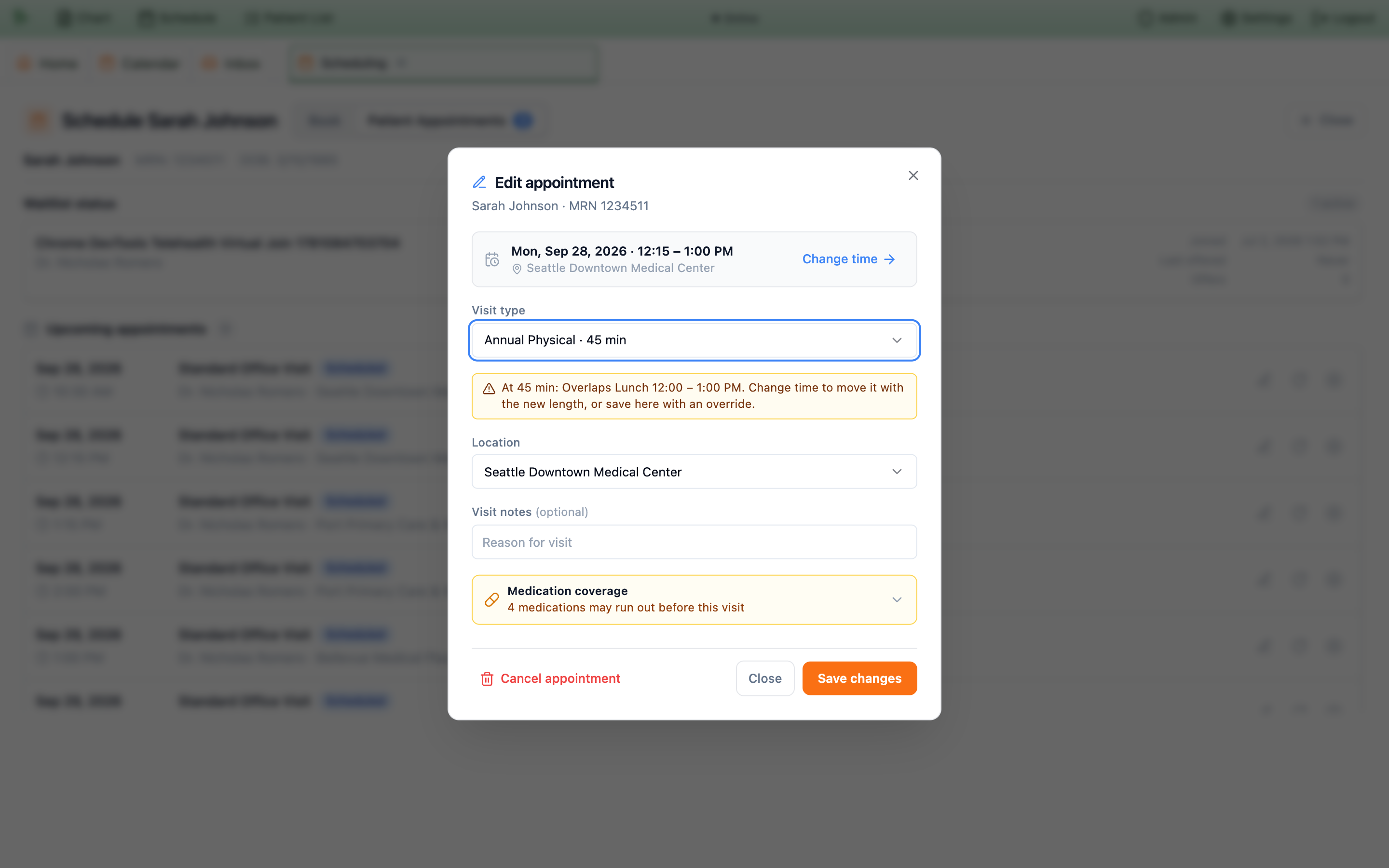
-
Make your changes —
Visit type,Length (min)for a flexible-length type,Location(when the provider has more than one),Facilityfor an outside-facility visit, andVisit notes. -
Watch for a length warning.
If a longer type or length would run into the next visit or a break, a warning names what it overlaps and suggests
Change time; you can still save here with an override. -
Save, or change the time.
Save changeskeeps the same time.Change timeopens the scheduler to move the visit: a new visit type, length, or location goes along with the move and is saved with the new time (the window notes “Changing the time takes your changes along — they’re saved with the new time.”). If you only changed the notes or facility, the button readsSave & change timeand saves them first.
Cancel appointment in the same window opens the usual cancellation dialog.
Send the patient a link to pick their own time
When the patient would rather choose, or you are not sure which time suits them, Ask <patient> to book texts and/or emails them a link to your patient portal with the provider and visit type already chosen. Nothing is booked until they pick a time. Open it from any of these:
Ask <patient> to bookunder theBookbutton;Ask <patient> to bookon a day with no openings;Ask <patient> to book on or after <date>in the notice on a day past the booking limit.
It uses the provider and visit type chosen on the left. Click a See back in chip first (for example 3 mo) and the request carries that date as On or after <date>; the × on the chip removes it. While the panel is open, visit types patients can book online are marked Online in the list.
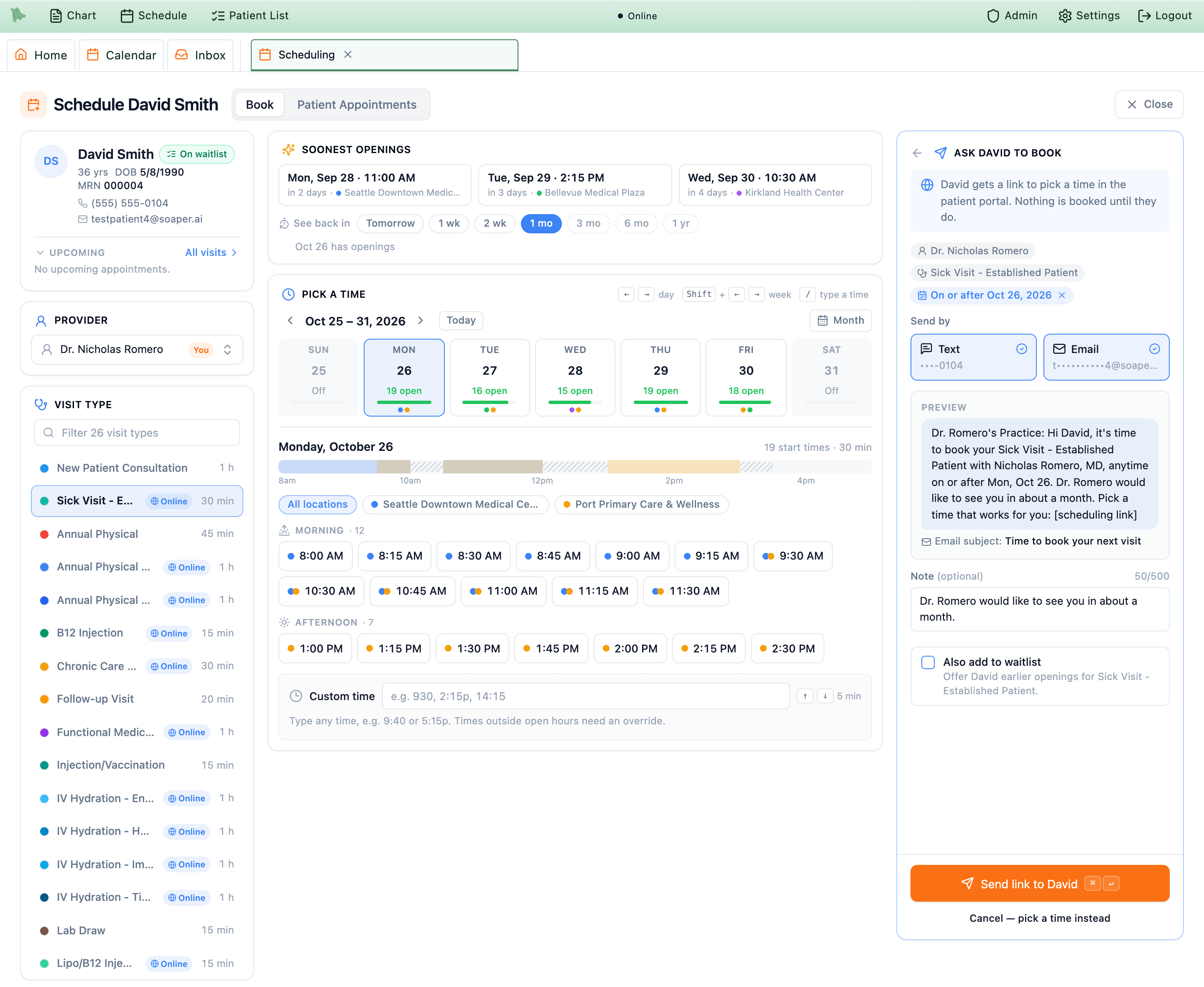
1 mo, the request carries On or after Oct 26, 2026. The preview is the exact text the patient will get.- Read the top line. It says what the message will do: “<patient> gets a link to pick a time in the patient portal.”; “… gets a portal sign-up invite, then picks a time.” for a patient without a portal account; or “The message asks <patient> to call the office to book.” with the reason.
-
Choose how to send it.
TextandEmailshow where each goes (partly hidden, like•••-0104). Every channel that can reach the patient starts selected; click one to leave it out. A channel that cannot be used says why — No mobile number on the chart, No email address on the chart, The patient replied STOP to texts from the practice, The patient opted out of text messages, or The patient turned off scheduling emails. For a minor, messages go to the parent or guardian and the panel says so. - Check when it goes out. A blue note appears when the message will not go out right away — for example “We’ll text and email David on Tue, Oct 27, when Dec 26 opens for online booking. If David books sooner, the message is skipped.” — or when the same request is already waiting (“An invite for this visit is already scheduled for <date> by text.”). A “please call us” message with a date always sends now: “Sends now — <patient> is asked to call, and the office can book <date> over the phone.”
-
Read the preview and add a note.
Previewshows the text message exactly as it will read and the email subject.Note (optional), up to 500 characters, is added to the text right after the greeting and to the email as “A note from our office: …”. -
Send.
The button says what will happen:
Send link to <patient>,Ask <patient> to call,Send to <patient> on <date>, orAlready scheduled(nothing new to send). TickAlso add to waitlistto offer them earlier openings as well.Cancel — pick a time insteadgoes back to booking.
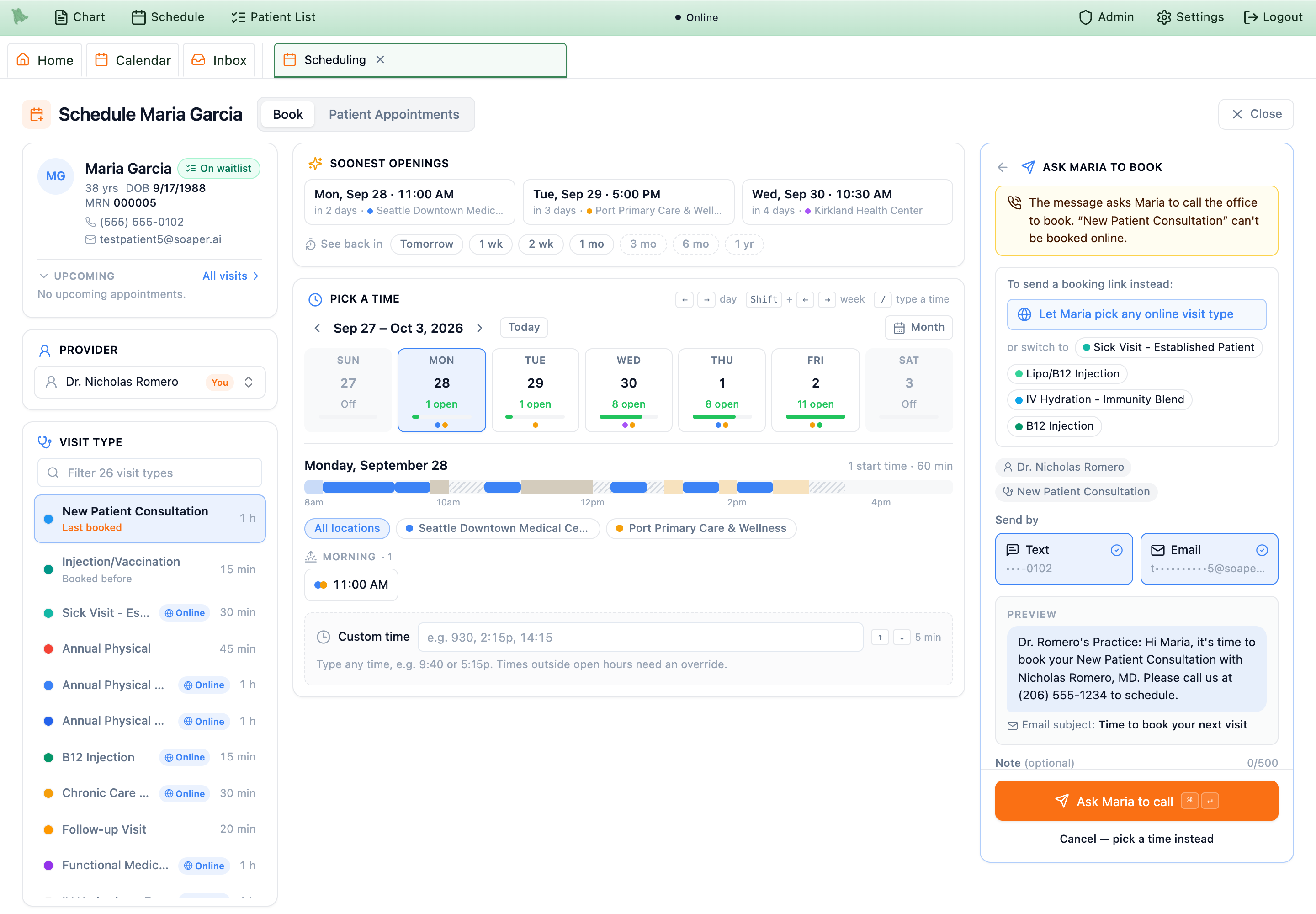
When the visit type can’t be booked online
The message asks the patient to call the office instead, using your practice phone number. To send a booking link after all, the panel offers:
Let <patient> pick any online visit type— the link lets them choose among your online visit types;or switch to— one click changes the visit type to one patients can book online.
When nothing can reach the patient
The panel reads “Nothing can be sent to <patient>” with the reason, suggests updating the phone or email on the chart (or the parent/guardian’s, for a minor), and turns the button into Add <patient> to the waitlist so the office can offer a time.
Ask <patient> to book and Let <patient> pick a new time. Providers and practice administrators have it.What the patient receives, and when it goes out
The text is short and names only your practice, the visit type, the provider, the date, and your note. For example:
- The email comes in your practice’s branded template with the subject “Time to book your next visit” and a
Pick a timebutton (Set up my portalfor a patient who still needs a portal account). - The link opens the portal’s booking page — after the patient signs in — with the provider and visit type already chosen. If you gave a date, the calendar opens on it with the note “Your care team asked you to book on or after <date>.” The patient books like any other portal booking.
- A patient without a portal account gets a portal sign-up link in the same message, then the booking link.
- A “please call us” message goes instead when online booking cannot work: online self-scheduling is off for your practice, the provider is not offered online, the visit type cannot be booked online, or the patient has no portal account and no email on file for an invite.
When it goes out
| Situation | What happens |
|---|---|
| No date, or a date the patient can already book online | Goes out right away (your usual quiet-hours rules still apply). |
| A date past the visit type’s online booking window | Held, then sent at 9:00 AM practice time on the first day that date can be booked online. The window is the visit type’s Booking limit (days ahead) (or No limit, which adds no booking-window delay). Example: a 60-day visit type and a date of Dec 26 → sent on Oct 27. |
| A “please call us” message with a date | Sends now, whatever the date — the panel says “Sends now — <patient> is asked to call, and the office can book <date> over the phone.” For a date past the booking limit, staff book it with an override when the patient calls. |
| The patient books before a held message goes out | Skipped automatically — if they already have an upcoming visit with that provider (and that visit type, when one was named) on or after the date, or booked one after you sent the request. |
| The same request is already waiting | Not sent twice. The panel shows the waiting request before you press anything and the button reads Already scheduled. A quick double-click never sends two messages either. |
After you send, the panel reads Request sent — or Request scheduled with “It goes out on <date>; if <patient> books sooner, it’s skipped.” — and a confirmation sums it up, for example “Asked David to book Sick Visit - Established Patient with Nicholas Romero, MD by text and email, with a link to book online. It will go out on Tue, Oct 27, when Sat, Dec 26 can be booked online.”
Seeing requests that are waiting
- In the scheduler: open
Ask <patient> to bookfor the same provider, visit type, and date; a waiting request is shown with its send date. - In the chart: Patient Information → Outbound Comms lists a held request under
Upcoming scheduledas Scheduling Invite with its send time, and sent ones underSent history. (Outbound Comms is for administrators and staff allowed to view it.)
Common questions
| You see | What it means and what to do |
|---|---|
| Where is Create Appointment? | It has been replaced by this screen. Everything it did — overrides, past-time bookings, billing overrides, the waitlist, series, outside facilities, flexible lengths — works here. |
| Amber days or start times, or “Past the … booking limit” | That date is past the visit type’s Booking limit (days ahead). You can still book it: press Book and confirm the override (1.45). If your account cannot confirm overrides, the day shows no start times — ask the patient to book on or after the date, add them to the waitlist, or book the latest date inside the limit. An administrator can change the limit in Visit types. |
… needs override under a typed time | The time double-books, overlaps a break or blocked time, or is outside working hours. You can still book it; Hero asks you to confirm the override. |
The button reads Ask a billing admin to book or Collect payment to book | Payment is due at booking, or the balance is over the limit, and your account cannot override billing. Take a payment, or ask someone who manages billing (1.44). |
“Couldn’t load availability for this week.” with a Retry link | Some of that week’s availability did not load, so its days read —. Click Retry. A time you type is still checked again when you book. |
Let <patient> pick a new time is greyed out | The reason is printed underneath — usually the visit type cannot be booked online or the patient has no portal access. Pick the new time yourself. |
No Ask <patient> to book link | It is hidden while rescheduling (use Let <patient> pick a new time) and for staff without permission to manage scheduling. |
| The Ask panel says the patient will be asked to call | The visit type is not bookable online (or online booking is off). Use Let <patient> pick any online visit type or switch to an online type to send a link. |
Need help? Email support@heroemr.com.