The patient chart — Chart Sharing
Records out of the practice without a fax machine: choose exactly what to disclose, send a password-protected link that expires, and keep an automatic accounting of every open, view and download.
The patient chart — Chart Sharing
Records out of the practice without a fax machine: choose exactly what to disclose, send a password-protected link that expires, and keep an automatic accounting of every open, view and download.
Send part of a chart to someone outside the practice
A cardiologist wants the last two visit notes. A lawyer has a signed authorization for a date range. A patient asks you to send their records to a new doctor. Chart Sharing does that without a fax machine and without attaching records to an email: you pick exactly what to send, the practice prepares each item as its own PDF, and the recipient opens them on a web page protected by an access code and an expiry date.
It lives in Patient Information under Care workflow, as the Chart Sharing tab. The tab opens on the shares already sent for this patient, newest first, with New share at the top right.
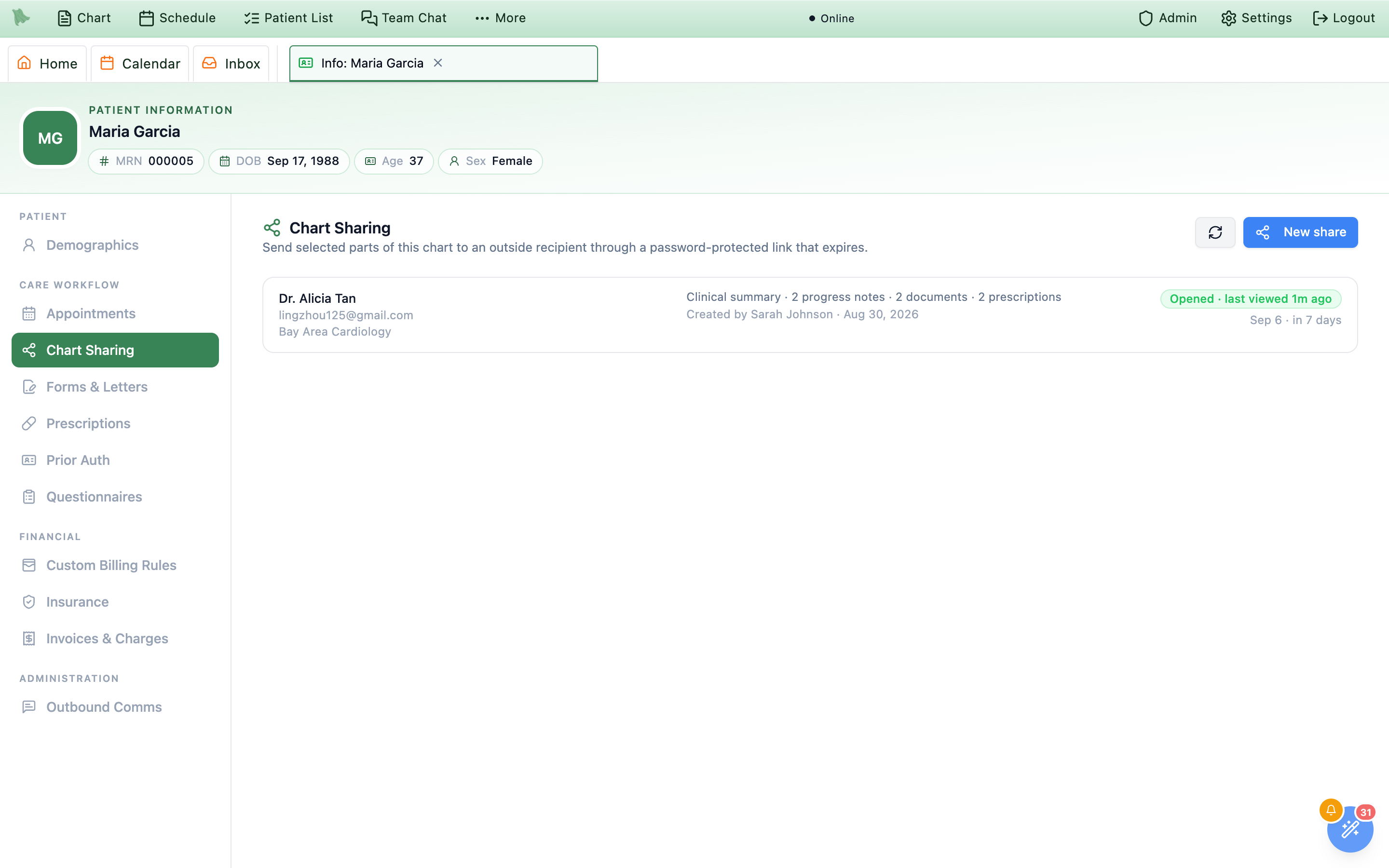
Use Chart Sharing when
- The records are going to a person or organization outside the practice — a specialist, an attorney, an insurer, a school, another clinic.
- You want to send a defined set of items, not the whole chart.
- You need a record of who opened what, and when.
- The material is bigger than a fax cover sheet and a few pages.
Use something else when
- The recipient is the patient. Their own records already live in the patient portal, permanently and for free.
- The receiving office only accepts fax, or wants a one-page form. Send a fax instead.
- You are making a referral. Order the referral — it carries its own letter and packet.
- You are sending a letter or a completed form you are about to write. That is Forms & Letters.
Three steps: what, to whom, and confirm
New share opens a three-step dialog. You can move back and forth freely; nothing is created and nothing is sent until the last button on the third step.
Step 1 — What to share
-
Entire chartis the top card, and it tells you the size. It reads likeEverything you are able to share — 145 files across 9 categories. Consider whether the recipient needs all of it.It is there for the rare request that genuinely covers everything; the sentence under it is the hint that most requests do not. - Otherwise work down the nine categories. Clinical summary, Progress notes, Documents & scans, Lab results, Imaging, Questionnaires, Prescriptions, Billing, Forms & letters. Each row carries a one-line description and a count. Ticking the row takes the whole category.
-
Open a category to pick individual items.
The chevron on the right expands the list. Each item shows what it is and a detail line — a note reads
Progress NotewithApr 20, 2026 · Dr. Romero · Final · v5. Categories with more than a handful of items get a search box, andSelect all / noneworks within the open category. A part-selected category shows a dash instead of a tick. -
Unsigned notes cannot be shared, and say so.
A draft is listed greyed out with
Not signedon its detail line and its checkbox disabled. A share is a legal disclosure of the record, and a draft is not the record yet — sign the visit first and it becomes selectable. -
Some rows can never be shared.
A psychotherapy note is greyed out with “Psychotherapy notes can't be shared.”, and an earlier version of an amended note with “Older version. The latest version is listed.” These rows are never ticked, not even under
Entire chartorSelect all, and they are not counted in the share. -
The footer counts as you go.
17 files will be preparedupdates on every tick, andNextstays disabled until you have chosen something.
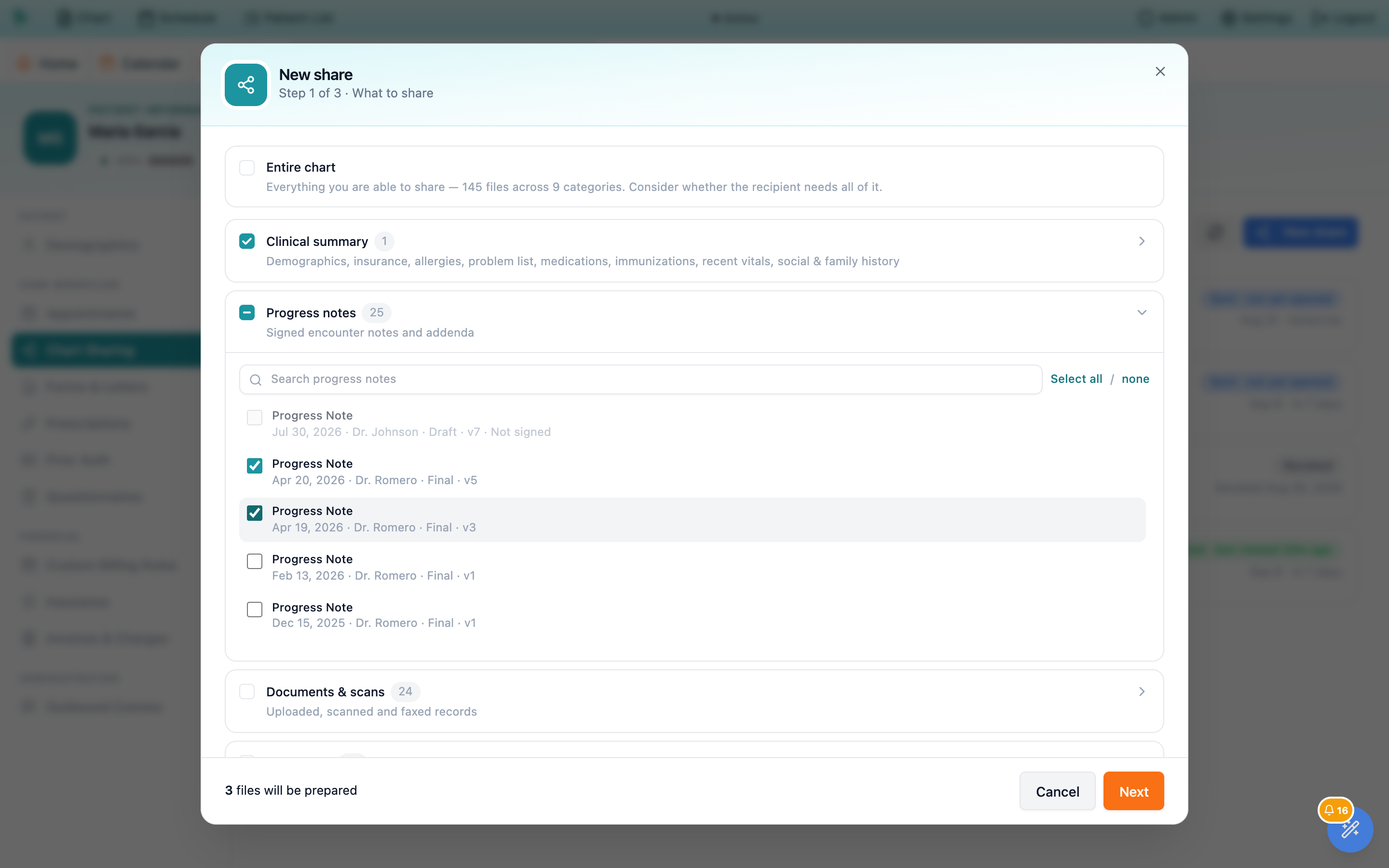
Not signed, so it cannot go out.Step 2 — Recipient & access
-
Name and email are the address.
Organizationis optional and appears on the share row later, which makes a list of shares much easier to read. -
RelationshipandPurpose of disclosureare what the record will say you did. Relationship is Treating provider, Patient, Legal representative, Attorney, Insurer or Other. Purpose is Treatment, Payment, Health care operations, Patient request, Legal or Other, and the hint under it —Recorded in the patient’s disclosure log.— is literal. ChoosingOtherasks you to write the reason. - The message is optional and travels in the link email. Plain text, up to a thousand characters. It is the place for “these are the two visits we discussed on the phone”. Never put the access code in it.
-
Set how long the link lives.
One, three, seven, fourteen, thirty, sixty or ninety days — seven by default. The line underneath resolves it to a date,
The link stops working on Sep 6, 2026., in your practice’s time zone. Shorter is safer; you can always extend it later. -
Decide how the access code reaches them.
Email the access code to the recipient in a separate message (recommended)sends it as its own email, so the link and the code never sit in one message.Show it to me once — I’ll give it to the recipient by phone or in personputs it on screen when the share is created and never again.
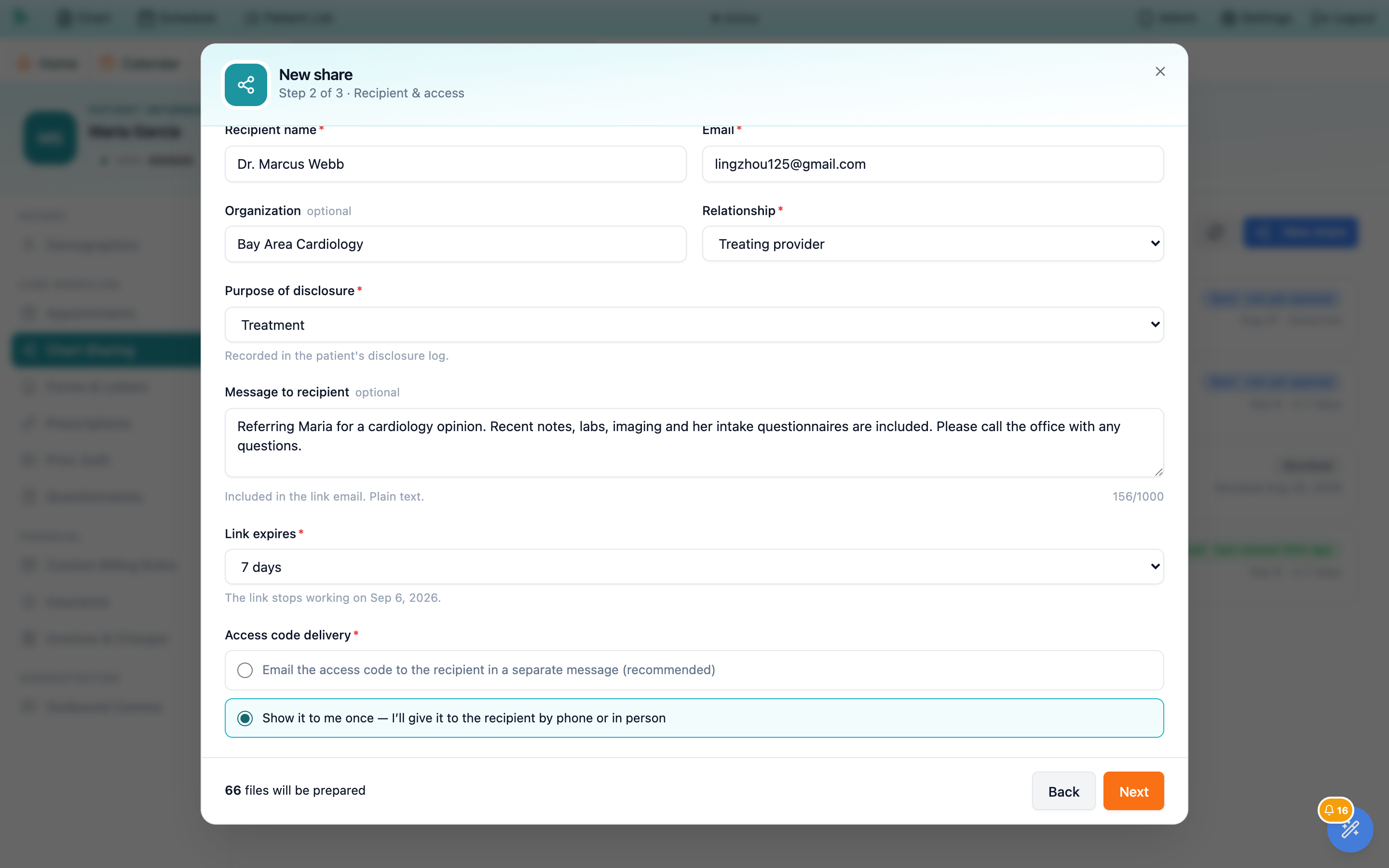
Step 3 — Review & confirm
-
Three cards restate the whole share.
Contentslists each category with its count and the total files;Recipientrepeats the name, email, relationship, organization and purpose;Accessshows the expiry date and how the code is being delivered. Read the recipient’s email address here, out loud if it helps. It is the one mistake that cannot be taken back quietly. -
The confirmation is a real attestation.
The yellow box states that the disclosure is permitted — for treatment, payment or health care operations, at the patient’s request, or under a signed authorization on file — and that you have limited it to the minimum necessary.
Create secure sharestays disabled until you tickI confirm this disclosure is permitted and limited to the minimum necessary.
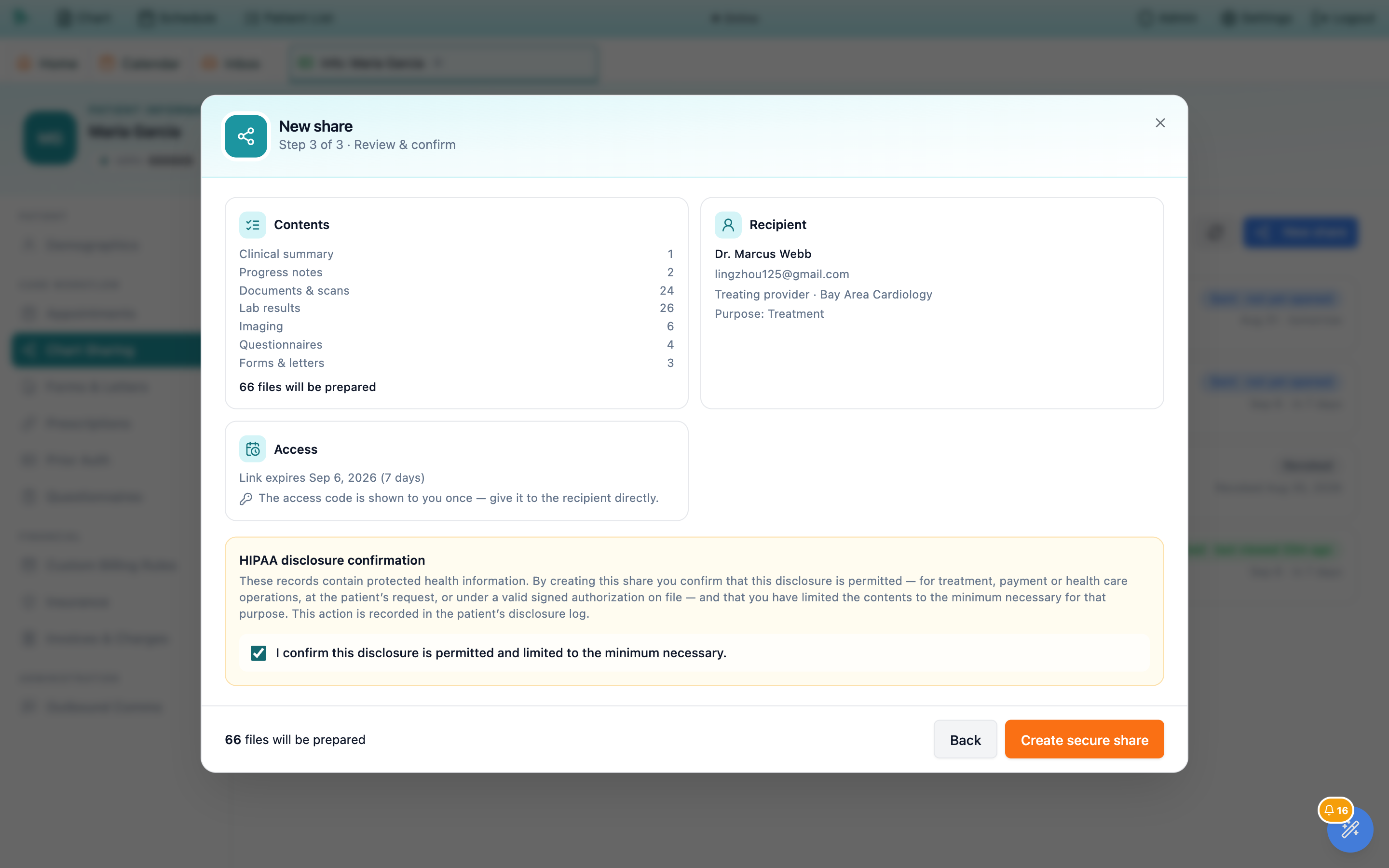
What happens in the minutes after you press create
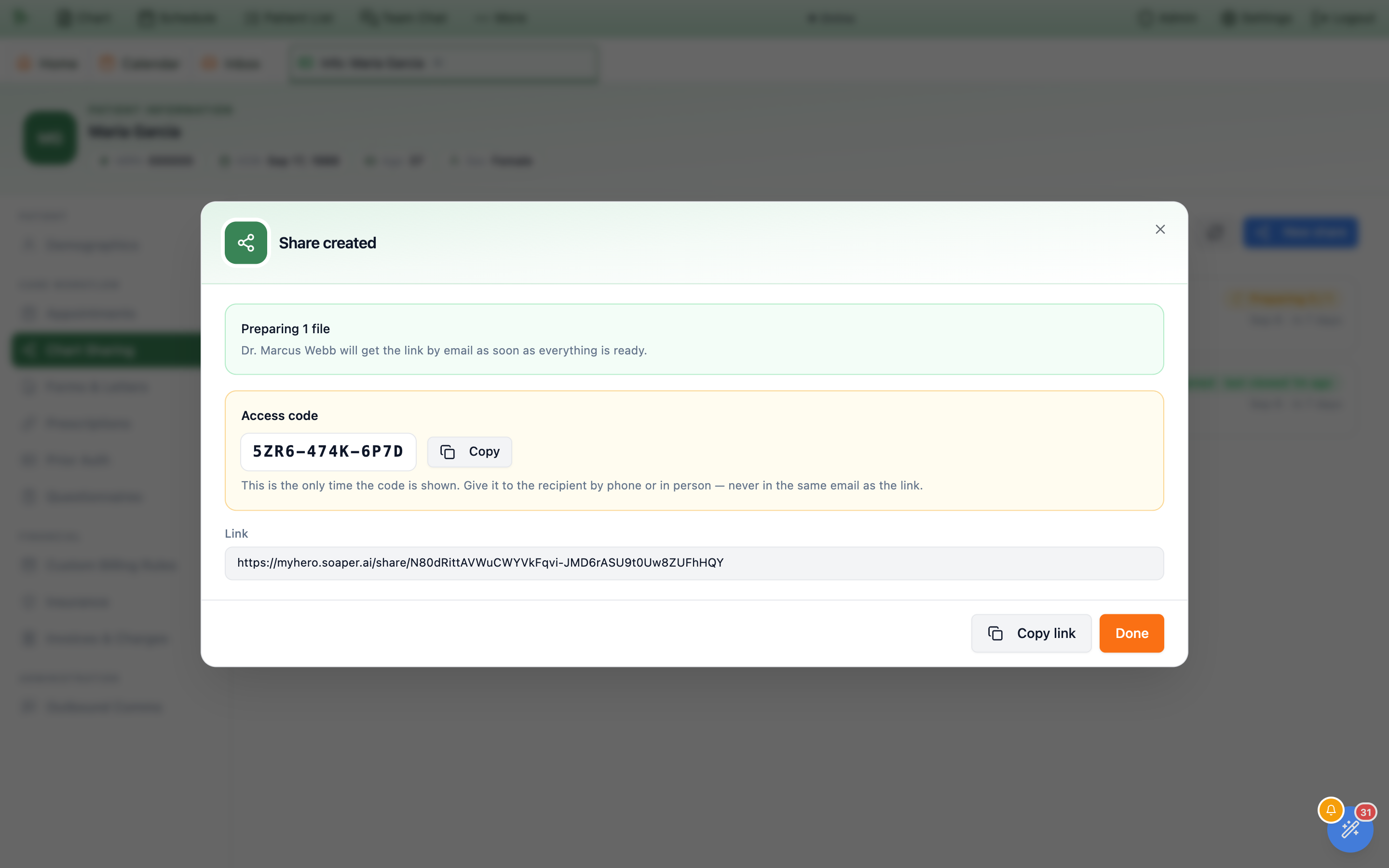
Creating the share does not send anything. It queues the work, and the dialog swaps to a Share created pane that tells you so: Preparing 66 files, and Dr. Marcus Webb will get the link by email as soon as everything is ready.
- Each selected item becomes its own PDF. A note renders as the note; a scanned document keeps its pages; a lab order, an imaging study, a prescription record or a visit’s billing becomes a clean printed page. Every page is stamped with the patient’s name and date of birth, the practice, and a confidentiality footer naming the recipient and the date.
-
If you chose to be shown the code, this is the only time you will see it.
It sits in a large block with a
Copybutton and the warningThis is the only time the code is shown. Give it to the recipient by phone or in person — never in the same email as the link.Nobody can look it up afterwards, including you and including support. If you lose it, reset it (§ 7.22). -
Copy linkworks immediately. Useful when you are on the phone with the receiving office and want to read them the address while the files build. -
The recipient gets one email, or two.
The link email — subject
… has shared medical records with you— goes out when the last file is finished, and carries your message and the expiry date. With emailed delivery a second, separate email carries only the access code. Neither email ever contains both.
Statuses, and everything you can still do after sending
The tab list is the status board. While files are still building the row polls and updates on its own; the rest of the time the chip tells you where the share stands.
| Chip | What it means | What to do |
|---|---|---|
Preparing 3 / 17 | Files are still being built. Nothing has been emailed. | Wait. The row updates itself. |
Sent · not yet opened | The emails went out; nobody has opened the link. | If it has been a while, resend the link email or call. |
Opened · last viewed 2h ago | The recipient unlocked it and has been reading. | Nothing. The activity log has the detail. |
Failed | Nothing could be prepared. | Open the share and use Retry failed files. |
Expired | The expiry date has passed; the link no longer opens. | Extend it, or create a new share. |
Revoked | Someone shut it off deliberately. | Nothing — this is permanent. |
Clicking a row opens the share detail, which is three stacked sections.
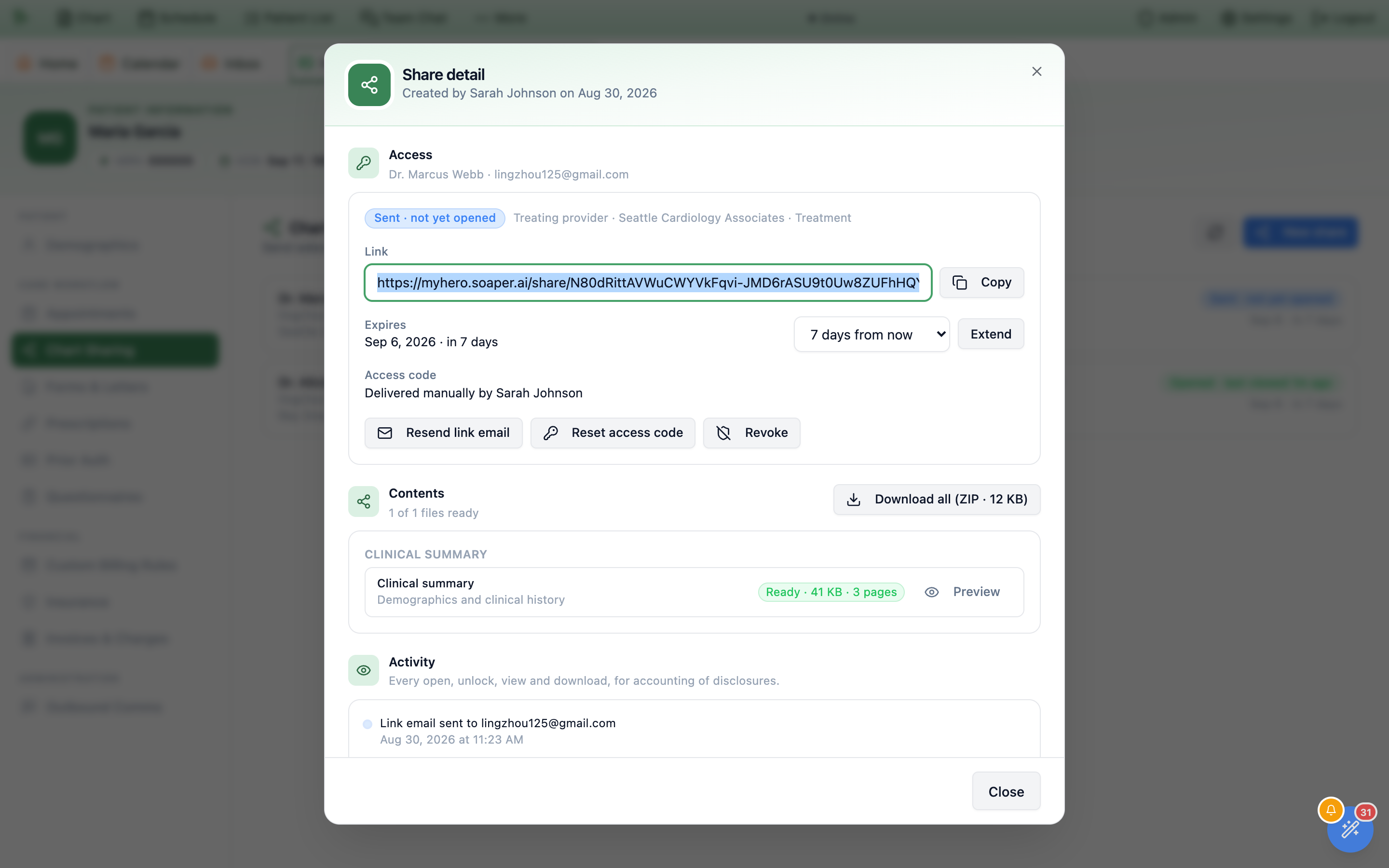
Access
Copynext to the link gives you the address again at any time.Extendpushes the expiry out by 7, 14, 30 or 90 days from now — ninety days is the ceiling, always measured from today rather than added to the old date.Resend link emailsends the link again to the same address. It does not resend the code, because the code is never stored anywhere it could be read back.Reset access codeissues a new one and lets you choose delivery again. The previous code stops working immediately, and so does any session the recipient already had open.Revokekills the link on the spot. It asks first, because it cannot be undone: the recipient sees the “no longer available” page from that second, and the prepared files are deleted seven days later. The share and its log stay in the chart for ever.
Contents
- Each file shows its state.
Ready · 34 KB · 1 page, or a red line explaining exactly why one failed. Previewopens the finished PDF as the recipient will see it, stamps and all. Use it to check you sent what you meant to send.Retry failed filesqueues just the failed ones again, once the underlying problem is fixed.Download all (ZIP)gives you the same bundle the recipient can download, for your own records.
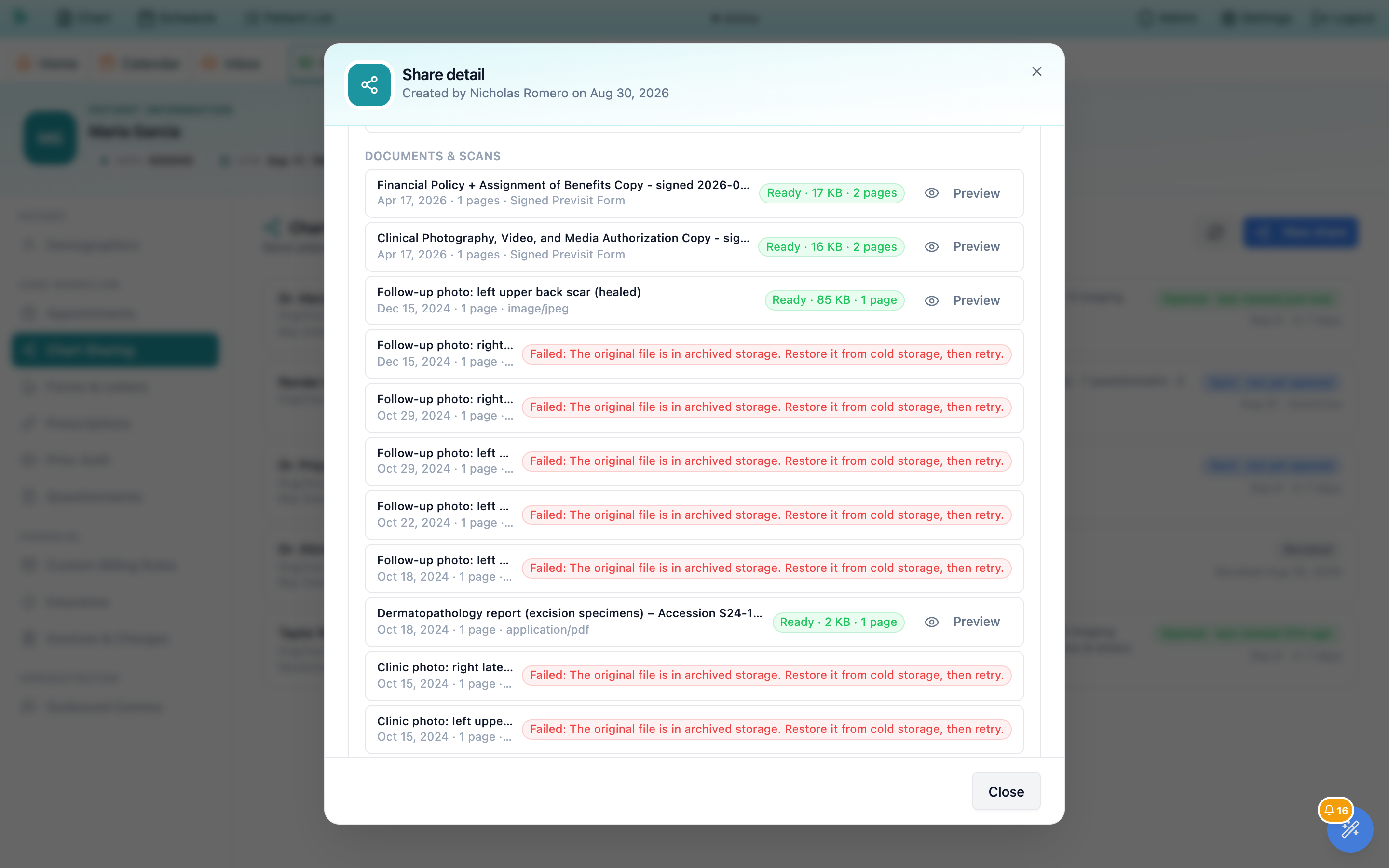
Not available. Fix them and retry, and they appear without you having to send a second link.The accounting of disclosures, written for you
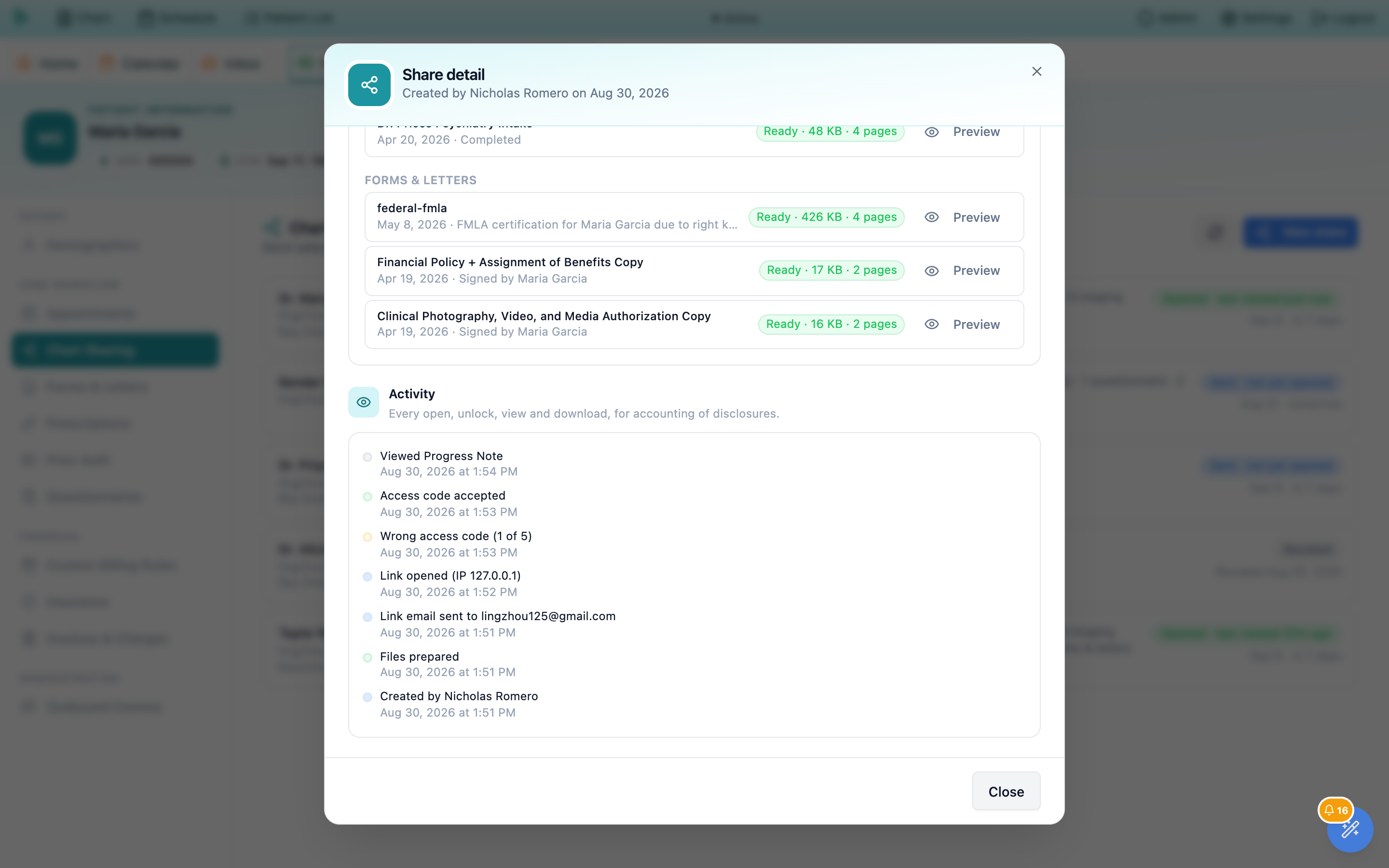
HIPAA gives a patient the right to ask who their records went to. The Activity section at the foot of the share detail is that answer, kept automatically: Every open, unlock, view and download, for accounting of disclosures.
-
It starts at creation and never stops.
Created byyou, then the files finishing, then each email going out, then everything the recipient does —Link openedwith the IP address it came from,Wrong access code (1 of 5),Access code accepted,Viewed Progress Note,Downloaded all files. - Your own later actions are in it too. Extending the expiry, resetting the code, retrying files and revoking the share are each logged with the name of the person who did it.
- Every line is stamped in your practice’s time zone, so the log reads the same for everyone in the office regardless of where they are sitting.
- The log outlives the files. Revoking a share or letting it expire removes the prepared PDFs a week later. The share, its contents list and this log stay in the patient’s chart permanently.
Two emails, a code, and a page of files
Knowing the recipient’s side is most of what you need to answer their phone call. They never sign in, never create an account, and never install anything.
-
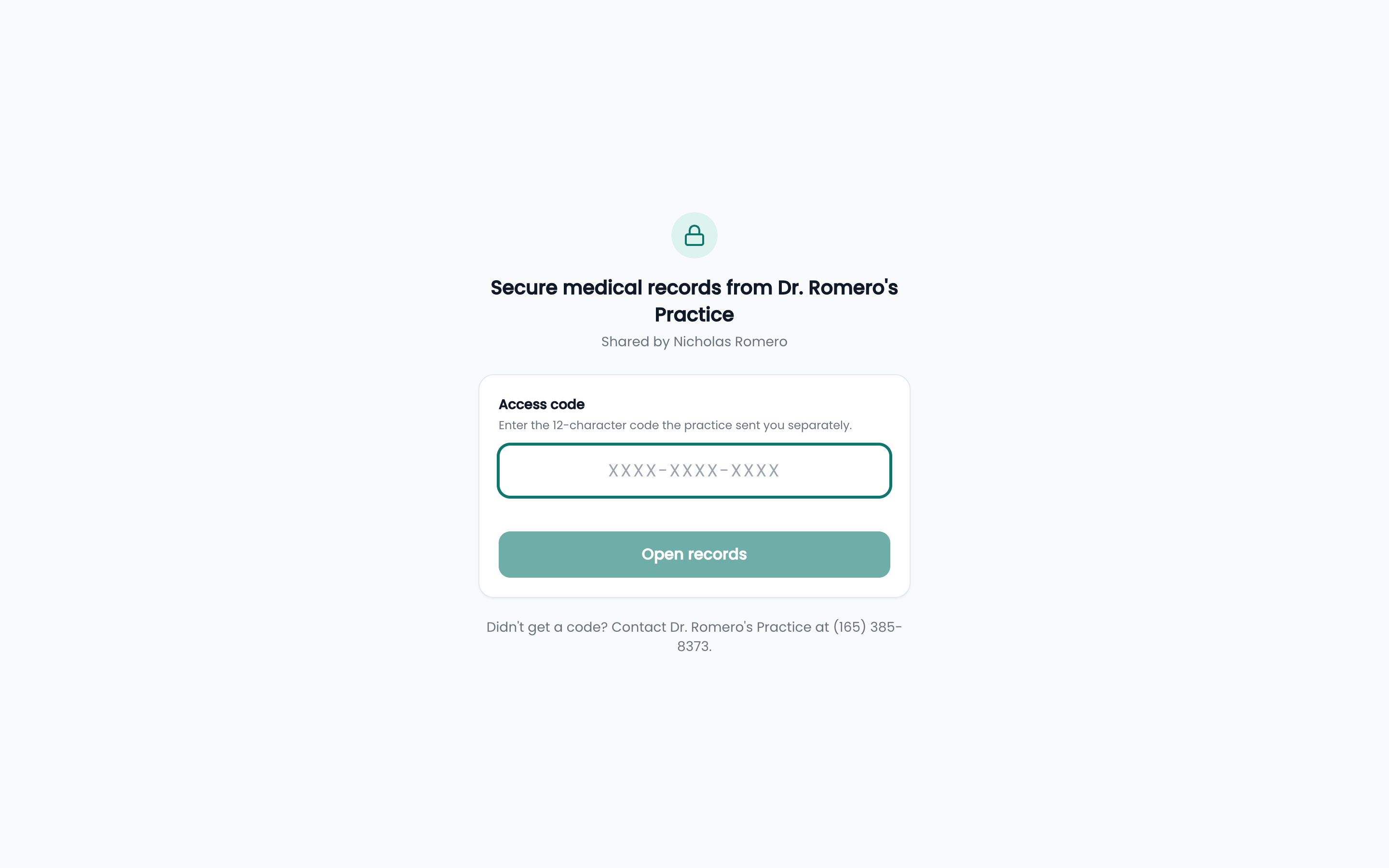
The link opens a locked page.
Your practice’s name and logo,
Secure medical records from …, who shared them, one field, andOpen records. The hint readsEnter the 12-character code the practice sent you separately.and the foot of the page carries your phone number underDidn’t get a code? -
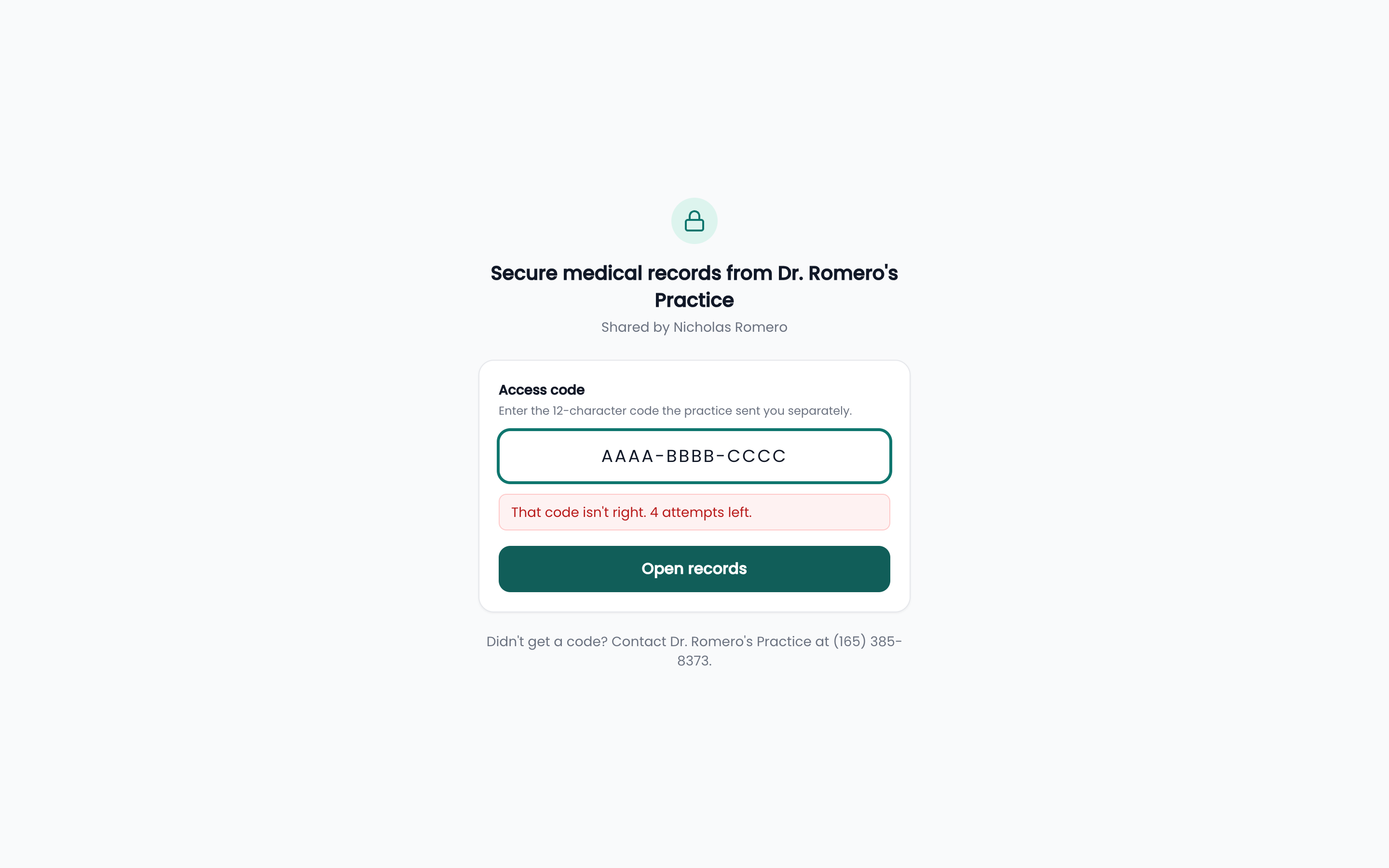
The code is forgiving about format, strict about tries.
It formats itself as they type and case does not matter. A wrong one says
That code isn’t right. 4 attempts left.Five wrong tries locks the page for fifteen minutes; the lockout clears itself, and aReset access codefrom your side clears it at once. -
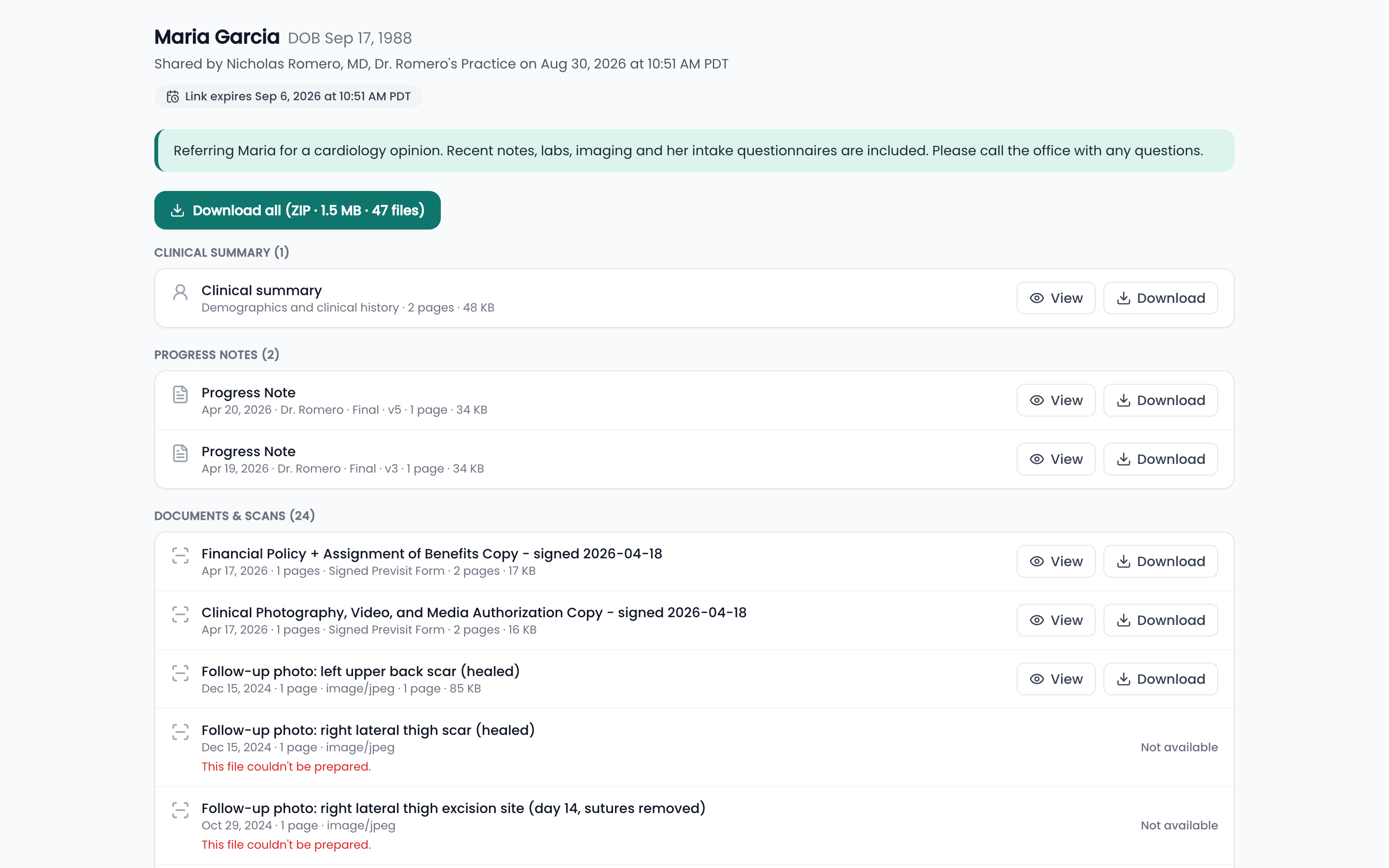
Unlocked, they get a list, not a download dump.
The patient’s name and date of birth, who shared it and when, a chip with the expiry date, your message, and the files grouped under the same category headings you picked them from. Each row has
ViewandDownload, andDownload all (ZIP)sits above the list with its size and file count. -
Viewopens the file beside the list. On a wide screen the PDF fills a pane on the right and they can keep clicking down the list; on a phone or tablet it opens full screen or in a new tab. - The page tells them the rules. A confidentiality notice at the foot states that the records are for the named recipient and the stated purpose, that re-disclosure is prohibited, and what to do if they received it in error — with your phone number beside it.
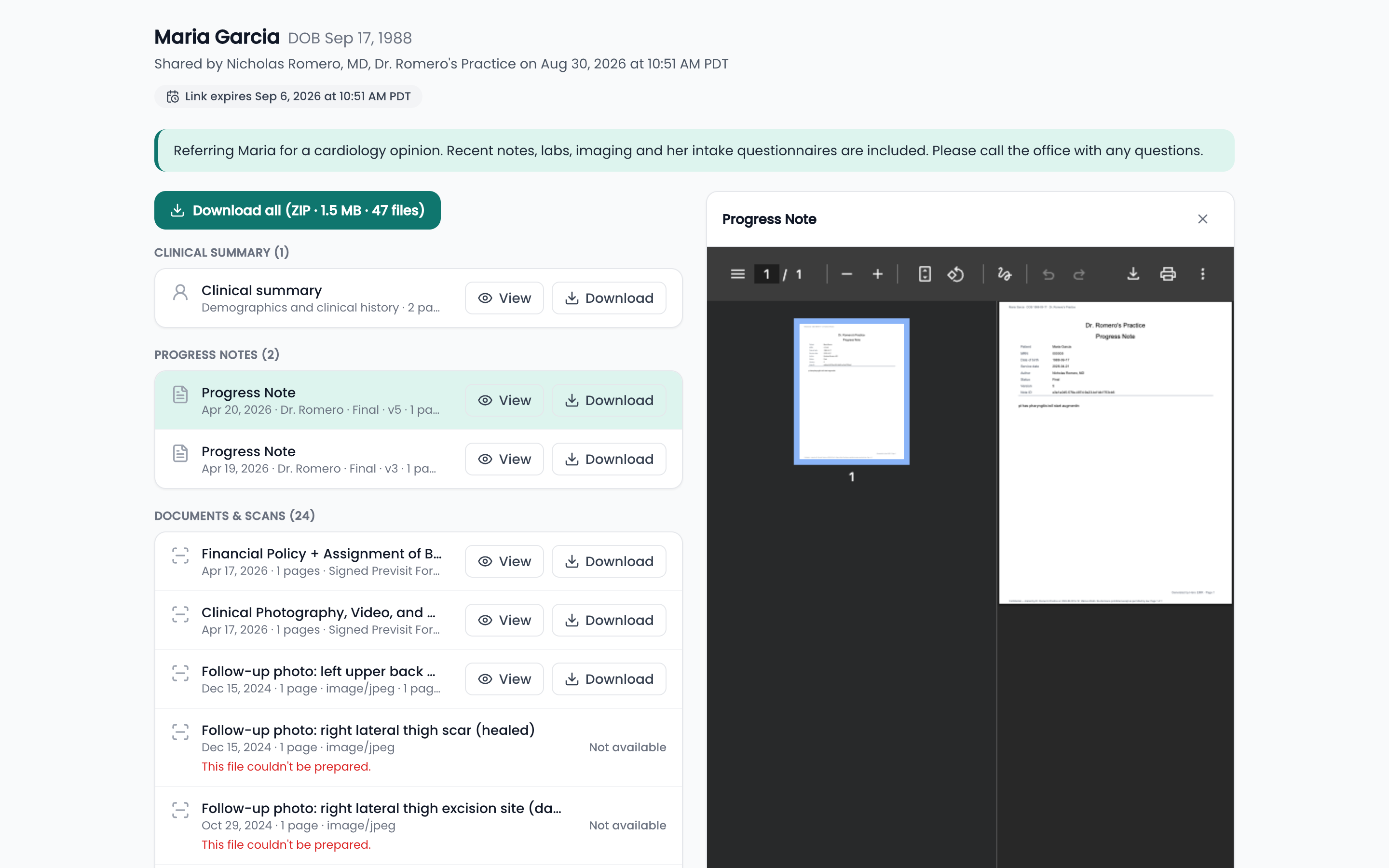
View keeps the list in reach, so the recipient can read straight down a visit.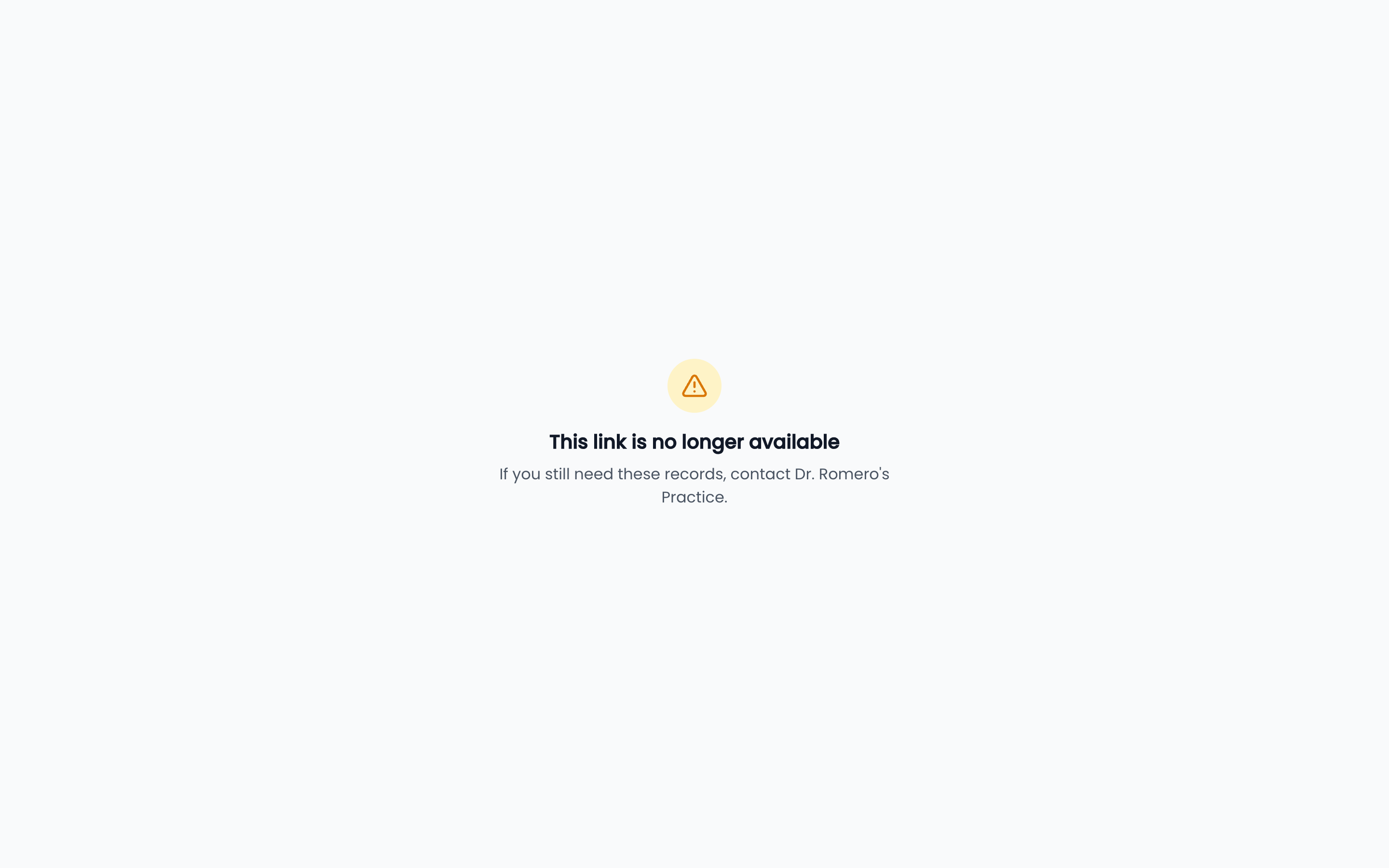
Need help? Email support@heroemr.com.