Encounter completion — forms & letters
Work excuses, school notes, FMLA and state paid-leave certifications, or any uploaded PDF — written by you or filled by AI from the chart, reviewed, signed, delivered to the patient portal, and printable.
Encounter completion — forms & letters
Work excuses, school notes, FMLA and state paid-leave certifications, or any uploaded PDF — written by you or filled by AI from the chart, reviewed, signed, delivered to the patient portal, and printable.
Letters and filled forms, without leaving the visit
A work excuse, a school note, an FMLA certification, a disability form — paperwork that used to mean opening a word processor, hunting for the right PDF, and retyping the chart now lives inside the encounter itself. The Forms & Letters section sits at the bottom of the completion checklist, directly under Medications, and gives you two ways to produce a patient document:
✍️ Write a letter
Compose it yourself in the same rich-text editor as the note — dot phrases, formatting, and fill-in blanks included — starting from a blank page or a ready-made starter that already carries the patient’s name, date of birth, and visit date.
🤖 Fill a form
Pick a letter template and the AI writes the whole letter from this visit’s chart, or pick a real-world PDF form — the federal FMLA certification, state paid-leave forms, disability and travel-clearance paperwork, or an upload — and Hero fills its fields. You review everything before anything is sent.
Both paths end the same way: you sign, and the finished PDF goes to the patient portal, where the patient finds it under Letters & Forms. A printer icon on every sent document prints the exact same filed copy for the patient who wants paper — what prints is always what the portal shows.
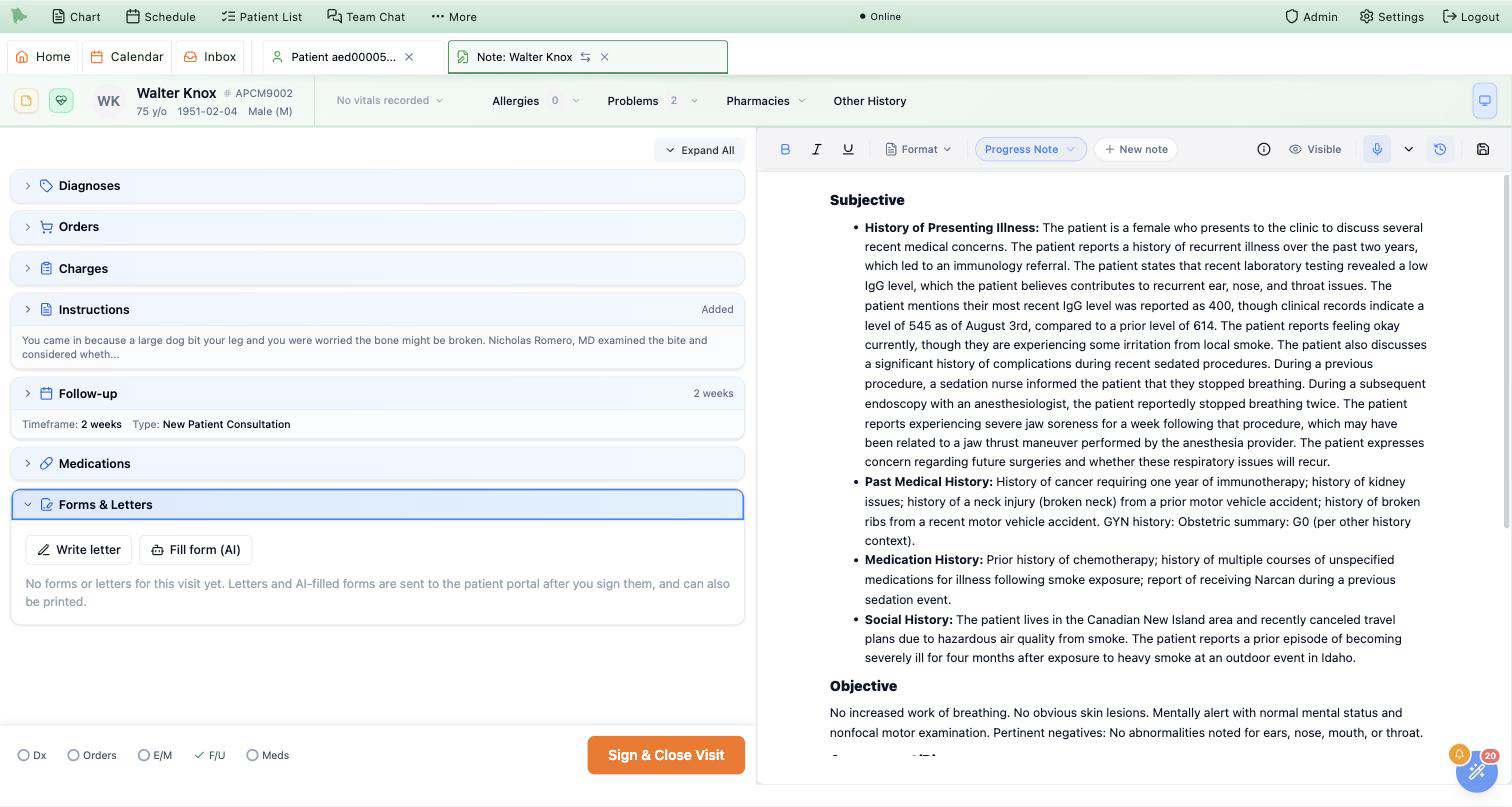
Nothing here is visible to the patient until you sign it. Drafts, generating forms, and documents waiting for your review exist only on your side; the moment one is signed or approved it appears in the portal and the patient is notified.
Fax a letter in the visit’s Communications section (11.9). They appear here only if you share them with the patient.The note editor, repurposed for letters
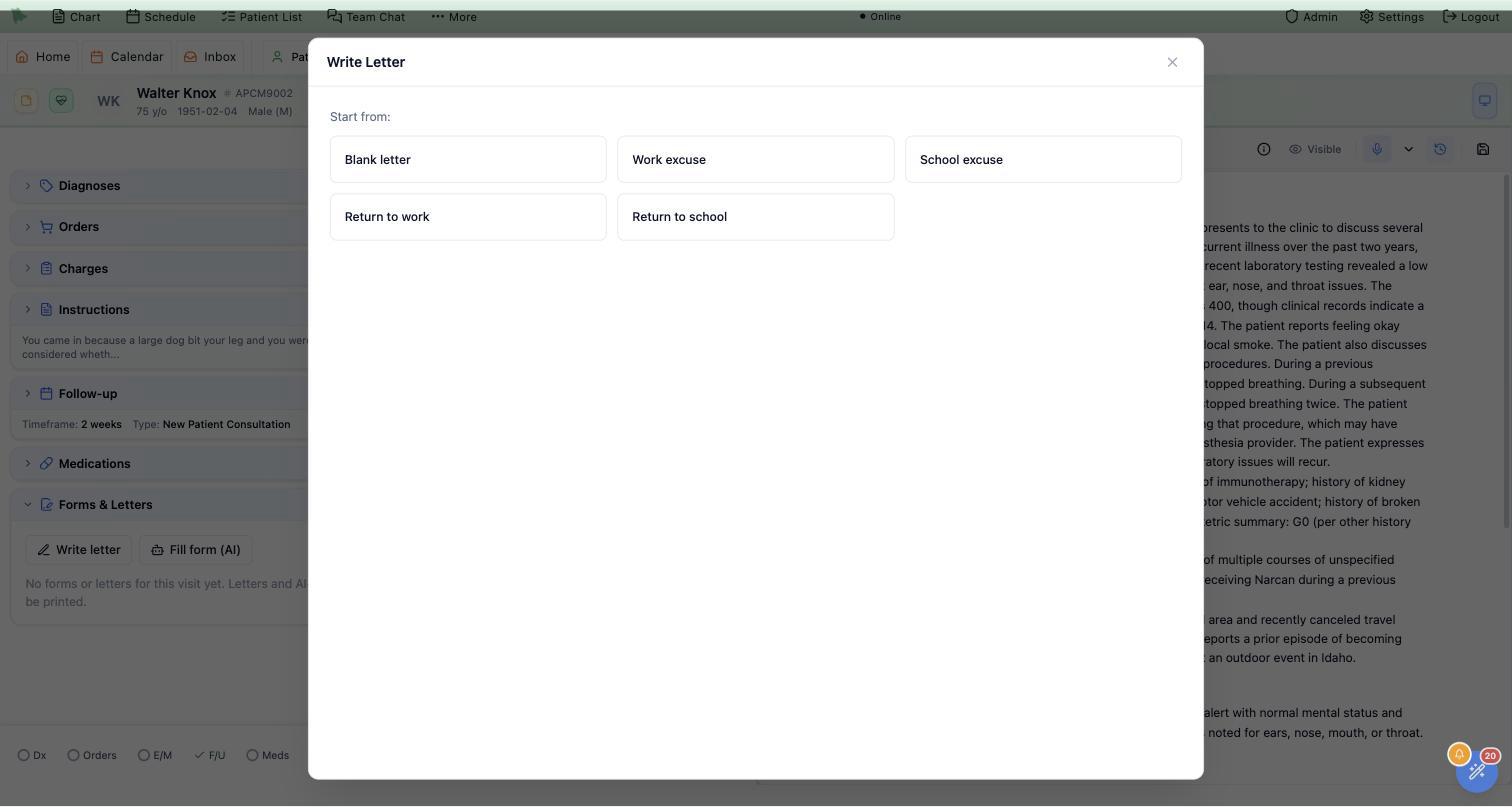
Write a letter opens the composer with a choice of starters: Blank letter plus every letter template your practice has — Hero ships Work Excuse and School Excuse to begin with, and you can add your own under Settings → AI Customization → Forms (see below).
Starters are not empty pages. The letter opens with the facts the chart already knows — the patient’s name, date of birth, and the visit date — substituted into the template’s bracketed placeholders; what remains are the case-specific blanks, as *** fill fields or bracketed hints:
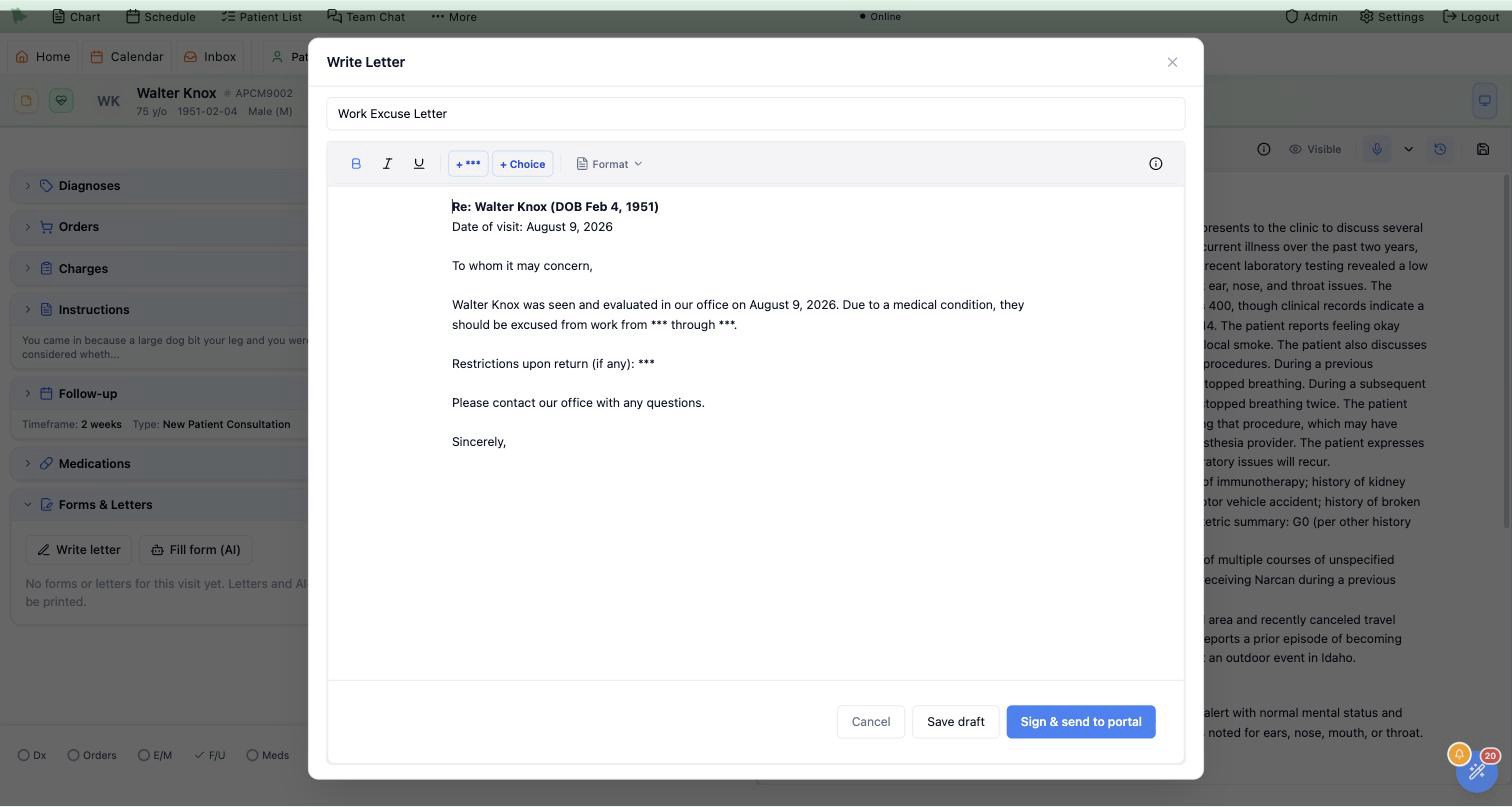
*** marks are fill fields — press F2 to jump between them.The editor is the same one you write notes in, so everything you already know applies:
- Dot phrases expand here exactly as they do in the note — type
.and the shortcut. Save wording you use repeatedly as a dot phrase. - Formatting — bold, italics, underline, lists — from the toolbar or the usual Ctrl+B family.
- Fill fields —
+ ***inserts a blank, F2 and Shift+F2 walk through them.
Save draft stores the letter on the encounter and closes the composer — the section lists it with a Draft chip, and the pencil icon reopens it any time. Drafts are private to the practice; the patient never sees them. Deleting a letter or form that hasn’t been sent asks first: Delete from this visit? “It is removed from this visit and never sent to the patient. This can’t be undone.”
Who will see it
Under the letter’s title (“Letter title (shown to the patient)”), a line says who will read it in the portal before you sign, for example “Sam sees this letter in their portal.” or, for a minor, which parents or caregivers will see it. It warns you when nobody will: the patient has no portal sign-in yet (send an invite from Patient Info), the visit is hidden in the portal, or Letters & Forms are turned off in your practice’s portal. In those cases, print or fax the letter instead.
Dates you pick in a letter, and the patient’s date of birth, print in long form, such as October 12, 2026.
One click: rendered, signed, in the portal
Sign & send to portal turns the draft into a finished document: Hero lays the letter onto your practice letterhead — practice name, phone, the patient block, today’s date in your practice’s time zone — embeds your saved signature image above your typed name, and files the PDF. The patient sees it in the portal immediately and is notified.
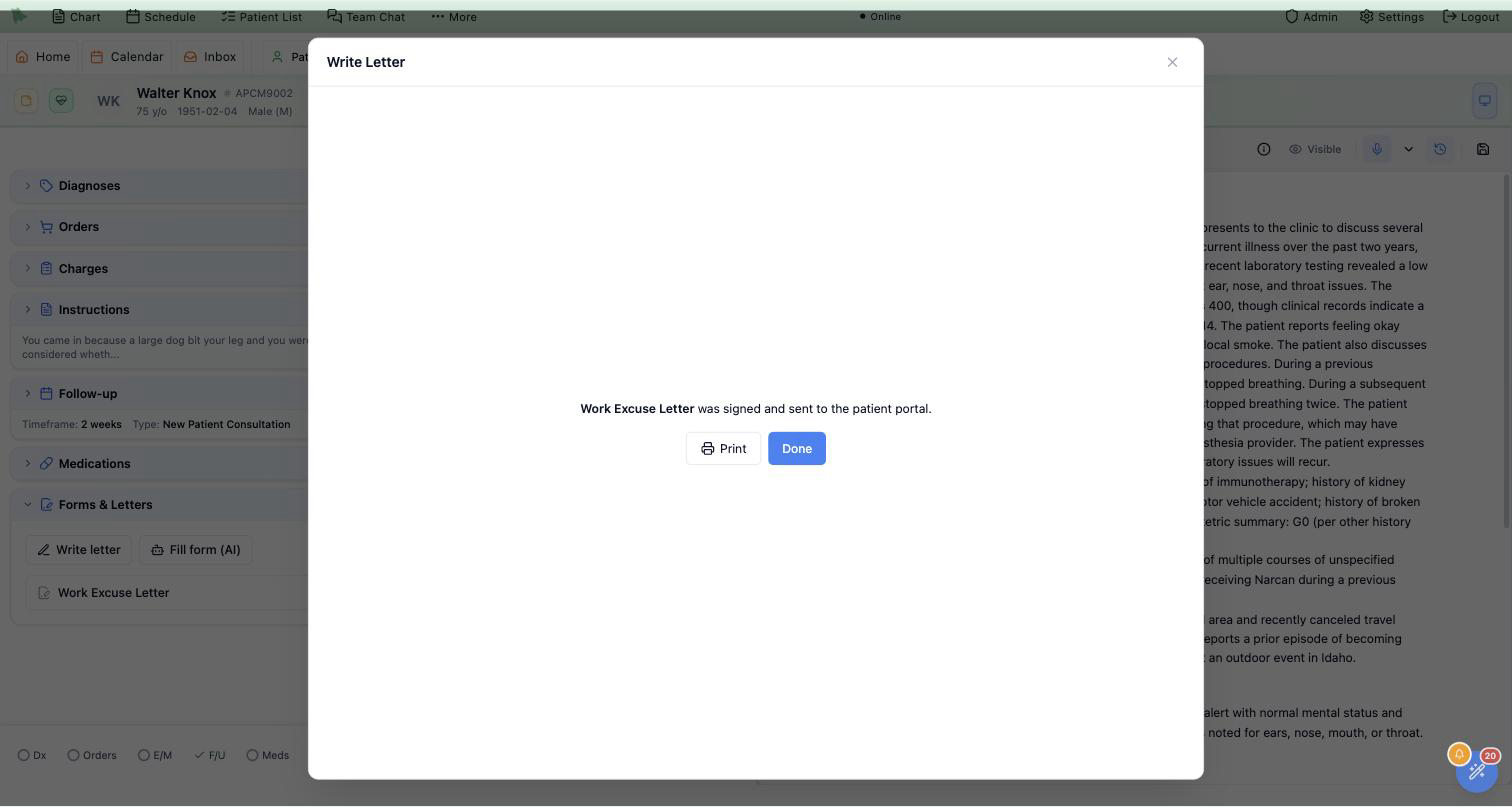
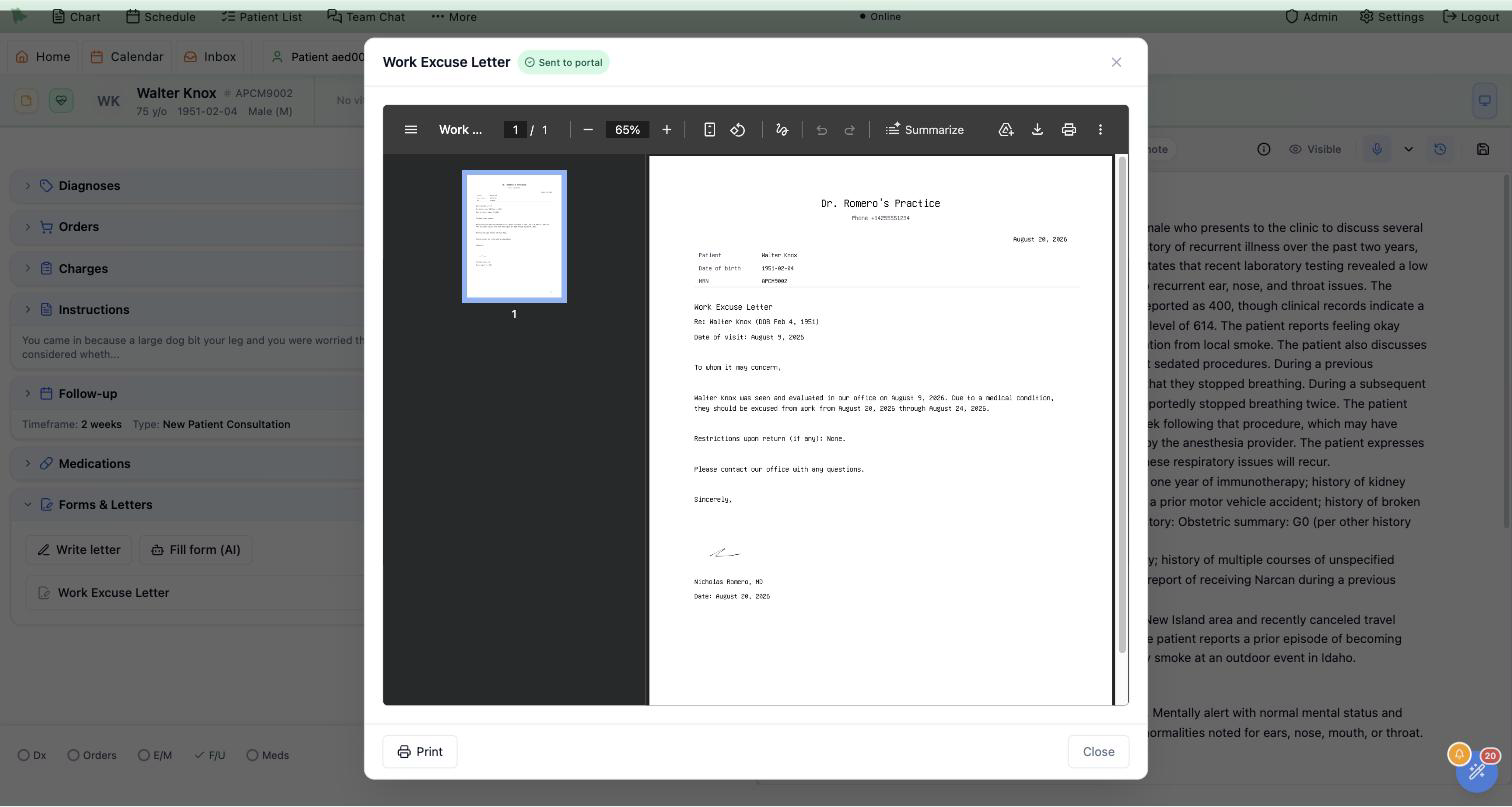
- If the letter still contains unfilled
***blanks, Hero warns you first — you can sign anyway, but the blanks will print as asterisks. - Signing requires a saved signature. If you have never drawn one, the composer says so and points you to Settings → Signature; the letter stays a draft until then.
- A signed letter is final — it can be viewed and printed but not edited or deleted. Need a different version? Write a new letter.
Fax a signed letter or approved form
When faxing is available to your practice, the signed item offers Fax. It opens Send fax with the signed PDF attached. Choose the destination, review the cover page, and send. Faxing is separate from signing and portal delivery; you can also fax a signed letter from the outside provider’s Care team card.
The form catalog, filled from the chart
Fill a form opens the picker, Fill a form with AI. At the top sit your letter templates — the AI writes the whole letter following your template, from the visit’s chart, and opens it in the composer for your review. Below them, the PDF catalog: the federal FMLA medical certification, state paid-leave and serious-health-condition certifications, and general forms for disability, travel clearance, and accommodations. Search matches by any words in the name — and Upload a PDF takes an employer’s or school’s own form when they insist on theirs.
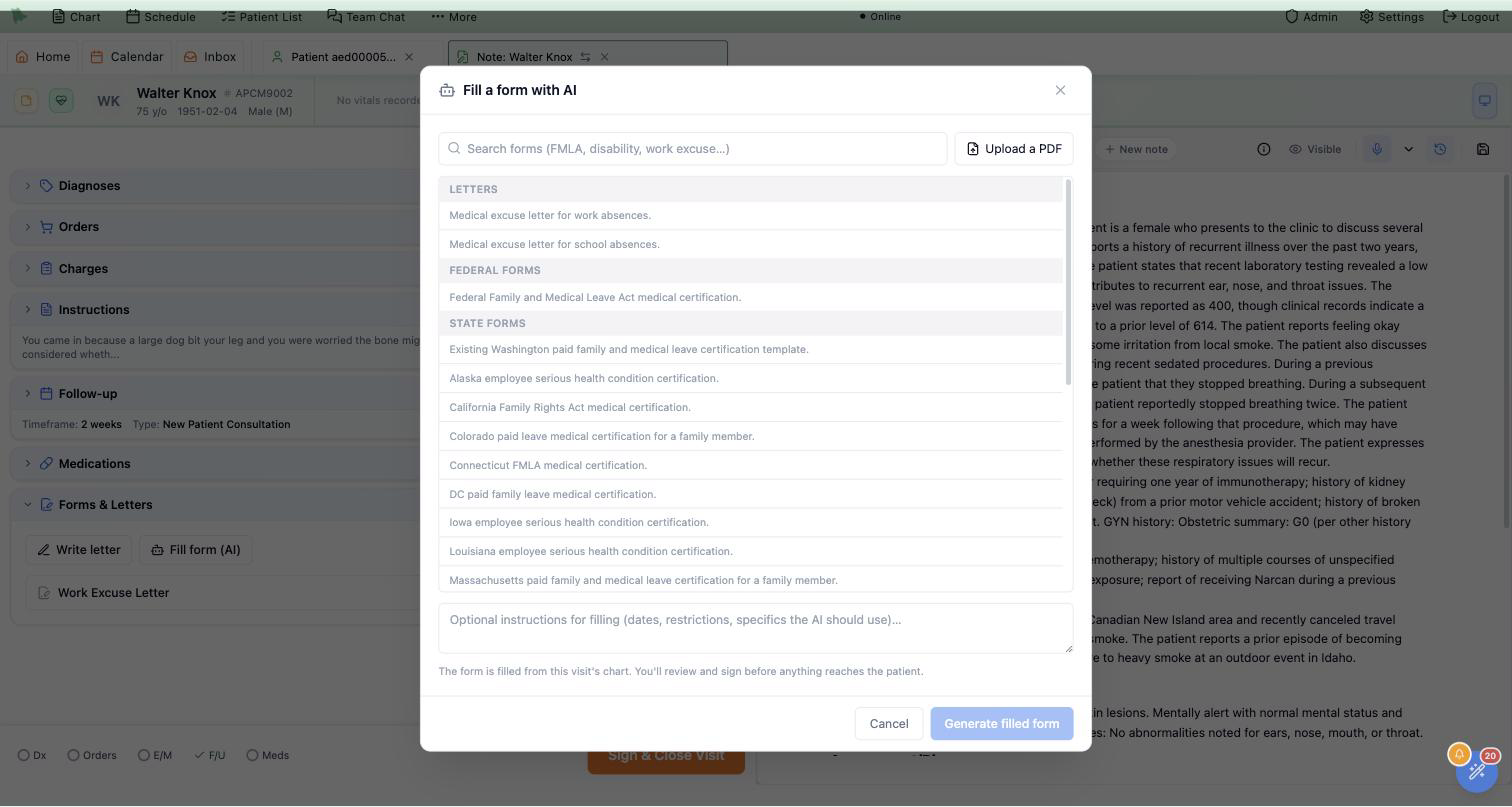
Add any specifics in the instructions box — “absence August 20–24, no restrictions on return” — and press Generate. A letter template comes back in seconds and opens straight into the composer as an editable draft; a PDF form shows a Generating… chip in the section and parks at Ready for review when done. Either way Hero reads the visit’s chart — the note, the diagnoses, your details — and writes onto your format.
Your letter templates
Letter formats live under Settings → AI Customization → Forms (the menu previously called Prompts). A template is ordinary rich text — the same editor as the note, dot phrases included — where [square brackets] mark facts the AI fills from the visit and *** marks blanks left for you. Each template can carry its own AI guidance (tone, rules, emphasis). System templates are read-only; duplicate one to make it yours. The practice logo, letterhead, and your signature are never part of the template — they are applied automatically when the letter is signed.
Upload a PDF also supports flat forms with no interactive fields. Hero identifies places to write on the page and prepares a filled copy. Inspect the layout and every clinical answer before approval, particularly on a scanned or unfamiliar form.
Check every field, fix with plain English, then sign off
The eye icon on a Ready for review row opens the filled form:
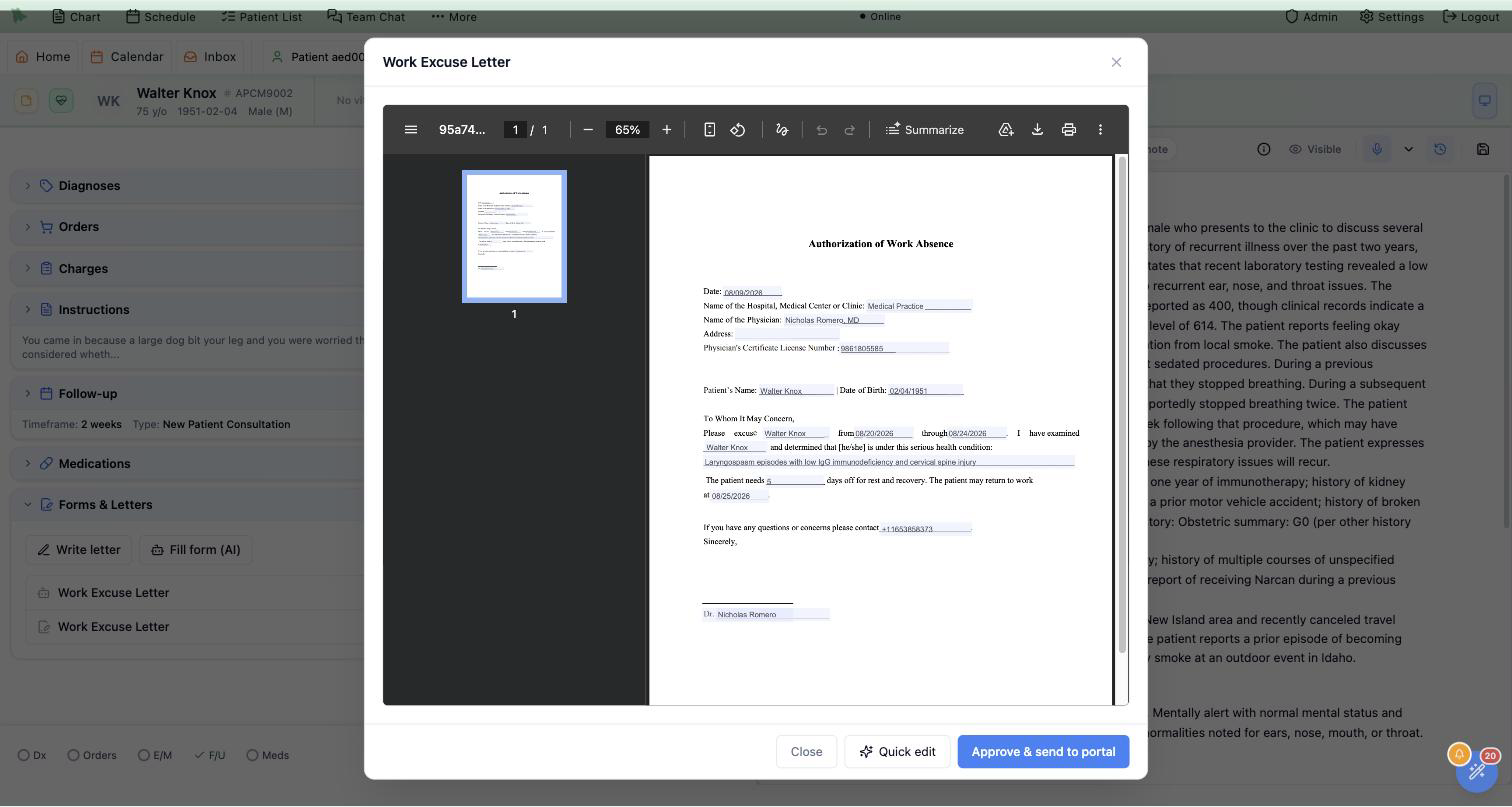
- Approve & send to portal embeds your signature into the form’s signature fields, files it, sends it to the portal, and notifies the patient — the row flips to Sent to portal and gains the printer icon.
- A form with no signature box (common on uploaded third-party PDFs, where the signature line is only printed text): Hero signs beside the printed provider-signature line when it can read it. Otherwise approving opens Choose where to sign (“This form has no signature box. Click where your signature should go.”): click the spot on the page (click again or use the arrow keys to move it,
SmallerandLargerto size it), thenApprove with signature here. Your saved signature is placed there. - Quick edit takes a plain-English correction — “return date is 9/2, limit lifting to 10 lbs” — and regenerates the form with your instruction folded in. The row shows Generating… again, then returns for another review. On an uploaded PDF, quick edit corrects the filled form you are looking at; it can change values but not clear a field, so use Edit PDF in the Inbox for that.
- The trash icon discards an unapproved form entirely.
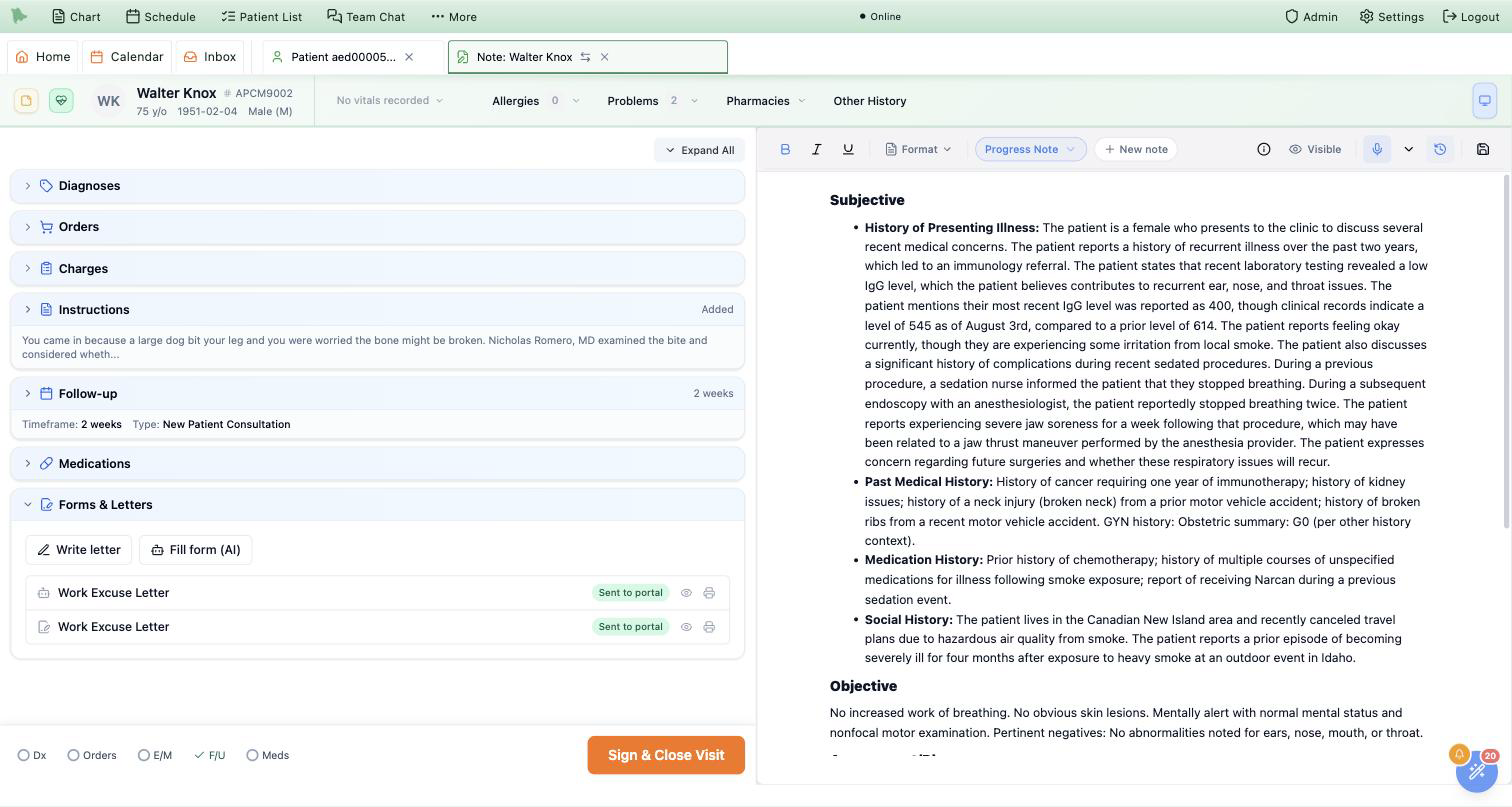
Patient-initiated requests land here too: when a patient asks for a form from their portal and it touches this visit, it appears in the list with a patient-requested badge and goes through the same review-and-approve gate.
If an older PDF shows Retrieving from archive, wait for retrieval and reopen it before editing or approving. The file has not been lost; uploading a replacement is not required.
Portal delivery, notifications, and the section at a glance
A signed letter or approved form appears in the patient portal under Letters & Forms, titled the way you titled it — a letter named “Work Excuse Letter” shows exactly that, and an untitled one shows as Letter from your care team. The patient can view and download the PDF; what they download is byte-for-byte the document you signed.
The patient is also notified that a new document is waiting, through their preferred channels (portal push, text, or email), with a link to the portal — never the document’s contents. Notifications respect the patient’s communication preferences and quiet hours: a form approved at 7 AM waits politely for the morning send window.
Back on your side, the collapsed section header keeps score for the whole visit:
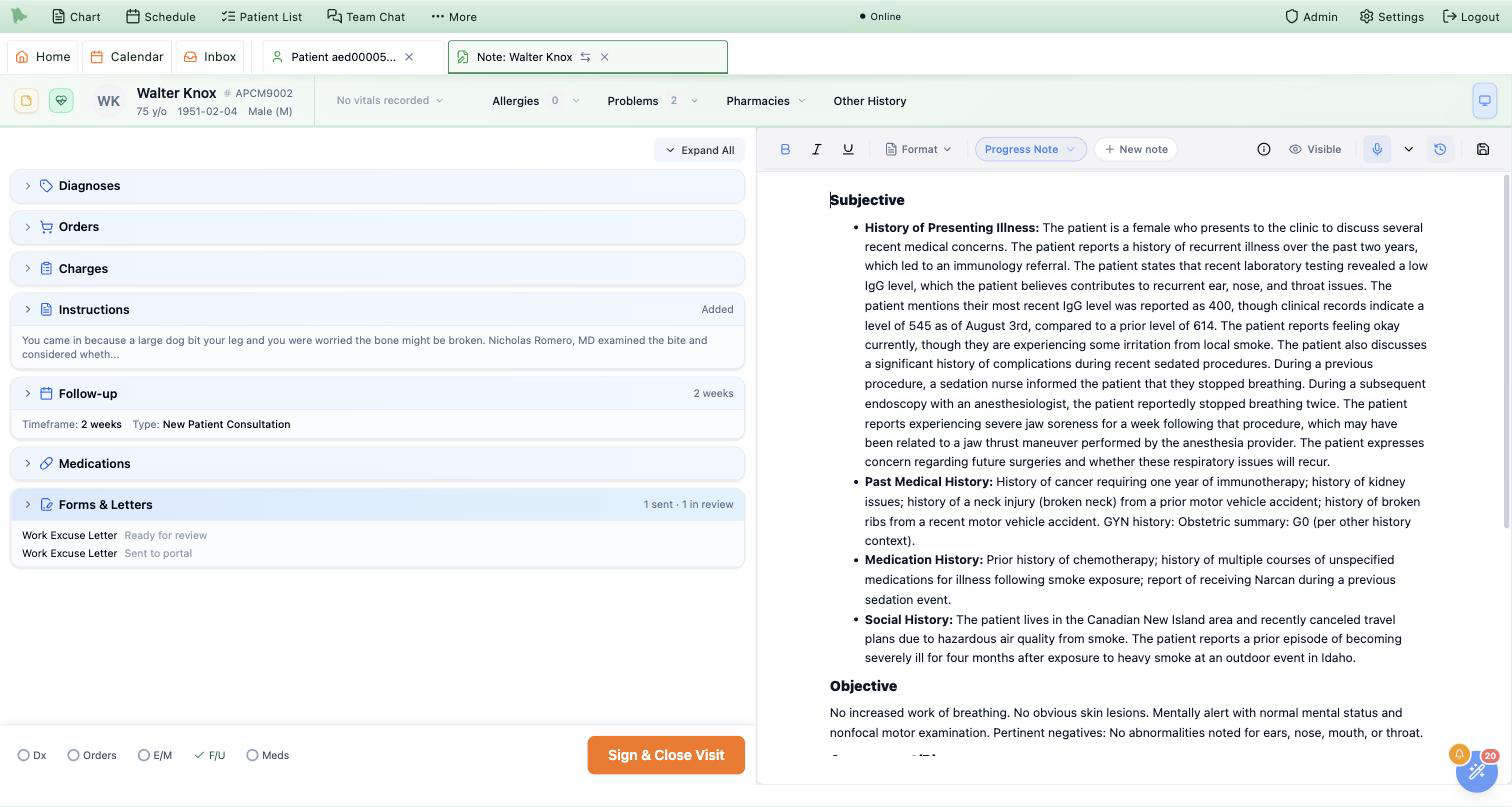
| Chip | Meaning | What you can do |
|---|---|---|
| Draft | A letter you saved but haven’t signed. Invisible to the patient. | Edit, sign & send, delete |
| Generating… | The AI is filling the form. | Wait — it refreshes itself |
| Ready for review | A filled form waiting for your sign-off. Invisible to the patient. | Review, quick edit, approve, delete |
| Sent to portal | Signed and delivered. The patient has it. | View, print, fax when available |
| Failed | The fill didn’t complete; the row shows why. | Delete and try again |
Need help? Email support@heroemr.com.