Typing dates & times
Every date, time and month box in Hero EMR takes what you type, shortcuts like t+1 and n+15 included, and shows it in one standard format.
Typing dates & times
Every date, time and month box in Hero EMR takes what you type, shortcuts like t+1 and n+15 included, and shows it in one standard format.
Type a date any way you like
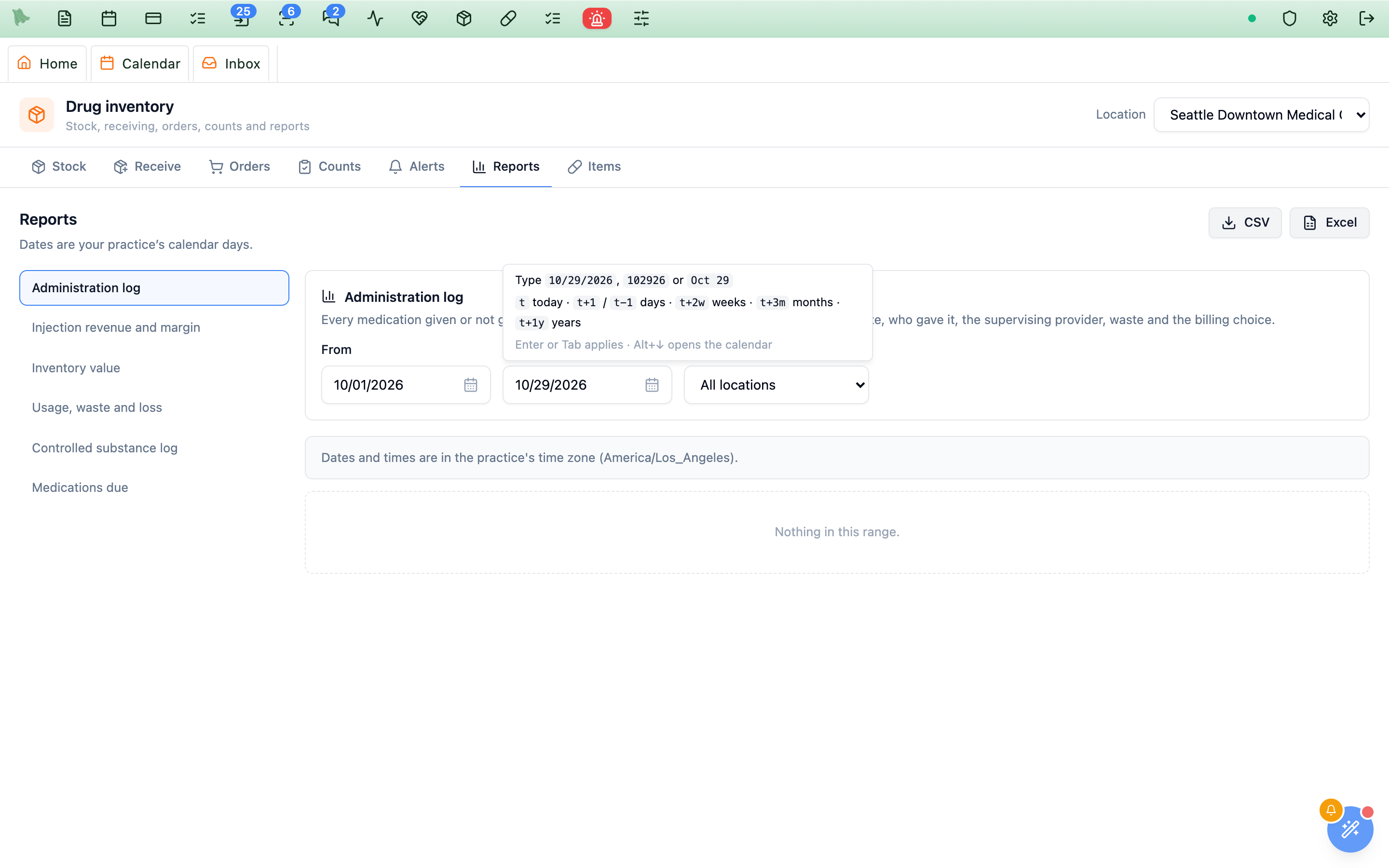
Every date box in Hero EMR is a text box. Type the date the way you think of it, then leave the box (Tab, Enter or click elsewhere): Hero reads it and shows it as MM/DD/YYYY. The same boxes are used everywhere: scheduling, the chart, billing, Inbox, settings, the note’s date fields and every Smart Block.
| You type | Hero shows |
|---|---|
10/29/2026, 10-29-2026, 10.29.2026 | 10/29/2026 |
10/29/26, 102926, 10292026 | 10/29/2026 |
Oct 29 2026, October 29, 2026, 29 Oct 2026 | 10/29/2026 |
10/29, 1029, Oct 29 (no year) | This year’s date |
2026-10-29 | 10/29/2026 |
A two-digit year means the nearest sensible century: 30 is 2030 in an appointment or expiration date. In a date of birth, which can’t be in the future, 4/7/52 is 1952 and 1/5/30 is 1930.
Count from today with t
Type t for today, then add or subtract days, weeks, months or years. Press Space, Enter or Tab to apply a shortcut.
| You type | Means |
|---|---|
t or today | Today |
t+1, tomorrow / t-1, yesterday | One day later / earlier (t+10 is ten days from today) |
t+2w / t-2w | Two weeks later / earlier |
t+3m / t-3m | Three months later / earlier (Jan 31 + 1 month is Feb 28) |
t+1y / t-1y | One year later / earlier |
“Today” is your practice’s day, in the practice time zone, not your computer’s, so t gives the same day for everyone in the practice. The shortcuts work in every date box, including the note’s @datepicker@ fields, and month boxes take t, t+1 (next month) and t-1y too.
Type a time, or count from now with n
Time boxes read 930a, 9:30 am, 2p, 2:15 pm, 14:30, noon and midnight, and show the time as 9:30 AM. n (or now) is the current time; n+15 and n-30 add or subtract minutes, and n+1h adds an hour.
9 is 9:00 AM and 3:45 is 3:45 PM. A leading zero or an hour past 12 is a 24-hour time: 0730 is 7:30 AM and 1830 is 6:30 PM. Add a or p whenever you want to be sure.Date and time together
A date-and-time box has a date part and a time part, each typed as above. You can also type both into the date part at once: t+1 9a (tomorrow at 9:00 AM), 10/30 2:30p, n (right now) or n+30 (in half an hour). The box has no value until both parts are filled in.
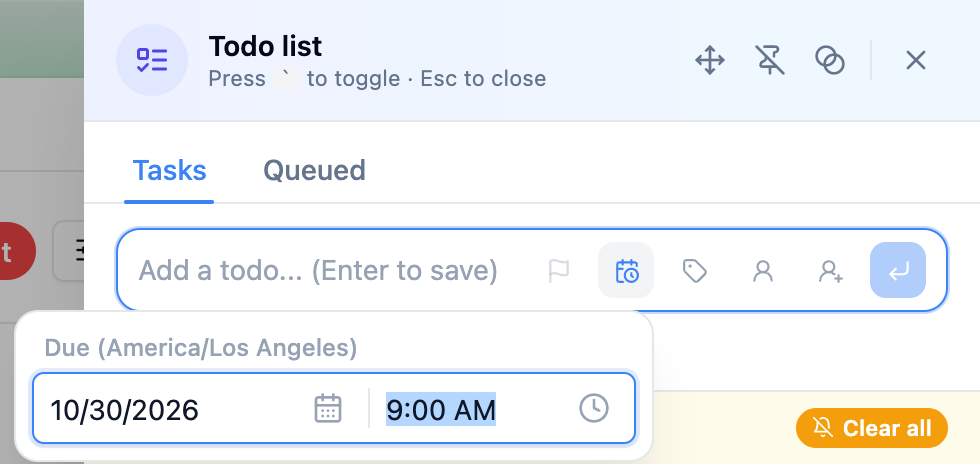
t+1 9a into the date part: tomorrow, 9:00 AM, in the practice time zone.Pick from the calendar, the time list or the month grid
Prefer to point and click? The icon at the right of the box opens a calendar (dates), a list of times (times) or a grid of months (months). From the keyboard, press Alt+↓ (Option+↓ on a Mac) in the box.
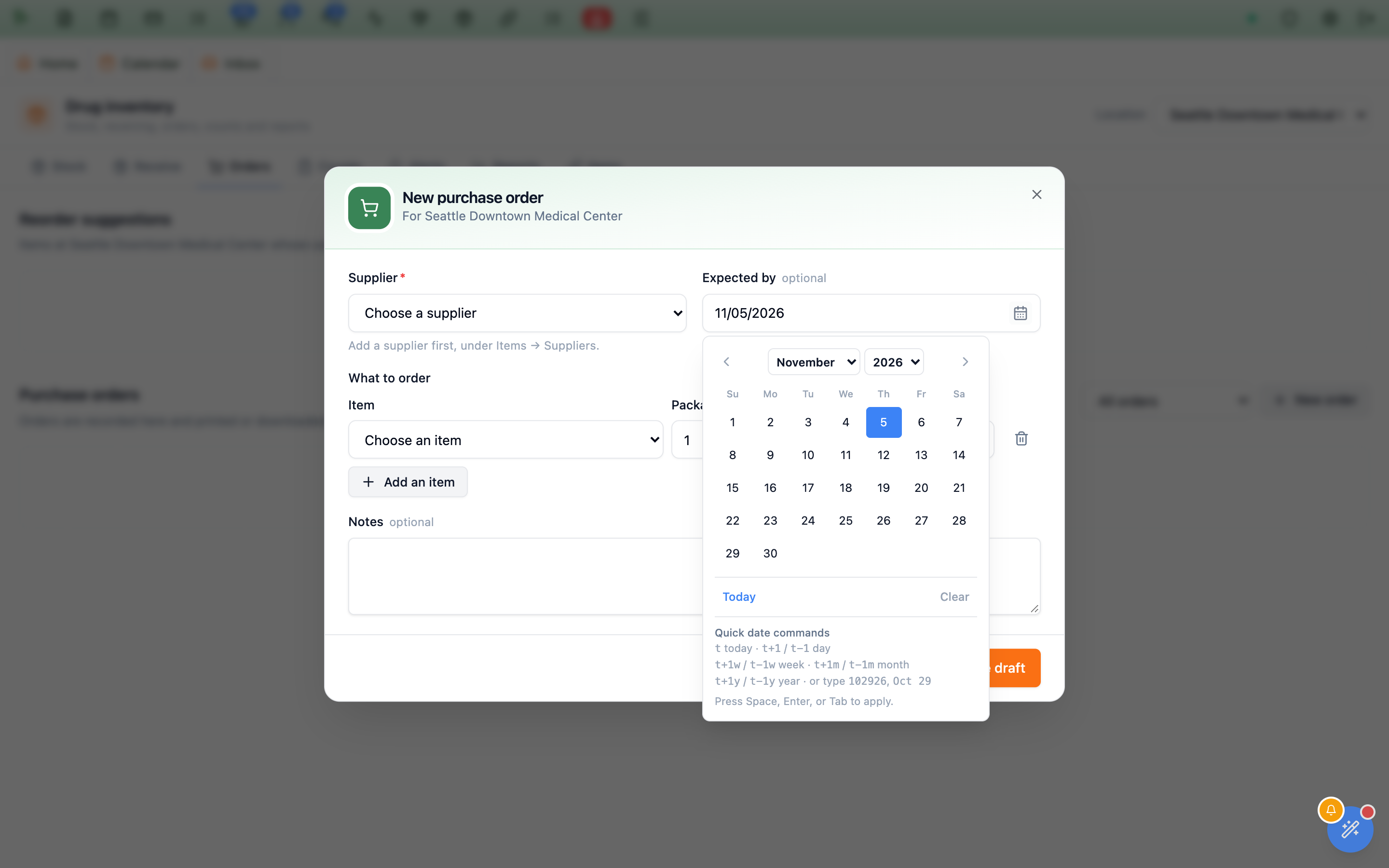
t+1w filled in 11/05/2026 before it was opened.- Calendar: the arrow keys move a day or a week, Page Up / Page Down a month (with Shift, a year), and Enter picks the day. The month and year menus jump straight to a far date, such as a birth year.
Todaypicks today andClearempties an optional date. Days outside the allowed range are greyed out. - Time list: every 15 minutes (or the step a setting uses), opened at the current value or near the current time. Use the arrow keys and Enter, or click a time.
- Month grid: pick a month, with arrows to change the year.
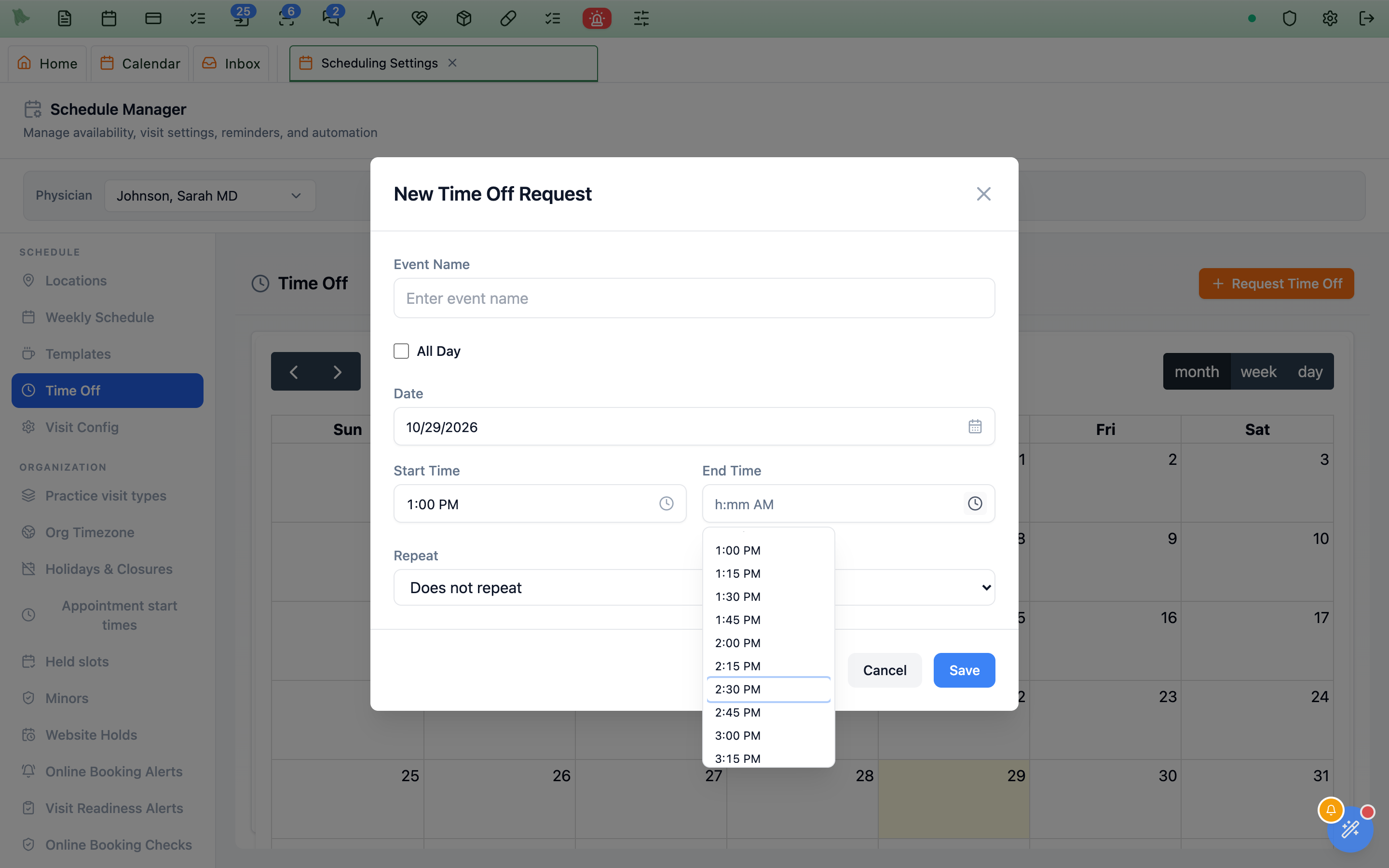
1p). Arrow keys move through it and Enter picks.Esc closes only the calendar or list and leaves the dialog you are in open. A few compact boxes have no list, like clinic hours in the weekly schedule and the clock times in the Spravato and endoscopy blocks: type the time there (the Spravato and endoscopy times also have a Now button).
When a date or time isn’t accepted
If Hero can’t read what you typed, the box turns red, keeps your text so you can fix it, and leaves the field empty. The reason shows for a few seconds and again whenever you point at the box, for example “Couldn’t read that date. Try 10/29/2026 or t+1.”
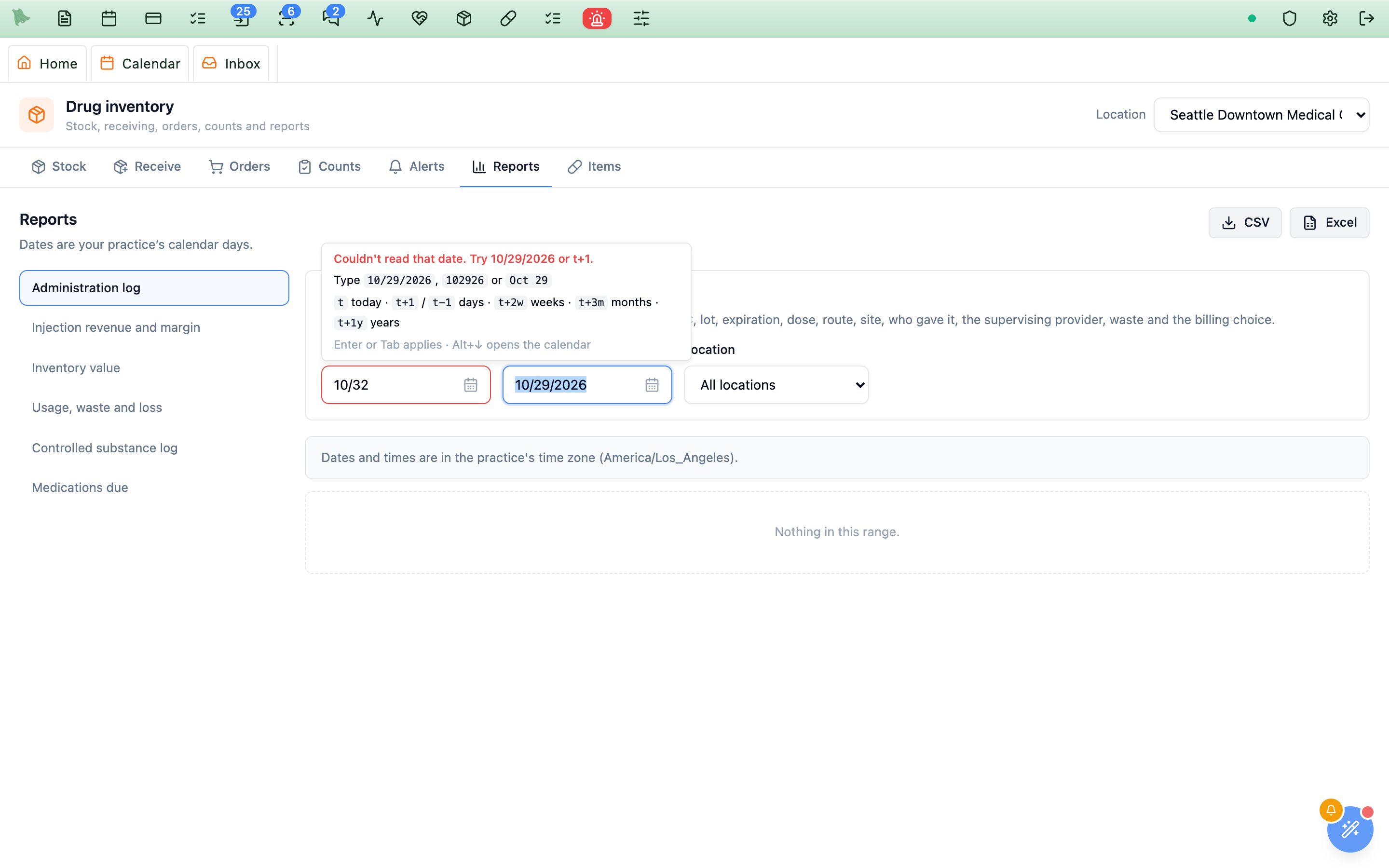
- Outside the allowed range: a real date before or after what the field allows (such as a future date of birth) is marked red with the limit, for example “Use 10/29/2026 or earlier.” The form’s own message tells you what to change before you can save.
- Changed your mind while typing? Esc puts back the date that was there.
- Enter in a form: the first Enter after typing applies the date; press Enter again to save the form.
12-hour (AM/PM) or 24-hour (military) time, and the date format
Hero EMR shows times in 12-hour form with AM and PM (2:30 PM) and dates as month/day/year (10/29/2026), in the practice’s time zone. There is no setting, for a user or for the practice, to show 24-hour (military) time or a different date format such as day/month/year.
- You can still type 24-hour times.
14:30or1430in any time box means 2:30 PM, and is shown as 2:30 PM (see Times). - You can type dates in other forms, such as
2026-10-29or29 Oct 2026; they are shown as 10/29/2026 (see Type a date). - One place shows 24-hour time: the small menu you get by right-clicking an open time on the calendar (on a Mac, Control-click or two-finger click) currently heads it with the time in 24-hour form, for example 14:30 - 15:00. It is the same time as the 2:30 PM row.
Times follow the practice time zone set in Admin → Scheduling → Org Timezone, not your computer’s.
Need help? Email support@heroemr.com.