Medication reconciliation
One switch makes the medication list something the care team vouches for: patients and staff propose, clinicians approve, and every row carries a review state. Turn it on, ask patients to check their list before the visit, reconcile and finalize inside the encounter, and keep it current from the chart.
Medication reconciliation
One switch makes the medication list something the care team vouches for: patients and staff propose, clinicians approve, and every row carries a review state. Turn it on, ask patients to check their list before the visit, reconcile and finalize inside the encounter, and keep it current from the chart.
Switch on medication reconciliation
Medication reconciliation is an organization-level switch that changes one rule: every permanent change to a patient’s medication list needs a clinician’s sign-off. With it off, Hero EMR behaves exactly as it always has — patients and staff edit the list directly, and nothing is marked for review. With it on, those same edits become proposals, the encounter’s Medications section becomes a reconciliation workspace, and every row in the chart carries a review state you can read at a glance.
-
Open the setting.
Go to
Admin>Patient Portal Configurationand stay on theFeaturestab. Scroll to the Medication reconciliation group, below the history features. -
Flip
Enable medication reconciliation. It ships off. The pill on the right readsDisabledorEnabled; the blurb underneath spells out what changes — “Patient and staff edits become proposals for clinician review, the encounter Medications section becomes a full reconciliation workspace, and visit types can require a pre-visit medication check in the portal.” -
Read the
IMPACTED SURFACESline before you save. It lists everywhere the switch reaches: the encounter completion Medications section, the chart review Medications tab, the portal Medications tab, and pre-visit tasks for visit types that require a medication check. - Save, and expect a short lag for signed-in patients. The dialog footer says it plainly: existing patient sessions pick up saved features on their next reload or organization switch. Your own EMR surfaces change immediately.
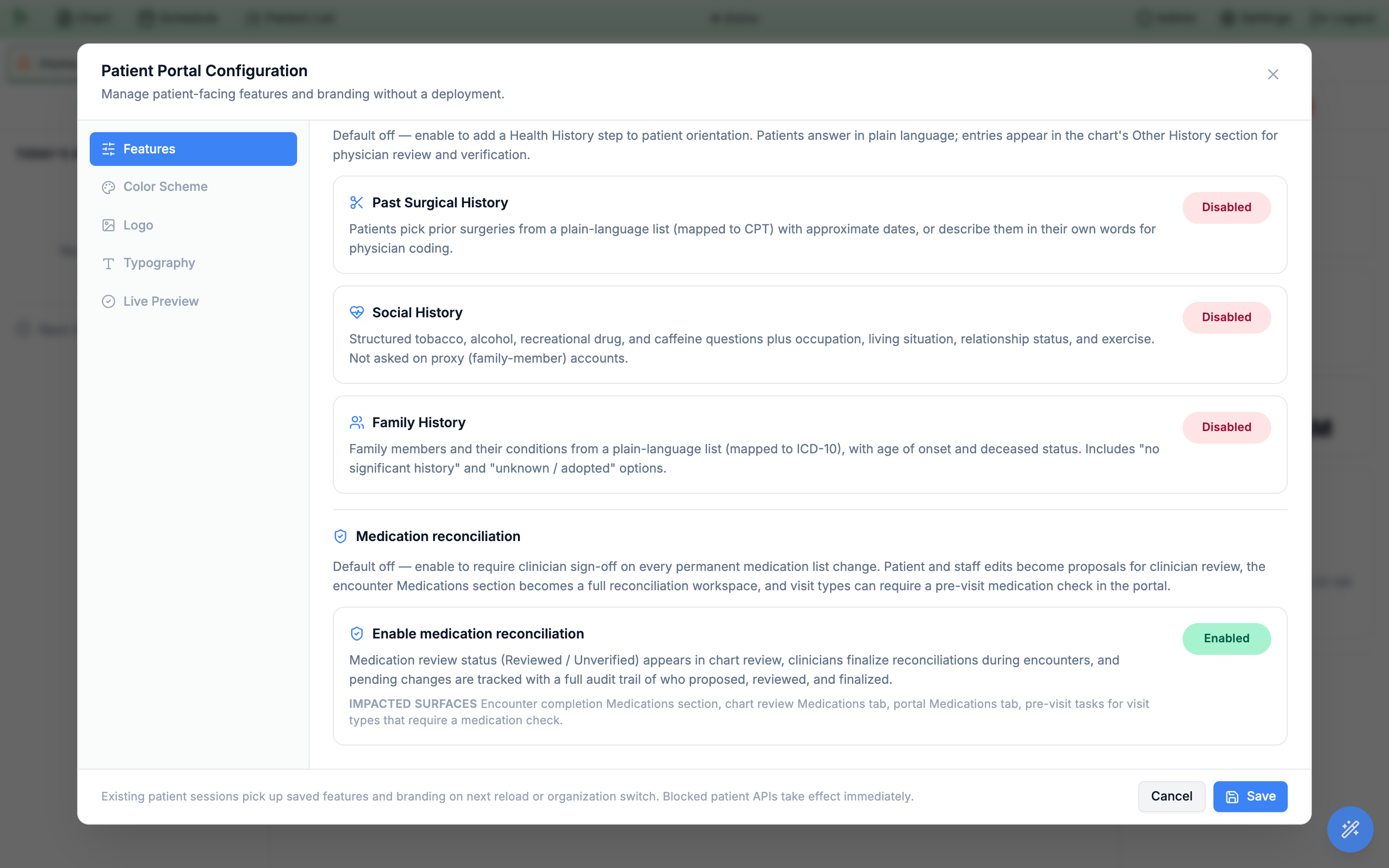
Admin > Patient Portal Configuration > Features. Default off. Everything in this Part applies only once it’s on, apart from the separate auto-close switch described below.Once reconciliation is on, every medication carries one of four review states. You’ll see them as badges in the encounter workspace and in the chart’s Medications tab, next to the group the row sits in (Needs review, Current, Past and so on). They are two different things. The group says whether the patient is taking the medication now. The review state says how well the care team has vouched for it.
| Review state | Color | What it means |
|---|---|---|
Reviewed | Green | A clinician has vouched for this row. Hover or open the context menu to see who and when. |
Not reconciled | Gray | An existing clinician or prescription entry that predates — or simply hasn’t been part of — a reconciliation. Not a problem, just unfinished. |
Unverified | Amber | Patient- or staff-reported and never reviewed by a clinician. |
Change pending | Blue | Someone has proposed a change to this medication and it’s waiting for a reviewer. |
Reviewed — they show as Not reconciled until a clinician reconciles the list at a visit. Expect a wave of gray badges on day one; they clear themselves as patients come through.
Automatically close prescriptions that ran out
The same Features tab has a second medication switch, just below reconciliation: Automatically close prescriptions that ran out and were not renewed. It works whether or not reconciliation is on. A prescription whose supply and refills are used up leaves the current count and moves to Needs review on the day it runs out (see What counts as current). This switch decides what happens if nobody acts on it.
-
It is on by default.
Every practice starts with the pill reading
Enabledand a 30-day grace period. Once a prescription has been out for that many days without a renewal, Hero closes it with the reason “Course ended, not renewed” and it moves toPast. Hero checks once an hour, and the days are counted on your practice’s calendar. It closes only prescriptions Hero sent and can time with confidence. It never touches an as-needed prescription, one with a later fill scheduled or an open refill request, one that is on hold or waiting on another review, or one a clinician recently confirmed withStill taking. -
Change the grace period, or turn it off.
Enter
Grace period (days), a whole number from 7 to 180. To keep every ran-out prescription inNeeds reviewinstead, click the pill so it readsDisabled. Ran-out prescriptions then wait there until someone clicksRenew,Still takingorStopped. -
Save.
Savekeeps the switch and the grace period together with your other feature settings. It stays disabled while the grace period is outside 7–180 (“Enter a whole number of days from 7 to 180.”).
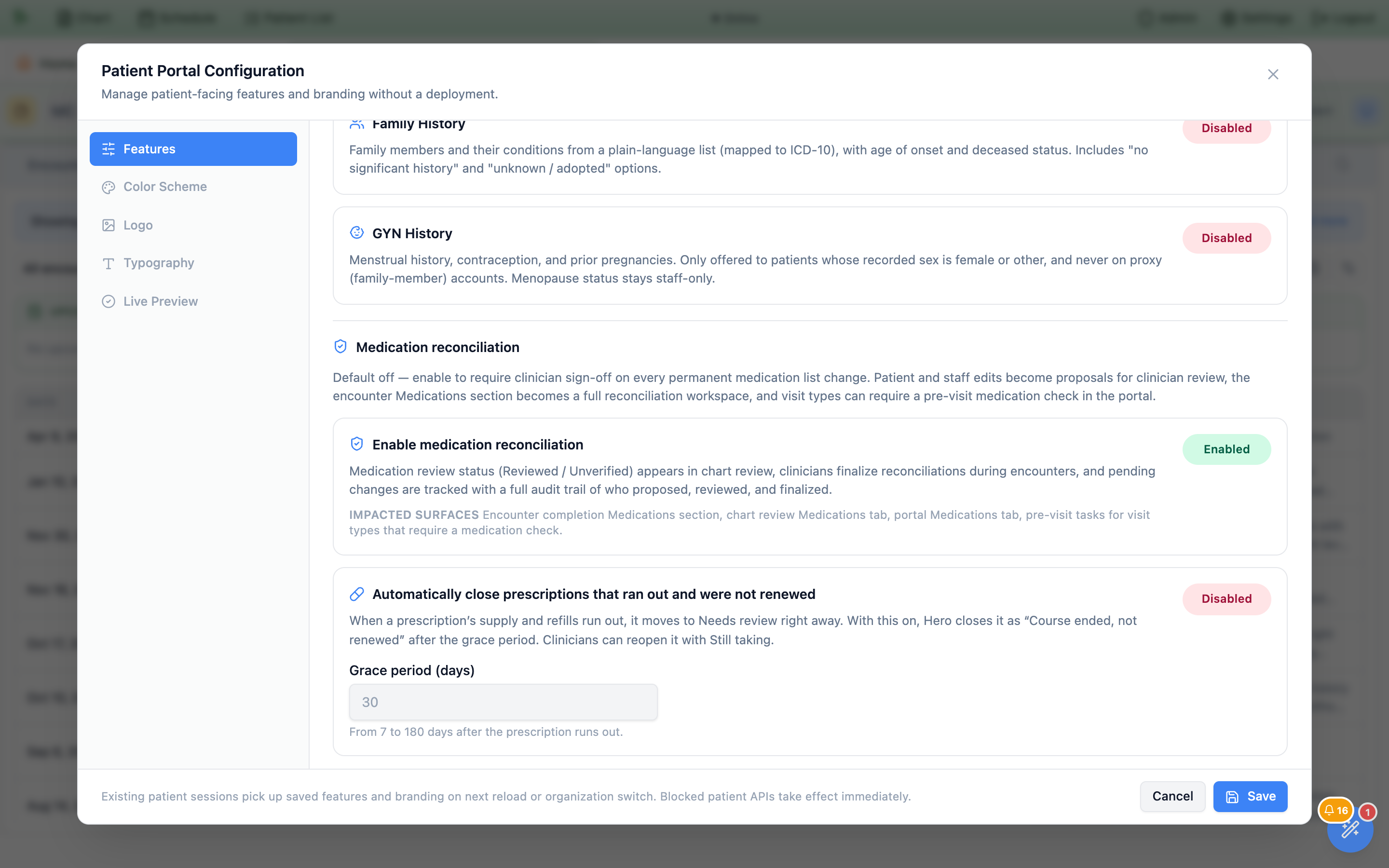
Past row that Hero closed this way, Still taking reopens it, for example when the patient still has supply from samples or another pharmacy. A new prescription for the same medication brings it back too. A medication a clinician stopped is never reopened automatically.Ask the patient to review their list before the visit
The most useful reconciliation happens before the patient sits down. Any visit type can require a pre-visit medication check: the portal adds a required task to the patient’s checklist, they either confirm the list or report what’s changed, and you arrive at the encounter with their answer already waiting.
-
Turn it on per visit type.
Open
Schedule>Scheduling Settings>Visit Config, expand the visit type, and checkRequire pre-visit medication check (patient portal)in theOptionscolumn. It sits with the other pre-visit options and only does anything while the organization switch from 20.1 is on. - Choose the visit types that deserve it. Annual physicals, new-patient consultations, and med-management follow-ups earn it; a quick nurse visit or a procedure-only slot usually doesn’t. Every required task is one more thing between the patient and their appointment — see Visit types for the rest of that panel.
-
Let the portal do the asking.
Before a qualifying visit, the patient’s portal home shows “You have 1 task before your next visit”, and
Review your medicationsappears underACTION ITEMSflaggedREQUIREDwith aReviewbutton. It also counts toward thePRE-VISIT CHECKLISTprogress bar next to it, so a patient clearing their checklist clears this too. -
The patient answers one question.
The
Review your medicationsmodal asks “Are these all the medications you currently take, exactly as written?” over their current list, with two ways out:Yes, this list is correctorSomething’s changed. The list shows each medication’s full name with its release type, and it includes medications waiting in yourNeeds reviewgroup, markedRefill needed(the prescription ran out) orYour care team is reviewing. If the list changes while the patient is answering, the portal asks them to look again: “Your medication list was just updated. Please review the refreshed list and try again.”
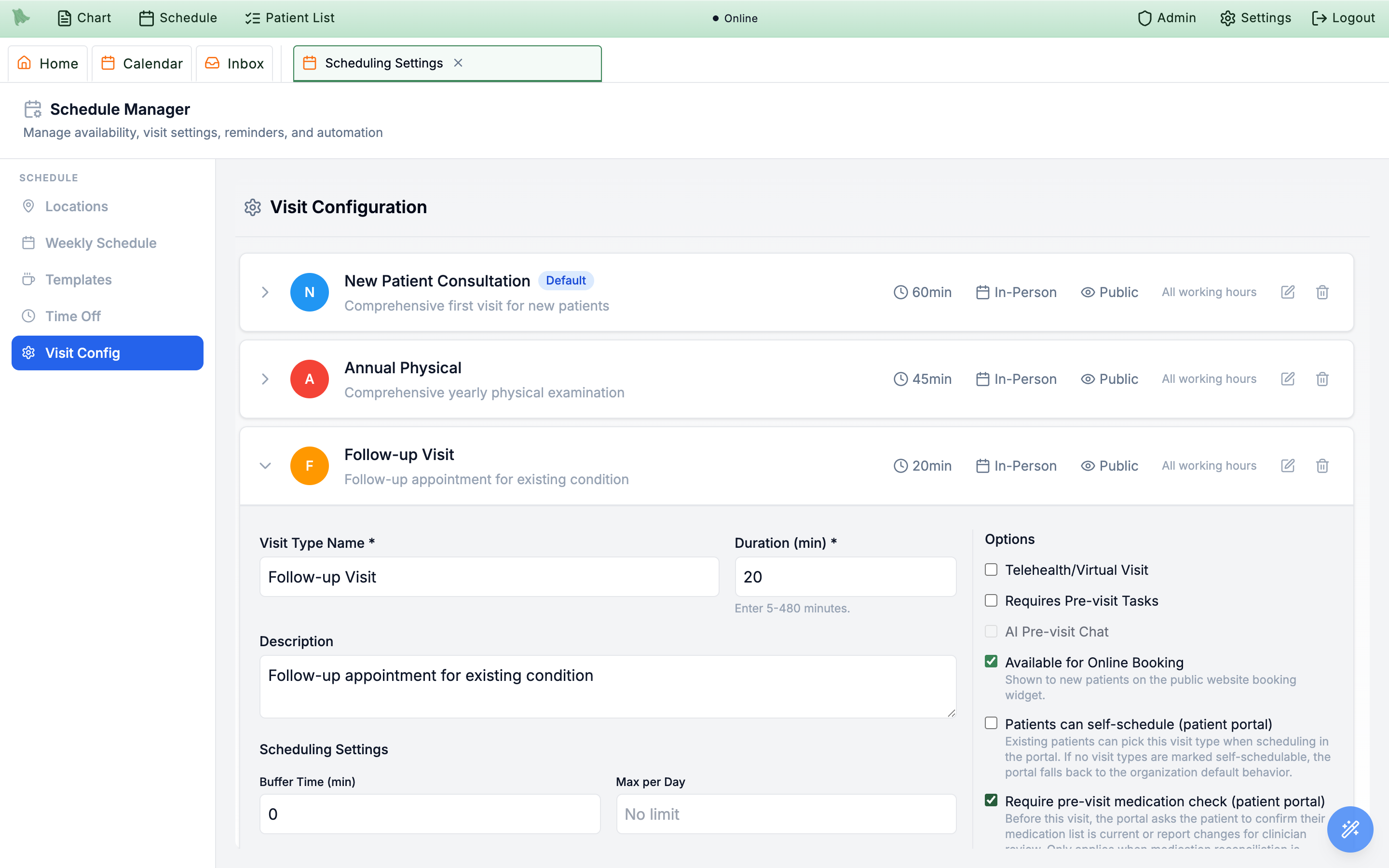
Visit Config — the check only fires for the visit types you tick.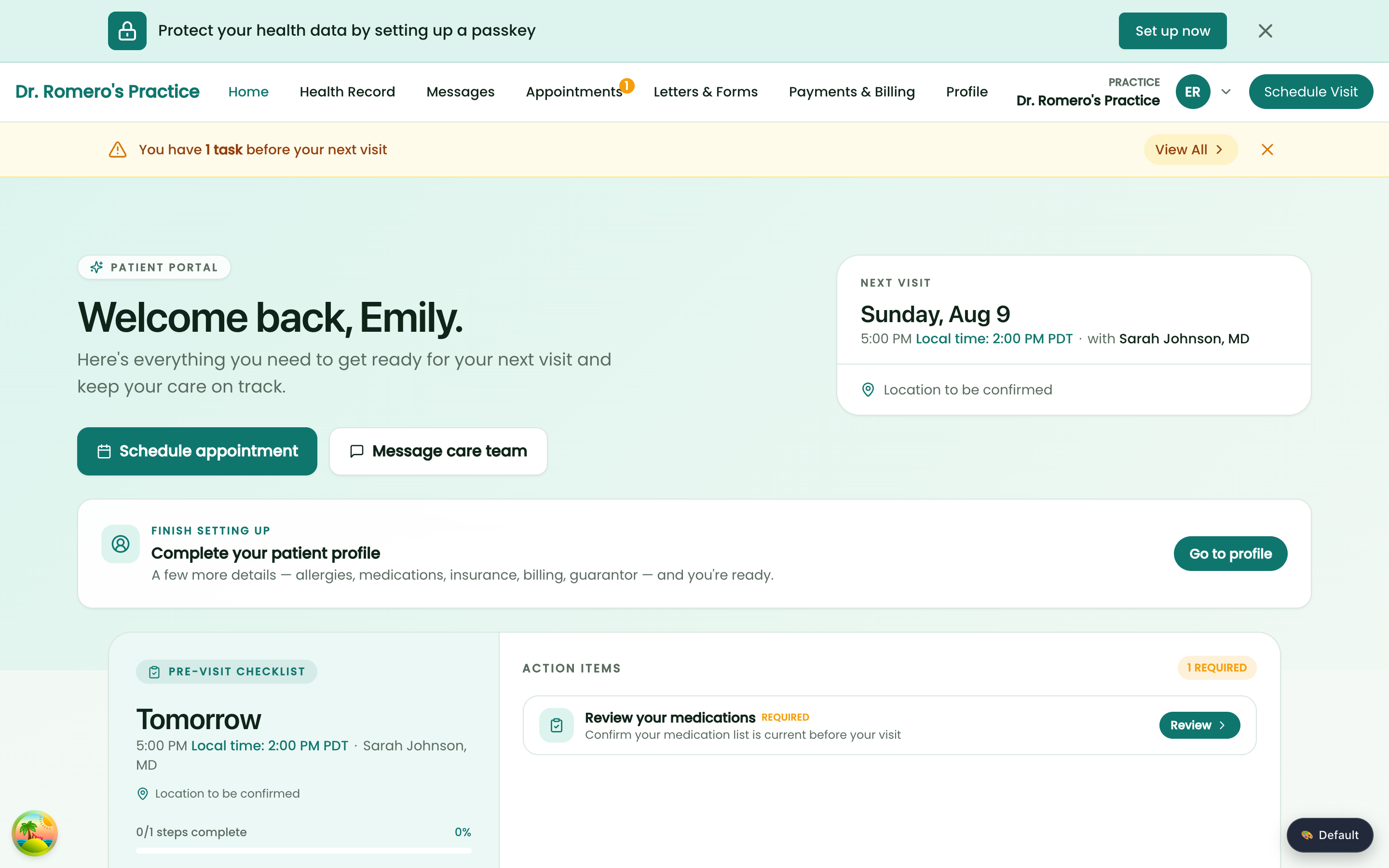
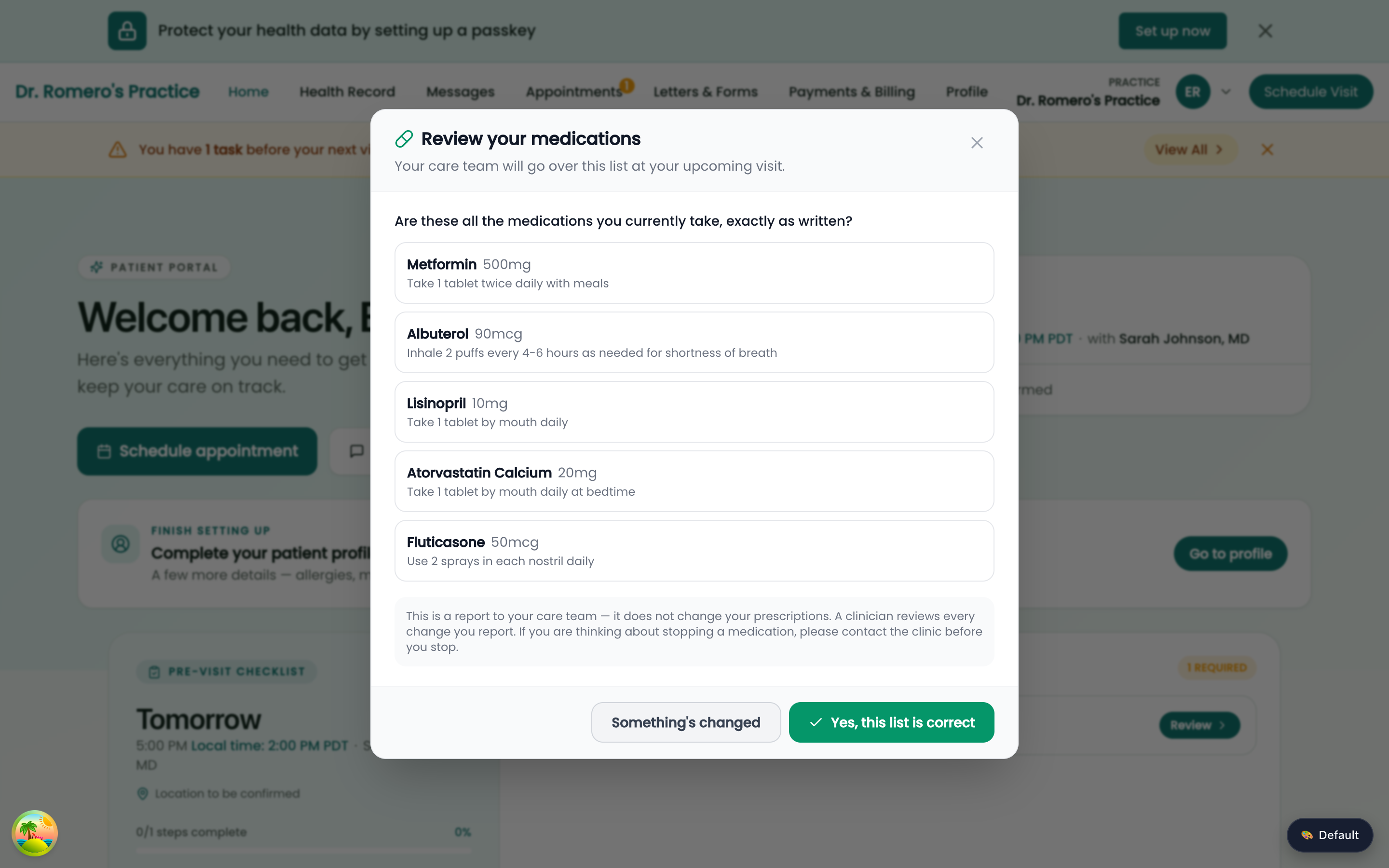
Yes, this list is correct is recorded as a patient confirmation — useful evidence, but not the same as a clinician review.Proposals: what patients and staff can and can’t change
With reconciliation on, patients and non-prescribing staff can still say everything they could before — they just can’t enact it. Editing a medication’s details, stopping one, or reporting that it isn’t being taken all create a proposal. The live list does not move until a clinician approves it.
-
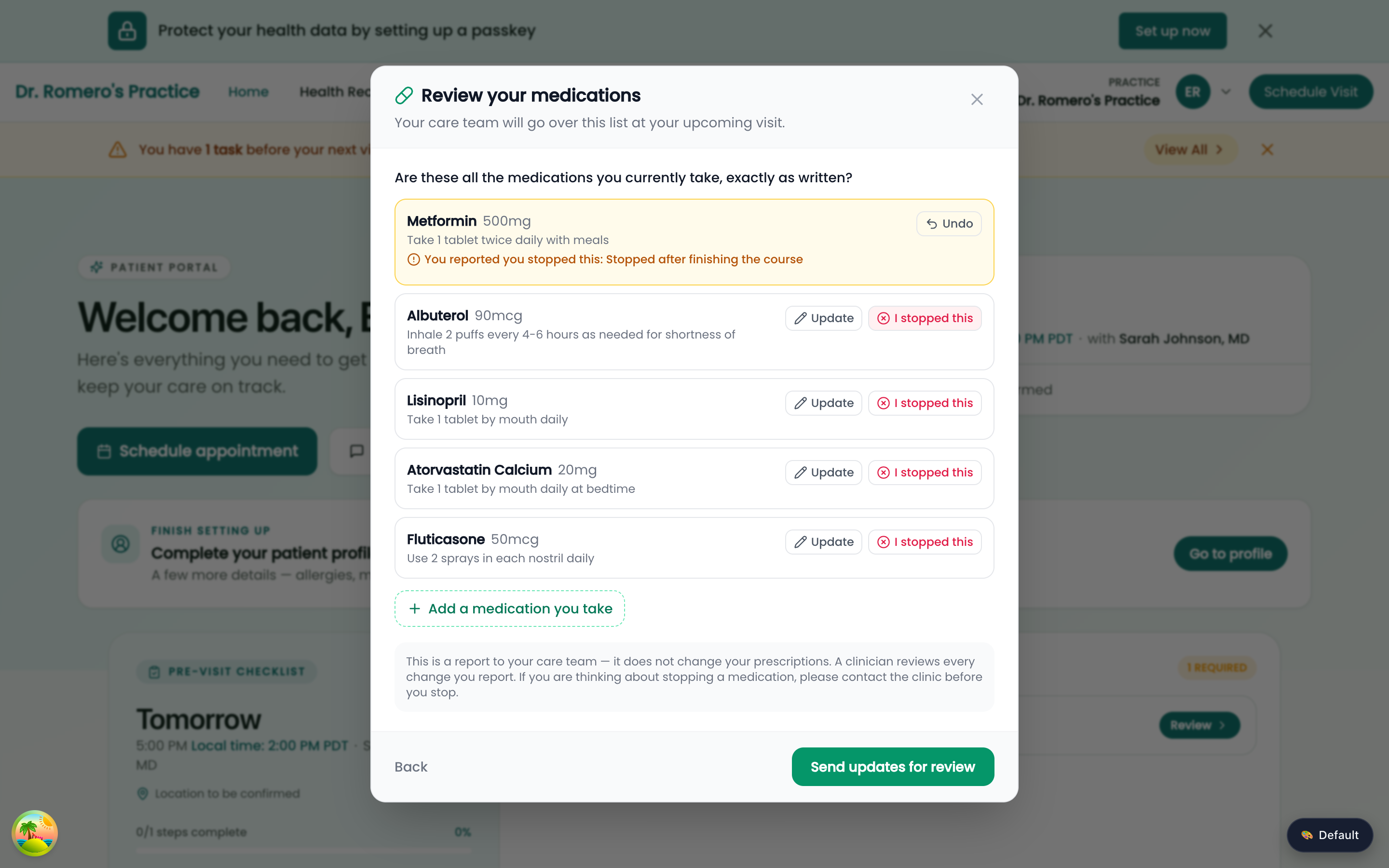
Report a change from the portal.
Something’s changedputs the modal in change mode: every row grows anUpdateand anI stopped thisbutton, and a dashed+ Add a medication you takesits at the bottom. A row the patient touches highlights amber and reads back what they said — e.g. “You reported you stopped this: Stopped after finishing the course” — with anUndo. Nothing is sent untilSend updates for review. - Read the safety copy the patient reads. The modal footer is explicit: “This is a report to your care team — it does not change your prescriptions. A clinician reviews every change you report. If you are thinking about stopping a medication, please contact the clinic before you stop.” That sentence is doing real work — it’s why a portal-side stop is safe to offer at all.
-
Watch the chip afterwards.
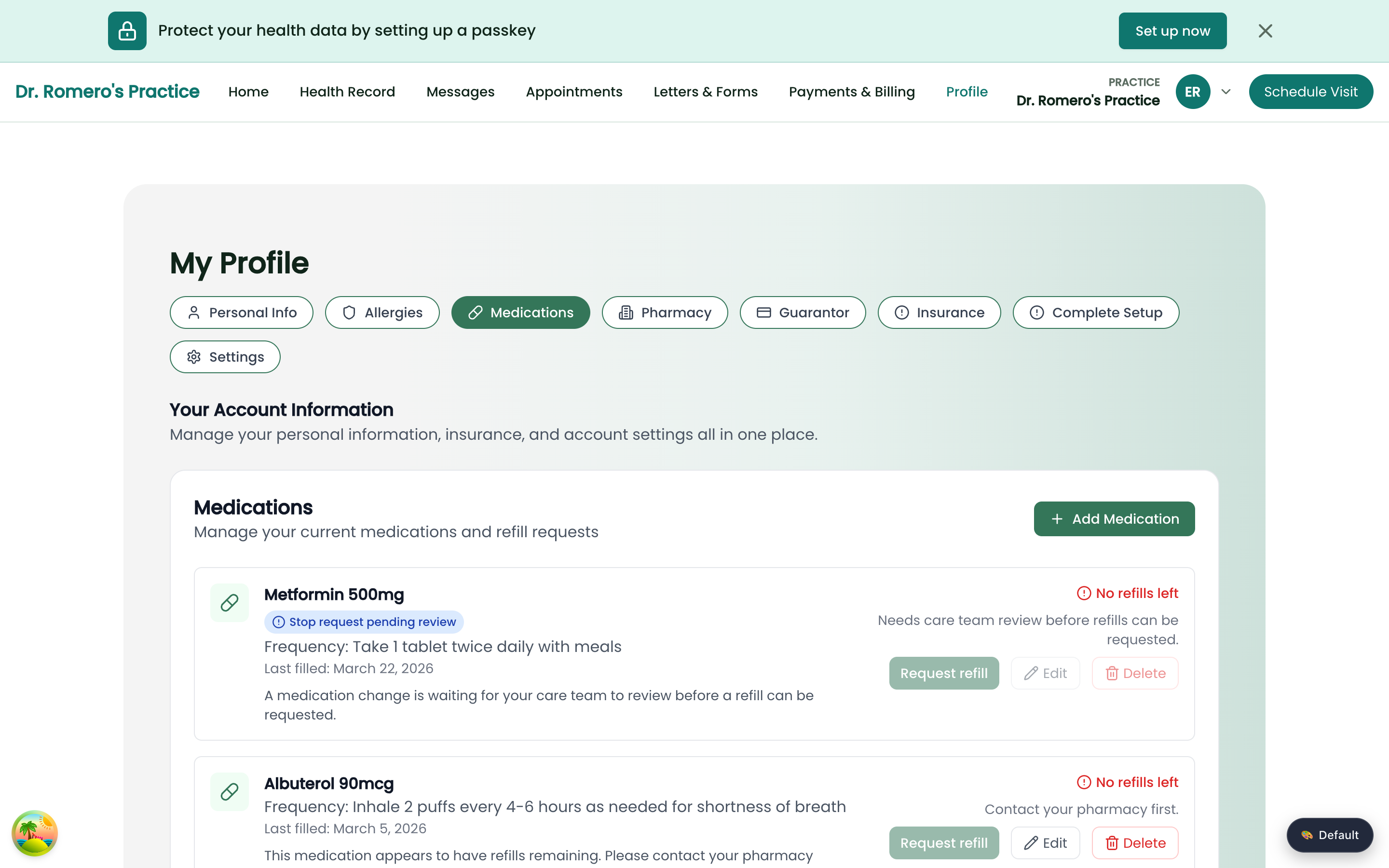
Back in the portal’s
Profile>Medicationstab, the affected medication carries a blueStop request pending reviewchip and the line “A medication change is waiting for your care team to review before a refill can be requested.”Request refillis disabled for that medication until the proposal is decided. -
Know what staff see.
Non-prescribing staff get the same actions from the chart with
Propose…wording instead of the direct verbs. Their edits queue for review exactly like a patient’s.
| Rule | Why it matters |
|---|---|
| One pending proposal per medication. | A newer proposal supersedes the older one instead of stacking. You review the latest intent, not a queue of second thoughts. |
| Proposals never touch the live list. | Sig, dose, and status stay exactly as prescribed until a clinician approves. Nothing transmits to a pharmacy from a proposal. |
| New additions are the exception. | A medication the patient or staff adds appears on the list right away — you need to know they’re taking it — but it lands Unverified, and it’s excluded from refill requests until a clinician reviews it. |
| Proposals can go stale. | If the medication itself changes after the proposal was made, the proposal is marked stale and the reviewer gets a warning before approving, so an old request can’t quietly overwrite a newer prescription. |
Reconcile during the encounter
With reconciliation on, the encounter’s Medications section wraps the reconciliation workspace around the same medication list every other surface shows (see the encounter’s Medications section and the chart’s Medications tab). There is no separate reconciliation list. From top to bottom, the section shows:
- an amber banner while anything still needs a first review, for example “2 medications to reconcile — review the list, then finalize below.”;
- Pending review, holding proposals from patients and staff;
- the list itself, with
Add medicationin its toolbar, thenPrescribing today,Needs review,Current,Scheduled,On holdandPast, with a review badge on every row; - the finalize bar (see Finalize & sign).
The same count appears on the collapsed section header (“2 to reconcile”) and on the footer’s Meds chip (“(2 to reconcile)”), so an unreconciled list is visible before the section is even opened.
-
Clear
Pending reviewfirst. The header carries a count. Each proposal card shows the medication and strength, a chip naming the request (Stop requested, for instance), who proposed it and when — “Emily Rodriguez (patient) · Aug 8, 4:08 AM” — and their reason in quotes.Approveapplies the change to the live list;Rejectasks for a short reason and leaves the list untouched. Both are recorded against your name. - Heed a stale-proposal warning. If the medication changed after the proposal was made, you’ll be warned before the approval goes through. Read the current row before you confirm — approving a stale proposal means acting on a picture that has since moved.
-
Work the list.
Needs reviewrows carry the buttons that fit their reason:Renew,Still taking,Stopped,Specify,MergeorMark reviewed(see the Medications tab). Other rows carryStop, which opensDiscontinue medicationand applies straight away, with the offer to cancel the prescription at the pharmacy when one is still live there. The···button (or a right-click) holdsQuick edit…for dose or directions,Mark not taking…,Discontinue…,Mark reviewedandView history.Add medicationin the toolbar adds something the patient reports. Clinician actions here are immediate, with no proposal step for you. Edits, stops, not-taking reports and additions mark that medicationReviewed. -
Use
Mark not taking…for adherence, not for stopping. The dialog is headedPatient is not taking this medication, with the medication and strength beneath it, an optionalDetailsbox and aRecordbutton. The row moves toNeeds reviewwith the linePatient reports not takingand the date, and it leaves the current count. The prescription itself is not stopped. Decide that separately withStopped, or useStill takingif the patient has restarted. -
Treat AI stop suggestions as suggestions.
When Hero reads a stop in your note, the row shows a
Suggested stopchip and aSuggested stop:line with the reason, plusDiscontinueandDismiss. Nothing stops unless you clickDiscontinue. This is the one place suggestions differ from an organization without reconciliation, where they arrive queued to stop at sign (see the encounter’s Medications section).
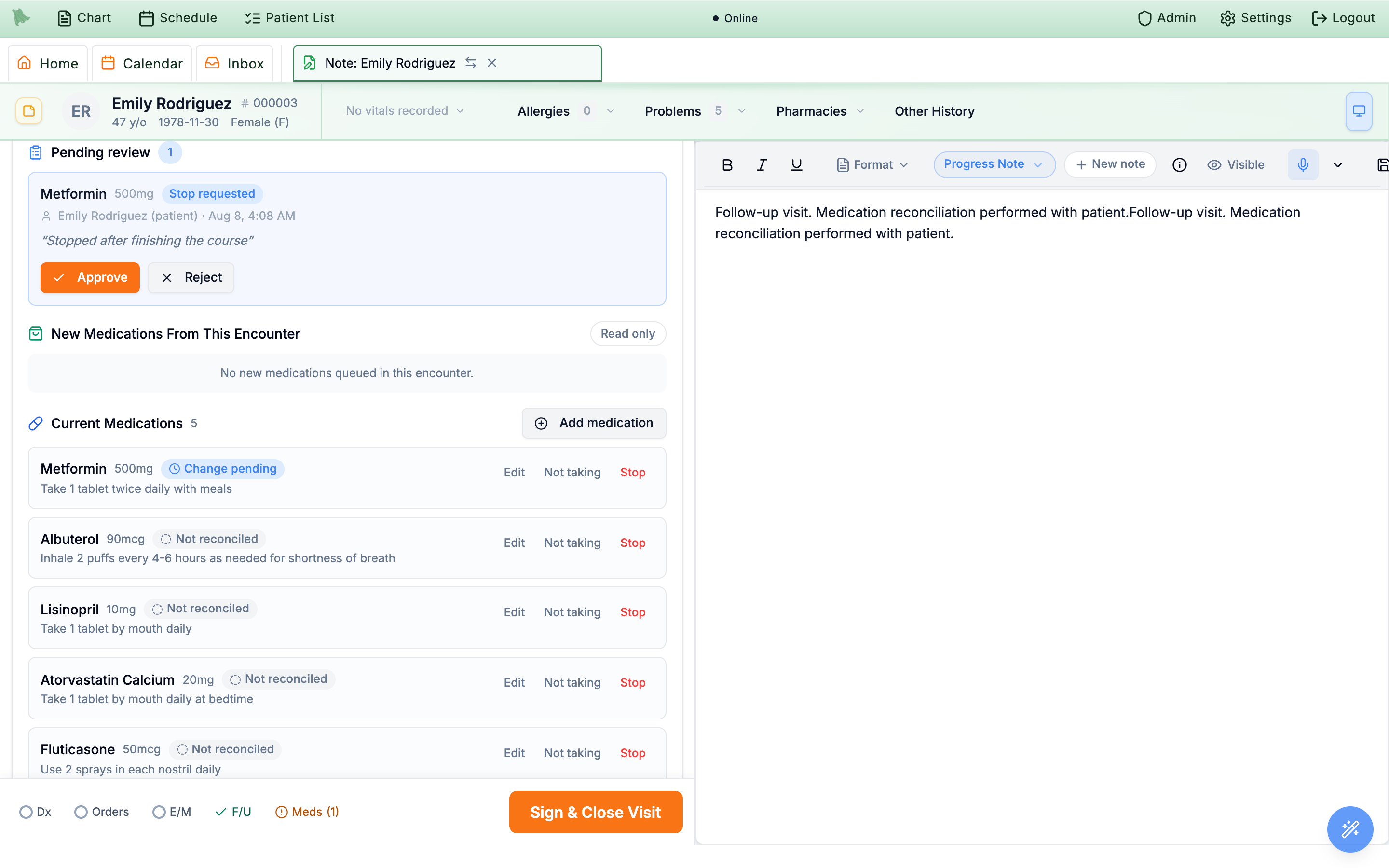
Add medication in the toolbar, review badges on every row, and the finalize bar at the bottom. The footer Meds chip repeats the count.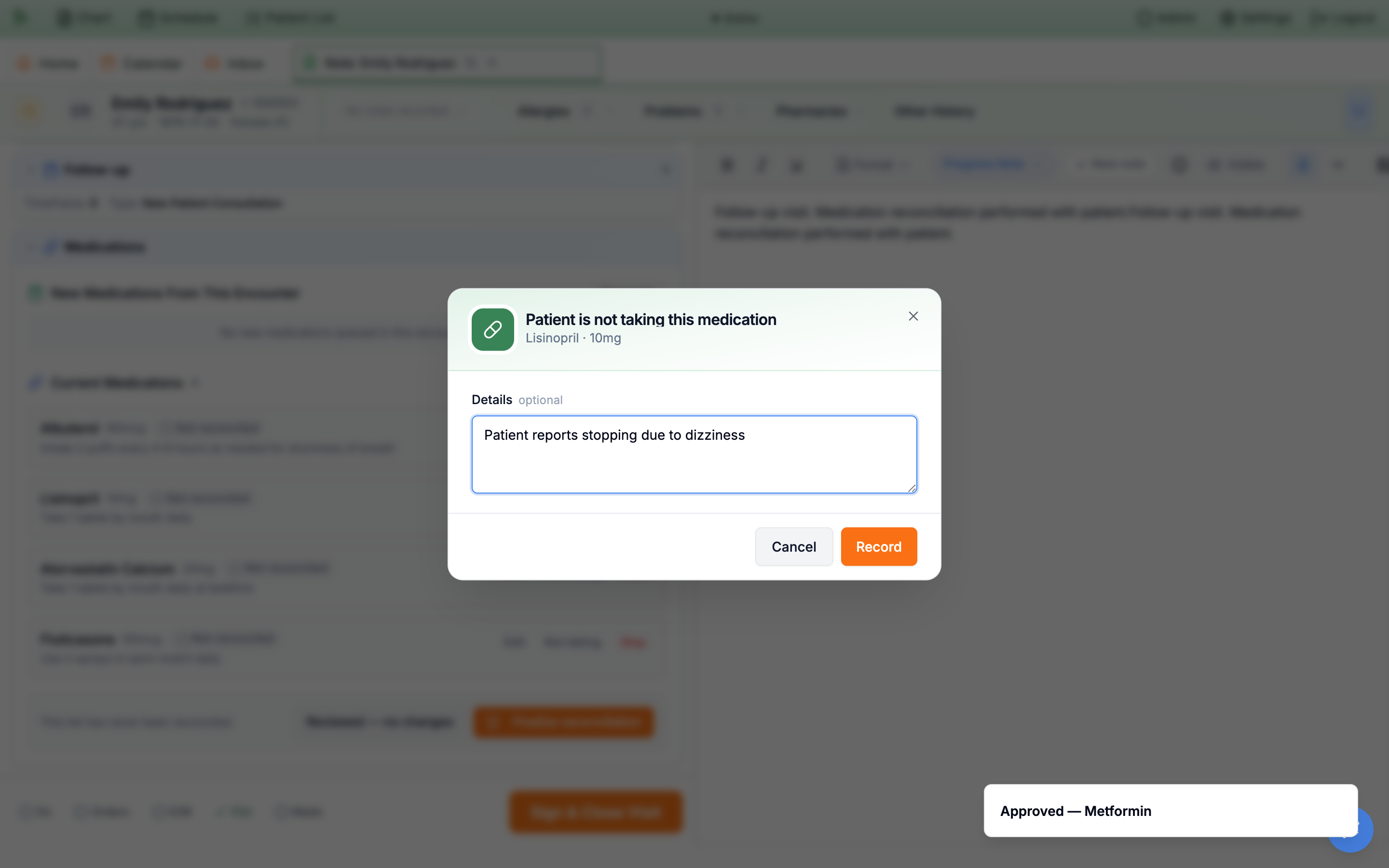
Mark not taking… records adherence with an optional detail line. The row moves to Needs review, and the prescription stays in place until you stop it yourself.Meds chip is your progress hint. It shows the counts, for example Meds 7 · 2 to review plus (2 to reconcile) or (1 pending) while anything is outstanding, and it turns green with a check once the list is reconciled in this visit. The Dx, Orders, E/M and F/U chips work the same way (see Sign & close).Finalize the reconciliation, then sign
Working the individual rows isn’t the same as declaring the list correct. Finalize reconciliation is the attestation. It stamps exactly what the list shows above Past as Reviewed: every medication in Needs review, Current, Scheduled and On hold. It also records who finalized it, when, and against which encounter.
-
Decide every pending proposal first.
Finalizing is blocked while anything sits in
Pending review. Approve or reject each one — there is no “finalize around” an undecided proposal. -
Use the fast path only when nothing has changed.
Reviewed — no changessits next toFinalize reconciliationwhen no proposals are outstanding, the list hasn’t been finalized in this visit, and you haven’t changed anything during this review. It’s the honest one-click answer for the common case: you went through the list with the patient and it was already right. Any change you make here takes it away. That includesStill taking,Specify,Merge,Mark reviewed, an edit, a stop, a not-taking report and an added medication. Then useFinalize reconciliation. -
Read the footer for the current state.
Before a first pass it reads “This list has never been reconciled.” Afterwards it turns green — “Reconciled by Sarah Johnson · Aug 8, 4:15 AM” — and the button retires: a finalized, unchanged list has nothing left to confirm. If the list moves again during the visit — a new medication, an edit, a fresh proposal —
Finalize reconciliationreturns for another pass. A toast confirms “Medication reconciliation finalized”. - Re-review if the list moved under you. Finalize checks that the list is still exactly what you are looking at. It may have changed since the page loaded: a prescription was sent or ran out, a fill posted, a colleague acted, or the patient sent a new proposal. Then Hero declines with “The medication list just changed” and asks you to “Review the refreshed list, then finalize again.” The list refreshes on its own. Look it over, then finalize again rather than retrying blindly.
-
Sign the note.
If proposals are still pending, or a required reconciliation is unfinalized,
Sign & Close VisitraisesMedication changes awaiting review— “1 proposed medication change has not been reviewed. You can sign now and review them later, or handle them in the Medications section first.” It is non-blocking:Review medicationsjumps you to the section,Sign anywaysigns.
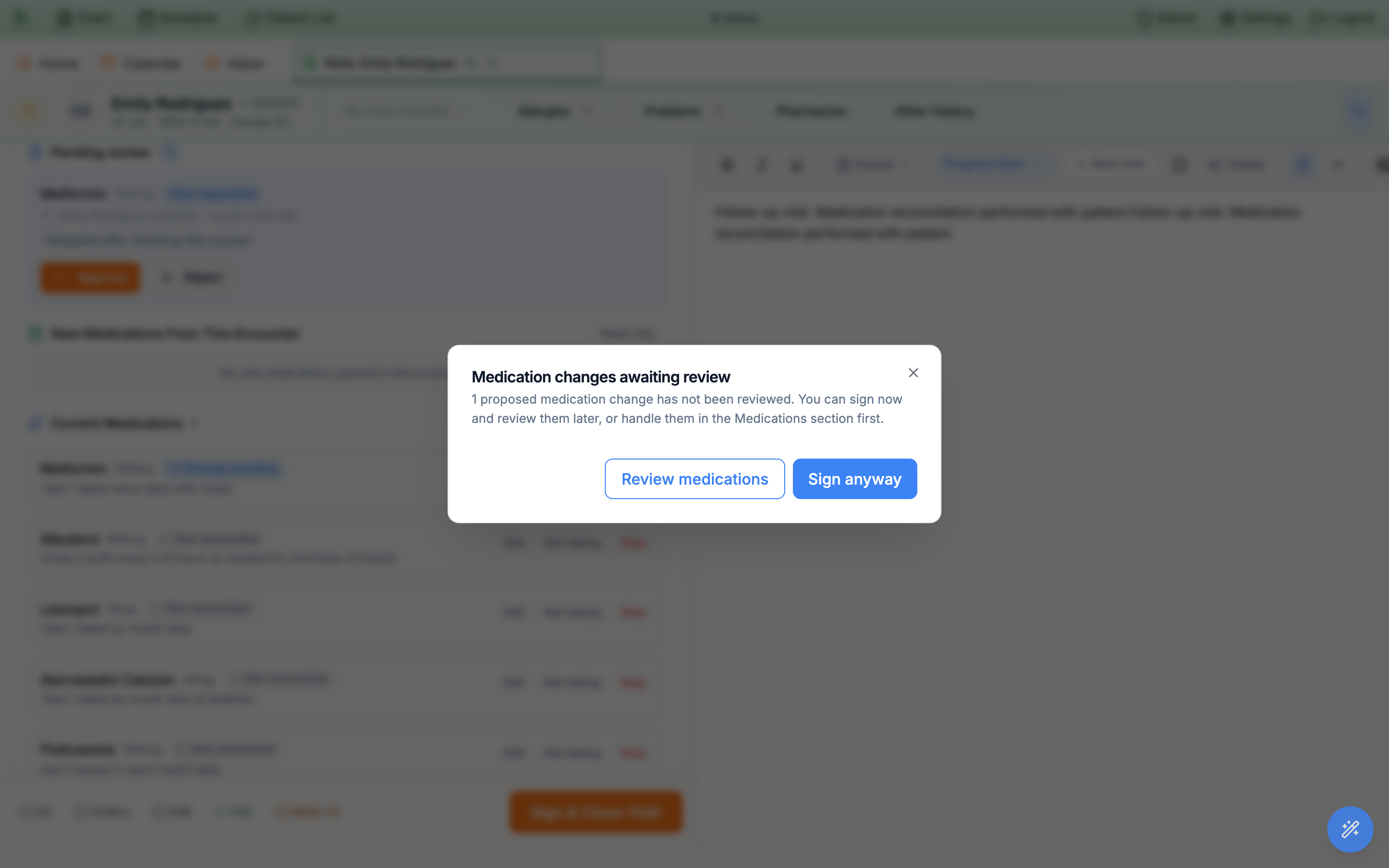
Sign anyway always works. The finalize bar itself appears at the bottom of the workspace in The workspace.Change pending badge, the patient keeps seeing “pending review” in the portal, and refills of that medication stay blocked until someone decides. If you sign past the warning, pick the proposal up from the chart (20.6) rather than leaving it for the next visit.
Keep the list current from the chart — and see who did what
Reconciliation doesn’t only live inside an encounter. With it on, the chart’s Medications tab adds a reconciliation header and review badges on every row. Staff also get the Propose… versions of the row menu, so a nurse taking a phone call or a physician reviewing a chart between visits can keep the list honest without opening a note. Prescribers have the row menu in every organization, with or without reconciliation (see the Medications tab).
-
Read the header first.
A
Last reconciled … by …strip sits above the medication list. On a list nobody has reconciled yet it reads “This medication list has never been reconciled.”, which is a fine thing to fix at the next visit. When proposals are waiting, a blueN changes pending reviewchip sits beside it. -
Scan the badges.
Each row carries its review state (
Reviewed,Not reconciled,Unverified,Change pending) next to its other chips, in whatever group it sits. A medication the patient reports not taking sits inNeeds reviewwith the linePatient reports not taking. Rows inPastkeep their review badge too. -
Act from the row.
Right-click a medication in the list — or its bar in the
Medication Timelinechart, or the···button on the row — forQuick edit…,Mark not taking…,Discontinue…(which asks for a reason),Mark reviewed, andView history. The menu header repeats the medication and sig so you know what you’re acting on, and its footer shows the attribution, e.g. “Reviewed by Sarah Johnson”. -
Expect
Propose…if you’re not a prescriber. Non-prescribing staff see the same menu with proposal wording. The action still gets recorded — it just queues for a clinician instead of applying. -
Open
View historyfor the audit trail. TheHistorydialog lists every event on that medication as a timeline — creation, edits, reconciliations, proposals, and the approve/reject decisions — each with a description and a timestamp. Who proposed, who reviewed, and who finalized are all in here.
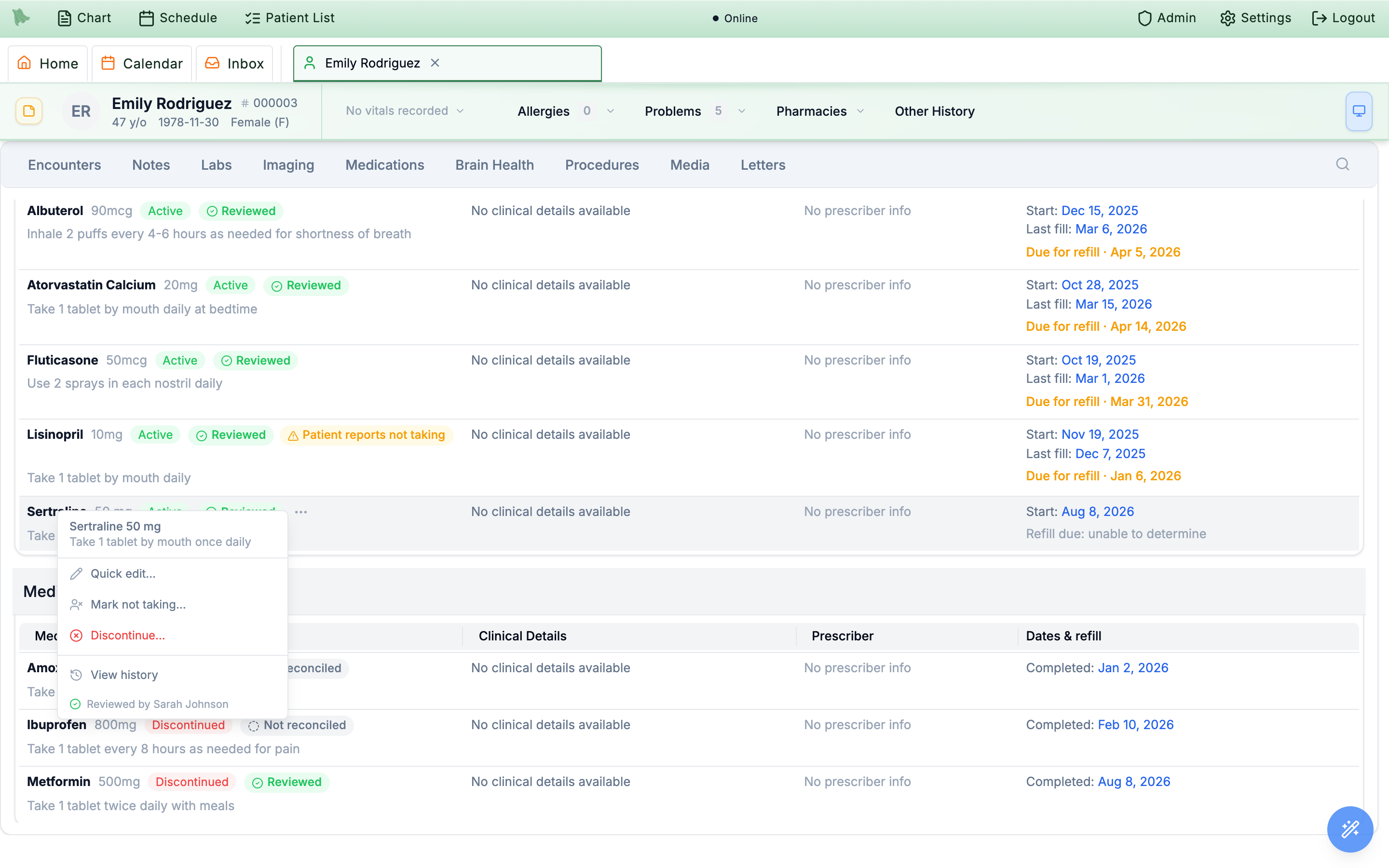
··· button. The menu header repeats the medication and directions.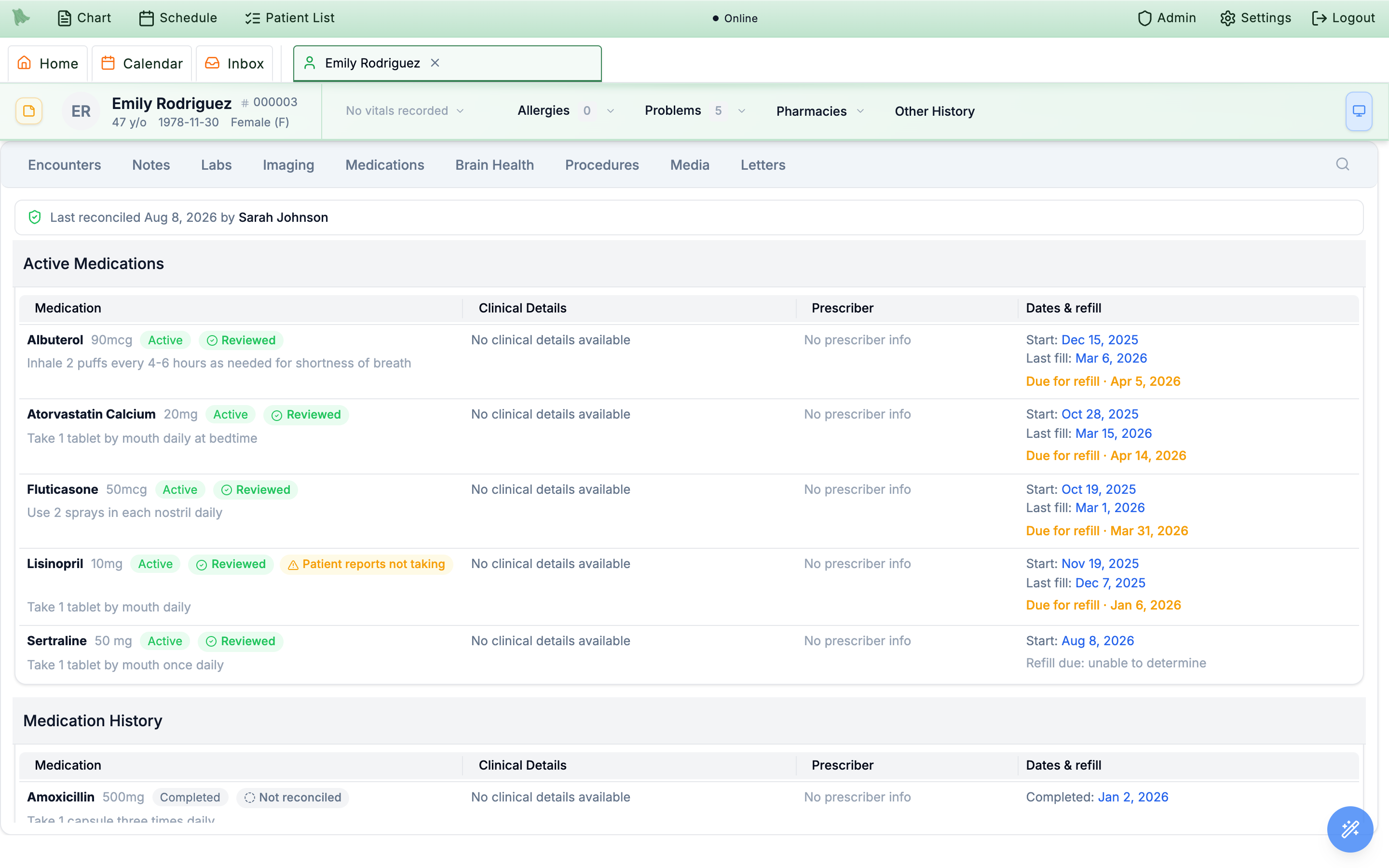
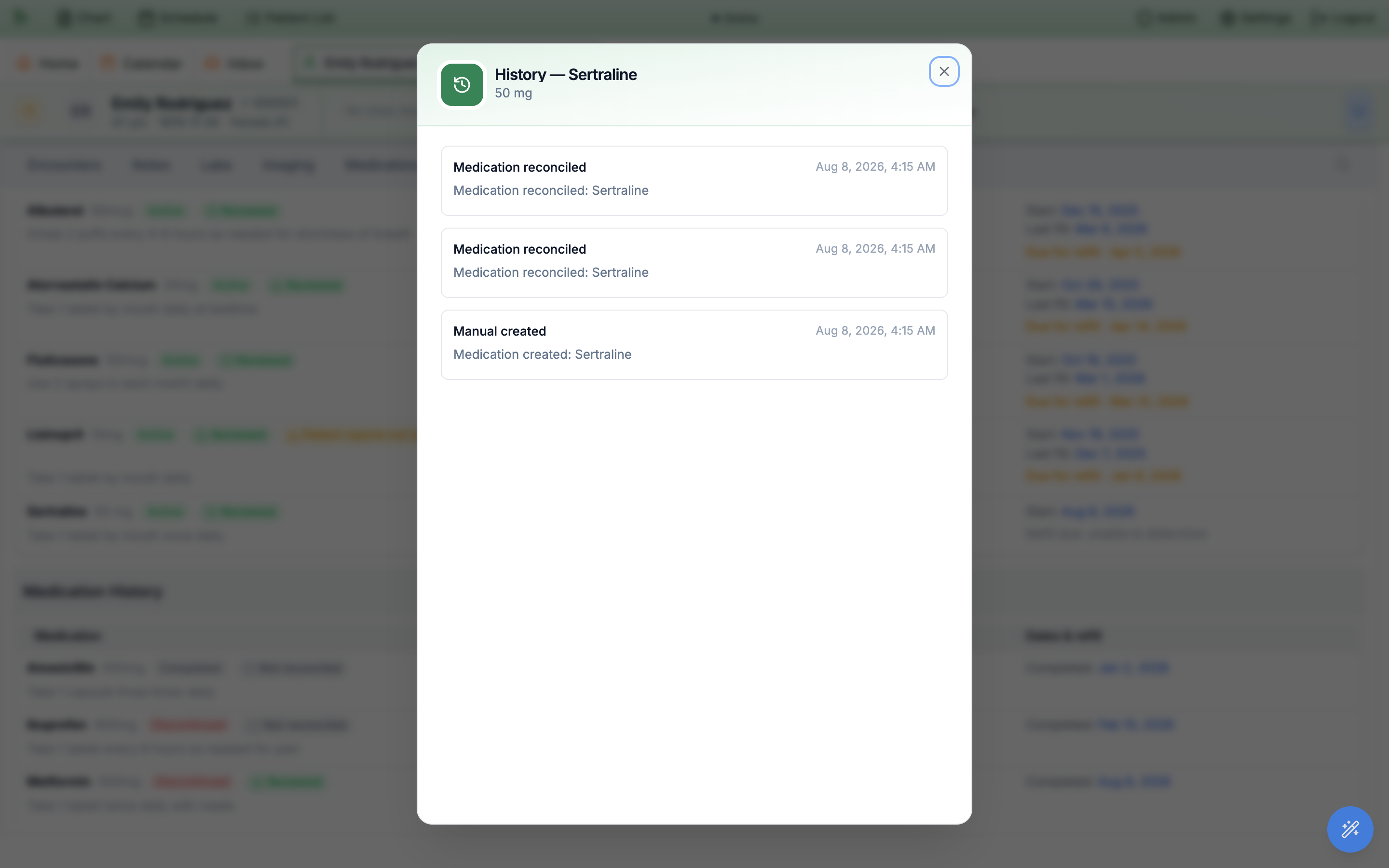
History.“Not taking” is not “discontinued”
- Recording non-adherence documents what the patient is actually doing.
- The medication moves to
Needs reviewand leaves the current count, but the prescription is not stopped. - Two separate decisions, deliberately.
Stoppedends therapy, andStill takingclears the report.
Unverified rows can’t be refilled
- A patient- or staff-added medication is on the list immediately, so you can see it.
- It lands
Unverifiedand is excluded from refill requests until a clinician reviews it. - If a patient says they can’t request a refill, check the badge before the pharmacy.
Need help? Email support@heroemr.com.