Mobile: the patient app
The same download your patients install becomes their portal. This page covers what they can do with it — appointments and messaging, the health data their phone and cuff collect, their records and imports, and payments, insurance and paperwork.
Mobile: the patient app
The same download your patients install becomes their portal. This page covers what they can do with it — appointments and messaging, the health data their phone and cuff collect, their records and imports, and payments, insurance and paperwork.
The patient app
Patients download the same My Hero app and sign in with their portal account. What they see is the portal, shaped for a phone — and it carries your practice’s branding.
-
Signing in.
Email and password,
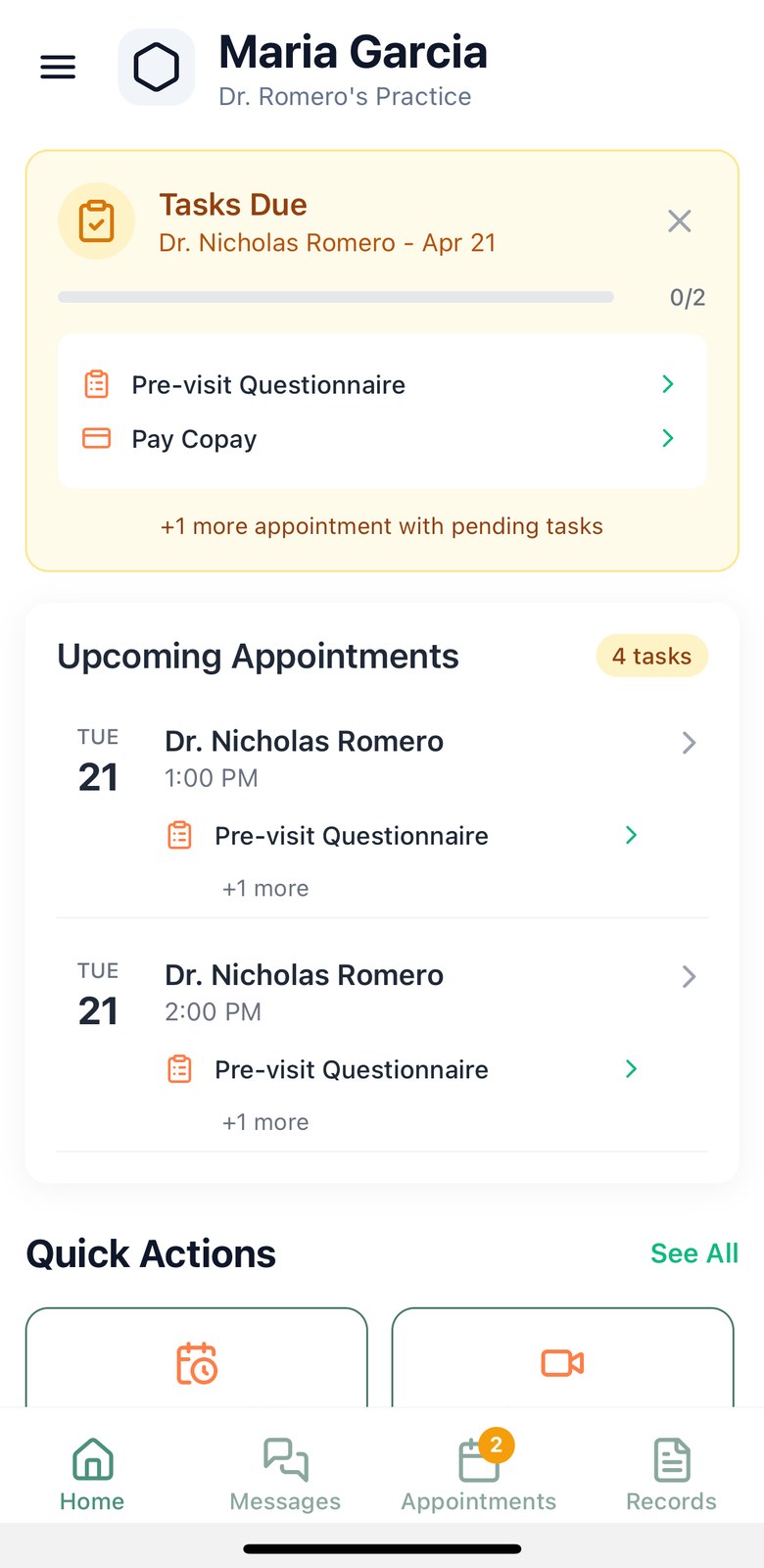
Continue with Google,Continue with Apple, or a passkey. Patients may be challenged for a code by email or SMS, and can mark a device as trusted to reduce repeat prompts. - The home screen leads with what is next. The upcoming visit, any outstanding pre-visit tasks with a progress bar, and quick actions. Where a check-in window is open, the check-in prompt appears here.
- Pre-visit setup. New patients are walked through allergies, medications, preferred pharmacy, guarantor, insurance, billing and record import. Each step can be completed or skipped, and the app remembers where they stopped.
- One account can belong to several practices. If a patient is registered with more than one Hero practice, they choose which one they are signing into.
Booking, checking in and messaging
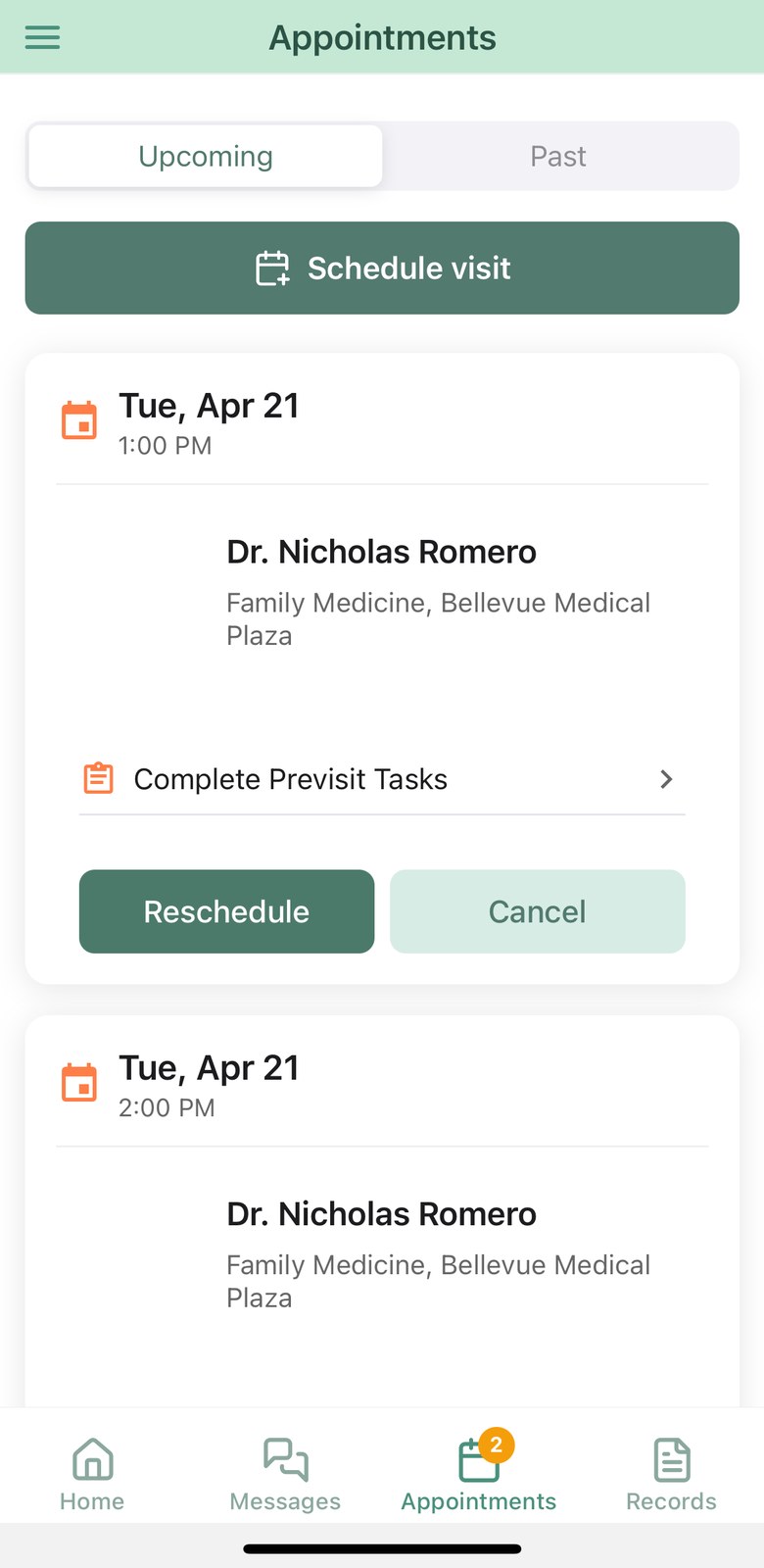
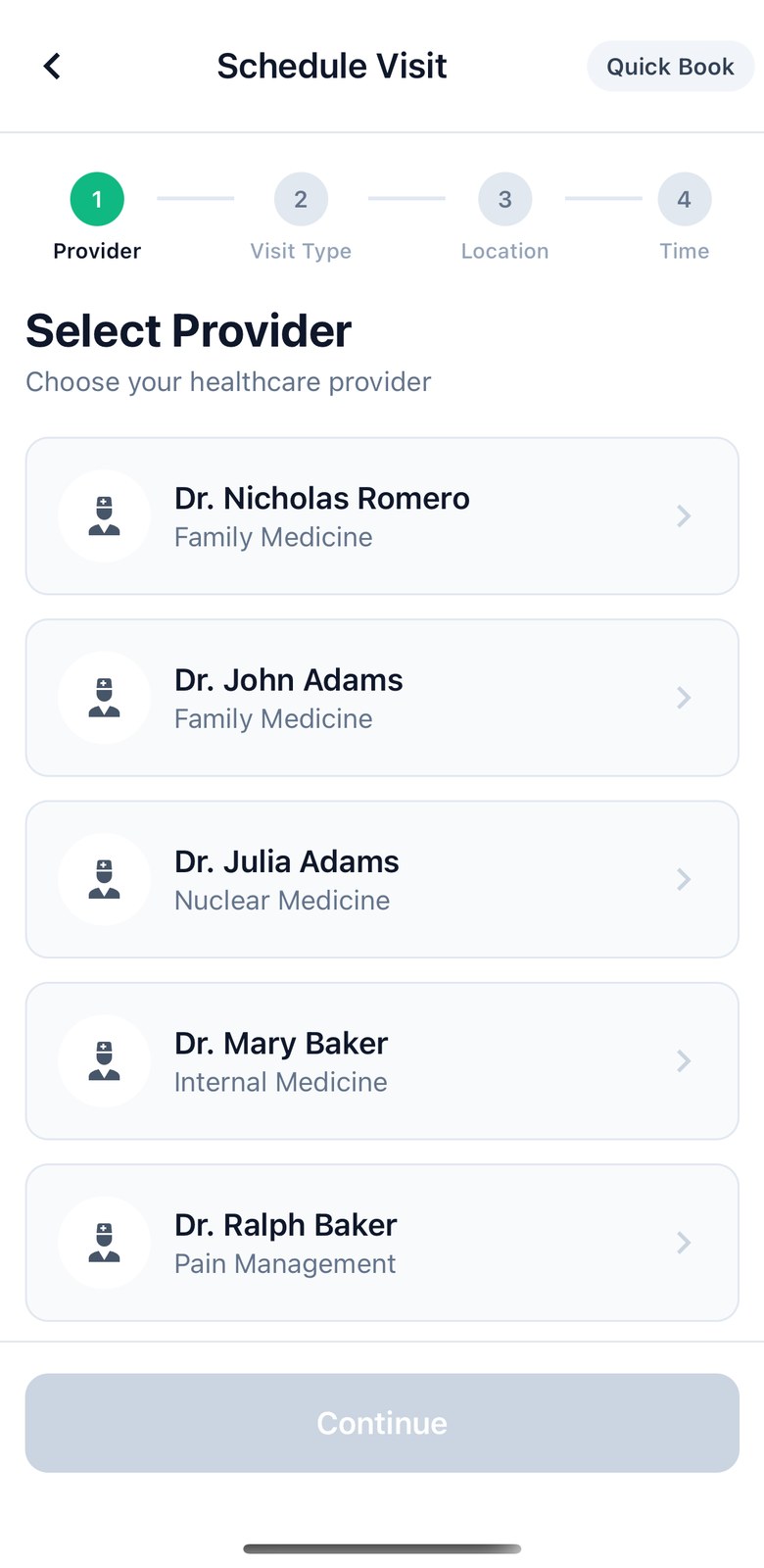
- Booking. Patients choose a physician, a visit type, a location and a time. A next available search looks across all of their physicians at once. Rescheduling and cancelling are available from the appointment card.
- Waitlist offers. Where your practice runs a waitlist, patients can opt in while booking. When an earlier slot opens they receive an offer with a countdown and can claim or decline it from the app.
- Check-in. In-person visits can be checked in from the phone inside the window your practice defines. Virtual visits are not checked in this way.
- Virtual visits. A join button appears from fifteen minutes before the appointment until an hour after, and hands off into Zoom.
- Pre-visit tasks. Questionnaires, paperwork, medication review and copays surface as a task list per appointment, with a progress bar and a home-screen reminder that can be snoozed — and that clears itself when the tasks are done or the visit is rescheduled.
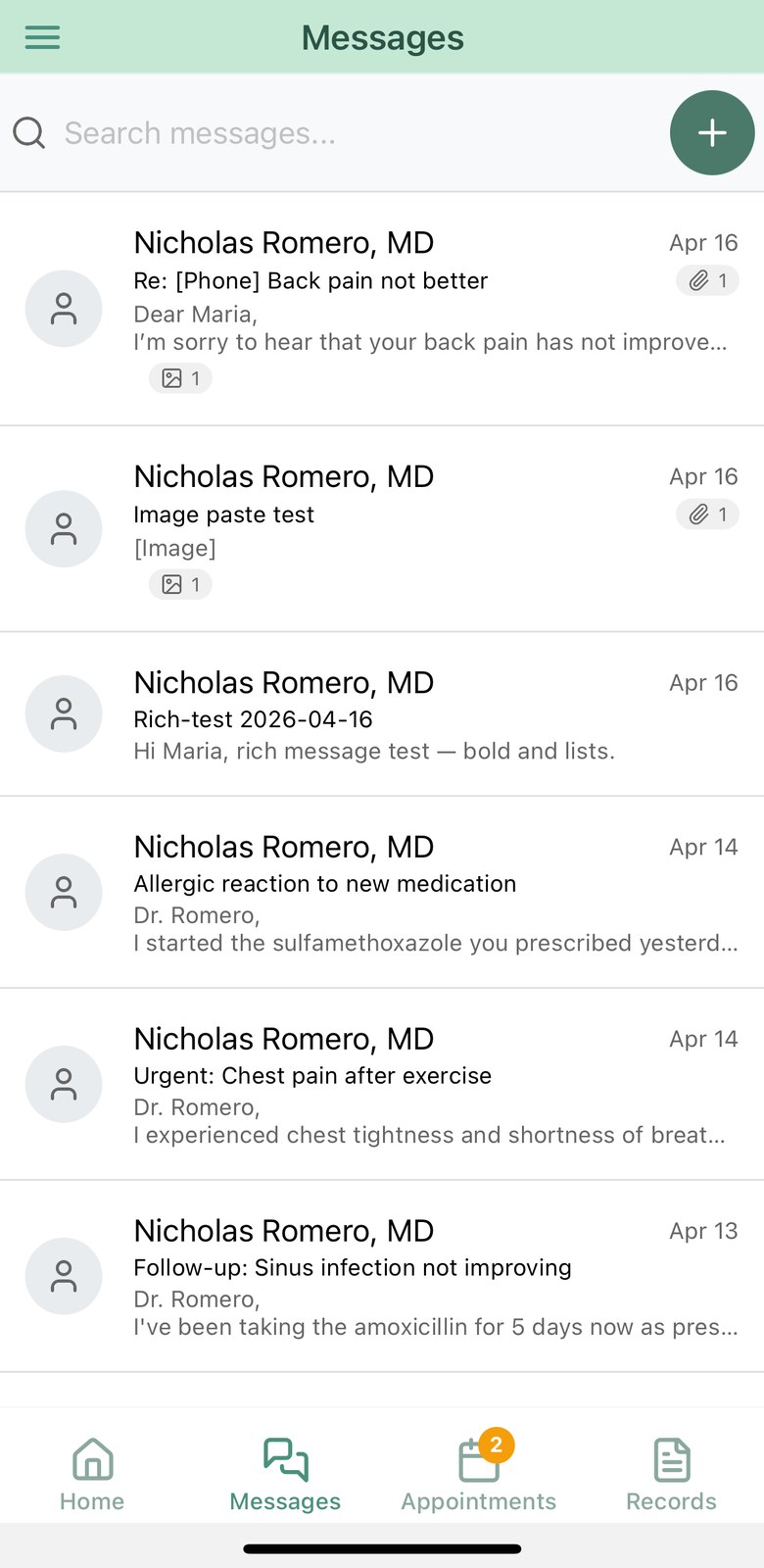
- Secure messages. Patients message the care team, attach a photo or document, and take a photo in-app. Half-written messages are saved as drafts. While the app is open, a new message raises an in-app alert with a link straight to the thread.
Apple Health and Bluetooth devices
The Vitals + Apple Health screen is where patient-generated health data lives: charts, trends and a full history, with the source of each reading labelled.
- Apple Health, read-only. On iPhone, patients can grant Hero permission to read thirteen kinds of data (fourteen HealthKit types, since blood pressure is read as separate systolic and diastolic values) — blood pressure, heart rate, oxygen saturation, weight, height, blood glucose, body temperature, steps, walking and running distance, sleep, active energy, workouts and respiratory rate. Hero never writes back to Apple Health. The first connection imports thirty days of history; afterwards it tops up while the app is open.
- Bluetooth blood-pressure cuffs. Patients pair a cuff from the same screen. Hero speaks the standard Bluetooth blood-pressure profile rather than a single vendor’s protocol, so a wide range of cuffs work; the app lists FDA-cleared examples with their clearance numbers. Each reading brings systolic, diastolic, pulse, and the irregular-heartbeat and movement flags the device reports. Paired devices are remembered and reconnected automatically.
- Readings survive a bad signal. Measurements queue on the device, de-duplicate, and upload when the network returns. Patients can see what is pending and retry anything that failed.
- Care plans. Where your practice runs advanced primary care management, patients see a care-plan checklist — review medications, schedule follow-up, review results, message the care team — with progress tracked, plus the care-plan notes from their chart.
Records, imports and medications
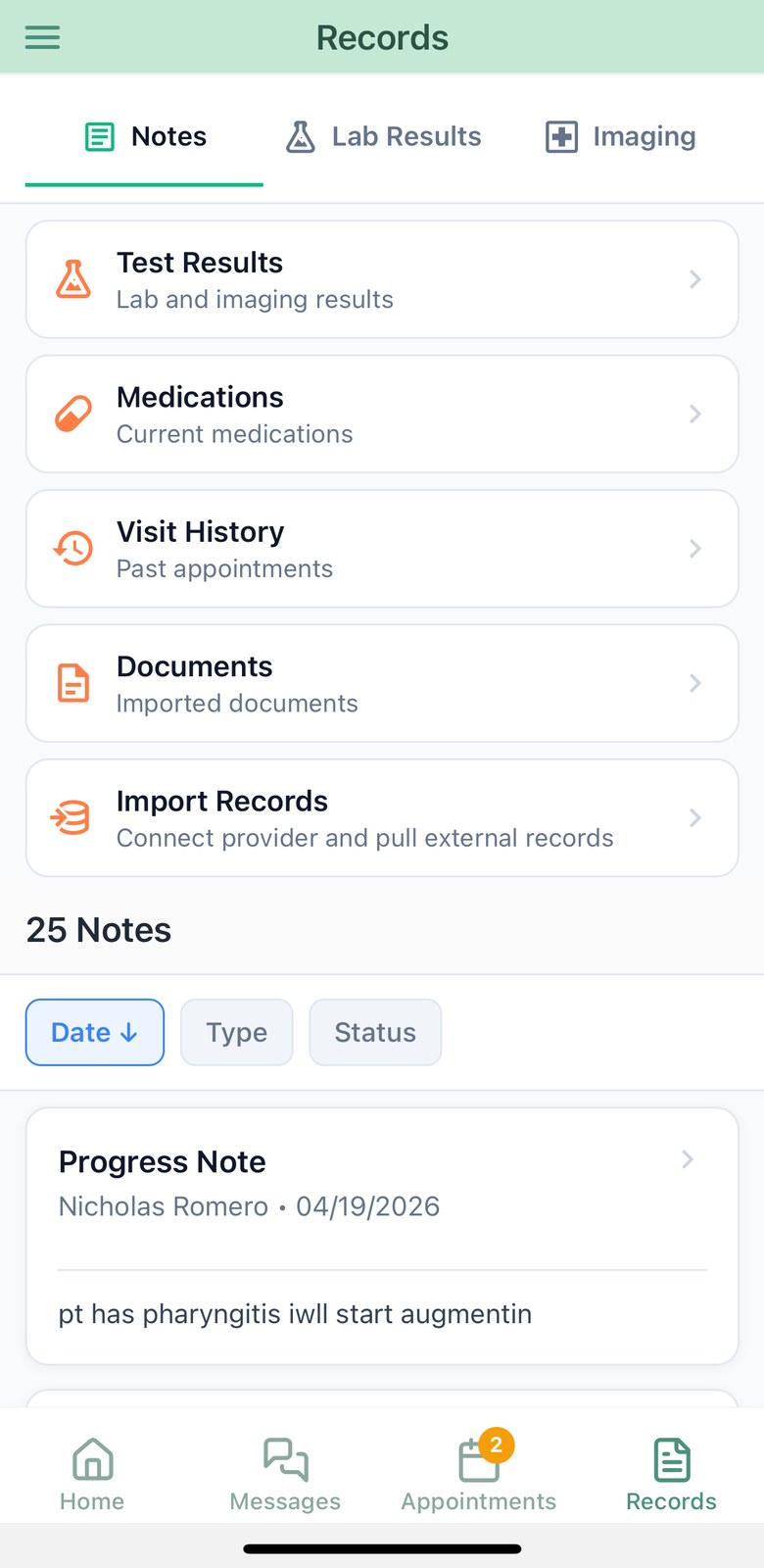
- Results and notes. The records tab holds notes, labs and imaging. Lab results carry reference ranges and abnormal flags, and build a trend table across dates. Imaging reports are split into technique, findings and impression. Visit history and documents are one tap further.
- Importing from another health system. Patients connect to a previous provider — searching by name, or finding nearby health systems using the phone’s location — and sign in with that system’s own credentials. Demographics, medications, allergies and notes can be imported, with the patient confirming demographics before anything updates their profile. Notes import runs as a background job with progress and a per-type result report.
- Medications. Patients keep their list current, request refills where the medication is eligible, and mark the list as reviewed — including an explicit “I take no medications”. They can also set a preferred pharmacy and maintain allergies.
- Scanning instead of typing. Pointing the camera at a medication bottle — or a printed medication list — returns structured medications to confirm rather than a free-text blob.
- A conversation before the visit. Where you assign one, patients answer a guided pre-visit questionnaire and walk through their medications in plain language. You receive a structured summary, with an urgency flag when the answers warrant one.
Payments, insurance and paperwork
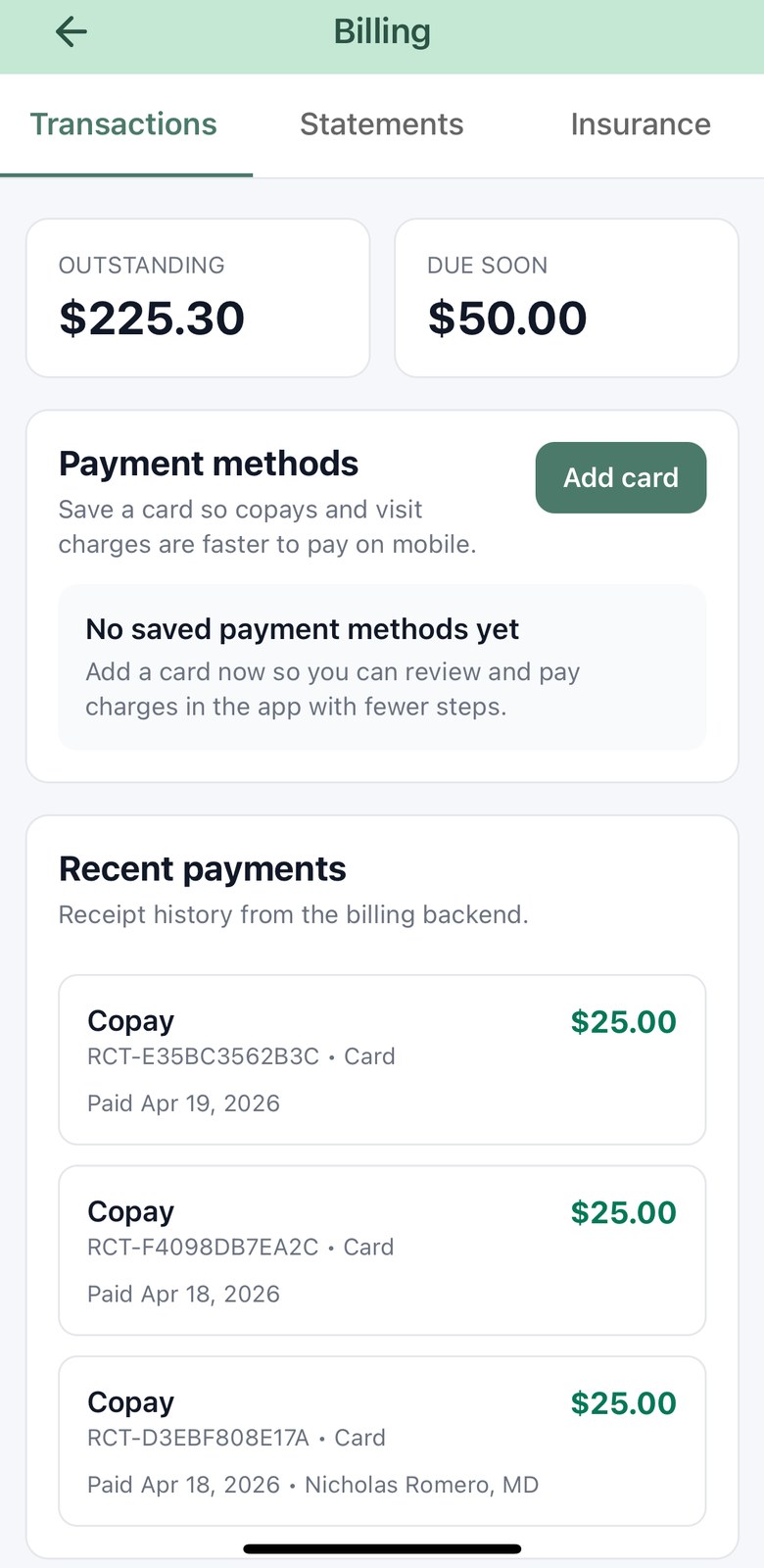
- Paying. Patients see their balance, charges filtered by unpaid, pending and paid, plus receipts and statements. Payment is by saved card, a new card, Apple Pay on iPhone or Google Pay on Android. Which methods appear depends on the payment provider your practice has configured.
- Payment links land in the right place. A payment reminder opens the app directly on the charge to be paid, rather than on a generic billing page.
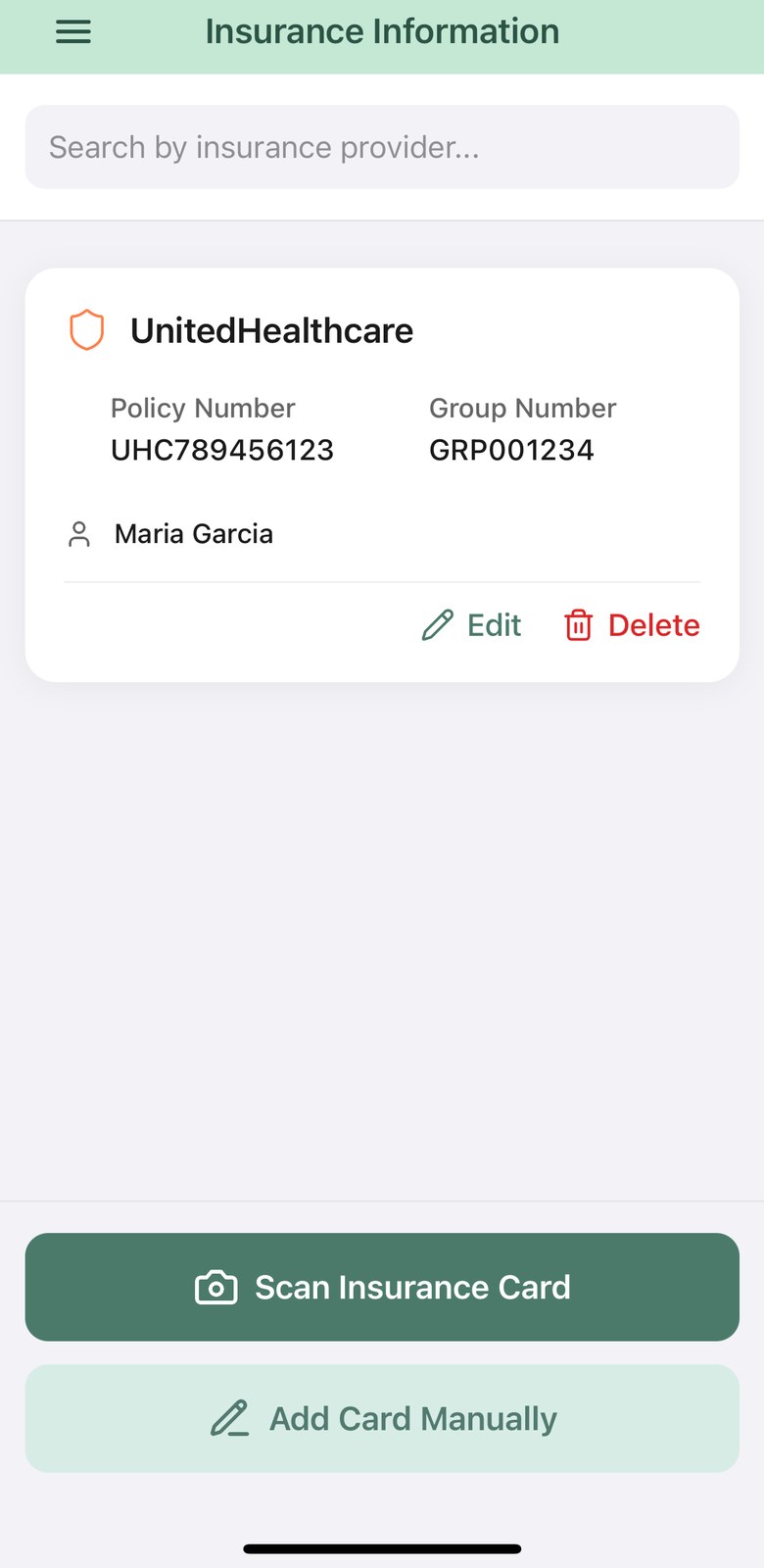
- Insurance by camera. Photographing an insurance card extracts the member ID, group number, plan, insurer, policy holder and copays for the patient to confirm. During registration, insurance can additionally be verified against the payer in real time.
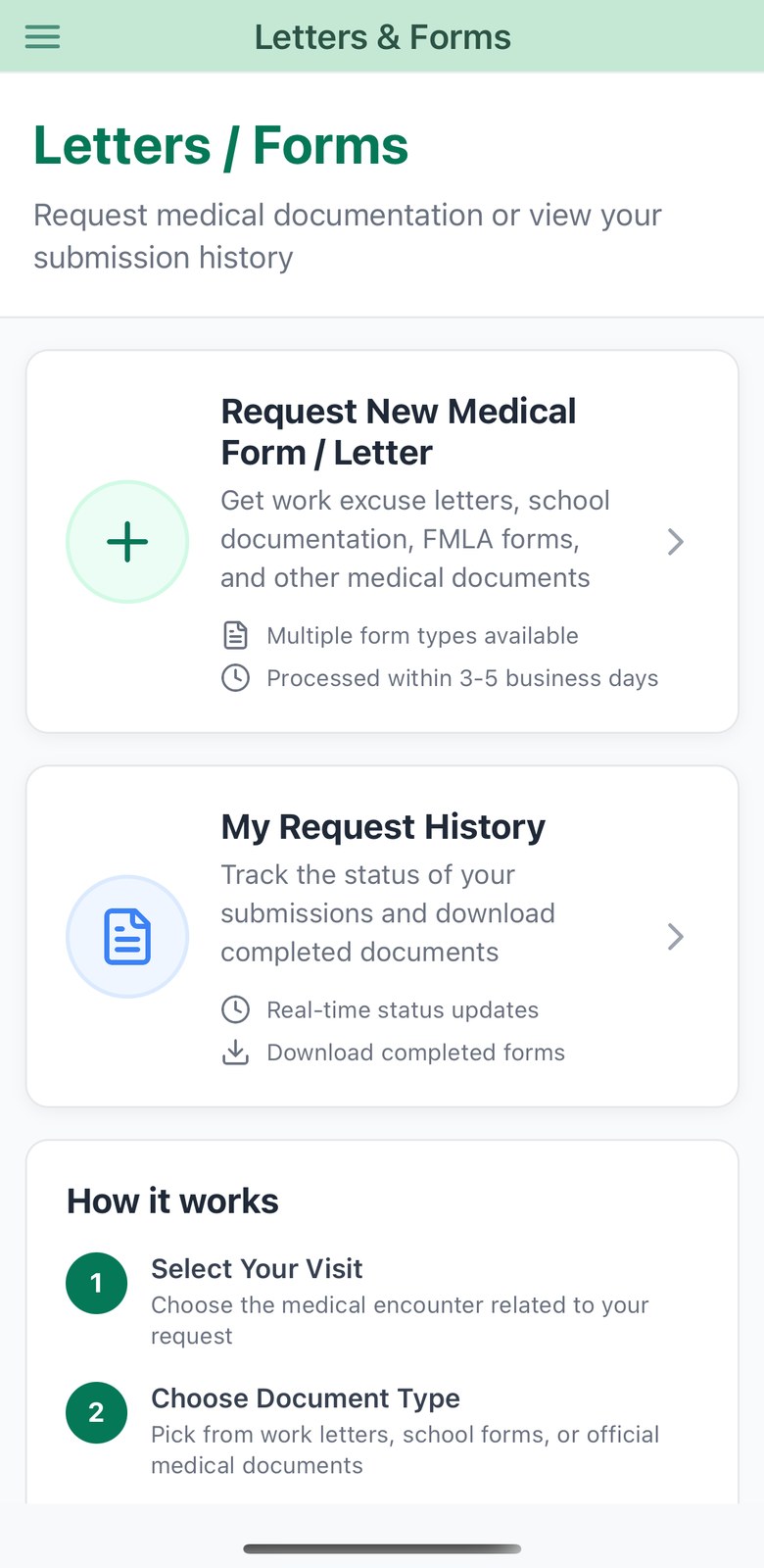
- Letters and forms. Patients request a work or school letter against a specific visit, choose from your practice’s template catalogue, or upload their own PDF for completion. They then track the request through to a downloadable file, and can read your rejection notes if something needs changing.
- Paperwork and questionnaires. Assigned pre-visit paperwork is completed and signed on the phone, with the signature captured on the glass. Screening questionnaires appear as appointment tasks.
- Preferences and account. Communication preferences are per channel — email, SMS and push, with separate email settings for care messages and scheduling. Patients can add a phone factor for two-step sign-in, and delete their portal account (which does not delete the practice’s medical record).
Need help? Email support@heroemr.com.