Practice setup — practice & people
Set up the organization and the people in it: practice info, physicians, staff and assistants, patient registration, patient-portal branding, and how everyone signs in and stays signed in.
Practice setup — practice & people
Set up the organization and the people in it: practice info, physicians, staff and assistants, patient registration, patient-portal branding, and how everyone signs in and stays signed in.
Set the practice record, locations, and accepted insurance
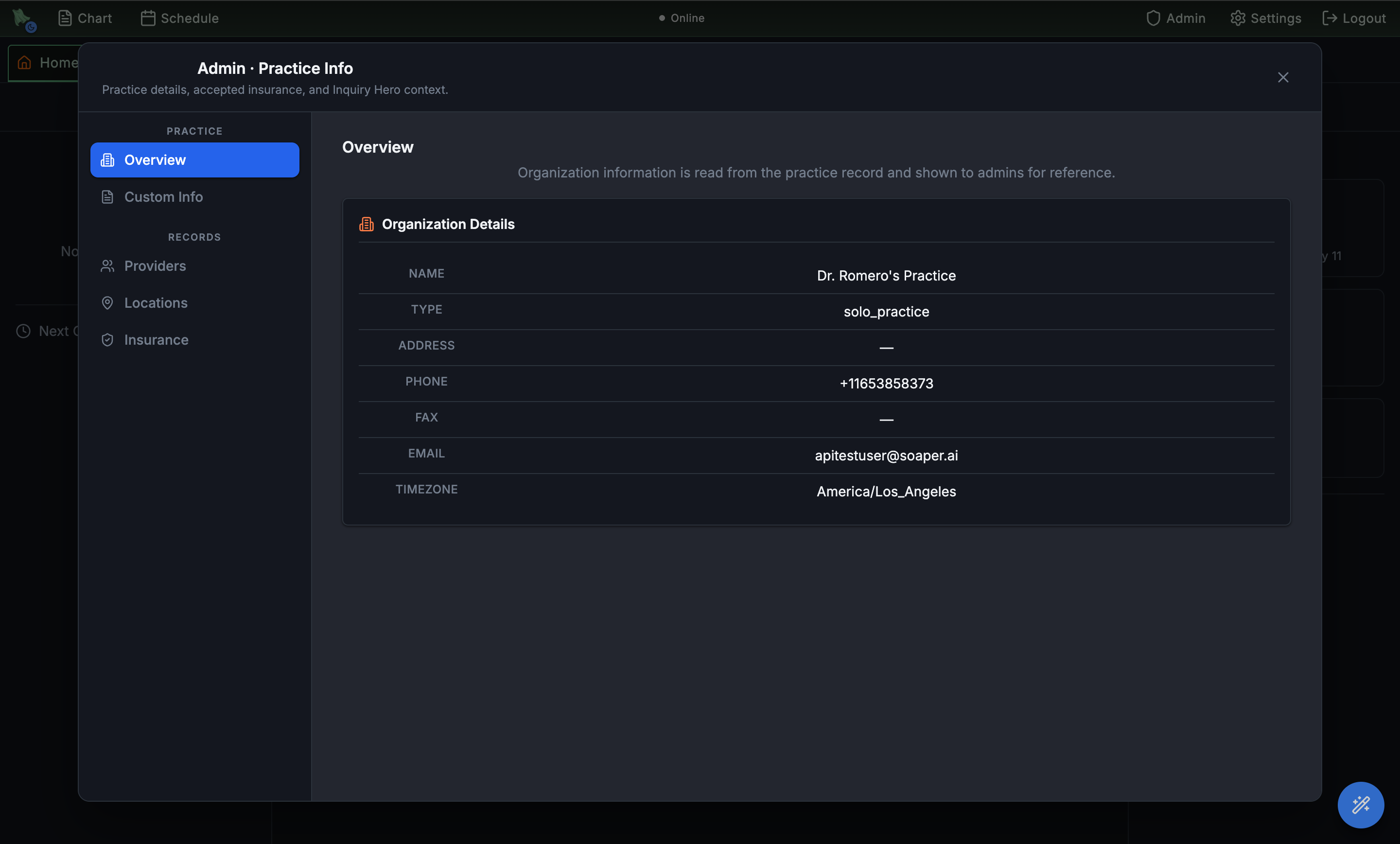
Practice Info is the organization's identity card. Org admins fill it in once; every downstream feature — claim submission, fax cover sheets, patient portal headers, online-booking landing pages — reads from this record. There is no per-physician override here; everything is at the organization level.
- Open
Admin > Practice Info. The modal opens to the Overview tab under the Practice section. - Check and correct the Organization Details. Click the pencil on the Organization Details card to edit the record in place: name, type (Hospital, Group practice, Solo practice, Clinic, Laboratory), street address, city, state, ZIP, phone, fax, and email. Click Save Organization when you're done, or Cancel to discard. These values flow into claims, fax cover sheets, and portal headers, so re-check them after a move or a rebrand. The organization timezone is shown on the same card but is deliberately not editable here — change it from Scheduling settings so appointment and reminder times are recalculated safely.
- Add Custom Info (optional). The Custom Info tab stores free-text fields shown to admins for reference — Inquiry Hero context, internal notes, third-party account numbers.
- Review Providers under the Records section. Lists every physician attached to the org. To add or edit them, use Physician Management — Practice Info is read-only here.
- Add practice Locations. Each physical address you see patients at. Locations also appear inside Scheduling > Locations when physicians assign themselves to a site.
- List Accepted Insurance. The plans your practice is in-network with. Used by online booking, intake, and the eligibility tools — patients see the list when picking a payer at booking.
Add physicians and keep their identifiers current
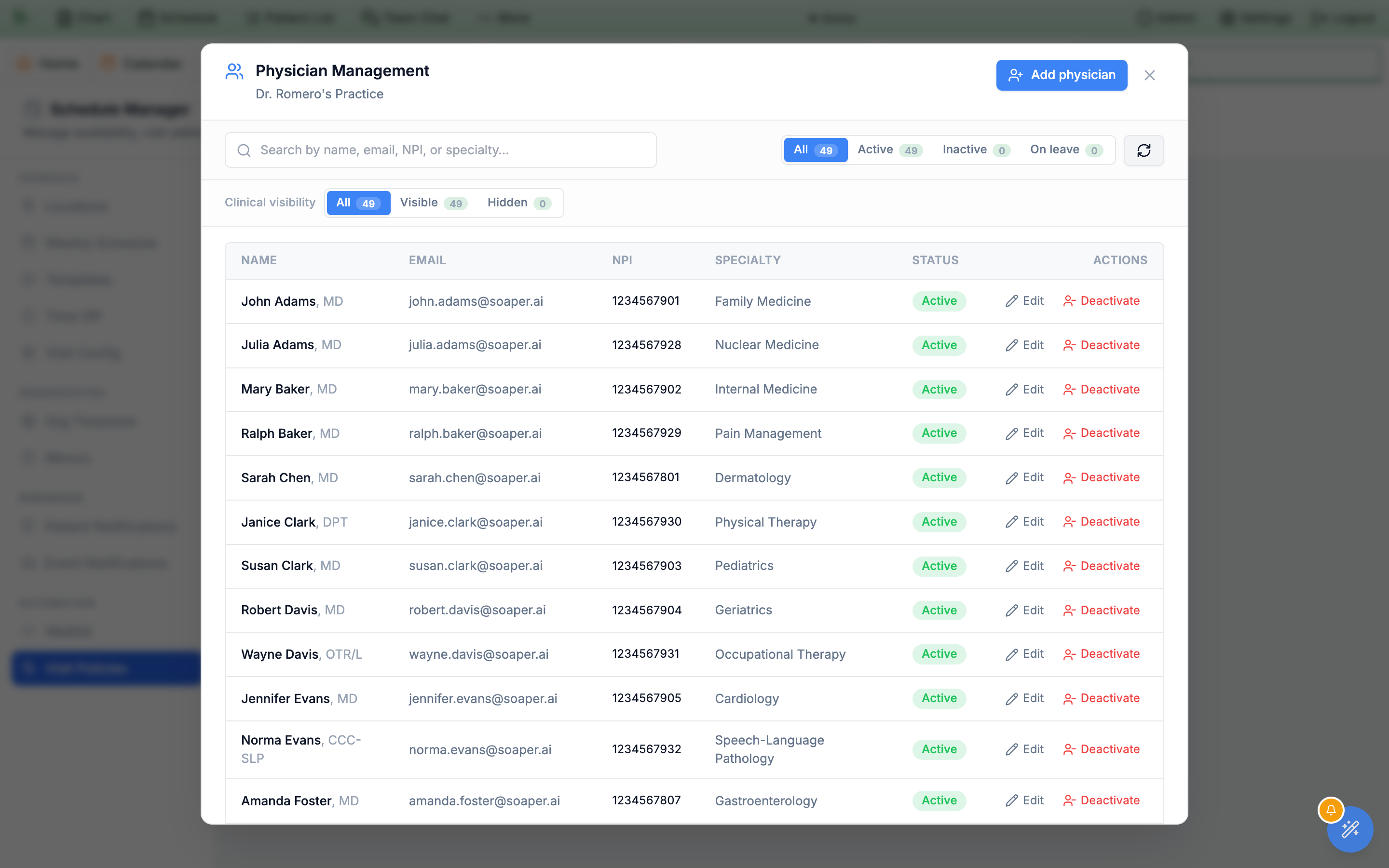
Physician Management is the source of truth for every clinician in the org. Each row carries the identifiers that downstream systems require: NPI for claims and SureScripts, specialty for online booking filters, and email for login. Each physician maintains their state-specific DEA registrations and prescribing addresses in Physician Settings. Deactivating a row hides the physician from scheduling and routing without deleting their history.
- Open
Admin > Physician Management. A table opens with every physician in the org. Search by name, email, NPI, or specialty, and narrow the list with the status pills — All, Active, Inactive, On leave — each of which carries a live count. - Use the Clinical visibility row for the second filter. Below the search bar, All / Visible / Hidden splits the roster by whether a physician is hidden from clinical contexts. Hidden rows also carry a Hidden badge.
- Click Add physician. Enter Name, Email (used for login), NPI, Specialty, and state-license information. The Email becomes their sign-in identifier, so use the address you want associated with their EMR account.
- Use Edit to update credentials. Keep NPI, licenses, specialty, and account details current here. Edits propagate to claim submission, SureScripts, EPCS, and chart signatures.
- Use Deactivate when a physician leaves. Deactivation removes them from booking, routing, and the Schedule Manager picker, but their signed notes, prescriptions, and claims remain in the chart for audit purposes.
Enter DEA registrations and service addresses
A physician who prescribes in more than one state can save one DEA prescribing location for each state. The service or office address belongs to that DEA registration, while the physician's primary or mailing address remains separate.
- Open
Physician Settings > Addresses. Use the physician's own settings rather than the organization roster when adding prescribing locations. - Keep Primary / Mailing Address for general correspondence. This can be a home or mailing address and does not determine which address is sent with a controlled prescription.
- Under DEA prescribing locations, click Add DEA location. Enter a recognizable label such as Portland office, select the registered state, enter the DEA number, and complete that location's service address.
- Add every state where the physician prescribes. For example, save one Oregon registration with the Portland office and one Texas registration with the Austin office. Use mailing address can copy the mailing address as a starting point; edit the copied fields when the registered service location is different.
- Save settings. Hero validates duplicate states and DEA numbers and requires a complete service address for each registration.
Invite medical assistants and front-desk staff
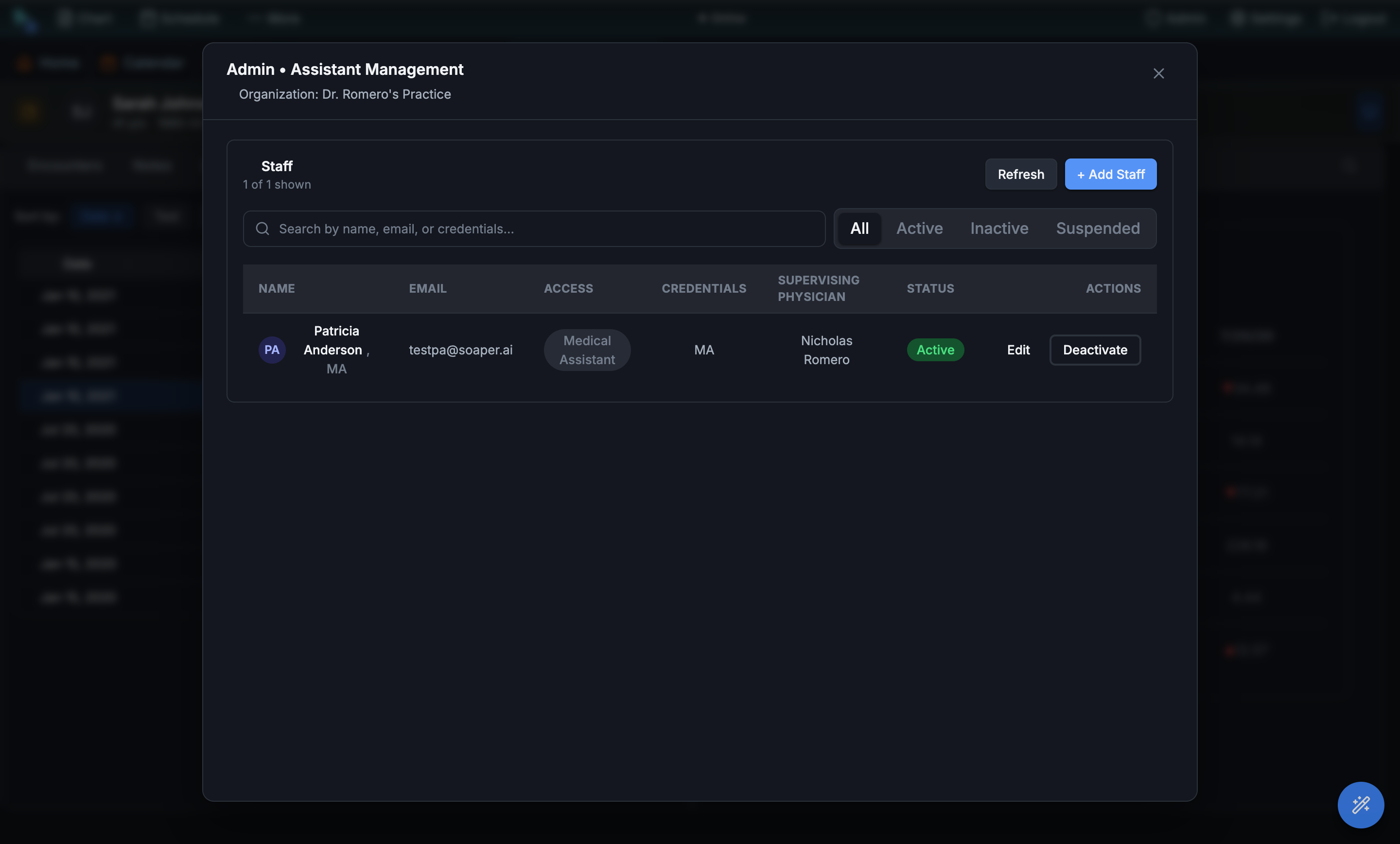
Staff & Assistants is the non-physician roster. Medical assistants, scribes, schedulers, front-desk users, and office managers live here. Office Manager is a staff role profile, not an administrator login; its delegated permissions determine which admin and billing tools it can use. Each row carries credentials (MA, RN, scribe, etc.), an email for login, and a supervising physician link — assistants act on behalf of their supervisor for orders, in-basket routing, and chart access.
- Open
Admin > Staff / Assistants. The Assistant Management modal opens with the full staff list. Toggle between All, Active, Inactive, and Suspended tabs to filter by status. - Click + Add Staff. Walk through the staff wizard: name, email, credentials (free text — MA, RN, LPN, Scribe), and the supervising physician they're paired with on the
Profilestep, then theAccessstep — “Pick one or more role profiles, then fine-tune individual permissions if needed.” Tick Role profiles such as Front Desk, Medical Assistant, Biller, or Billing Manager, and useCustomize granular permissionsfor anything extra. - Use Edit for ongoing changes. Re-link a supervisor when an MA changes pods, update credentials when they upgrade, change email if they migrate to a work address.
- Use Deactivate when a staff member leaves. They lose login access immediately; their prior in-basket actions and chart edits remain attributed to them.
| Workflow | Role profiles that include it |
|---|---|
| Open a patient’s billing without the clinical chart, and fix the address and insurance a claim needs (Patient billing) | Biller, Billing Manager, Office Manager |
| Book a visit, sign and send, or release a claim even though the insurance check failed, with a reason (Billing → Eligibility) | Front Desk, Biller, Billing Manager, Office Manager |
| Triage patient refill requests (Refills) | Medical Assistant, Nurse |
| Review pre-visit intake (Intake review) | Medical Assistant, Nurse, Intake Coordinator |
| Run the check-in kiosk (Kiosk) | Front Desk, Medical Assistant, Nurse, Intake Coordinator, Office Manager, Check-in Kiosk |
| Enroll and revoke walk-up tablets (Walk-up tablets) | Office Manager |
| Book and manage treatment series (Treatment series) | Front Desk, Medical Assistant, Nurse, Intake Coordinator, Office Manager |
Access step for staff who screen intake before visits; it carries no payment, billing, or chart-documentation rights. Practice owners can open Billing, including physician owners, when billing is enabled for the practice. Individual financial actions still have their own access checks.
Front-desk refunds have a separate patient-payment refund permission. It allows refunds without granting write-offs, fee waivers, or credit adjustments. Taking payments also requires payment-collection permission and patient-invoice access. Dues refunds use the separate membership-refund permission. Review the staff member’s granular permissions for the intended workflow; see Payments & card readers.
Some permissions only the practice owner or an administrator can give, and no role profile includes them: changing the practice’s security settings (Security settings) and emergency chart access (Emergency chart access). An office manager can assign whole role profiles but not these. Staff add their own passkey or text-message number from the shield button Sign-in & security in the top bar (see Signing in & passkeys).
Search, add, and edit patients from the admin console
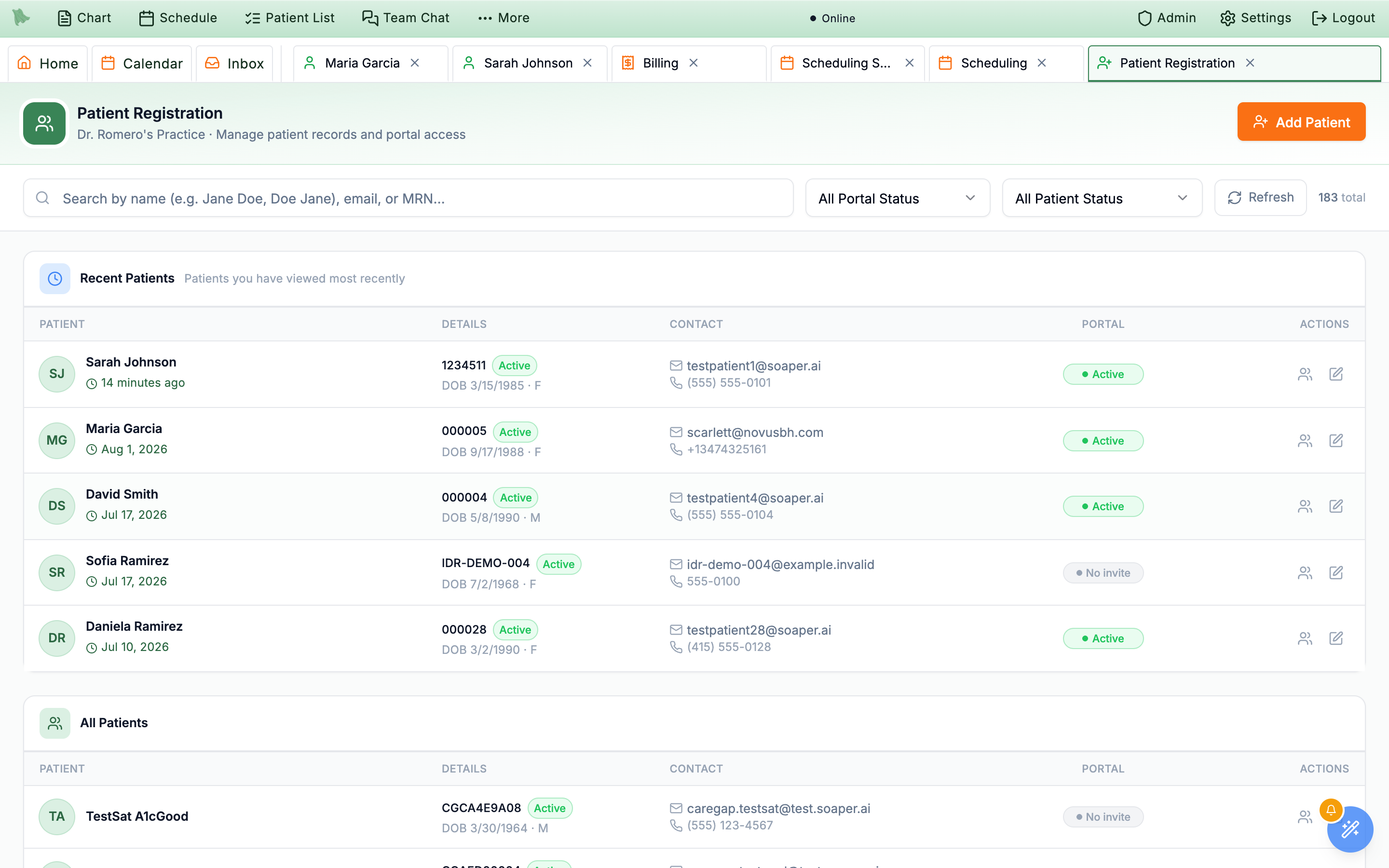
Patient Registration is the org-wide patient directory. Use it to add patients that bypass online booking (walk-ins, phone bookings, migrated charts) or to fix demographics that came in wrong from the portal. The list shows every patient in the org, regardless of which physician they see.
- Open
Admin > Patient Registration. This is not a modal — it opens as its own workspace tab titled Patient Registration (“Manage patient records and portal access”), with a searchable, paginated list of every patient. Search by name, email, or MRN. - Filter by portal status. The All Portal Status dropdown offers No Invitation, Pending (invited but not signed in), and Active. Row badges read No invite, Pending, or Active to match.
- Filter by patient status. A second dropdown, All Patient Status, filters on the clinical relationship instead: Active, Inactive, Prospective, Discharged, Transferred out, or Deceased. The two filters combine, which is how you find (say) active patients who never accepted a portal invite.
- Click Add Patient. Enter First/Last name, DOB, sex, email, phone, and address. Email and phone are required to send a portal invite — leave them blank for chart-only patients (paper charts, ghost records for migration). The address ZIP accepts only a 5-digit ZIP or a 9-digit ZIP+4 (digit-only entries are reformatted, so
410561234saves as41056-1234); it may be left empty, but insurance claims will wait on a complete address. - Send or resend a portal invite from the row. The badge in the Portal column is a button while portal access is still No invite or Pending — hovering it swaps the label to Send invite or Resend invite. Once the patient's portal access is Active the badge is plain text; there is no revoke action here.
- Edit demographics. Click Edit on any row to fix name spelling, sex, contact info, or address.
Brand the patient portal without a code deploy
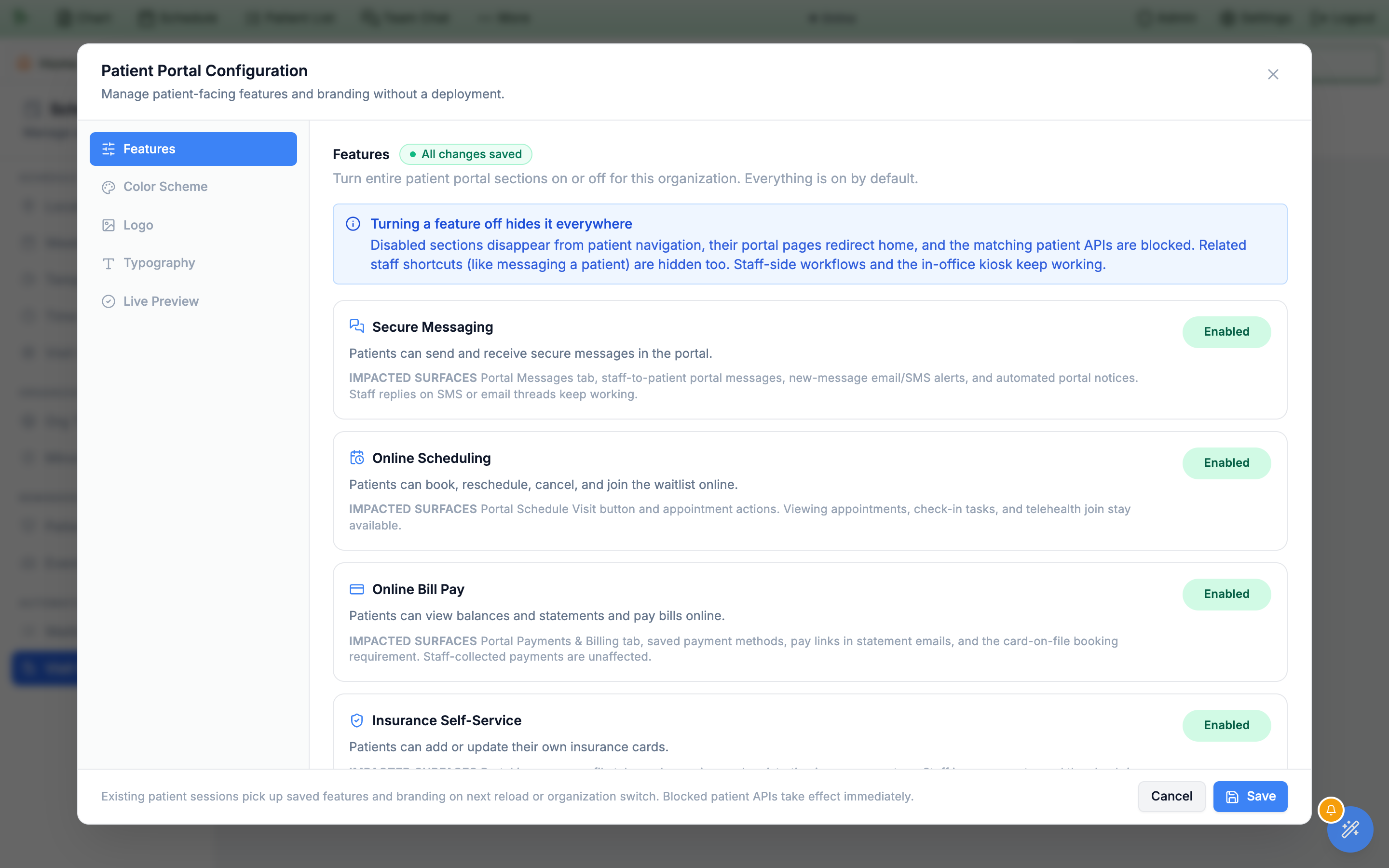
Patient Portal Configuration controls both what your patients can do in the portal and how it looks to them — feature toggles first, then color palette, logo, typography, and a live preview. The defaults work out of the box; customize when you want the portal to match your practice's identity or your landing site.
- Open
Admin > Patient Portal Configuration. The modal opens to the Features tab. The tabs run down a left rail: Features, Teens & guardians, Correction requests (only while Record correction requests is on in Additional Features), Color Scheme, Logo, Typography, and Live Preview. What parents and guardians of minors can see is set on Teens & guardians — see Teens & guardians. The deadlines for answering patients’ correction requests are set on Correction requests — see Record correction requests. - Decide what the portal offers. The Features tab carries eleven toggles, all on unless you turn them off: Secure Messaging (portal Messages tab and new-message alerts; staff replies over SMS or email keep working), Online Scheduling (book, reschedule, cancel, waitlist — viewing appointments, check-in, and telehealth join stay available), Online Bill Pay (balances, statements, saved cards, pay links; staff-collected payments are unaffected), Insurance Self-Service (patients adding their own cards; staff entry and the kiosk are unaffected), Health Records (labs, imaging, shared media, diagnoses, patient instructions), Visit Notes (signed visit notes and visit summaries; it sits under Health Records and only applies while that is on, so you can hide notes while keeping results visible), Letters & Forms (patient-initiated requests; questionnaires and required paperwork are unaffected), Refill Requests (the refill button, not the medication list), Document Uploads, Caregiver Sharing (adult patients inviting family or caregivers to help; turning it off stops new invitations only), and Family Access Requests (a parent asking the practice to add another parent or guardian; turning it off stops new requests only). Turning one off hides that surface from patients — it does not delete anything.
- Set the Orientation intake questions. Still on Features, the Orientation intake toggles control what new patients are asked during portal orientation. The history questions are Past Surgical History, Social History (not asked on proxy accounts), Family History, and GYN History (offered only to patients whose recorded sex is female or other, never on proxy accounts). Newly created organizations start with all four on; a question added after your practice was set up starts off until you turn it on, so confirm the setting before go-live rather than assuming it. The Social Security Number card in the same list is separate: it always starts off, even for a brand-new practice. Turn it on and patients are asked for their Social Security number while they set up their profile, and can skip it. Staff see only the last four digits, and every time someone views the full number it is logged (see The Social Security number row).
- Pick a Theme Source. On Color Scheme, three options: Current default theme (Hero defaults), Landing site theme (pulls colors already chosen for your physician landing site so portal and marketing match), or Custom colors (set each design token by hand).
- Tune the Palette. Each color chip maps to a specific portal design token: Brand button, Brand hover, Brand soft panel, On-brand text, Page background, Cards, etc. The right-hand Preview updates live.
- Watch the Accessibility card. Hero scores seven text/background pairs for WCAG contrast as you edit and prints each ratio — green when it passes, red when it doesn't. If any pair falls below AA you get “Some color pairs are below WCAG AA and cannot be saved” and the Save button stays greyed out until you fix it. A disabled Save almost always means a failing contrast pair, not a bug.
- Upload a Logo. Switch to the Logo tab, click Choose, and pick a PNG, WebP, or JPEG no larger than 2 MB — a transparent PNG or WebP looks best. SVG is not accepted and is rejected with “Unsupported logo type.” The logo appears in the portal header and on confirmation emails.
- Pick Typography. The Typography tab swaps the portal font family. Defaults match the EMR.
- Check the Live Preview. Renders an actual portal card with the active palette, so you can sanity-check the whole theme before committing.
- Click Save. Active patient sessions keep the old theme until they next reload; new sessions and emails pick up the change immediately.
Choose how long people stay signed in and how they sign in
Admin → Security holds the sign-in rules for everyone in your practice: how long someone can sit idle before Hero signs them out, how often they confirm it’s them again, whether a passkey can live on a phone or a security key, and, when your practice uses it, the terms of emergency chart access. The page reads: “These settings apply to everyone in your practice. Nothing changes until you save.”
-
Open
Admin → Security. In the Admin menu it sits underMoney and admin; you can also type “security” inFind an admin page. The practice owner and practice administrators always see it. Other staff see it only if an owner or administrator gave them the permission “Manage practice security settings: idle sign-out and how often two-step verification is repeated.” An office manager does not get it from the role alone. -
Pick a value for each setting you want to change.
A changed row is outlined and marked
Changes when you save. The bar at the bottom says what will change, for example “2 unsaved changes: Sign out after 30 minutes of inactivity, repeat two-step verification every 8 hours.” Your choices are kept if you switch to another Hero tab, and the browser asks before you close or reload the page. -
Click
Save Changes(orDiscardto start over). The bar confirms with “Saved. 1 setting updated.” Open Hero tabs pick up a new idle limit within a few minutes.
Sign-in sessions
| Setting | Choices (default) | What it does |
|---|---|---|
Sign out after inactivity | 5 minutes to 8 hours (1 hour) | Everyone is signed out of Hero after this much time with no activity. A one-minute warning comes first, and a recording or phone call in progress keeps the session open (see Staying signed in). |
Sign patients out of the portal after inactivity | 5 minutes to 3 hours (30 minutes) | Patients are signed out of the patient portal after this much idle time. They see a one-minute warning and can choose to stay signed in. Patients already signed in get the new time the next time they open the portal. |
Repeat two-step verification | 1 to 24 hours (12 hours) | People confirm it’s them with a text-message code or a passkey when they sign in, and again once this much time has passed. A shorter limit applies right away: anyone who verified longer ago than the new limit is asked again on their next action. A longer limit applies from each person’s next verification. |
Also end idle sessions on the server | Off (default) or On | Off keeps the usual behavior: the app signs idle people out on screen. On: Hero itself stops accepting a sign-in that has been idle longer than the limits above, even if the browser was closed or the computer went to sleep instead of signing out. The person signs in again. |
Passkeys and two-step verification
A passkey signs someone in with Touch ID, Windows Hello or their computer PIN, with no code to type. People without one confirm it’s them with a text-message code.
Passkeys on phones and security keys(Off (default)). On lets people keep their passkey on their phone (they scan a QR code to sign in) or on a USB security key. Turn it on when some computers have no Touch ID, Windows Hello or PIN. Passkeys already set up keep working either way, and the patient portal and the mobile apps are not affected.Your teamlists everyone on the clinical team with how they sign in. Three tiles count the peoplewith a passkey, usingtext-message codes only, andnot set up yet. Each person showsProvider,AdministratororStaff, their email, and one badge:Passkey,Passkey (phone or key),Text-message codesorNot set up(plusText codes toowhen they have both).- The list only reports. A passkey belongs to one person’s device, so each person adds their own (see Add a passkey).
Set up my passkeyopens your ownSign-in & securitywindow.
Emergency chart access
This group appears only after your practice turns on Emergency chart access in Admin → Additional Features (off by default). It sets the terms for staff who break the glass; who may use it is chosen in Staff permissions. The full workflow is in Emergency chart access.
| Setting | Choices (default) | What it does |
|---|---|---|
Access they get | Front desk, Medical assistant, Nurse, Referral coordinator | The staff access level used while emergency access lasts. Nurse access lets them read and update the chart; front desk access is mostly demographics and scheduling. |
How long it lasts | 15 minutes, 30 minutes, 1 hour, 2 hours, 4 hours | Access ends on its own after this time; the person can end it sooner. A new emergency needs a new reason. |
Who is told | Practice administrators, People who can view the Audit Log, Administrators and Audit Log viewers | These people get an urgent to-do, linked to the chart, each time someone uses emergency access. Give your privacy officer Audit Log access to include them. |
Practice Setup: Sign-in security
Admin → Practice Setup has a Sign-in security group with two steps; each opens this page.
Review sign-in security
Done once someone saves this page at least once. Until then it reads “Using Hero’s defaults: 60-minute idle sign-out, verify again every 12 hours.” Its details show the idle sign-out, how often people verify again, and whether passkeys may live on a phone or security key.
Passkeys for your team
Counts only, for example “3 of 5 have a passkey · 1 uses text-message codes · 1 has neither”. It shows as done when everyone has a passkey or text-message codes. The names are on this page’s Your team list, which needs the security-settings permission.
Try again. A save that fails says so in the bottom bar and keeps your choices. Until the page has been saved once, Hero uses the defaults shown above.Sign in, add a passkey, and stay signed in
Signing in
On Clinician Sign In, enter your email and password and click Sign in with password, or click Sign in with passkey. While Hero signs you in, the sign-in panel stays on screen and shows Signing you in with your email and each step as it finishes:
- Password:
Checking your password→Confirming your practice access→Opening your workspace. - Passkey:
Confirming your passkey→Confirming your practice access→Opening your workspace. - A two-step verification code:
Checking your code→Opening your workspace.
It usually takes a few seconds. After about eight seconds on one step the panel adds “Still working. A slow connection can take a little longer.” If the password is refused, you stay on the sign-in screen with your email still filled in.
Add a passkey
-
Open your own sign-in settings.
Providers and administrators:
Settings → Sign-in & Security(it opens your profile settings on theSecuritytab). Staff: the shield buttonSign-in & securityin the top bar. The staff window,Sign-in & security, holds your passkeys and your text-message number for two-step verification. -
Click
Add Passkey(Add Your First Passkeyif you have none). Hero may first ask you to confirm it’s you: “For security, confirm it’s you before adding a passkey.” After you confirm, setup continues on its own. -
Choose where the passkey lives (only when your practice allows phones and security keys).
Where should the passkey live?offersThis computer(Touch ID, Windows Hello or your computer PIN) orMy phone or a security key(scan a QR code with your phone, or plug in a USB security key; keep your phone nearby when you sign in). On a computer with no Touch ID, Windows Hello or PIN,My phone or a security keyis chosen for you. -
Name it and click
Create passkey.Device nameis required (for example My laptop or My phone). Then follow your computer’s or phone’s prompt.
If your practice keeps passkeys on the computer and this computer cannot make one, Hero says so: you can keep signing in with a text-message code, and your practice administrator can allow passkeys on phones and security keys in Admin → Security. A passkey on a phone or security key cannot be used for offline downtime sign-in on the computer.
| You see | What it means and what to do |
|---|---|
| “Passkeys can’t be created on this web address. Open your practice’s usual sign-in address and try again.” or “Passkeys can be added at …” | Passkeys belong to one web address. Open the address shown (your practice’s usual sign-in page) and add the passkey there. |
| “Setup was cancelled. Please try again.” | The device prompt was closed or timed out. Click Create passkey again. |
| “This device already has a passkey for your account.” | You already have one here; use it to sign in. |
| “Passkey not added. Confirm your identity to add a passkey.” | The confirmation step was cancelled. Start again and finish confirming it’s you. |
Passkeys Not Supported | This browser cannot make passkeys. Use a current Chrome, Safari or Firefox, or keep using text-message codes. |
To remove a passkey, click Delete on it and confirm with Delete passkey. The confirmation warns that removing it may disable offline downtime sign-in on that device.
Staying signed in
- The warning. One minute before the practice’s idle limit,
Still there?appears: “You have been inactive for about 60 minutes. To protect patient information you will be signed out in … seconds.” ClickStay signed in, orSign out now. Clicking elsewhere does not dismiss it. - Recordings. If a recording is not in a note yet, the warning adds that it will be deleted from this computer when you are signed out. A recording in progress keeps you signed in; a paused one does for up to an hour.
- Phone calls. A live or ringing phone call keeps you signed in, and so does a computer set up as a phone workstation.
- Several tabs. Activity in any Hero tab in the same browser counts for all of them.
- Signed out by the server. When
Also end idle sessions on the serveris on, reopening a browser that sat idle too long shows the sign-in page with, for example, “You were signed out after 60 minutes of inactivity. Please sign in again.”
Need help? Email support@heroemr.com.