Encounter completion — orders & prescribing
Order and prescribe inside the visit: the unified order search, lab orders from Quest and Labcorp, the prescription editor, safety checks and what stops a send, cost and coverage, diagnosis links, EPCS signing for controlled substances, supervisory signing, and Send together.
Encounter completion — orders & prescribing
Order and prescribe inside the visit: the unified order search, lab orders from Quest and Labcorp, the prescription editor, safety checks and what stops a send, cost and coverage, diagnosis links, EPCS signing for controlled substances, supervisory signing, and Send together.
Order medications, labs, imaging & more
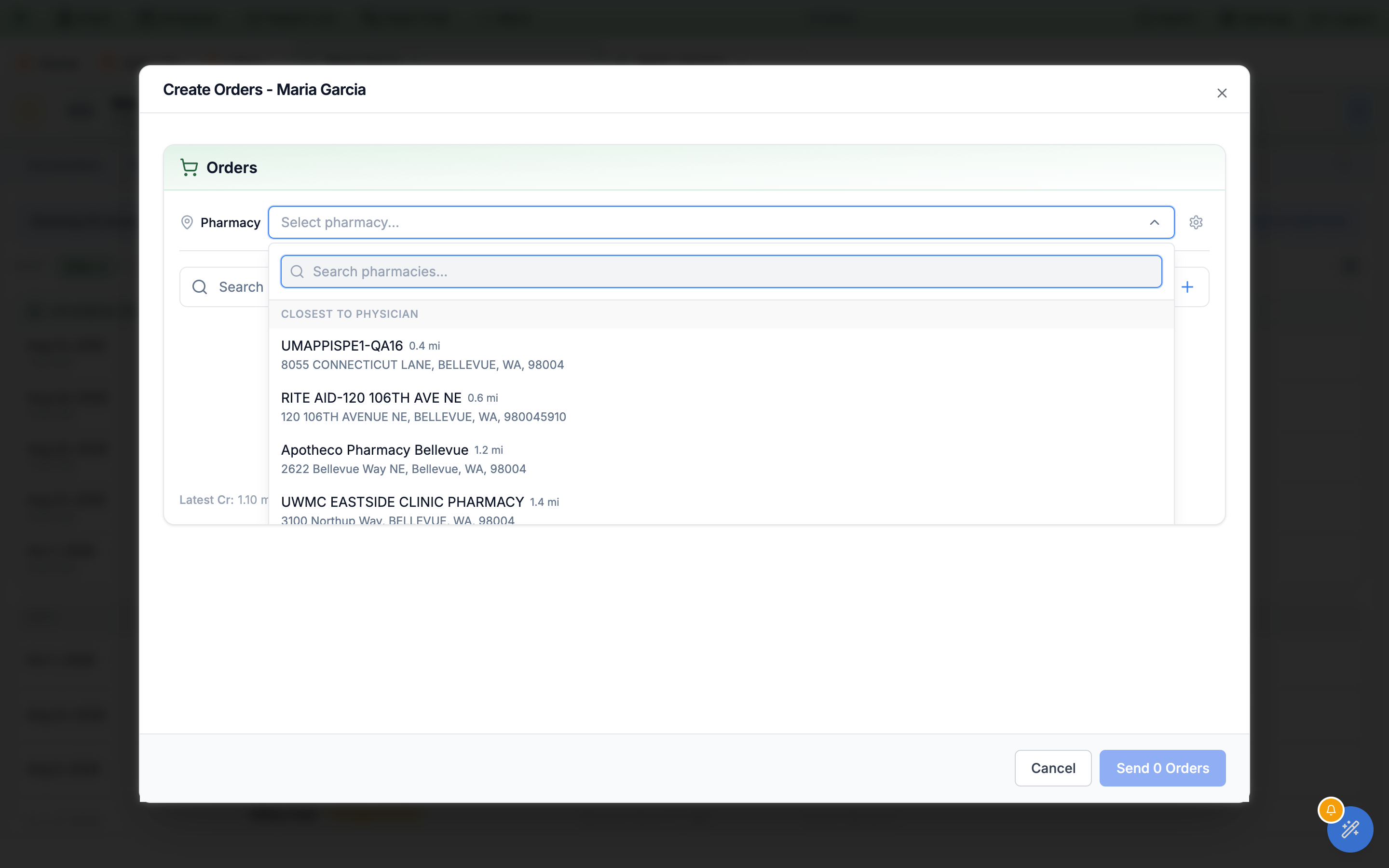
The Orders section is one search box for everything you order at the visit — prescriptions, lab panels, imaging, referrals, screeners, and forms. Pick a destination pharmacy first so prescriptions know where to go.
-
Choose the pharmacy.
Open
Select pharmacy…and the dropdown is grouped, not one flat distance-sorted list:Primary Pharmacyfirst, thenPatient Pharmacies, then up to fiveClosest to Physician, then up to fiveClosest to Patient. A group with nothing in it is left out entirely, so don’t expect all four on every patient — the first two need pharmacies already saved on the chart, andClosest to Patientneeds a usable home address to measure from. On a patient with neither, the dropdown opens onClosest to Physicianalone. Type two or more characters and aSearch Resultsgroup from the wider pharmacy directory appears above those groups. Add or edit pharmacies withManage pharmacies. -
Search and add.
Type into
Search ordersand pressSearch & Addto open the Search Orders window. Filter by tab:all,order sets,medication,lab,imaging,referral,screeners,forms, orfavorites. Theorder setstab only appears when order sets are enabled for your organization — see Order sets. Each result shows its name, brand names, and type; controlled medications are flagged with their schedule (for exampleSchedule: CIV). -
Watch the renal cue.
Latest Crunder the order list surfaces the most recent creatinine so you can dose-adjust without leaving the screen.
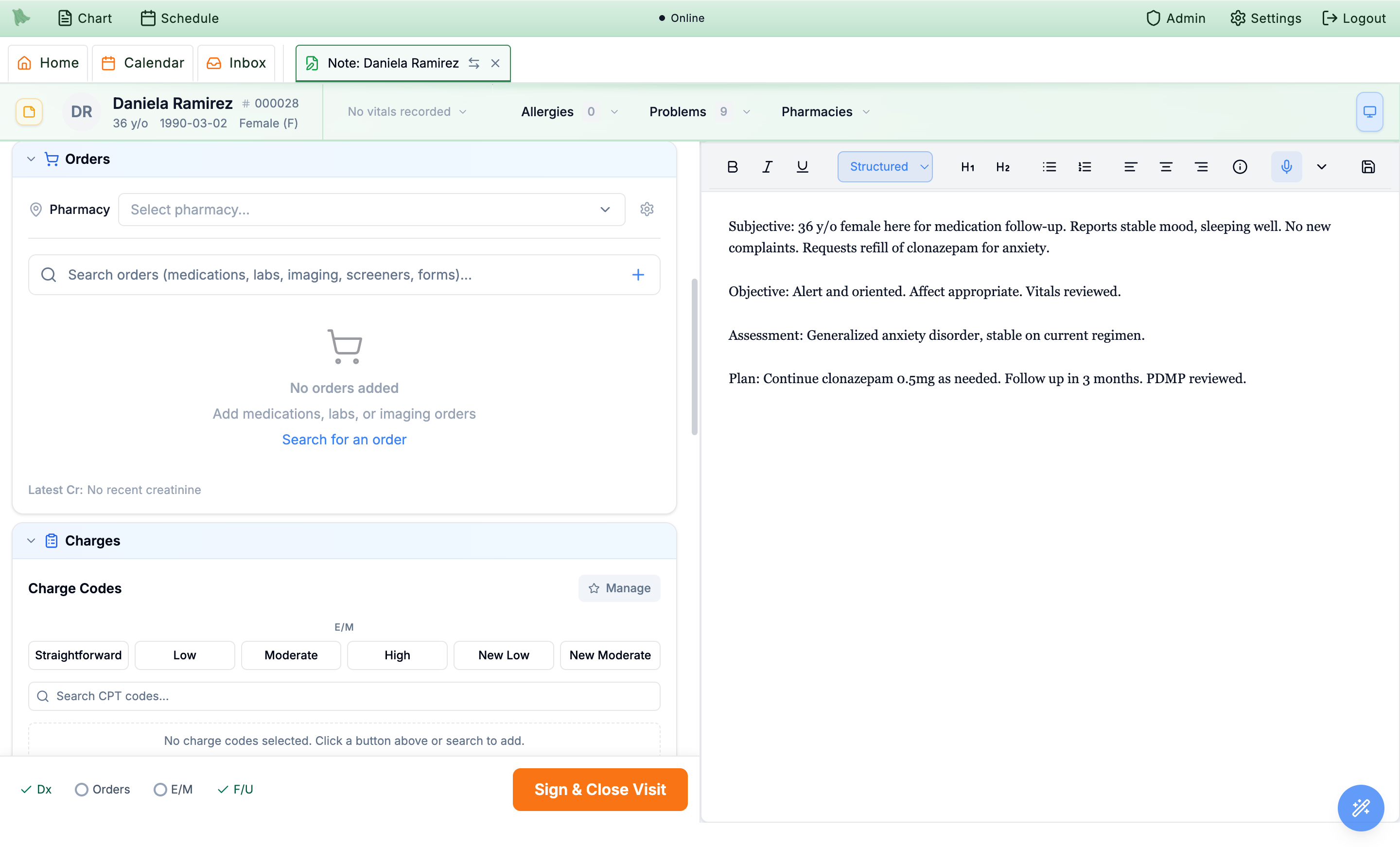
Latest Cr sit right above it.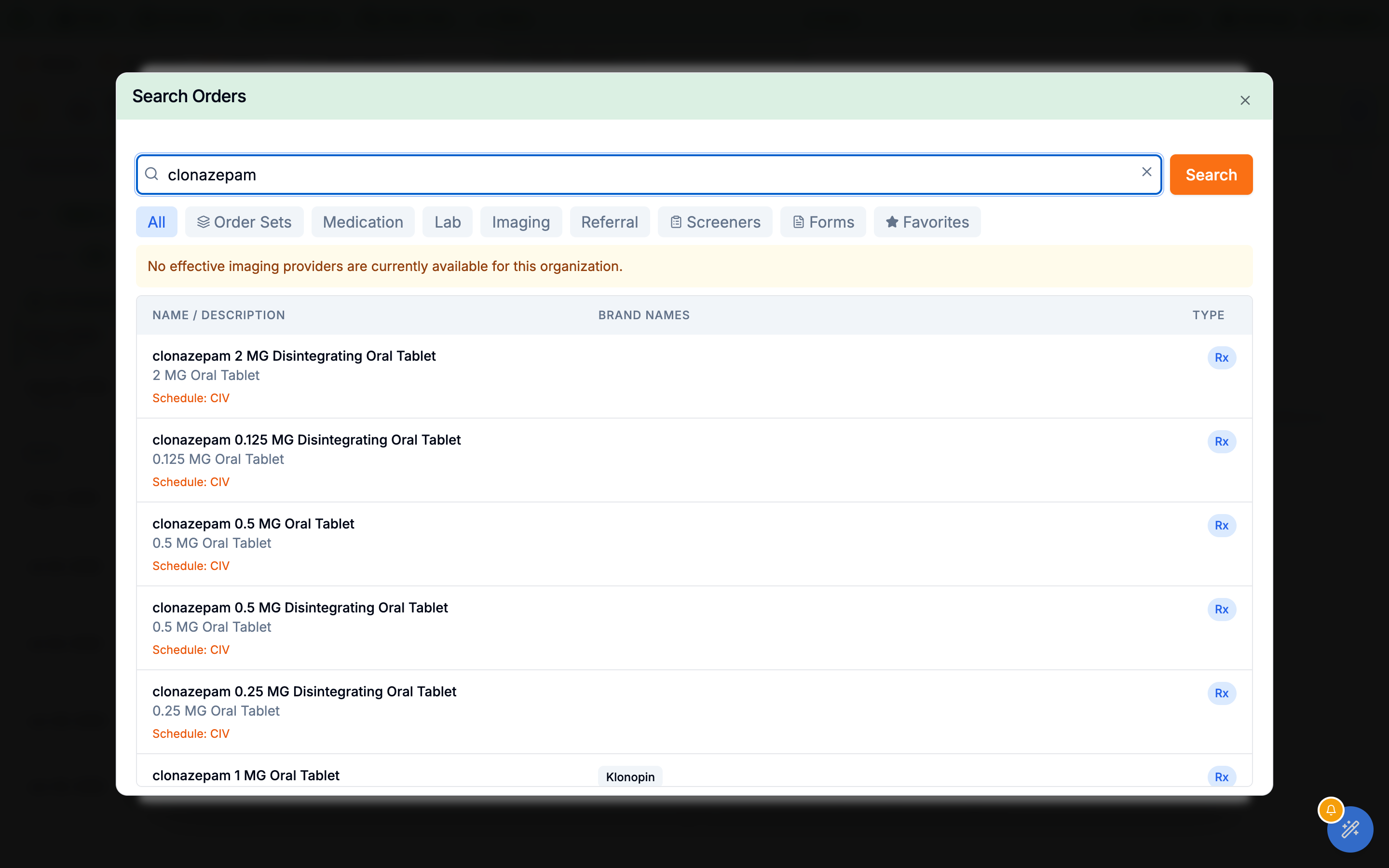
For a paper laboratory requisition, Save to chart & fax files the completed copy in the chart and opens faxing with that same copy attached, when faxing is available. Review the destination and complete the fax step; saving the chart copy alone does not send it.
Order labs from Quest, Labcorp and other labs
Labs are ordered from the same Search orders box as everything else. The labs your practice turned on in External Providers → Labs are searchable; Lab destination narrows the results to one of them (All enabled labs, Quest Diagnostics, Genova Diagnostics, Fullscript Labs, Labcorp).
Labcorp tests
-
Search the Labcorp test menu.
A Labcorp result shows a
Labcorpbadge and Test number. Common shorthand finds the right test (CBC, CMP, BMP, A1c, TSH, free T4, PSA, UA, ESR, CRP, PT/INR, vitamin D, lipid panel and more), and an exact test number, shorthand or name ranks first, simpler tests before panels. -
Answer Labcorp’s questions.
When Labcorp asks questions for a test, the test’s dialog shows
Labcorp questions(“Labcorp asks these when this test is ordered.”); required ones carry a star. If they can’t load, the dialog says the lab may ask at the draw. -
Link a diagnosis and sign the visit.
Labcorp tests don’t have their own
Sign & Send: “Signing the visit creates one Labcorp requisition for these tests; follow it in Labs.” After signing, the row reads Requisition created and Print or cancel in Labs. Each ordering physician gets one requisition for the visit’s Labcorp tests (see Labcorp requisitions).
Signing stops if something Labcorp needs is missing, for example “Associate a diagnosis with Labcorp test … before signing.”, “Complete the required clinical questions for Labcorp test …” or “Enable Labcorp and save the practice account before signing Labcorp orders.” A Labcorp connection that is down never stops you signing: the requisition waits in the Labs tab with the reason.
Quest requisition slips in the chart
For Quest orders the patient takes to a Quest Patient Service Center, tick Save requisition to the patient’s chart in the Quest test’s dialog, or at the bottom of the order window: “For printing or handing to the patient. Patients can also see it in their portal.” The choice is yours alone and is remembered for your next orders; it is off until you tick it. Once Quest accepts the order, the slip is saved once to the chart’s Media as a Quest Requisition linked to the visit, and the order’s row in the chart’s Labs tab gets a Requisition PDF button. Saving the slip never changes or delays the Quest order. For a minor, the slip is hidden from parents and guardians whenever its lab order is (Hide from parents and guardians in the Labs tab preview).
Dictated labs that don’t match a test
A lab Hero couldn’t match to a test shows a Pick a test chip: “This lab isn’t matched to a test yet, so it won’t be sent.” Click Pick test, choose the test in Search lab tests (the indication, diagnoses and instructions stay as they are), and check it in the lab dialog. A practice can ask Hero to fill in a dictated lab only on an exact match with Only fill in a dictated lab when its name matches a test exactly (off by default; see Labs settings); typed order commands always work that way.
Print, send and follow a Labcorp requisition
Each signed visit with Labcorp tests gets a requisition. Depending on your practice’s Labcorp setting it is printed (a Hero requisition the patient brings to a Labcorp Patient Service Center) or sent electronically through Labcorp Link. Either way it is followed from the chart’s Labs tab, where a chip beside every test on the requisition says where it stands.
| Chip | What it means |
|---|---|
Preparing requisition / Ready to print | The paper requisition is being prepared, then ready: print it for the patient. It has not been sent to Labcorp electronically. |
Couldn't prepare PDF | Use Try again on the chip. |
Sending… / Sent to Labcorp · req #… | Labcorp has the order; the patient can go to a Labcorp location for the draw. |
Couldn't send | The order didn’t reach Labcorp; hover for the reason, fix it, then Try again (or Complete clinical questions when Labcorp asks for answers). |
Awaiting Labcorp confirmation | Hero doesn’t know yet whether Labcorp received it, and re-checks by itself for about half an hour. Use Check status before placing a replacement order; Hero never sends a duplicate. |
Cancelled in Hero / Cancelled | Cancelled in Hero (paper) or at Labcorp (electronic). |
Requisition PDFopens the requisition: Hero’s printed one, or the official Labcorp requisition once sent electronically. Both are saved to the chart’s Media and linked to the visit. The printed one lists the account, the patient and insurance, each test with its Labcorp number, answers and ICD-10 codes, blanks for who collected the specimen, and asks the patient to bring it and their insurance card to the collection site.- Cancel (Cancel in Hero or Cancel at Labcorp) cancels every test on the requisition;
Keep the orderbacks out. A paper cancel doesn’t reach Labcorp: destroy printed copies and contact Labcorp if the order was already delivered. Once a specimen or result is recorded, contact Labcorp instead. - Not in Labcorp Link? For a send Labcorp never confirmed: search Labcorp Link for the reserved requisition number first, and only if it isn’t there choose
Release tests(orKeep checking). Hero then closes the tests as never received so you can reorder them. Check status first; Hero asks for a recent status check before releasing. - Retry, cancel and release are offered to physicians and practice admins.
Nurse orders that wait for a physician’s signature
Nurses can enter lab and imaging orders for a physician to sign. Nothing goes to the lab or imaging center until the physician signs. This comes with the permissions Enter lab orders; they are sent once a physician signs them and Enter imaging orders; they are sent once a physician signs them, which the Nurse role profile includes. Medical assistants and front-desk staff can’t order labs or imaging: “Only a physician or a nurse can order labs. Ask a nurse or the patient’s physician to place this order.”
For the nurse
-
Open
New orderson the chart (or start orders from the assistant) and add the labs or imaging. -
Choose the
Ordering physician. Hero suggests the patient’s primary physician, then the physician of the last visit, then your supervising physician: “Lab and imaging orders you enter wait for this physician’s signature. Nothing is sent until they sign.” Every order needs a diagnosis first. -
Click
Send 2 for Dr. …’s signature. “Nothing goes to the lab or imaging center until they sign.” Only lab and imaging orders can be sent this way. -
Follow it.
In the chart’s
LabsorImagingtab the order carriesNeeds signatureand reads, for example, Waiting for Dr. …’s signature · entered by …. Nothing has been sent yet. Your InboxOrders to signfolder lists Orders waiting for a signature;Withdrawtakes one back (“Why are you withdrawing this order?”).
For the physician
The Inbox shows an Orders to sign folder while orders wait for you. Each one says who entered it and when: “Nothing has been sent; it goes out when you sign it.” Check the lab or imaging center, the test or CPT code and the diagnoses; you can change the priority or urgency, the reason for the study and the notes. Then Sign and send, or Discard with a reason (“Why are you discarding this order?”). Only the ordering physician can sign it.
Lab requisition can be prepared only by physicians, admins and nurses with the lab-order permission.Write a structured prescription
Selecting a medication opens the prescription editor. Its header reads Prescription, then the medicine the way its label reads (for example levothyroxine 25 mcg), with its NDC and schedule. Beside the fields, the Sent to the pharmacy card shows the prescription exactly as the pharmacy will read it and updates as you type: the directions as a sentence (Directions not set yet. until they are), Dispense and the quantity, the days supply, the refills, the diagnosis (Add a diagnosis to send. until one is linked), any do-not-fill date, Dispense as written. when substitution is off, your note to the pharmacy, and Last sent to: the pharmacy used last time, with a warning when this prescription goes somewhere else.
-
Read the warnings first.
Warnings sit above the directions, one line each, the most serious first; a serious one opens with its detail. For example Double-check this quantity. when the dispense amount looks implausible for the days’ supply (1,800 tablets, 20 capsules a day), …: the last course is still running with a
Future-date tobutton that sets the do-not-fill date for you, Hero suggests a different product: …, or the PDMP status. For patients under 18 with a recorded weight, a weight-based mg/kg readout appears under the dose. These are advice and never edit the order; the checks that can stop a send are under Safety checks. -
Build the directions.
Under
Directions, setAction,DoseandUnit,Route(chips such asBy mouthorUnder the tongue),How often(one tap forOnce daily,Twice daily,3 times daily,At bedtimeorEvery 6 hours, or pick from the full list in plain words) andForhow long.As needed (PRN)adds As needed for… (e.g. pain, nausea, anxiety) andMax doses per day.Extra instructions (optional)takes words such as with meals, which stay in the directions the pharmacy receives. -
Or write the directions yourself.
Write the directions myselfswitches toDirections as written: “Sent to the pharmacy word for word. Quantity, days supply and refills are sent as their own fields.”Use the fields insteadswitches back. Controlled medicines always use the fields. -
Let
Auto-fillread the note.Auto-fill(Reading the note… while it works) fills the empty fields from what your note says about this medicine. It never changes the product or a field you already filled, and it marks each field it filled with a sparkle (“Filled from the note, check it”). Any safety notice it finds, such as an allergy caution or a boxed warning, shows with it. If it can’t check the medicine it says “Hero couldn’t check this medicine right now. Fill in the directions yourself.” -
Set the quantity.
The
Quantityrow hasPackagefor medicines measured in mL, grams or inhalers (see Package sizes and liquids),Dispensewith its unit (Choose unituntil you pick one; Hero doesn’t assume tablets),Refills, and the days supply (Calculated from the directions). Your default marks a value that came from your own defaults. When the directions and the quantity disagree, The directions add up to … offersRecalculate. -
Say how it relates to what the patient already takes.
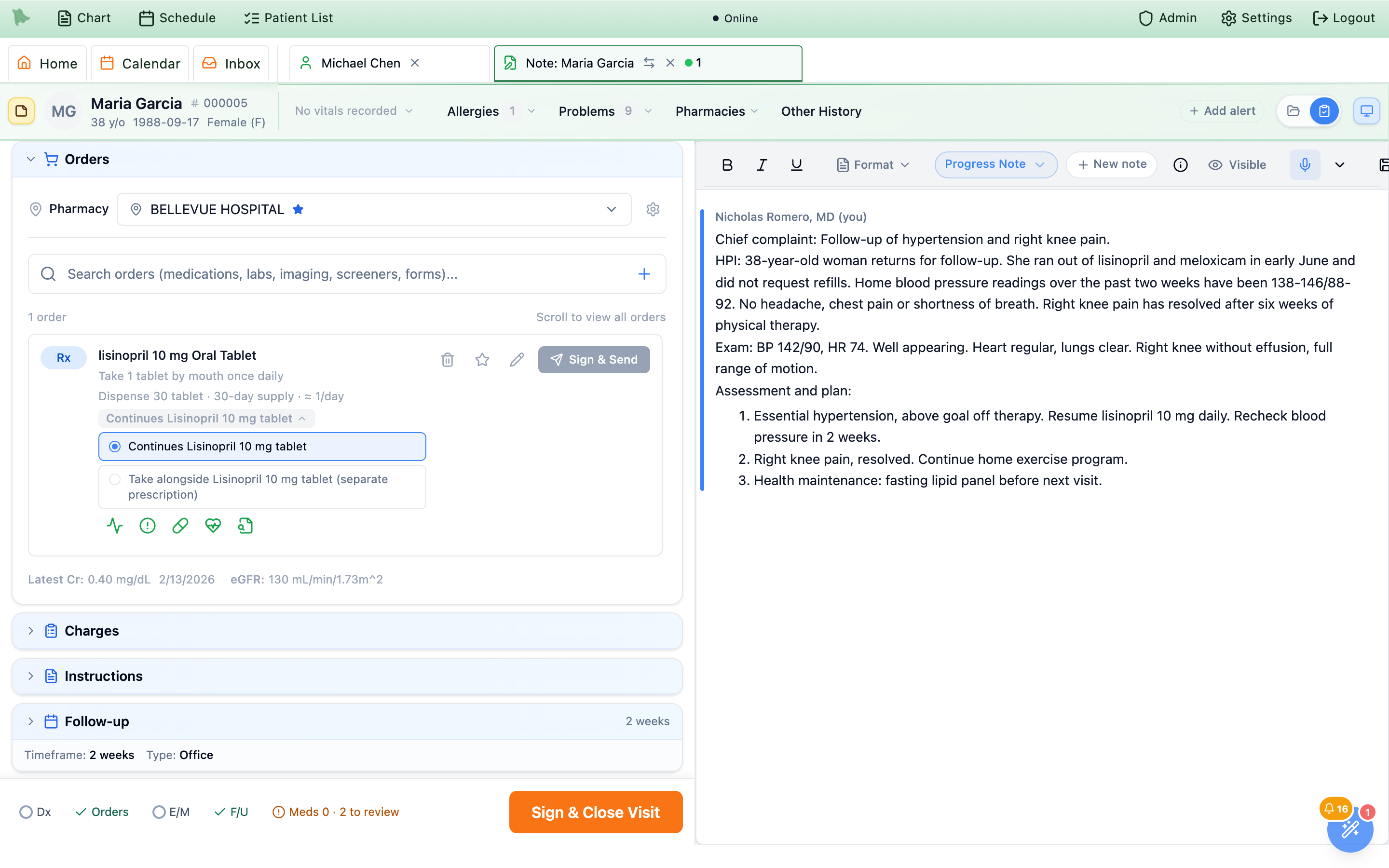
When the patient already has the same drug on their list, the dialog shows
Already on the medication listwith one choice per matching entry:Replacesand the entry, for example “Replaces Lisinopril 10 mg tablet”. The old entry moves toPaston the day the new prescription starts. Until then it stays current.Take alongsideand the entry. Both stay current, and Hero stops flagging them as a possible duplicate.Continuesand the entry, offered when you are prescribing the very same product. The prescription simply renews that entry. If the patient really takes two separate prescriptions of it, pickTake alongside … (separate prescription).Not specified. Leave the decision for later.
Replacesonly when the new prescription has the same release (for example IR for IR) and the same route as the one matching entry. A different release, such as ER added to IR, is pre-set toTake alongside. When Hero can’t tell, nothing is pre-selected. The choice is optional and never blocks saving or signing. It takes effect once the prescription is sent. -
Open
More optionsif you need them. It stays folded, with a summary such as Fill now · Substitution allowed. Inside:Do not fill until(optional; the prescription is sent now with a “do not fill before” date, up to 364 days ahead on your practice’s calendar),Note to pharmacy(pharmacies receive at most 210 characters, and the counter warns as you get close), andSubstitution allowed(off sends it “dispense as written”). -
Link the diagnosis and save.
The diagnosis picker sits beside the fields: “Required before this prescription can be sent.” Click
Save Changesto drop the order onto the list. Until the prescription is complete the button says what is missing, for example Add the dose to save, Choose how often to save or Add the quantity to dispense to save. Closing with unsaved changes asks Discard this prescription?, withKeep editingandDiscard. -
Check the chip on the order card.
Back in Orders, the prescription’s card repeats the choice as a chip:
Replaces… in amber,Take alongside… in blue, orContinues… in grey. If you haven’t chosen, it readsAlready on the list:and the entry. Click the chip to change the choice any time before the prescription is sent.
Write the directions myself is not available: the editor explains that written directions can’t be sent for them, so the directions are always built from the fields. Signing them uses the EPCS flow in Signing controlled prescriptions.
How often and For blank and outlined, so nothing is invented for you. Hero never fills in “daily” or 30 days on a saved draft.
Package sizes, oral liquids in mL, and look-alike results
Pick the package size
Medicines measured in mL, grams or inhalers (injectables, liquids, creams, inhalers, pens) list their package sizes as chips under Package in the Quantity row, for example 10 mL multi-dose vial. Choose the one the pharmacy should dispense: Hero sends that package’s NDC and its unit (mL, g, inhaler) with the quantity. A product with only one size shows it and uses it by itself.
- Until you choose, the editor asks “Choose the vial size for the pharmacy.” (or the package size) and
Save Changeswaits. - The quantity follows the package’s unit. “Put the quantity in mL” means the quantity is in another unit than the package. Choosing a size never rewrites a quantity Hero can’t convert.
- Checks against the directions. Hero warns when the quantity is less than one package or not a whole number of packages, or when the directions need more (“The directions need 4 mL …”), with a one-click
Use …to fix it. Single-use containers count one per dose: 0.5 mL weekly for 4 weeks from 1 mL single-dose vials is 4 mL.
Oral liquids in mL only
With Prescribe oral liquids in mL only on (Admin → Prescriptions → Safety checks; off by default), oral solutions, suspensions and syrups are prescribed in mL. The dose unit offers only mL, and any teaspoon, tablespoon or cc amount in the directions shows “Oral liquids are prescribed in mL, not … 1 teaspoon = 5 mL, 1 tablespoon = 15 mL, 1 cc = 1 mL.” with Change to mL. Save Changes waits until the amounts are in mL (Write the dose in mL), and a send is refused while they aren’t.
Zeros are written the safe way
Whatever the settings, when you leave a dose, written directions or extra instructions field, Hero rewrites numbers with a leading zero and without trailing zeros: .5 becomes 0.5 and 1.0 becomes 1, in the editor and in what the pharmacy receives.
Search results
- Look-alike products are shown once. The same product from several manufacturers collapses into one result marked, for example, 4 manufacturers (“The same product from several manufacturers, shown once”).
- Common names work. Each ingredient appears under one name, and its other names are searchable: B12 or vitamin B12 finds cyanocobalamin first.
Frequently prescribed, in themedicationtab with an empty search, lists what you usually send (Sent 4×), one row per drug with extended and immediate release kept apart. It stays when the visit already has prescriptions, and a medicine already in the visit is taggedIn this visit.
Unfinished, duplicate and unsent prescriptions
An unfinished prescription is never sent
A prescription needs directions (written, or a dose with how often or as needed), a quantity above zero with its unit, a package size where one is asked for, and a days supply. Until then its row carries an amber tag such as Add the directions, Add the quantity, Choose the dispense unit, Choose the package size or Add the days supply, with “Open it to finish the prescription. It won’t be sent until then.” Sign & Send stays off. The folded Orders line shows the same tag, the Orders item in the footer checklist turns amber (for example (2 to finish)), and Sign & Close Visit stops with, for example, “… isn’t finished: add the directions. Open it in Orders and save it before signing.”
Keep one?
When two unsent orders are the same medicine (two strengths of sertraline, or a Replaces order and a Reorder of the old one), the row notes Also in this visit: … and sending asks once, before the safety stop: Keep one? “Sertraline 50 mg and sertraline 100 mg are both in this visit.” Choose Remove and the extra order, or keep them with Send both (Keep both from one row’s Sign & Send). It never blocks, and it isn’t asked for different routes, Take alongside choices, compounds or combination products.
Two fills of the same controlled product are allowed when the second has a Do not fill until date on or after the first one ends: “There are two … prescriptions in this visit, filled one after the other. Check both dates before you sign.” A second fill that would start before the first ends is refused, with the date to use.
When a prescription didn’t reach the pharmacy
After you sign, Hero watches each prescription for a few minutes. If one fails, a warning stays on screen until you close it: Prescription not sent for the patient, one line per medicine with the reason, “No pharmacy received it. The medication list was not changed.” and Open orders. If the pharmacy hasn’t confirmed it after five minutes: Prescription not confirmed for the patient, “Check Prescriptions before the patient leaves.”
- The Orders header counts sent prescriptions only once the pharmacy confirmed them; it shows a red not sent to pharmacy count and an amber awaiting pharmacy count (“Sent, but the pharmacy has not confirmed it yet.”).
- A signed visit’s prescription is always either sent or closed with a plain reason. If its send never started, Hero sends it once more, exactly as signed; if that doesn’t start either, it is closed as an error (“Not sent: the send to the pharmacy never started after the visit was signed. Reorder it from the patient’s Prescriptions tab.”) and shows in the Rx inbox errors. A late send is held back when the patient already has a newer prescription for the same medicine, and nothing is sent by itself more than a day after signing.
Read the medication safety checks
Every medication order carries a row of five Medication Hero checks. Four of them — interactions, allergies, indication/dosage, and black box — run automatically and show green when clear; click any icon for the detail. A red or amber result means review before you sign. The fifth, PDMP, is a status readout only: it stays grey until a check has actually been run, and clicking it just opens its tooltip.
Interactions
Drug–drug interactions against the patient’s medication list, covering Current plus anything in Needs review, Scheduled or On hold, so a prescription that ran out is still checked (“No drug interactions detected.” when clear). Hero’s list of medicines that must never be taken together is always checked too (see below).
Allergies
Drug–allergy conflicts against recorded allergies (“No allergy conflicts detected for this patient.”). With no allergies recorded it says there was nothing to check; with No known allergies recorded it says so.
Indication / Dosage
Standard dosing for the indication, so you can sanity-check the sig at a glance.
Black Box Warning
FDA boxed warnings relevant to this patient and drug.
PDMP
Status of the state Prescription Drug Monitoring Program report. It only carries data for Schedule II–IV medications, and only after you run a check — until then it is grey and reads “PDMP check has not been completed for this patient.” Run the query from Run PDMP in the signing dialog (Signing controlled prescriptions).
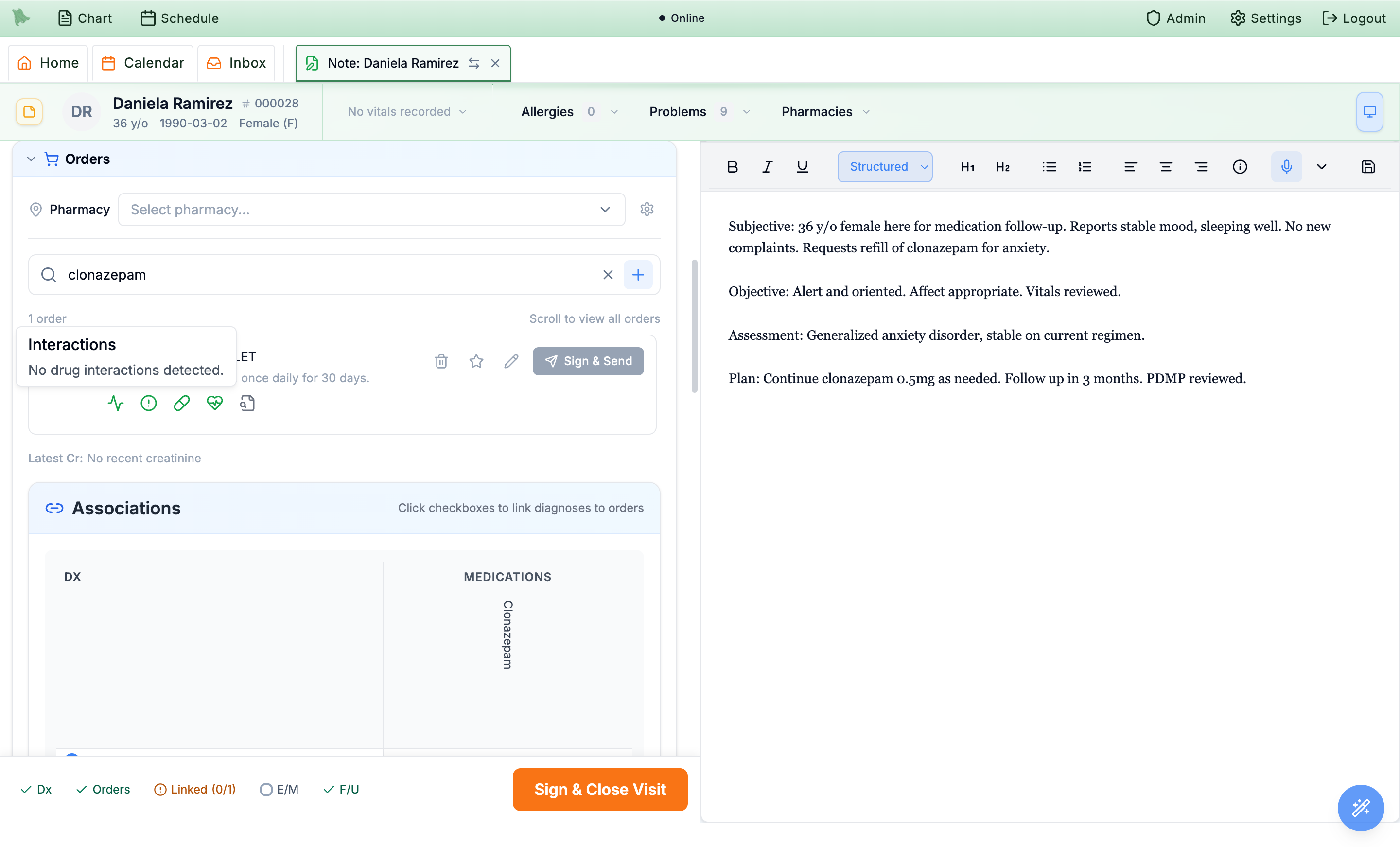
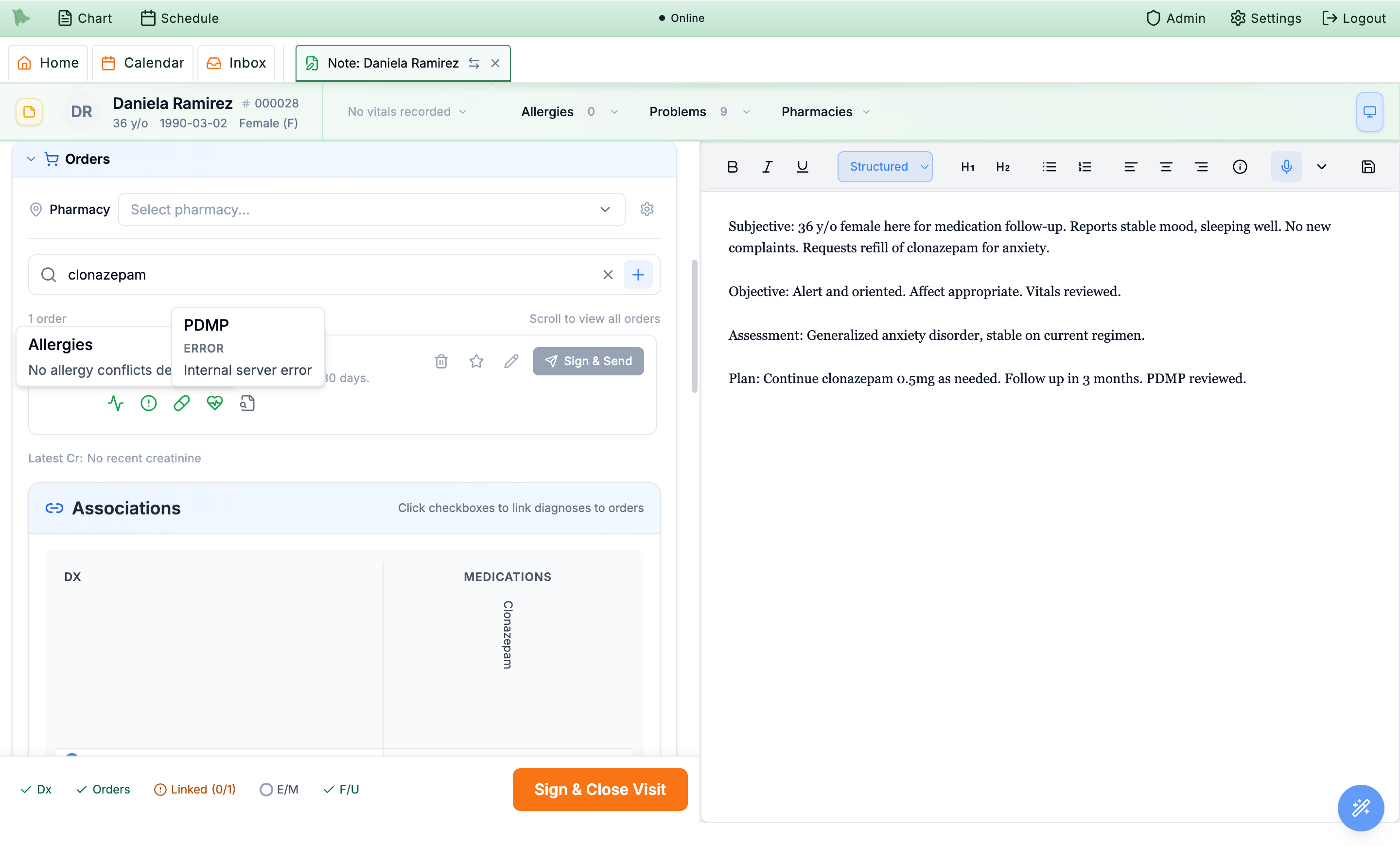
While a check runs, the icons move and read Checking.... A check that didn’t finish shows an amber chip, Not checked: check allergies and interactions yourself (or Check only partly ran: …), and the categories it couldn’t check turn grey rather than green. A compound reads Screening incomplete — review every ingredient manually.
When Hero stops a send
Hero stops a prescription before it goes out when it matches a documented allergy, when it has a severe interaction, or when the allergy check didn’t run. Hero re-checks the patient’s allergies and medicines right before every send (the button reads Checking allergies… for up to 30 seconds), so a warning that arrived late is never missed.
- Read the stop. The title names the problem, for example Allergy warning: amoxicillin, Severe interaction: tramadol or 3 medicines have safety warnings: “Choose why you’re sending it anyway. Your reason is saved with the prescription.” Each medicine shows its warning and the chart medicine it clashes with.
-
Choose a reason, or cancel.
Why send it despite the allergy? offers
Tolerated it before,Intolerance, not a true allergy,Benefit outweighs risk, will monitor,Allergy record is wrongorOther. Why send it despite the interaction? offersWill monitor or adjust the dose,Already takes both safely,Stopping the other medicineorOther.Otherasks you to say why in a few words. When the check didn’t run, tickAllergy check didn't run. I checked allergies myself.instead.Cancelis the default and nothing is pre-selected. -
Confirm.
The button says what happens next:
Send anyway,Continue to signingfor a controlled prescription (the stop comes before EPCS signing),Sign and send anywayfromSign & Close Visit,Sign anywayorRoute anywayfor supervised prescriptions, orApprove and send anywayfor a pharmacy renewal.
The reason stays with the prescription, not in the note: its detail in Prescriptions shows Sent despite a safety warning with the reason, the time and who sent it. The EPCS signing window repeats it under Allergy and interaction check. A moderate or minor interaction never stops a send.
Run PDMP in the Controlled Rx Mobile Approval dialog, and it calls your state’s PMP gateway. Find signup instructions and configure PDMP rules under EPCS enrollment → PDMP. Hero support configures the approved connection credentials after state enrollment; the PDMP tab has no credential-entry field. The icon and the dialog report whatever came back — PDMP not checked, PDMP loading, PDMP available, No PDMP report, PDMP stale, PDMP expired, PDMP error, or PDMP unavailable when no gateway is connected.
Standard interaction and allergy checks, and the alert level
Prescriptions are checked by the AI review, Hero’s list of medicines that must never be taken together, and Standard drug interaction and allergy checks: Hero’s built-in interaction list and drug-allergy groups, alongside the AI check. When the built-in list and the AI review flag the same interaction or allergy, you see it once. The practice chooses which interaction levels show. The standard checks are on by default; a practice administrator can turn them off in Admin → Additional Features.
What changes in order entry
- Graded interactions. Each finding in the Interactions popover gets a chip,
Contraindicated,Serious,ModerateorMinor, and a source line, Hero interaction list or Allergy check. The AI’s own sentences sit under AI review. - What stops a send. A documented allergy match, a serious interaction (shown as severe) and a contraindicated pair ask for a reason before the prescription is sent (see When Hero stops a send). Moderate interactions show in amber for your information; minor ones only at the
All, including minorlevel, in a quiet blue icon (“Minor interaction, for your information”). - Cross-reactions. A possible cross-reaction, such as cephalexin with a recorded penicillin allergy, shows in amber on the Allergies icon (“Possible cross-reaction, for your information”), not as an allergy stop and not under Interactions. A documented allergy to the drug or its class is still a stop: “Recorded allergy to penicillin: this order contains amoxicillin.”
- Auto-fill in the prescription editor shows the same notices, such as Allergy caution for a cross-reaction.
Admin → Prescriptions → Safety checks
Open Admin → Prescriptions and choose Safety checks: “Choose which drug interactions show while prescribing, and whether oral liquids must be prescribed in mL.” The tab is offered to the same people as Refill settings. Change what you need, then Save changes (or Discard changes). The footer says who changed the settings last, or “Using the standard settings. Nobody has changed them yet.”; every change is recorded.
| Setting | Choices | Default |
|---|---|---|
Interaction alert level | Serious only (“Only interactions that should usually stop a prescription. Contraindicated pairs always show.”), Serious and moderate (“Also shows interactions that need monitoring or a dose change.”), or All, including minor (“Also shows minor interactions, such as medicines to take a few hours apart.”). “Drug-allergy alerts always show, whatever level you choose.” | Serious and moderate (marked Recommended) |
Prescribe oral liquids in mL only | On or off. See Oral liquids in mL; it works whether or not the standard checks are on. | Off |
The alert level applies only once the standard checks are turned on; until then the tab says so. Interactions below the level you choose are not shown anywhere while prescribing, and changing the switch or the level re-checks unsent orders.
See what the patient will pay, and switch to a cheaper option
Prescription cost and coverage asks the patient’s prescription plan, while you prescribe, what the patient will pay, whether the plan restricts the medicine, and which alternatives cost less. It is off by default: a practice administrator turns on Prescription cost and coverage in Admin → Additional Features, and Hero also has to connect your practice (until then the line reads “Cost and coverage: Hero hasn’t connected your practice for this yet.”).
- Add the prescription as usual. Once the row has a product from the drug list and a quantity, Hero checks by itself (Checking cost and coverage…) and again whenever you change either. It runs on unsent rows only, not on compounds or rows still waiting for a product pick.
-
Read the line under the row.
For example Patient pays about $45.00 for 30 days at a retail pharmacy (or by mail order, at a specialty or a long-term care pharmacy). Without a price it reads Covered by the plan, Covered by the plan, with conditions or The plan didn’t say whether this is covered; a red
Not coveredchip shows when it isn’t. Restriction chips follow:Prior authorization required,Step therapy required,Quantity limit. Point at the summary to see the plan’s name.Check againasks once more. -
Switch if a cheaper option suits.
Up to three
Lower-cost options(orOther options) are listed, each with its price or coverage.Switch, where Hero’s drug list has that product, opens the usual product review filled in from your order: how often, as-needed details, instructions, duration, refills, substitution, notes and diagnoses carry over, and for the same medicine in another brand or its generic so do the dose, quantity, route and directions. Confirming replaces the original order; closing the review keeps it.
Check again. It is offered to physicians, practice admins and staff who can draft prescriptions.Link each order to a diagnosis
Orders should be tied to the diagnosis that justifies them. The Associations grid — diagnoses down the side, orders across the top — lets you check the box where they intersect. Linking supports medical necessity and is required before a prescription can be sent.
- Open the Associations grid. It appears under the order list once you have at least one diagnosis and one order.
-
Check the intersections.
Tick the box where a diagnosis row meets an order column (for example F41.1 × Clonazepam). The footer tracker shows
Linked (0/1)in amber until every order is linked, then flips to a greenLinked.
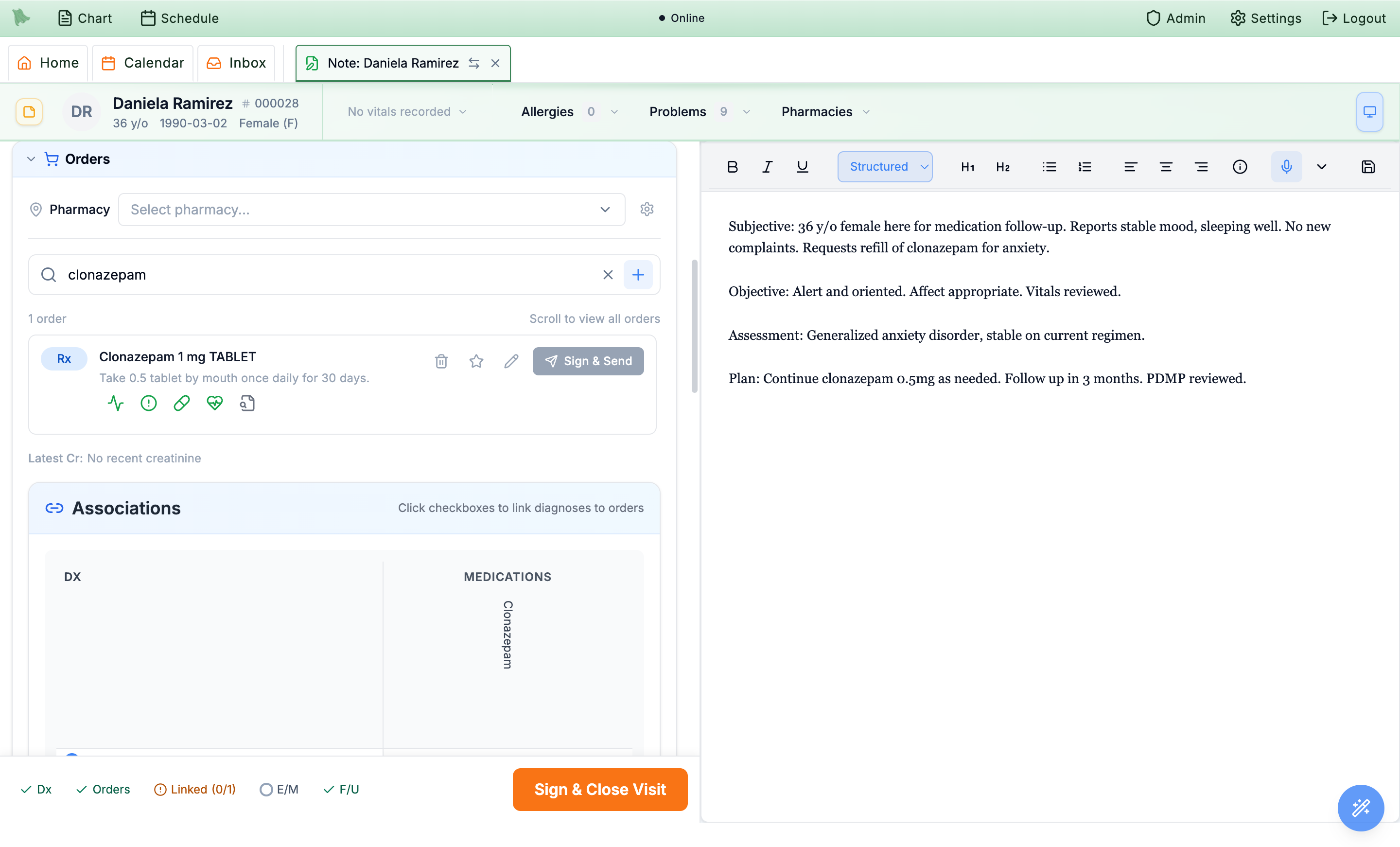
Sign & Send stays disabled until a pharmacy is chosen and the order is linked.Sign controlled prescriptions (EPCS)
Non-controlled prescriptions send when you press their own Sign & Send, or when you finalize the visit if you haven’t. Controlled substances (Schedule II–V) require EPCS — DEA-regulated two-factor signing — before they can be transmitted. The order’s button always reads Sign & Send; for a controlled drug that is otherwise ready to go, its tooltip adds “(2FA required)”. The button stays disabled until a pharmacy is selected and a diagnosis is linked.
- Select a pharmacy and link the diagnosis. Both are prerequisites; the button’s tooltip tells you what’s still missing (“Cannot send: Select a pharmacy, Associate a diagnosis with this medication”).
-
Click
Sign & Send. The Controlled Rx Mobile Approval dialog opens. It restates the full prescription — patient and DOB, medication with its schedule, directions, refills, and the prescriber’s name, service address, and DEA number — alongside the legal signing attestation. - Confirm the DEA prescribing location. Hero defaults the DEA and service address to the registration whose state exactly matches the patient’s recorded address. Use the DEA-location dropdown for a manual change when needed. If the patient has no state or no registration matches, the dialog flags the issue and requires you to select a location before signing can continue. A manual selection for a different state remains visible as a warning so you can confirm it deliberately.
-
Check the PDMP.
The dialog shows a
PDMP not checkedindicator with aRun PDMPbutton. This is the only place the state database is actually queried. Where a PDMP check is required for this drug’s schedule and your state,Start mobile approvalstays disabled untilRun PDMPcomes back with a usable report — a stale or expired result blocks it too, and the reason is shown beneath the indicator. -
Complete two-factor approval.
Choose
Start mobile approvalto push the request to your registered phone, orEnroll passkeyif you haven’t set up a second factor. Completing 2FA signs the prescription and authorizes transmission to the pharmacy.
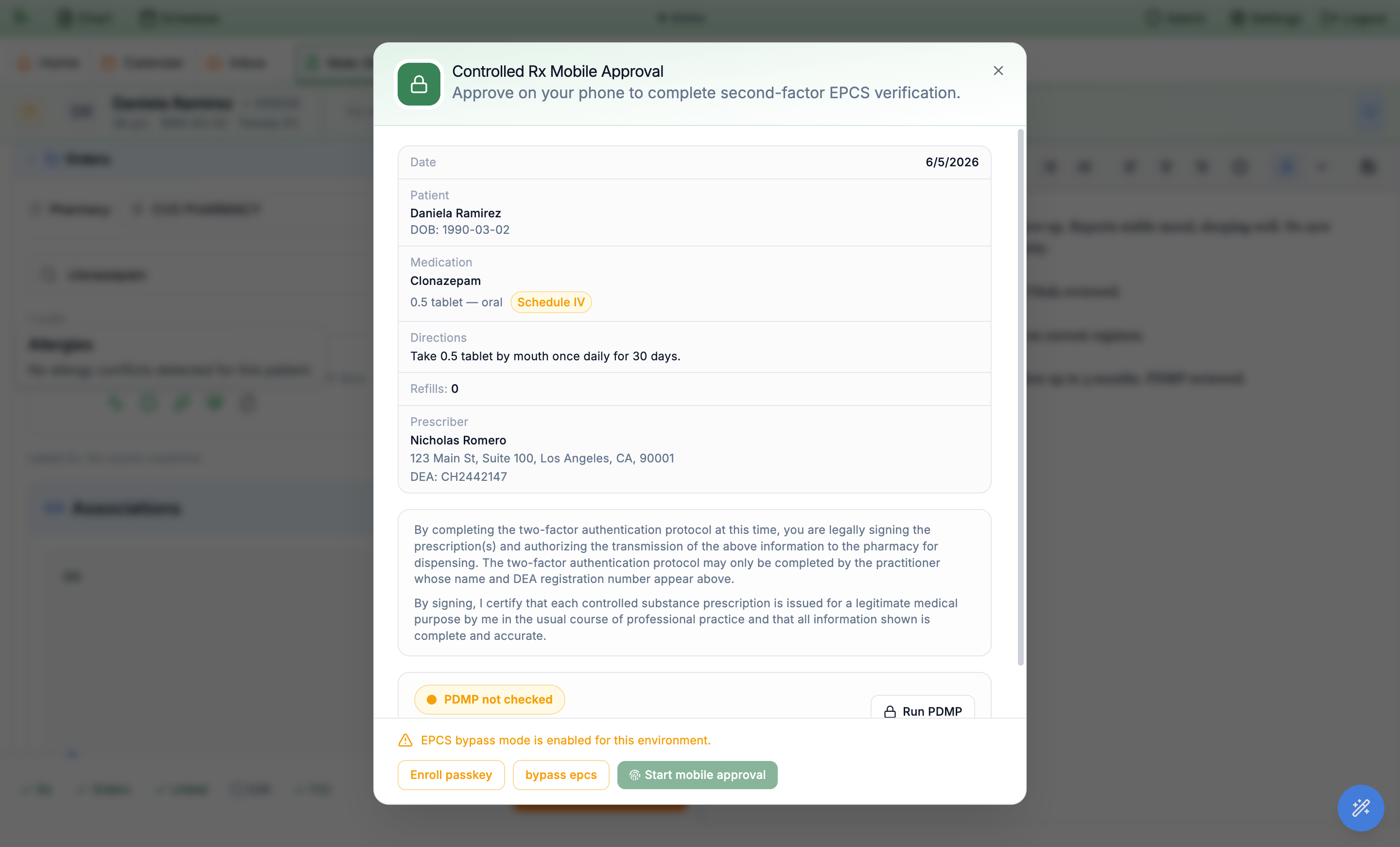
Start mobile approval the dialog also offers Route to supervising physician, which sends the prescription to an MD or DO in your practice to sign instead — see Supervisory signing.Route a controlled prescription to a supervising physician
Some states require a physician to sign all, or some, of the controlled-substance prescriptions that nurse practitioners and physician assistants write. In Hero EMR the NP or PA prepares the prescription and routes it to a supervising physician (MD or DO) in the practice instead of approving it on their own phone. The physician reviews it in the Inbox Rx view with everything needed to decide, and then signs it, edits it first, or returns it with a reason. The prescription goes out under the physician’s name, DEA registration, and PDMP check — the physician is the prescriber of record, and the NP or PA is recorded as the one who prepared it.
For the NP or PA: route the prescription
-
Prepare the order as usual.
Build the prescription, choose the pharmacy, and link a diagnosis, exactly as for any controlled prescription (Signing controlled prescriptions). Then click the order’s
Sign & Send. -
Choose
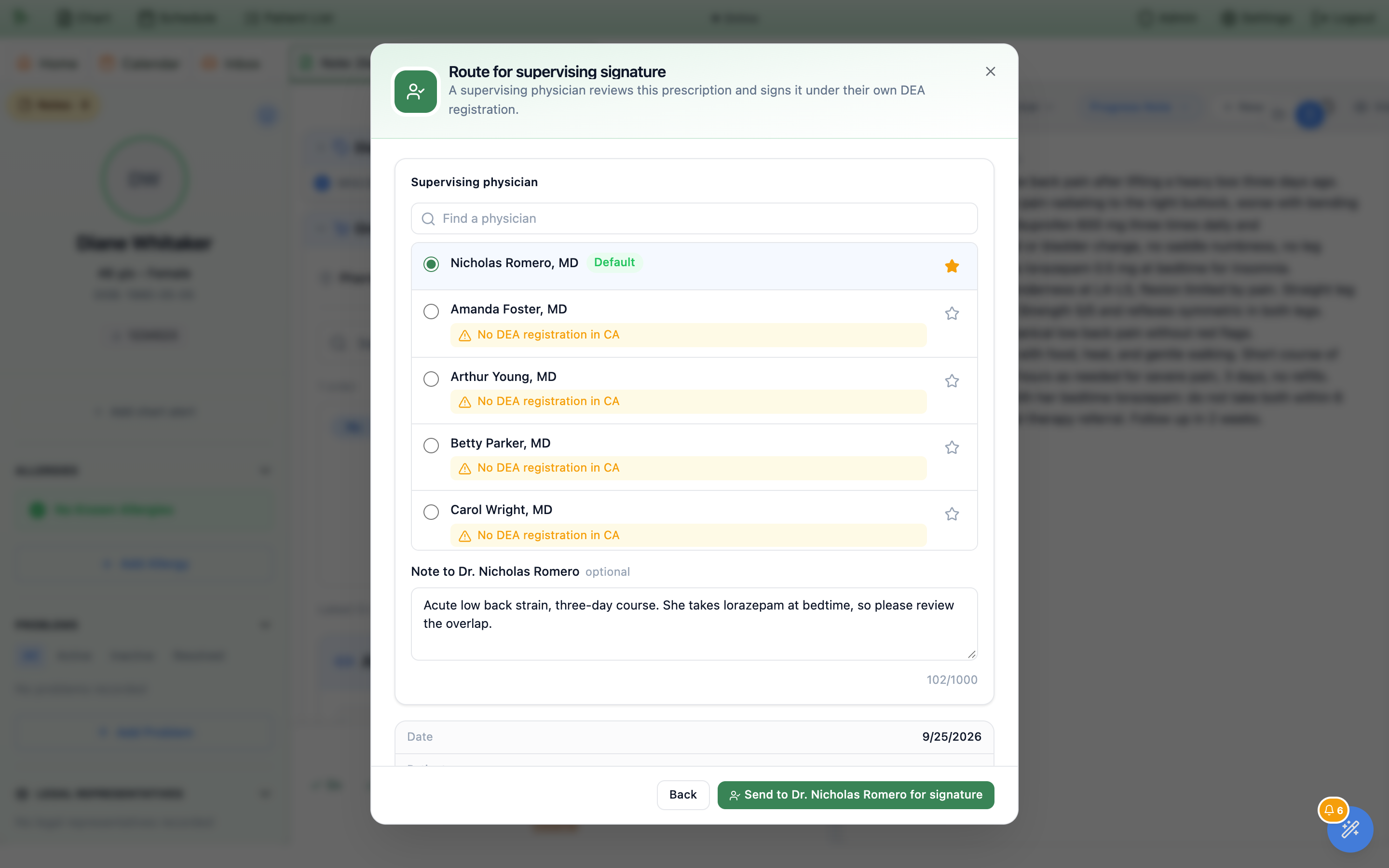
Route to supervising physician. It sits besideStart mobile approvalat the bottom of the Controlled Rx Mobile Approval dialog. The dialog becomes Route for supervising signature — “A supervising physician reviews this prescription and signs it under their own DEA registration.” You don’t approve on your phone, pick a DEA location, or run the PDMP for a routed prescription; the physician does those when signing.Backreturns you to signing it yourself. -
Pick the physician.
The
Supervising physicianlist shows your default first (markedDefault), then your favorites, then everyone else, and your default is preselected. Click a physician’s star to add or remove a favorite, andMake defaulton the selected physician to preselect them next time. A physician who can’t sign controlled prescriptions yet is greyed out with Not set up for EPCS; No DEA registration in WA (or the patient’s state) warns that they have no DEA registration there. With more than eight physicians, aFind a physiciansearch box appears. -
Add a note and send.
The optional
Note to Dr. …box (up to 1,000 characters) travels with the request — “Anything the physician should know before signing.” ClickSend to Dr. … for signature; a pharmacy has to be selected first. If a severe drug interaction is flagged, the warning’s confirm button readsRoute anyway. -
Follow it on the order row.
The row shows where the prescription stands:
Awaiting Dr. …’s signature,Dr. … is signing,Signed & sent by Dr. …, orSending failed. While it waits,EditandRemoveare locked (“Waiting for Dr. … Withdraw it to make changes.”). You can finish and close the visit while a request is waiting. -
Or follow it from your Inbox.
Everything you have sent for signature is also listed in your own
Inbox→Rxview, on the computer and in My Hero:Waiting for Dr. …’s signature ·drug while it waits (it never counts as unread, andWithdrawis there too), thenSigned and sent by Dr. … ·drug until youDismissit. My Hero sends you a notification when the physician signs it or returns it.
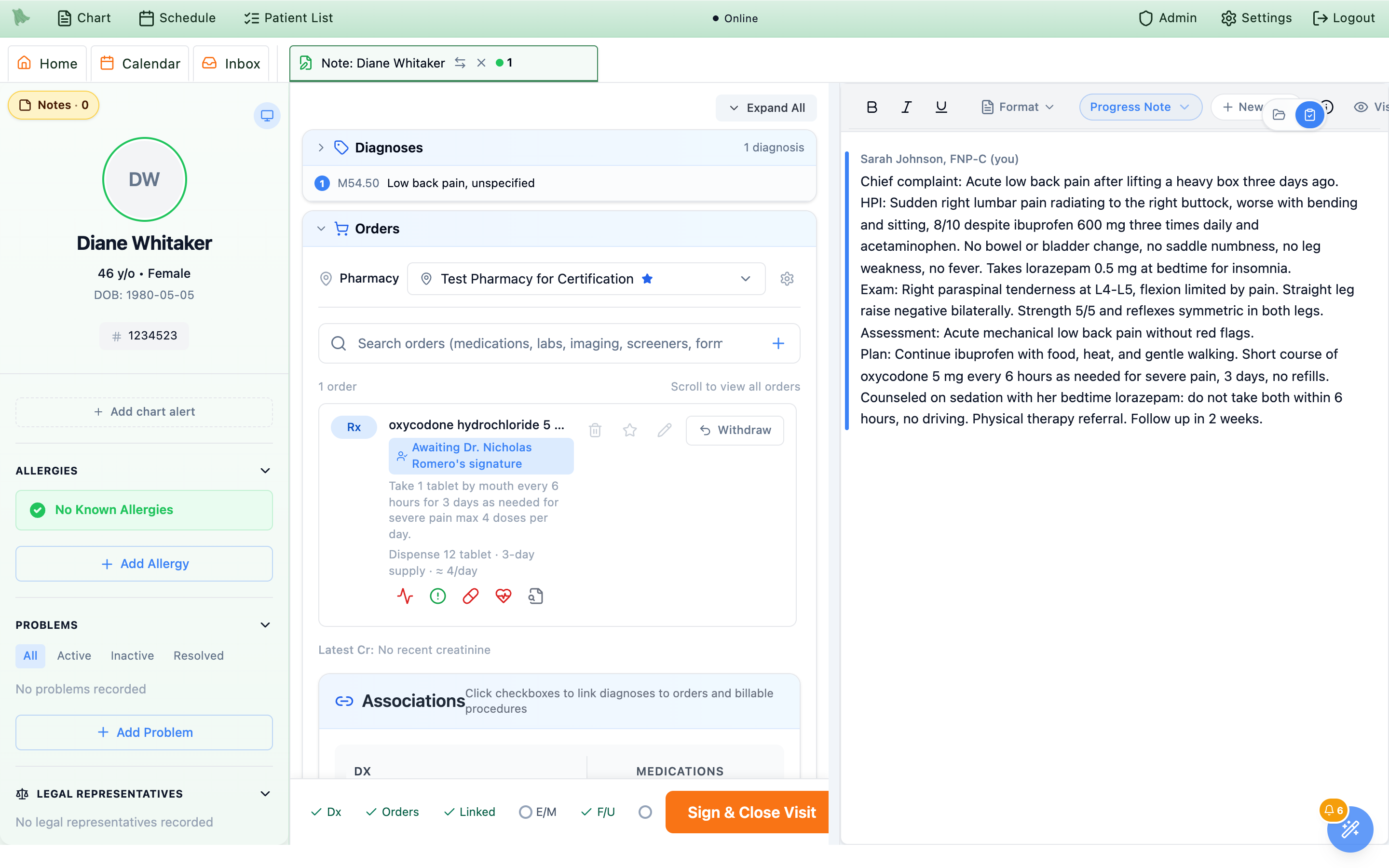
Withdraw takes it back.Withdraw on the order row takes the prescription back from the physician, unsigned, so you can edit it, sign it yourself (when your practice allows), or route it again. A prescription waits on one physician at a time — to send it to someone else, withdraw it and route it again. Once the physician has signed and sent it, it can no longer be withdrawn.For the supervising physician: review, then sign, edit, or return
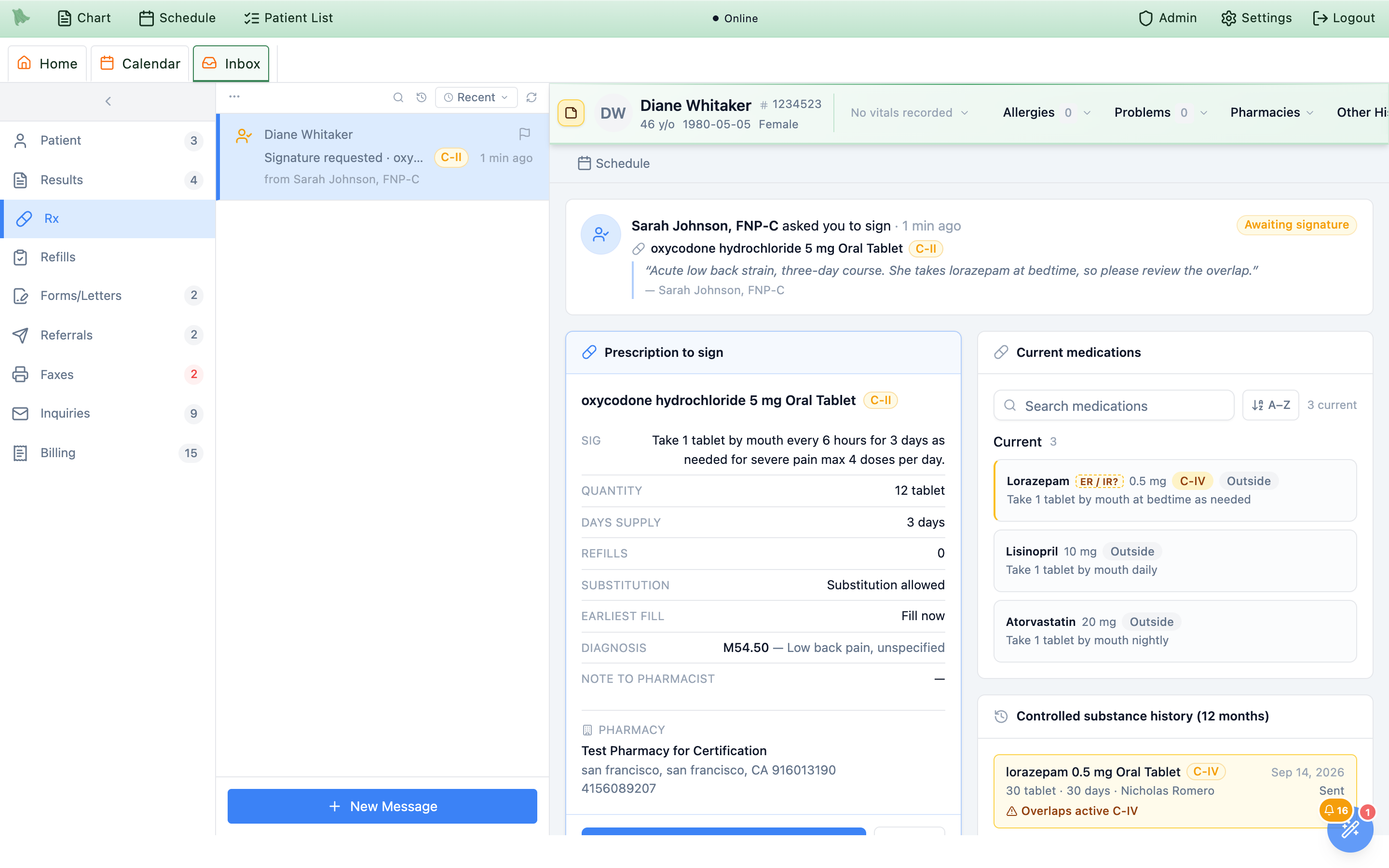
A routed request brings everything you need to decide onto one screen:
Prescription to sign
Sig, quantity, days supply, refills, substitution, earliest fill date, diagnosis, note to pharmacist, and the pharmacy.
Current medications
The patient’s medication list with controlled substances first, each marked with its schedule and an amber edge.
Controlled substance history (12 months)
Every controlled prescription in the past year. Overlaps active C-II and Within this Rx’s 30-day window flag the ones that overlap this request.
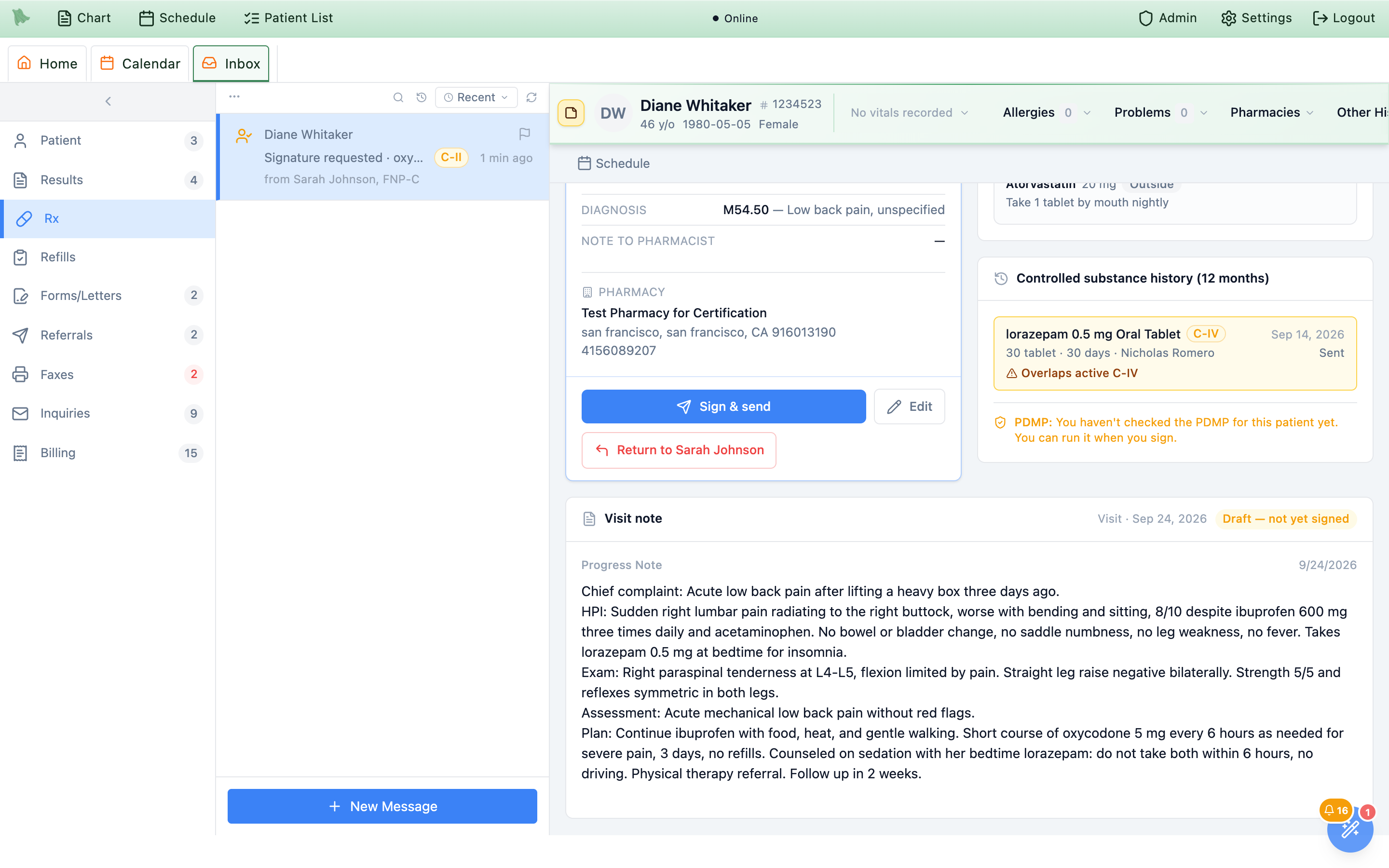
PDMP
When you last checked the state PDMP for this patient and what it showed — or a reminder that you can run it when you sign.
Visit note
The note from the visit the prescription belongs to, marked Signed or Draft — not yet signed.
-
Open the request.
When a request arrives, My Hero sends you a notification, “Signature requested” (the lock screen never shows the patient or the drug); tapping it opens the request on your phone — see Sign on your phone below. On a computer, click
Inbox, then theRxview. A request readsSignature requested ·drug, with the schedule chip (for exampleC-II) and “from” the NP or PA who prepared it. Opening it shows who asked you to sign and when, anAwaiting signaturestatus, their note, and the panels above. -
Edit it if something needs to change.
Editopens Edit Prescription;Use these changeskeeps your version. Nothing is sent from there — the request is marked Edited by you, your changes are saved to the prescription when you sign, and both of you can see what changed.Discard editsgoes back to what was routed. A compound can’t be edited here; return it instead. -
Sign and send.
Sign & sendopens Sign controlled prescription, the same EPCS signing you use for your own prescriptions: run or refresh the PDMP, confirm theDEA prescribing location(matched to the patient’s state automatically), check the summary — you are thePrescriberand the NP or PA appears as Prepared by — and chooseStart mobile approvalto approve on your phone. “Signed and sent” confirms it is queued for the pharmacy. -
Or return it with a reason.
Return toname asks why: Needs a visit, Dose or quantity change needed, Not clinically indicated, PDMP concern, or Other (which needs a note). Nothing is sent to the pharmacy.
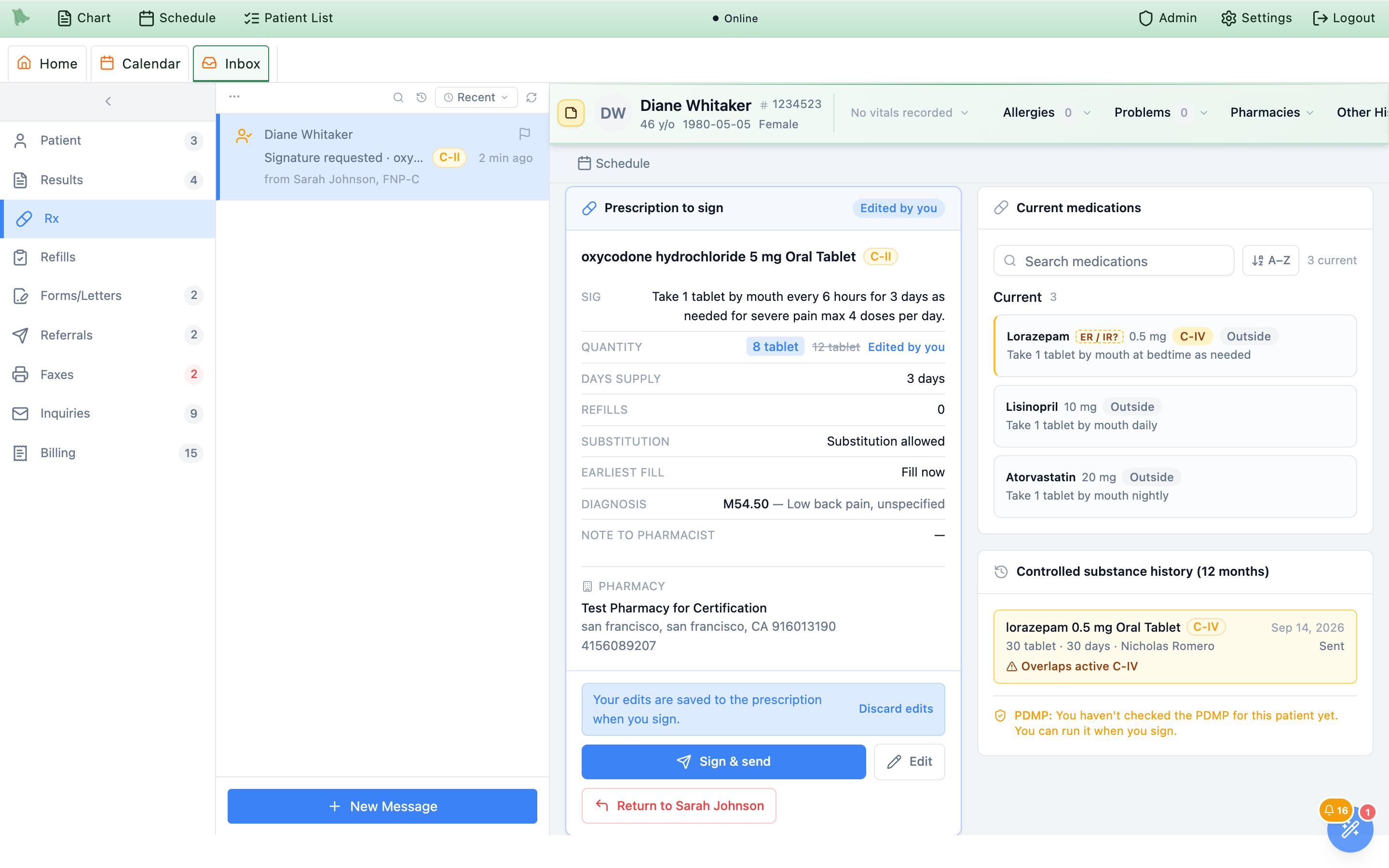
Edit: the change is shown old → new and applied only when you sign.Sign on your phone (My Hero)
You can do the whole thing from the My Hero app on the phone you linked for EPCS, without a computer. This needs My Hero 1.1.2 or later; update it from the App Store or Google Play if the request only says to sign on a computer.
-
Open the request.
Tap the notification, or open
Inbox→Rx, where the request readsSignature requested byname with aNeeds your signaturetag. Requests also wait underEPCS approvalsin aWaiting for your signaturesection. -
Review it.
The screen shows who asked you to sign and when, their note, the patient’s name and date of birth, the medicine, directions, quantity, days supply, refills, substitution, earliest fill date, diagnosis, note to pharmacist and pharmacy, and an Allergies and interactions check. To change anything, use
Editin Hero on a computer, or return it. -
Tap
Sign & send. The EPCS approval opens on the same phone. Check the prescription and tapApprove with passkey. The app then signs it under your DEA registration (chosen from the patient’s state) and sends it: “Signed and sent — drug is on its way to pharmacy.” -
Or tap
Return toname. Pick a reason (the same reasons as on the computer) and add a note; the preparer gets it back as an unsent draft with your reason.
Check again in a moment instead of calling it in or signing it again. The PDMP isn’t shown on the phone: if your practice requires a PDMP check before signing, the phone tells you, and you sign that one from a computer.When a prescription comes back
A returned prescription lands in the NP’s or PA’s own Rx view as Returned by Dr. …, and the order row reads “Returned by Dr. …: reason — note”. From the returned item they can Edit & re-route it (the dialog asks “What changed since it was returned”), Open visit while the visit is still open, Discard prescription, or Dismiss the item. If the physician signed but the send didn’t reach the pharmacy, the row shows Sending failed: the physician can return it to the preparer, or the preparer can withdraw it to fix and resend. Finished requests stay in the Rx view for seven days.
Practice settings (admins)
Set the practice policy under Admin → Prescriptions → Supervisory signing, then Save changes.
| Setting | What it does | Default |
|---|---|---|
Routing — “Let NPs and PAs route controlled prescriptions to a supervising physician” | Adds Route to supervising physician to the controlled-prescription signing dialog. | On |
Required signature — “Require a supervising physician’s signature for mid-level prescriptions of:” Schedule II, Schedule III, Schedule IV, Schedule V | NPs and PAs can’t sign the ticked schedules themselves. Their signing dialog opens straight to routing with “Your organization requires a supervising physician to sign Schedule II prescriptions written by NPs and PAs.” Requires routing to be on. | None ticked |
Prescribers | Read-only: how each prescriber is classified — Physicians (MD/DO), NP/PA, or Credentials not recognized — from the credentials on their provider profile. Fix credentials in provider profiles opens Physician Management. | — |
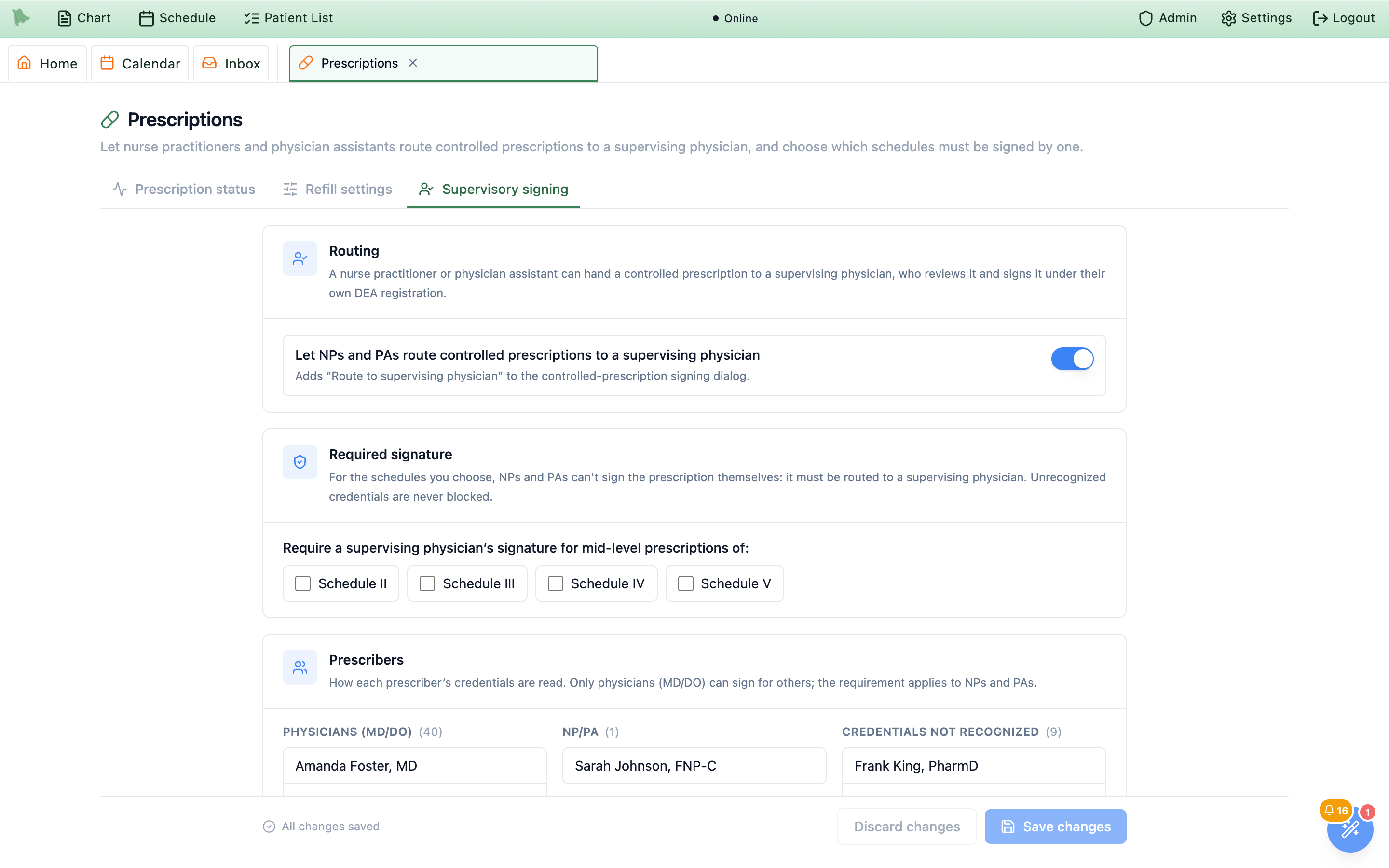
Admin → Prescriptions → Supervisory signing: routing on by default, no schedules required until you tick them.Credentials not recognized can still route but is never blocked by the requirement, so fix their credentials for the policy to apply. Hero enforces the schedules you tick — set them to match your state’s rules and your supervision agreements.Sign several controlled prescriptions with one phone request
When a patient’s orders hold two or more controlled prescriptions, Send together sends them all to your phone in one request instead of one approval each. It is on for every practice: there is no switch to turn on, and nothing to set up beyond your EPCS signing. You tick each prescription on the phone and sign them; the order screen then follows each one until it reaches the pharmacy. Each row keeps its own Sign & Send if you prefer to sign one at a time.
- Get the prescriptions ready. Each one needs to be finished, unsent, controlled and linked to a diagnosis, with a pharmacy chosen for the visit. Once two are ready, a bar appears above the orders: 2 controlled prescriptions are ready to sign, with their names and “one request to your phone, one Face ID signs them all”. It works in visit Orders and in the order window outside a visit (Create Orders, and the window that opens for Renew, Reorder or a refill request). Compounds always keep their own button, and staff accounts don’t see the bar. In that window, the send button at the bottom never sends controlled prescriptions; with two or more waiting it says “Controlled substances are signed on your phone with two-factor authentication. Use ‘Send together’ above the orders (or ‘Sign & Send’ next to …) to complete EPCS signing, then submit any remaining orders.”
-
Click
Send 2 together. Hero checks each row first; a row that isn’t ready gets its own note (for example “Directions (sig) are required before signing.”) and is left out. One allergy and interaction stop then covers all of them (Continue to signing; see Safety checks). -
Check the signing window.
Send 2 controlled prescriptions to your phone shows one PDMP status for the patient, one
DEA prescribing location(matched to the patient’s state, as for a single prescription), the signing attestation, and a card for each prescription with its directions and Dispense … · …-day supply · … refills. Untick any you want to leave out. ClickSend 2 to my phone. - Sign on your phone. “Check your phone”: open the Hero notification, tick each prescription and sign the patient’s prescriptions with Face ID. An older Hero app asks for each prescription in turn. Keep the window open; a countdown shows the time left to sign. If the phone wasn’t notified, open Hero on the phone yourself: the prescriptions are waiting there.
-
Watch each one reach the pharmacy.
Each card moves through On your phone, Signed and At the pharmacy, and the window ends with, for example, Both sent to the pharmacy. Click
Done.
| A card says | What happened and what to do |
|---|---|
Sent to pharmacy | Done. |
Declined on your phone | “You declined it on your phone. Nothing was sent.” It stays in the orders, unsent. |
Timed out | “Not signed in time. Send it again.” |
Signed · needs a reason | Another prescription for the same drug is still active at the pharmacy. Hero asks Why is a second prescription needed?; then Give a reason and send. Your phone isn’t asked again. |
Signed, not sent | For example you stopped it at a safety check. Send it now sends it without asking the phone again. |
Needs attention | Read the note on the card, such as “It changed after it went to your phone. Send it again.” or “Your signing device was removed. Set it up again in Hero, then send again.” |
Stop waiting asks Stop waiting for your phone?: “Anything you sign on your phone after this window closes is not sent. Those prescriptions stay in these orders, unsent, and the request on your phone expires.” Choose Keep waiting or Close without sending the rest. Prescriptions that weren’t sent always stay in the orders, unsent.Sign & Send on those rows to route them. Nothing is sent until you sign: if a prescription can’t be prepared, it is left out and nothing goes to your phone until you send the rest.Need help? Email support@heroemr.com.