Encounter completion — questionnaires in the note
The forms the patient already filled in, beside the note: when the middle column opens on them, the three ways to switch views, how to read a card's score and answers, putting them into the note with .questcurrent, and why a visit sometimes opens on Encounter Completion instead.
Encounter completion — questionnaires in the note
The forms the patient already filled in, beside the note: when the middle column opens on them, the three ways to switch views, how to read a card's score and answers, putting them into the note with .questcurrent, and why a visit sometimes opens on Encounter Completion instead.
The forms the patient already filled in, beside the note
The note screen is three bands: the patient header strip across the top, a middle column, and the note editor on the right. That middle column used to hold two things — Chart Review and Encounter Completion. It now holds a third: Questionnaires, the answers this patient gave on the forms attached to this visit, question by question, without leaving the note.
- It appears when the visit has completed answers. A questionnaire counts if it was completed — assigned to the encounter itself, or to the scheduled visit the encounter was booked from, which is how pre-visit forms sent by an assignment rule arrive. An assignment that was sent but never filled in does not count, and neither does a form the patient completed for some other visit.
-
It is the view the note opens on.
With no choice of your own stored for that note tab, a visit carrying completed questionnaires opens on
Questionnairesrather thanChart Review. The reasoning is that the answers the patient gave minutes ago are the thing you want in front of you when you start writing. -
Read the header.
A clipboard icon, the word
Questionnaires, and a chip carrying the number of forms. On the right of the same row,Answered for this visit. -
Score history comes first.
For every screener the patient has completed more than once, a
Score historystrip at the top shows a small trend line with the instrument’s severity bands, the latest score and band, and the change since the previous result.Open trendsopens the full charts in Patient Information → Questionnaires. -
One card per questionnaire.
Each card is the questionnaire’s name, a score chip, a line saying when and by whom it was completed, and every question with the answer exactly as it was entered. A response that hit a safety rule (for example PHQ-9 item 9) carries a red
Safety flagbadge in its header, opens with the flag messages, and marks the item the flag fired on. The next section reads one in detail. -
AI notes can use these answers (your choice).
A line under the pane says whether your AI-generated notes read questionnaire answers. It starts off: “AI notes can fill history and scores from these answers. Turn on Patient questionnaires in SOAP Notes settings.” The setting is your own, under
SOAP Notes→Settings→Chart Context→Patient questionnaires: “Intake forms and screeners the patient or a parent filled out for this visit or in the 45 days before it, plus recent scores.” When it is on, the line reads “Your AI notes use questionnaire answers and recent scores, credited as patient-reported.”, and the generated note says where each fact came from, for example “Per intake questionnaire (10/12/2026)”. - The note does not move. The pane is built on the same frame as Chart Review — same header height, same scrolling body — so switching between the views never shifts or resizes the editor beside it. Long answer lists scroll inside the column.
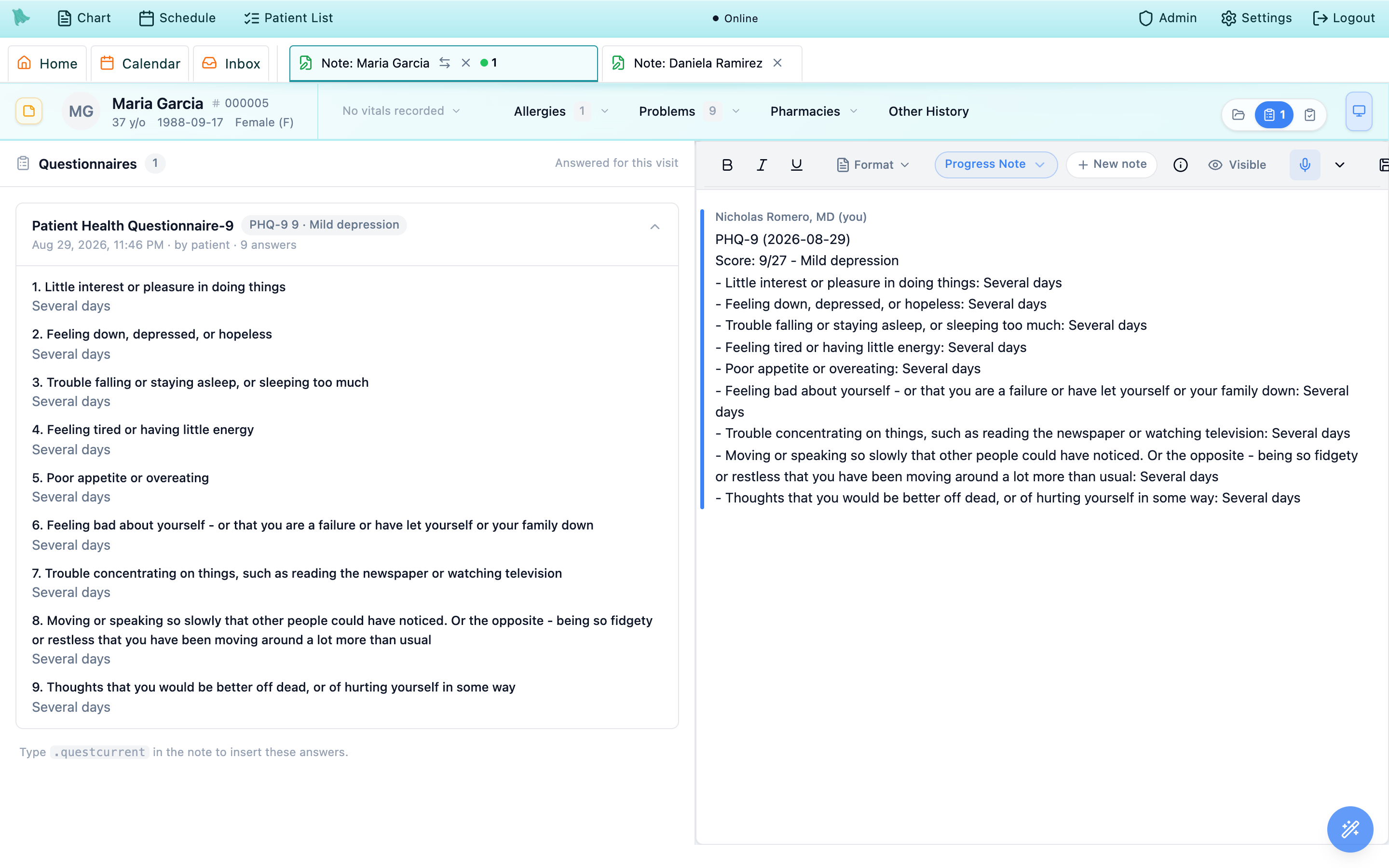
Three ways to move between Chart Review, Questionnaires, and Completion
The three views share one column, so there is one cycle through them and three controls that walk it. All three do exactly the same thing; use whichever is nearest your hand.
| View | What the column shows | When it is in the cycle |
|---|---|---|
Chart Review | The chart tabs — encounters, notes, labs, imaging, medications and the rest. Here the visit-less New orders button is left off the tab bar (F7 / Ctrl+O still work); on Notes, double-clicking a note opens it in the column itself with Back to list, and My last note opens the last note you signed for this patient the same way. | Always. |
Questionnaires | The completed questionnaires for this visit. | Only when the visit has at least one completed questionnaire. |
Encounter Completion | The completion checklist — diagnoses, orders, charges, follow-up. | Only for people allowed to open it: clinicians, and staff with draft-editing rights. |
-
Shift + Tab cycles them.
The order is
Chart Review→Questionnaires→Encounter Completion→ back toChart Review. Views that are not available for this visit or this reader are skipped, so with no questionnaires on the visit you get the classic two-way flip between Chart Review and Encounter Completion, exactly as before. It works with the cursor sitting in the note — the note screen catches the key first, so it switches the view instead of outdenting your paragraph. -
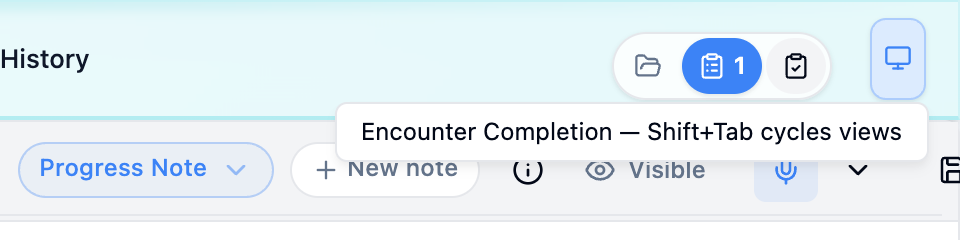
The floating switcher sits at the top right.
A small pill of three icon segments at the right end of the patient header strip — the spot where the
Encounter signedpill appears on a signed visit. Left to right: Chart Review, Questionnaires, Encounter Completion. The current view is the filled one, and the Questionnaires segment carries the number of forms (anything above nine reads9+), so a visit with answers waiting is visible at a glance without opening anything. -
Hover a segment for its name and the key.
The segment you are on says
Chart Review (current); the others name themselves and the chord, as inEncounter Completion — Shift+Tab cycles views. If your practice or your account leaves only one view available, the switcher does not render at all. -
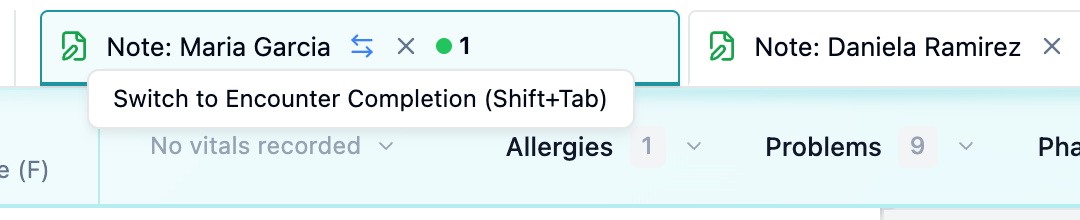
The note tab has the same toggle.
The active note tab in the workspace tab strip carries a small two-way arrow between the title and the close ×. Its tooltip names the view the click lands on and the key that does the same thing:
Switch to Encounter Completion (Shift+Tab). It is only on the note tab you are actually in — inactive note tabs keep the room for their title, and a note with nothing to cycle to has no arrow. -
Remap the key if Shift + Tab is not yours.
Settings→HotkeysopensKeyboard Shortcuts. Under theNote Writerheading — blurbedActive while a note is open for editing.— find the rowCycle the middle column: Chart Review → Questionnaires → Encounter Completion. The icon buttons on the row areChange,Turn off, andReset to default; a shortcut you have turned off readsOff. Every tooltip above follows whatever you set, so the tab arrow starts naming your chord instead.

Settings → Hotkeys: the cycle is one remappable row under Note Writer.Score, timing, and every answer as the patient gave it
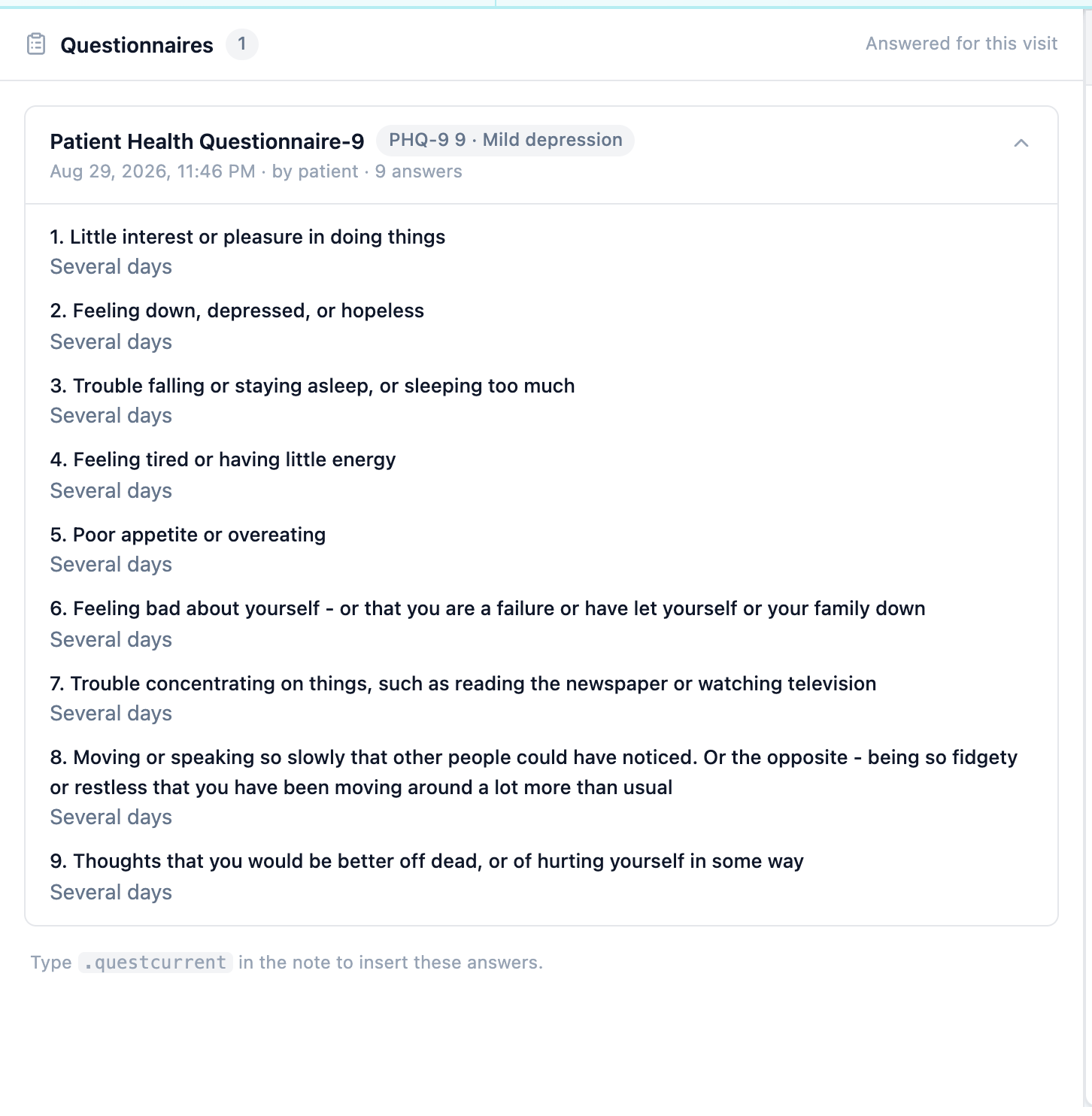
A card is four things stacked: the name, the score chip, one line of provenance, and the answers. Nothing on it is editable — this is a reading surface, and the questionnaire record itself stays in the chart.
-
The name is the questionnaire’s full title.
Patient Health Questionnaire-9, not the abbreviation. A questionnaire with no full title falls back to its short name, and one with neither readsQuestionnaire. -
The chip carries the score and what it means.
It reads short name, score, then the interpretation:
PHQ-9 9 · Mild depression. A scored questionnaire without a short name readsScore 9 · Mild depression; one that produces an interpretation but no number shows the interpretation alone; one that scores nothing has no chip at all. -
The line underneath says when, who, and how many.
Aug 29, 2026, 11:46 PM · by patient · 9 answers. The timestamp is in your practice’s time zone, not the patient’s and not your laptop’s. Who completed it is one ofby patient,by staff, orby proxy— worth a glance before you lean on a symptom score, since a form a staff member keyed in over the phone is a different piece of evidence from one the patient typed. -
The answers are numbered, in the questionnaire’s own order.
Question text on one line, the answer directly beneath it. A picked option shows the option’s wording (
Several days), a multi-select shows the choices separated by commas, and free text is reproduced verbatim, as typed. A question the patient left blank is still listed and numbered, withNot answeredin its place, so a skipped item never silently disappears. Per-question points are not shown; the arithmetic is in the chip. - Fold what you are not reading. Click anywhere on a card’s header to collapse or expand it; the chevron on the right follows. One or two forms on a visit both start open. From three upward — an intake packet, say — only the first opens, and the rest stay folded so the whole set is scannable in one screen.
-
Know the three failure messages.
If the answers cannot be fetched at all, the pane shows
Couldn’t load the questionnaire answers.with aRetrybutton next to it — the cards keep their names and scores meanwhile, because those arrive with the encounter. A single card whose answers did not come readsAnswers are not available for this questionnaire.And a visit whose forms turn out to be empty readsNo questionnaire answers are tied to this visit.
What the card is good for
- Reading a score and its interpretation without opening the chart.
- Checking a single item — PHQ-9 question 9, for instance — against the total.
- Seeing whether the patient or a staff member entered the answers.
- Comparing what was reported on the form with what you are being told in the room.
What it is not
- Not editable: answers cannot be corrected from here.
- Not a history — the cards are this visit only. The
Score historystrip above them gives the trend at a glance, the full trends live in the chart, and.questtrendputs one in the note. - Not automatic documentation: nothing reaches the note until you insert it.
- Not a review record — reading the pane is not the same as acknowledging a result.
Subscale scores
When the questionnaire records them, Subscales lists each domain’s score, available cutoff or criteria result, interpretation, and completion information. The same breakdown appears in response review, the patient’s questionnaire history, and embedded questionnaire details in the note. Older responses without saved subscale results have no breakdown; a missing subscale is not a zero score.
.questcurrent writes the visit’s questionnaires into the note
The pane is for reading. When the answers belong in the documentation, the last line of the pane tells you how to get them there: Type .questcurrent in the note to insert these answers. It is a dot phrase, so you type it in the editor rather than clicking anything in the pane.
-
Type
.questcurrentwhere you want the block. It fires as soon as it is recognised — there is no list to pick from — and the dropdown showsInserting this visit’s questionnaire answers…while it works. -
What lands in the note.
A heading,
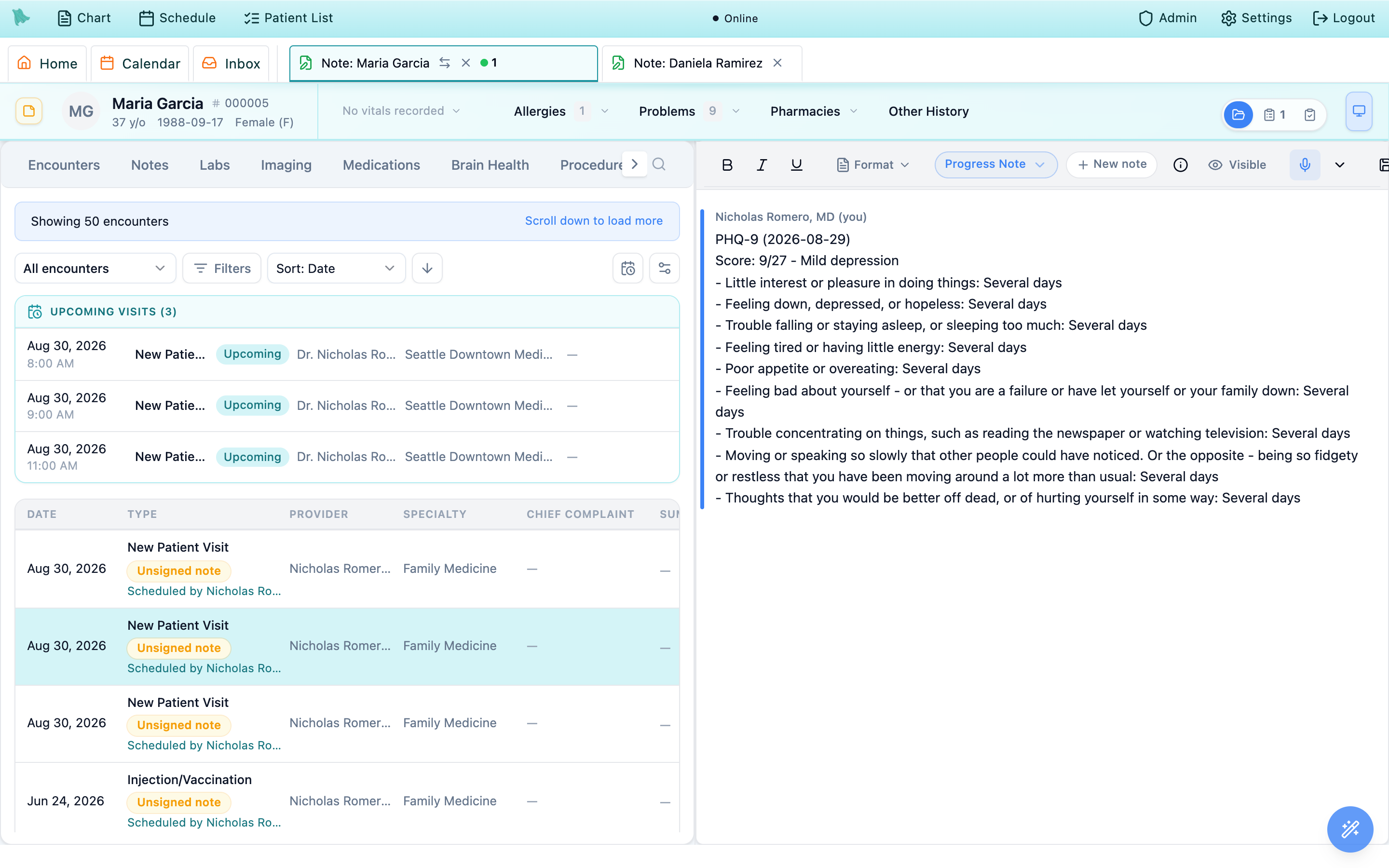
Visit questionnaires — 2026-08-29, then one block per questionnaire, oldest completion first: a bold line pairing the short name with the completion date (PHQ-9 — 2026-08-29), the full title beneath it when it differs, and a score line readingScore: 9/27 — Mild depression. The denominator only appears when the questionnaire defines a maximum, and an unscored form readsScore: N/A. Any flags the questionnaire raises follow as a short bulleted list underFlags. -
The answers arrive as a details card.
Under each score line sits a collapsible block headed
PHQ-9 detailswith an answered counter on the right (9/9 answered) and the same numbered question-and-answer list you were just reading, unanswered items included..questcurrentinserts it already expanded; the other questionnaire phrases insert theirs collapsed. -
Nothing to insert says so.
On a visit with no completed forms the phrase writes one line —
No questionnaires completed for this visit.— rather than failing silently. In a quick note with no encounter behind it the heading and the empty line both say “today” instead of “this visit”. - Sensitive questionnaires insert the summary only. A questionnaire your practice has marked financially sensitive contributes its heading and score line, and its answers card is left out.
Four related phrases cover the rest of the questionnaire work, and all of them are available anywhere in the note editor, not only on a visit with a pane:
| Phrase | In the dot-phrase list | What it inserts |
|---|---|---|
.questcurrent | Insert this visit’s questionnaire answers | Every questionnaire completed for this visit, with scores and expanded answers. |
.questdetail | Pick a questionnaire and insert its answers | Opens a Search questionnaires picker; inserts one chosen submission with its date, score, flags, and answers. |
.questtrend | Insert questionnaire score trend | The same picker, then that questionnaire’s scores over time — a text list, plus a chart once there are two or more scored submissions. |
.phq9 / .gad7 | Latest score for this patient | One line, e.g. PHQ-9 (2026-08-29): 9/27 — Mild depression, or PHQ9: No results found. |
.questcurrent writes is ordinary note content from the moment it lands — it does not update if the patient later amends a form, and it is what gets signed with the note. If answers change after you inserted them, re-read the pane and correct the note by hand, the same as any other text.Visits with no forms, saved notes, and what each person sees
The pane is additive: it shows up when there is something to show and stays out of the way otherwise. Four situations account for nearly every “where did it go”.
- No completed questionnaires — nothing changes at all. The middle column behaves exactly as it did before: Chart Review, Encounter Completion, and Shift + Tab flipping between the two. There is no Questionnaires segment on the switcher and no third stop in the cycle. A clinician whose visits never carry forms will not notice this feature exists.
- You saved the note — the column moves to Encounter Completion. Saving hands the column to the completion checklist, exactly as it always has. The questionnaires have not gone anywhere: one Shift + Tab, or one click on the switcher, brings them back.
- The visit already had completion work on it. A note you open that already carries a draft or an addendum with diagnoses, prescriptions, lab or imaging orders, charge capture, patient instructions, follow-up scheduling, or an encounter summary opens on Encounter Completion rather than the questionnaires — the work in progress wins. This is the usual reason a visit you have already touched today does not open where a colleague’s does.
-
Your own choice wins, and is remembered.
The moment you pick a view yourself — by key, switcher, or tab arrow — that note tab stops switching itself and stays where you put it. Each open note tab remembers its own view, so moving between two patients’ notes does not disturb either, and a page refresh restores them. The memory is per browser tab and is cleared when you log out or close it. One exception: a remembered
Questionnaireschoice only holds while the visit still has completed questionnaires; otherwise the note falls back to Chart Review. -
Staff see the pane too.
A staff member without draft-editing rights has no Encounter Completion pane at all, and for them the cycle is the two-way
Chart Review↔Questionnaires. Reading answers and scores needs visit-note access or the intake-review permission, which everyone who can open the note has.
Expected a pane and did not get one
- The form was assigned but never completed — only completed answers count.
- It was completed against a different visit, or against no visit at all.
- The visit already carries completion work, so the column opened on Encounter Completion.
- You picked a view on this note tab earlier and it is honouring that.
Getting back to it
- Shift + Tab until the column reads
Questionnaires. - Click the middle segment of the switcher at the top right.
- Click the two-way arrow on the note’s tab.
- For anything not tied to this visit, use the chart’s Questionnaires tab or
.questdetail.
Need help? Email support@heroemr.com.