Inbox & messaging — voicemail
Messages callers left on the phone, worked in the same queue as everything else: who called, what they said, one click to call back — and the same read state as the phone dock, so a message is never heard twice.
Inbox & messaging — voicemail
Messages callers left on the phone, worked in the same queue as everything else: who called, what they said, one click to call back — and the same read state as the phone dock, so a message is never heard twice.
Find the messages callers left you
When someone calls the practice and nobody picks up, the call goes to a voicemail box and the caller leaves a message. Those messages arrive in the Inbox, in the Patient view, in among the patient threads — so a message left on the phone gets worked the same way a portal message or a text does: read it, deal with it, mark it done.
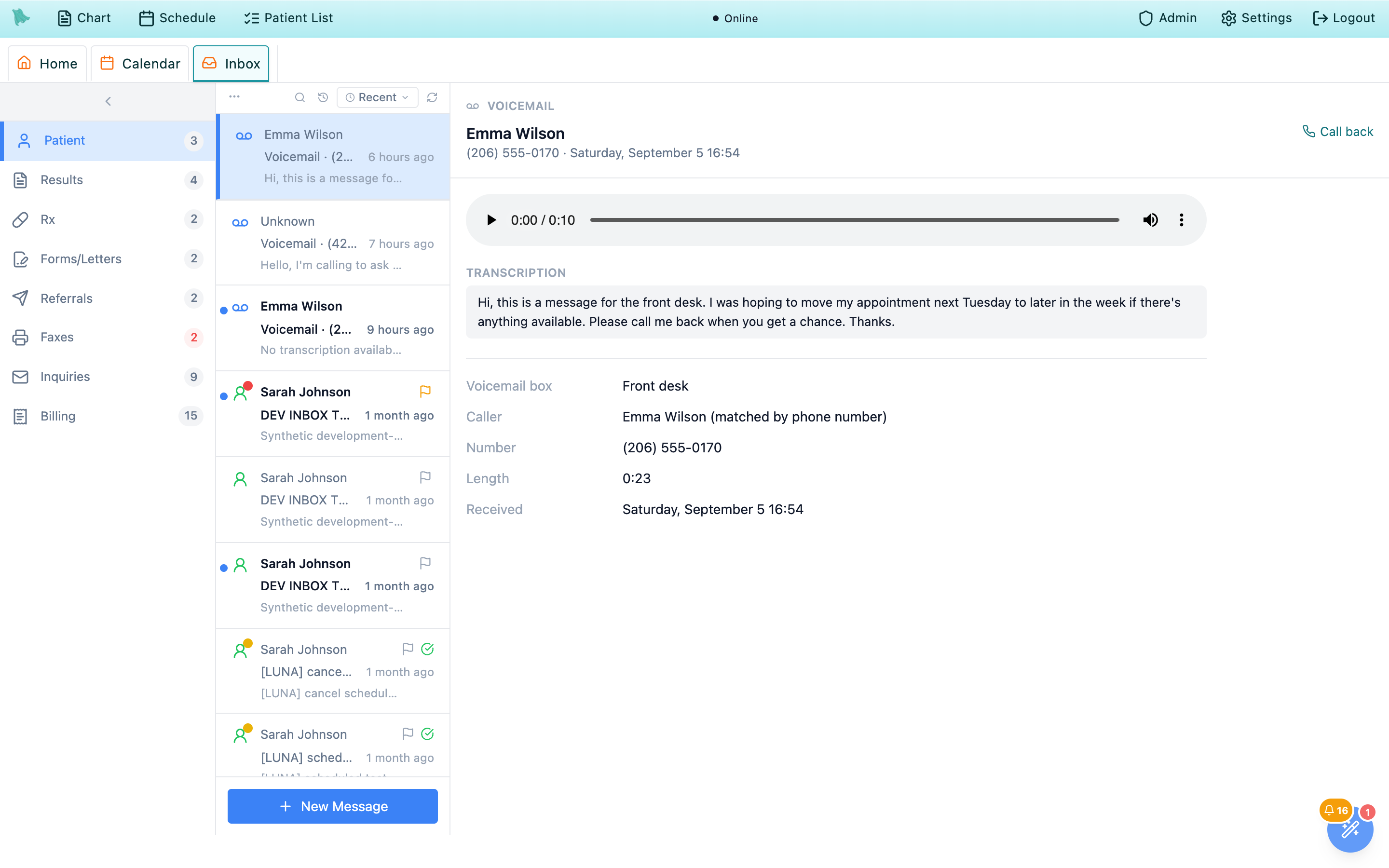
There is no separate folder to remember to check. A voicemail is a row in the same list as the portal, text and email threads, placed by the time it came in and marked with a voicemail glyph so you can tell it apart at a glance. The unread count beside Patient includes voicemail, and so does the Messages tile on the Home dashboard. Voicemail rows appear only for practices using Soaper Phone; if your practice answers its phones another way, you won’t see any (see Before it works).
-
Open the Inbox.
The
Patientview is where you land, and it is where voicemail lands too. The list, the reading pane, and the action bar work exactly like the rest of the Inbox — the same three columns described in the Inbox tour. -
Read the unread pill.
The number beside
Patientcounts the threads and the voicemails you haven’t opened yet. It refreshes on its own, and it drops the moment you open one. - Or use the phone dock instead — it’s the same list. The softphone dock (Ctrl+P) has a bell with the same messages behind it. It is one list with one read state: open a message here and the dock’s badge goes down; play it from the dock and it stops being bold here.
What lands in your Inbox
- Messages left in a voicemail box that notifies you — either you by name, or a ring group you belong to.
- Every such message, whether or not the caller matched a chart.
- The recording, plus the typed-out transcript when the box transcribes.
What doesn’t
- Messages for boxes that notify somebody else. Voicemail is addressed, not broadcast.
- Calls that were answered, and calls that hung up without leaving a message — those are call history, not voicemail.
- Messages the AI phone agent took as a written note for a verified caller. Those arrive as ordinary patient threads in the same view (Patient threads), not as voicemail.
Scan the list and find the one you want
Each voicemail is one row, sitting wherever its time puts it among the threads — a message left at 9:40 appears between the threads that came in just before and just after it. Read left to right, a row tells you who called, from what number, how long they talked, and — when the box transcribes — roughly what they said, without opening anything.
| On the row | What it is |
|---|---|
| Voicemail glyph | Marks the row as a voicemail rather than a patient thread. |
| Sender | The patient’s name when the number matched exactly one chart, and Unknown otherwise — see Who called. |
| Subject | The number and the length, e.g. Voicemail · (206) 555-0170 · 0:23. |
| Preview | The start of the transcript. Boxes that don’t transcribe read No transcription available. — the recording is still there to play. |
| Blue dot & bold text | You haven’t opened this one yet. |
- Search when the list is long. The magnifier searches the threads and the voicemail together. For a voicemail it matches the caller’s name, the phone number, the voicemail box the message landed in, and the whole transcript — so “refill” or “reschedule” finds the messages about refills or rescheduling, and a partial phone number finds a specific caller.
-
Sort the way you work.
Most Recentfor the newest first, orUnread Firstto push everything you haven’t read or heard to the top — unread voicemails sit up there with the unread threads. UnderFlagged Firstthe voicemail rows follow the flagged threads, because a voicemail can’t be flagged. - Open one. Clicking a row opens it in the reading pane and marks it read.
New Message still starts a fresh thread to a patient from this view; to write to a matched caller, click their name to open the chart or start a thread to them (Compose).
Matched callers, unknown callers, and the ones in between
Hero EMR looks the caller’s number up against your charts, and it is deliberately conservative about the answer. If exactly one chart carries that number, the message shows that patient’s name and the name links straight to their chart. Anything else — no chart, or more than one — shows Unknown.
| What you see | What it means | What to do |
|---|---|---|
| A patient’s name | One chart, and only one, has this number. | Click the name to open the chart. Still confirm who you’re speaking to when you call back. |
Unknown caller with no extras | No chart in your practice carries this number — a new patient, a pharmacy, a cell phone you don’t have on file, or a wrong number. | Listen, then call back or file it as your practice does. Adding the number to the right chart makes the next message match. |
Unknown caller plus N possible patients | Several charts share this number — a household line, a parent’s mobile on three children. | Listen first, then pick the right chart from the list so the call is filed where it belongs. |
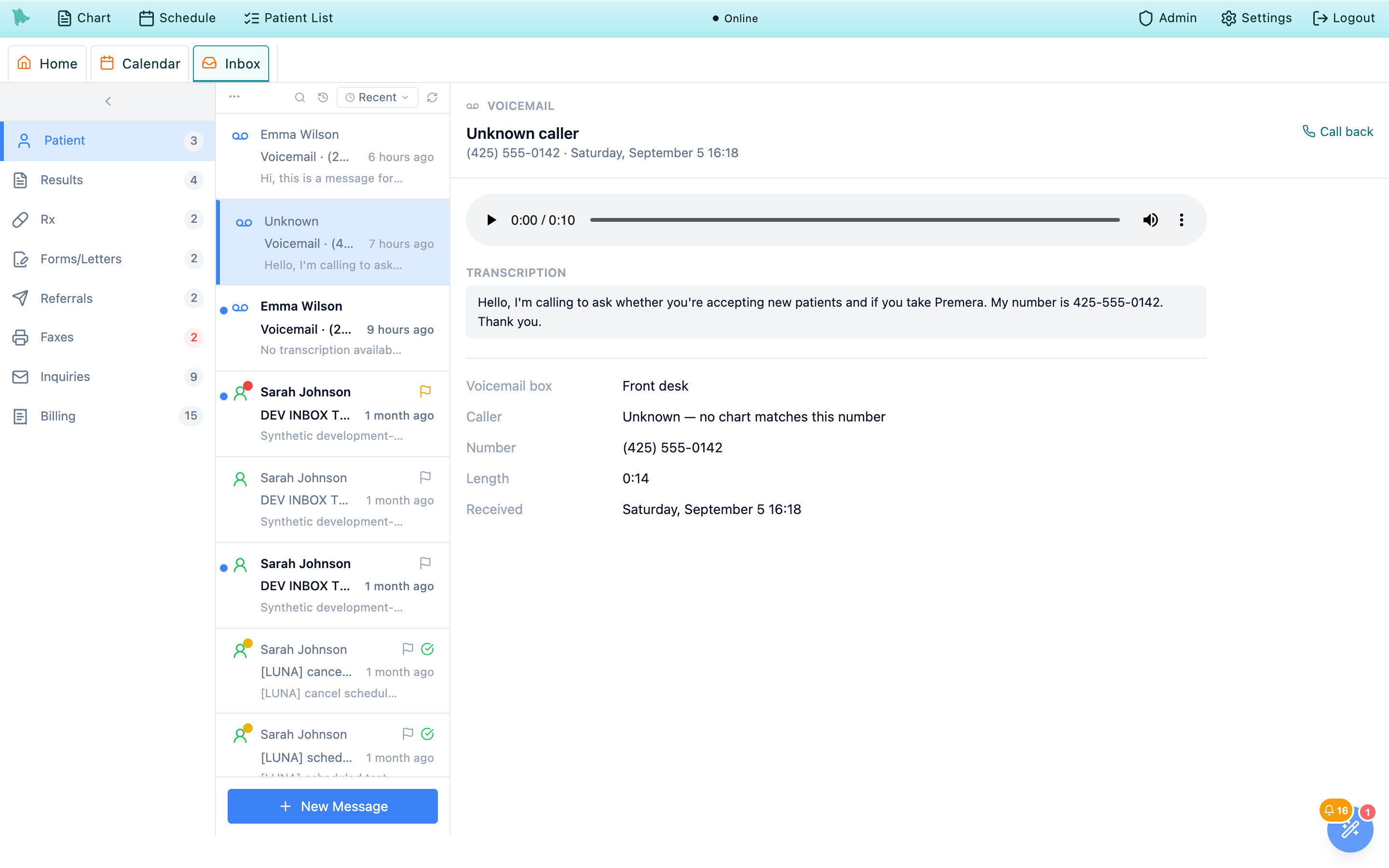
Caller line says exactly why.The detail pane spells the match out under Caller: either “Maria Garcia (matched by phone number)” or “Unknown — no chart matches this number”. The wording is doing real work — it’s telling you exactly how much Hero EMR knows.
Play the message, read the transcript, return the call
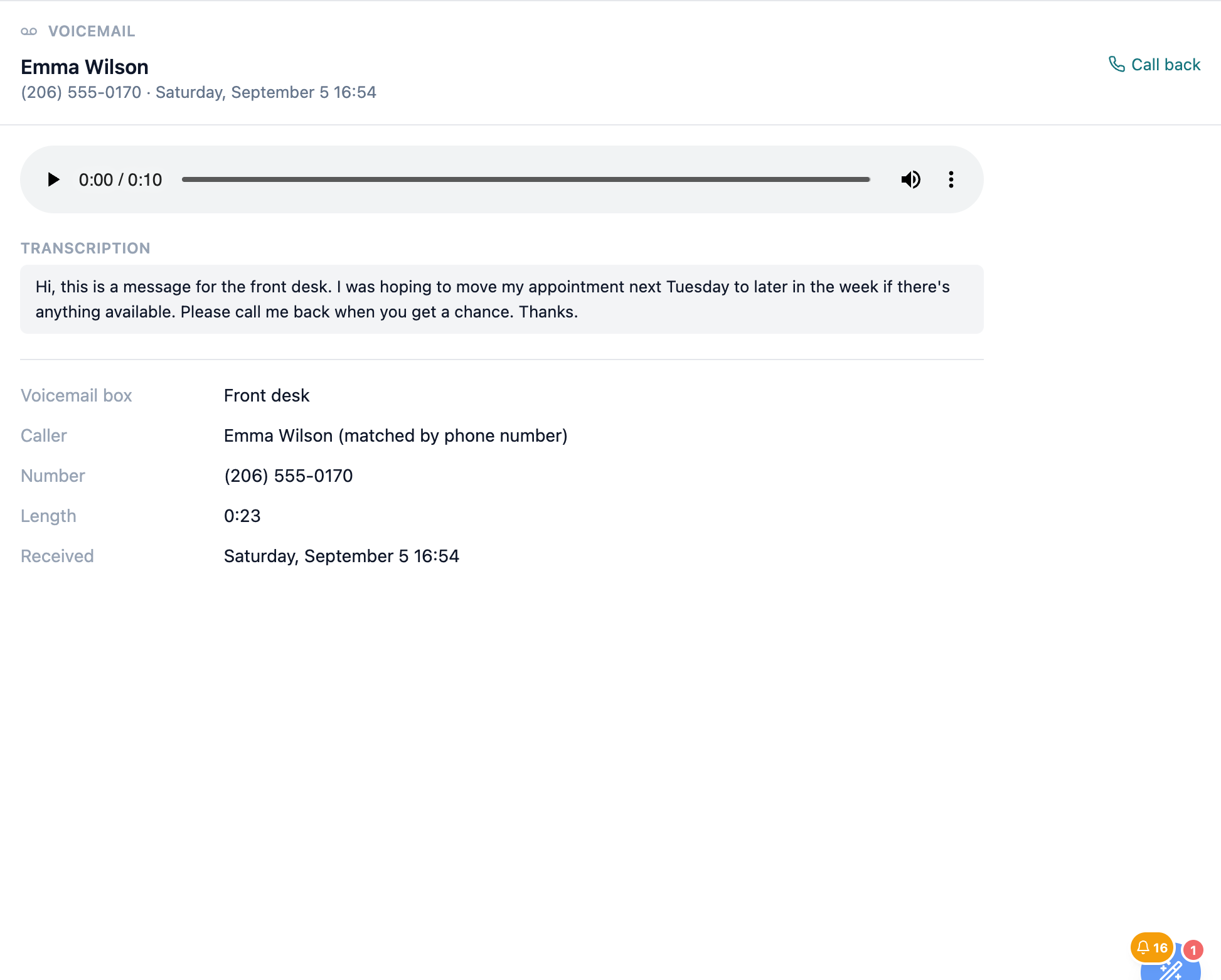
Open a message and everything you need sits in one pane: who called and when, a player, the transcript, and the details.
-
Play it.
A standard audio player sits at the top of the pane — play, pause, scrub, volume. It reads
Loading message…for a moment while the recording is fetched. Switching to another message resets the player, so you never half-hear one message over another. -
Read it instead.
Under
Transcriptionis the message typed out, if the box has transcription turned on. It’s faster to skim than to listen to, and it’s searchable from the list. Boxes without transcription showNo transcription available.— play the recording. -
Call them back.
Call backat the top right dials the caller’s number in your softphone, with the call already tied to the matched chart. If you don’t use the softphone, the number is shown as plain text to dial yourself. -
Check the details.
The bottom of the pane lists
Voicemail box(which box the caller reached — useful when your practice runs separate boxes for billing, refills, or a specific provider),Caller,Number,Length, andReceived.
Received is stated in the practice’s time zone, not your laptop’s — so “7:40 PM” means 7:40 PM at the clinic, whether you’re reading it from home, on the road, or in another state.
Read, unread, and done
Voicemail uses the Inbox’s ordinary triage tools (Triage tools), with one thing worth knowing: read state is shared with the phone dock, so there is only ever one truth about what you’ve heard.
-
Opening a message marks it read.
The row loses its bold and its dot, the
Patientcount drops, and the dock’s bell badge drops with it. -
Put one back if you’re not done.
Mark as unread(Ctrl+U) returns it to the queue — and to the dock’s badge — so a message you listened to but can’t action yet doesn’t quietly disappear. -
Mark it complete when the callback is made.
Backspace, or the check in the action bar, hides the message from the list. The clock button toggles
Show completed messagesto bring completed ones back, grayed out.
What has to be switched on — and what to check when nothing arrives
Three things decide whether you see voicemail, and all three are admin settings rather than personal ones.
Soaper Phone is on
An admin turns the practice’s phone system on under Admin > Additional Features > Soaper Phone. With it off there is no voicemail in the Inbox and no phone dock at all.
A voicemail box notifies you
Boxes live under Admin > Soaper Phone > Voicemail. Each has a Notify setting — A person or A ring group. You receive a box’s messages when it names you, or names a ring group you belong to.
Transcription is per box
The same box editor has a Transcribe messages switch. On, messages arrive with text you can read and search; off, they arrive as audio only.
| What you see | Why |
|---|---|
| Never a voicemail row, and no phone dock either | Soaper Phone isn’t enabled for the practice. Ask an admin to check Additional Features. |
| Soaper Phone is on, but nothing ever arrives | No voicemail box notifies you. Have an admin point a box’s Notify at you, or add you to the ring group it notifies. |
| Messages arrive, but never any text | Transcribe messages is off for that box — the box name in the details tells you which one to change. |
A regular caller still shows as Unknown | The number they called from isn’t on their chart. Add it, and their next message matches. |
Call back shows as plain text, not a button | You don’t have the softphone — dial the number by hand. An admin can grant softphone access under Admin > Soaper Phone. |
Notify setting, not in your own Inbox preferences.
Need help? Email support@heroemr.com.