Inbox & messaging — voicemail & Team Chat
Messages callers left on the phone, worked in the same queue as everything else: who called, what they said, one click to call back — and the same read state as the phone dock. Start a separate Team Chat conversation when a new topic needs its own thread.
Inbox & messaging — voicemail & Team Chat
Messages callers left on the phone, worked in the same queue as everything else: who called, what they said, one click to call back — and the same read state as the phone dock. Start a separate Team Chat conversation when a new topic needs its own thread.
Find the messages callers left you
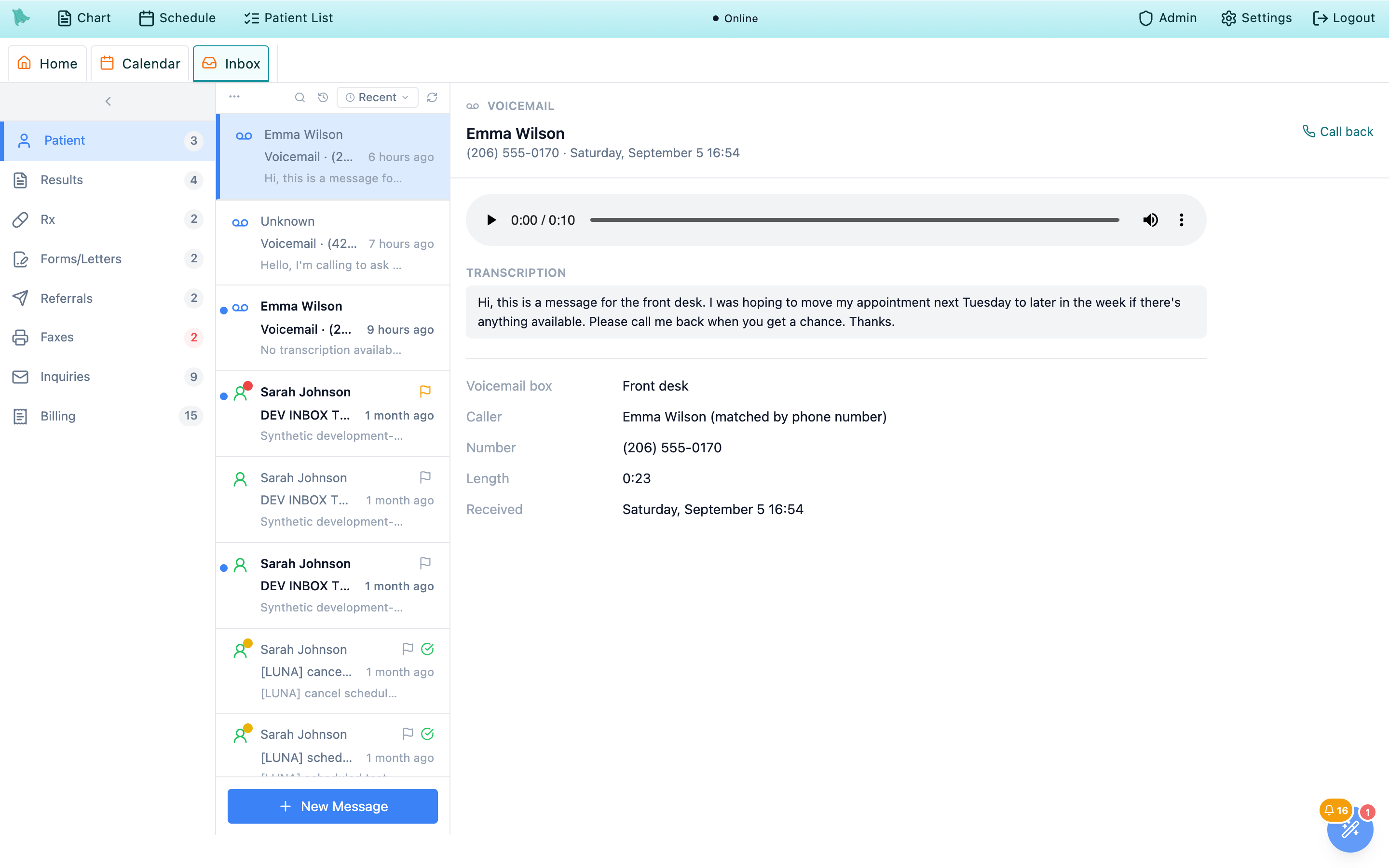
When someone calls the practice and nobody picks up, the call goes to a voicemail box and the caller leaves a message. Those messages arrive in the Inbox, in the Patient view, in among the patient threads — so a message left on the phone gets worked the same way a portal message or a text does: read it, deal with it, mark it done.
There is no separate folder to remember to check. A voicemail is a row in the same list as the portal, text and email threads, placed by the time it came in and marked with a voicemail glyph so you can tell it apart at a glance. The unread count beside Patient includes voicemail, and so does the Messages tile on the Home dashboard. Voicemail rows appear only for practices using Soaper Phone; if your practice answers its phones another way, you won’t see any (see Before it works).
-
Open the Inbox.
The
Patientview is where you land, and it is where voicemail lands too. The list, the reading pane, and the action bar work exactly like the rest of the Inbox — the same three columns described in the Inbox tour. -
Read the unread pill.
The number beside
Patientcounts the threads and the voicemails you haven’t opened yet. It refreshes on its own, and it drops the moment you open one. - Or use the phone dock instead — it’s the same list. The softphone dock (Ctrl+P) has a bell with the same messages behind it. It is one list with one read state: open a message here and the dock’s badge goes down; play it from the dock and it stops being bold here.
What lands in your Inbox
- Messages left in a voicemail box that notifies you — either you by name, or a ring group you belong to.
- Every such message, whether or not the caller matched a chart.
- The recording, plus the typed-out transcript when the box transcribes.
What doesn’t
- Messages for boxes that notify somebody else. Voicemail is addressed, not broadcast.
- Calls that were answered, and calls that hung up without leaving a message — those are call history, not voicemail.
- Messages the AI phone agent took as a written note for a verified caller. Those arrive as ordinary patient threads in the same view (Patient threads), not as voicemail. A message it took from a caller who isn’t a verified patient goes to
Inquiriesinstead (Messages the AI takes).
Patient folder shows the voicemails sent to its owner, and you work their copy: opening or finishing one does it for them too, and Voicemail Hero’s card works there as well. See Working someone’s inbox.
Scan the list and find the one you want
Each voicemail is one row, sitting wherever its time puts it among the threads — a message left at 9:40 appears between the threads that came in just before and just after it. Read left to right, a row tells you who called, from what number, how long they talked, and — when the box transcribes — roughly what they said, without opening anything.
| On the row | What it is |
|---|---|
| Voicemail glyph | Marks the row as a voicemail rather than a patient thread. |
| Sender | The patient’s name when the number matched exactly one chart, and Unknown otherwise — see Who called. |
| Subject | The number and the length, e.g. Voicemail · (206) 555-0170 · 0:23. |
| Preview | The start of the transcript. Boxes that don’t transcribe read No transcription available. — the recording is still there to play. |
| Blue dot & bold text | You haven’t opened this one yet. |
New patient, Return message or Nothing to do | What Voicemail Hero made of the message, once it has read it (Voicemail Hero). An Urgent pill and a red row mean it judged the message urgent. |
- Search when the list is long. The magnifier searches the threads and the voicemail together. For a voicemail it matches the caller’s name, the phone number, the voicemail box the message landed in, and the whole transcript — so “refill” or “reschedule” finds the messages about refills or rescheduling, and a partial phone number finds a specific caller.
-
Sort the way you work.
Most Recentfor the newest first, orUnread Firstto push everything you haven’t read or heard to the top — unread voicemails sit up there with the unread threads. UnderFlagged First, flagged voicemails sort with the flagged threads. - Open one. Clicking a row opens it in the reading pane and marks it read.
Forward, Flag, Done / Reopen and Mark read / Mark unread work on a voicemail like on a thread, and once it belongs to a chart so do Schedule, Order and Open chart. To answer, call back or send a portal message from the reply box (Listen & call back).
Matched callers, unknown callers, and the ones in between
Hero EMR looks the caller’s number up against your charts, and it is deliberately conservative about the answer. If exactly one chart carries that number, the message shows that patient’s name and the name links straight to their chart. Anything else — no chart, or more than one — shows Unknown.
| What you see | What it means | What to do |
|---|---|---|
| A patient’s name | One chart, and only one, has this number. | Click the name to open the chart. Still confirm who you’re speaking to when you call back. |
Unknown caller with no extras | No chart in your practice carries this number — a new patient, a pharmacy, a cell phone you don’t have on file, or a wrong number. | Listen, then call back. If it is one of your patients, use Link to patient (below) so the message is filed on their chart and the next call from that number matches. |
Unknown caller plus N possible patients | Several charts share this number — a household line, a parent’s mobile on three children. The Caller line reads Multiple patient matches — select the correct chart. | Listen first, then use Link to patient to pick the right chart so the call is filed where it belongs. |
Link a voicemail to a patient
- Click
Link to patientat the top of an unknown caller’s voicemail. TheLink to a patientwindow opens: “Pick the chart this voicemail belongs to. The call and its recording move there too.” - Search by
Name or phone number(at least two characters). Each result shows the date of birth and the phone numbers on the chart. - Decide about the number.
Add (206) 555-0170 to this patient’s chartis ticked by default; each result says what it would do: Adds it as the primary number, Adds it as the secondary number, This number is already on the chart, or Both chart numbers are taken — you can replace the secondary one next. - Click
Linkon the right patient. Hero confirms Linked to {name} and says what happened to the number. If both chart numbers were taken, chooseReplace the secondary numberorKeep the chart’s numbers. The voicemail now shows the patient’s name, andSchedule,Order,Open chartand a portal reply become available.
Linking needs access to patient charts (physicians, administrators, and staff who may view patients); without it the button doesn’t appear. Adding the number to the chart also needs the permission to update patient demographics (physicians and administrators have it); without it the voicemail is linked and the chart’s numbers are left alone.
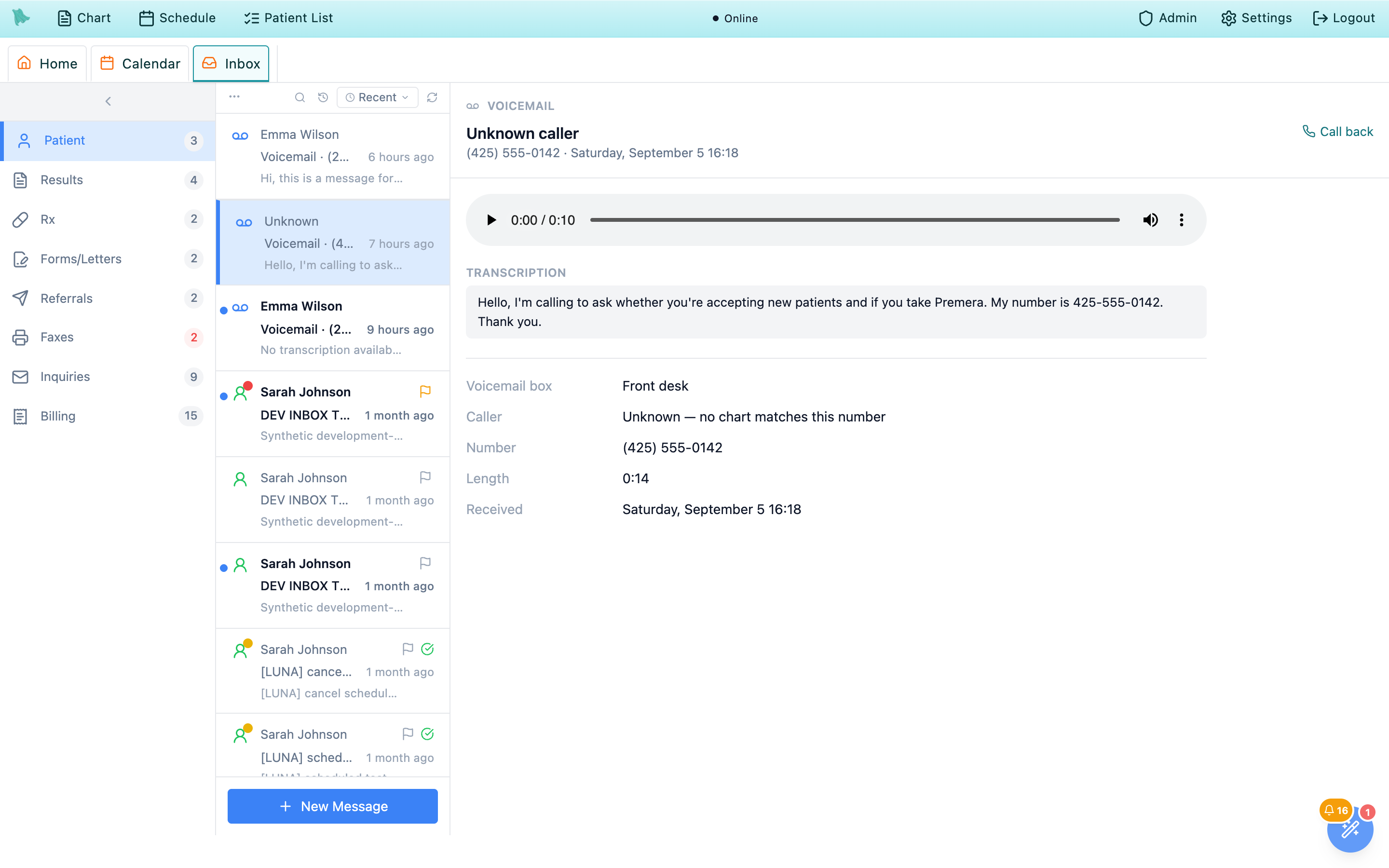
Caller line says exactly why.The detail pane spells the match out under Caller: either “Maria Garcia (matched by phone number)” or “Unknown — no chart matches this number”. The wording is doing real work — it’s telling you exactly how much Hero EMR knows.
Play the message, read the transcript, return the call
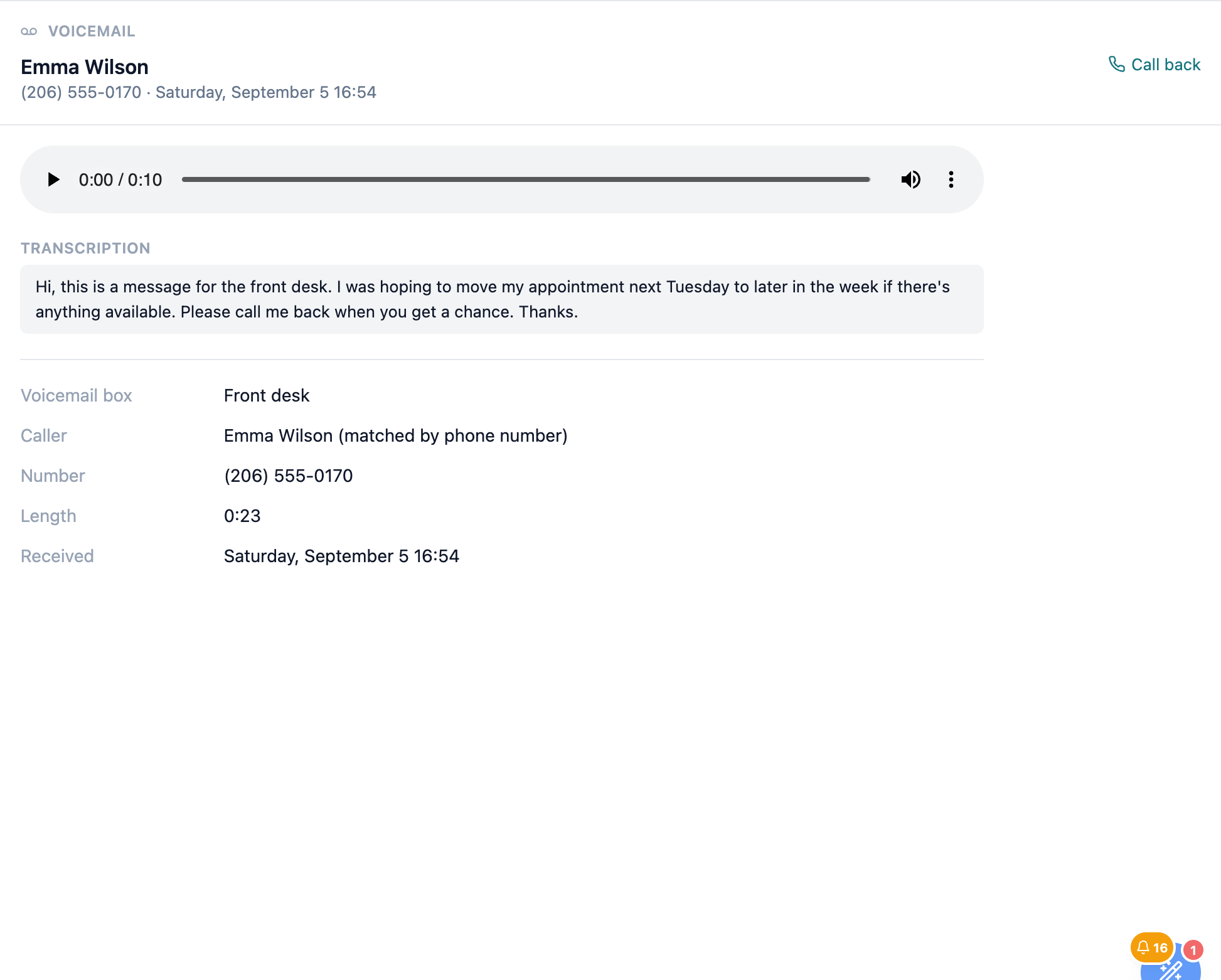
Open a message and everything you need sits in one pane: who called and when, a player, the transcript, and the details.
-
Play it.
A standard audio player sits at the top of the pane — play, pause, scrub, volume. It reads
Loading message…for a moment while the recording is fetched. Switching to another message resets the player, so you never half-hear one message over another. -
Read it instead.
Under
Transcriptionis the message typed out, if the box has transcription turned on. It’s faster to skim than to listen to, and it’s searchable from the list. Boxes without transcription showNo transcription available.— play the recording. -
Call them back.
Call backat the top right dials the caller’s number in your softphone, with the call already tied to the matched chart. The reply box at the bottom offers the same: chooseCall backthere and clickCall back (206) 555-0170. If you don’t use the softphone, the number is shown as plain text to dial yourself (Phone calling is not available. Callback number: …). -
Or answer in the portal.
Choose
Portalin the reply box to send the patient a secure message, with the same editor, AI help andSend lateras a thread reply. It is offered only when it can work; otherwise the box says why: Link this voicemail to a patient to reply by portal., This patient has no portal account., or Portal messaging is turned off for your practice. -
Hand it to a teammate.
ForwardopensForward voicemail: pick a teammate withSearch team members…, add a note if useful (Your note stays internal — the patient never sees it.), and clickForward to {name}. It lands in their Inbox, unread and open, with a Forwarded by {your name} line and your note at the top. Your own copy stays as it was. -
Check the details.
The bottom of the pane lists
Voicemail box(which box the caller reached — useful when your practice runs separate boxes for billing, refills, or a specific provider),Caller,Number,Length, andReceived.
Received is stated in the practice’s time zone, not your laptop’s — so “7:40 PM” means 7:40 PM at the clinic, whether you’re reading it from home, on the road, or in another state.
Read, unread, and done
Voicemail uses the Inbox’s ordinary triage tools (Triage tools), with one thing worth knowing: read state is shared with the phone dock, so there is only ever one truth about what you’ve heard.
-
Opening a message marks it read.
The row loses its bold and its dot, the
Patientcount drops, and the dock’s bell badge drops with it. -
Put one back if you’re not done.
Mark unread(Ctrl+U) returns it to the queue — and to the dock’s badge — so a message you listened to but can’t action yet doesn’t quietly disappear. -
Flag one to come back to.
Flag(Ctrl+Shift+G) marks it for you; flags are personal, like read state. -
Mark it done when the callback is made.
Done(Backspace) moves the message out ofOpen. Switch the list toDoneto see completed ones, and useReopento bring one back.
What has to be switched on — and what to check when nothing arrives
Three things decide whether you see voicemail, and all three are admin settings rather than personal ones.
Soaper Phone is on
An admin turns the practice’s phone system on under Admin > Additional Features > Soaper Phone. With it off there is no voicemail in the Inbox and no phone dock at all.
A voicemail box notifies you
Boxes live under Admin > Soaper Phone > Voicemail. Each has a Notify setting — A person or A ring group. You receive a box’s messages when it names you, or names a ring group you belong to.
Transcription is per box
The same box editor has a Transcribe messages switch. On, messages arrive with text you can read and search; off, they arrive as audio only.
| What you see | Why |
|---|---|
| Never a voicemail row, and no phone dock either | Soaper Phone isn’t enabled for the practice. Ask an admin to check Additional Features. |
| Soaper Phone is on, but nothing ever arrives | No voicemail box notifies you. Have an admin point a box’s Notify at you, or add you to the ring group it notifies. |
| Messages arrive, but never any text | Transcribe messages is off for that box — the box name in the details tells you which one to change. |
A regular caller still shows as Unknown | The number they called from isn’t on their chart. Add it, and their next message matches. |
Call back shows as plain text, not a button | You don’t have the softphone — dial the number by hand. An admin can grant softphone access under Admin > Soaper Phone. |
Notify setting, not in your own Inbox preferences.
Start a separate team conversation with a topic
Use the toolbar’s Team Chat for internal conversations. If it is unavailable, an administrator can enable Care Team Chat under Admin → Additional Features; your account also needs chat access.
- Open
New conversation. Select the colleague or colleagues underPeople. To add a whole message pool, type p, a space and the pool’s name: its Team Chat members join as one chip, and a new group is named after the pool (Message pools). - Add a
Topicto start a separate thread. A topic creates a new conversation even with someone you already chat with. It appears in the conversation list and header, so distinct work stays easy to find. - Choose
Create. If you select one person and leave Topic blank, an existing direct conversation is reused; the button then readsOpen conversation.
A message from the billing team that ends with Answer here: is a billing request: click Open billing request under it to answer. A reply in the chat reaches the billing team but doesn’t answer the request (Answer a billing request). A request to a whole team arrives in a group named {team}: billing request.
Type a response to a team message, and reply to one specific message
To answer a team member, open the conversation in Team Chat and type in Message the care team… at the bottom. Team Chat has no threaded replies: you cannot reply to one particular message inside a conversation the way Google Chat or Slack threads work. Every message goes to the bottom of the same conversation.
- Click
Team Chatin the toolbar and pick the conversation on the left. - Type your reply and press Enter to send (Shift+Enter adds a line), or click
Send.Send laterschedules it; queued messages are managed from the to-do panel’sQueuedtab. - To answer one message among several, name it in your reply (for example “Re: the 2 pm refill question — …”). To keep a side discussion separate, start a new conversation with the same people and a
Topic; see Team Chat topics.
The urgent button beside the message box (“Mark this message urgent (pops a toast for recipients)”) makes the message pop up on the recipients’ screens.
Send or attach a document to a team member in Team Chat
To send a document, picture or PDF to a colleague, attach it to a Team Chat message with the paperclip (Attach files), or drag or paste the file onto the conversation. Shared files stay in the conversation; they go into a patient’s chart only when someone chooses to add them.
- Open the conversation with the person or group in
Team Chat(or start one withNew conversation). - Click the paperclip and pick up to 10 files, 25 MB each: pictures, PDFs, documents, spreadsheets and recordings (no zip files). Each file shows as a chip; remove one before sending if you picked the wrong file.
- Add a message if you like and send. Wait until the files finish uploading. Files can’t be scheduled with
Send later. - To put a shared file in a chart, use
Add to charton the file card: choose the patient, theDocument typeandDocument date, and whether toHide from parents and guardians. When the conversation is about a patient (re:the patient), the message box also offers Also add to {patient}’s chart as you send.
Files in the conversation header lists every file shared in that conversation.
Team Chat file sharing is off by default. A practice administrator turns it on in Admin → Additional Features (also listed in Admin → Messaging). Turning it off stops new files; files already shared stay viewable. To send a document to someone outside the practice, use fax or Chart Sharing instead.Rename or remove a Team Chat topic, remove people, or leave a group
Team Chat conversations cannot be deleted; their messages stay in the practice’s records. In a group conversation, an owner can rename the group (its topic) and remove people, and anyone can leave. A two-person conversation’s topic cannot be changed.
- Open the group and click the members button (the people icon with a count,
Group members) in the conversation header. - To rename it, an owner changes
Group nameand clicksRename. The name cannot be left blank (“Enter a name for the group.”), so to drop a topic, give the group a plainer name. - To remove someone, an owner uses
Remove from groupbeside their name;Make ownerandRemove owner rolechange who runs the group. - To leave, click
Leave group. You stop getting its messages and can no longer open it, including earlier messages.
The patient chip in the header (re: {patient}, or Set topic when none is set) is the patient the conversation is about. Use its pencil to change the patient; it is locked once the conversation is saved to the chart with Save to chart.
Let Voicemail Hero read each voicemail and prepare the follow-up
Voicemail Hero reads each new voicemail’s transcript and prepares what should happen next. It never sends anything to a patient on its own: staff check and send. A card at the top of the voicemail shows what it made of the message, marked AI read this voicemail — check before acting.
| On the card | What it means and what you do |
|---|---|
New patient | Someone who isn’t a patient yet asked about care. Hero set up a new-patient intake: New patient intake created for {name}. Open in Referrals opens it in Inbox → Referrals, labelled Voicemail, to review and accept like a faxed referral; accepting files the voicemail on the new chart. |
Return message, for a patient Hero recognizes | A Drafted portal reply, with any points to Check before sending. Use draft puts it in the reply box on Portal (It’s in the reply box below — edit it, then send.); Dismiss drops it. Afterwards the card reads Sent by portal by {name} or Draft dismissed by {name}. |
Return message, for an unknown caller | An editable Message to deliver by phone (up to 500 characters) and Call and deliver message (Beta): an AI caller phones the number the voicemail came from and reads the message word for word. Calls go out 9 AM–7 PM, Monday to Saturday, in your practice’s time; earlier or later ones wait for the next window. The card then shows Calling…, Message delivered, Left the message on their voicemail., or No one answered. / The call didn’t go through. with Try again. |
Nothing to do | Hero found nothing to follow up, with its reason. Still listen if in doubt. |
Urgent, Emergency or Soon | How soon Hero thinks it needs attention. Next step: says what staff should do. |
| Voicemail Hero couldn’t read this voicemail. | Press Try again. This is taking longer than usual. offers Check again. |
Turn it on or off
Voicemail Hero is on by default for every practice. Phone managers find its switches in Admin → Soaper Phone → Voicemail, under Voicemail Hero:
Read new voicemails with AI— reads each transcribed voicemail, sets up new-patient intakes and drafts the reply. It only reads boxes that transcribe (Before it works).Call unknown callers back automatically(Beta, off by default) — the AI caller phones unknown callers back by itself during calling hours. Urgent voicemails are never called back automatically. With it off, staff pressCall and deliver messageon the voicemail. If it reads Return calls aren’t available for your practice yet, contact Hero support.
Crisis and AI usage alerts from the AI phone line
When your practice uses the AI phone agent, two kinds of alert land in the Patient view, next to your voicemail: a crisis call and an AI usage alert. They come only to the Inbox — no text, email or pop-up — and only to people who can open the Patient view; people who work a recipient’s inbox (Attached inboxes) see that person’s alerts there too. Who gets them is set on the AI Agent tab (Crisis calls, Monthly AI usage).
A crisis call
- One item per call, titled Crisis call on your AI phone line, marked
Urgentand counted in the red Patient badge and the Home dashboard’sCrisis Callstile. If the review after a call finds signs of a crisis the assistant didn’t report, it arrives as Possible crisis on a recent AI call, markedAfter the call: check on the caller. - What it shows:
What they said(Self-harm or suicide, Harm to someone else, Overdose or Danger right now), the caller’s number,Name given, aCall backnumber, the patient once the caller is identified (only for people who may see patient charts), a crisis transfer and how it went, and when it was reported. - It updates as the call goes on. The urgent messages the caller left appear on the same item, oldest first, each with
Call backand the time it was left. A long call keeps the first and the newest messages and says how many earlier ones are not shown. - It comes back if something new happens. If you marked it done and the caller then leaves an urgent message, or a transfer was not answered or could not be connected, the item is open and unread again for everyone who got it.
An AI usage alert
Sent from AI phone line when the practice reaches the first alert level you set (for example AI phone minutes: 80% of the monthly limit used) and the limit itself (AI phone minutes: monthly limit reached), once each per month. It shows the minutes used of the limit and the month, and never includes patient information.
Need help? Email support@heroemr.com.