Mobile: the physician app
My Hero is one app that becomes the physician app or the patient app depending on who signs in. This page covers the clinical side — the schedule, calendar sync, encounters and dictation, EPCS approval, the inbox and todos, and the security controls your practice sets.
Mobile: the physician app
My Hero is one app that becomes the physician app or the patient app depending on who signs in. This page covers the clinical side — the schedule, calendar sync, encounters and dictation, EPCS approval, the inbox and todos, and the security controls your practice sets.
One app, two experiences
My Hero is a single app on the App Store and Google Play. What it becomes depends on who signs in: a clinical account opens the physician app, a portal account opens the patient app. There is nothing separate for your patients to download, and no additional licence to buy — it is included with your Hero EMR practice.
- Install it. Search My Hero on the App Store or Google Play, or use the direct links on the mobile apps page. The app runs on iPhone and Android phones; a few capabilities are iPhone-only and are called out where they appear.
- Sign in with your Hero credentials. Use the same email and password you use on the web EMR. If your practice has enabled passkeys, you will be offered one after your first sign-in — after that, Face ID, Touch ID or your device passcode is the whole login.
- Answer the two-step prompt if your practice enforces it. Clinical accounts may be challenged for a second factor (passkey or SMS). Your administrator sets whether this is off, report-only, a grace period, or strictly enforced — see security and device controls.
-
Find your way around.
Five tabs across the bottom:
Schedule,Inbox,Team,PatientsandTodos. The drawer (top-left) addsEPCS Signing,Kiosk ModeandSettings.
The day, as work rather than a list of names
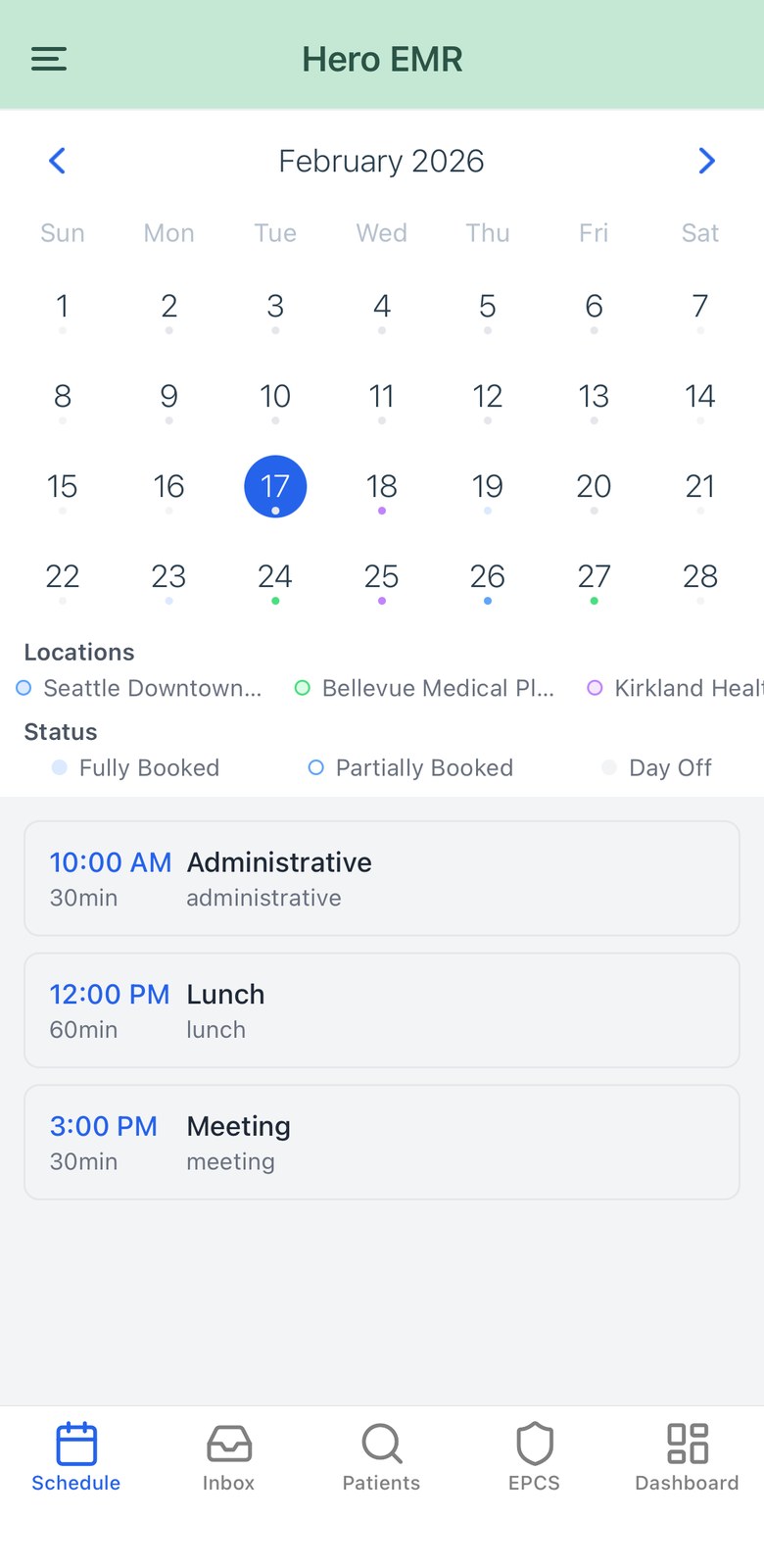
The Schedule tab opens on today. A collapsible month calendar sits at the top; below it is the agenda for the selected day. Pull down to refresh.
-
The day summary tells you what is outstanding.
Under the date you get a line like
6 visits · 2 to sign. The second number counts encounters that are complete but unsigned, so nothing waits quietly for a signature. -
Each row carries its encounter state, not just its appointment state.
Rows are chipped
Checked in,In progress,Note in progress,Ready to sign,Signed,CancelledorNo show. -
Tapping a row does the appropriate thing.
Depending on state the button reads
Start Visit,Resume Visit,Review & Sign, or — on an already-signed encounter —Addendum. A separate chart icon on every row opens chart review instead. - The month view is colour-coded by location. Days carry dots per practice location with a legend beneath, plus availability shading (fully booked, partially booked, empty, off). Days holding an imported outside commitment get a red marker.
- Dates follow the practice, not the phone. “Today” is your organization’s calendar day. Travel to another timezone and the app still agrees with your front desk.
Two-way calendar sync
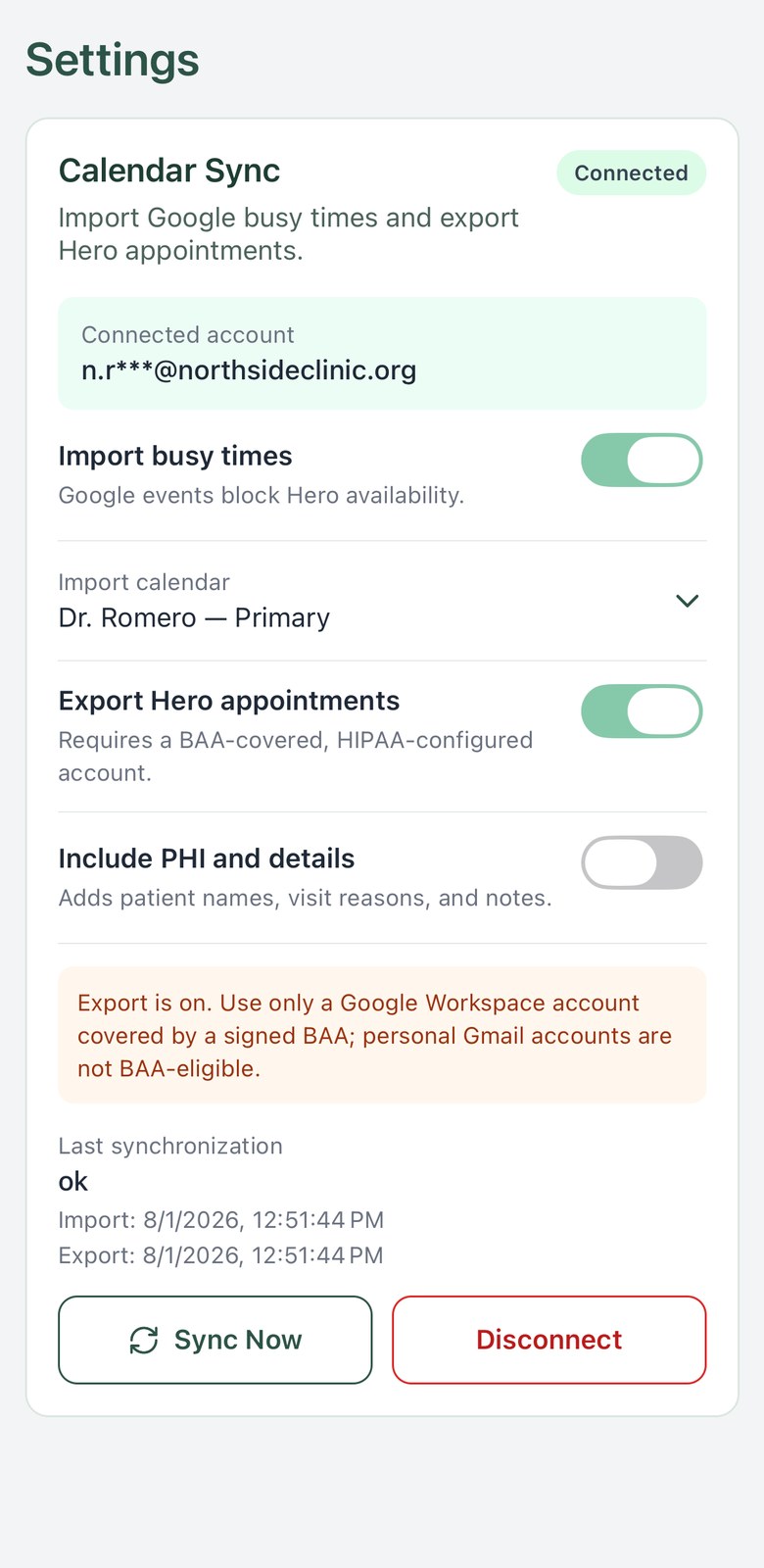
Hero syncs two ways with Google Calendar and with Outlook / Microsoft 365. Connect your own account once and your outside life and your clinic schedule stay in agreement. Import and export are separate switches; you can run either, both, or neither.
- Connect. Choose your provider and complete its sign-in in the secure browser sheet; you are returned automatically. The settings screen then shows the connected account (masked), the connection state, and when each direction last ran. Connecting from the phone currently offers Google; Outlook / Microsoft 365 is connected from the web EMR under Calendar sync. Either way the sync itself runs on Hero’s servers, so your phone’s schedule reflects it immediately.
-
Import busy times.
Turn on
Import busy timesand pick which calendar to read. Events from it block your Hero availability, so patients cannot book over a commitment that only exists in your own calendar. On the agenda these appear as a red, non-clinical block labelledExternal calendar— it has no chart button and cannot be opened as a visit. -
Export Hero appointments.
Turn on
Export Hero appointmentsand your Hero visits are written into your external calendar. - Decide about patient details, deliberately. Exporting appointment details — patient names, visit reasons, notes — is a second, separate switch. Turning it on raises a confirmation explaining that this copies PHI to the provider’s servers and that it belongs on a BAA-covered Google Workspace or Microsoft 365 account. Your acknowledgement is recorded with a timestamp.
-
Sync on demand.
Sync nowqueues an immediate sync; the schedule refreshes itself over the following half-minute as the results land.
Record the visit, sign the note
Opening an encounter from the schedule brings the full Hero note editor onto the phone, wrapped in a compact patient header — name, date of birth, allergy badge and a details dropdown. The note itself is the same editor you use on the desktop.
- Start ambient recording. Tap the microphone in the dictation bar and put the phone down. A live level meter and timer confirm it is listening. Recording continues while the screen is off and while you use other apps.
-
Weak signal is handled for you.
Audio uploads continuously in small chunks with automatic retries. If the network struggles you see
Weak connection — audio is cachedrather than losing the recording; it drains when signal returns. -
Interruptions pause rather than end.
An incoming call pauses the recording and leaves an amber
Paused — tap to resumebar. Leaving the encounter while recording asks whether to keep recording, stop and discard, or stay — and if you keep going, a floating pill follows you around the app with the running timer. - On iPhone it lives on the lock screen. A Live Activity shows the recording and its progress in the Dynamic Island and on the lock screen, moving through Recording visit, Transcribing, Writing note and Open Hero to finish your note. Requires iOS 16.2 or later; the stop button in the expanded view requires iOS 17.
- Dictate literally when you want exact words. A second microphone records verbatim speech, cleans it up with the same engine as the desktop’s dictation, and inserts it into the note at your cursor. Recordings are capped at ten minutes each.
-
Nothing is lost if the app dies.
If the app is killed mid-visit, the next launch offers the session back with
RecoverorDiscard. Recovering reopens the original encounter and replays the dictation into it. -
Sign, or add an addendum.
Sign from the phone exactly as you would in the browser. Tapping an already-signed visit asks first — an
Encounter signedsheet reading “This encounter has been signed. Create an addendum?” withCancelandCreate addendum— so you never open a closed visit by accident. The addendum itself works exactly as it does in the browser (see Change a visit after you’ve signed it).
Approving controlled substances
For electronic prescribing of controlled substances, your enrolled phone is the second factor. The web EMR asks for approval; the phone supplies it with a passkey backed by your device’s biometric or passcode. Setup is covered in full in the EPCS guide.
- Enrol the device once. Open the one-time device-invite link your administrator sends. The app registers a passkey and binds this phone as an approved signing device, optionally as your primary one. Until that is done, the phone cannot approve anything.
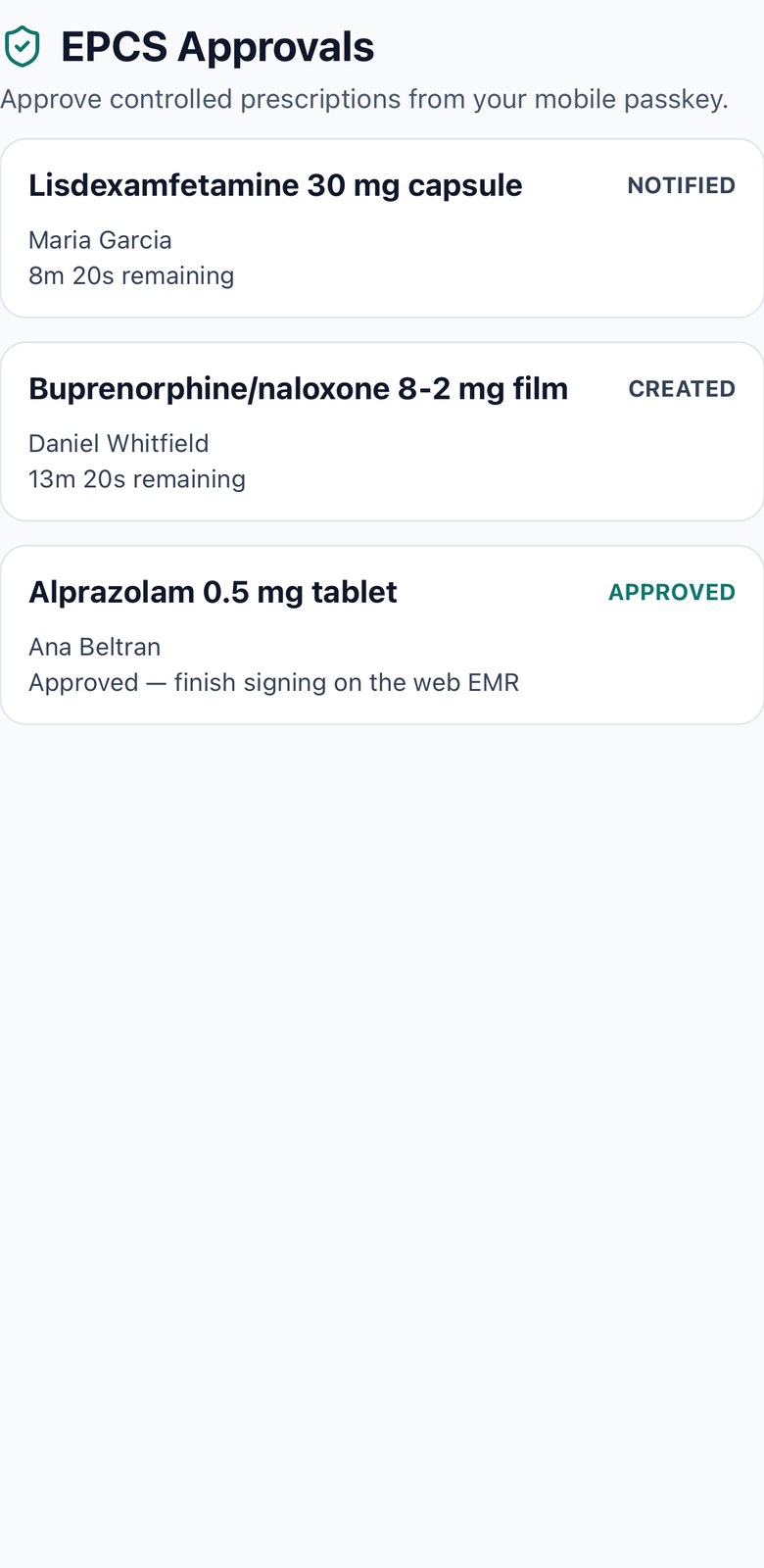
- Answer the request. When a signing session opens, a push notification arrives. The review screen shows the drug, strength, form, directions, quantity, days supply, refills, earliest fill date, DEA schedule, the patient, and the prescriber — with a live countdown to expiry.
-
Approve or deny.
Approveruns the passkey prompt on the device.Denyasks for confirmation. The server, not the phone, is authoritative about whether a session is still valid. - Prescribe from the phone as well. Writing a controlled prescription in the mobile chart creates the draft, opens a signing session, waits for your approval, and only then transmits. Nothing is sent to a pharmacy before it is signed.
EPCS Signing. The inbox lists sessions awaiting you with the time remaining on each, and refreshes itself while it is open.
Working the queues from a phone
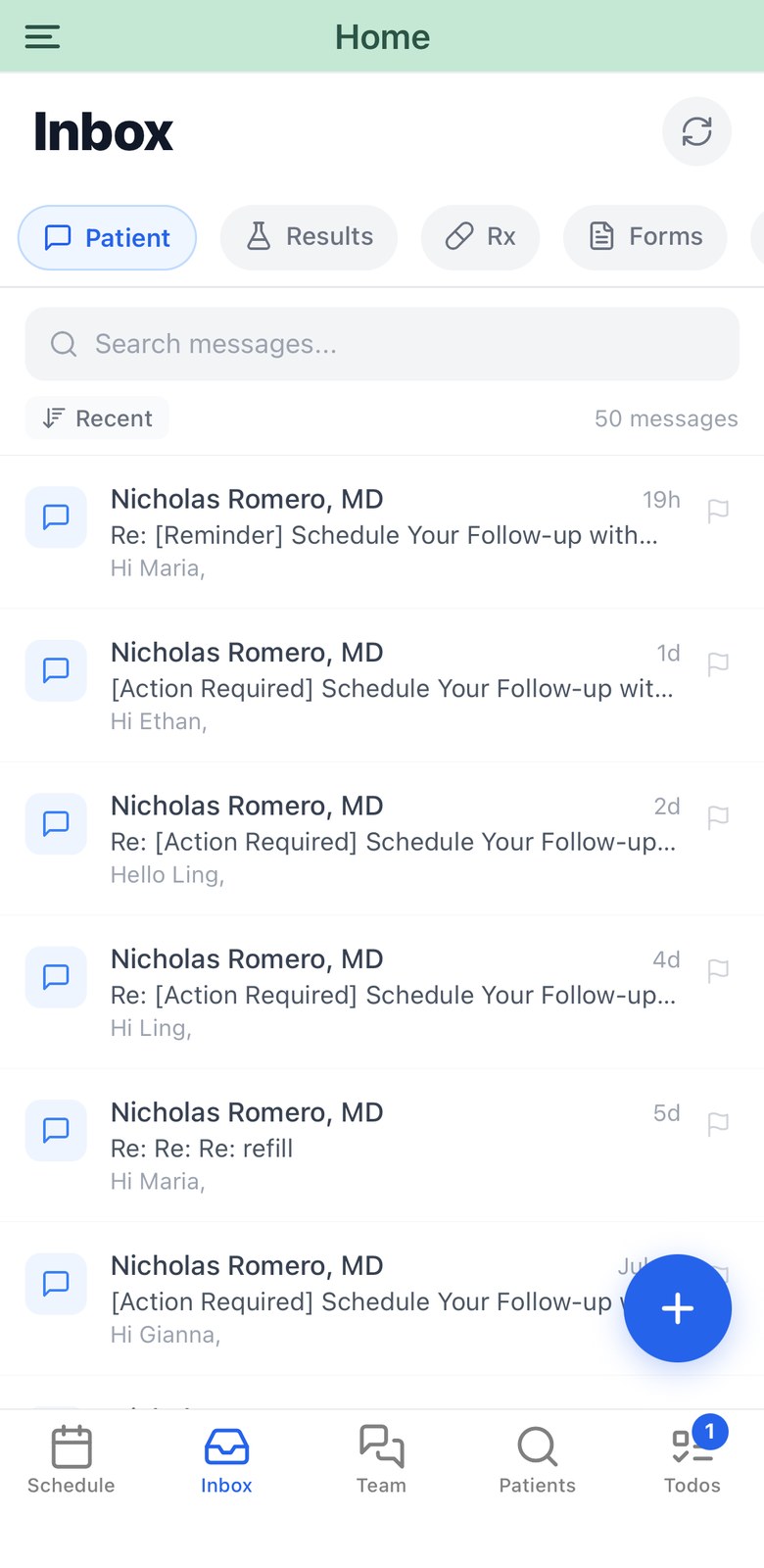
The Inbox tab carries the same eight categories as the desktop, each with its own unread count: patient threads, results, refills, forms, staff messages, referrals, faxes and inquiries. Search and sort (recent, unread first, flagged first) are available within a category.
- Actions that actually close an item. Approve or deny a refill with a structured denial reason; approve or reject a form with notes; record how you responded to a result (message, call, SMS, portal or in person); complete a fax with notes and link it to a patient; forward a patient thread to a colleague.
- Compose with urgency and attachments. Start a new message or reply, set an urgency level, attach a file, and optionally tie the message to an encounter. You can also message a patient directly from their chart.
-
Care team chat is a tab of its own.
Teamholds direct and group staff conversations over a live connection. Marking a message urgent raises an in-app banner for recipients. Set a topic patient on a conversation and you can thenSave to chart, filing the discussion into that patient’s record. -
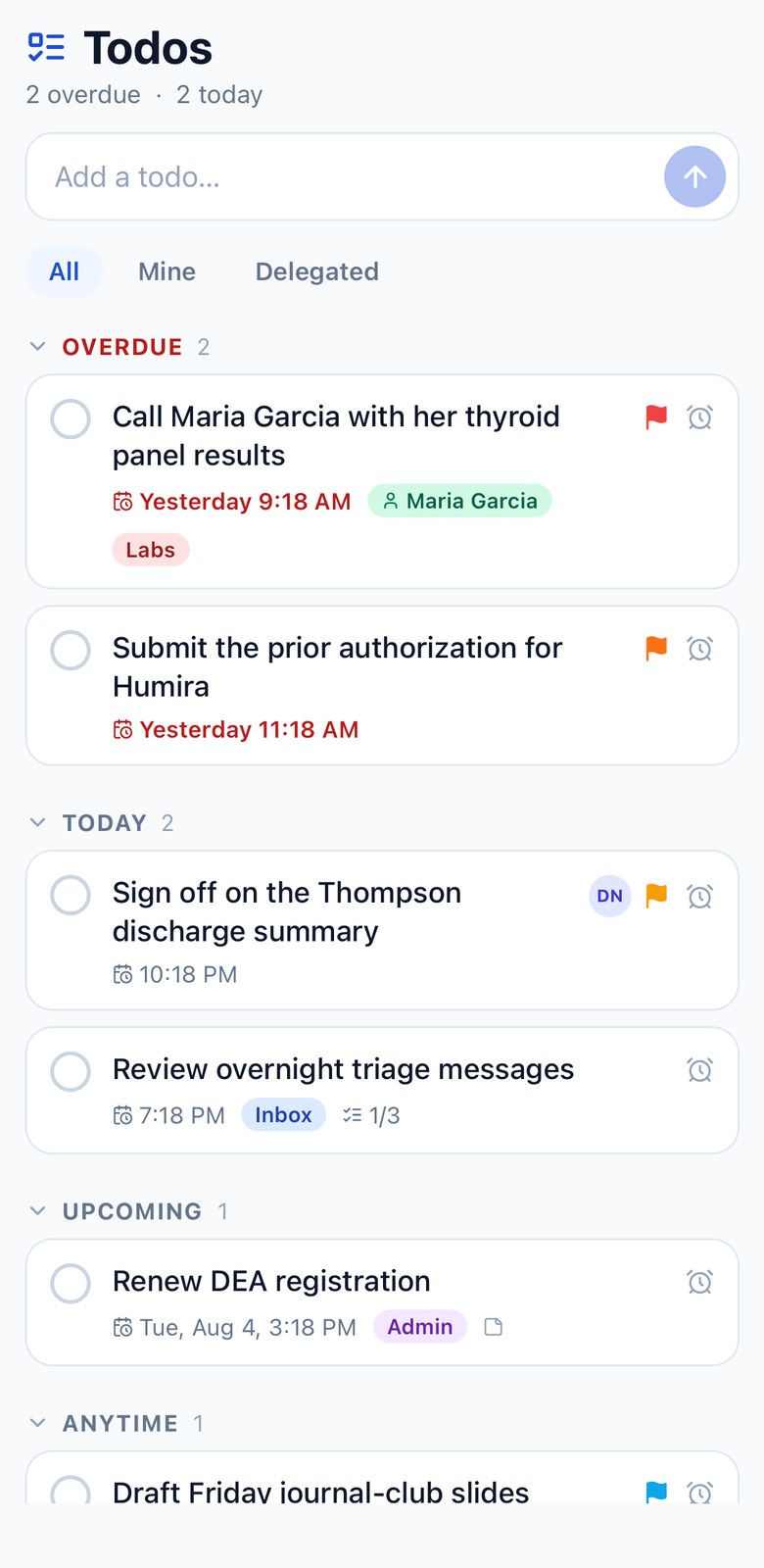
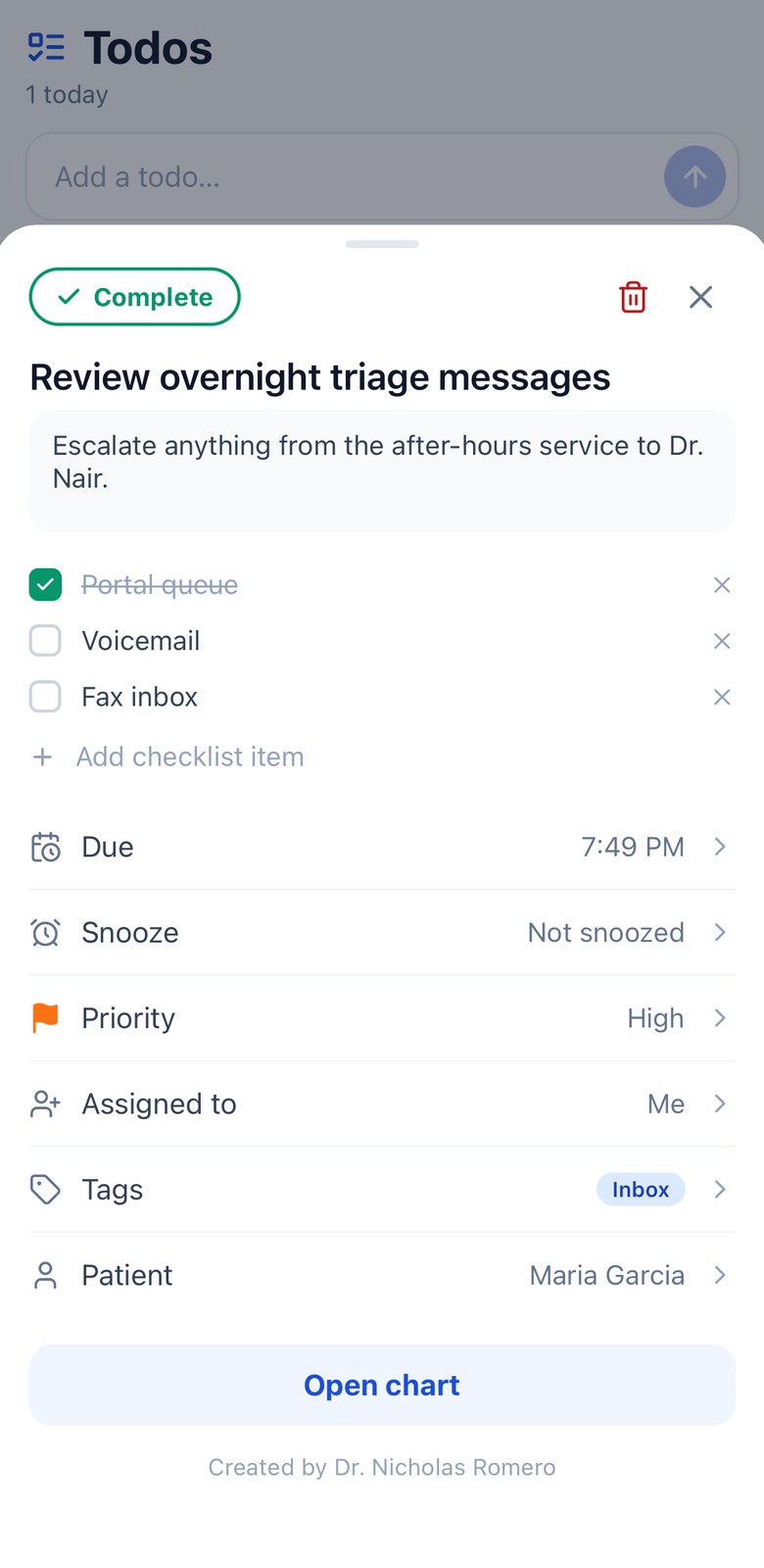
Todos are private to the people involved.
Exactly as on the web, a todo is visible only to the person who created it and the person it is assigned to — the tags themselves are shared practice-wide (see the todo list). The
Todostab groups work into Overdue, Today, Upcoming, Anytime, Snoozed and Completed — all bucketed in the practice’s timezone. Add with one line, then attach a due date, priority, tags, a patient, or an assignee. Filter to Mine or Delegated. The tab badge counts only what is actionable today, so snoozed work never nags.
Security and device controls
The app assumes a clinical phone leaves the clinic. These are the controls that follow from that, and what you as an administrator can set.
-
Passkeys.
Sign-in uses a WebAuthn passkey held in the device’s secure hardware and unlocked with Face ID, Touch ID or the device passcode. Register one from
Settings→ Passkey; re-register to replace the one on a device. - Clinical two-factor. Second-factor challenges use a passkey or an SMS code. The enforcement level — off, report-only, grace period, or enforced — is set centrally for your organization. A web EMR challenge can be satisfied with the passkey on your phone.
- EPCS device binding. Only phones your practice has enrolled can approve controlled-substance signing. Enrolment status, the number of approved devices, and which one is primary are all visible in the app.
- Encrypted local storage. Anything held on the device while waiting for a network — queued vitals, message drafts, trusted-device tokens — is stored in the operating system’s keychain rather than plain app storage.
- No PHI in logs. Visit transcripts are never written to disk or to a log. Diagnostic logging is redacted and silent in release builds.
- Minimum version enforcement. If your practice requires a newer app version than the one installed, the app blocks entry and links to the correct store rather than running against an unsupported contract.
Need help? Email support@heroemr.com.