Scheduling operations
Run the calendar day to day: reminders, the waitlist, visit policies, the calendar itself, online booking rules and holds, readiness alerts, and what to do when something looks off.
Scheduling operations
Run the calendar day to day: reminders, the waitlist, visit policies, the calendar itself, online booking rules and holds, readiness alerts, and what to do when something looks off.
Configure patient notifications and follow-up escalation
The Patient Notifications tab holds two patient-facing policies — Follow-up Reminders (when a physician asks a patient to schedule another visit) and Appointment Reminders (the standard upcoming-visit nudges). The Follow-up Reminder Policy also has a separate Care Team Escalation that can alert selected organization users if the patient still has not scheduled by the chosen date.
- Open
Admin → Scheduling → Patient Notifications. The top of the page shows the channel readiness check for email, the practice SMS sending number, and push notifications. Follow-up policy changes here are organization-wide. - Choose what anchors the follow-up cadence. Select Request date when each attempt should be a number of days after the request was created. Select Follow-up due date when the cadence should count backward or forward from the requested follow-up due date — the end of the follow-up window recorded by the physician.
- Build the patient attempt rows. For a request-date cadence, enter each attempt's day after the request. For a due-date cadence, choose days before due date, on due date, or days after due date. Set the organization-local send time and one or more channels (Inbox, SMS, Email) for every row. Keep the rows in chronological order.
- Keep a review window when needed. Minimum review window prevents the first patient outreach from sending earlier than the configured number of hours after the request is created. If a due-date offset has already passed, Hero EMR moves that attempt forward to the first eligible time instead of sending before this review window. Patient-facing sends still honor the safe contact window and channel preferences.
- Choose who receives an unscheduled-patient alert. Under Care Team Escalation, open Inbox recipients, search the organization user list, and select one or more physicians or staff members. Then schedule the alert a number of days before, on, or after the follow-up due date. Leaving the recipient list empty turns this escalation off.
- Know when the care-team alert fires. At 9:00 AM in the organization timezone on the selected date, each chosen recipient gets one direct Hero EMR inbox message only if the follow-up is still unscheduled. Hero EMR skips the alert when the patient has already booked and prevents duplicate alerts if the background check retries.
- Confirm follow-up booking defaults. Follow-up reminder links resolve the organization's office or virtual follow-up visit type name against the physician's active visit types in
Visit Config. If the minimum review window is 0 hours and the first eligible attempt includes Inbox, the patient portal request can appear immediately; SMS and email still respect their configured send time and safe-contact rules. - Set the Appointment Reminder Policy. Toggle reminders on, choose whether to bypass or respect quiet hours, and add timing offsets for each upcoming-visit reminder (for example, 7 days, 1 day, and 2 hours before).
- Save each policy.
Save Policyapplies the follow-up cadence and care-team escalation to active unscheduled follow-ups. Saving the appointment policy automatically resyncs reminders for upcoming appointments; useResync All Reminderswhen you need to force that rebuild.
Video-visit confirmations and reminders include a Hero join link. Patients use that link to reach the current visit and its available video meeting; they do not need to keep a separate provider meeting link.
Patient channels
- Email — uses the patient's email on file when the notification purpose permits.
- SMS — requires practice text delivery to be active and a sending number assigned.
- Push — available when the patient has an active device registered.
- Inbox — lands in the patient's portal inbox when portal messaging is available.
Timing and recipients
- Due-date offsets use the organization's calendar and timezone, not the browser's local timezone.
- Patient reminders respect their safe contact window and communication preferences.
- Care Team Escalation sends a direct internal inbox message only to the selected active organization users.
- Changing and saving the policy recalculates active unscheduled follow-ups.
Text Replies tab holds the check-in window and text check-in (Check-in window & text check-in). Treatment series can trim the appointment reminders for daily or twice-weekly courses (Reminders & patient messages).
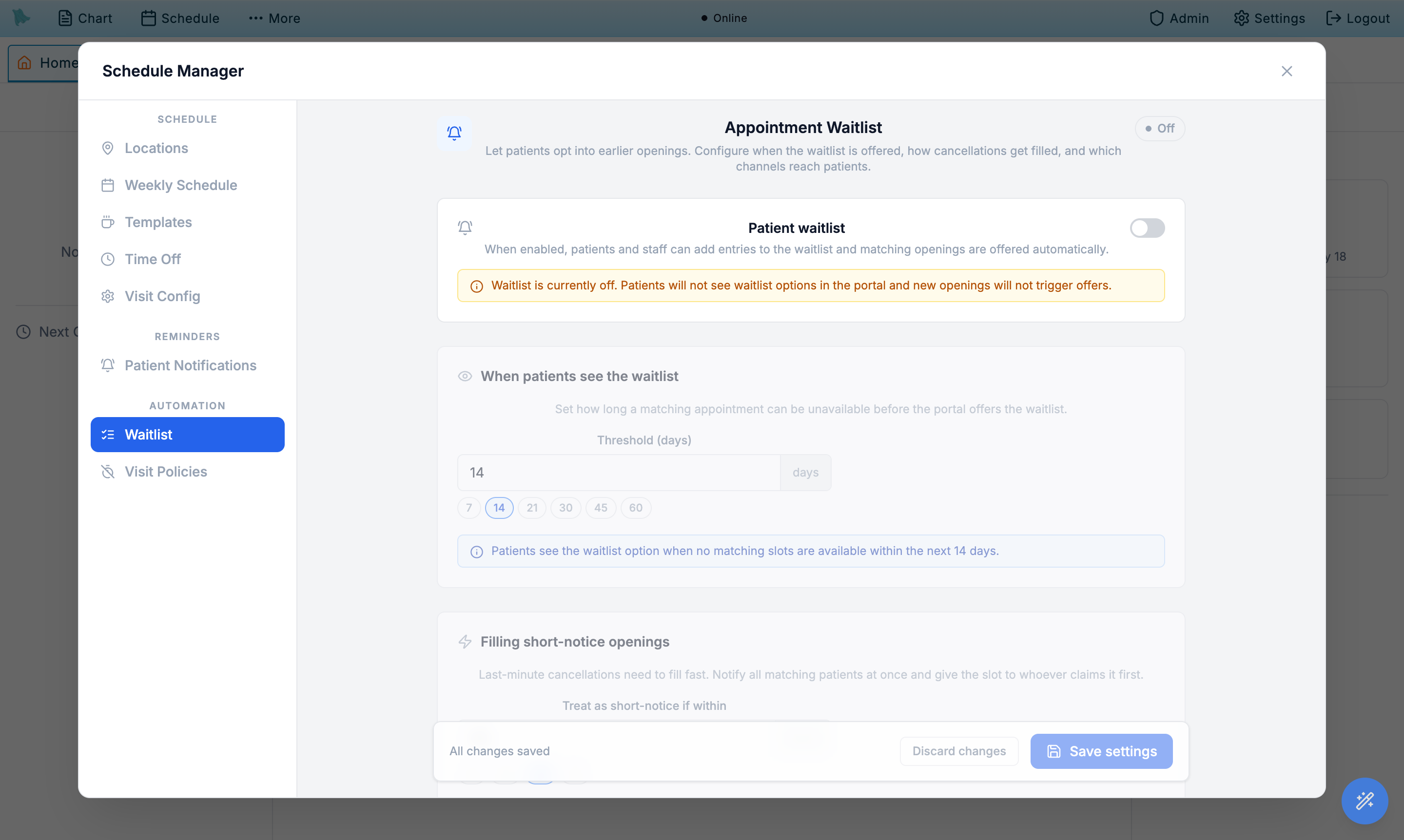
Turn on the patient waitlist
The waitlist lets patients opt into earlier openings when the calendar fills up. When a cancellation creates a slot, Hero EMR automatically reaches out to matching patients in priority order. Configure when the waitlist is offered, how short-notice cancellations are filled, and which channels are used.
- Open the
Waitlisttab. By default the waitlist is off — toggle Patient waitlist on to enable it. - Set the visibility threshold. Patients only see a waitlist option when no matching slots exist within the next N days (default 14).
- Configure short-notice fan-out. Decide when an opening counts as short-notice (default within 48 hours). Short-notice slots notify all matching patients at once — first to claim wins.
- Configure planned-opening cohorts. For longer-lead openings, set the cohort size (how many patients to notify at a time) and the wait between cohorts (default 24 hours).
- Pick notification channels. Email is best for planned openings; SMS for short-notice; push if patients have the app.
- Set the entry lifecycle. Stale entries auto-expire after N days (default 90) so the queue stays accurate.
Set visit cleanup policies
Visit policies keep the calendar tidy after the fact. Two automations are available: marking still-scheduled visits as no-shows after a grace period, and cancelling clearly stale visits that were never closed out.
- Open the
Visit Policiestab. These settings are organization-wide, so they apply to every physician. - Choose how no-shows are handled. Under No-show handling, pick
Manual(staff mark missed visits themselves — the shipped default) orAutomatic(the system flips still-"Scheduled" visits to No-Show once the grace period passes). Automatic no-shows also trigger any configured no-show billing fees. - Set the grace period. With
Automaticselected, pick aTimingpreset — 5, 10, 15, 20, 30, 45, or 60 minutes after the appointment, orCustom— and theMinutes afterfield takes anything from 5 to 60. The default is 15 minutes. The applies to chips underneath let you drop Telehealth so only in-person visits are auto-marked. - Enable Auto Cancel Stale Visits for data hygiene cleanup of forgotten or orphaned bookings. Pick how long a visit sits before it is cancelled: 24 hours, 48 hours, 72 hours (default), 1 week, or 2 weeks. Stale cancellation never applies a billing fee — use no-show handling for anything that should bill.
- Click
Save Policies.
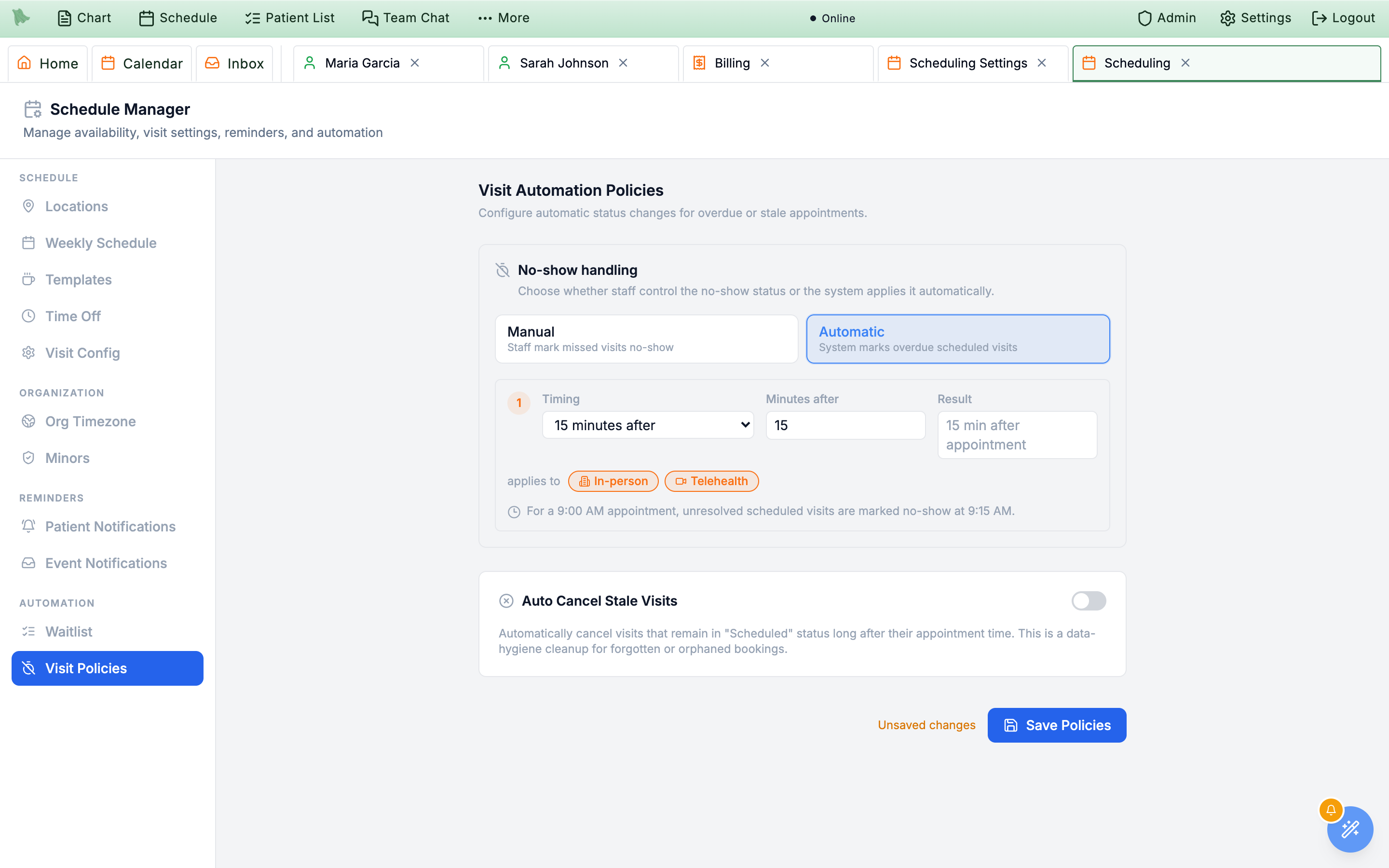
Automatic picked — the timing preset, Minutes after field, and the applies to chips only render in this mode; Manual shows the two cards alone. Auto Cancel Stale Visits below it likewise hides its interval options until you switch it on.Use the calendar
Once setup is complete, the calendar is the everyday surface. Open it from the top navigation. Each physician sees their own working hours (white), templates (colored blocks), time off (grey), and existing appointments (color matches the visit type).
Day, Team, Week, and Month views
- Day view is a sortable table of the day's appointments, not a time-grid timeline. By default its columns are Time, Patient Name, Date of Birth, Visit Type, Status, Previsit, Signed, Virtual, and Travel Itinerary (Virtual and Travel Itinerary are left out on a day where no visit needs them, and come back as soon as one does);
Customize columnsadds Location, Duration, Insurance, Membership (for staff who can view patients), and No-show risk (with scheduling access). Time, name, date of birth, visit type, location, duration, and status sort on click, and the column widths are draggable. The Membership column shows the membership status with how long the patient has been a member (for example Active · 1 yr 3 mo), the next date under it (Renews {date}, or Ends {date} for a cancelled membership), and Not a member for patients without one. - Team view puts several physicians side by side as day columns (four by default, chosen in the physician selector). When the waitlist is on, a waitlist panel opens beside the columns so you can fill an opening from the queue.
- Week view shows the seven-day grid. Blocked time is shown by default, including time off and standing break templates, so a non-lunch break is visible as well as lunch.
- Month view is a six-week grid where every appointment renders as a compact, duration-shaped patient box inside its day cell, colored by visit type with a visit-type legend. Blocked time also appears by default.
The left rail and the preview pane
- Pick a physician from the top of the right pane. The calendar reloads with that physician's hours and bookings. A pick — or
Show on calendarfrom the calendar search — changes only this browser tab: it is kept when you come back to the Calendar tab or reload, while a new tab, a new sign-in, or another device opens on your default. To make the provider you are viewing your default, pressMake default(pin icon beside the picker, shown while you view someone other than your default; hover: “Open the calendar on {provider} by default, on any device”). It confirms “The calendar now opens on {provider} by default.”, and the picker tags that provider Default.Clear my default(icon-only pin-off control, shown while you have a saved default; hover: “Clear my default — stop opening the calendar on {provider} by default”) removes it — “Your calendar default is cleared. New tabs open on your favorite provider, or on you.” Without a saved default the calendar opens on your ☆ favorite, else on yourself if you are a provider, else on the first in the list. Neither button appears in Team view, and choosing a provider in the booking scheduler never changes your default. Leaving the calendar for another tab and coming back keeps the day you were viewing. - Navigate with the mini month calendar in the left rail. Its day cells are colored by location and by availability. Open
What the colours meanunderneath for the two keys: Locations (the color per clinic) and Availability Status (Fully Booked, Partially Booked, Day Off, External Calendar Event). The keys are legends, not filters — there is no control for hiding a location from the day's list. - Open the patient preview to see the selected appointment's patient details without opening the chart. It is a resizable pane below the day list, shown and hidden with the
Show Preview/Hide Previewcontrol on the divider, and it exists in Day view only.Customize previewchooses its sections; Payment & charges (visit price, amounts due, and open charges, named for what they are — Booking deposit, Visit prepayment, Visit payment, Self-pay visit) sits under Insurance & eligibility and is on by default for staff who handle money, and in DPC practices so is Saved card & membership.Reset to defaultsgoes back to that set. Charge rows in Payment & charges read Balance due by Jul 12, or Partially paid · due Jul 12 once the patient has paid part; a share held for the visit’s pending secondary claim reads like Visit fee · $10.00 pending other insurance with Awaiting {payer} and isn’t counted as open.Open chartis the preview’s main button; the pre-visit summary and clinical guidance sections appear only when they have something to show (or are loading).
Toolbar actions
- List layout toggles the Week and Month views from the grid to a list. It is disabled in Day and Team views.
- Export schedule as CSV downloads the visible Day, Week, or Month schedule. It is not available in Team view, and it asks you to confirm first because the file contains patient information — treat it as PHI.
- The eye icon hides cancelled, no-show, and rescheduled appointments in every calendar view. Its accessible label is
Hide cancelled, no-show, and rescheduled appointments, changing toShow cancelled, no-show, and rescheduled appointmentswhen they are hidden. Your choice is saved to your account across sessions and devices.
A small video-camera marker labelled Telehealth identifies virtual visits. The Membership column is opt-in through Customize columns; membership is not added to every patient name. A visit the patient cancels from the portal or app stays on the calendar as cancelled, like one staff cancel (the eye icon hides it), and patients can see whether they or the office cancelled it. Staff who can only view the schedule aren’t offered booking or visit changes; a visit’s right-click menu tells them “Booking and changing visits is done by the front desk.”, and Open note is offered only to people who can read notes.
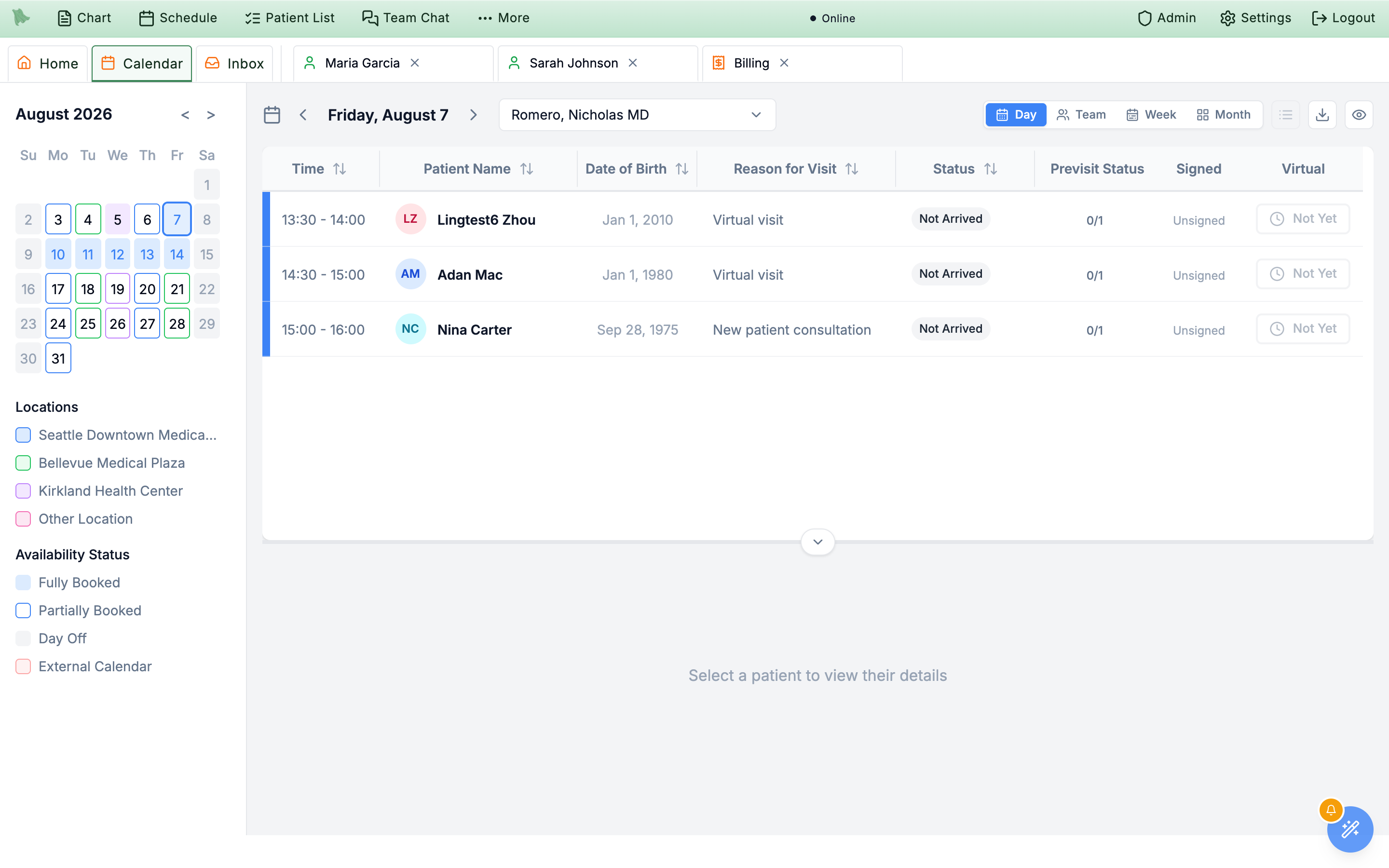
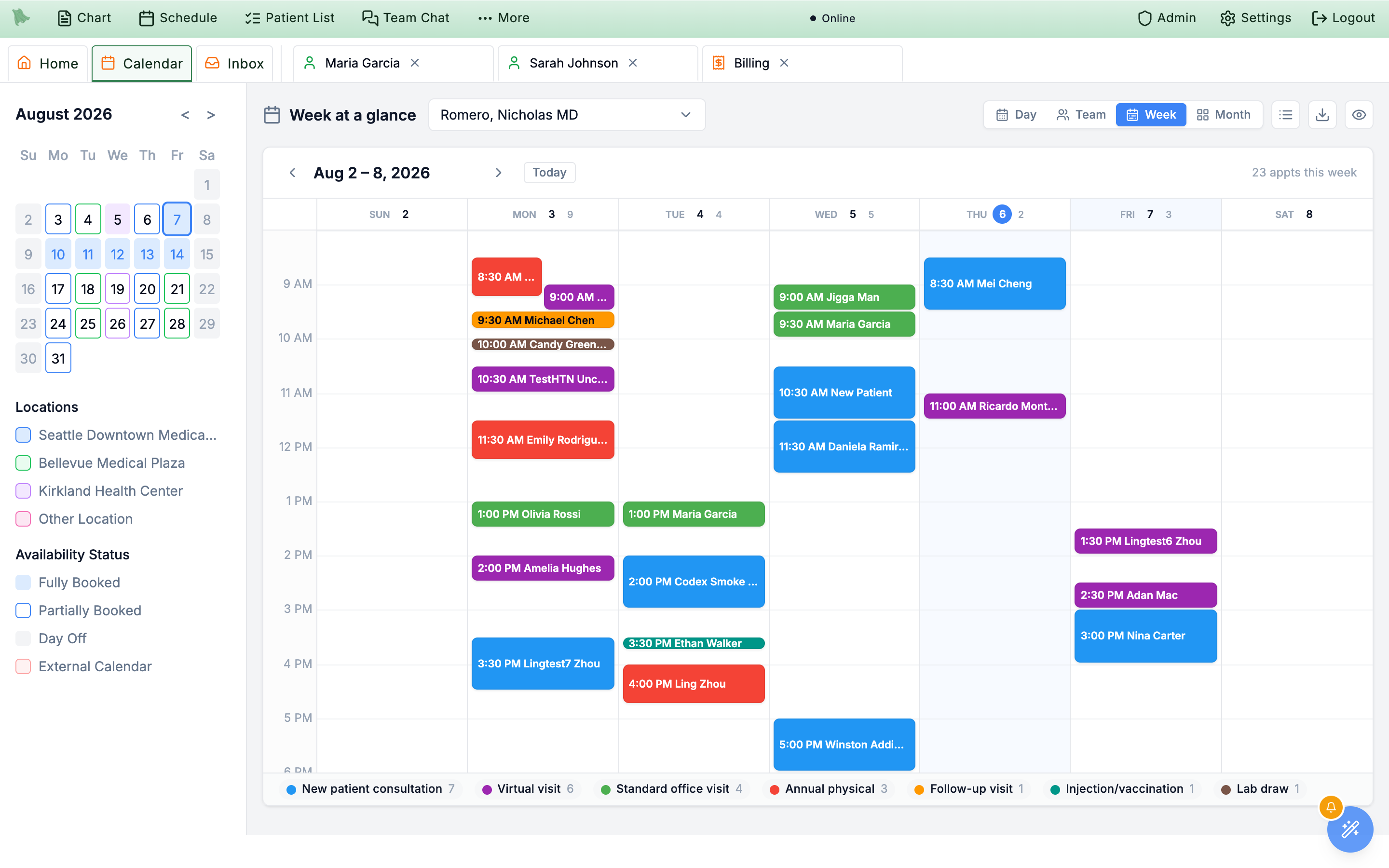
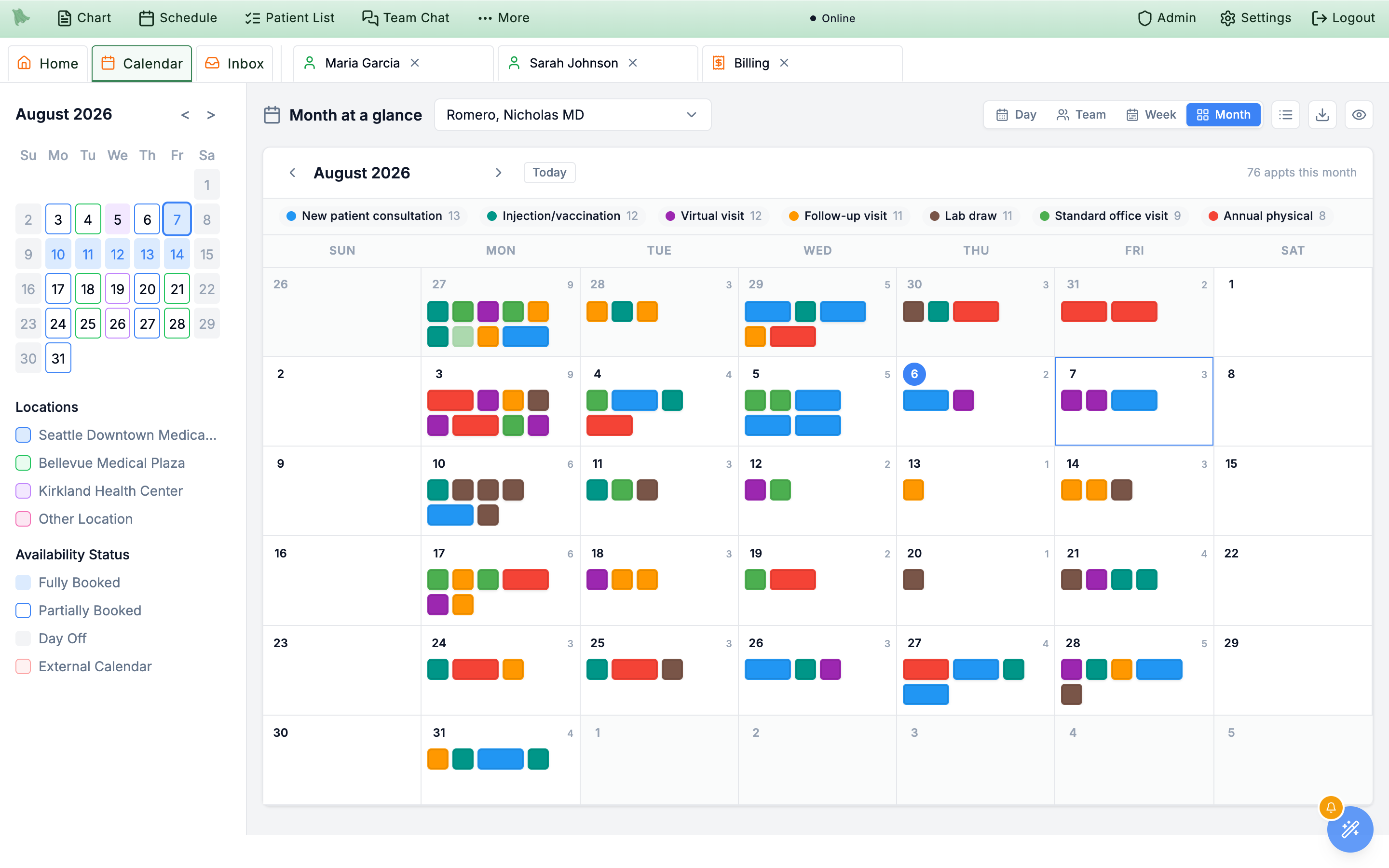
Make default / Clear my default appear beside the provider picker when they apply.
Common scheduling setup issues
Calendar shows nothing bookable
- Confirm a location is associated with the physician on the
Locationstab. - Confirm the day has working hours on
Weekly Schedule; non-working days never appear. - Confirm at least one visit type is marked Active and (for online booking) Available for Online Booking.
- Check
Time Off— a blanket time-off block overrides working hours for those dates. - Check for an organization holiday on that date. Holidays block the day for every physician until you click the holiday on
Time Offand confirm Work on this holiday?. - If the visit type uses
Specific windowsfor online booking, confirm those windows actually overlap the day's working hours — no overlap means no offered times. Widen the windows, or right-click the day on the calendar and useOpen Schedule…for a one-off window.
Patients aren't getting reminders
- Check the channel readiness panel — SMS requires an active sending number.
- Toggle Upcoming Appointment Reminders on; reminders are off by default.
- If reminders should have already gone out, use
Resync All Remindersto rebuild the schedule. - Patient-level preferences override the practice policy — confirm the patient has not opted out of the channel.
Follow-up request isn't in the portal inbox
- Confirm the Follow-up Reminder Policy has an attempt row with Inbox selected.
- If the initial wait is 0 hours, the inbox item appears when the request becomes eligible; SMS and email can still wait for the configured send time.
- Confirm the physician has an active in-office visit type and an active virtual visit type in
Visit Configwhose names match your organization's follow-up mapping. - If the encounter was addended, Hero EMR cancels and replaces only active, unscheduled follow-up requests.
Online booking isn't offering my visit type
- The visit type must have Available for Online Booking checked.
- The visit type's Min Notice filters out slots that are too soon.
- The visit type's Max Schedule Ahead caps how far out it appears.
- Only one visit type can be the Default Visit Type per physician; the default is what public landing pages pre-select.
Waitlist isn't matching anyone
- The master Patient waitlist toggle must be on.
- Patients only see the waitlist option in the portal when no matching slots exist within the visibility threshold (default 14 days).
- If short-notice fan-out is not firing, check the threshold — anything outside the short-notice window goes to the cohort flow instead.
- Stale entries auto-expire — confirm the patient still has an active entry on the Active waitlist entries list.
The in-office check-in kiosk
Most patients finish questionnaires, forms, and demographic updates from home — but some walk in with all of it still pending. The check-in kiosk turns any office iPad into a hand-off device: front-desk staff pick the patient from today’s arrivals, the visit is checked in on the spot, and the patient completes their remaining intake right there — questionnaires, consent signing with a finger-drawn signature, contact details, insurance (including camera card scan), and optionally medications and allergies. When they hand the tablet back, staff unlock it with a PIN, review what was completed, and finish.
-
Turn it on.
A practice administrator or office manager with kiosk-management access opens
Admin>Kiosk. The Check-in Kiosk dialog has five tabs —General,Walk-up,Devices,Check-in, andPayments. OnGeneral, setEnable check-in kiosktoEnabled(it starts disabled); the same tab controlsMedication & allergy updates,Show payment due at check-in, theIdle lock (minutes)andSession expiry (minutes)timers (5 and 45 by default), and whichStaff unlock methodsare allowed (PIN, passkey, password). The other tabs cover walk-up self check-in, the check-in window, and card payments. -
Set up the iPad once.
On the office iPad, open your patient portal address followed by
/kioskin Safari, thenShare→Add to Home Screen. Launching from the home-screen icon runs the kiosk full-screen with no address bar. For extra lockdown, enable iOS Guided Access and triple-click the side button when handing the device over. -
Sign in and work the list.
Staff sign in with their work email and password (or a passkey). If staff verification is required, complete
Verify staff sign-inbefore the arrivals list opens. Use the registered verification method; for a texted code, finish withVerify and open kiosk. The kiosk shows a deliberately slim view: only today’s arrivals — time, patient, provider, and questionnaire/form readiness chips — never the full calendar. Front Desk, Medical Assistant, Nurse, Intake Coordinator, and Office Manager profiles have kiosk access out of the box, and a dedicated Check-in Kiosk staff profile exists for a shared device account. -
Hand it to the patient.
Tapping
Hand to patientchecks the visit in (the calendar showsArrivedimmediately) and switches the device into patient mode. Behind the scenes the kiosk signs the staff account out entirely — in the patient’s hands the device holds a token that can only reach that one patient’s intake items, so no amount of tapping can reach the schedule or any staff surface. A video visit can’t be handed over: the kiosk says “This is a video visit, so the patient joins from home. It can’t be checked in at the kiosk.” and nothing is checked in. -
The patient works through the wizard.
A step-by-step flow with no navigation: assigned questionnaires, forms & consents (signed on-screen with finger or typed signature), confirm contact details, review insurance — with the same camera card-scan used by the portal — and, if enabled, medications and allergies. When card payments are turned on under
Payments, aPaymentstep lets the patient pay by card or choose to pay at the front desk. If the patient walks away, the kiosk warns, then locks itself. Because the screen is shared, the kiosk shows only what check-in needs: active insurance only, with member and group numbers cut to their last 4 characters (**** 3344), or No active insurance on file; a policy someone else holds shows only the relationship, never that person’s name; and current medications only, with no refill or delete buttons (patients can still edit and add). -
Take it back, review, finish.
When the patient taps
I’m done, the screen locks to a neutral “please return this device” page showing no patient information. Staff unlock with their kiosk PIN (set from the kiosk’sSet unlock PINbutton), a passkey, or their password, then see a review screen: what was completed, what’s still pending, everything the patient did on the device, and — if enabled — the payment due at check-in. If the patient has an open critical safety alert on their chart (for example after a positive depression screen on the kiosk), the review opens with a red Safety concern — tell the clinician now block naming it, for reviewers who may read chart alerts.Finish check-inreturns the kiosk to today’s list, ready for the next patient.
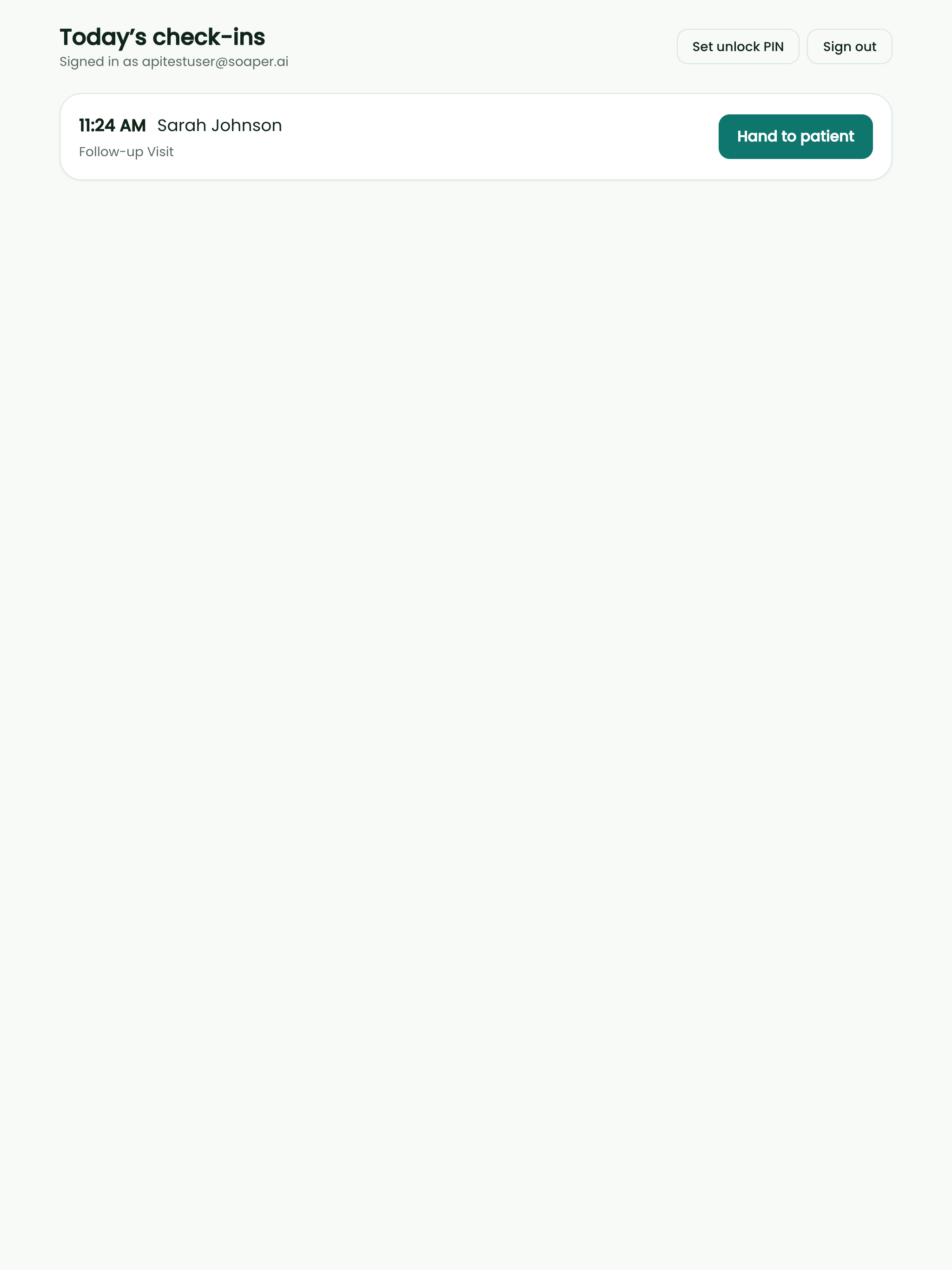
Hand to patient button per visit. The full calendar never renders here.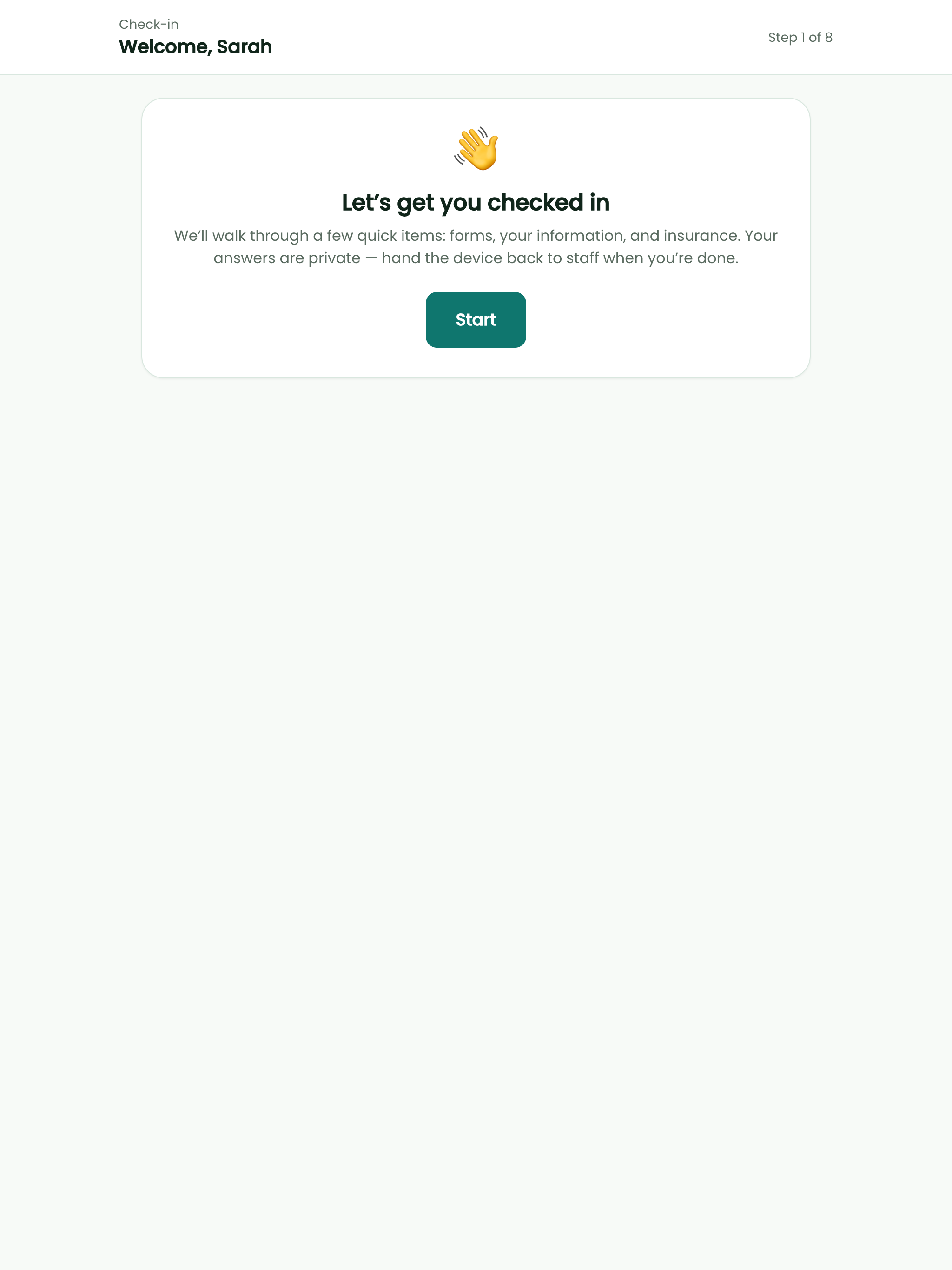
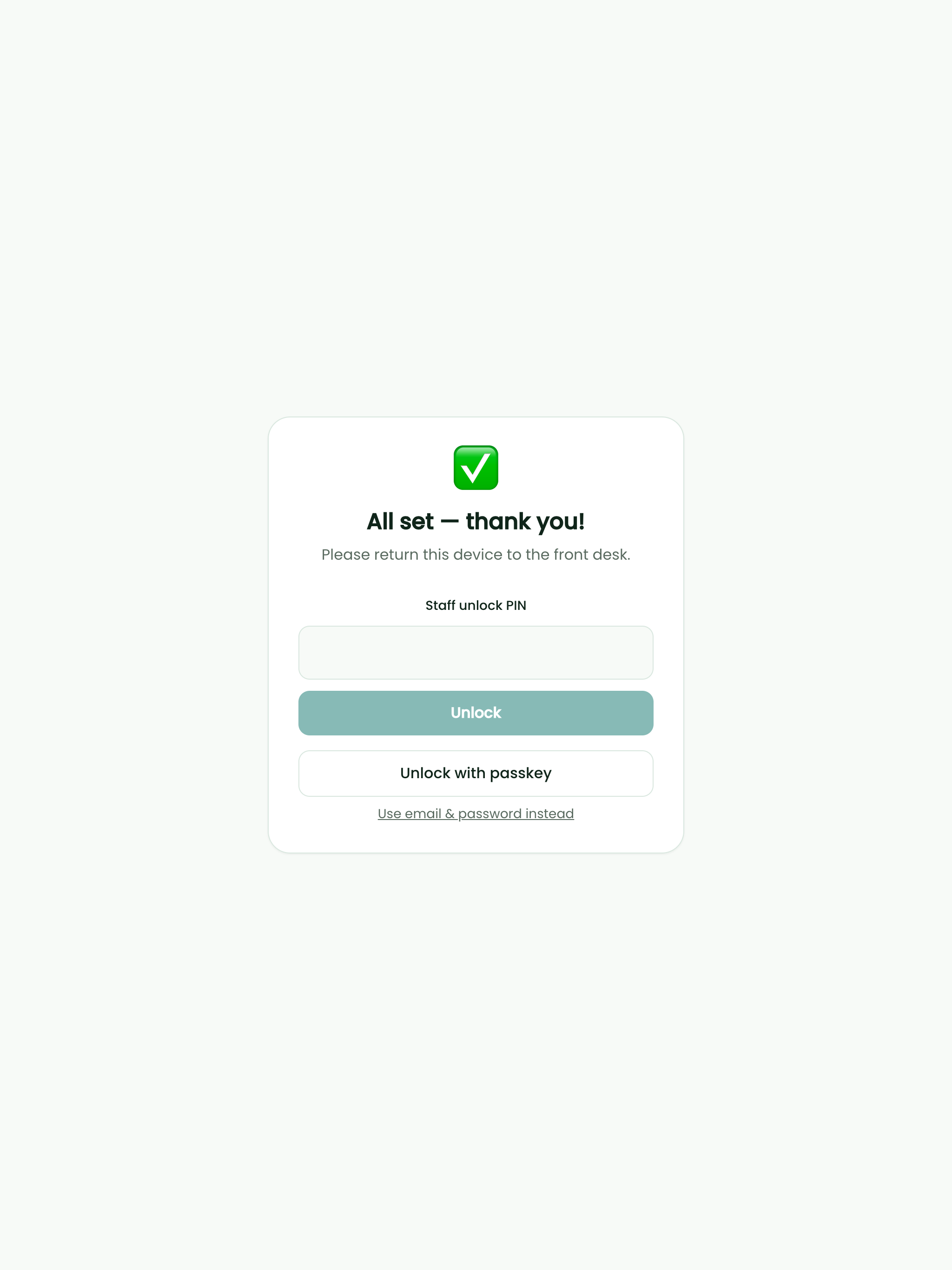
Arrived at hand-off — not when the paperwork is done — so the care team sees the patient is physically present while they finish intake. Intake progress itself lives in the pre-visit checklist chips on the calendar and on the kiosk’s review screen.
Who can book online, and who hears about it
“Online” here means every patient channel: the patient portal and app, your website’s booking widget, and the AI phone agent. Your staff can always book anything from the calendar.
Offices patients can’t book online
Each practice location has a Patients can book here online switch (in the location form on the Locations tab): “… AI phone agent, patient portal and website. Turn off for offices you schedule elsewhere (for example a hospital clinic). You can still book here yourself.” With it off, patients are offered no times at that office, the office can’t be your website’s default, a waitlist opening there is never offered to patients, and a patient booking there is told “This office isn’t available for online or phone booking. Please call the practice.”
Visit types only some patients can book online
In a visit type’s editor, Who can book this online offers:
| Choice | What happens online |
|---|---|
Anyone (the default) | New and returning patients can book it. |
Only patients who have been seen before | Only patients who have already had a visit with your practice (including visits brought over from a previous system). Everyone else is told, for example, “Follow-up Visits are for patients who have already been seen. Please book a New Patient visit or call the office.” |
Only patients on a patient list | Only patients on the Patient list you choose: a preset or a list shared with the practice (to use one of your own lists, share it with the practice first). Smart lists update on their own as patients match. Everyone else is told the visit type is booked by the office and to call; the list is never named to the patient. |
The visit type card then reads Who can book online: …, and Practice visit types marks it (seen before only). A department can override it for its visits (see Department settings).
Online booking alerts
Admin → Scheduling → Online Booking Alerts (under Organization, for practice administrators) lets the people you choose know when a patient books, reschedules or cancels online. Appointments your staff make never send an alert.
- Tick
Send online booking alerts(off by default). - Choose
Who gets alertsfrom your team. - Choose
How to send them:In Hero(a to-do for each person, linked to the patient’s chart, that rings like any due to-do),Email, or both. For privacy the email never includes the patient’s name or details: only the visit type, the date and time, the provider, how it was booked and a link to open Hero. - Save. The page confirms Online booking alerts are on.
A to-do reads New online booking: followed by the visit type, the time, the provider and how it was booked (for example Patient portal or app, Practice website or AI phone agent); reschedules and cancellations start Online reschedule and Online cancellation. Turning alerts off, or taking someone off the list, takes effect at once.
Website and phone-agent booking holds
When a new patient reserves a time on your website, or with the AI phone agent, the time is held on your calendar as Pending registration while they finish registering in the patient portal. If they don’t finish in time, the time is released.
Set how long a hold lasts
Admin → Scheduling → Website Holds (under Organization, for practice administrators):
Hold time slot for … hours while the patient finishes registration: 1 to 72 hours (24 unless you change it).Remindersfor website bookings, up to 3:Send reminder … hours after booking viaEmailand/orText, in half-hour steps. They are sent only while registration is unfinished and at least 30 minutes of the hold remain; texts go out between 8:00 AM and 8:30 PM practice time. With no reminders, patients get only the confirmation email when they book.
Changes apply to new holds only.
Confirm a hold yourself
When you reach the patient before they finish registering online, take the visit off hold with Confirm appointment: in the visit’s right-click menu (Confirm appointment…), in the preview pane’s Pending registration box, or by double-clicking the visit. It needs permission to manage the schedule. Until then the visit sits on a placeholder chart, so the calendar hides check-in, no-show, status changes, payment and portal invite for it; edit, reschedule and cancel still work.
- Check the booking.
Bookingshows how the patient booked (Booked via website or Booked by the AI phone agent), the name they gave, the time, provider, visit type, phone and email. - Answer
Which chart is this?Hero lists the charts in your practice that may be this patient; check the date of birth with them and pick one. Or chooseNew patient — create a chartand fill inNew chart: legal first and last name, date of birth (they’ll enter the same date of birth to finish registering online), sex and mobile phone, plus email; for a child, a parent or guardian with a phone number or email. If the new chart looks like an existing one, Hero shows the possible duplicates withUse this chart, orCreate a new chart anyway. - Decide about
Online registration. TickSend a link to finish registering onlineto send a fresh link (it says where it goes), or leave it off: the patient can still use the link they already have. Either way they are still asked for their address, insurance and consent forms, with what you entered filled in. A patient who already has a portal account needs no link. - Click
Confirm appointment. The visit is booked on the real chart and the practice to-do for the hold is completed: “Appointment confirmed for …. Registration link sent by text and email.” When the patient later finishes registering, it goes into that chart and nothing is booked twice.
If the patient finished registering online but hasn’t saved the card the visit type requires, the window shows Registered patient instead: “Confirming books the visit without a card on file.” If the hold was released or confirmed meanwhile, it says “This booking is no longer waiting on registration. The calendar will refresh.”
Alert your team about visits that aren’t ready
Admin → Scheduling → Visit Readiness Alerts (under Organization, for practice administrators) gives chosen people a to-do when an upcoming visit is still missing paperwork, questionnaires or insurance, in time to follow up before the patient arrives. Patients keep getting their own reminders; this never messages them.
| Setting | What it does |
|---|---|
Alert my team about visits that are not ready | Turns the alerts on. Off by default. |
When | Alert … before the visit: 12 hours to 7 days (48 hours unless you change it). |
Which visits | New patients’ first visit (any visit type, when the patient has never had a visit here) and/or And these visit types, for every patient. |
What counts as not ready | Paperwork and consents (required forms not signed yet), Questionnaires (sent for the visit or to the patient and not finished), Insurance (none on file, or its eligibility check is missing, failed, needs review or shows inactive coverage; skipped for patients marked self-pay, membership and no-charge visits, and cash-only practices). |
Who gets the to-do | Up to 20 people, and Also the visit’s provider (each provider only for their own visits). |
Also send a daily email | One email a day, at the hour you choose in practice time, listing each person’s visits that are not ready. It never includes patient names or form names: only the time, visit type, provider and what kind of item is missing. |
A sentence under the form says what will happen, for example “Front Desk will get a to-do 48 hours before a new patient’s first visit that is still missing paperwork, questionnaires or insurance.”
The to-do
Each person gets one to-do per visit, for example Not ready for Thu 10/16 2:00 PM New Patient Visit: followed by what is missing, with the details (forms by the title the patient sees) in its notes. It rings when it is filed, opens the patient, updates itself as forms come in (without ringing again), and closes by itself once everything is done, the visit is cancelled or moves out of the window, or its time passes. Completing or deleting it is your acknowledgement: you won’t be alerted again about that visit while it stays in the window. See Todo lists.
In the calendar’s visit preview, the pre-visit section shows Staff alerted Oct 15, 10:30 PM · to-do open (or to-do closed), in practice time, so nobody chases the same patient twice.
Rooming: name your visit statuses and add your own
Admin → Rooming (for practice administrators, the owner and office managers who manage practice settings): “Name your visit statuses, choose how they look on the calendar, add statuses of your own, and choose which status changes happen on their own. Nothing changes until you save.” With nothing saved, the calendar looks and works as before. Save Changes updates the calendar for everyone.
Visit statuses
Each built-in status (Not arrived, Confirmed, Checked in, Patient joined, Physician joined, With doctor, Completed, No-show, Cancelled) can get a new name (up to 32 characters), a color and an icon. Staff see the new name on the calendar and when they right-click a visit; leave a name blank to keep Hero’s wording. The statuses staff can pick under Set status manually in the right-click menu have an In menu switch to take them out of the menu; the others read Own action (set by their own action or automatically).
Your own statuses
Add the steps your team tracks, up to 20, with Add a status or a suggestion (In lobby, In room, Vitals done, Ready for provider, Checkout). Give each a name, color and icon, and order them with the arrows: the right-click menu lists them in that order. Staff set them by right-clicking a visit (and Clear “…” removes one). They are set by hand only, and the next real status change (for example Checked in or With doctor) replaces them. They can’t be set on a cancelled, no-show or held visit. Removing one takes it off any visit showing it.
On the calendar
Color the whole appointment row: each visit’s row in the day list takes the color of its status, so the front desk can see where everyone is at a glance. Off (the default) colors only the status label.
Automatic status changes
What Hero changes on its own. Turn one off to have staff set that status by hand from the right-click menu. Your own statuses are never set automatically.
| Change | What it does |
|---|---|
Patient checks in online | Checking in on the app or portal marks the visit Checked in. Always on; add a status such as In lobby to track who is physically here. |
Patient checks in at the kiosk | A patient who checks in on the office kiosk is marked Checked in. Managed in Admin → Kiosk. |
Patient texts CHECK IN | The same setting as text check-in in Scheduling (see Check-in window & text check-in). Off by default. |
Patient joins a video visit | Marks the visit Patient joined, or With doctor when the clinician is already in. On by default. Off: the join is still recorded and the visit is never marked no-show automatically, but the status changes only when staff set it. |
Clinician opens a video visit | Marks the visit Physician joined, or With doctor when the patient is already in. On by default. |
Patient confirms by text | Replying YES or CONFIRM marks it Confirmed. Always on. |
Note is signed | Marks it Completed. Always on: billing and reports count completed visits. |
Patient never arrives | A visit still not checked in a set time after it starts is marked No-show. The same setting as automatic no-show in Scheduling, which sets the timing. Off by default. |
Urgent care board | Moving a patient on the urgent care board sets the visit’s status to match. Set in Admin → Urgent Care. |
Staff need the Additional Features permission to switch the two that are shared with Scheduling settings.
Set status manually asks Undo the no-show? first. An unpaid no-show fee is removed. For a paid or part-paid fee, Remove the fee (the default) puts the money paid back on the patient’s account as credit or toward other open balances; billing staff can choose Keep the fee instead. The confirmation says what happened, for example “No-show undone. The $50.00 no-show fee was removed.”, and the patient’s Timeline records it.
Need help? Email support@heroemr.com.