Inbox & messaging
One queue for everything that arrives at the practice: patient threads from every channel, results, prescription requests, forms, faxes, and inquiries — plus the triage, forwarding, and AI tools to clear it, a By patient view that puts everything about one patient in one conversation, attached inboxes for working a colleague's inbox where it is, and the Co-sign folder for supervising clinicians.
Inbox & messaging
One queue for everything that arrives at the practice: patient threads from every channel, results, prescription requests, forms, faxes, and inquiries — plus the triage, forwarding, and AI tools to clear it, a By patient view that puts everything about one patient in one conversation, attached inboxes for working a colleague's inbox where it is, and the Co-sign folder for supervising clinicians.
Open the Inbox and tour the views
The Inbox is your unified work queue for everything that arrives at the practice — patient messages, lab and imaging results, prescription requests, completed paperwork, referrals, faxes, website inquiries, and billing exceptions. It lives in its own always-open tab beside Home and Calendar, and the dashboard queue buttons (Dashboard queues) deep-link straight into the right view. Inside, work is sorted into views:
-
Open the Inbox tab.
Inboxsits besideHomeandCalendarat the top of the workspace. Like those two, it’s a system tab — it can’t be closed, so your queue is always one click away. -
Know the three columns.
A collapsible view sidebar on the left lists the views, each with its own unread-count pill. Next to it, a message list carries its search box, filters,
Open/Doneswitch, and aNewbutton in the header when composing is available. The reading pane fills the rest of the screen. -
Collapse the sidebar when you want room.
The chevron button (
Collapse sidebar/Expand sidebar) shrinks the views to icon badges; large counts cap at99+. - Pick up where you left off. Each view remembers your selected message, search text, and scroll position when you navigate away and back, so flipping to a chart mid-triage doesn’t cost you your place.
| View | What lands there |
|---|---|
| Patient | Secure patient conversations from every channel — the heart of this chapter (Patient threads) — plus your voicemail (Voicemail) and alerts from the AI phone line (Crisis and AI usage alerts). The Threads | By patient switch shows one row per thread or one conversation per patient (By patient). |
| Results | Lab & imaging results with Critical values / Abnormal values badges and a reply box — see The results inbox. Nurses who review results first get the practice’s results here instead — see Nurse review. |
| Co-sign | Signed notes waiting for your co-signature as a supervising clinician, with due dates, filters and co-signing several notes at once; medical directors also get an All co-signers view, and co-signers a monthly Report — see Co-sign folder and Co-sign report. Shown once your practice turns on co-signing and makes you a co-signer. |
| Orders to sign | Lab and imaging orders a nurse entered for a physician to sign. Physicians see the orders waiting for them; the nurse sees the orders they entered that are still waiting. Nothing goes to the lab or imaging center until the physician signs — see Orders to sign. |
| Rx | Pharmacy renewal and change requests with Approve / Reject actions — see The Rx inbox. |
| Refills | Refill requests patients send from the portal, or ask for on the AI phone line, with a chart checklist and one-click Prescribe — see The Refills worklist. Shown once the practice turns on portal refill requests. If your practice uses the Refill Center, the same requests also show there — see Requests & the Inbox. |
| Forms/Letters | Patient-completed paperwork awaiting your review and signature — see Reviewing responses — and letters and forms patients ask for. A form request has Open in Forms & Letters, which opens it in the patient’s Forms & Letters, where staff can also release, print, fax and email it (Forms & Letters). |
| Referrals | Referral activity for your patients — see Tracking referrals. |
| Faxes | The inbound fax queue — covered in depth in The fax inbox. |
| Health records | Health record files other organizations send to your practice’s secure addresses, to check, match to a chart and file. Shown when your practice uses health information exchange — see The Health records folder. |
| Inquiries | Website contact-form inquiries, pre-analyzed by Hero AI (AI replies), and messages the AI phone line took from callers who aren’t verified patients (Messages the AI takes); a phone message shows the callback number to call, not a reply box. If your practice turns on Show texts that can’t be filed on a chart in the Inbox, texts from numbers that aren’t on one chart with a portal account land here too, marked as a text; your reply goes back as a text. Whether or not that setting is on, a text from a patient without a portal account who was texted a portal invitation in the last 14 days always lands here, so a patient who can’t sign up (a changed email, a lost code) reaches your team instead of an automatic “use the portal” reply. Urgent inquiries are listed first, with a red tile and an Urgent tag, and while one is unread the Inquiries badge turns red (as the Faxes badge does for an urgent fax and the Patient badge for a crisis call). |
| Billing | Payment and charge exceptions — see The billing workspace. It opens grouped by alert type (headers such as ERA manual review · 12); the Group by alert type chip beside Open | Done switches to time order, and your choice is remembered on this browser. Rows keep the time the alert was raised — the nightly checks don’t move them — and an alert that comes back after being resolved, or whose problem changes, moves back up. An alert’s detail reads Raised {time} · Last checked {time}, with First seen, Raised, and Last checked rows. Counts show loaded alerts appears while more alerts can load. Billing Queue alerts tell the person who holds a Billing Queue item that it needs them: Open in Billing Queue opens the item, and the alert clears on its own when the item closes or moves, so it has no Done. It turns new again when a result is ready, something the item waited on didn’t work or is late, or someone answered a request for help. For staff who manage claims, other alerts that name a patient offer Send to Billing Queue. The New button is hidden on this view. |
Which views you see depends on your role: physicians get every view except Billing, practice admins see all of them — Billing only if their account is allowed to see financial amounts — and staff see the views their messaging, document, refill-triage, and billing permissions unlock; staff with no inbox permissions don’t get the Inbox tab at all (see Staff accounts & permissions).
New button in the header? Besides being hidden on Billing, the button disappears from every view when patient portal messaging is switched off for the practice under Admin > Patient Portal Configuration > Features. You can still read and triage what arrives; you just can’t start a new portal conversation.
Work from the dashboard queues
You don’t have to start in the Inbox itself. The Home dashboard’s Inbox action center groups your inbox work into up to three groups. Every tile carries a live count and opens the matching Inbox view, so the dashboard doubles as your morning triage board. Only tiles with something in them show, and a group with nothing left disappears.
| Group | Tiles | Where they open |
|---|---|---|
Needs you now | Crisis Calls, Urgent To-dos, Lab Results, Prescriptions, Urgent Messages, Urgent Faxes | Crisis Calls and Urgent Messages open the Patient view (Crisis and AI usage alerts); Urgent To-dos opens your to-do list; Lab Results, Prescriptions and Urgent Faxes open Results, Rx and Faxes. The urgent tiles count only the urgent items, but the view they open is the full one. |
Inbox | Patient Messages, Refills, Co-sign, Referrals, Forms, Faxes | The matching views; Forms opens Forms/Letters. Patient Messages also counts your voicemail and AI phone alerts. |
Coming up | New Patients | A list of the upcoming new-patient visits counted by the tile. Select a visit to open that patient’s chart. |

Needs you now, Inbox and Coming up, and only tiles with a count show.If you work other people’s inboxes (Attached inboxes), Home adds one line near the top: Inboxes you work: with a chip per person and that inbox’s open-item count. Click a chip to open that inbox.
The unread badges — on these buttons and on the Inbox sidebar — refresh automatically about every minute, and opening or triaging an item updates them immediately. How loudly Hero EMR notifies you about new messages is tunable per physician — urgency thresholds and after-hours rules live in Message Settings.
Read and answer patient threads
The Patient view brings together portal messages, incoming texts and email, and phone-agent messages. Select a conversation to mark it read and open its history. Voicemail also lives in this view; see Voicemail.
- Review the patient bar.
Customize patient barlets you select and reorder the chips next to the patient’s name. Choose aRole presetor arrange your own, thenApply. Chips that do not fit move into the overflow. - Read the conversation on the right. The timeline and reply box stay together. Expand
Visit contexton the left forOrders,Diagnoses,Follow-up, andVisit note. Drag its divider to resize it, or double-click the divider to reset the width. A thread without an encounter saysNo visit linked. - Use the patient actions.
Open chart,Schedule,Order, andForwardappear when available. On a narrow pane some actions move intoMore actions. Scheduling opens the patient’s scheduler without making you search again. - Choose the delivery channel before sending.
Reply viashows the available choices. A text thread defaults toText; choosePortalfor a secure reply when offered. Email threads useEmail. The button names the action:Send text,Send to portal, orSend email. - Write, review, and send. Enter sends by default and Shift+Enter adds a line. Change or clear
Send the replyunderSettings → Hotkeysif you prefer another key; the reply box shows your current shortcut. Drafts are kept per thread during your session. A failed send stays visible with a retry action. - Use dot phrases in the reply. Type a period and the phrase’s shortcut (for example
.thanks) in the reply box: your dot phrase list opens at the cursor. Arrow keys move, Enter or Tab inserts the phrase, Esc closes the list, and Enter never sends while the list is open. Phrases fill in for the patient on the message, not a chart open elsewhere. This works in patient and results replies; Team Chat has no dot phrases.
See whether the patient read your message. Each message the practice sends the patient through the portal shows Read {time} once the patient opens it (with the day when they read it on a later day, for example Read yesterday, 9:41 AM), or Not read yet. Hover or focus the status to see Patients cannot see your read status: patients never see whether, or when, anyone at the practice read their messages. Texts, emails, phone-agent messages and team-only notes show no read status. It is always on, for every practice. The status catches up the next time the thread refreshes.
When focus is outside a text field, Alt+O, Alt+D, Alt+F, and Alt+V jump to Orders, Diagnoses, Follow-up, and Visit note. These shortcuts can also be changed under Hotkeys.
Start an addendum to add orders. The additions go into an addendum draft; return to the visit to review and sign it. Sending a reply does not sign the addendum.
Mark handled beside the red Urgent pill (for example after calling the patient). The thread then reads Urgent message handled by {name} · {time}. Marking a thread Done stops it counting for you only, or for everyone in the pool when a message pool owns the thread (Message pools).Portal when the reply should be read in the patient’s secure account. The channel choice resets when you open another thread.Leave a team-only note on a patient’s message thread (internal note the patient can’t see)
To discuss a patient’s message with your team without anything going to the patient, switch the reply box to Note to team. The note shows in the thread marked Team only — the patient can’t see this; it is never sent by portal, text, email or notification, and it does not change the thread’s owner, read or Done state.
- Open the patient’s thread in the Inbox
Patientview (or the patient’s conversation inBy patient). - Above the reply box, switch from
Reply to patienttoNote to team. A draft reply to the patient is kept while you switch. - Type in Write a note for your team… and click
Add team note, or press Ctrl+Enter (⌘+Enter on a Mac). Plain Enter adds a line.
The note appears as an amber Team note card in the thread, in the By patient conversation and on the chart’s encounter Messages card. Staff on the thread and the members of its message pool get an Inbox notification; the author does not.
Team notes in Inbox threads is off by default. A practice administrator switches it on in Admin → Additional Features (it is also listed in Admin → Messaging). Turning it off stops new notes; notes already written stay in the thread.Reorder medications from a patient conversation
A refill request rarely needs the chart. The Visit context panel of a patient conversation lists the patient’s active medications, so you can reorder one, several or all of them into the conversation’s visit and sign them there.
- Open the conversation and expand
Medications. It is inVisit context, betweenOrdersandDiagnoses. When the panel is collapsed, the pill icon on its rail opens it. Each active medication shows its directions, when it was last prescribed and, when the pharmacy’s fill reports show it, how many refills are left. Medications that ran out or are on hold say so. - Reorder one. Click
Reorderon its row. - Reorder several. Tick them, then click
Reorder Nat the top.Clearunticks them. - Reorder everything current. Click
Reorder all. Medications on hold or not started yet are left out; tick those yourself if needed. - Review and sign in
Orders. The orders are added to the conversation’s visit andOrdersopens above. Nothing is sent until you sign them there.
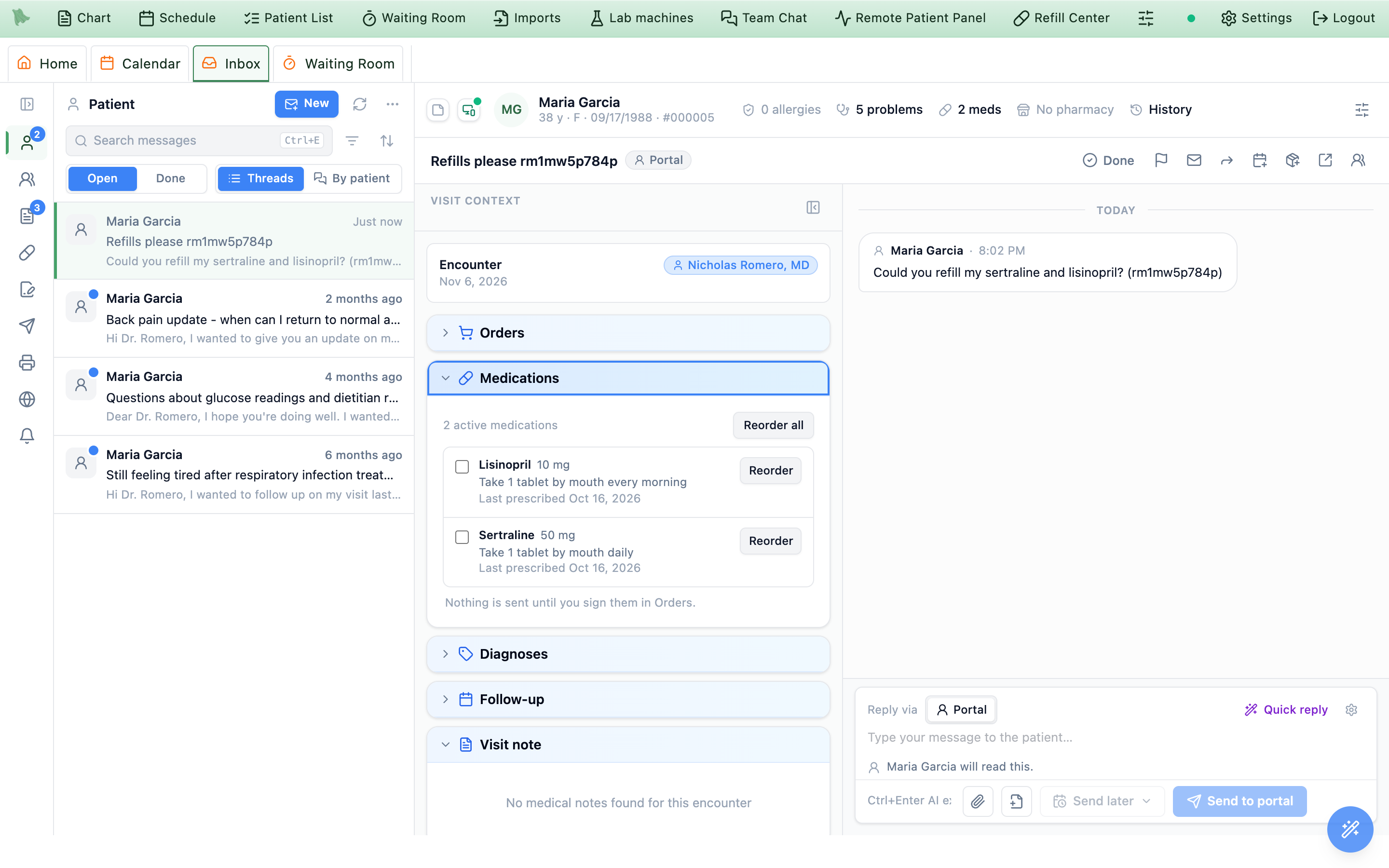
Medications in the conversation’s Visit context: Reorder one, tick several, or Reorder all.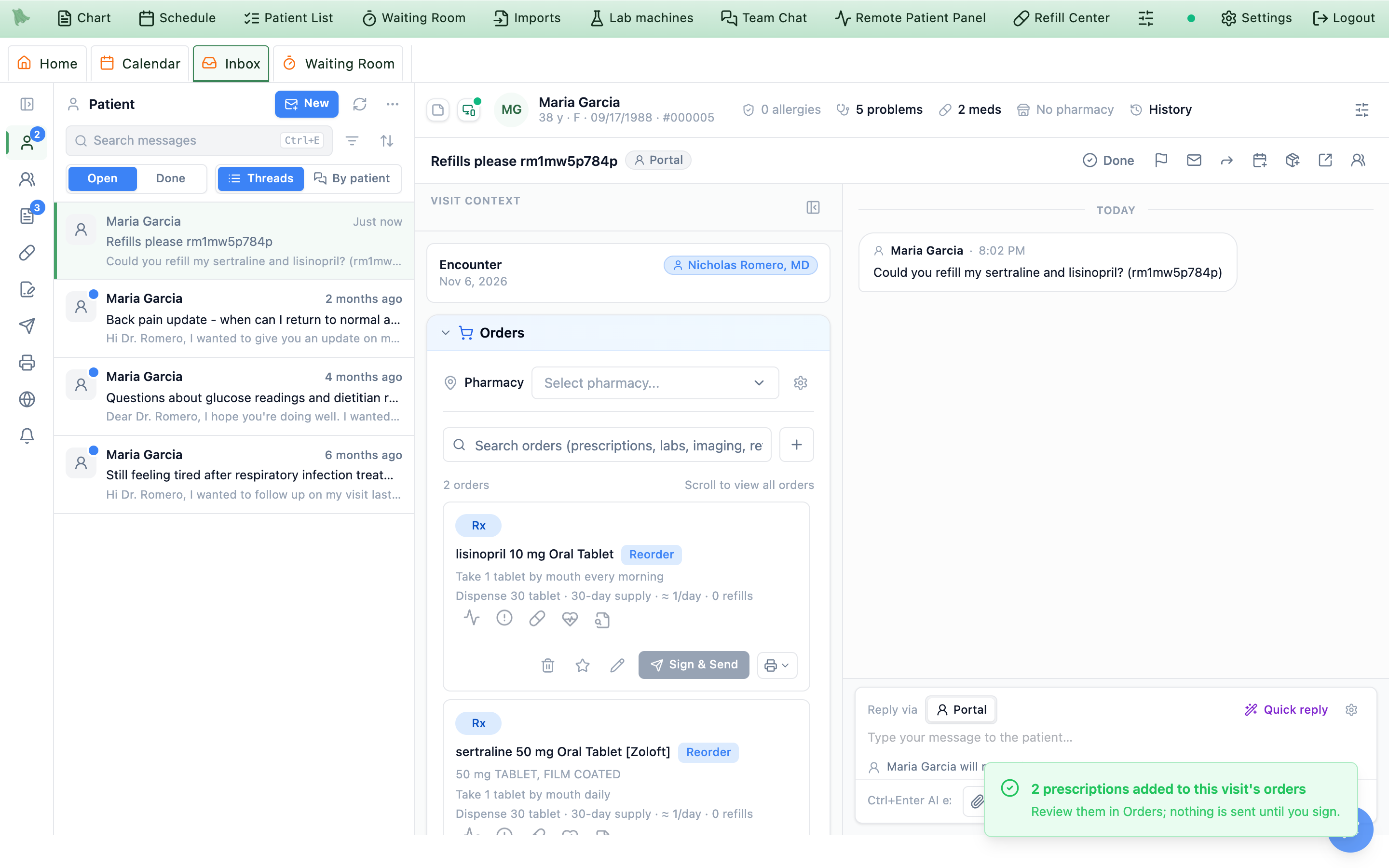
Orders, ready to sign.- Built like Reorder in the visit. The orders are built exactly as the visit’s own
Reorderbuilds them (Repeat last visit). A medication already in the visit’s orders saysIn this visit’s orderswith aViewbutton instead. - What was added. A short note after each reorder says what was added, what wasn’t, and why. A medication whose directions need finishing is not added from here; add it from
Orders. - Queued stops. A stop queued in the visit for a medication you reorder is removed.
- Who can. Staff who can’t prescribe see the list with Only prescribers can reorder medications. and no buttons.
- Signed visit? Start the addendum shown above the sections first, as you would to add any order.
Unsend a message sent to the wrong patient (delete a sent message)
When the wrong document or another patient’s information went out, unsend the message. The patient no longer sees it or its attachments in the patient portal or the Hero app; in its place they see “This message was removed by the practice.” Any file the message added to the patient’s chart is removed from the chart too. Your team still sees that it was unsent, by whom and when, and can open what was sent.
- Open the conversation in the Inbox. A thread or the patient’s
By patientconversation both work. - Point at (or tab to) the message, click
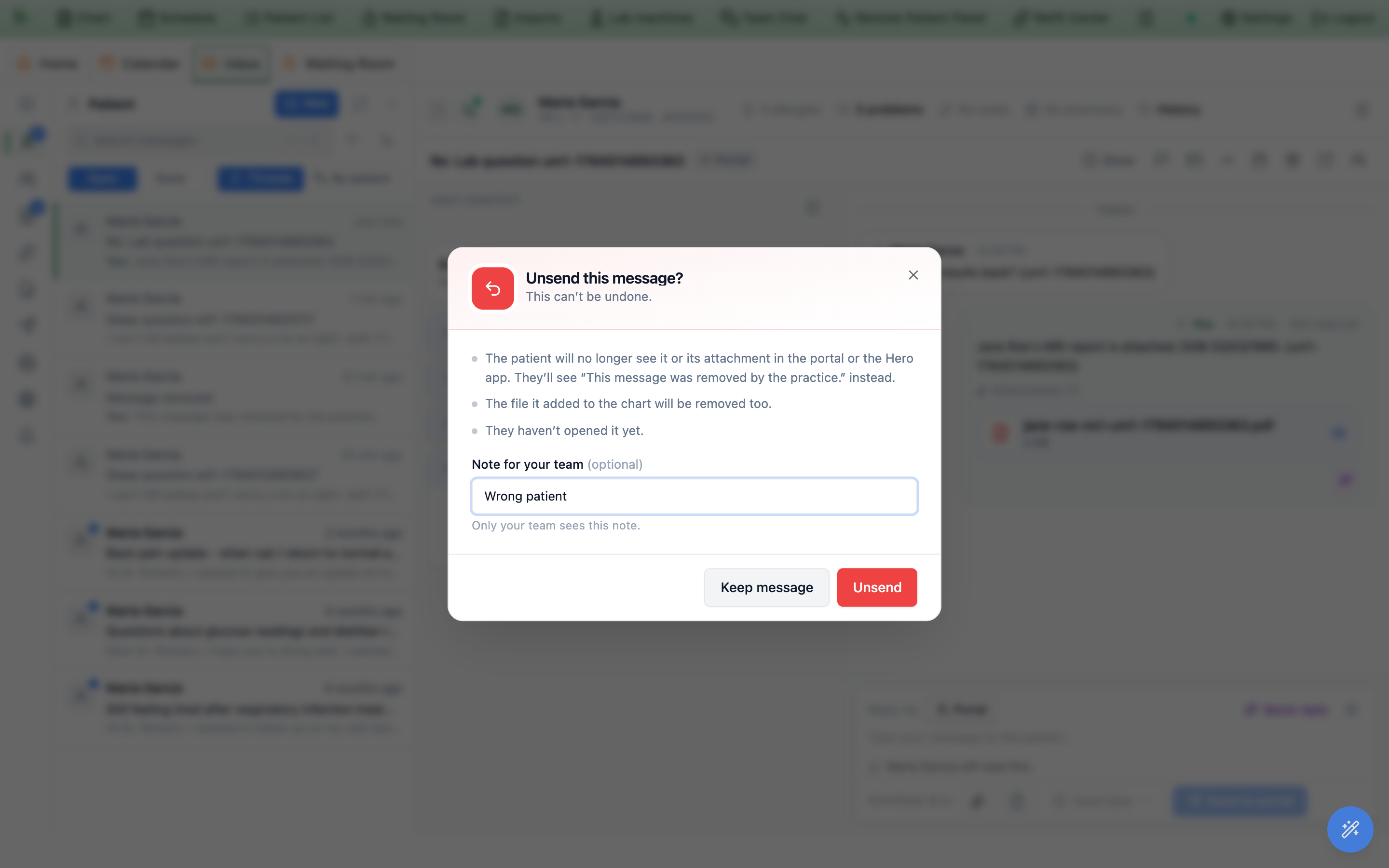
…(More actions) beside the sender’s name, thenUnsend… - Read what will happen. The window lists it: the patient stops seeing the message and its attachments; files it added to the chart are removed; whether the patient already opened it, and when (your practice’s time); whether the alert telling them about a new message already went out (it never contains the message itself and can’t be taken back) or now won’t; and, for a text conversation, that the text already reached their phone and can’t be taken back.
- Add a note for your team if you like. Type it in
Note for your team, for example Wrong document. Only your team sees it. - Click
Unsend.
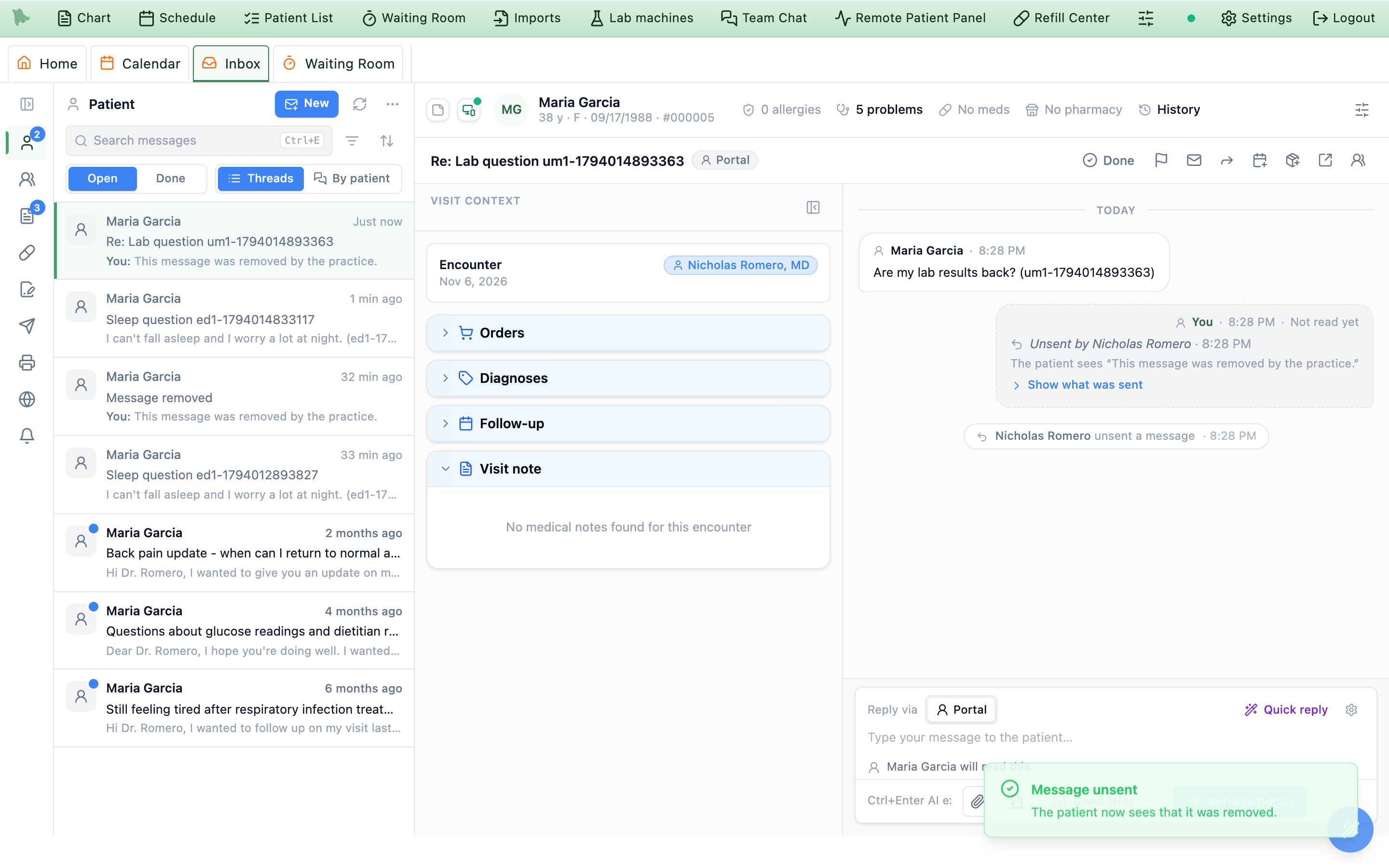
Show what was sent for the original.After unsending
- The message shows Unsent by {name} · {time}, and the conversation shows {name} unsent a message. Click
Show what was sentto read the original and the names of the removed files. Only staff see it, and opening it is recorded like any chart read. - The conversation keeps its name, except when the unsent message started it: it is then renamed Message removed, because its title may have named the wrong patient.
- If the Inbox was about to add orders to the visit from that message, it won’t.
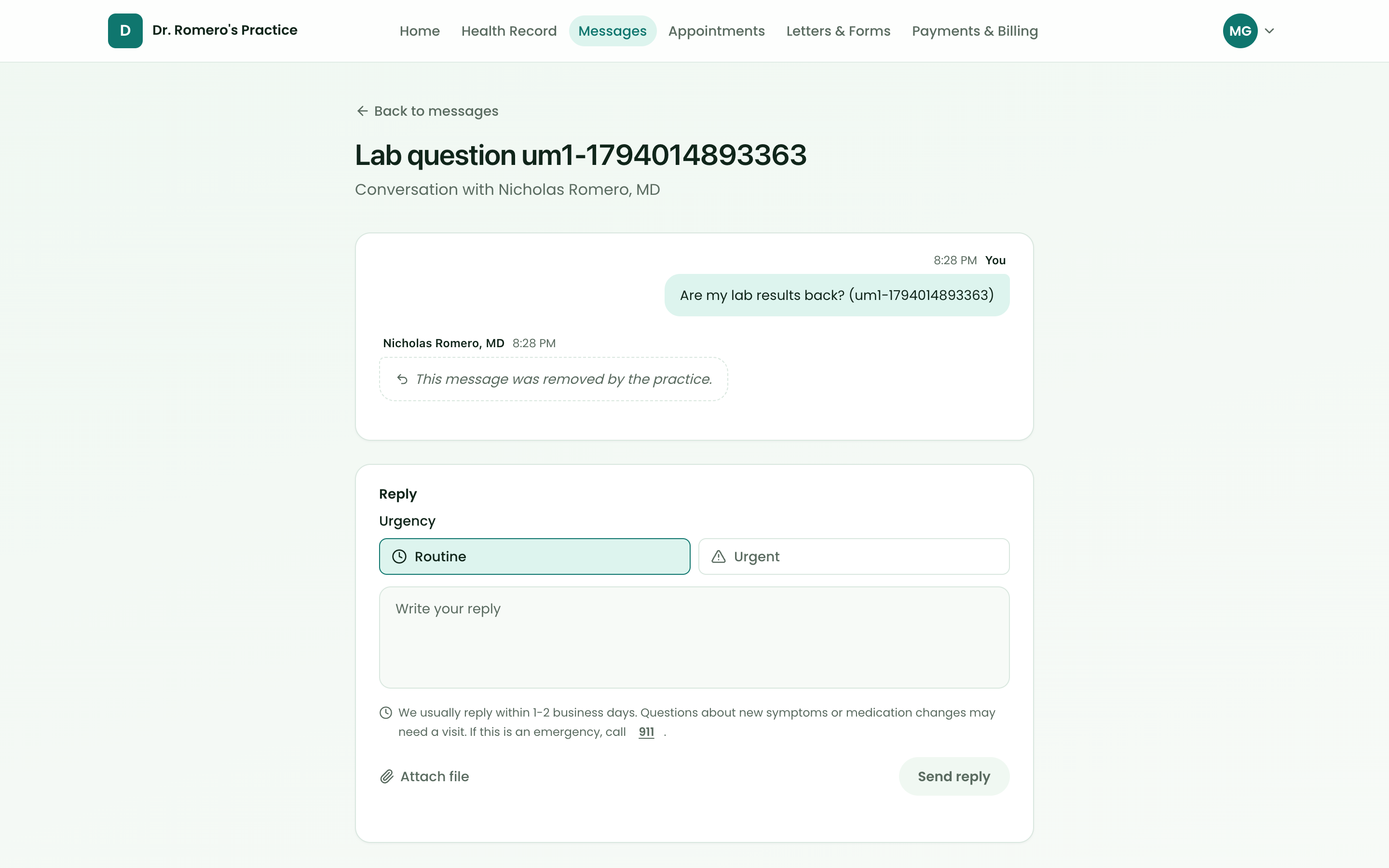
Who can unsend. Providers, and staff with the Send patient messages permission. Anyone who can open the conversation and message patients can unsend any message your practice sent in it, not only their own. A patient’s own message can’t be unsent.
Send patient education handouts from a conversation or the chart
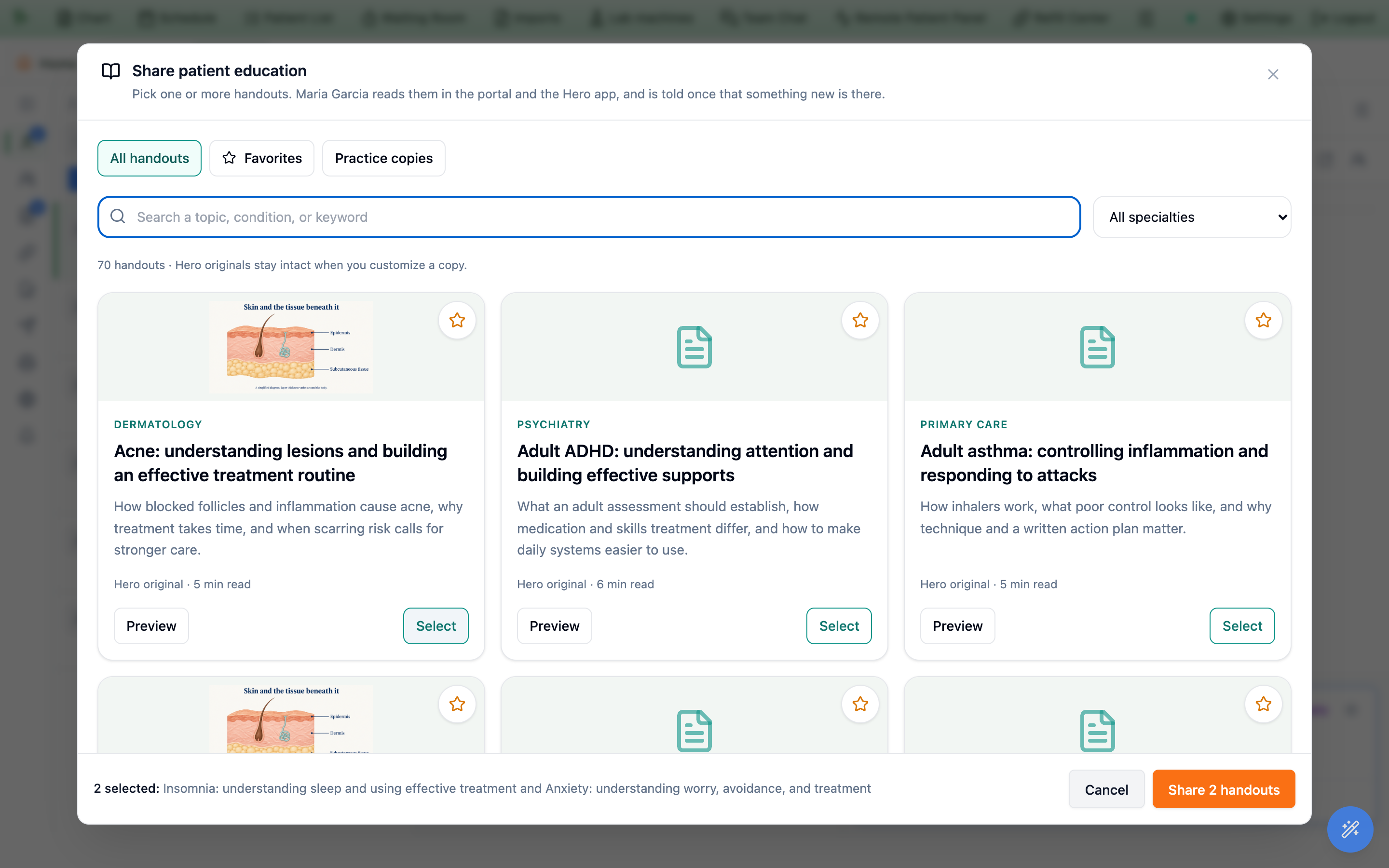
Share handouts from your education library, Hero’s and your practice’s own, without a visit. The patient reads them in the portal and the Hero app under Health record → Education, and is told once that something new is there (by app notification, text or email, following their message notification settings). The alert never names a handout.
- Open the sharing window. In the Inbox, in a patient conversation, click the send button next to the paperclip in the reply box (Send a questionnaire, form or handout) and choose
Patient education. From the chart, open the patient’sQuestionnairestab and clickShare handoutson theShare patient educationcard. - Find the handouts. Search for a topic, or use
FavoritesorPractice copies. ClickPreviewto read one first. - Click
Selecton each handout you want. Click again to remove it. The bar at the bottom lists what you picked. - Click
Share handouts.
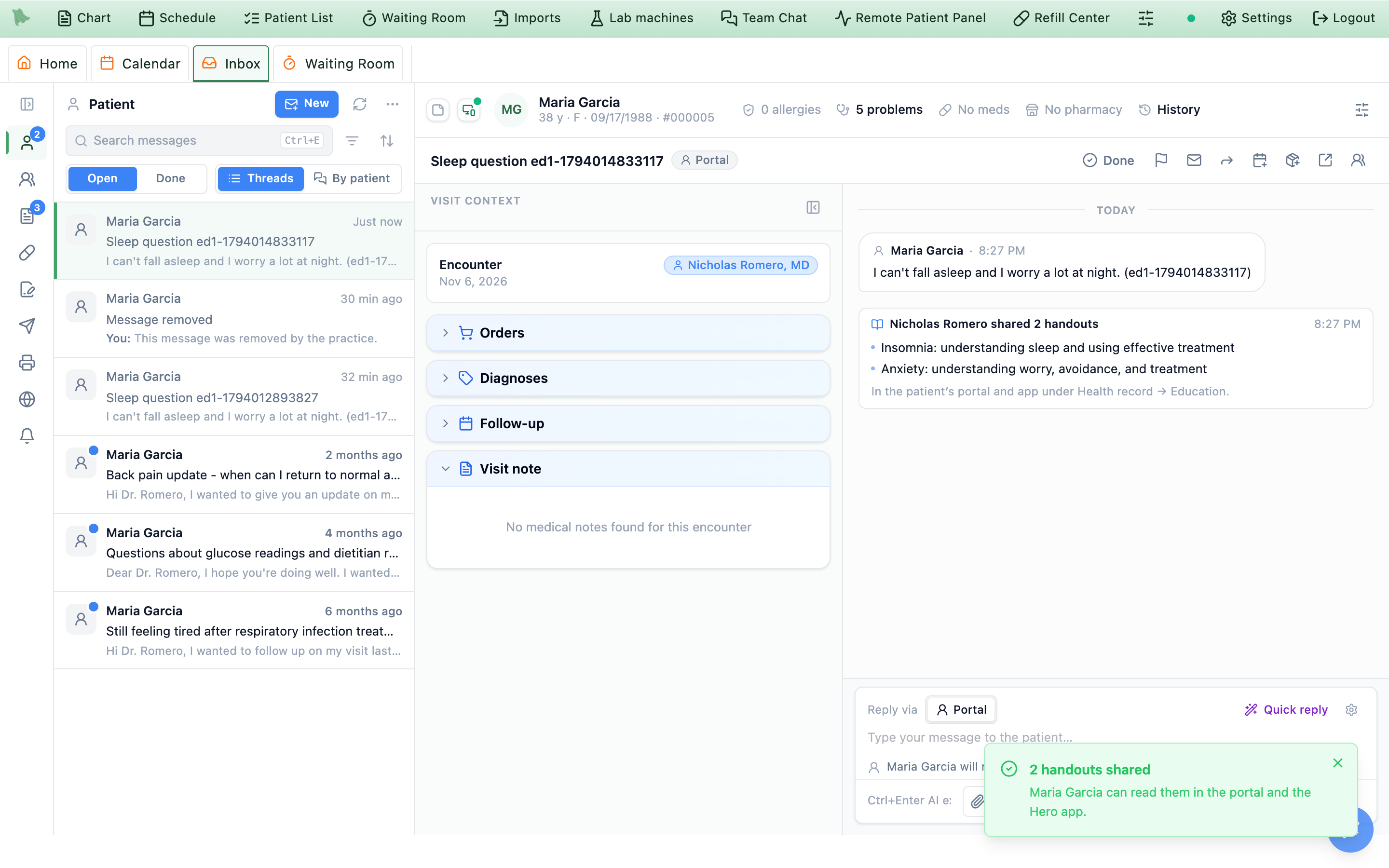
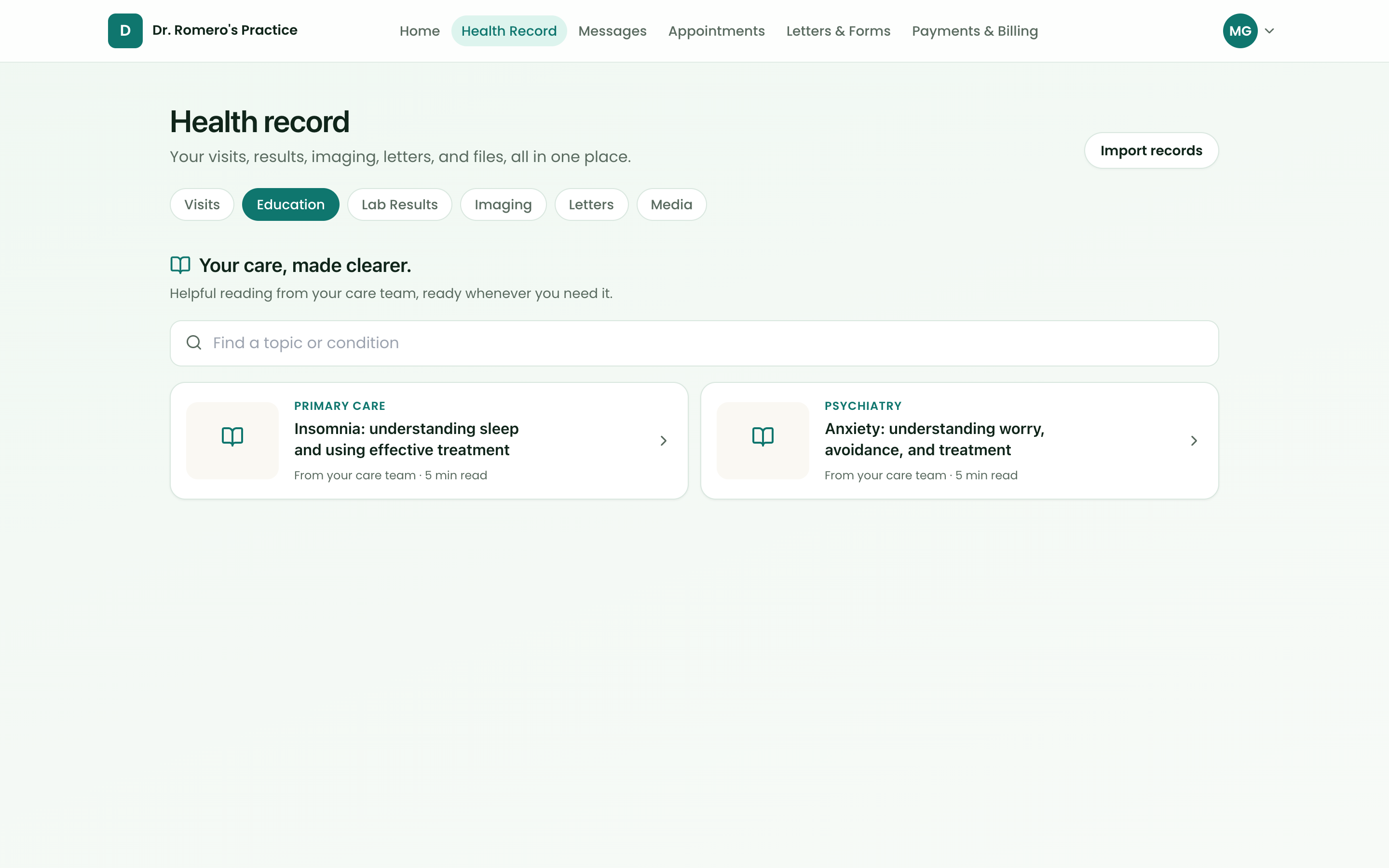
Health record → Education.- One alert. Handouts shared within a few minutes of each other, including ones added in a visit’s Patient Instructions, reach the patient as one notification.
- Who can. Providers and staff who can edit visits, the same people who share handouts in a visit.
- In order sets. A handout can also be part of an order set and go out when you sign the visit (Screeners, forms, education and outside orders).
Expand a reply with AI and review it before sending
The AI wand works in the reply box for patient conversations, results, and inquiries. It creates editable text; it does not send the reply.
- Type the facts and plan you want to communicate. Click
Expandto turn shorthand into a full reply. With an empty box, the same control readsQuick replyand drafts from the conversation. - Use the shortcut if preferred. Ctrl+Enter, or ⌘+Enter on Mac, runs the AI action by default. This is separate from the send shortcut. While the draft is being generated, Esc cancels it.
- Review in the expanded reply box. The editor grows to give you room to read, up to half the window height, and scrolls for longer text.
Expanded by AIorDrafted by AIidentifies the result.Undorestores your previous text. Check any notices about details that need review, and edit before sending. - Keep clinical decisions yours. Verify that every typed fact survived, that no unsupported advice was added, and that medications, doses, and follow-up are correct. The expander is designed not to add controlled-substance recommendations; still check the entire draft.
- Tune the style. Physicians can use
Inbox expander settingsbeside the wand to open the relevantAI Customizationsettings. Stored suggestion chips, when present, can still insert a draft for review.
On your own sent, encounter-linked messages, Extract orders can turn your written plan into order drafts. Review and finalize those drafts through the clinical workflow. On a signed visit they belong to an addendum, not an automatic change to the signed note.

Send to portal; inquiry replies use Send email, or Send text for an inquiry that arrived by text. Review the recipient and delivery channel after using AI, just as for a reply you typed yourself.Triage with flags, read state & completion
The list header controls the queue; row actions and the reading pane control an individual item. Some folders have specialized actions, so only the actions supported by that item appear.
- Use
OpenandDone.Openshows work still to handle. Mark an itemDoneto remove it from that list; useDoneto find completed work andReopenwhere available. A patient’s new reply brings their conversation back into the open queue. - Shared items are finished once, for everyone. Done on a practice-wide inquiry, on a voicemail that rang to several people, or on a conversation a message pool owns marks it Done for everyone who got it; their
Donelist shows Done by {name}.Reopenreopens it for all of them. A voicemail someone forwarded to you stays yours to finish, and everything else, including a conversation that is only yours, is Done for you only. Checking off one copy of an online booking alert to-do checks off everyone’s copy too (Online booking alerts). - Keep moving or undo. Completion offers an immediate
Undowhere supported.More list optionscontainsOpen next item after Done, which controls automatic advance to the next item. - Search, filter, and sort. Search is always visible.
FiltersopensReceived within(24h,7 days,30 days, orAny time) and aPatientpicker. UseClear allto reset filters. Sort choices remainMost Recent,Unread First, andFlagged First. - Act on one item. Hover a row, open its context menu, or use the reading-pane actions for
Done,Flag/Unflag,Mark read/Mark unread, andForwardwhen available. - Handle several items together. Select row checkboxes to show the bulk bar with
Done,Read, andUnreadwhere supported.Select allselects the currently loaded rows, not every unseen item in the practice. - Refresh or recover from an error. Use
Refresh messages. A loading error has its own retry state; an error is not an empty queue.
Inbox keyboard shortcuts
The Inbox has its own Outlook-style chords, active whenever you’re in the Inbox tab. They use Ctrl on Windows and Mac alike, and they stand down while a dialog — compose, forward, scheduling — is open, so the dialog keeps the keyboard.
| Shortcut | What it does |
|---|---|
| Ctrl+N | New message. |
| Ctrl+R | Reply to the selected message. |
| Ctrl+F | Forward the selected message. |
| Ctrl+Q / Ctrl+U | Mark the selected message read / unread. |
| Backspace | Mark the selected message complete. |
| Ctrl+Shift+G | Flag / unflag the selected message. |
| Ctrl+. / Ctrl+, | Open the next / previous message in the list. |
| Ctrl+E | Jump to the search box. |
| Ctrl+Shift+L | Schedule an appointment for this patient. |
| Ctrl+O / F7 | Open order entry from the selected message (standalone orders). |
| { / } (Shift+[ / Shift+]) | Previous / next inbox: My inbox and the inboxes you work (Switch inboxes). |
None of these are fixed: the Settings menu > Hotkeys opens the Keyboard Shortcuts editor, where you can rebind any of them to a chord you prefer.
Forward a conversation to your team
Forwarding is how patient conversations are handed to another physician or staff member — the message stays one thread, but ownership of the work moves to the recipient’s queue with the full prior history attached.
-
Open the dialog.
Click the
Forwardtoolbar button on a patient thread, or right-click the row and chooseForward thread…. -
Pick the recipient.
The
Forward Conversationdialog lists your organization’s clinicians and staff with a search box (Search team members…, orSearch people or pools…when your practice has message pools; type p, a space and a pool name to search pools only) — physicians show a stethoscope icon with credentials, staff show their title. Forwarding to a pool shows who it goes to: Everyone in Front Desk sees it. Any of them can reply or take it. Add an optionalNotefor the recipient; it stays internal and the patient never sees it. Star a physician (Add to favorites/Remove from favorites) to pin them under aFavoritesheader aboveAll Team Members; it’s the same favorites list the calendar uses. Only physicians can be starred. -
Send it.
Select the person and click
Forward(it readsForwarding…while in flight);Cancelcloses without forwarding. -
What the recipient sees.
The conversation appears in their own Patient view with a blue forward arrow (tooltip
This conversation has been forwarded to you), and the thread timeline records an event pill — Dr. A forwarded to Dr. B.

Forward Conversation dialog — star your frequent recipients to pin them under Favorites.Compose new messages & tune your messaging rules
To start a conversation rather than answer one, use New in the message-list header (tooltip New message). A new message opens a fresh secure thread; the patient is alerted by push/SMS/email and replies from the portal, which lands right back in your Patient view.
-
Click
New. The compose modal opens (the same modal titles itselfReply to MessageorForward Messagein those contexts). -
Pick the patient.
To:is a patient picker — type two or more characters inSearch for a patient…, or choose fromRECENT PATIENTS(shown with DOB and MRN). Patients without a portal account are grayed out with aNo accounttag; selecting one shows an error that they cannot receive messages. -
Write and send.
Fill
Subject:andMessage:(inline images and dot phrases are supported), then clickSend Message— it showsSending…, thenMessage Sentwith aMessage sent successfully!banner before the modal closes. -
Or send it later.
A
Send laterbutton sits besideSend Messagein the compose modal and beside the channel-specific send button in the thread reply box. Pick one of the presets — stated in your practice’s time zone, not your laptop’s — or a custom date and time, and the message drops onto theQueuedtab of the todo panel, where you can still reschedule, send now, or cancel it right up until it goes (see Send a message later). Drafts carrying an attachment or an inline image can’t be scheduled; the button explains why and you send those immediately. -
Replies stay in the conversation.
Replying from a thread reuses the conversation, prefixes the subject with
Re:, and locks the recipient to the patient on the thread.

New Message modal — search or pick a recent patient, then subject, message, send.Your personal messaging rules live under the toolbar Settings menu > Message Settings (the modal is titled Message Preferences):
Patient Messaging Permissions
Who can message you? — All patients in the practice, Only patients you’ve seen before, Only patients you’ve seen recently (with a Recent encounter timeframe (months) field), or Disable patient messaging.
Notification Settings
Minimum urgency level for notifications — Low (All messages), Medium, or High (Urgent only). Note that manually composed messages always send at Medium urgency; there’s no urgency picker in compose.
After-Hours Settings
Allow after-hours messages, with its own Minimum urgency for after-hours messages threshold so only what matters reaches you off-hours.
No account, invite them to the portal first (see Inviting patients).
Discard unsaved changes? — choose Keep editing to go back or Discard to close. An empty window closes straight away. The thread reply box, by contrast, auto-saves per thread.
See one conversation per patient
The Patient view normally lists one row per thread: a portal thread, a text thread and a voicemail from the same patient are three rows. By patient folds them into one row per patient, and opening that row shows everything about the patient in one stream, in time order: their messages and voicemails, and the results, faxes, requests, forms, referrals, visits and billing alerts that belong to them.
-
Switch the list.
In the
Patientview, use theThreads | By patientswitch besideOpen | Done.Threadsis the default. Your choice is saved to your account, so it follows you to other computers. Switching marks nothing read, and the item you had open stays open. -
Read the rows.
Each row shows the patient’s initials with an unread count, the latest activity, and a chip with the channels it holds and how many threads it gathers (for example
3 threads). Rows keep the sort you chose, and search,FiltersandOpen | Donework as usual. A voicemail from an unknown caller stays a row of its own until it is linked to a chart. -
Open a conversation.
The pane is titled
Conversation(with· 3 threadswhen there are several). The patient bar and its actions are the same as on a thread. A redNewline marks where the unread part starts;Load earlierat the top brings older items, down to Beginning of this patient’s history. If something new arrives while you have scrolled up,New activitytakes you to it. -
Narrow the stream.
The chips above the stream are
All,Messages(messages, voicemails and staff chats),Results,Documents(faxes, forms, referrals, uploaded documents and questionnaires),Rx(refill and prescription requests),VisitsandBilling. Only chips with something you are allowed to see appear. The chip you pick is kept while you work.
Replying in a conversation
The reply box always answers one thread. Hero picks the most recently active thread you can reply in; each thread starts with a chip naming its channel and subject, and the one you are answering says · replying here.
- Answer a different thread: hover a message and choose
Reply here, or use theReply inpicker above the reply box when there are two or more threads you can answer. - The channel and recipient come from that thread, with the same
Reply viachoices as in Patient threads. - Only voicemails? The reply box offers
Call backorPortalfor the voicemail (Listen & call back). - Nothing you can answer? The box reads “You can’t reply in this patient’s threads”, with the reason when there is one, and a
New messagebutton to start a fresh thread.
Acting on the whole conversation
Row actions on a By patient row reach every thread and voicemail of that patient in your Inbox, not only the ones on screen:
| Action | What it does |
|---|---|
Open, or Mark read | Marks every unread thread and voicemail of the patient read. |
Done | Completes every open thread and voicemail, so the row leaves Open. Reopen brings them all back. |
Mark unread | Marks the latest one unread, so the row comes back as unread. |
Flag | Flags the latest one; if any is already flagged, it removes the flag instead. |
Patient view on Threads after this arrived, a line under the header reads “New: By patient: one conversation per patient, with their results and faxes.” Try it switches the list; × dismisses it. It does not come back.You can also give the switch a keyboard shortcut: in the Settings menu > Hotkeys, set Switch the Patient folder between threads and one conversation per patient (it has none by default).
Patients have a similar choice in the portal: their Messages page switches between By topic and All in one (Portal messaging). Their choice changes nothing in your Inbox.
| You see | What it means and what to do |
|---|---|
| “This conversation couldn’t load.” | Press Try again. Until it loads, replies are paused: “Replies are paused because this conversation didn’t load — try again above.” |
| “You don’t have access to this patient’s history.” | Your account can’t open this patient’s items. Use Threads, or ask an administrator about your access. |
| A chip you used before is missing | Nothing of that type is visible to you for this patient, or you switched that type off with the gear (Choose what shows). |
Open a card and act on it in place
In a By patient conversation, messages are speech bubbles; everything else is a one-line card: a small icon, a title, a few facts, one status and the time (in your practice’s time zone). Click the line, or press Enter, to open it; click again to close it. A staff chat card is marked Staff only so nobody takes it for a patient message. Past visits show as a single line with the visit type, clinician and status.
| Card | Opened, it shows | Actions on the card |
|---|---|---|
| Lab or imaging result | The results table (Test, Result, Range, Flag) or the report’s impression, with Critical or Abnormal when it applies. | Done (or Reopen), Flag / Unflag, Open in Results. A nurse’s review is marked in Results (Nurse review). |
| Fax | From, Pages, Category, the AI summary, and View fax for the pages. | On a fax assigned to you: File to chart (when it is linked to a chart that matches and isn’t filed yet), Mark done / Reopen, and Junk (with Undo). Open in Faxes for everything else, including a fax whose patient doesn’t match. |
| Voicemail | The player and transcript, Caller, Number, Length and Urgency. | Done / Reopen. |
| Refill request | Medication, Requested via (for example the portal or the AI phone line) and Status. | Review…, Claim (when you may claim it), Open in Refills. |
| Rx request | Medication, Request (renewal or change), Pharmacy and Status. | Review…, Open in Rx. |
| Form | Form, Request, Updated and Status. | Review…, Open in Forms. |
| Referral | Direction (Inbound referral or Outbound referral), Specialty and Status. | Inbound: Review…. Outbound that failed or was never sent: Resend or Send, if you send referrals. Both: Open in Referrals. |
| Billing alert | Type, Priority, Status. | Done / Reopen (not on Billing Queue alerts, which clear on their own), Open in Billing (Open in Billing Queue on a Billing Queue alert). |
| Staff chat | The chat’s messages, With, and Saved to the chart when it was saved. | Open in Care Team Chat. |
| Uploaded document | Type, Pages, File, Added by (or Uploaded by the patient). | Open in chart (the chart’s Media tab). |
| Questionnaire | Status, Score, Result, Due or Completed by. | All questionnaires (the patient’s Questionnaires section). |
- A card’s action is the folder’s own. A button appears only when that folder would show it to you, and it does exactly what it does there. A card’s
Donemarks only that item done, with Marked done · Undo; it never closes the conversation. Review…opens the full view in place. Prescription requests, refill requests, forms and inbound referrals need a check, a reason or a signature, soReview…opens that folder’s full screen inside the conversation pane, with all its buttons and safety checks.Back to conversationreturns you to the same place in the stream; a reply you had started is kept.- You see only what you could see anyway. Each type shows only to people who can open it in its own folder or the chart: billing alerts only for people who see the
Billingfolder, staff chats only you are part of, voicemails sent to you, results for people with result access, and so on. Messages always show.
Choose which items appear in conversations
The gear beside the filter chips (Conversation settings, tooltip Choose what shows here) opens Show in this conversation: one switch per item type, so you can keep, for example, billing alerts or past visits out of every conversation.
MessagesareAlways shown. The switches areVoicemails,Staff chat,Lab results,Imaging,Faxes,Uploaded documents,Forms,Questionnaires,Referrals,Refill requests,Rx requests,Past visitsandBilling alerts. Only the types you are allowed to see are listed.- Your choice applies to every By patient conversation and is Saved for you on every device. It changes nothing for anyone else.
- A small dot on the gear means something is switched off. A chip whose types are all switched off disappears; if it was the chip in use, the stream goes back to
All.
Share patient messages with a team, and add a backup when nobody opens them
Out of the box, a message a patient writes to a doctor goes to that doctor only. A message pool is a named team — Front Desk, Nurses, Billing — that can handle patient messages together: everyone in the pool sees what is sent to it, any of them can reply on the provider’s behalf, and anyone can take a conversation for themselves. Backup coverage adds a backup person or pool when a patient message sits unopened too long.
Set it up: Admin → Messaging
Practice administrators, the owner, and office managers who may manage practice settings open it as a workspace tab. The left rail lists Pools, Patient messages, Backup coverage and Inbox access, and sums up How patient messages flow; on a phone the sections are one Section list instead. Inbox access (Who can work whose inbox) is a different tool from pools and routing: it lets someone work another person’s whole inbox where it is, without moving any message (Admin: Inbox access).
- Create a pool. In
Pools, add aNew pool: aPool name(staff then send to it by typing p and its name),What this team handles, an optionalDepartment, andWho’s in this pool(at least one person).Backup for this poolisUse the practice defaultorGive this pool its own rule. PressCreate pool. Each pool shows its members, its backup, where it isUsed in, andSend to it; you can edit or archive it. - Send patient messages to it. In
Patient messages, choose whether the practice manages messaging or each provider decides in their ownSettings → Message Settings. Either way, routing can send new patient messages to a pool instead of one person, and providers can send theirs to any of the practice’s pools. The same section setsWho can message the provider?and the practice’s reply-time notice. - Turn on backups if you want them. In
Backup coverage, switch onSend unopened messages to a backup, then write the rule: If a patient message isn’t opened within a wait (optionallycounting office hours only, with editable office days and hours), also send it to a person, a pool, orThe provider the patient wrote to.Urgent messages get a backup soonersets a shorter wait for urgent ones, and then also send it to can name a different backup for them (Same backup, the default, keeps the rule’s own). For example, routine messages go to the practice owner after 9 office hours and urgent ones to the office manager after 2. A message gets one backup: once it has gone to the urgent backup, it isn’t also sent to the routine one.Tell the backupbyEmailand/orMobile notification; these only say a message is waiting, never the patient’s name or what they wrote. It applies only to messages that arrive after it is turned on, and it is off until you turn it on.
In the Inbox
- Your pools are listed under
Patientin the folder rail; click one to see only that pool’s conversations. - Chips on a conversation say who has it: the pool’s name (In the Front Desk pool — everyone in it sees this conversation),
Backup(No one opened this in time, so you were added as the backup), andOpened by {name}— a pool shares one read state, so you can see whether a teammate already opened it. Take itmakes a pool conversation yours: It’s yours now — this conversation left Front Desk and is only in your inbox. The doctor the patient wrote to can take it back the same way.- Done is the pool’s. When anyone in the pool marks a conversation
Done, it is Done for the whole pool and shows Done by {name};Reopenreopens it for everyone, and a new message from the patient brings it back for all of them. A conversation someone took, and anyone outside the pool who can see it, keep their own Done. - The timeline records forwards, takes and backups as their own lines, so everyone can see how the conversation moved.
Patient view for someone who isn’t a doctor reads No patient messages for you: a message to a doctor goes to that doctor, or to the staff pool or backup set up for them, and shows here only when you are in that pool, cover as the backup, or started the conversation yourself. People who can set routing up are pointed to Admin → Messaging; everyone else is asked to have an office manager add them to a pool. If you support one provider, a manager can instead attach you to that provider’s inbox, so you work it from the Inbox switcher (Attached inboxes).Tell patients how soon you reply: the reply-time notice
Patients read your reply-time notice right where they write to you in the patient portal and the Hero app: how soon to expect a reply, when a question needs a visit, and what to do in an emergency. Until you write your own, Hero’s wording is used: “We usually reply within 1-2 business days. Questions about new symptoms or medication changes may need a visit. If this is an emergency, call 911.”
- Open
Admin → Messagingand choosePatient messages. Practice administrators and staff who manage practice settings can change it. - Type your wording in
Reply-time notice. Up to 400 characters.What patients seeshows exactly what patients will read. - Click
Savein the bar at the bottom. - To go back to Hero’s wording, click
Use Hero’s wordingand save. Clearing the box does the same.
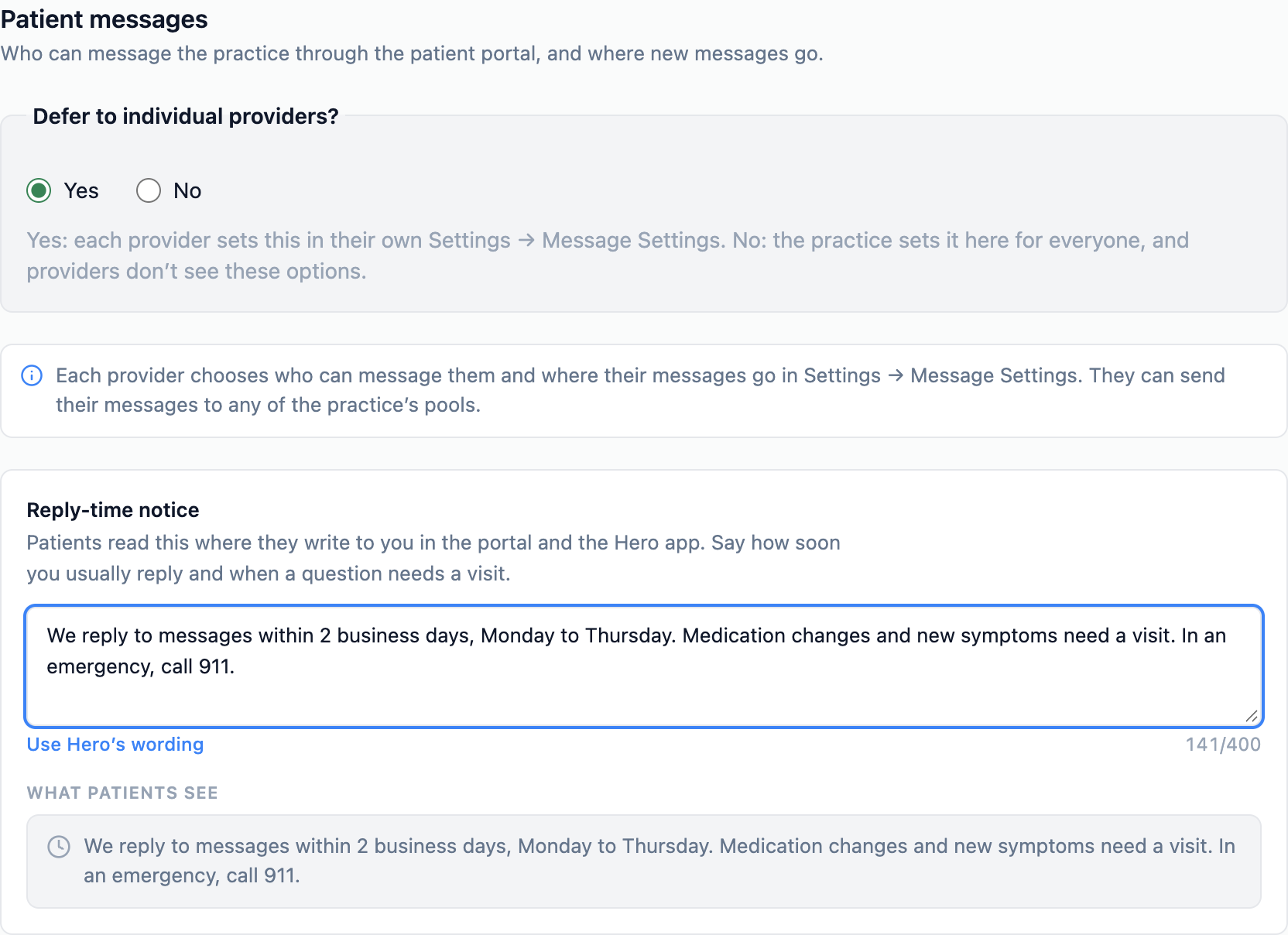
- Where patients see it. In the portal: at the top of
New message, underMessages, and under the reply box in a conversation. In the Hero app: at the top of the new-message screen, and in the Sent. note after they reply. “911” is always a tap-to-call link. - The whole practice. The notice applies to every provider, whether the practice manages the other messaging settings or each provider decides in their own
Settings → Message Settings. - Keep it short. Two or three sentences: how soon you reply, what needs a visit, and what to do in an emergency.
Work someone else’s inbox where it is: attached inboxes
An attached inbox lets you work another person’s inbox from your own Inbox, without anything being forwarded or moved. A medical assistant can work the inbox of the doctor they support every day; a provider can work a colleague’s; while someone is out of office, the people covering work theirs. The items stay in the owner’s inbox, and opening, answering or finishing one does it for the owner too.
-
Turn on inbox access.
A practice manager opens
Admin → Messaging → Inbox accessand switches onLet people work each other’s inboxes. It is off by default. Out of Office doesn’t need this switch: while someone is away, the people covering for them are attached whenever Out of Office is on (While they’re away). -
Attach people.
A manager attaches anyone to anyone in
Inbox access(Admin: Inbox access). Where the practice allows it, people also share their own inbox, and providers attach themselves to a colleague’s, from the Inbox (Inbox sharing). - Open it. The owner’s inbox appears in the attached person’s Inbox switcher, above the folders (Switch inboxes). Hero sends no email or text about it.
Four ways someone gets attached
| How | Who can do it | Who can end it |
|---|---|---|
Set by the practice (Practice; the attached person reads Shared by your practice) | A practice manager, in Admin → Messaging → Inbox access. | Managers only. The owner and the attached person see a lock: “Set by your practice. Ask a practice admin.” |
The owner shares their inbox (Shared; Ana Rivera shared their inbox with you) | The owner, while People can share their own inbox is on (it is, once inbox access is on). | The owner, the attached person, or a manager. |
A provider attaches themselves (Self; You attached yourself) | Providers only, while Providers can attach themselves to a colleague’s inbox is on (it is, once inbox access is on). The colleague always sees who works their inbox. | The owner, the attached person, or a manager. |
Out of Office (Out of Office; You’re covering) | Whoever plans the time away: the covering partner is always attached, plus anyone added to the plan. It starts with the time away and ends when it does. | Only by changing, ending or cancelling the time away: “Change it in Out of Office.” |
Who can work, or own, an attached inbox
- Active providers and staff of the practice. Anyone else reads “Only active staff and providers of this practice can work inboxes.”
- Not billing staff: “Billing staff can’t work inboxes.”
- Never patients. Not yourself: “You already work your own inbox.”
Limits
- Up to 25 people per inbox: “25 people already work Ana Rivera’s inbox, the most one inbox can have.”
- Up to 15 inboxes per person: “Ada Lee already works 15 inboxes, the most one person can work at a time.”
- Each person counts once, however they were attached. A time away adds up to 10 people besides the covering partner.
Switch between your inbox and the inboxes you work
When you work at least one other inbox (or one is about to start), the top of the folder rail becomes the Inbox switcher, under the heading Inboxes. Without it, the rail looks as it always has.
-
Read the rows.
My inboxcomes first, then each inbox you work, by name. Every row has the owner’s initials in that inbox’s own color, its open-item count (red when something urgent is waiting) and a palm when the owner is away. Hover for the full name, the count and the return date. With more than six inboxes, the quiet ones fold underMore inboxes (n); an inbox with anything open is never folded. On a collapsed rail the rows become a stack of initials with their counts. -
Switch.
Click a row, or press { and } to go to the previous or next inbox (change them under
Settings → Hotkeys). You stay in the same folder when the other inbox has it, otherwise you land on its first folder (usuallyPatient). Each inbox keeps its own search and scroll position. -
Know where you are.
In someone else’s inbox, a strip in their color sits above the list: Ana Rivera’s inbox, an
Away until …chip when they are away, and why you work it (You’re covering · until Fri, Oct 31, Shared by your practice, Ana Rivera shared their inbox with you or You attached yourself). The rail’sFolderslabel carries their initials. On the right:4 open to-dos · Openwhen you work their to-dos,What’s shared?, andBack to my inbox. -
Check
What’s shared?It says, in plain words, what you can do here, naming only what you actually get.
What’s shared? line | What it tells you |
|---|---|
| “You see Ana Rivera’s patient messages, voicemails, results, pharmacy requests, refills, faxes and to-dos.” | The folders you work in this inbox (Working someone’s inbox). |
| “Replies go out under your name.” (providers) or “Your replies go out under your name, on behalf of the provider the patient wrote to; the reply box shows who.” (staff) | How your replies read to the patient. |
| “Opening or finishing something does it for Ana Rivera too.” | Read and done are shared with the owner. |
| “Waiting for Ana Rivera’s signature: 3 orders, 1 co-sign.” | What only the owner can sign. Shown only when something waits. |
| “Forms, inquiries, referrals, health records and billing are shared by the whole practice. They’re in your own inbox.” | Why those folders aren’t here. |
- Coming up. Out of Office coverage that hasn’t started shows as a faded row with its start date (“From Mon, Oct 20 you’ll work Ana Rivera’s inbox.”). You can open it once it starts.
- Home. Home shows Inboxes you work: with a chip and an open count per inbox; each chip opens that inbox (Dashboard queues).
- Remembered and linked. The Inbox remembers the last inbox you used in this browser tab, and a link can open a particular inbox. If you no longer work it (you were detached, the time away ended, or sharing was turned off), you are taken back to
My inboxwith “You no longer work Ana Rivera’s inbox.”
What you can and can’t do in someone else’s inbox
An attached inbox shows the folders that belong to a person, and only those you could open in your own inbox. Your role decides which (Staff accounts & permissions), and folders your practice doesn’t use never appear.
| Folder | You get it when | It shows |
|---|---|---|
Patient | You can open Patient in your own inbox. | Their patient conversations, voicemails and AI phone line alerts. Conversations that belong to a message pool stay in the pool, and there is no Threads | By patient switch here. |
Results and Rx | You and the owner are both providers. | Their lab and imaging results; their pharmacy renewal and change requests. |
Refills | You can open Refills in your own inbox. | Refill requests assigned to them. Unassigned requests stay in everyone’s own Refills. |
Faxes | You can open Faxes in your own inbox. | Faxes assigned to them. |
| To-dos (not a folder) | You use to-dos. | The header’s … open to-dos · Open opens the To-do panel on their list. |
What you can do
- Open and finish. Opening an item marks it read for the owner, and
Donemarks it done for the owner. Done rows say who finished them: Done by Ada Lee in the owner’s ownDonelist, Done by you for yours. - Reply. The reply goes to the patient, and the conversation stays in the owner’s inbox. Providers reply under their own name. Staff reply on behalf of the provider the patient wrote to, and the reply box says so: “The patient will see this reply from you, on behalf of Ana Rivera.” Patients still see the provider they wrote to. Staff need permission to send patient messages, as in their own inbox.
- Everything else you can do in your own inbox — forward, flag, mark unread,
Mark handled, call back or link a voicemail, work a fax, decide a refill, answer a pharmacy request — works on the owner’s items, recorded as you. - To-dos. In the To-do panel’s Tasks tab,
Whoseswitches betweenMeand the people whose inbox you work. On someone else it lists the to-dos assigned to them: “Finishing one finishes it for Ana Rivera.” You can’t reassign their to-dos unless you created them: “Only the person it’s assigned to or its creator can reassign it.”
What stays with the owner
- Signing.
Co-sign,Orders to signand supervisory prescriptions are not shown: only the owner can sign.What’s shared?counts what is waiting for them. A pending co-sign request can be moved to another co-signer instead: the co-signer, a co-signer who can see all co-sign requests, or a practice administrator reassigns it in theCo-signfolder (Co-sign folder). - Practice-wide folders (
Forms/Letters,Inquiries,Referrals,Health records,Billing) are the same for everyone, so they stay in your own inbox. - New conversations. There is no
Newbutton in someone else’s inbox; a new conversation starts inMy inbox. Message pools aren’t listed there either.
| You see | What it means and what to do |
|---|---|
| No Inbox switcher | You don’t work anyone else’s inbox right now, or your practice has inbox access off. Ask a manager, or see Inbox sharing. |
| A folder you expected is missing | You can’t open that folder in your own inbox either, or (for Results and Rx) you or the owner isn’t a provider. |
| “This inbox couldn’t load. Try again.” | Press retry. If it keeps happening, you may no longer work this inbox: go Back to my inbox. |
| Paused: inbox sharing is off, Paused: Out of Office is off, Paused: no longer active here | In Inbox sharing: the attachment is kept but does nothing until the practice switch is back on, or the person is active again. |
Share your inbox, or attach yourself to a colleague’s
Inbox sharing is the people button in the folder rail’s header, beside the collapse button; a small dot on it means someone works your inbox right now. While people work your inbox, My inbox also shows a Shared with chip with their initials beside the folder’s title, which opens the same window. It reads “Nothing moves: people work an inbox where it is.” Every change saves at once.
Who works my inbox
- Each person is listed with how they came to be there:
Practice(Shared by your practice),Shared(You shared your inbox),Self(Attached themselves) orOut of Office(While you’re away Oct 20–31). With nobody: “Nobody else works your inbox.” - Remove someone with the × (“Ada Lee no longer works your inbox.”). A row your practice set shows a lock instead; an Out of Office row offers
Change it in Out of Office, which opens that time away. Attach someone(when your practice lets people share their own inbox) opens Who should work your inbox? People who can’t work inboxes are greyed out with the reason. Pick one: “Ada Lee can now work your inbox.”
Inboxes I work
- Each inbox you work now, with why (for Out of Office, Until Fri, Oct 31 · Out of Office), and coverage still to come (From Mon, Oct 20 · while they’re away). With none: “You don’t work anyone else’s inbox.”
Detachstops you working an inbox you or its owner set up: “You no longer work Ana Rivera’s inbox.” If you are also covering for them, you keep it until the time away ends: “You still work Ana Rivera’s inbox while you’re covering.”Attach to an inbox…(providers, when the practice allows it): choose Whose inbox?, read “Ana Rivera will see that you work their inbox.”, thenAttach(orBack). “You now work Ana Rivera’s inbox.”
Managers also see Manage everyone’s inbox access, which opens Admin → Messaging (Admin: Inbox access).
| You see | Why |
|---|---|
| “Inbox sharing is off for this practice. A practice admin can turn it on in Admin > Messaging.” | Inbox access is off. Out of Office coverage still works. |
| “Your practice doesn’t let people share their own inbox.” | A manager turned off People can share their own inbox. |
| “Your practice doesn’t let providers attach themselves to an inbox.” / “Only providers can attach themselves to a colleague’s inbox.” | Self-attach is off, or you aren’t a provider. Ask a manager to attach you. |
| “Set by your practice. Ask a practice admin.” | Only a manager can remove that row. |
No Inbox sharing button | Inbox access and Out of Office are both off, or there is nothing you may change and nobody is attached. |
Decide who works whose inbox: Admin → Messaging → Inbox access
Inbox access (Who can work whose inbox) is the fourth section of Admin → Messaging, for practice administrators, the owner, and office managers who may manage practice settings. Anyone else reads “Only practice managers can change who works whose inbox.” Every change saves at once; there is no Save button.
-
Turn it on.
Switch on
Let people work each other’s inboxes(off by default): “Inbox access is on.” Two more switches appear, both on to start:Providers can attach themselves to a colleague’s inbox(“From their own Inbox. The colleague always sees who works their inbox.”) andPeople can share their own inbox(“Anyone whose inbox can be worked may add people to it from their Inbox.”). With both off, only managers attach people. -
Share an inbox.
Press
Share an inbox, chooseWhose inbox, then tick the people underWho works it(providers and staff, searchable with Find a person by name or role), and pressAdd 1 person(orAdd 3 people): “Ada Lee now works Ana Rivera’s inbox.” “Each person still sees only the folders they could open in their own inbox, and can’t sign for anyone.” You can set this up while the switch is off: “It starts working when you turn inbox access on.” -
Review the list.
By inboxshows one card per inbox (name, role, 3 people work this inbox,Add);By personshows one card per person with the inboxes they work (Works 2 inboxes).Find a personfilters both. -
Remove someone.
Press × on their chip: “Remove Ada Lee from Ana Rivera’s inbox?” — “Ada Lee stops seeing Ana Rivera’s inbox right away. Nothing in the inbox changes, and you can add them again any time.” Choose
RemoveorKeep.
| Chip | Meaning |
|---|---|
Practice | A manager set it. Only managers can remove it. Adding someone here who already shared or attached themselves makes it a Practice row. |
Shared by Ana Rivera / Self | The owner shared their inbox, or the person attached themselves. |
Out of Office · until Fri, Oct 31 (or · from Mon, Oct 20) | Coverage from a time away. It can’t be removed here; click it to open that time away in Out of Office. |
Paused / Inactive | Inbox access (or Out of Office) is off, or one of the two is no longer active in the practice. Hover for why. |
Turning it off
Switching Let people work each other’s inboxes off while people work inboxes asks Pause inbox access?: they stop right away, who works whose inbox is kept so turning it back on picks up where it left off, and “Out of Office still attaches people while someone is away.” Choose Pause inbox access or Keep it on.
Patient messages and Pools in the same workspace (Message pools & backups).Review and co-sign notes, one at a time or several at once
The Co-sign folder (Co-sign requests) holds signed notes waiting for a supervising clinician’s co-signature. While co-signing is on, it shows for providers ticked under Who can co-sign, for co-signers marked Can see all co-sign requests, and for practice administrators. A provider who has ever been assigned a request keeps the folder after co-signing is turned off, so nothing is stranded. Setting it up, and how notes get here, is in Co-signing; the Report is in Co-sign report.
- Work the
Pendinglist. Each row shows the patient, the note type, the author and when the note was signed. When your practice setsCo-sign within, rows showDue Oct 25, orOverdue · 2 daysin red once that day has passed, and the header reads 3 overdue. A request a supervision rule created is markedRule, orRule · controlled substancewhen the rule sent it because a controlled substance was prescribed in the visit. The list is sorted by due date (requests without one last), then oldest first.Completedlists co-signed requests, newest first. - Narrow it down. With due dates on, the
Overduechip, with its count, shows only late requests.FiltersoffersAuthor,Signed fromandSigned to(dates in the practice’s time zone);Clear allresets them. The search box (Search co-sign requests) matches the patient, note type and author in the loaded rows. - Open a request and read the note. The reading pane shows the note type,
Open chart, Co-signer: Ana Rivera, Requested by supervision rule when a rule sent it (Requested by supervision rule · controlled substance when a controlled substance was prescribed in the visit), the due date, theAI summary, and the full signed note. - Co-sign it. Under
Statement source, keepPractice defaultor pick one of your dotphrases (Hero starts from the one you used last), editCo-sign statement, and pressCo-sign note. The next pending request opens. A completed request shows Co-signed by Ana Rivera, the date and time, and the statement.
Comment on a note or send it back for changes
Under Feedback in the reading pane you can write to the note’s author without leaving the Inbox. Type in Comment for Sam Chen, then choose:
Send back for changesmoves the request toSent backand opens the next pending note. The author sees Changes requested by Ana Rivera on the note, with your comment, and fixes it with an addendum or replies without changes.Comment onlysends the comment (a question, for example) and leaves the request pending.Co-sign notewith a comment typed co-signs the note and sends the comment with it: Your comment goes with the co-signature and to Sam Chen by Team Chat.
Notify Sam Chen by decides how the author hears about it. Team Chat sends a message from you in your chat with them, with a link that opens the visit note. To-do puts a to-do on their list, Note changes: Progress note · Jane Doe, due on the request’s due date when it has one; a to-do goes with Send back for changes only. Tick either, both or neither. Your choice saves the moment you change it (Saved) and is used on every note after that. A channel that can’t reach this author is greyed out with the reason, for example Team Chat is turned off for this practice. The action still goes through, and the author still sees your feedback on the note. If a message couldn’t be sent, the pane says so and offers Retry.
- Notes waiting for their authors are in
Sent back. Newest first. The pane reads Sent back to Sam Chen on Nov 1 · waiting for changes.Withdrawtakes it back (the author’s to-do closes), or you can co-sign it as it is. - It comes back to
Pendingby itself. When the author signs an addendum, the request moves to the new version and returns markedRevised, and their to-do closes.Show changesunderlines what was added and strikes through what was removed since the version you sent back. If the author replies instead, the request returns markedAuthor repliedwith the reply. - Read the history.
Feedback historylists every comment, send-back, reply, new version and the co-signature, with who and when, and whether the Team Chat message and the to-do went out.
The Pending count, the Inbox badge, Overdue and co-signing several notes at once cover notes waiting for you, never sent-back ones. You always co-sign the version you are reading: if the author signs an addendum while a request is still pending, the request moves to the new version too (Updated by the author).
Co-sign several notes at once
When your practice turns on Allow co-signing several notes at once, every pending row you can co-sign gets a checkbox.
- Select the notes. Tick rows, or press
Select all 12 to co-signabove the list. It selects the rows loaded so far; pressLoad morefirst to include more. The bar above the list shows 3 selected. - Press
Co-sign 3 notes. The window lists every selected note with its patient, note type, author and signed date. If one doesn’t belong, pressCanceland untick it. - Choose the statement and confirm. The same
Statement sourceandCo-sign statementgo on every note. Tick I have reviewed each selected note. (required), then pressCo-sign 3 notes. - Check the result. 3 notes co-signed means all went through. If some could not be co-signed (for example, one was cancelled a moment earlier: “This co-sign request has already been resolved.”), the rest are still co-signed and the window lists each note that was not, with the reason. Press
Closeand handle those one at a time.
See every co-signer’s requests (medical directors)
A co-signer marked Can see all co-sign requests, and a practice administrator, gets a Mine | All co-signers switch; an administrator without a provider profile sees All co-signers only. In All co-signers each row also names its co-signer, the Overdue chip and the header count cover the whole practice, and Filters adds Co-signer.
- Reassign. Open a pending request. Under
Manage this request, choose a co-signer inReassign to(anyone ticked underWho can co-sign, including yourself if you are; never the note’s author) and pressReassign. The due date stays the same. - Cancel.
Cancel request…asks “Cancel this co-sign request?”; chooseCancel requestorKeep it. - Only the assigned co-signer can co-sign. Anyone else reads “Only Ana Rivera can co-sign this note.” To review it yourself, reassign it to yourself first.
The assigned co-signer sees Manage this request on their own pending requests too: they can reassign any of them, and cancel one a supervision rule created.
Co-sign folder is never shown in someone else’s inbox, so the people covering an Out of Office can’t co-sign (Working someone’s inbox). Before time away, co-sign what is waiting or reassign it to another co-signer. While a co-signer is away, a co-signer who can see all requests, or an administrator, can reassign their pending requests from All co-signers.Read the monthly co-sign supervision report
In the Co-sign folder, Report (beside Pending and Completed) shows how each clinician’s notes are being co-signed, one month at a time: Supervision report · 2026-10. It is there for co-signers, for co-signers who can see all requests, and for practice administrators. Choose the Month in the list pane (it starts on the current month, in the practice’s time zone); the table fills the reading pane, one row per clinician:
| Column | What it counts |
|---|---|
Notes signed | The clinician’s notes first signed that month (not addenda, appointment cancellation or screening notes, or imported notes). |
Controlled-substance notes | How many of those notes are from a visit with a controlled (C-II to C-V) prescription that is signed, sent, or waiting for a supervising physician’s signature, as of now. It is the number a Notes with a controlled-substance prescription rule aims to send. |
Co-sign requested, Co-signed | Requests on those notes, and how many are co-signed. A request for a note signed in an earlier month counts in that earlier month. |
Pending, Overdue | Requests on those notes still waiting for the co-signer, and how many are past due, as of now. |
Sent back | Requests on those notes ever sent back to the author for changes (a withdrawn send-back doesn’t count). |
Share co-signed | Co-signed as a share of Notes signed. |
Rule target | The clinician’s supervision rule today: All, a percent, Controlled-substance notes, Controlled-substance notes + 20%, or — with no rule. |
Median days to co-sign | Days from request to co-signature, over the co-signed ones. |
A co-signer sees Clinicians you co-sign for: the clinicians whose rule names that co-signer, or who have a request assigned to that co-signer on the month’s notes, and only that co-signer’s requests are counted. A co-signer who can see all requests, or an administrator, sees Every clinician and every request. Download CSV, under the month, saves the same table; it holds no patient details. A month with nothing to show reads No signed notes for this month.
Need help? Email support@heroemr.com.